Mageia went quiet for almost three years, long enough that plenty of people wrote it off. Then Mageia 10 landed on June 30, 2026, and it turns out the project spent that gap doing real work: kernel 6.18 LTS, KDE Plasma 6.5 running on Wayland by default, GNOME 49, and the same DrakX installer that has been walking people through Linux installs since the Mandriva days. If you have never installed Mageia before, DrakX feels different from Calamares or Anaconda, and that is exactly why a screenshot walkthrough helps.
This guide covers the full Mageia 10 installation from the classic installer ISO: downloading and verifying the image, writing a bootable USB, partitioning the disk, choosing between the KDE Plasma and GNOME desktop profiles, and the first boot. The steps are the same on a physical machine and in a VM. I ran this on a UEFI machine, which also surfaced one boot gotcha worth knowing about before you start.
Ran this install in July 2026 against the final Mageia 10 release on a UEFI system (4 cores, 8 GB RAM, 60 GB disk); every screenshot below is from that run.
Prerequisites
Mageia is light on requirements. What you need for a comfortable desktop install:
- A 64-bit machine (or VM) with 2 GB RAM or more. Mageia states 512 MB as the bare minimum, but Plasma and GNOME both want 2 GB to be usable. The 8 GB test machine here is comfort, not a requirement.
- 20 GB of disk space for a typical desktop setup. A minimal install fits in 5 GB.
- A USB drive of at least 8 GB if you are installing on hardware. The classic installer ISO is about 5.7 GB, so a 4 GB stick no longer cuts it.
- Secure Boot disabled in the firmware. Mageia does not support Secure Boot, so the install medium will not boot until you switch it off in the UEFI settings. Most retail machines ship with it on.
- Internet access is optional during the install. The classic ISO carries the full package set, which is why it is that big.
1. Download the Mageia 10 ISO
Grab the classic installer image from a mirror. The classic ISO is the one you want for a direct install; the Live ISOs are for trying Mageia first, and Mageia explicitly says not to use them for upgrades. Download the image and its checksum in one go:
wget https://mirrors.kernel.org/mageia/iso/10/Mageia-10-x86_64/Mageia-10-x86_64.iso
wget https://mirrors.kernel.org/mageia/iso/10/Mageia-10-x86_64/Mageia-10-x86_64.iso.sha512
Verify the image before you write it anywhere. A corrupted ISO produces install failures that look like hardware problems:
sha512sum -c Mageia-10-x86_64.iso.sha512The check should come back clean:
Mageia-10-x86_64.iso: OKAnything other than OK means a broken download; grab the file again before going further.
2. Write the ISO to a USB drive
Skip this step if you are installing in a VM; just attach the ISO to the VM as a DVD drive. On hardware, identify your USB stick first so you do not overwrite the wrong disk:
lsblk -d -o NAME,SIZE,MODELWith the device confirmed (here it shows up as /dev/sdb), write the image. The Mageia ISO is a hybrid image, so a plain dd works:
sudo dd if=Mageia-10-x86_64.iso of=/dev/sdb bs=4M status=progress oflag=syncIf you prefer a multi-ISO stick, Ventoy handles this without rewriting the drive for every distro. Windows users can use Rufus in dd mode.
3. Boot the installer
Boot the machine from the USB drive (or start the VM with the ISO attached). On a UEFI system you get the Mageia 10 64-bit EFI menu with three entries: Install Mageia, Rescue System, and Memory Test.
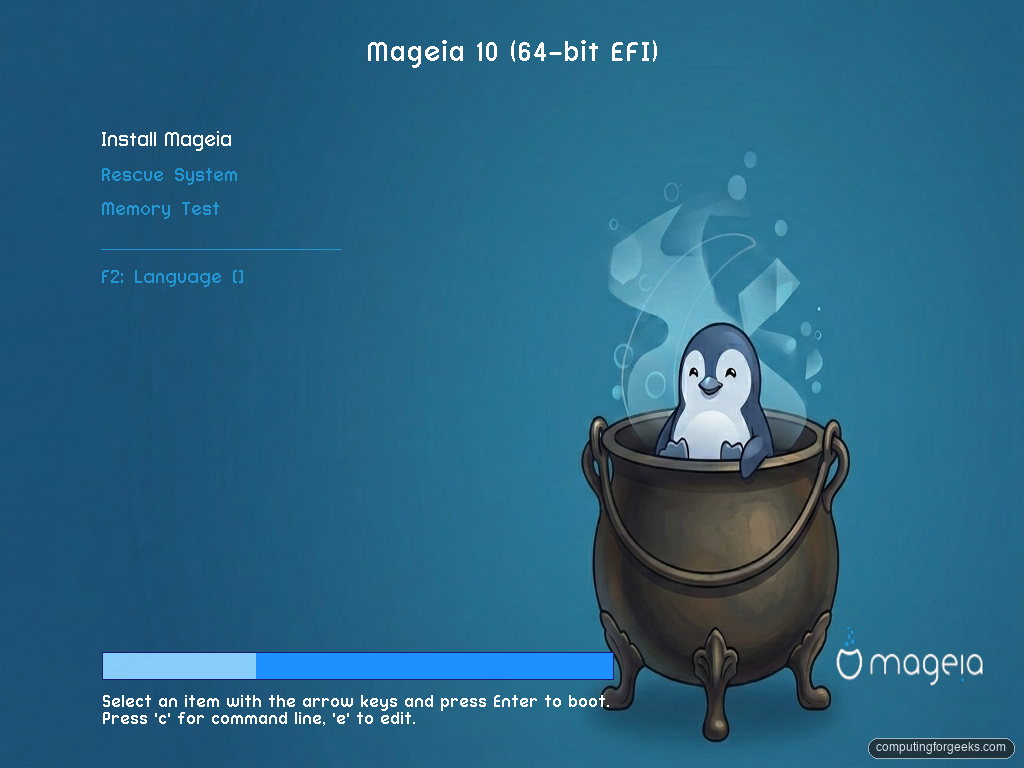
Press Enter on Install Mageia. The kernel and installer load from the medium, which takes half a minute or so, and DrakX opens on language selection. Note the left sidebar: DrakX shows the whole install as two phases, Installation and Configuration, and ticks off each step as you go. You always know where you are.
4. Pick a language
Languages are grouped by continent. Expand your region and pick your language; English (American) sits under America.
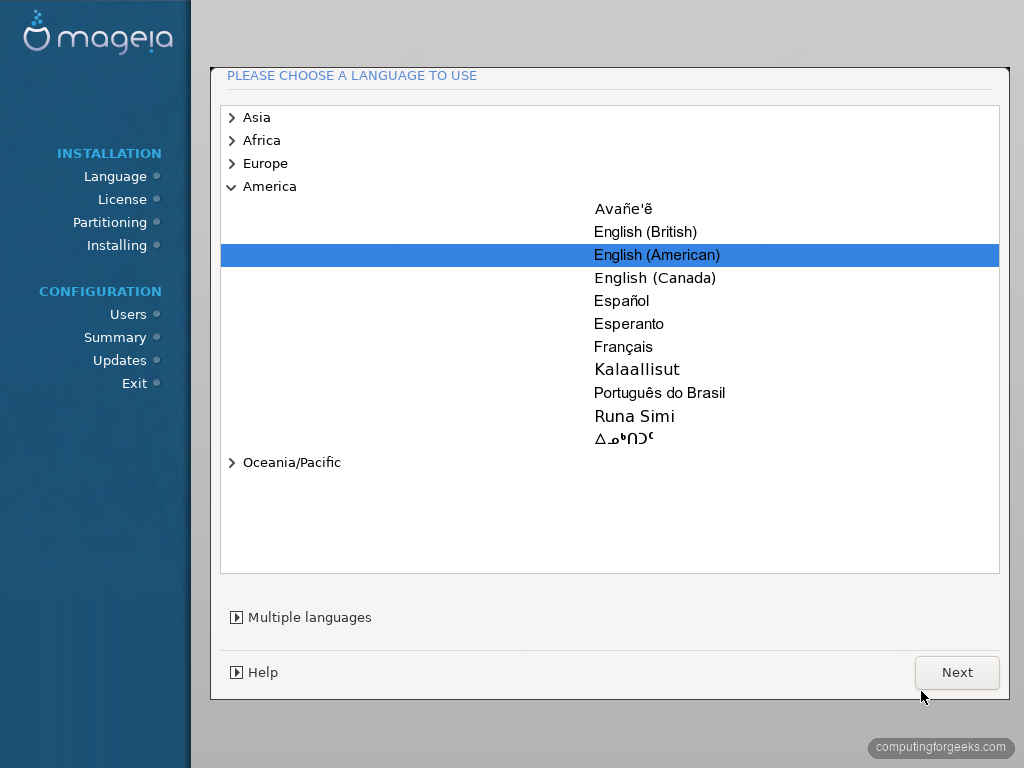
The Multiple languages button at the bottom lets you install additional locales side by side, useful for shared family machines. Click Next.
5. Accept the license
The GPL-based license screen defaults to Refuse, and Next stays greyed out until you flip it. Select Accept, then Next.
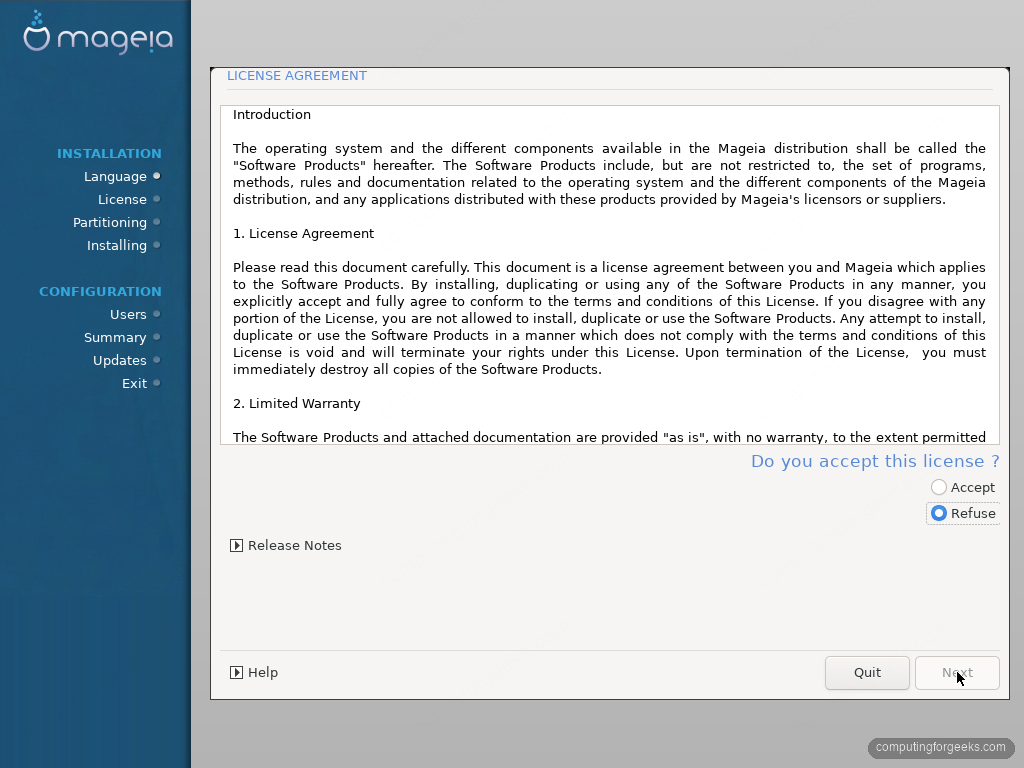
The Release Notes button on this screen opens the full Mageia 10 notes if you want the detail now.
6. Set the timezone and clock
Timezone selection is a city list grouped by region rather than a map. Pick the city that matches your timezone.
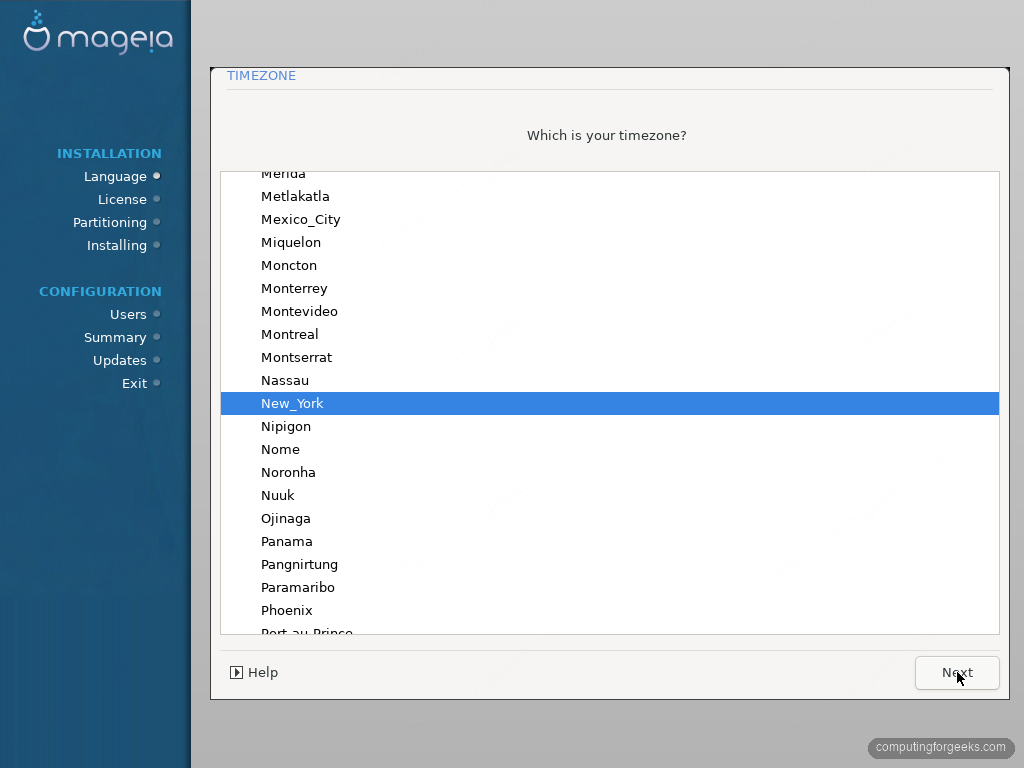
The clock screen that follows asks how the hardware clock is set. Keep the UTC option on a Linux-only machine; pick local time only if you dual boot with Windows and want the clocks to agree. Tick Automatic time synchronization (using NTP) here too, so you never have to think about clock drift later.
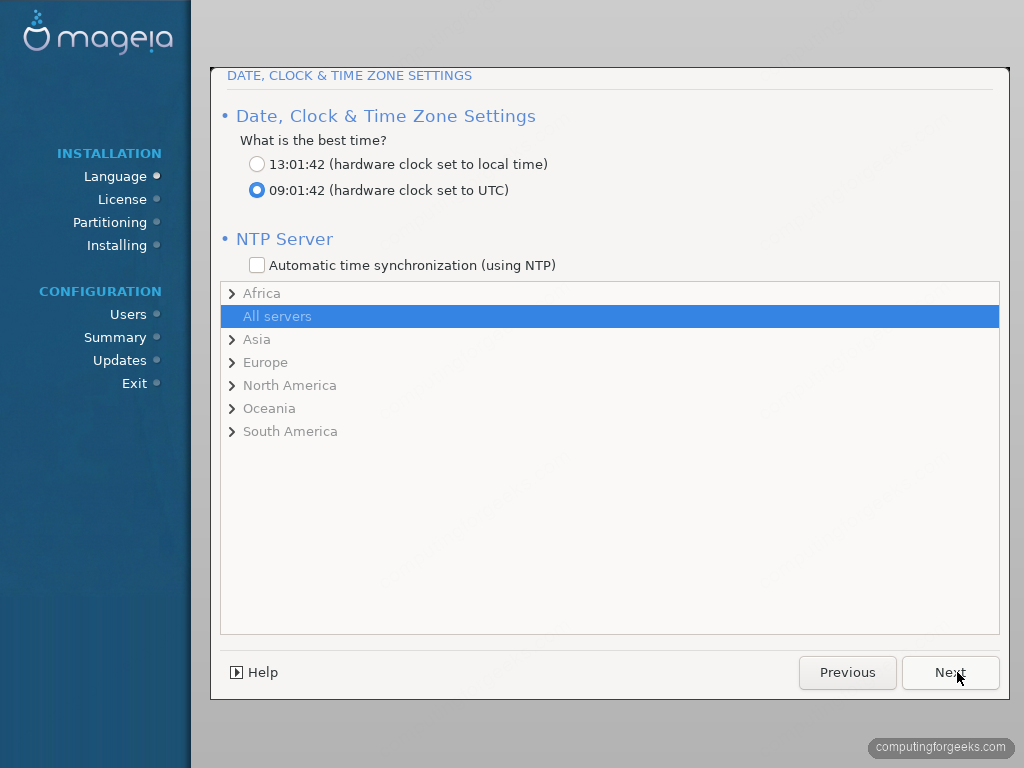
With All servers highlighted under the NTP list, Mageia picks a sane pool on its own.
7. Choose the keyboard layout
DrakX guesses the layout from your language choice. Confirm or change it, then Next.
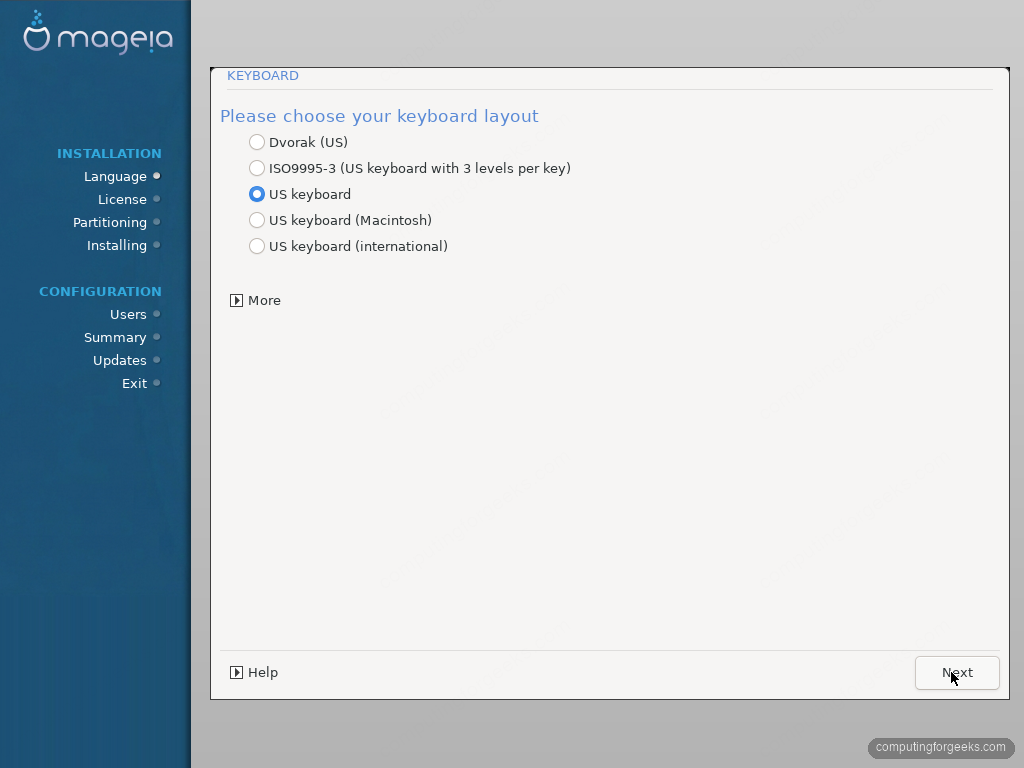
The More button hides the full layout list if yours is not among the suggestions.
8. Partition the disk
The partitioning wizard reads the disk and offers the solutions that make sense for what it finds. On the blank 60 GB disk here it offers Use free space, which creates the standard Mageia layout for you: a root partition, swap, and a separate /home. On a disk with an existing OS you would also see options to shrink a partition or use only specific free space, and Custom disk partitioning is always there when you want full control with the DiskDrake editor.
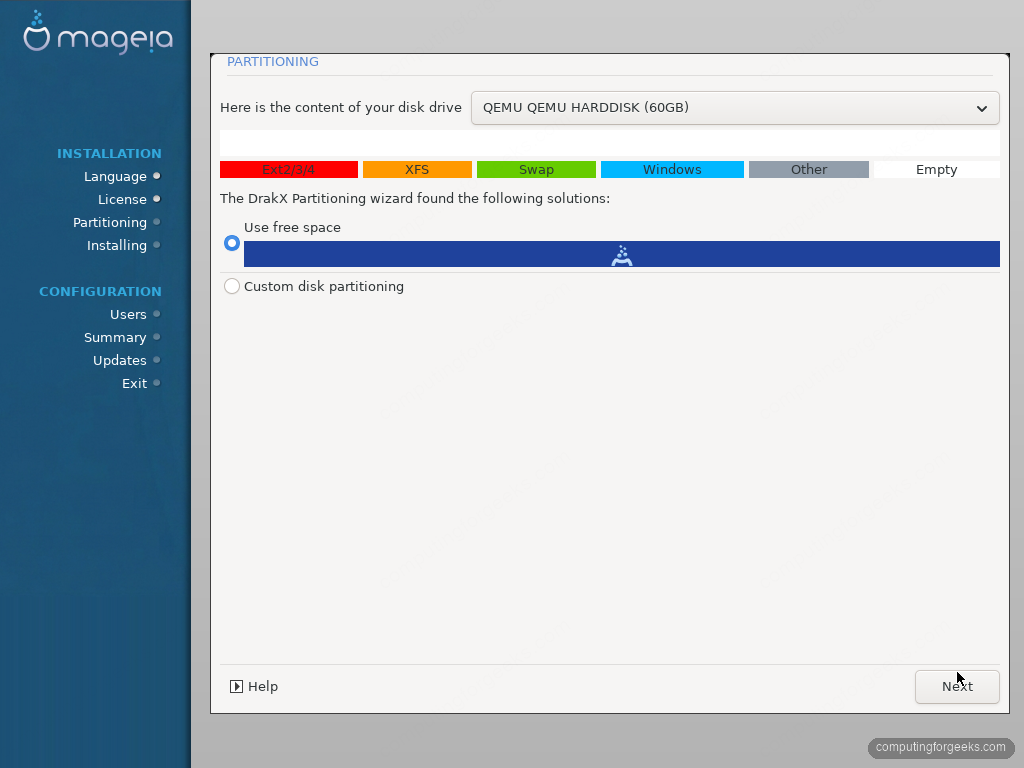
For a single-OS machine, Use free space is the right call. Select it and click Next. The gotcha here is on dual-boot machines: read the colored disk map at the top before you click anything, because it shows exactly which partitions exist and what will be touched.
9. Confirm the installation media
DrakX lists the package media on the ISO: Core Release and Nonfree Release. It asks whether you have a supplementary medium; almost nobody does, so leave None selected.
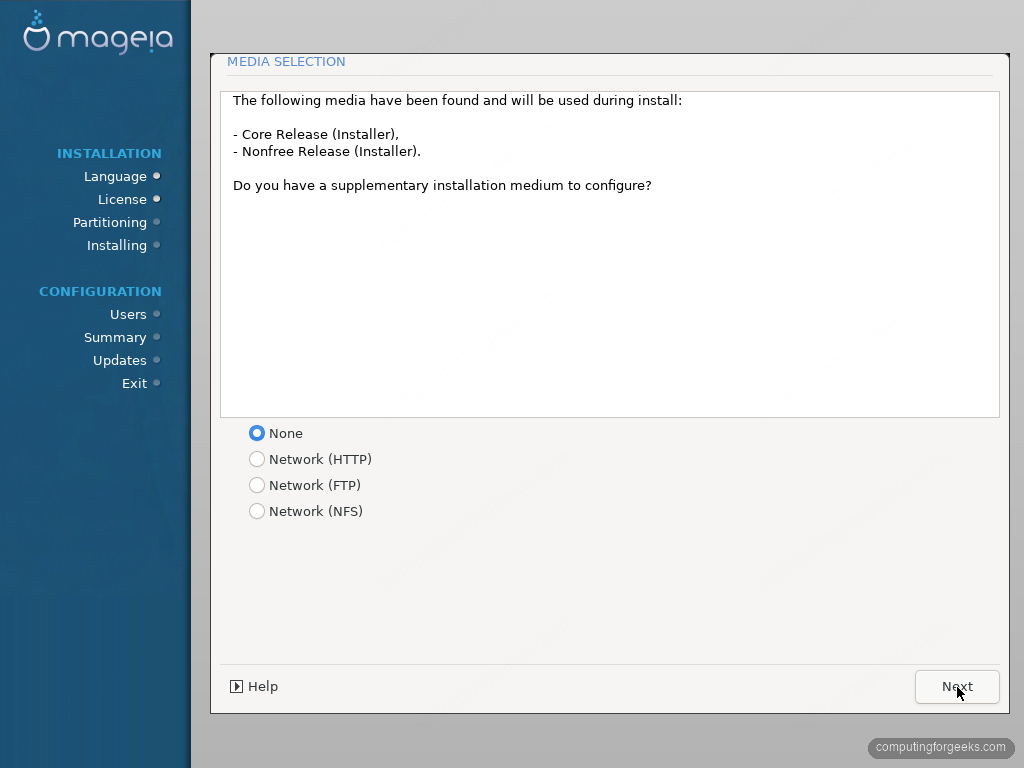
The next screen asks which of the two media to enable. Keep both checked. Nonfree Release is where firmware for Wi-Fi chips, some GPUs, and other hardware lives; Mageia itself tells you to enable it, and disabling it on a laptop is a good way to finish the install with no working wireless.
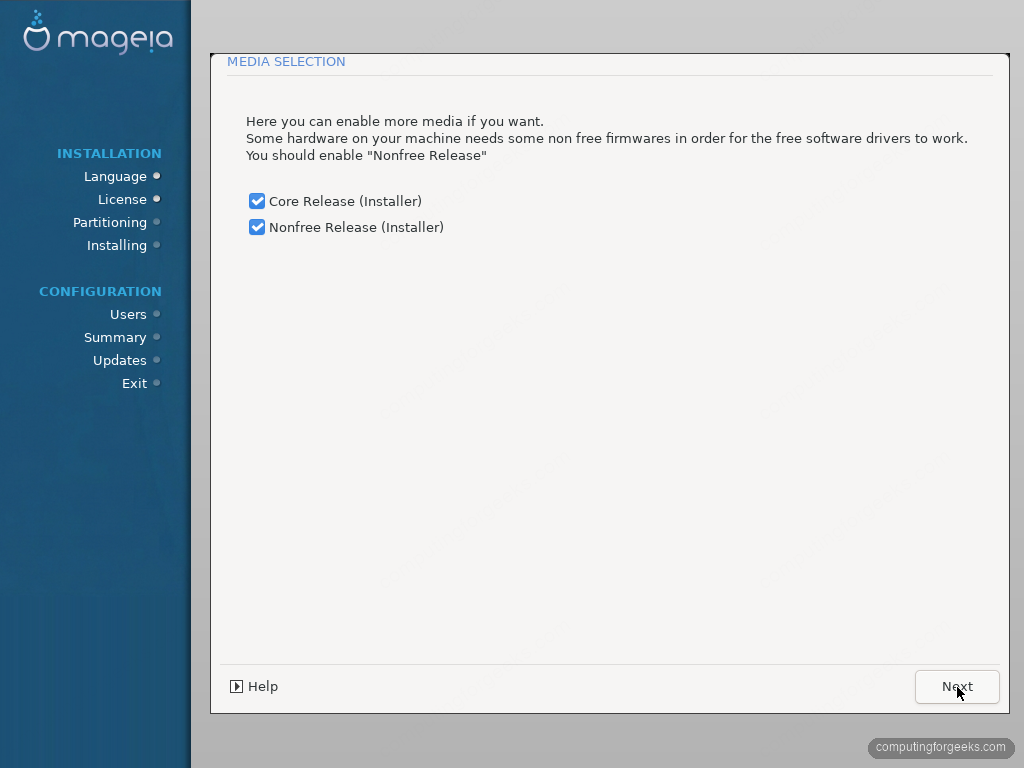
Both boxes checked is the setup that works on the widest range of hardware.
10. Pick your desktop: Plasma, GNOME, or custom
This is the screen that makes the classic installer worth the bigger download. One ISO installs any of Mageia’s desktops: Plasma and GNOME get dedicated profiles, and Custom opens package group selection where Xfce, MATE, Cinnamon, LXQt, and server roles live.
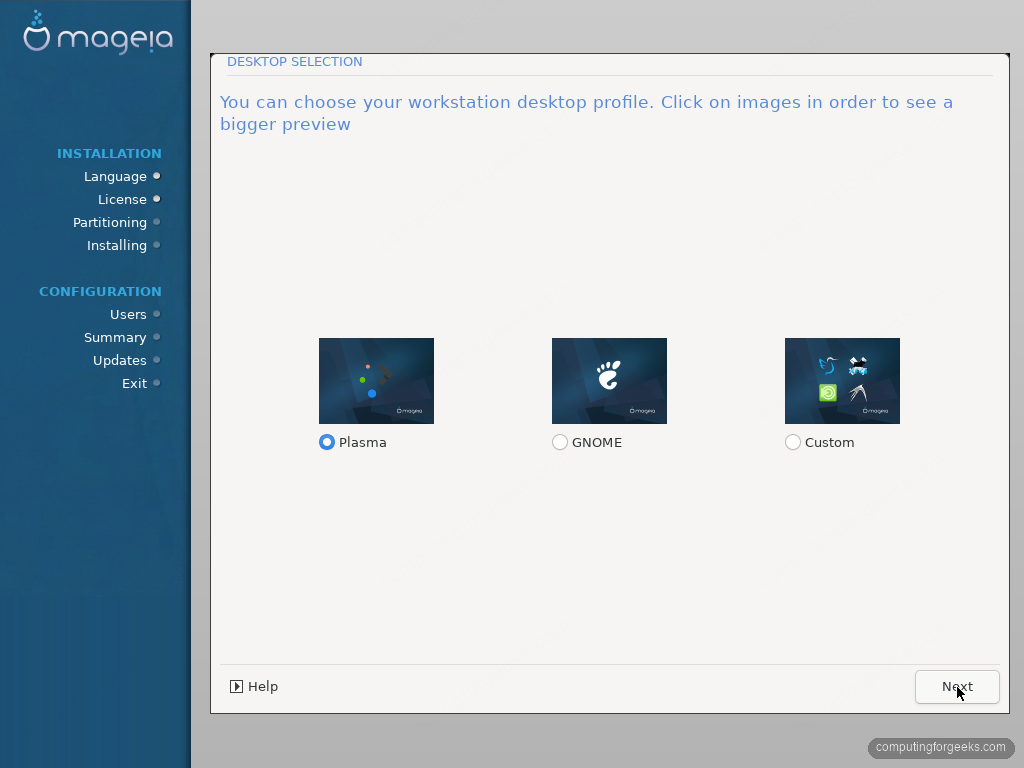
I went with Plasma, the flagship Mageia desktop. Mageia 10 ships Plasma 6.5 on Wayland by default, and it is the configuration the project polishes hardest.
11. Wait out the package installation
DrakX now formats the disk and installs the system. From the classic ISO this is a local copy, no network involved. It estimated 19 minutes on this VM and finished in about that.
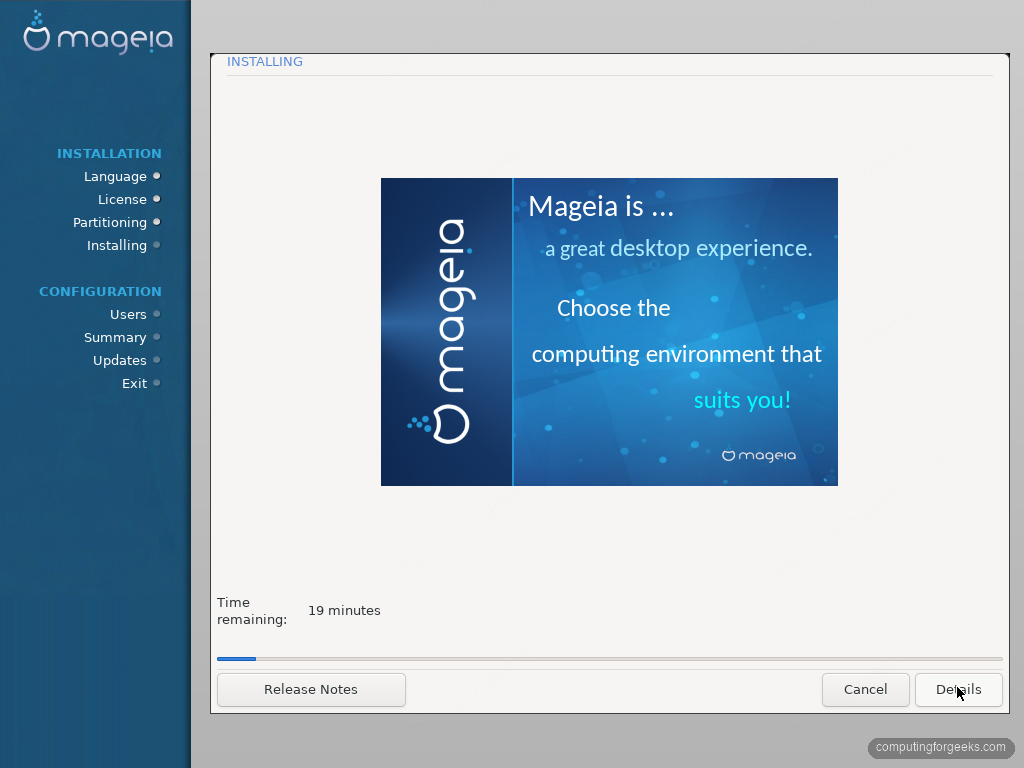
The Release Notes button on this screen is not filler, by the way. Mageia’s release notes carry real upgrade and hardware caveats, and this progress bar is the one point in the process where you have time to read them.
12. Set the root password and create your user
Once packages land, DrakX moves into the Configuration phase. First stop: accounts. Set a root password, then create your day-to-day user. Unlike Ubuntu-family installers, Mageia keeps a real root account rather than defaulting everything through sudo.
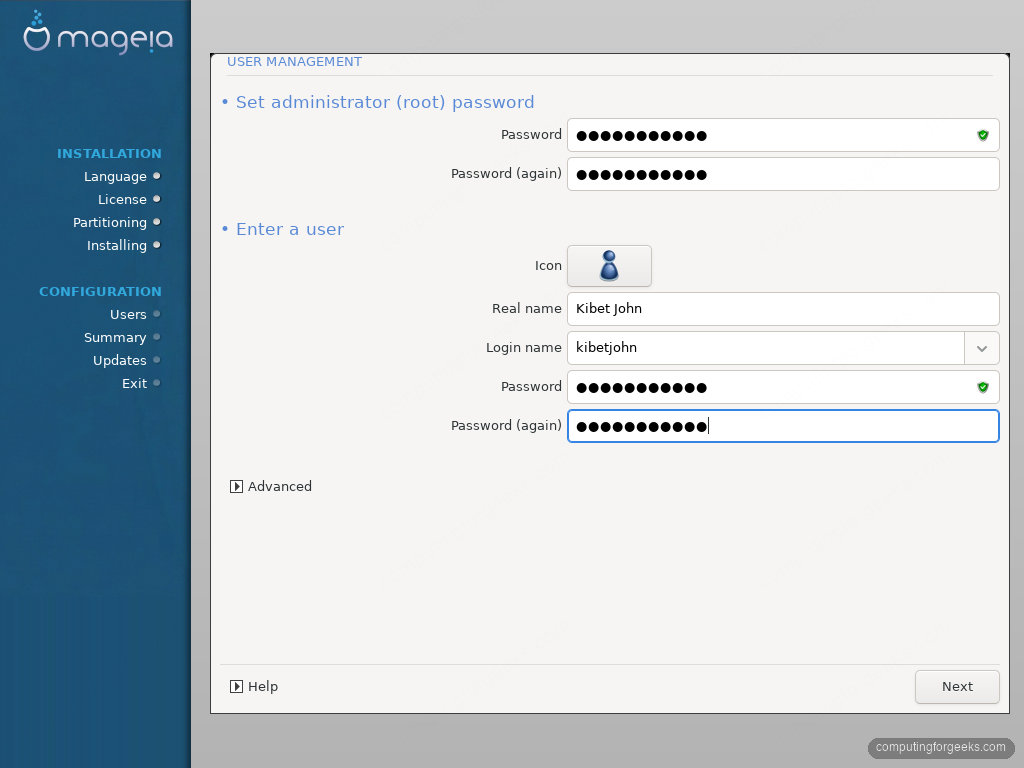
The green shield next to a password field is DrakX telling you the password clears its strength check. On a VM you may get one extra question here: a monitor selection screen, because virtual displays report no EDID data. Plug’n Play is the right answer.
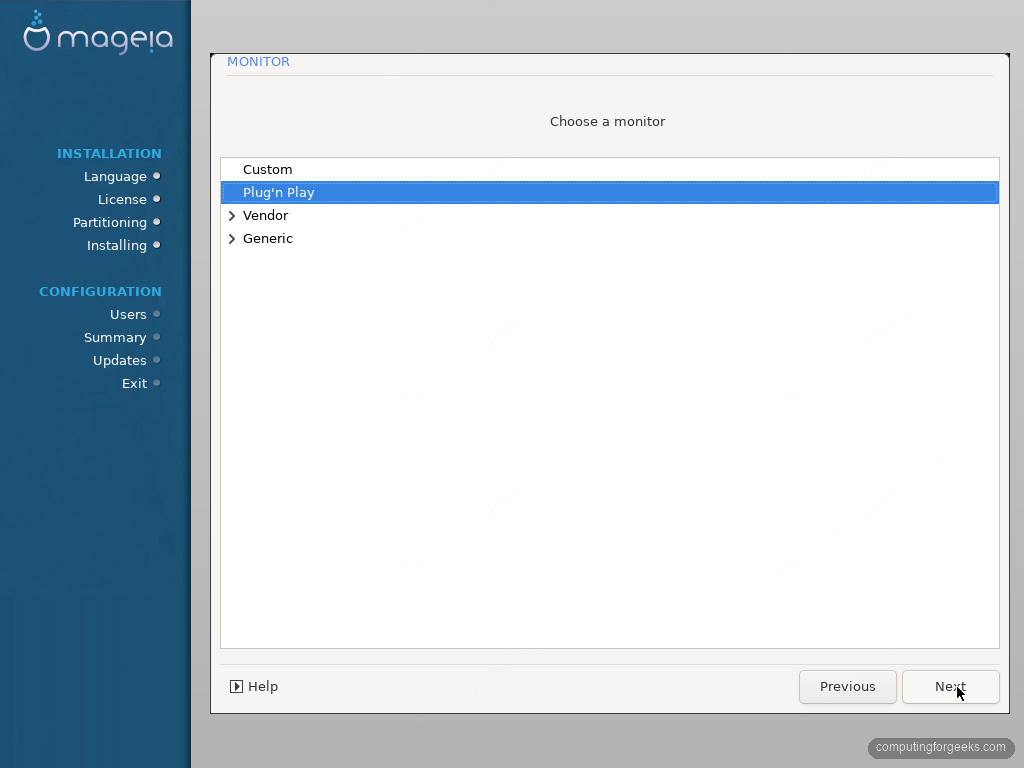
On physical hardware with a normal display, DrakX detects the monitor silently and skips this question.
13. Review the summary
The summary screen lists everything DrakX configured on its own: timezone, bootloader, user accounts, services, keyboard, sound, graphics. Each row has a Configure button, so this is your chance to adjust anything without hunting through menus later.
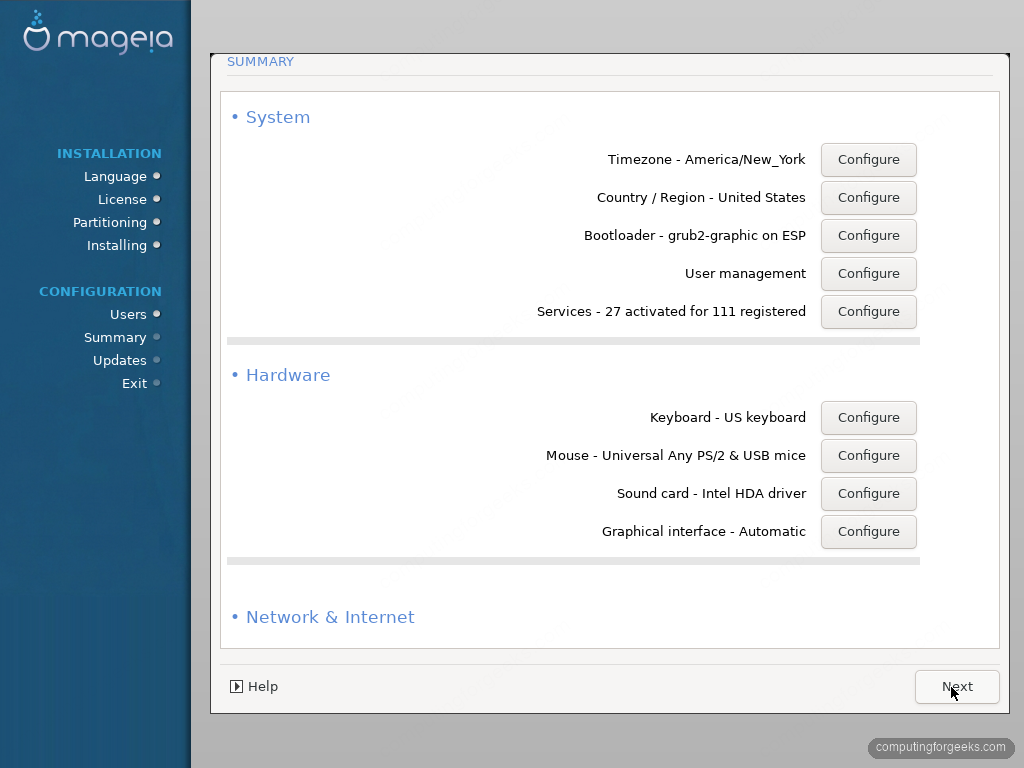
On this machine the defaults were all sane: GRUB2 on the EFI system partition and 27 of 111 registered services activated. The one row worth a glance on every install is the bootloader: confirm it targets the disk you actually boot from, especially on multi-disk systems.
14. Apply updates and finish
DrakX offers to set up online update media and pull anything released since the ISO was built. With a network connection, say yes.
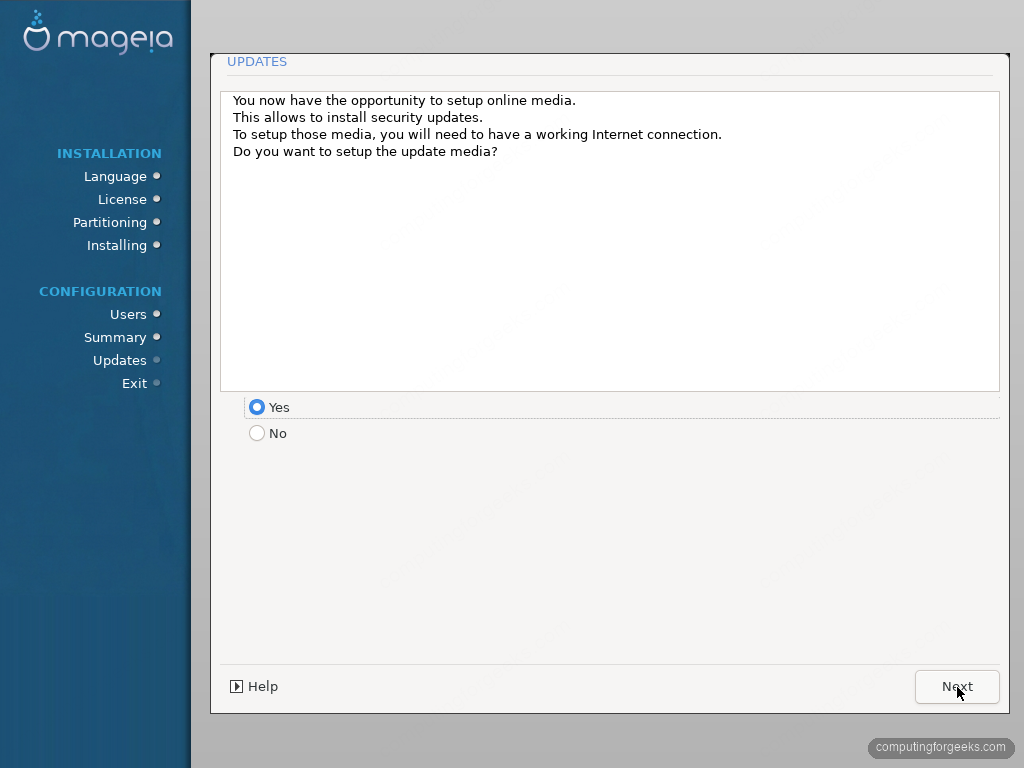
Keep the mirror choice on Automatic on the next screen. The installer syncs the update media and shows exactly what it wants to pull; two days after release, that was a batch of three theme packages weighing 2.8 MB.
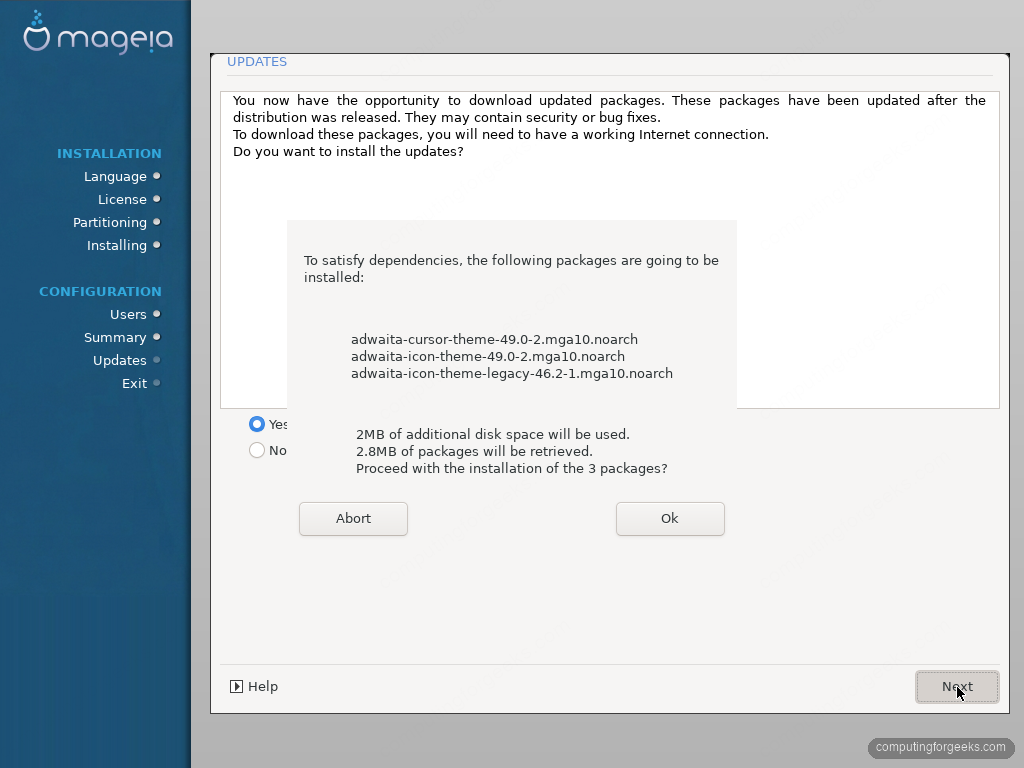
Click Ok to apply them. The installer then congratulates you and asks for a reboot. Pull the USB stick (or detach the ISO) before the machine comes back up, so it boots from the new install rather than looping back into the installer.
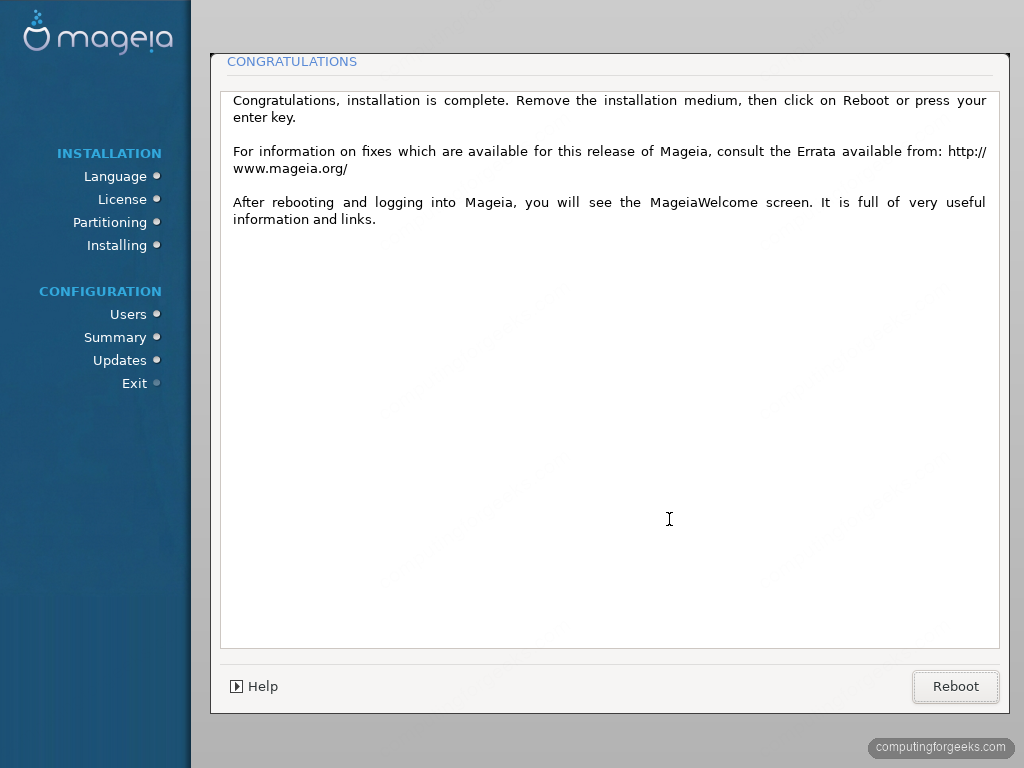
Click Reboot and let the machine come back up from its own disk.
15. First boot into Plasma
The installed system boots through GRUB into the SDDM login screen. Check the session selector before logging in: it reads Plasma (Wayland), confirming the new Wayland default.
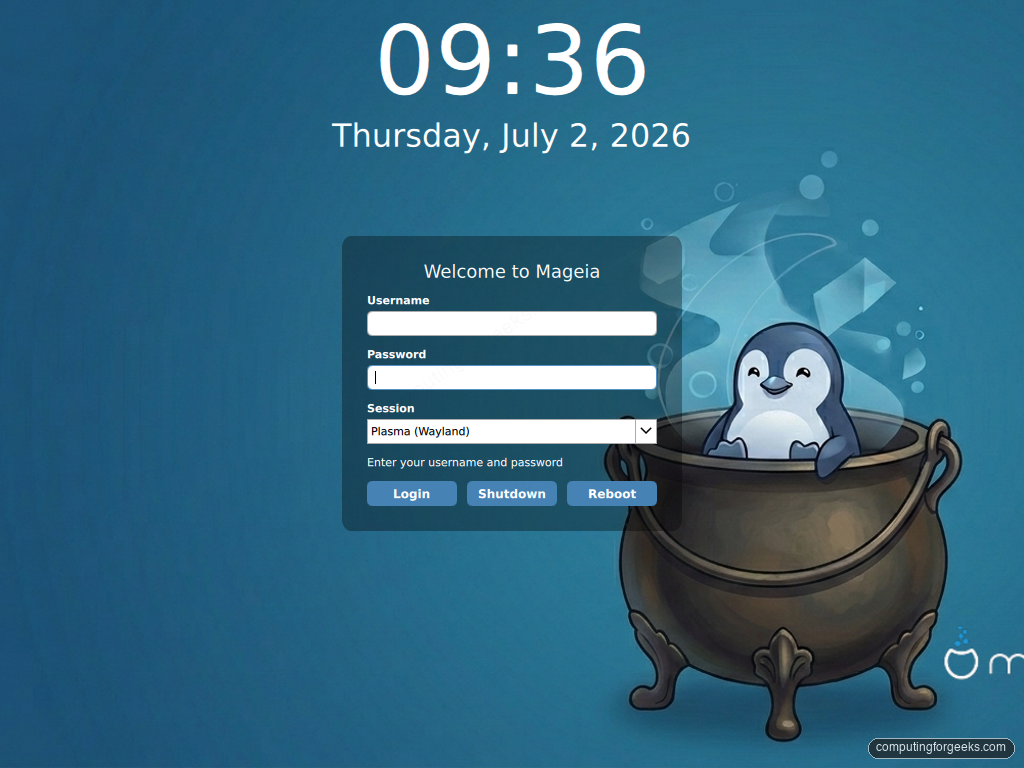
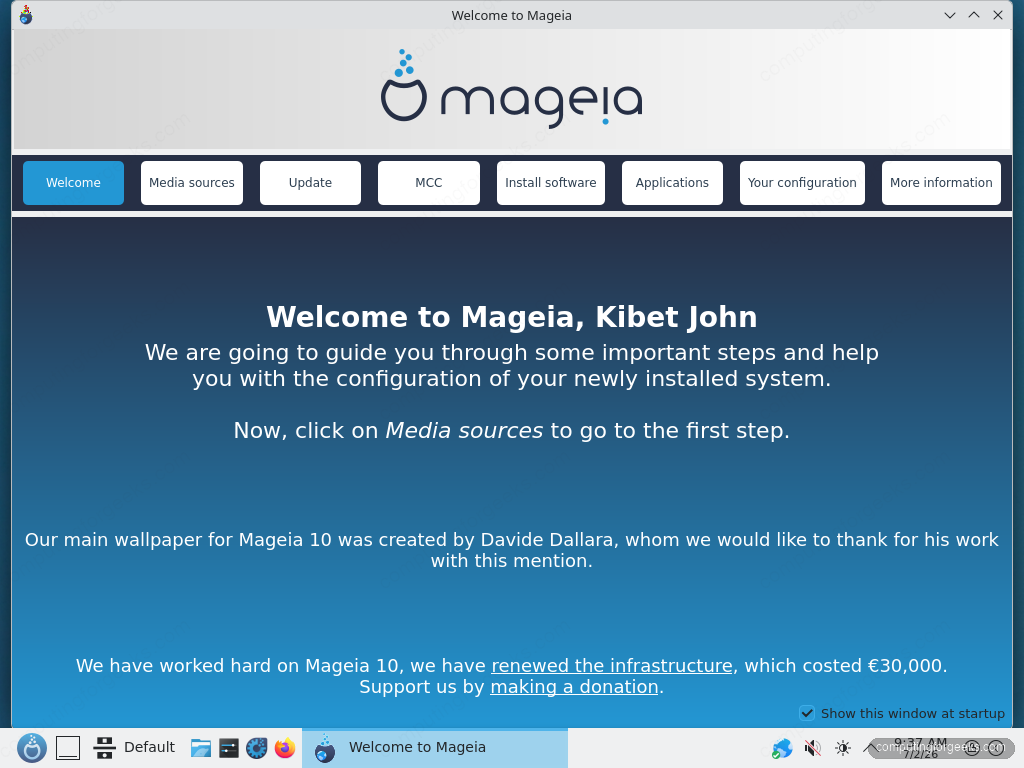
The first login greets you with MageiaWelcome, a genuinely useful onboarding app that walks through media sources, updates, and the Mageia Control Center. Worth clicking through once rather than dismissing on reflex.
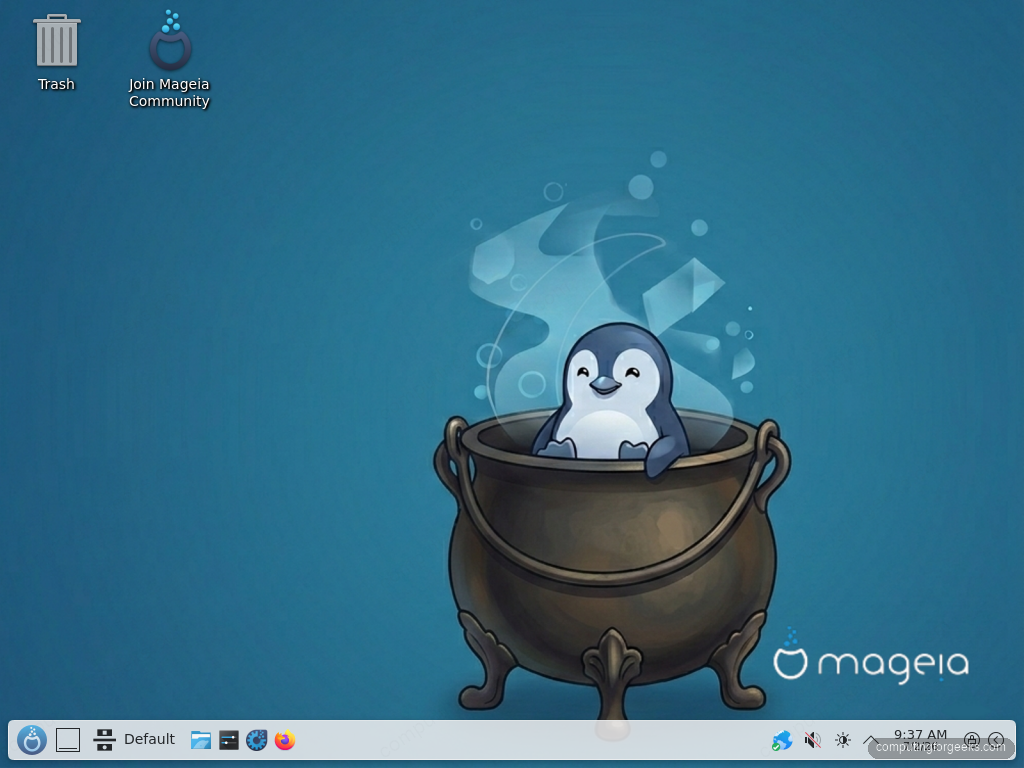
Close it and you are on the Plasma 6.5 desktop, cauldron wallpaper and all.
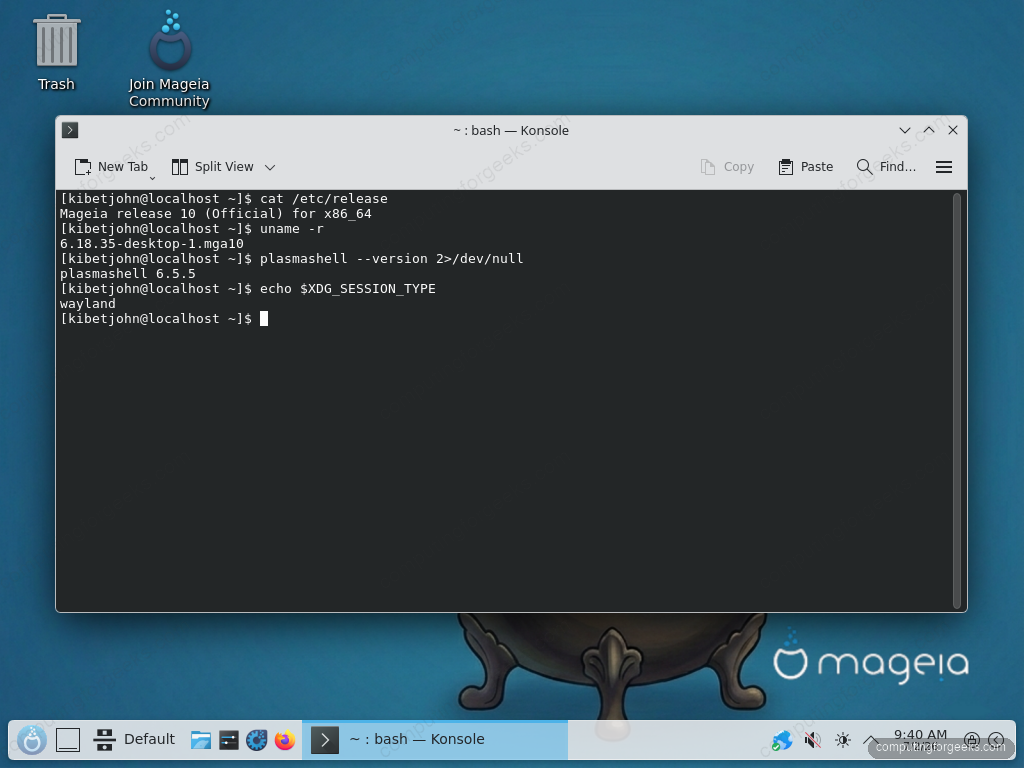
Confirm what you are running from Konsole:
cat /etc/release
uname -r
plasmashell --version 2>/dev/null
echo $XDG_SESSION_TYPE
The output confirms the release, the 6.18 LTS kernel, Plasma 6.5, and the Wayland session:
Mageia release 10 (Official) for x86_64
6.18.35-desktop-1.mga10
plasmashell 6.5.5
wayland
Here is that same check on the freshly installed desktop:
From here, package management is urpmi (still the native default) or dnf, which Mageia now installs alongside it, and the Mageia Control Center gives you the same one-stop system configuration that made Mandriva famous. If you are coming from another distro, that Control Center is the thing to explore first; it does graphically what most distros make you do across a dozen tools.
Troubleshooting the install
UEFI skips the DVD and tries PXE boot in a VM
On a UEFI VM (Proxmox in my case), the firmware ignored the Mageia ISO attached as an IDE CD-ROM entirely: it tried the empty disk, fell through to PXE network boot, and never offered the DVD. The fix was attaching the ISO as a SATA CD-ROM instead:
qm set 155 --delete ide2
qm set 155 --sata0 local:iso/Mageia-10-x86_64.iso,media=cdrom
qm set 155 --boot order='sata0;scsi0'
The same symptom on physical hardware has two separate causes with two separate fixes. If Secure Boot is enabled, the firmware rejects the medium outright because Mageia does not support Secure Boot; disable it in the UEFI settings and retry. If Secure Boot is already off, the stick was probably written in ISO9660 mode rather than dd mode; rewrite it with dd (or Rufus in DD image mode).
Next button greyed out on the license screen
Not a bug. The license screen defaults to Refuse and DrakX will not move until you explicitly select Accept. Easy to miss because every other installer defaults the other way.
That is the whole install. If you are weighing Mageia against other newcomer-friendly options, the same walkthrough format exists for Linux Mint, Zorin OS, and Peppermint OS, and the Plasma customization guide picks up where this first boot leaves off.