A router with the wrong clock will happily timestamp a log entry from 1993, reject a valid certificate as expired, and break a Kerberos login, all without a single error message that points at the time. Network Time Protocol keeps every device on the same clock so those failures never start. This guide shows how to configure NTP on Cisco IOS in the three roles you actually use, an internal time source, a client that synchronises to it, and authenticated NTP so a device only trusts a server that proves who it is, with the real output from a two-router lab.
NTP runs over UDP port 123 and arranges time sources into a hierarchy, so one accurate clock can discipline an entire network. The CCNA 200-301 exam expects you to configure and verify NTP in client and server mode and to read show ntp status and show ntp associations. Every command below is identical on an IOS switch, so the same steps configure a Catalyst as configure a router.
Tested in June 2026 on two Cisco IOS 15.2 routers in GNS3, with NTP MD5 authentication enabled end to end.
Why accurate time matters on a network
Time is the one thing every device must agree on for the rest of the network to make sense. Correlate a security event across a firewall, a switch, and a server, and the timestamps have to line up or the timeline is fiction. Certificates carry a validity window, so a device whose clock is wrong rejects good certificates and trusts expired ones. Kerberos refuses tickets that are more than a few minutes out of sync. Even a simple log review falls apart when two devices disagree about when an event happened.
Setting the clock by hand on every device does not scale and drifts within days. NTP solves it once: point every device at a small number of trusted time sources and they all converge on the same time and stay there, each device nudging its own clock faster or slower to close the gap rather than jumping it.
How NTP works: the stratum hierarchy
NTP organises clocks by stratum, a number that counts how many hops a device is from an authoritative reference. Stratum 0 is a reference clock itself, an atomic or GPS source that is never on the network directly. A server attached straight to a stratum 0 source is stratum 1. A device that synchronises to a stratum 1 server becomes stratum 2, and so on, each NTP hop adding one. The count tops out at 15; a device advertising stratum 16 is telling you it is unsynchronised.
The lower the stratum, the closer to the true reference, so a client always prefers the lowest-stratum source it can reach. Three configuration roles cover everything at this level. A device pointed at a server with ntp server is a client in client/server mode. A device configured with ntp peer forms a symmetric relationship, where two routers back each other up as mutual time sources. And ntp master makes a router treat its own internal clock as authoritative, which is how you create a time source inside a lab or a network with no reachable upstream.
The lab topology
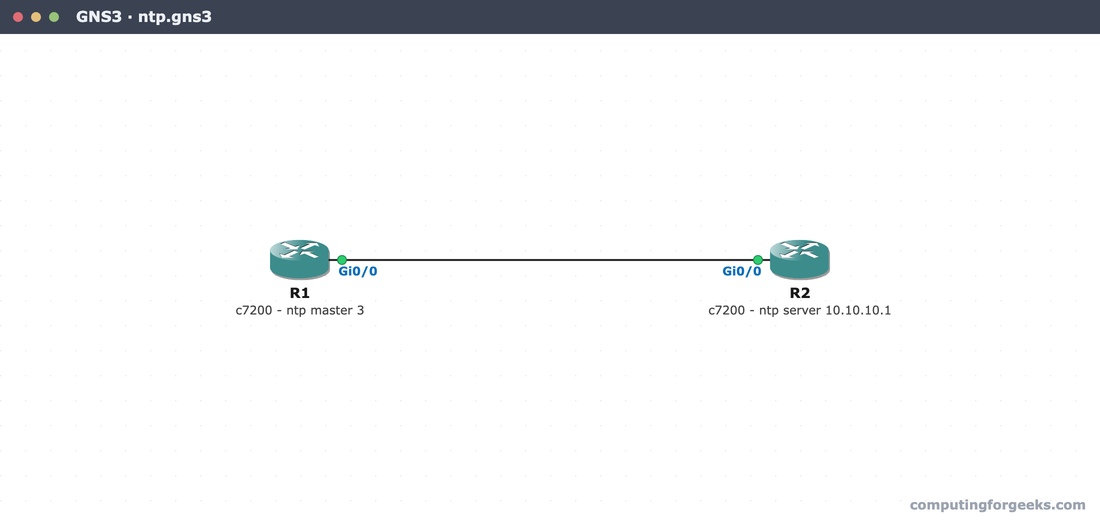
The lab is two routers on a single subnet. R1 is the time source: it runs ntp master 3, so it serves time from its own clock at stratum 3. R2 is the client, configured with ntp server 10.10.10.1, so it should land one stratum below R1, at stratum 4.
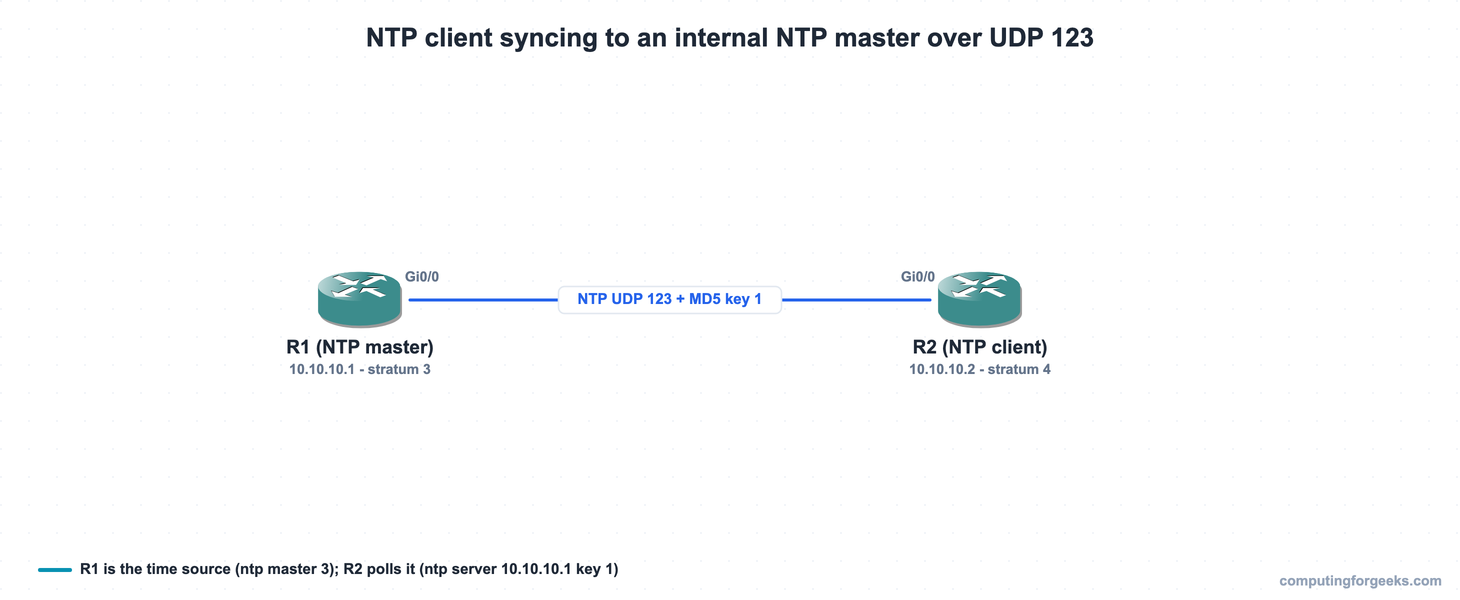
Both routers connect Gi0/0 to Gi0/0 on 10.10.10.0/24, R1 at .1 and R2 at .2. Here is the same lab as it ran in GNS3, on two Cisco IOS routers rather than a simulator:
Every device config in this lab is paste-ready in the companion repo, c4geeks/ccna-labs/ntp. Address the link and set a timezone first, because NTP times are exchanged in UTC and the timezone is what makes show clock readable locally:
clock timezone UTC 0 0
interface GigabitEthernet0/0
 ip address 10.10.10.1 255.255.255.0
 no shutdown
That is the same base setup on both routers, only the address differs (R2 uses 10.10.10.2). With the link up and a timezone set, you can configure NTP itself.
Configure the NTP time source on Cisco IOS
On a production network you point your devices at a real upstream, either your organisation’s NTP servers or a public pool, with ntp server pool.ntp.org or the upstream’s IP. In a lab with no internet, you make one router the authoritative source instead. The ntp master command does exactly that, serving time from the router’s own hardware clock at the stratum you specify:
ntp master 3R1 now advertises itself at stratum 3. Internally it shows a reference clock of 127.127.1.1, the loopback address IOS uses to mean “my own hardware clock”, which appears as .LOCL. in the association table. Always give ntp master an explicit stratum; with no argument it defaults to stratum 8. Pick a stratum that is realistic for where the source sits; 3 leaves room for clients below it without bumping against the stratum 15 ceiling.
Point a client at the NTP server
On R2, the client, a single command names the server to synchronise with:
ntp server 10.10.10.1That is client/server mode: R2 polls R1, trusts its time, and disciplines its own clock to match. If instead you wanted two routers to act as equal backups for each other, you would use ntp peer on both, which forms a symmetric relationship rather than a one-way client. For a branch syncing up to the core, ntp server is the right choice. Synchronisation is not instant; the client polls on a timer that starts around 64 seconds, so it takes a few poll cycles before the clock is declared synchronised.
Verify NTP synchronization
The command that answers “is this device synced, and to what” is show ntp status. On R1, the master, it confirms the router is synchronised to its own clock at stratum 3:
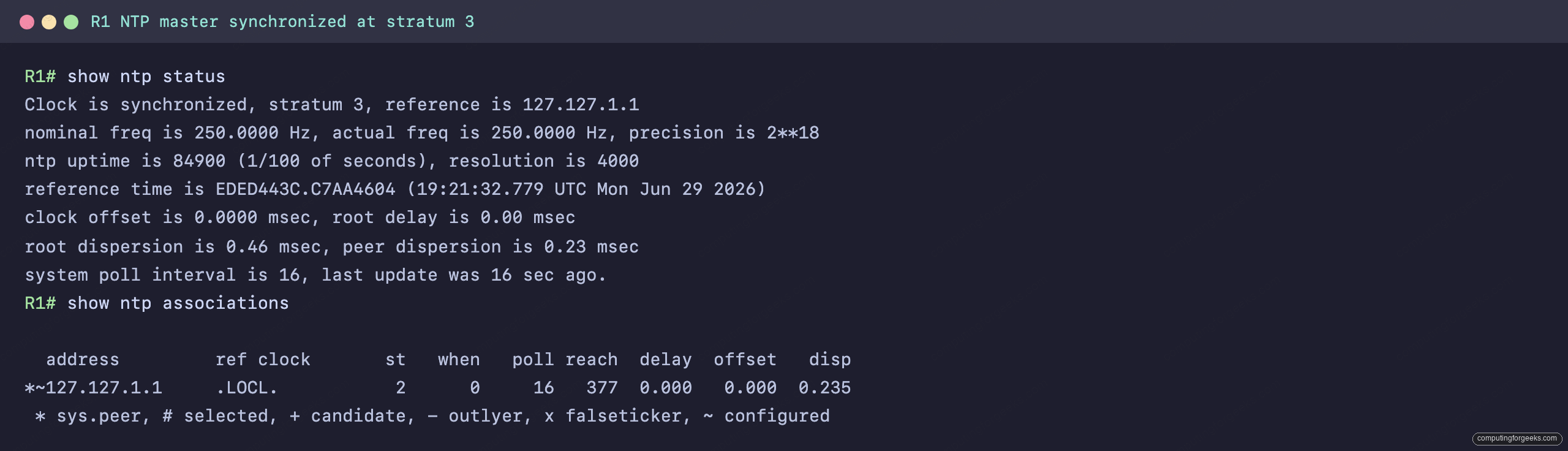
The first line is the whole answer: Clock is synchronized, stratum 3, reference is 127.127.1.1. The reference 127.127.1.1 is R1’s own hardware clock, exactly what ntp master configures. In the associations table just below it, that internal reference shows one stratum lower, st 2; that is normal, the router still advertises stratum 3 to its clients. On R2 the same command tells a different story, the one that proves the hierarchy worked:
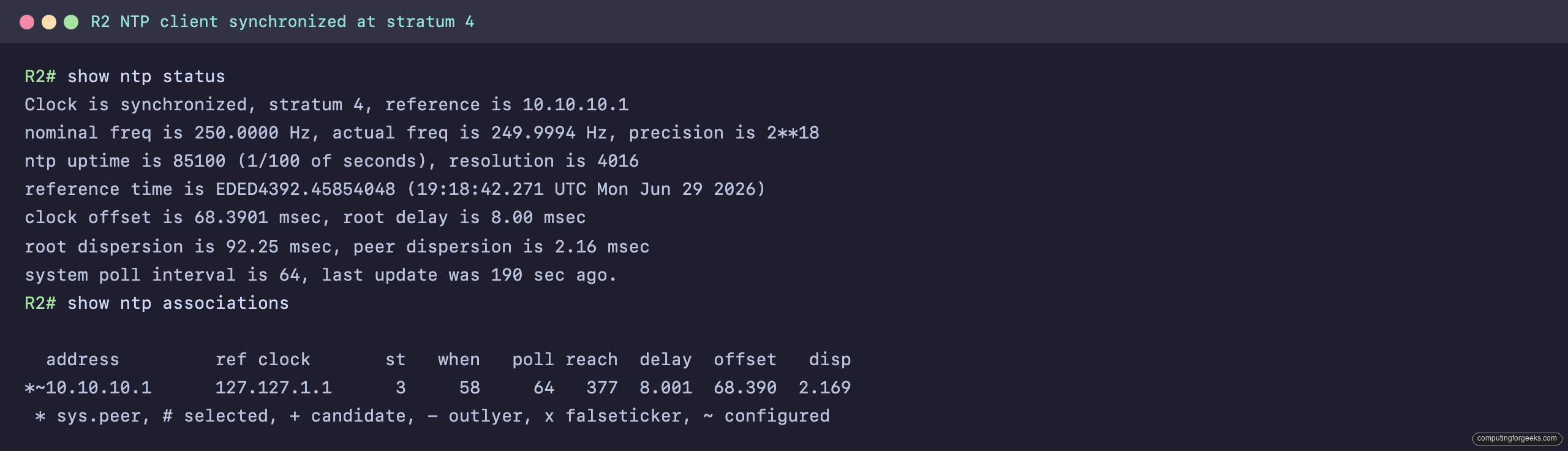
R2 reports Clock is synchronized, stratum 4, reference is 10.10.10.1. Stratum 4 is one below R1’s stratum 3, which is precisely what a client of a stratum 3 server should be, and the reference is R1’s address rather than a local clock. The show ntp associations output below it lists each configured server, and the leading * marks the one the device actually selected as its time source (the legend calls it sys.peer). The reach column is an octal register of the last eight polls; it climbs toward 377 as successive polls succeed, and a reach of 0 means the server is configured but not answering. show clock detail seals it by naming the time source:
R2# show clock detail
19:21:55.523 UTC Mon Jun 29 2026
Time source is NTP
Time source is NTP is the line that distinguishes a clock disciplined by NTP from one set by hand or by hardware. If it instead reads “Time source is user configuration”, NTP has not taken over yet.
Secure NTP with authentication
By default a client trusts any device that answers on UDP 123, which means a rogue server can feed it bad time and quietly break certificates and logs. NTP authentication fixes that: the client only accepts time from a server that proves it holds a shared MD5 key. Configure the same key on both devices. On R1, the server, define the key, turn authentication on, and mark the key as trusted:
ntp authentication-key 1 md5 Cisc0NtpKey
ntp authenticate
ntp trusted-key 1
On R2, the client, configure the identical key, then add the key keyword to the server line so the client demands authentication from that specific server:
ntp authentication-key 1 md5 Cisc0NtpKey
ntp authenticate
ntp trusted-key 1
ntp server 10.10.10.1 key 1
The key number, the key string, and the trusted-key entry must match on both ends, or the client silently refuses to sync. Confirm authentication actually took with show ntp associations detail, which spells out the trust state of the association:

The first line is the proof: authenticated, our_master, sane, and valid. authenticated means the MD5 check passed, and our_master means R2 has accepted R1 as its time source. If the keys did not match, this line would read unauthenticated and the clock would never sync, no matter how reachable the server is. This is the fastest way to tell a key mismatch apart from a connectivity problem.
Practice NTP configuration and verification
Run the quiz, then the flashcards, and read the explanation on anything you miss. NTP questions cluster on the client config steps, the stratum count, and reading show ntp status, so those are worth knowing cold.
Drill the commands and the verification output until they are automatic:
Confirm NTP before you trust a timestamp
Three checks tell you NTP is genuinely working, in order. First, show ntp status must say Clock is synchronized with a stratum below 16 and a sensible reference; a stratum of 16 or a missing reference means it has not synced. Second, show ntp associations must show a * beside the server you configured and a reach that is climbing, not stuck at 0. Third, on a secured setup, show ntp associations detail must say authenticated, not unauthenticated. When all three line up, the device’s clock is disciplined and every log line you ship with Syslog and SNMP and every certificate check after it can be trusted. Configure your device access control and the other edge services like NAT and PAT and the DHCP server on the same routers, and the CCNA 200-301 study roadmap maps the rest of the IP Services domain.