A fresh MX Linux desktop is already usable the moment it boots, which is a big part of why people pick it. The first boot leaves a few things worth tidying up though: packages are weeks old, the firewall is installed but switched off, and the suite of MX tools that makes this distribution special is sitting there waiting for you to open it. This guide is the short list of things to do after installing MX Linux, in the order that makes the most sense.
Nothing here is mandatory, and you do not need a terminal for most of it. MX puts almost every job into a graphical tool, so a lot of this is pointing you at the right window and explaining what it does. Where the command line is genuinely quicker, the commands are here too, copy and paste ready. You will end with an updated, firewalled machine that you know how to back up and roll back.
Everything below was run on MX-25.2 “Infinity” (the Xfce edition, built on Debian 13) in June 2026, so the windows and output match what you’ll see.
Update everything and pick a faster mirror
The ISO was built a while before you downloaded it, so the very first job is to pull current packages. MX watches for updates and pops the MX Updater icon into the system tray when there are any, so most days you never touch a terminal. For the first run it is worth doing it by hand so you can see what comes down:
sudo apt update && sudo apt full-upgrade -yIf the download feels slow, you are probably pointed at a mirror on the other side of the planet. MX Repo Manager fixes that in one click. Open it from MX Tools, and use the button at the bottom that benchmarks the mirrors and picks the quickest one for your location.
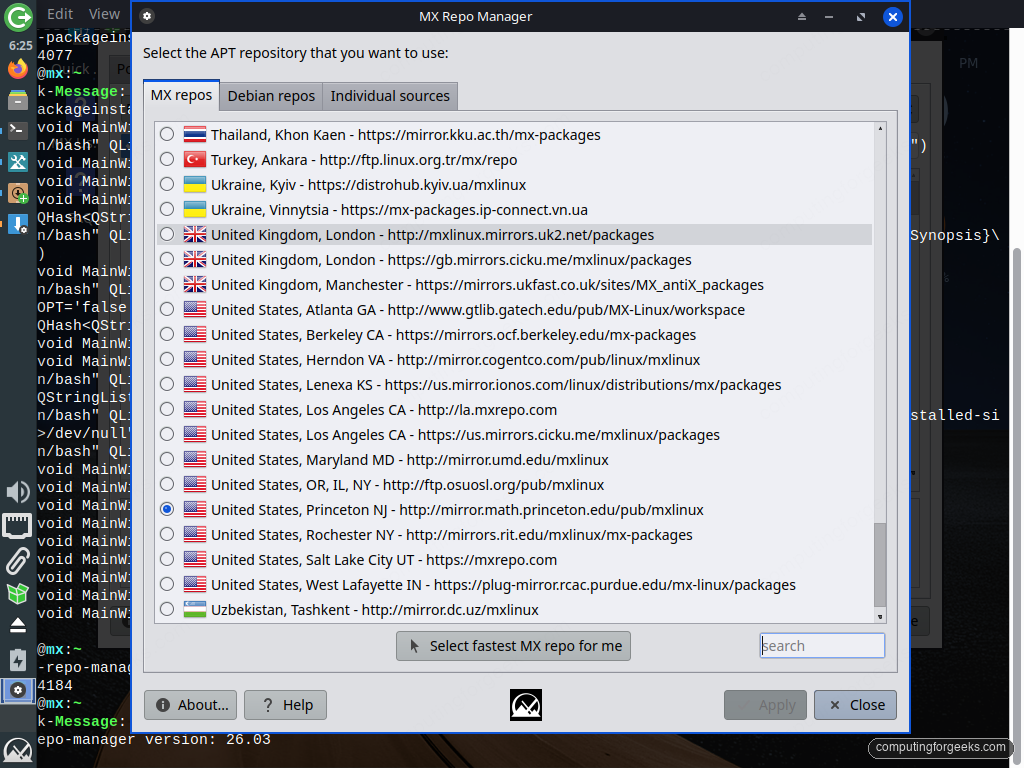
Click “Select fastest MX repo for me”, let it test the list, and it switches your sources to whichever mirror answered quickest. Run the update again afterwards and the difference is usually obvious. This is the same checklist most Debian systems need on day one, and if you also run a plain Debian box the post-install steps for Debian 13 carry straight over, since MX rides the same base.
Open MX Tools and see what is already there
MX Tools is the control panel that sets this distribution apart, and almost everything in this guide lives inside it. It collects the jobs that are a manual chore elsewhere into one window, grouped into Live, Maintenance, and Setup. Spend a minute reading the labels before you reach for the command line, because the answer to “how do I do X on MX” is very often a button in here.
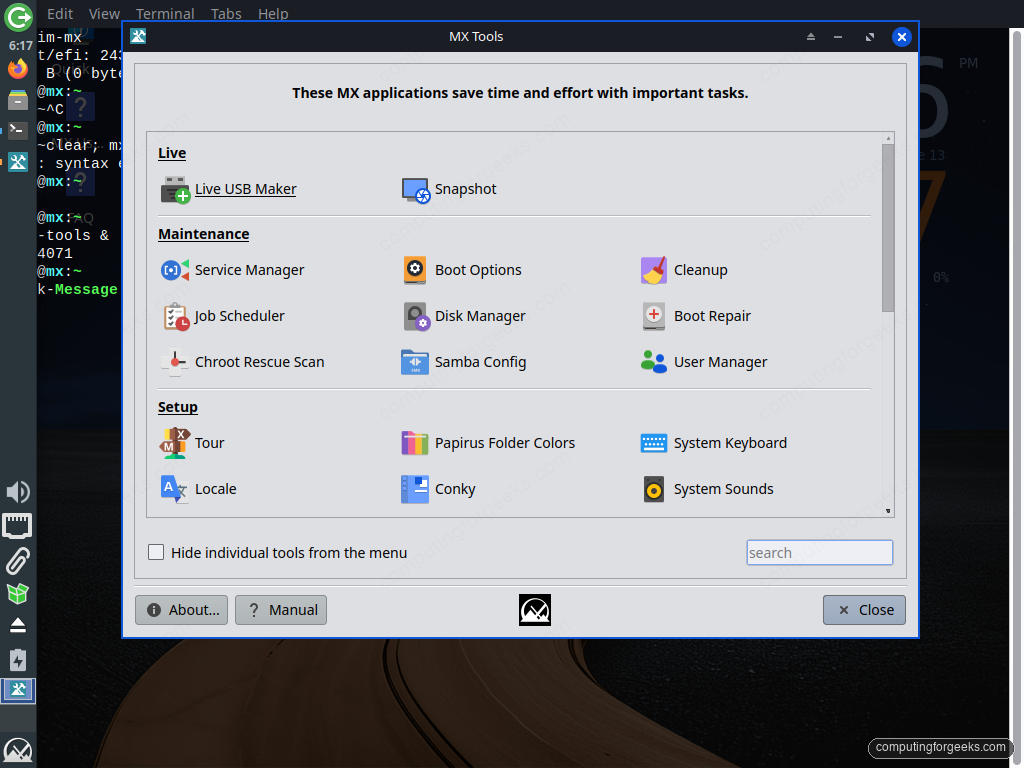
Snapshot, Boot Options, Cleanup, Package Installer, Repo Manager, and the live-USB maker are all in this one window. The rest of this guide is really a tour of the ones you will use most.
Know which init system you are running
This is the part of MX that surprises people coming from Ubuntu or Fedora. An installed MX system boots sysVinit by default, the classic init that predates systemd, and it keeps systemd available as a second boot-menu entry for the times a particular package insists on it. You do not pick this at install time, and you can check what is currently running in two short commands. First, ask what process ID 1 is:
ps -p 1 -o comm=On a default install it answers init, not systemd. Confirm it by following where /sbin/init actually points:
readlink -f /sbin/initThe two checks together confirm you are on the classic init:
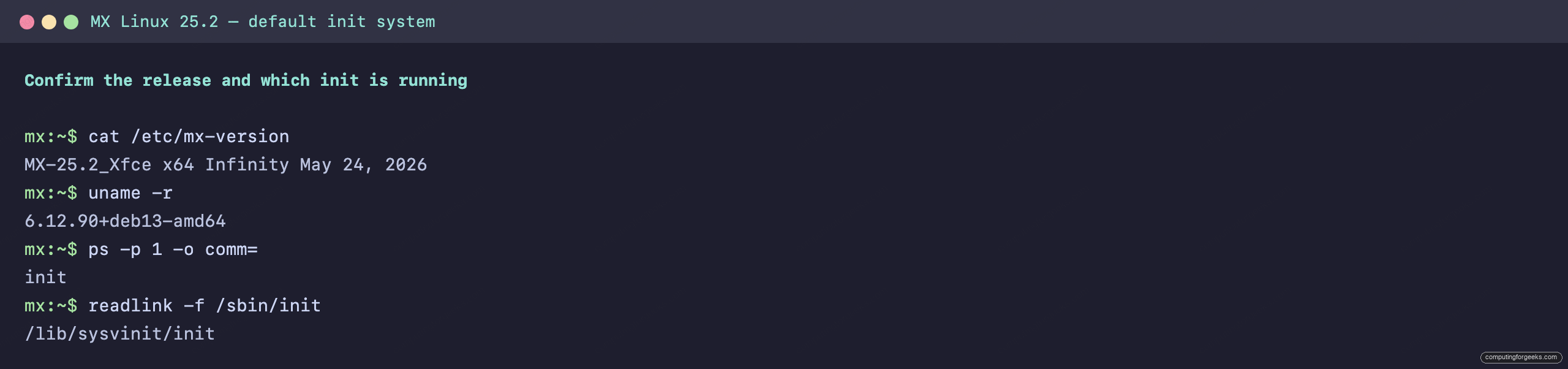
The practical thing to remember is how you manage services. On the default sysVinit boot, systemctl is not in charge, so you start and stop daemons the classic way with service. After installing a daemon, the OpenSSH server for example, you control it like this:
sudo service ssh start
sudo service ssh status
To control whether a service starts at boot, sysVinit uses update-rc.d rather than systemctl enable. The package usually wires that up during install, but sudo update-rc.d ssh defaults creates the boot links by hand if you ever need to.
If you would rather run systemd full time, you do not reinstall anything. Reboot, and in the GRUB menu open Advanced options, where the systemd entry sits alongside the sysVinit one. To make the choice stick, set it as the permanent default in MX Boot Options instead. The Boot to dropdown is where you tell GRUB which entry to pick on its own.
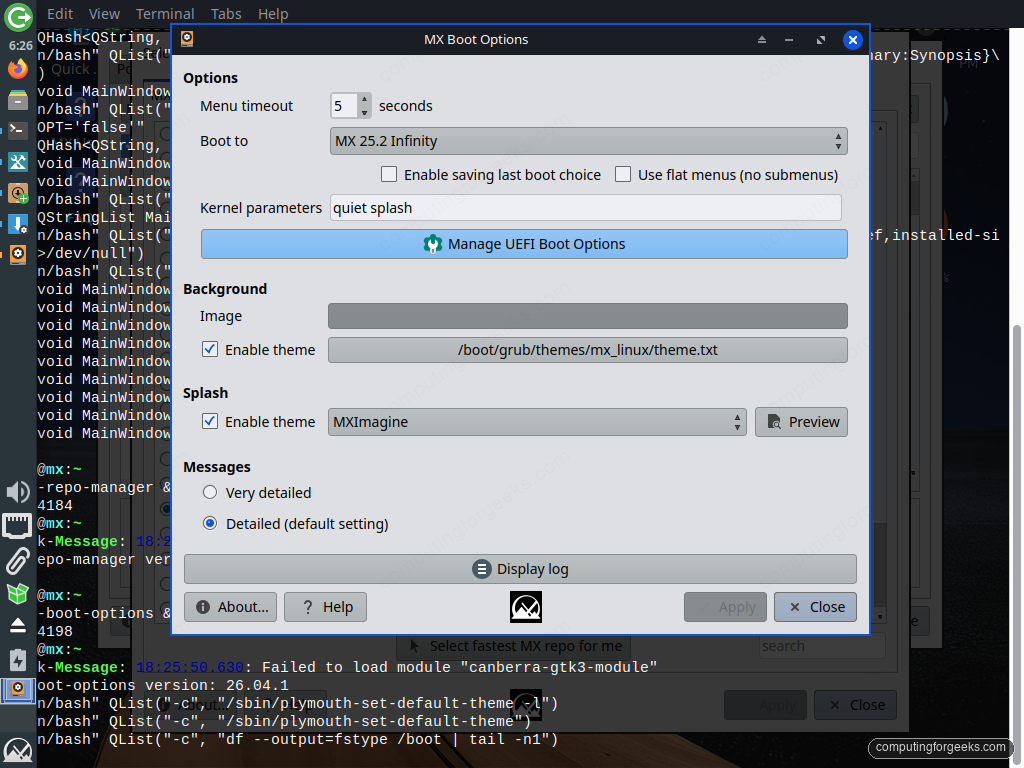
Most people leave it on sysVinit. It boots fast, uses a touch less memory, and the handful of tools that truly need systemd are rare on a desktop. The point is that MX gives you the switch and tells you where it is.
Install your apps and codecs with MX Package Installer
You can still apt install anything, but MX Package Installer is the friendlier front door for desktop software. It pulls from several sources behind one set of tabs: the stable Debian repos, the MX Test Repo for newer builds, Debian Backports, and Flatpak. The Popular Applications tab is curated, so browsers, media codecs, proprietary fonts, and chat clients are one tick away with the dependencies handled for you.
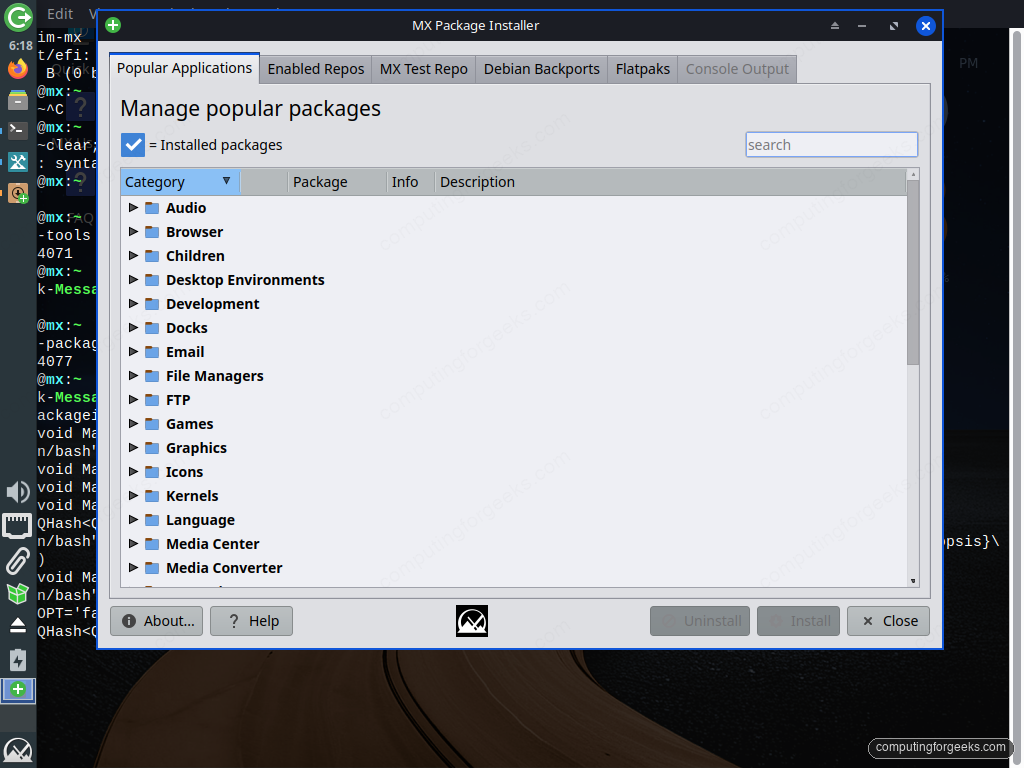
For media playback specifically, MX ships restricted-codec entries that pull the formats most fresh installs are missing, so video and audio that refused to play start working once they are installed. Reach for the tabs across the top when you want something newer than Debian stable ships, and fall back to apt install for anything server-side.
Turn on Flatpak and add Flathub
Flatpak is already installed on MX, but no remote is configured out of the gate, so there is nothing to install from until you add one. Flathub is the obvious first remote. The graphical way is the Flatpaks tab inside MX Package Installer, which wires up Flathub for you and then lists the whole catalogue.
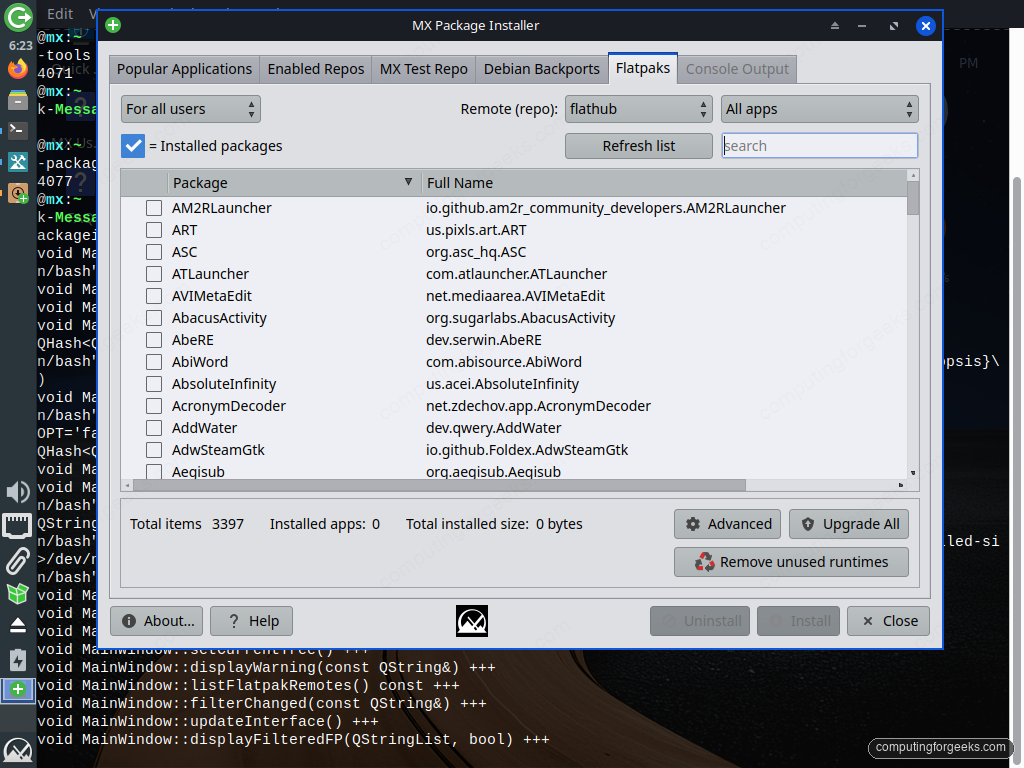
If you prefer the terminal, one command does the same thing:
flatpak remote-add --if-not-exists flathub https://flathub.org/repo/flathub.flatpakrepoCheck that it registered:
flatpak remotesFlathub shows up as a system-wide remote, which means it is available to every user on the machine:
Name     Options
flathub  system
Flatpak is the right call for apps that move faster than Debian stable, like browsers and chat clients, while leaving the base system on rock-solid Debian packages. If you are weighing it against the alternatives, our breakdown of Flatpak, Snap, and AppImage covers when each one earns its place.
Switch on the firewall
MX ships the uncomplicated firewall, ufw, and its graphical front end gufw, but the firewall is not switched on by default. On a laptop that joins coffee-shop and airport networks, turning it on is the single highest-value minute you will spend. The terminal way is two commands:
sudo ufw enableIt confirms the firewall is up and will start itself on every boot:
Firewall is active and enabled on system startupConfirm the policy with a verbose status:
sudo ufw status verboseThe default denies everything coming in and allows everything going out, which is exactly what a desktop wants:
Status: active
Logging: on (low)
Default: deny (incoming), allow (outgoing), disabled (routed)
New profiles: skip
If you would rather click than type, gufw gives you the same control with a switch and a rules list, and it is already installed.
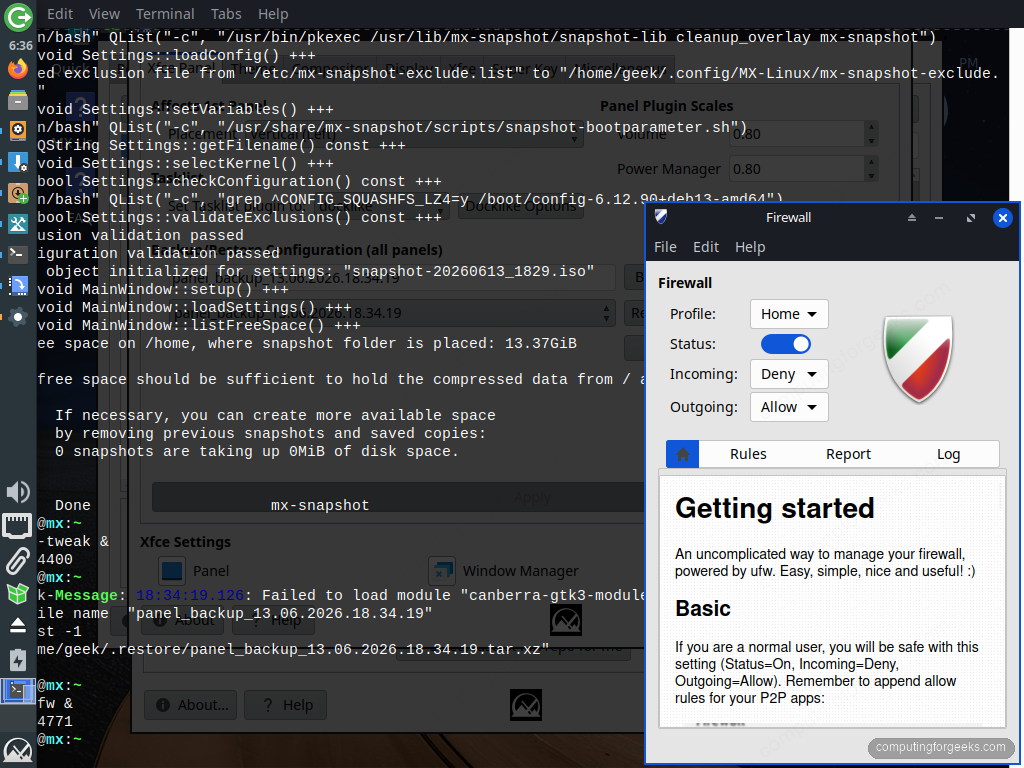
You rarely need to open ports on a desktop. When you do, for something like a local game server or file share, our list of common ufw commands has the exact syntax.
Snapshot your whole system into a bootable ISO
MX Snapshot is the feature longtime MX users rave about, and there is nothing quite like it on other distributions. It takes your running, configured system, with your apps, settings, and files, and packs it into a bootable ISO. You can write that ISO to a USB stick to carry your exact setup to another machine, hand it to a friend, or keep it as a full recovery image.
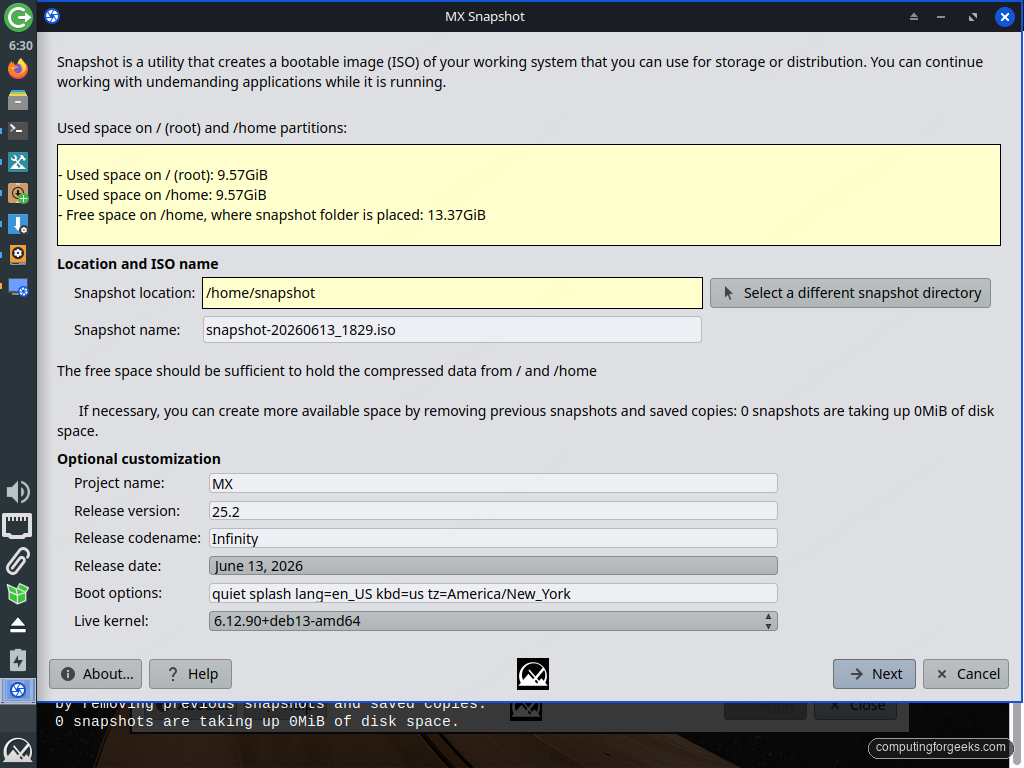
It tells you up front how much space the compressed image will need and where it will land, by default in /home/snapshot. The setting that matters most is the account mode. By default MX Snapshot preserves accounts for a personal backup, which keeps your user accounts, passwords, and everything in /home inside the ISO. That is what you want for your own recovery image, but it also means a default snapshot is private. Do not share or distribute it, because it carries your logins and home files. To build an ISO you can hand to someone else or install on another machine, switch to the reset-accounts mode first, which strips the personal accounts so the result boots to a clean first-run setup. Make a personal-backup snapshot now, while the system is fresh, and you have a known-good state to fall back to.
Add restore points with Timeshift
MX Snapshot and Timeshift solve different problems, and it is worth running both. Where Snapshot makes a portable, shareable ISO, Timeshift quietly takes incremental restore points of the system so you can roll back after a bad update or a config change that broke your desktop. It comes preinstalled on MX, so you only need to open it and set a schedule.
Point it at a separate disk or partition if you have one, since a restore point on the same drive does not help if that drive dies. The setup wizard and the rsync-versus-Btrfs choice are covered step by step in our Timeshift backup and restore walkthrough, which applies directly here.
Make the desktop yours with MX Tweak
The default Xfce layout puts a single panel on the left edge, which throws off people used to a taskbar along the bottom. MX Tweak is where you change that and a dozen other things without digging through scattered settings dialogs. Its tabs cover the panel, themes, the compositor, the Super key, and the Whisker menu in one place.
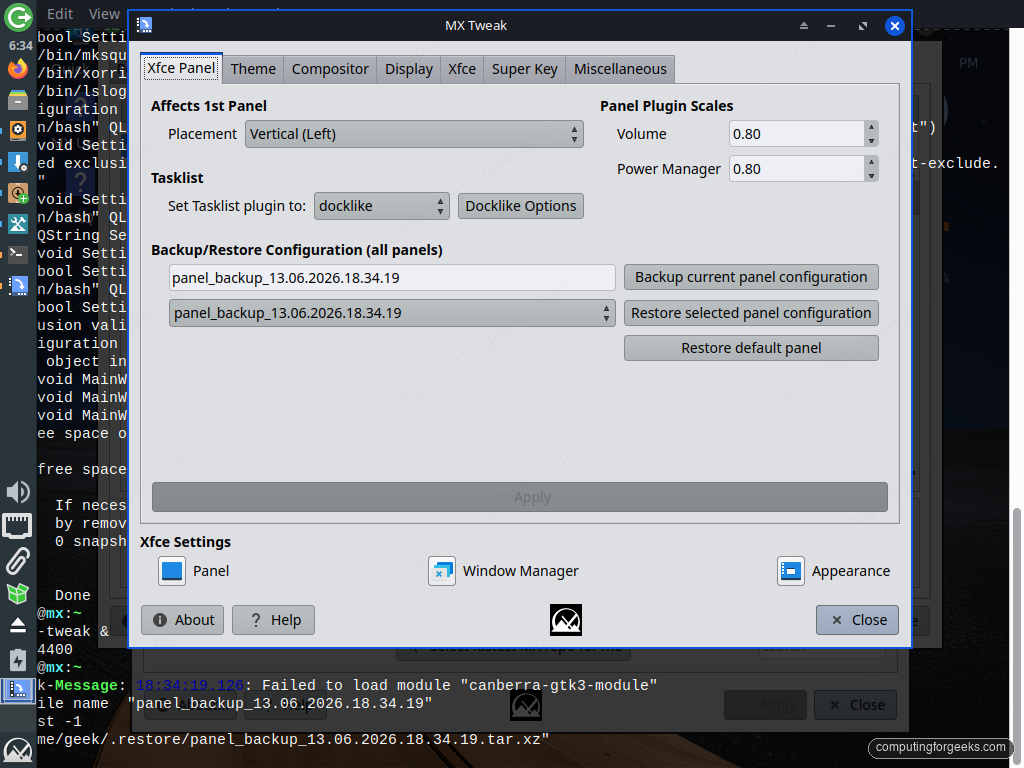
The Panel tab moves the panel to the bottom and resizes it. The Compositor tab is the one to visit if you see screen tearing in video, or conversely if an older machine feels sluggish and you want to switch effects off. Five minutes here is what turns a stock install into a desktop that feels like yours.
Keep SSDs trimmed and clear out the clutter
On an SSD, trim keeps write speeds healthy over time. The good news is MX already handles it: there is a weekly job at /etc/cron.weekly/fstrim-mx that runs trim for you regardless of which init you booted, so this is one less thing systemd timers would otherwise own. To run it on demand and see what it reclaimed:
sudo fstrim -avIt prints each mounted filesystem and how much it freed:
/boot/efi: 243.3 MiB (255124480 bytes) trimmed on /dev/sda1
/: 0 B (0 bytes) trimmed on /dev/sda2
For everything else that piles up, the cached package downloads, old kernels, and leftover config, open MX Cleanup from MX Tools. It bundles the safe cleanup jobs into tickboxes so you reclaim space without guessing which files are safe to delete. Run it every few months and the install stays lean.
Squeeze more battery out of a laptop with TLP
If MX is going on a laptop, TLP is the one extra worth knowing about, and MX preinstalls it so there is nothing to download. It applies sensible power-saving defaults to the CPU, disks, USB, and Wi-Fi the moment it starts, and on most laptops that is a real gain in runtime with no tuning at all. Start it once and it takes over from there:
sudo tlp startIt reports the mode it switched into based on whether you are plugged in:
TLP started in AC mode (auto).Check what it is doing at any time with sudo tlp-stat -s for a summary, or the full tlp-stat for every setting it touched. On a desktop you can skip this one entirely, since it only helps where there is a battery to save.
Common questions about a fresh MX Linux install
Is MX Linux based on Ubuntu or Debian?
Debian, not Ubuntu. MX is built directly on Debian stable, which is why the package names and apt behaviour match Debian rather than Ubuntu. The release you are on uses the Debian 13 base, with the MX team layering their own tools and the antiX init work on top.
Should I stay on sysVinit or switch to systemd?
Stay on sysVinit unless something specifically needs systemd. It boots quickly and stays out of your way, and that is the experience MX is tuned for. The moment you install a tool that only ships systemd units, reboot and pick the systemd entry from the GRUB Advanced options menu, no reinstall required.
What is the difference between MX Snapshot and Timeshift?
MX Snapshot makes a bootable ISO of your whole system that you can install elsewhere or keep as a recovery image. Timeshift makes incremental restore points on a disk so you can undo a bad change in place. Snapshot is for cloning and sharing, Timeshift is for rolling back. They complement each other rather than overlap.
Do I need the AHS edition?
Only if your hardware is newer than the standard kernel supports. The Advanced Hardware Support image ships a newer Liquorix kernel and a fresher graphics stack for recent GPUs and Wi-Fi chips. If your standard install boots fine with working video and network, you do not need it. If you saw a black screen or dead Wi-Fi on first boot, that is exactly the gap AHS closes, and reinstalling from the AHS image is the fix.
That is the short list. With updates pulled, the firewall up, a snapshot saved, and the desktop arranged the way you like, MX settles into being one of the lowest-maintenance systems you can run. If you set this up before reading the installer walkthrough, the full MX Linux install guide covers the steps that come before this one, and our roundup of the best Linux desktop distributions puts MX next to the alternatives if you are still comparing.