Every virtual machine and container on a Proxmox host reaches the network through a Linux bridge. The bridge is a software switch that lives in the kernel, and the layout you give it decides whether your VMs sit on the same LAN as the host, on an isolated segment, or behind a private NAT network with their own address range. Get this wrong and you either expose guests you meant to hide or lock yourself out of the web UI on the next reboot.
This guide builds the three bridge patterns that cover almost every real deployment: the default management bridge that the installer creates, a second bridge that puts VM traffic on its own NIC, and an internal NAT bridge that gives guests outbound internet without a public address or an extra cable. Everything here was built and tested on Proxmox VE 9 running kernel 7.0.2 in June 2026, so the config files and command output are real, not illustrative.
How a Proxmox Linux bridge actually works
The installer creates one bridge, vmbr0, and that single line of thinking carries through everything else. The physical network card does not hold an IP address. It becomes a port on the bridge, and the bridge holds the address. Look at what a fresh install writes to /etc/network/interfaces:
auto lo
iface lo inet loopback

iface ens18 inet manual

auto vmbr0
iface vmbr0 inet static
	address 192.168.1.126/24
	gateway 192.168.1.1
	bridge-ports ens18
	bridge-stp off
	bridge-fd 0

source /etc/network/interfaces.d/*
The physical interface ens18 is set to manual, meaning it comes up but takes no IP of its own. The address, gateway, and the uplink port all belong to vmbr0. Three bridge options are worth knowing because you will copy them into every bridge you create:
bridge-portslists the interfaces plugged into this switch. It can be a physical NIC, a bond, a VLAN, or the keywordnonefor a portless internal bridge.bridge-stp offdisables Spanning Tree. On a host with a single uplink there is no loop to protect against, so STP stays off. Turn it on only when a bridge has two or more physical uplinks that could form a loop.bridge-fd 0sets the forwarding delay to zero so ports start passing traffic immediately instead of sitting in a listening state.
When you attach a VM to vmbr0, Proxmox creates a virtual tap interface for that guest and enslaves it to the bridge, exactly like plugging a cable into a switch port. Containers get a veth pair instead. You never manage those interfaces by hand; the bridge name in the VM or container config is all that matters.
Where to edit: the web UI versus the config file
There are two places to define bridges, and they write to the same file. Under a node, open System then Network, and you see every interface and bridge with its ports, CIDR, and gateway:
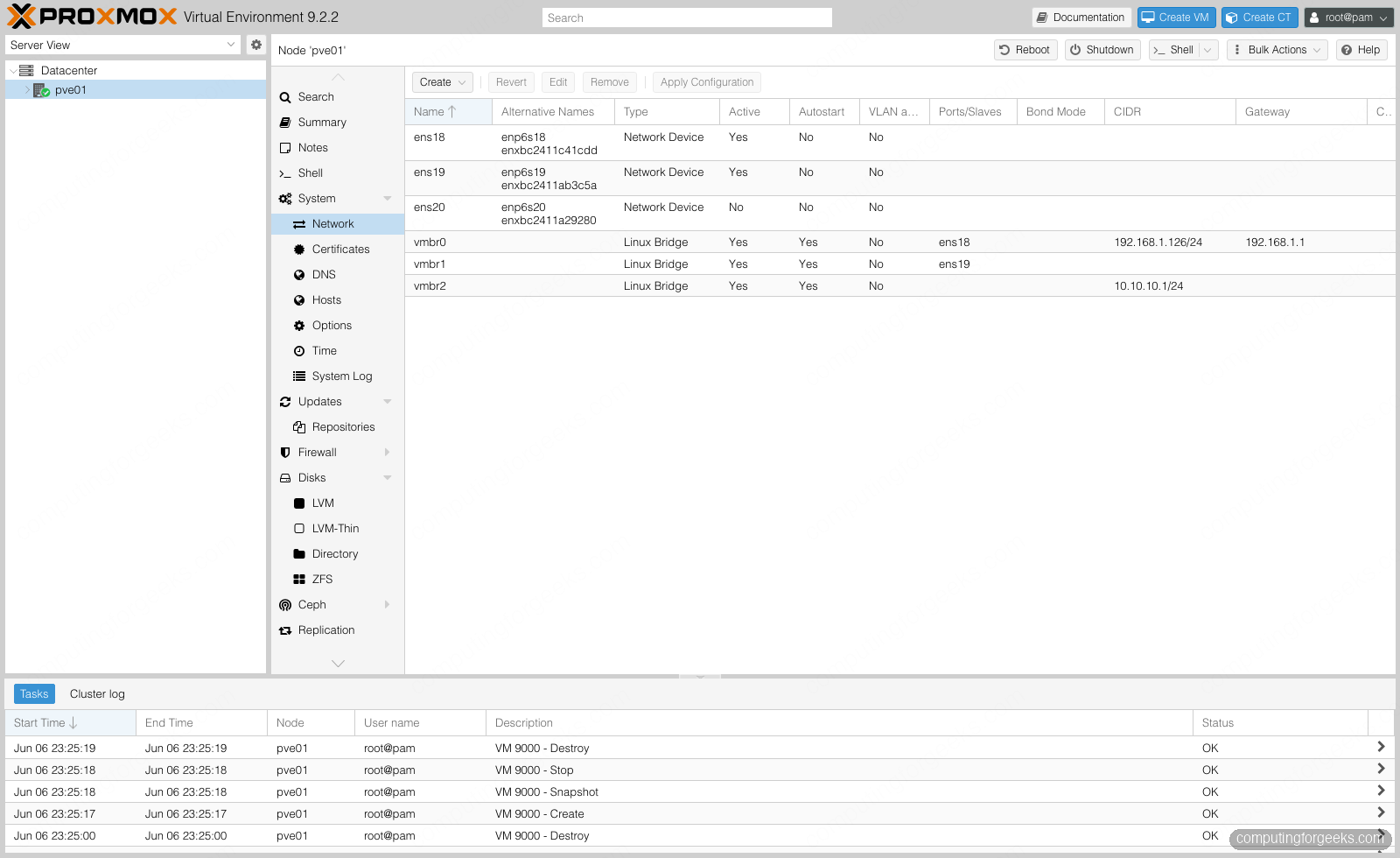
The catch with the web UI is that it does not apply changes live. It writes them to a staging file, /etc/network/interfaces.new, and shows a banner until you click Apply Configuration. That safety net matters: you can stage a broken bridge, notice the warning, and revert before anything touches the running network.
On the command line the equivalent is editing /etc/network/interfaces directly and reloading with ifreload. Proxmox VE 9 ships ifupdown2, which computes the difference between the running state and the file and applies only what changed. That is far safer over SSH than the old ifdown/ifup dance, because reloading a config that did not touch vmbr0 leaves your management connection alone.
ifreload -aOne rule saves you a drive to the server room: never change the bridge-ports or address of the bridge your SSH session rides on without console access ready. A typo on vmbr0 applied over SSH ends the session and there is no undo from the other end.
Add a second bridge for VM traffic
The most common next step is separating management from guest traffic. You keep the host reachable on vmbr0 and put VMs on a second bridge tied to a different NIC, which may run to a different switch or a different VLAN trunk. Append a second bridge that owns the second interface:
auto vmbr1
iface vmbr1 inet manual
	bridge-ports ens19
	bridge-stp off
	bridge-fd 0
Notice vmbr1 uses inet manual with no address. The host does not need an IP on the VM network; it only needs to switch frames for the guests. Substitute ens19 with your own second interface name, which you can read from ip -br link. Apply and confirm the new bridge picked up its port:
ifreload -a
bridge link
The output lists each enslaved interface and the bridge it belongs to:
2: ens18: <BROADCAST,MULTICAST,UP,LOWER_UP> master vmbr0 state forwarding
3: ens19: <BROADCAST,MULTICAST,UP,LOWER_UP> master vmbr1 state forwarding
From here, any VM or container you point at vmbr1 rides the second NIC. This is the clean way to keep a noisy guest workload off the management path, and it is the foundation for VLAN trunking when you later make a bridge VLAN-aware.
Build an internal bridge with NAT
Sometimes you want a private network for guests that still reaches the internet, without spending public addresses or adding a physical NIC. The pattern is a portless bridge that the host routes for, with a masquerade rule translating the private range out through the uplink. This is the same idea as the NAT network on a laptop hypervisor, done properly on the host.
The bridge owns a gateway address for the private subnet, has no physical port, and runs two post-up hooks: one enables IP forwarding, the other adds the masquerade rule. A matching post-down removes the rule when the bridge goes away.
auto vmbr2
iface vmbr2 inet static
	address 10.10.10.1/24
	bridge-ports none
	bridge-stp off
	bridge-fd 0
	post-up   echo 1 > /proc/sys/net/ipv4/ip_forward
	post-up   iptables -t nat -A POSTROUTING -s 10.10.10.0/24 -o vmbr0 -j MASQUERADE
	post-down iptables -t nat -D POSTROUTING -s 10.10.10.0/24 -o vmbr0 -j MASQUERADE
The -o vmbr0 in the masquerade rule names the exit bridge, so swap it for whichever bridge carries your real uplink. To make IP forwarding survive reboots cleanly rather than relying only on the hook, also set it in sysctl:
echo "net.ipv4.ip_forward = 1" > /etc/sysctl.d/99-proxmox-nat.conf
sysctl -p /etc/sysctl.d/99-proxmox-nat.conf
Apply the bridge and give a guest an address on the private range. A quick way to prove the whole path is to drop an LXC container onto vmbr2 with a static address and the bridge as its gateway, then reach the internet from inside it. The container at 10.10.10.10 has no route of its own to the outside world; every packet it sends is forwarded by the host and masqueraded out vmbr0:
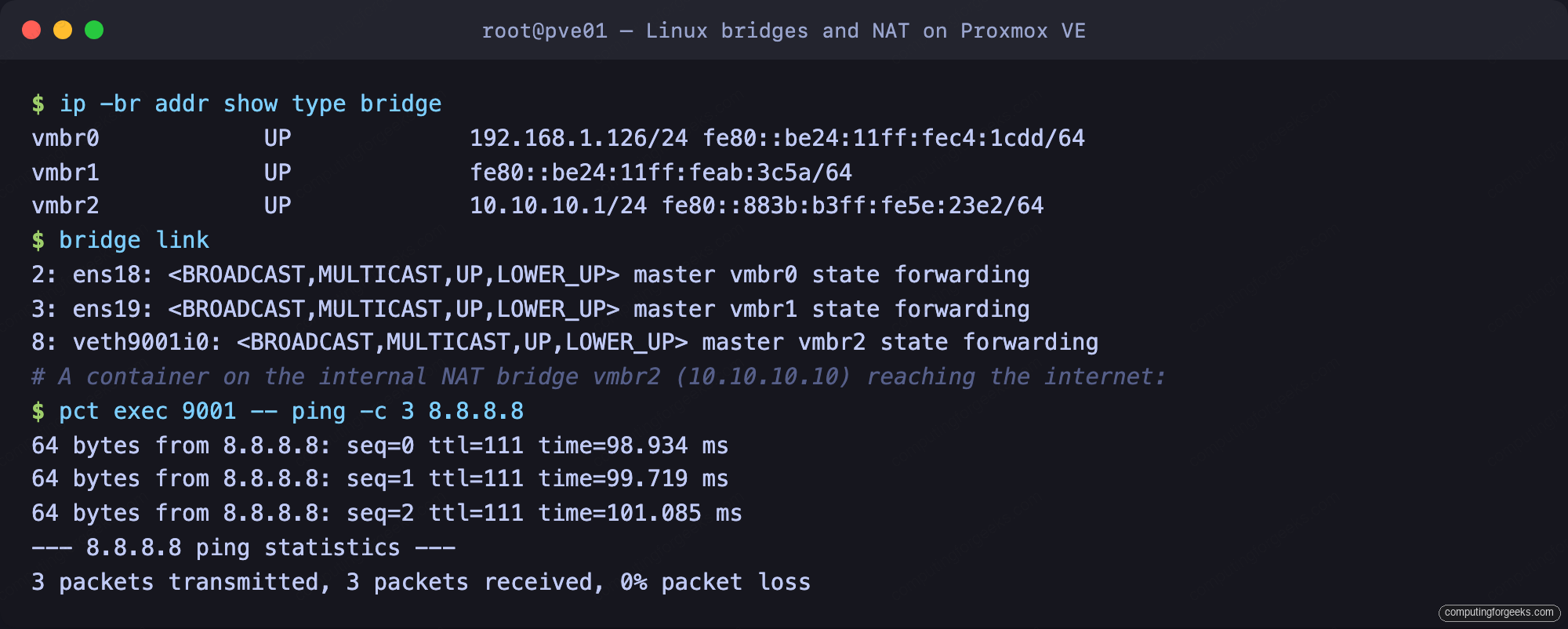
The container pings 8.8.8.8 with zero packet loss, which only happens if forwarding is on and the masquerade rule is in place. That is the entire NAT bridge, verified end to end.
Apply and verify the configuration
After any change, one command reloads everything and one command confirms the result. Reload with ifreload -a, then list the bridges and their addresses:
ip -br addr show type bridgeAll three bridges report up, with addresses only where they should have them:
vmbr0            UP             192.168.1.126/24 fe80::be24:11ff:fec4:1cdd/64
vmbr1            UP             fe80::be24:11ff:feab:3c5a/64
vmbr2            UP             10.10.10.1/24 fe80::883b:b3ff:fe5e:23e2/64
The management bridge keeps its LAN address, the VM bridge runs with no IPv4 address by design, and the NAT bridge holds the private gateway. If a bridge shows DOWN or is missing, run ifreload -a -d for a verbose pass that prints exactly which stanza it choked on. The usual cause is a port name that does not exist on the box, so cross-check against ip -br link before blaming the config.
Production notes
Three additions turn these bridges into something you would run in production. The first is link redundancy: instead of pointing a bridge straight at one NIC, point it at a bond and let the two physical ports fail over or aggregate. The bridge stanza barely changes, it just lists bridge-ports bond0 and the bond is defined above it, which keeps the host reachable when a cable or switch port dies.
The second is VLANs. When you need many tagged networks on one uplink rather than one bridge per network, mark a bridge VLAN-aware and trunk all the VLAN IDs through it, then tag each VM at the NIC level. That collapses a dozen bridges into one and is the standard layout for any host that serves more than a couple of network segments, and it leads into the wider SDN stack in Proxmox VE 9 once you outgrow plain bridges.
The third is the boring one that bites hardest: matching MTU end to end. If a bridge carries storage or migration traffic on a jumbo-frame network, set the MTU on the bond, the bridge, and the guest NIC to the same value, because a single mismatched hop turns into silent throughput collapse that looks like a disk problem. Pair the bridge work with a tested storage backend and a clean base install, confirm the no-subscription repository is in place for updates, and the networking layer of the host is done.