Most Qdrant tutorials drop you into the REST API and assume you will figure out the rest. The bundled Web UI ships at /dashboard on the same port as the API and covers nine of the ten things you would otherwise script: list collections, run any REST call interactively, import sample datasets in one click, browse points with their payloads and image previews, plot t-SNE / UMAP / PCA scatters, walk a similarity graph, follow guided tutorials, and mint scoped JWT tokens for a managed cluster. If you are new to dense retrieval, our vector search primer covers why this approach beats keyword matching for fuzzy intent queries.
This tour walks every panel of the Qdrant Web UI with real screenshots from a 187,000-point cluster loaded with the official Midjourney Styles, Web Documentation, and Prefix Cache sample datasets. Every screenshot is from a running instance, not a marketing render. Routes, behaviour, and gotchas were verified on the live UI shipped with the current Qdrant container.
Tested May 2026 on Ubuntu 24.04.4 LTS with Qdrant 1.18.1 and Qdrant Web UI 0.2.12. Sample datasets imported from https://snapshots.qdrant.io.
Open the Web UI
Once Qdrant is running, the dashboard is served from the same HTTP port as the REST API. The default route is /dashboard, and it redirects to the Welcome page on first visit:
http://localhost:6333/dashboardIf you exposed the API key via QDRANT__SERVICE__API_KEY, the UI prompts for it on first load and stores it in the browser session. Detailed install paths for each OS are covered in the install Qdrant on Ubuntu, install Qdrant on Rocky Linux / AlmaLinux, and install Qdrant on Debian guides. The flow below assumes you already have a cluster reachable on port 6333.
Quick sanity check before opening the browser:
curl -s http://localhost:6333/ | jq .
curl -s http://localhost:6333/healthz
You should see the version JSON and a healthz check passed string. If both succeed, the dashboard will load.
The Welcome page
The Welcome page is the dashboard's landing screen for a fresh deployment. It surfaces a quickstart card that walks you through creating your first collection, a Load Sample Data shortcut that hops straight to the Datasets panel, and a row of Interactive Tutorial cards that cover beginner filtering through hybrid search with multivector and ColBERT.
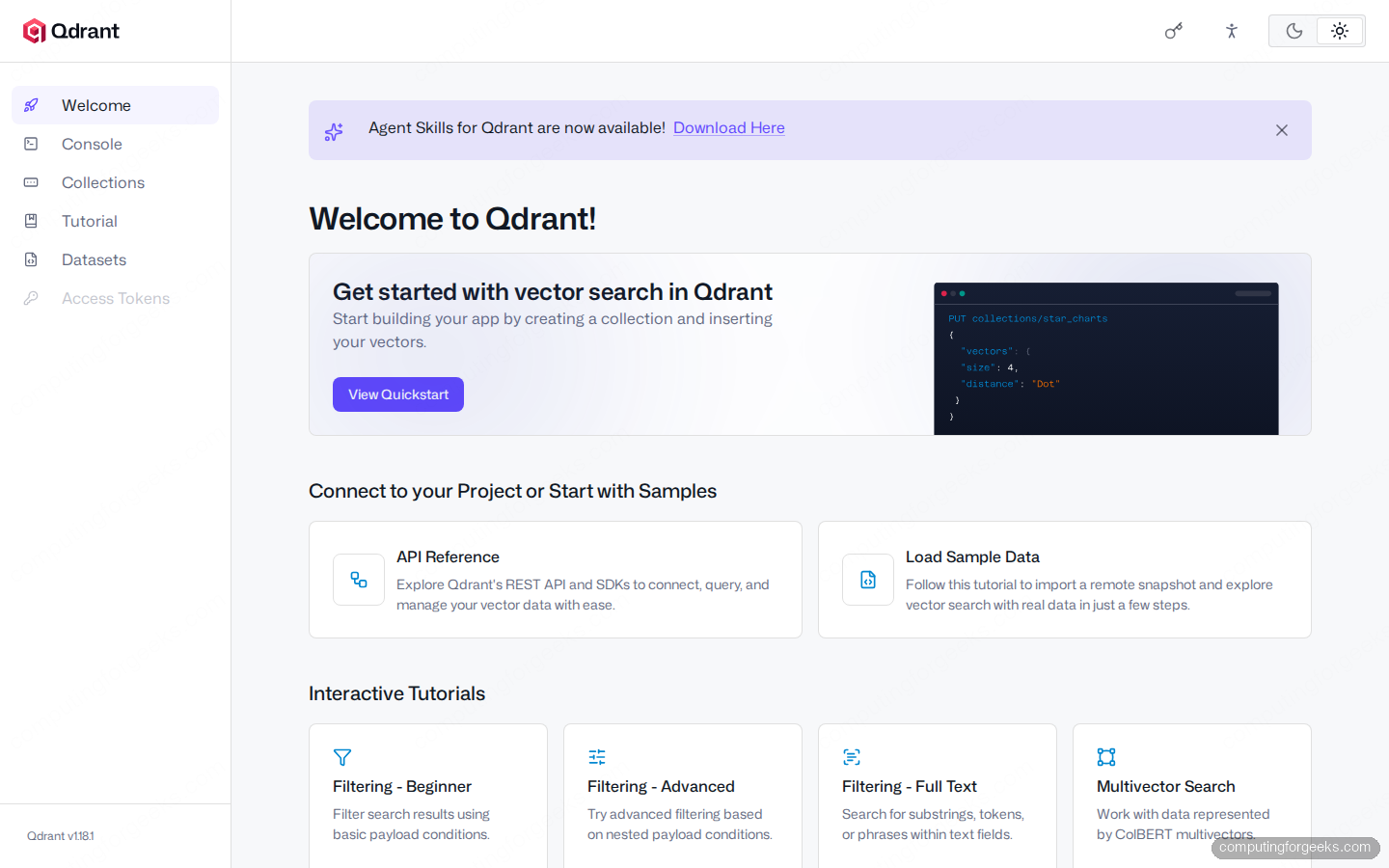
The sidebar layout matters because every other panel comes back to it. Top to bottom: Welcome, Console, Collections, Tutorial, Datasets, and Access Tokens. Access Tokens is greyed out unless you set a service API key on the server. The Qdrant version is pinned in the bottom-left corner, which makes screenshot dating in your own articles trivial.
Collections list: the operational view
Collections is what most operators open first. It lists every collection on the cluster, its health status, an approximate points count, segment and shard counts, the vector config, and an action menu per row. The header has two buttons: Create Collection opens a JSON editor pre-filled with a minimal config, and Upload Snapshot lets you restore a backup directly from the browser.
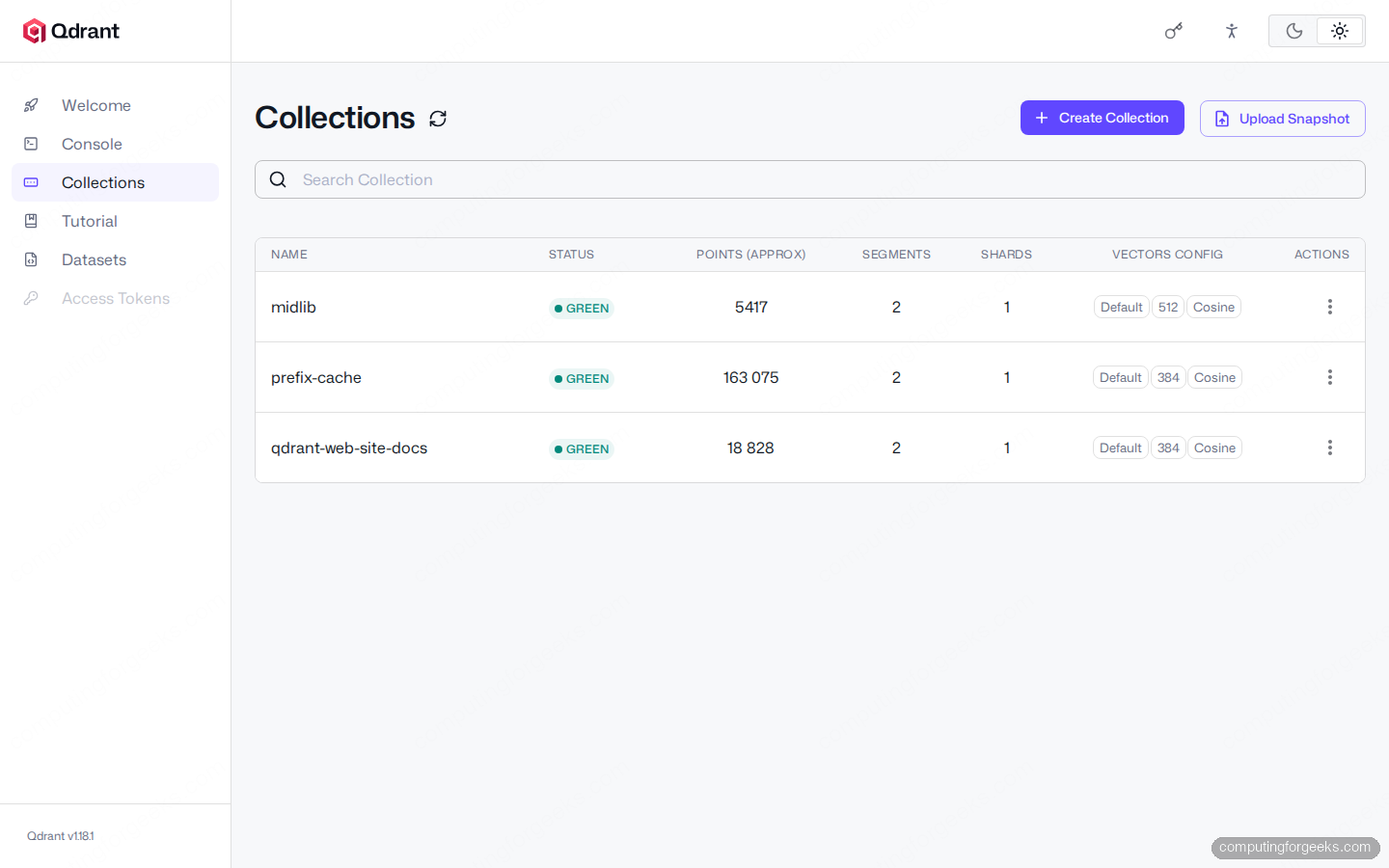
The points count on this screen is approximate and updates lazily. For an exact number, click into the collection and look at the Info tab, or hit the API directly:
curl -s http://localhost:6333/collections/midlib | jq '.result.points_count'Status colors match the API: green is healthy, yellow means optimization is in progress, and red is a hard failure. The status badge has a tooltip on hover that names the underlying state, which the 0.2.12 release added to make replication and shard rebalance situations easier to read at a glance.
Datasets: import sample snapshots in one click
The Datasets panel is the fastest way to get realistic data into a fresh cluster. It pulls a manifest from https://snapshots.qdrant.io and lists every official sample snapshot, with its size, vector config (dimensions, distance metric, embedding model), and total vector count. One Import click calls the snapshot recovery API behind the scenes and the collection appears under Collections within seconds.
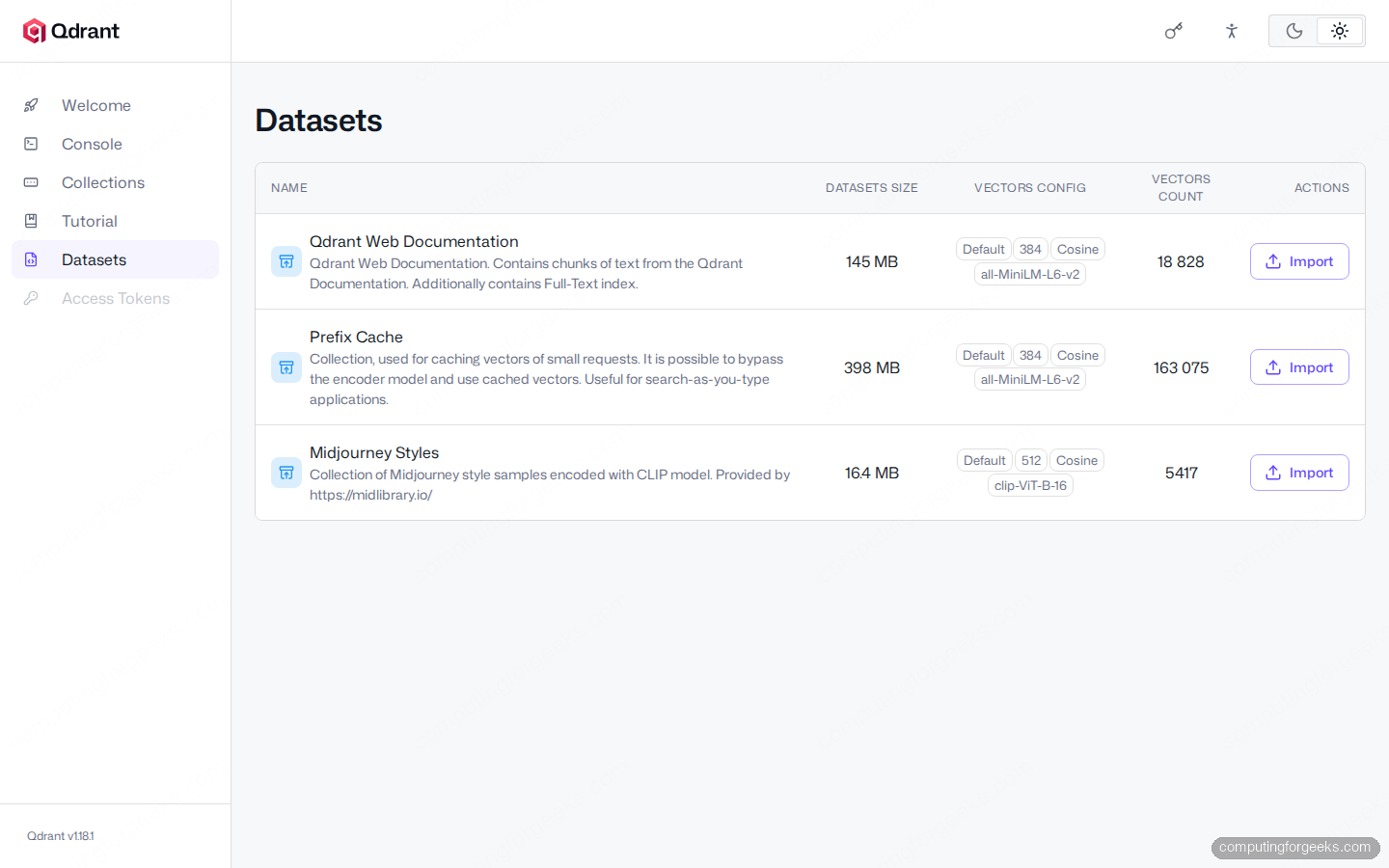
Three samples are currently shipped: Qdrant Web Documentation (18,828 vectors, 384-dim MiniLM), Prefix Cache (163,075 vectors, 384-dim MiniLM, on-disk), and Midjourney Styles (5,417 vectors, 512-dim CLIP, with image URLs in each payload). The CLIP sample is the most fun for testing visual panels because the Graph and Collection detail views render the linked image previews inline.
You can also trigger the same recovery from the REST API without clicking through the UI:
curl -s -X PUT http://localhost:6333/collections/midlib/snapshots/recover \
  -H 'Content-Type: application/json' \
  --data '{"location":"https://snapshots.qdrant.io/midlib-v1.16.0.snapshot"}'
The CLI form is the same call the Import button makes, which is useful for scripting test seeds in CI without screen-driving the dashboard.
Collection detail: nine tabs of operational data
Click any collection name in the list and the detail page opens to the Points tab. The tab strip across the top is: Points, Info, Optimizations, Memory, Cluster, ANN Recall, Snapshots, Visualize, and Graph. Each one calls a different API endpoint and renders the result with sensible defaults.
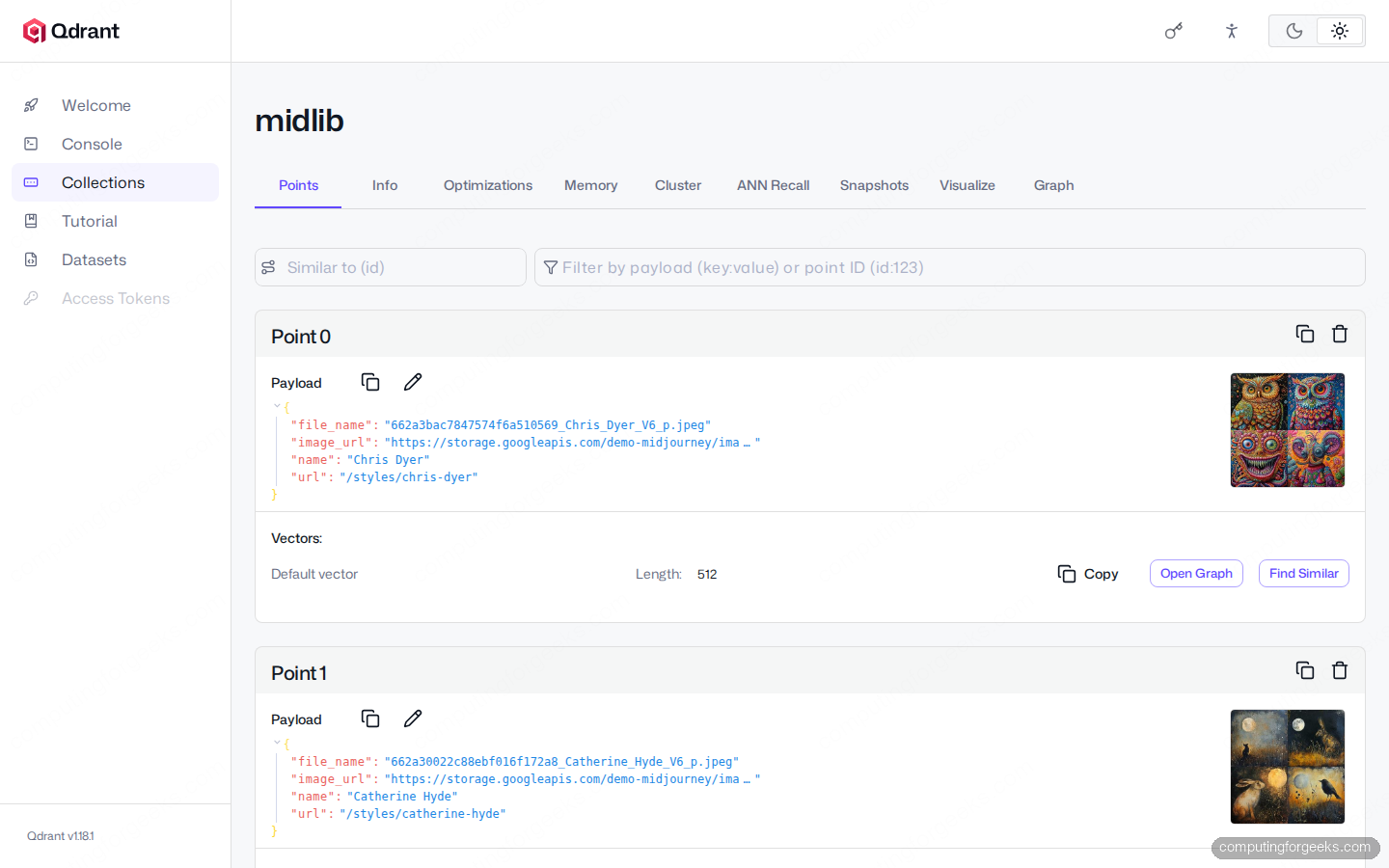
The Points tab pages through the collection 10 rows at a time, with the payload rendered as syntax-highlighted JSON. If a payload field is named image_url, the UI fetches and renders the image preview next to the point. For each row you get three action buttons: Copy dumps the vector array to the clipboard, Open Graph jumps to the similarity graph centred on that point, and Find Similar runs a search using the point's own vector as the query.
The other tabs do exactly what they say. Info lists shard count, vector params, payload schema, and indexed-vector counts. Optimizations and Memory expose the live merge state and segment-level memory accounting that you would otherwise scrape from /collections/{name}/snapshots and Prometheus. Cluster shows the peer distribution for replicated collections. ANN Recall lets you run a recall benchmark against a known ground-truth set. Snapshots is the in-UI replacement for the older Take Snapshot button (renamed in 0.2.12) and supports create, download, and restore in one place.
Console: a full REST playground
Console is the most powerful panel in the UI. It is a Monaco-backed editor with syntax highlighting for the Qdrant REST grammar (GET, PUT, POST, DELETE plus collection paths), inline RUN / BEAUTIFY / DOCS decorations above every command block, and a split result pane on the right that pretty-prints JSON responses. You can pile multiple commands into one buffer and run each independently.
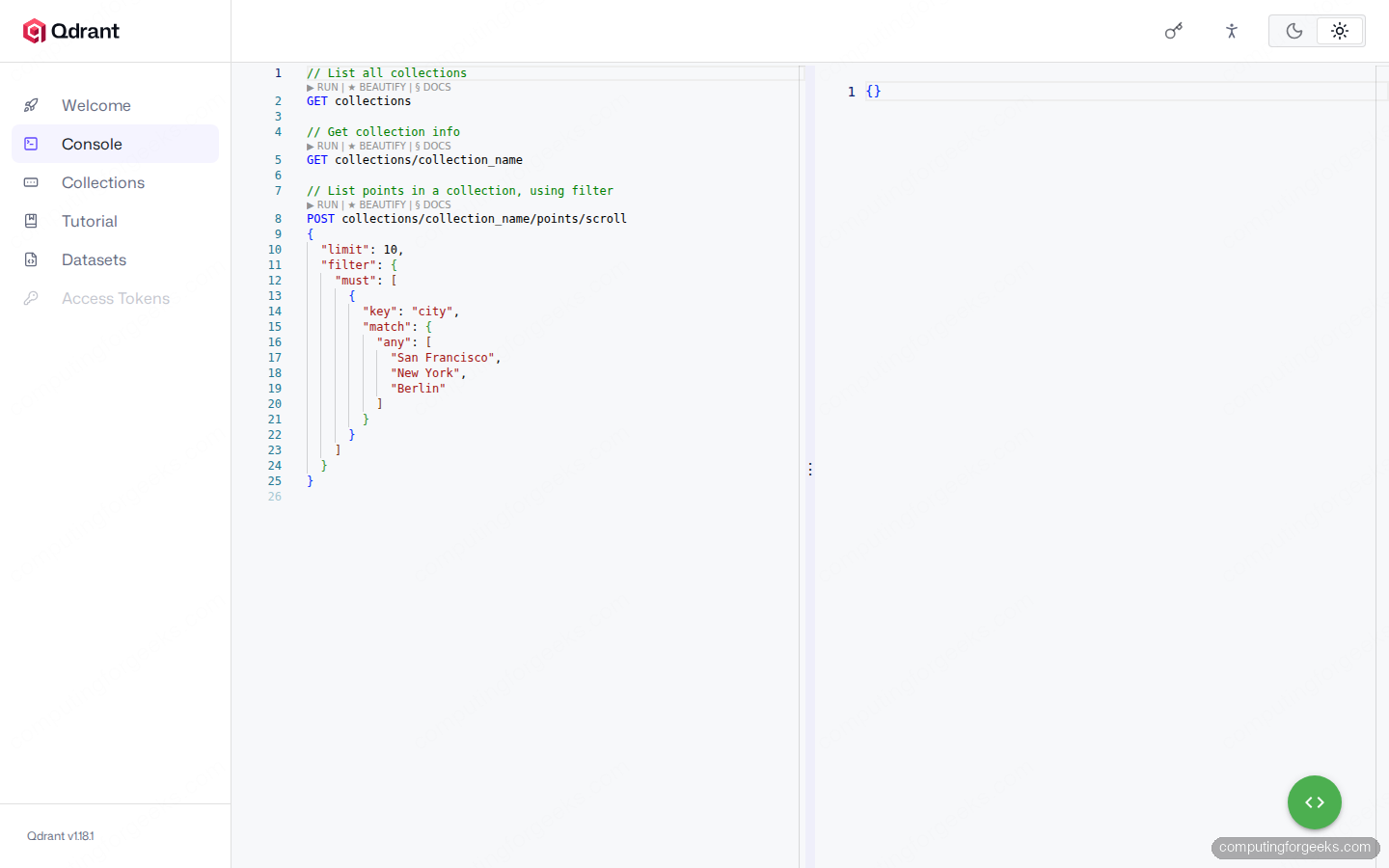
The buffer is persisted to local storage per browser, so closing and reopening the tab keeps your scratch queries. The DOCS link above each command jumps to the relevant section of the official API reference, which removes the usual three-tab dance between dashboard, docs, and curl.
A useful smoke test once you have data loaded is a payload-filtered scroll:
POST collections/midlib/points/scroll
{
  "limit": 5,
  "with_payload": true,
  "with_vector": false
}
Hit the RUN button above the block and the response panel populates with the first five points and their payloads. The Console uses the same authentication and routing as the SDKs, so anything that works here will work from your application code with no translation.
Visualize: t-SNE, UMAP, and PCA scatter plots
Visualize takes a sample of points from a collection, runs a dimensionality-reduction algorithm in the browser, and plots the result as a 2-D scatter. The code editor on the right defines the sample size, optional payload filter, a color_by field for categorical coloring, the named vector to use, and the algorithm (TSNE, UMAP, or PCA). The default is 500 points with t-SNE, which is usually enough to see the cluster shape without locking up the browser.
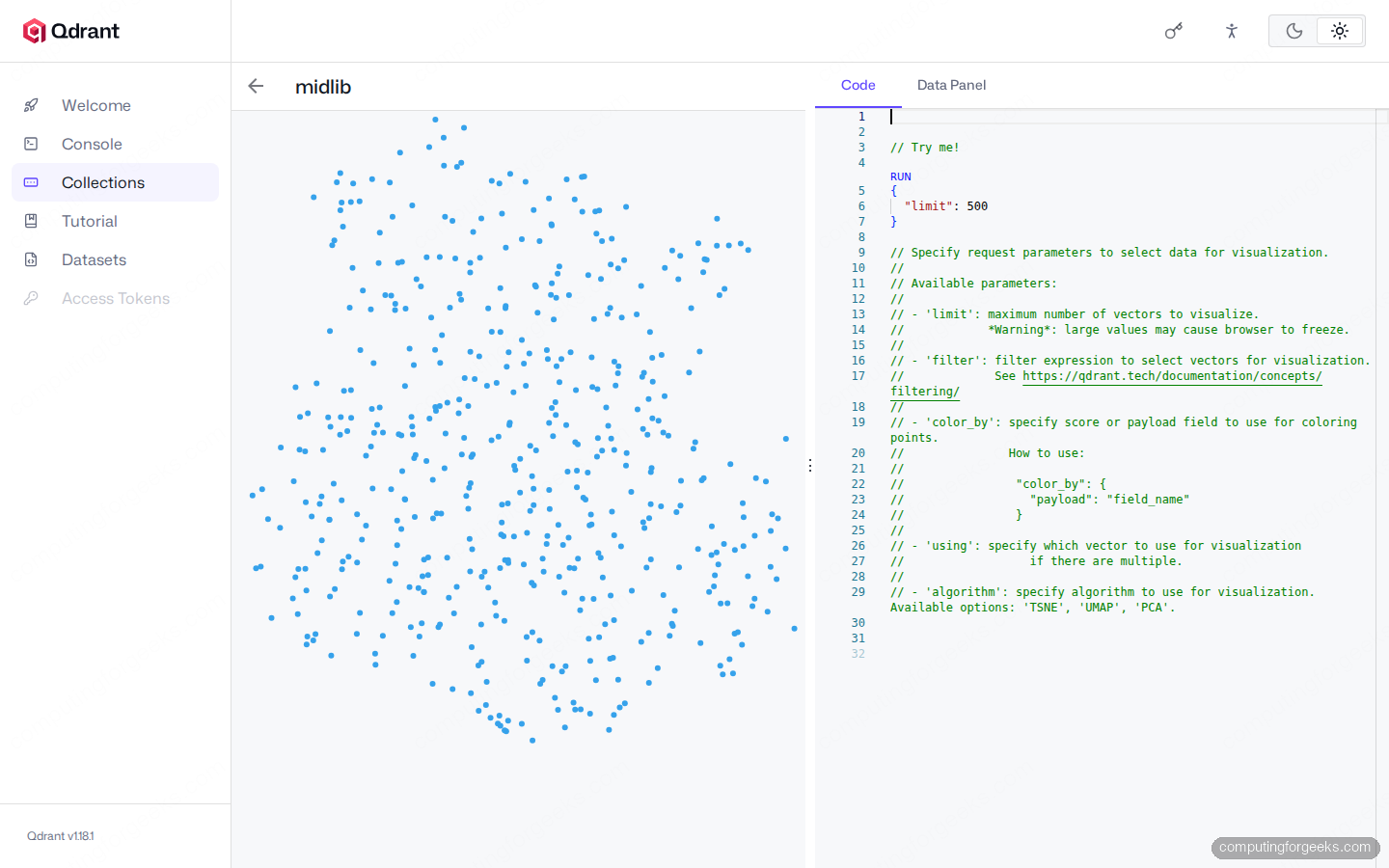
The chart on the left is a real t-SNE of 500 sampled vectors from the Midjourney Styles collection. Hover a point and the Data Panel on the right shows its full payload (including the preview image, when the payload has an image_url). Drag-zoom works in the browser, and you can re-run with new parameters by editing the JSON and clicking RUN again.
A common practical pattern is colouring points by a categorical field to see whether your embedding model separates them in vector space. For the docs collection, colouring by source URL prefix highlights whether operations docs cluster apart from concepts docs without writing any code:
{
  "limit": 1000,
  "algorithm": "UMAP",
  "color_by": {
    "payload": "section"
  }
}
UMAP is faster than t-SNE on the same sample, and PCA is fastest but only catches the first two principal axes. The browser does all the work, so very large samples (10k+) can freeze the tab. The 500 default is intentional.
Graph: walk the similarity neighbourhood
The Graph tab is the panel most other vector databases do not ship. You give it a starting point ID and it renders the nearest-neighbour graph from that point, with each node clickable. Click any node to make it the new centre and the graph re-renders around it. The Data Panel on the right shows the currently selected point's payload and image preview.
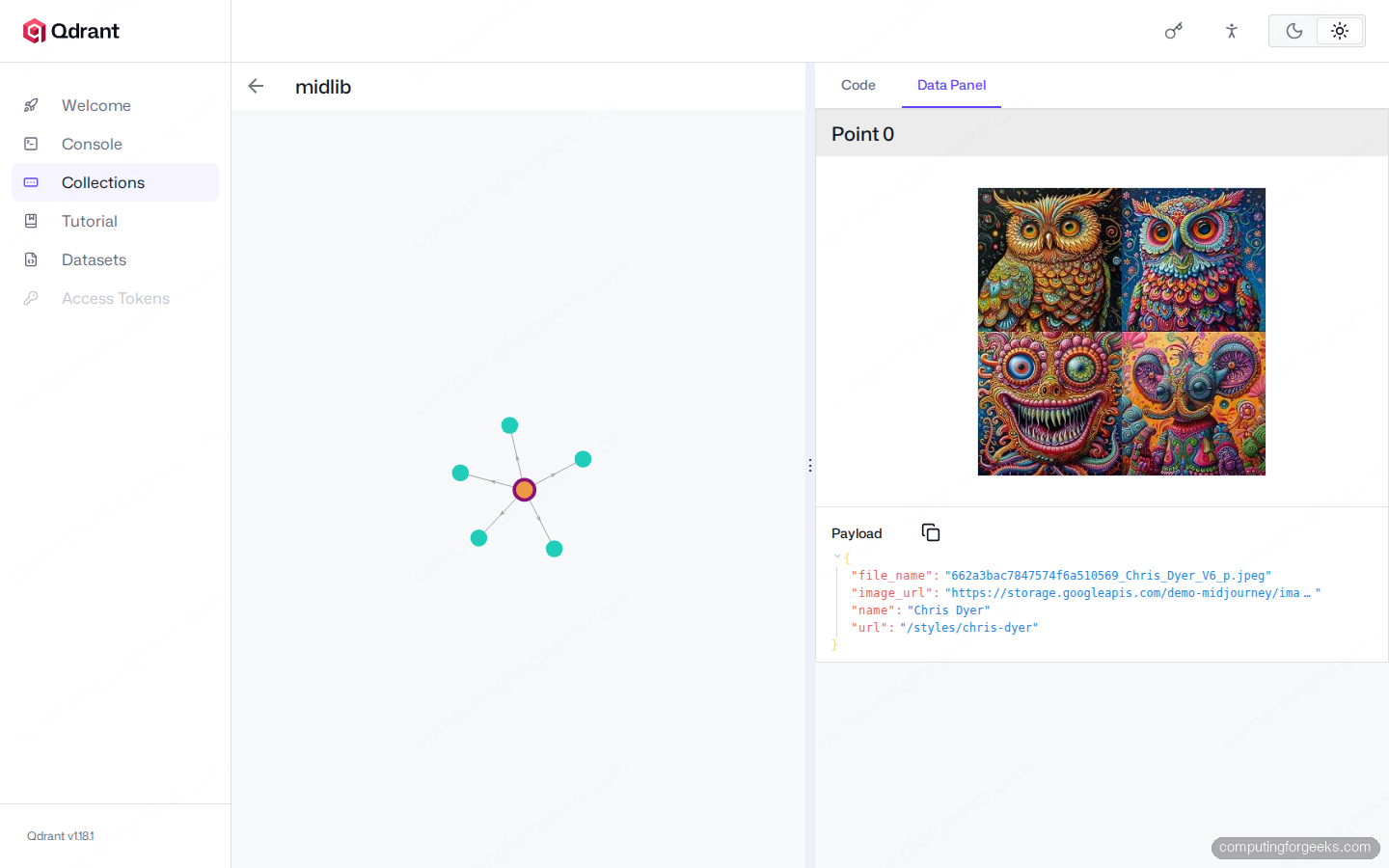
In the screenshot above, the red centre node is Point 0 from the Midjourney Styles collection (artist Chris Dyer) and the surrounding nodes are the five most-similar Midjourney style vectors. The image preview on the right belongs to the centre node. This view is the closest thing to an interactive exploration of your embedding model's opinion of similarity, and it is genuinely useful when debugging why two semantically related items are not appearing in top-K results.
The defaults are conservative: 5 neighbours per node, 1 hop. Edit the Code panel to widen the search:
{
  "limit": 8,
  "tree": true,
  "using": "default"
}
Higher limits and deeper trees render fine but get visually crowded past about 50 nodes. For very large neighbourhoods, stick to the API or pipe the results into a dedicated graph tool.
Interactive Tutorial: learn by running real queries
The Tutorial section ships nine guided walkthroughs that combine MDX-rendered prose with embedded Console blocks. Every code block in a tutorial has a real RUN button that hits your actual cluster, so the lesson and the practice happen in the same tab.
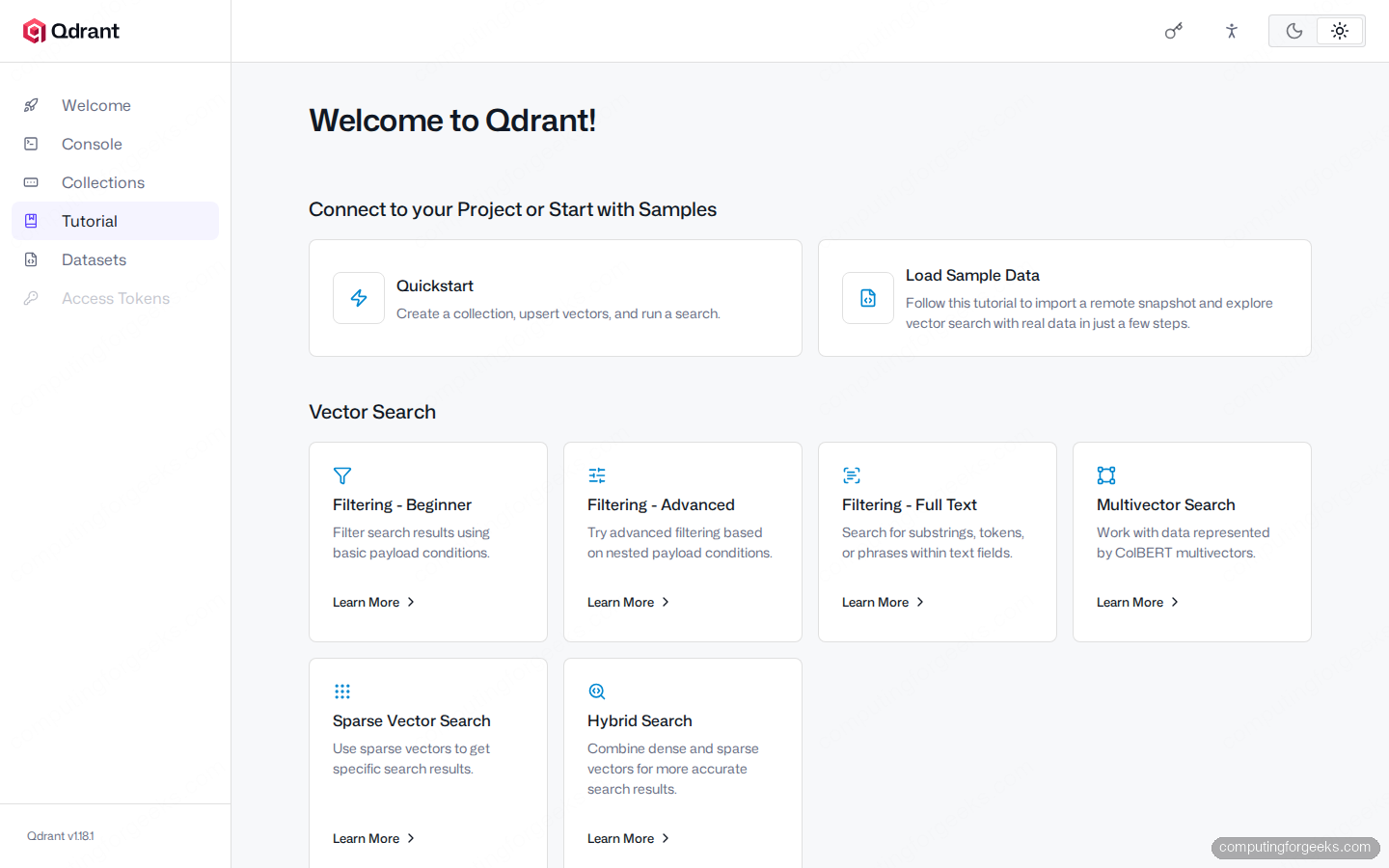
The list is split into Connect to your Project or Start with Samples (Quickstart and Load Sample Data) and Vector Search (Filtering Beginner, Filtering Advanced, Filtering Full Text, Multivector Search, Sparse Vector Search, and Hybrid Search). Each card opens a multi-step page with collection creation, point upsert, and query examples baked in.
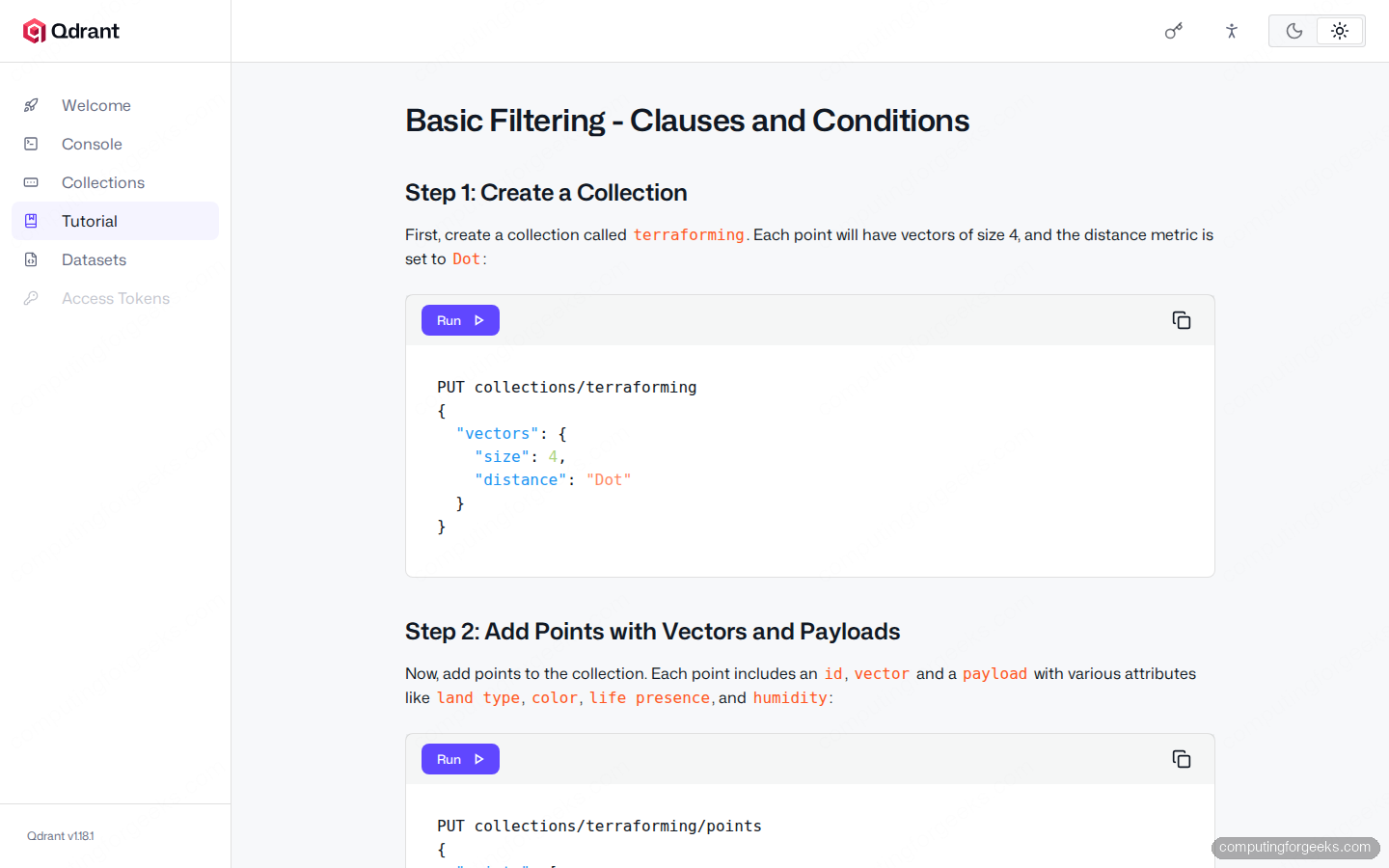
The Filtering Beginner tutorial above creates a throwaway collection called terraforming, inserts 12 points with land / type / color / life / presence / humidity payload fields, then walks through must / should / must_not clauses with live queries. The data is sized so every result fits on one screen, which makes the cause-and-effect of each filter clause obvious.
For more advanced search patterns, the filters and complex queries guide later in this series covers payload index types (keyword, integer, float, geo, datetime, text), nested object filtering, and the score_threshold / quantization trade-offs that are not visible from the UI alone.
Access Tokens: scoped JWT for managed clusters
The Access Tokens panel generates JWT credentials signed by your service API key. You choose between Collection Access (per-collection read / write flags), Global Access (read-only or manage across the cluster), or Managed Access (custom claims). Expiration ranges from never to a specific date, and a Token Validator toggle lets you embed a payload-field equality check directly into the JWT.
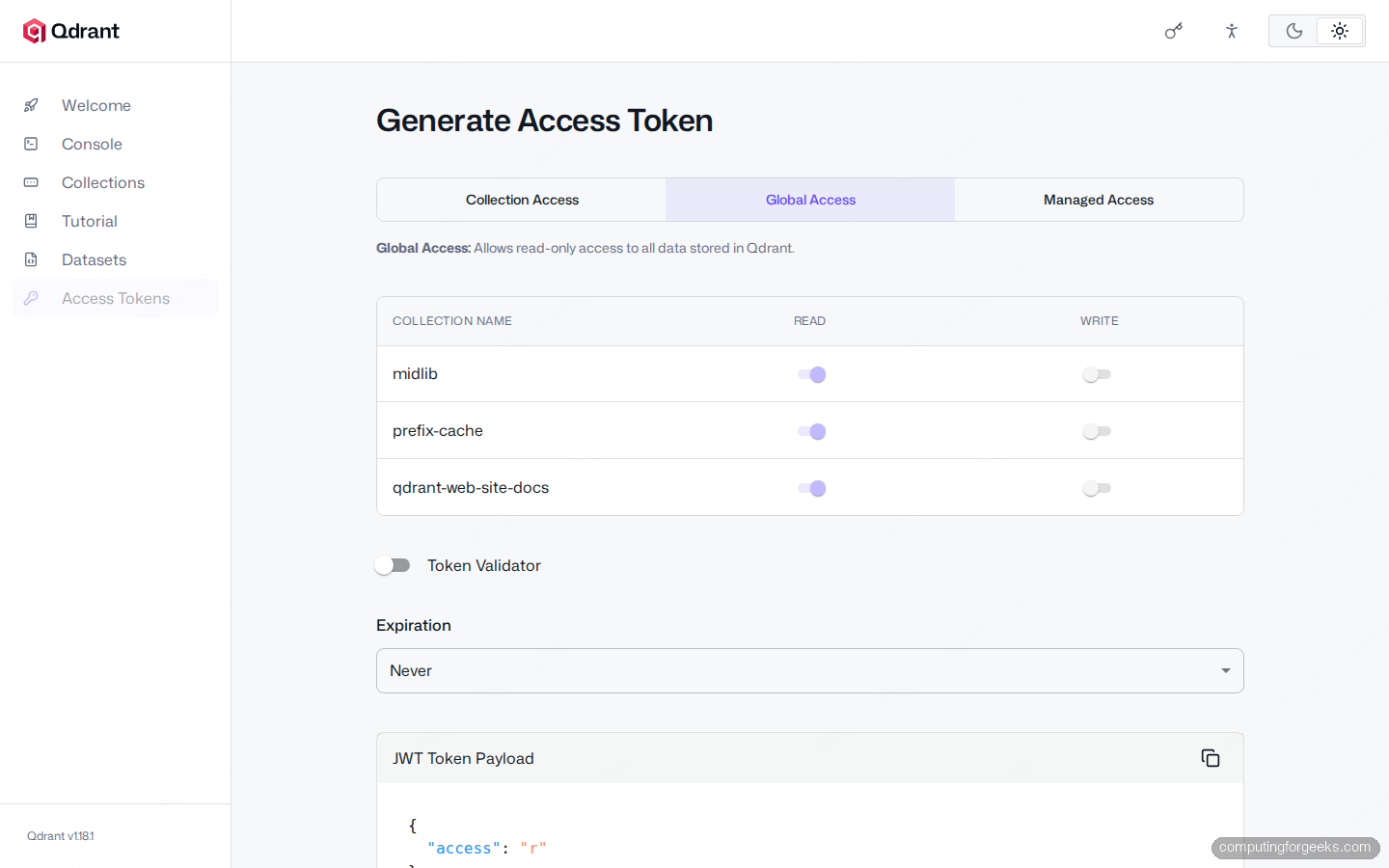
The sidebar shows the panel greyed out when no API key is configured on the server, because there is nothing to sign tokens with. To unlock it, set QDRANT__SERVICE__API_KEY at startup (Docker Compose or systemd unit), then refresh the dashboard and enter the same key when prompted. The JWT signing happens entirely in the browser via the Web Crypto API, so the service key never leaves the page.
JWT access control is covered in depth in the API key and JWT security guide for this series, including how to rotate the service key without breaking issued tokens.
Gotchas worth knowing before you ship
Five things bit us during testing and would have wasted hours each if we had hit them in production.
Access Tokens stays greyed out without an API key on the server. The Qdrant binary defaults to no auth. If you launch a fresh container without setting QDRANT__SERVICE__API_KEY, the JWT panel renders but the sidebar item is opaque and signing returns an empty token. Fix by setting the env var and restarting the container, then refreshing the dashboard.
Visualize freezes the browser tab past about 10,000 points. The t-SNE / UMAP reducer runs in the main thread of the dashboard tab. The default 500-point sample is small for a reason. If you bump limit aggressively, expect a multi-second freeze followed by a still-laggy plot. Use payload filters to narrow the sample instead of raising the limit.
Image previews only render when the payload field is named image_url. The Graph and Collection detail views look for that exact string. If your application stores image links under img, thumbnail, or asset_url, the preview area stays blank. Either rename the payload field on ingest or accept the trade-off.
Tutorials write real collections to your cluster. The Filtering Beginner tutorial creates a collection called terraforming. The Quickstart tutorial uses star_charts. Both are real, persistent collections after the tutorial finishes. Clean up via DELETE collections/terraforming in the Console when you are done, or your operational Collections list slowly fills with tutorial artefacts.
The dashboard talks to localhost only, by default. If you bind Qdrant to 0.0.0.0 and access the dashboard from a remote browser, browsers without a TLS cert refuse Web Crypto operations (so JWT signing fails silently). Either tunnel via SSH (ssh -L 6333:localhost:6333) or terminate TLS at a reverse proxy. The TLS termination with Nginx guide in this series walks through both.
Quick reference: every route in the Web UI
The Web UI is a single-page React app served from /dashboard. Bookmark or deep-link any of these routes:
| Route | Panel | Backing API |
|---|---|---|
/dashboard#/ | Collections list | GET /collections |
/dashboard#/welcome | Welcome | (static) |
/dashboard#/console | REST playground | (any) |
/dashboard#/datasets | Sample datasets | PUT /collections/{name}/snapshots/recover |
/dashboard#/collections/{name} | Collection detail | GET /collections/{name} |
/dashboard#/collections/{name}/visualize | 2-D scatter | POST /collections/{name}/points/scroll |
/dashboard#/collections/{name}/graph | Similarity graph | POST /collections/{name}/points/search |
/dashboard#/tutorial | Tutorial index | (static MDX) |
/dashboard#/tutorial/{slug} | Tutorial page | (any) |
/dashboard#/jwt | Access Tokens | Web Crypto (browser) |
Tutorial slugs are no-hyphen lowercase: quickstart, loadcontent, filteringbeginner, filteringadvanced, filteringfulltext, multivectors, sparsevectors, hybridsearch, and multitenancy. If you bookmark a hyphenated slug (filtering-beginner), the route resolves to a blank page because React Router never matches it.
With the panels covered, the next step in this series is collections, points, and payload, which moves off the dashboard and into the same operations through the REST API and the Python / TypeScript / Go SDKs. The Console panel above is the bridge between the two: anything you build in the SDKs can be smoke-tested in the dashboard first. Readers comparing Qdrant to a Postgres-native option should also see our self-hosted RAG with Ollama and pgvector walkthrough for the parallel implementation.