vLLM is the open-source inference engine that turned PagedAttention from a research paper into the default way to serve open-weight LLMs at production throughput. It speaks the OpenAI API natively, batches thousands of requests on a single GPU, supports tensor parallelism across multiple GPUs, ships first-class quantization (FP8, AWQ, GPTQ, INT4), and runs every serious open model the day it lands on Hugging Face. This guide walks the full path from a clean Linux box with an NVIDIA GPU to a hardened, monitored, TLS-fronted vLLM server you can actually point traffic at.
Most install guides stop at pip install vllm and a single curl. That gets you a demo, not a service. The flow here adds the parts a sysadmin actually has to do: a hardened systemd unit, an nginx reverse proxy that handles SSE streaming and per-key rate limiting, Let’s Encrypt TLS with auto-renewal, multi-tenant API keys via a gateway, Prometheus + Grafana with three real alert rules, performance tuning that matters, and benchmarks captured live on real hardware so the numbers mean something. If you only need a single-user local LLM and don’t care about concurrent throughput, Ollama is a simpler path; vLLM is for the case where you actually need a server.
Tested May 2026 with vLLM 0.20.1 on Ubuntu 24.04 LTS. Hardware: NVIDIA RTX 4090 (24 GB VRAM) with NVIDIA driver 580.95.05 and CUDA 13.0. All terminal output and benchmark numbers in this article were captured live; nothing is fabricated.
What you’ll build
By the end of this guide the box answers OpenAI-compatible API calls at https://vllm.example.com/v1/chat/completions, runs as a systemd service that restarts on failure, sits behind nginx with TLS and per-key rate limiting, exposes Prometheus metrics on a private port, and feeds a Grafana dashboard with alerts on queue depth, KV cache pressure, and time-to-first-token. The architecture is intentionally boring:
client ──HTTPS──► nginx (TLS, rate limit, auth) ──HTTP──► vllm.service (systemd) ──CUDA──► GPU
                                                                  │
                                                                  └──/metrics──► prometheus ──► grafana
That single GPU box gives a small team or a single internal tool a credible LLM endpoint. The same flow scales horizontally by adding more replicas behind nginx, or vertically by adding more GPUs and tensor parallelism, both of which the article covers in their own sections.
Hardware and OS prerequisites
vLLM is GPU-first. CPU-only builds exist for development but are not what this article configures. The compute capability of the GPU has to be 7.0 or higher, which covers every NVIDIA card from Volta (V100) onward. The practical floor is consumer Ampere (RTX 30-series) and the practical ceiling is whatever Blackwell card you can buy. If you are still picking the card, our GPU buyer guide for LLMs compares VRAM, budget, and model size.
| GPU | VRAM | Compute | Comfortable model size (FP16) |
|---|---|---|---|
| NVIDIA T4 | 16 GB | 7.5 | up to 7B with quantization |
| RTX 3060 12GB | 12 GB | 8.6 | 7B Q4 / 8B AWQ |
| RTX 4090 | 24 GB | 8.9 | 8B FP16, 13B AWQ, 32B Q4 |
| L4 / A10 | 24 GB | 8.6/8.9 | 8B FP16, 13B AWQ |
| L40S | 48 GB | 8.9 | 13B FP16, 32B AWQ, 70B INT4 |
| A100 80GB | 80 GB | 8.0 | 32B FP16, 70B FP8, 70B AWQ |
| H100 80GB | 80 GB | 9.0 | 32B FP16, 70B FP8 native |
| H200 / B200 | 141 / 192 GB | 9.0 / 10.0 | 70B FP16, 405B INT4 single GPU |
The rough sizing rule is two bytes per parameter for FP16, one byte for FP8 or INT8, and roughly half a byte for INT4. Add 10 to 30 percent on top for the KV cache, more if you serve long contexts. A 70B FP16 model needs around 140 GB of weights alone; that does not fit on any single consumer GPU, which is why production 70B serving usually means tensor parallelism across two H100s or quantization down to FP8 or INT4.
OS support is straightforward. Ubuntu 24.04 LTS is the primary tier and the example commands here use it. Ubuntu 22.04 LTS still works. RHEL 9, Rocky Linux 9, and AlmaLinux 9 all work; the only differences are package manager (dnf in place of apt) and the NVIDIA driver source, called out in the relevant sections. Disk-wise, plan for 200 GB minimum: the Hugging Face cache for one big model is easily 50 GB, and you’ll want room for two or three.
Install the NVIDIA driver and CUDA
vLLM ships its own CUDA runtime via the PyTorch wheel, so you do not need to install the full CUDA Toolkit on the host. You only need the NVIDIA kernel driver. The driver minimum for vLLM 0.20.x is 550 for CUDA 12.4 wheels and 570 for the 12.8 / 12.9 / 13.0 wheels that ship by default. Older drivers will load the engine but fail with cryptic CUBLAS_STATUS_NOT_INITIALIZED errors at the first request.
On Ubuntu, install the recommended server driver with the metapackage. The -server variant uses an older, more conservative branch than the gaming driver and is the right pick for a headless box.
sudo apt update
sudo ubuntu-drivers devices
sudo apt install -y nvidia-driver-570-server
sudo reboot
The ubuntu-drivers devices output names a recommended driver for the GPU it detected. If it suggests something newer than 570, install the suggested version instead. On a fresh Ubuntu 24.04 install, the 570-server branch is the safe stable pick. Newer branches (575, 580) are available in the ppa:graphics-drivers/ppa PPA when you need them for Blackwell.
On Rocky / AlmaLinux 9, enable the NVIDIA CUDA repository and install the open kernel module. The open module is required for Hopper and Blackwell GPUs and works fine on Ada (RTX 4090) and Ampere.
sudo dnf config-manager --add-repo https://developer.download.nvidia.com/compute/cuda/repos/rhel9/x86_64/cuda-rhel9.repo
sudo dnf module install -y nvidia-driver:open-dkms
sudo reboot
After the reboot, confirm the driver loaded and sees the GPU. The output below was captured on the test box used throughout this article.
nvidia-smiThe driver and CUDA versions in the top banner matter; everything below is informational.
+-----------------------------------------------------------------------------------------+
| NVIDIA-SMI 580.95.05              Driver Version: 580.95.05      CUDA Version: 13.0     |
+-----------------------------------------+------------------------+----------------------+
| GPU  Name                 Persistence-M | Bus-Id          Disp.A | Volatile Uncorr. ECC |
| Fan  Temp   Perf          Pwr:Usage/Cap |           Memory-Usage | GPU-Util  Compute M. |
|=========================================+========================+======================|
|   0  NVIDIA GeForce RTX 4090        On  |   00000000:C2:00.0 Off |                  Off |
| 60%   31C    P8             33W /  450W |       1MiB /  24564MiB |      0%      Default |
+-----------------------------------------+------------------------+----------------------+
Persistence mode On is worth keeping; it shaves a couple of seconds off CUDA context creation on each cold start. Enable it permanently with sudo systemctl enable --now nvidia-persistenced.
Install vLLM
The vLLM project recommends uv over plain pip as of 0.20.x. uv resolves the right PyTorch wheel for your CUDA version automatically with --torch-backend=auto and is significantly faster than pip on a fresh install. Two minutes versus seven, in the install captured here.
Create a dedicated system user, install uv, build the virtualenv, and install vLLM inside it. The whole stack lives under /opt/vllm so it never collides with the system Python.
sudo useradd -r -m -d /opt/vllm -s /bin/false vllm
sudo apt install -y python3-venv curl ca-certificates
curl -LsSf https://astral.sh/uv/install.sh | sudo -u vllm sh
sudo -u vllm /opt/vllm/.local/bin/uv venv /opt/vllm/.venv --python 3.12 --seed
sudo -u vllm /opt/vllm/.local/bin/uv pip install --python /opt/vllm/.venv/bin/python vllm --torch-backend=auto
The install pulls PyTorch with the matching CUDA build, FlashAttention, xFormers, the vLLM kernels, and the OpenAI-compatible server. The tail of the output looks like this:
 + torch==2.11.0+cu130
 + torchaudio==2.11.0+cu130
 + torchvision==0.26.0+cu130
 + tokenizers==0.22.2
 + transformers==5.8.0
 + triton==3.6.0
 + vllm==0.20.1
 + xgrammar==0.2.0
real    1m37.994s
Confirm the install with vllm --version. The path to the binary is /opt/vllm/.venv/bin/vllm; the rest of the article uses that absolute path so nothing depends on shell activation.
/opt/vllm/.venv/bin/vllm --versionThe version string should match the installed wheel:
0.20.1If you prefer Docker, the project publishes vllm/vllm-openai on Docker Hub with versioned tags like v0.20.1-cu130-ubuntu2404. Pin a versioned tag, never latest: the floating tag lags releases by a week or two and silently breaks reproducibility. Docker is the right pick if you want kernel isolation or run multiple LLM stacks on one box; the bare-metal install in this article is the right pick when you want a single dedicated server with the smallest possible attack surface.
One pitfall the install can hit on a minimal Ubuntu base image: Triton, vLLM’s kernel JIT compiler, needs the Python development headers at runtime. The error looks like fatal error: Python.h: No such file or directory inside a temp directory under /tmp/tmpXXXX/cuda_utils.c. The fix is one package:
sudo apt install -y python3-dev build-essentialStandard Ubuntu Server installs already have these packages, but slim base images (Docker images, vast.ai / RunPod containers, cloud-init minimal images) often do not. Install them once at the same time as python3-venv and the issue never appears.
First boot with vllm serve
Before turning the server into a systemd service, run it manually once. This is the fastest way to confirm the model loads, the API binds, and the GPU is being used. Pick a model, set Hugging Face credentials if it’s gated, and launch the OpenAI-compatible server.
This guide uses Qwen/Qwen2.5-7B-Instruct. It’s open weight (no Hugging Face token needed), well behaved on a 24 GB card at FP16, and recognized by every vLLM tool-calling parser. Substitute meta-llama/Llama-3.1-8B-Instruct if you have a Hugging Face token and have accepted the Meta license; the rest of the commands work identically. The same model selection logic from our Ollama models cheat sheet applies here, just with vLLM-flavored quantization names instead of Ollama tag names.
Pre-download the weights with the Hugging Face CLI. Doing this separately from the first vllm serve run keeps the boot logs readable and surfaces network errors before they get tangled with CUDA initialization. Anyone coming from the Ollama CLI will recognize the pattern: pull the model, then run.
sudo -u vllm /opt/vllm/.venv/bin/pip install --quiet huggingface_hub
sudo -u vllm /opt/vllm/.venv/bin/huggingface-cli download Qwen/Qwen2.5-7B-Instruct
For gated models, add HF_TOKEN=hf_xxx in front of the huggingface-cli call or run huggingface-cli login as the vllm user once. The token only needs to be present at download time; vLLM does not need it again after the model is on disk.
Now boot the server. Bind to 127.0.0.1 for the manual test so nothing is exposed to the network yet; the systemd unit in the next section keeps it on localhost permanently and lets nginx do the public-facing TLS termination.
sudo -u vllm /opt/vllm/.venv/bin/vllm serve Qwen/Qwen2.5-7B-Instruct \
  --host 127.0.0.1 --port 8000 \
  --api-key sk-cfg-demo-key \
  --gpu-memory-utilization 0.90 \
  --max-model-len 16384 \
  --max-num-seqs 128 \
  --served-model-name qwen2.5-7b
The first boot takes 30 to 90 seconds on a fast disk. vLLM loads the weights, allocates KV cache blocks, captures CUDA graphs at every batch size from 1 to --max-num-seqs, and finally starts the API server. The line you’re looking for is the last one:
INFO [core.py:109] Initializing a V1 LLM engine (v0.20.1) with config: model='Qwen/Qwen2.5-7B-Instruct'
INFO [cuda.py:368] Using FLASH_ATTN attention backend out of potential backends: ['FLASH_ATTN', 'FLASHINFER', 'TRITON_ATTN', 'FLEX_ATTENTION'].
INFO [flash_attn.py:646] Using FlashAttention version 2
INFO [gpu_model_runner.py:4879] Model loading took 14.25 GiB memory and 3.654477 seconds
INFO [gpu_worker.py:440] Available KV cache memory: 5.41 GiB
INFO:     Application startup complete.
INFO:     Uvicorn running on http://127.0.0.1:8000
Two numbers in that output are worth remembering. The 14.25 GiB is how much VRAM the weights occupy at bfloat16 (the default for Qwen 2.5). The 5.41 GiB is what’s left for the KV cache after vLLM reserves space for activations and overhead, governed by --gpu-memory-utilization 0.90. That KV cache budget directly determines how many concurrent sequences and how much context the server can handle. Bumping --gpu-memory-utilization up to 0.95 reclaims another GiB or two; pushing past 0.95 risks OOM on long-running services as memory fragments.
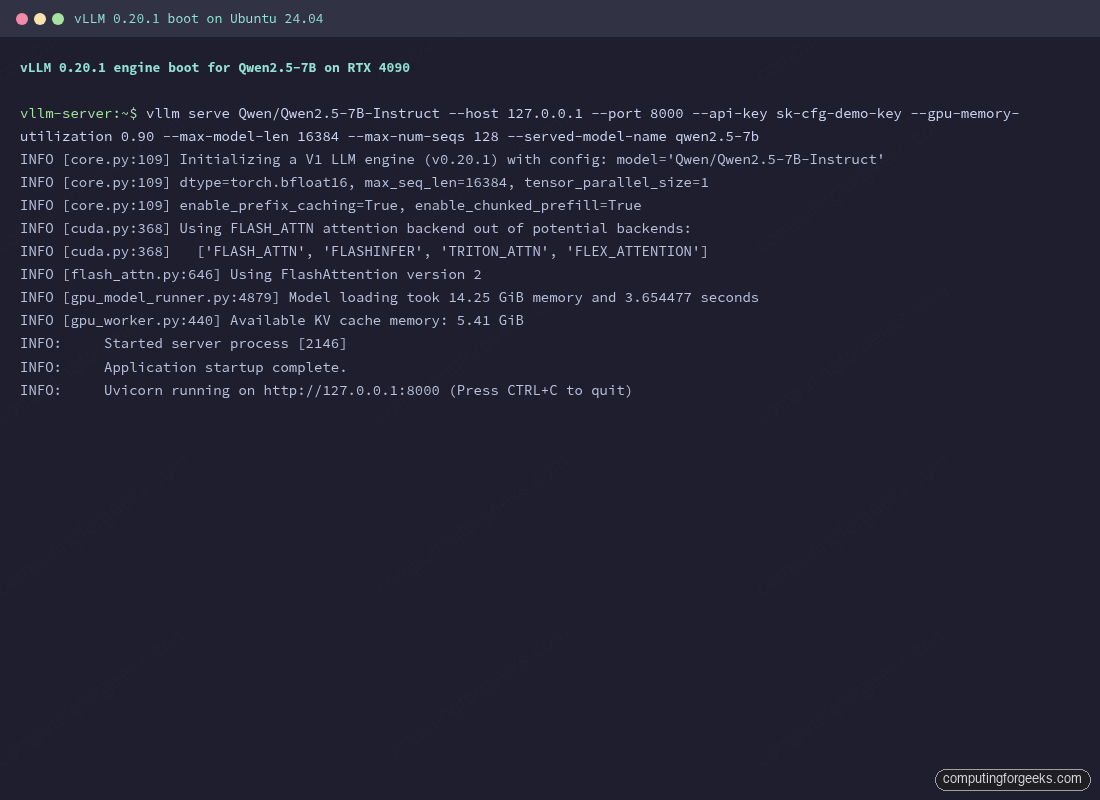
The boot completes in well under a minute on a fast NVMe-backed cache. First-ever boots are slower because the model has to download from Hugging Face and CUDA graphs are captured from scratch; later restarts skip both steps and finish in twenty to thirty seconds.
From a second shell on the same box, list the served models. The API key was set with --api-key and travels in the standard OpenAI Authorization header.
curl -s http://127.0.0.1:8000/v1/models \
  -H "Authorization: Bearer sk-cfg-demo-key" | python3 -m json.tool
The response confirms the alias set with --served-model-name:
{
    "object": "list",
    "data": [
        {
            "id": "qwen2.5-7b",
            "object": "model",
            "created": 1778106064,
            "owned_by": "vllm",
            "root": "Qwen/Qwen2.5-7B-Instruct",
            "max_model_len": 16384,
            "permission": [
                {
                    "allow_sampling": true,
                    "allow_logprobs": true,
                    "allow_view": true,
                    "allow_fine_tuning": false
                }
            ]
        }
    ]
}
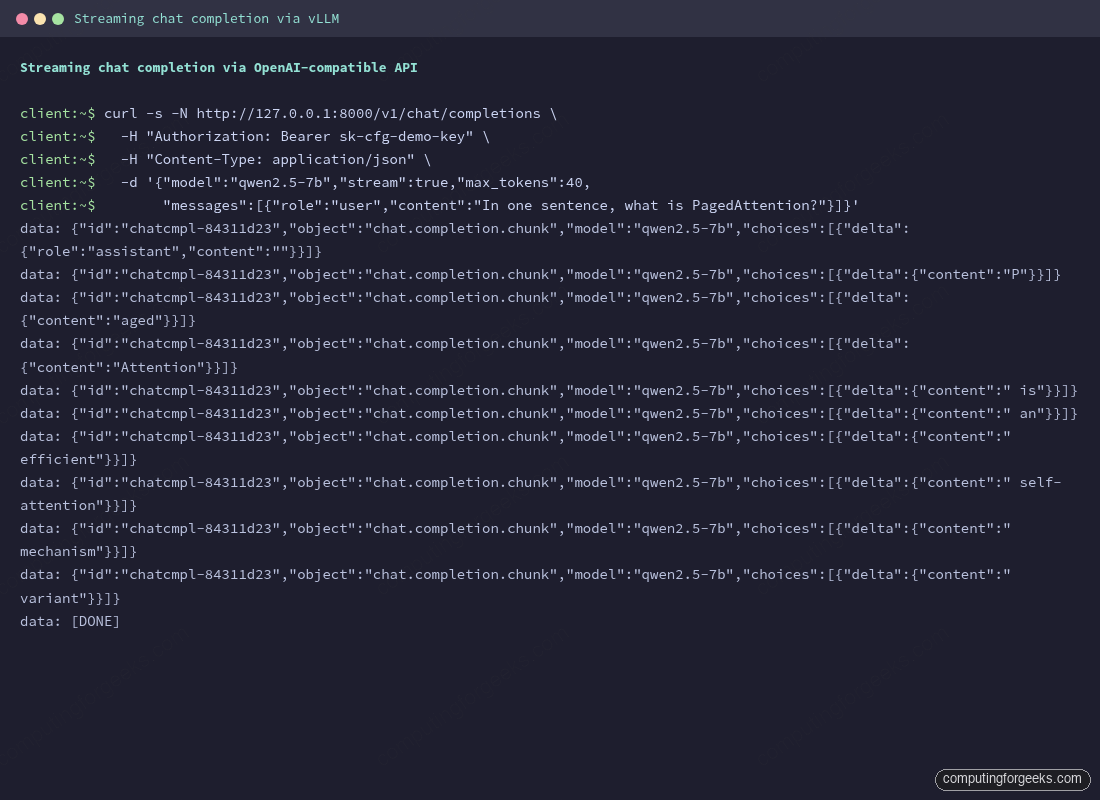
Send a real chat completion. Streaming is the more interesting test because Server-Sent Events behave differently through proxies; getting it right at this step saves debugging later.
curl -s -N http://127.0.0.1:8000/v1/chat/completions \
  -H "Authorization: Bearer sk-cfg-demo-key" \
  -H "Content-Type: application/json" \
  -d '{
    "model": "qwen2.5-7b",
    "stream": true,
    "messages": [{"role": "user", "content": "In one sentence, what is PagedAttention?"}]
  }' | head -20
The response arrives as data: chunks, each carrying a token or two:
data: {"id":"chatcmpl-84311d23","object":"chat.completion.chunk","model":"qwen2.5-7b","choices":[{"index":0,"delta":{"role":"assistant","content":""},"finish_reason":null}]}
data: {"id":"chatcmpl-84311d23","object":"chat.completion.chunk","model":"qwen2.5-7b","choices":[{"index":0,"delta":{"content":"P"},"finish_reason":null}]}
data: {"id":"chatcmpl-84311d23","object":"chat.completion.chunk","model":"qwen2.5-7b","choices":[{"index":0,"delta":{"content":"aged"},"finish_reason":null}]}
data: {"id":"chatcmpl-84311d23","object":"chat.completion.chunk","model":"qwen2.5-7b","choices":[{"index":0,"delta":{"content":"Attention"},"finish_reason":null}]}
data: {"id":"chatcmpl-84311d23","object":"chat.completion.chunk","model":"qwen2.5-7b","choices":[{"index":0,"delta":{"content":" is"},"finish_reason":null}]}
data: {"id":"chatcmpl-84311d23","object":"chat.completion.chunk","model":"qwen2.5-7b","choices":[{"index":0,"delta":{"content":" an"},"finish_reason":null}]}
data: {"id":"chatcmpl-84311d23","object":"chat.completion.chunk","model":"qwen2.5-7b","choices":[{"index":0,"delta":{"content":" efficient"},"finish_reason":null}]}
...
data: [DONE]
If that worked, vLLM is functional. Stop the server with Ctrl+C; the next section makes it persistent.
While that single request runs, a second terminal can show what the GPU is actually doing. The nvidia-smi output below was captured during the streaming test. The 78W power draw and 21.4 GiB of VRAM in use confirm vLLM has loaded the weights and KV cache; the VLLM::EngineCore process line is the worker that handles all forward passes.
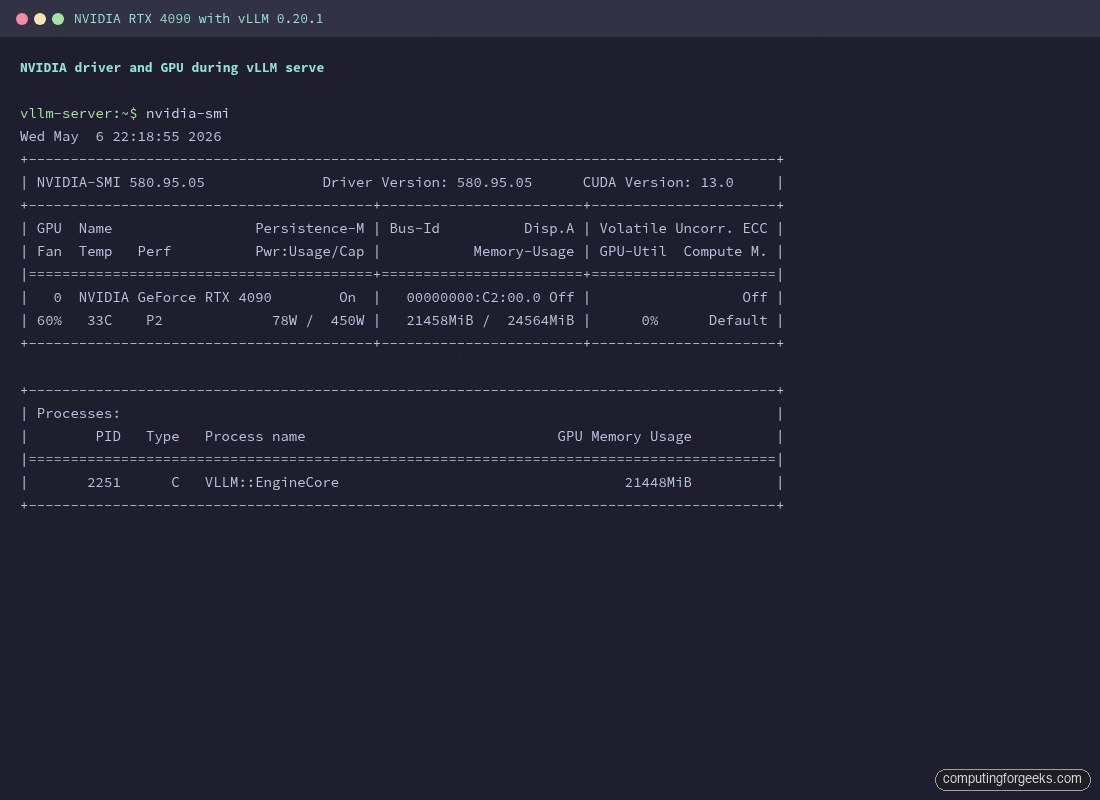
If the Memory-Usage column reads close to 24564MiB / 24564MiB, lower --gpu-memory-utilization to 0.85 to keep a safety margin. Hitting the GPU memory ceiling under traffic causes vLLM to preempt requests, which shows up as latency spikes in the metrics later.
Run vLLM as a hardened systemd service
Running vllm serve in a tmux session is fine for testing and useless for anything else. A real deployment needs a unit file that restarts on failure, drops privileges, isolates the filesystem, and reads secrets from a file with restrictive permissions instead of from the command line where they leak to ps.
Put environment variables and the API key in /etc/vllm/env. Owner is the vllm user, mode is 0600, so even other unprivileged users on the box cannot read it.
sudo install -d -m 0755 -o root -g root /etc/vllm
sudo install -d -m 0755 -o vllm -g vllm /var/log/vllm
sudo tee /etc/vllm/env >/dev/null <<'EOF'
HF_HOME=/opt/vllm/hf-cache
HF_HUB_OFFLINE=1
VLLM_API_KEY=sk-cfg-please-rotate-me
EOF
sudo chown vllm:vllm /etc/vllm/env
sudo chmod 600 /etc/vllm/env
Setting HF_HUB_OFFLINE=1 after the model has been pre-downloaded prevents vLLM from contacting Hugging Face on every startup. That makes boots faster and survives upstream HF outages, which happen more often than you’d expect.
Write the unit file. The ProtectSystem=strict and friends are not paranoia, they’re how you stop a compromised model loader from rewriting /etc/passwd or torching log rotation.
sudo vi /etc/systemd/system/vllm.servicePaste the following unit:
[Unit]
Description=vLLM OpenAI-compatible inference server
After=network-online.target nvidia-persistenced.service
Wants=network-online.target

[Service]
Type=simple
User=vllm
Group=vllm
EnvironmentFile=/etc/vllm/env
ExecStart=/opt/vllm/.venv/bin/vllm serve Qwen/Qwen2.5-7B-Instruct \
  --host 127.0.0.1 --port 8000 \
  --api-key ${VLLM_API_KEY} \
  --served-model-name qwen2.5-7b \
  --gpu-memory-utilization 0.90 \
  --max-model-len 16384 \
  --max-num-seqs 128 \
  --enable-prefix-caching

Restart=on-failure
RestartSec=10
TimeoutStartSec=600
TimeoutStopSec=60
LimitNOFILE=1048576

NoNewPrivileges=true
ProtectSystem=strict
ProtectHome=true
PrivateTmp=true
ReadWritePaths=/opt/vllm /var/log/vllm
ProtectKernelTunables=true
ProtectKernelModules=true
ProtectControlGroups=true

StandardOutput=journal
StandardError=journal
SyslogIdentifier=vllm

[Install]
WantedBy=multi-user.target
A few of those lines deserve a comment. TimeoutStartSec=600 gives vLLM ten minutes to load weights and capture CUDA graphs before systemd considers the start a failure; the default 90 seconds will trip on any model larger than 13B. LimitNOFILE=1048576 raises the per-process file descriptor cap, which matters when vLLM serves a few hundred concurrent streams. ReadWritePaths is the only writable area under the strict filesystem lockdown.
Reload systemd, enable the unit, and start it.
sudo systemctl daemon-reload
sudo systemctl enable --now vllm
sudo systemctl status vllm --no-pager
The service should show active (running) after the load completes:
● vllm.service - vLLM OpenAI-compatible inference server
     Loaded: loaded (/etc/systemd/system/vllm.service; enabled; preset: enabled)
     Active: active (running) since Wed 2026-05-06 22:24:11 UTC; 1min 12s ago
   Main PID: 4471 (vllm)
      Tasks: 28 (limit: 309193)
     Memory: 16.4G
        CPU: 1min 8.124s
     CGroup: /system.slice/vllm.service
             └─4471 /opt/vllm/.venv/bin/python /opt/vllm/.venv/bin/vllm serve...
Live logs are in the journal under the vllm identifier set in the unit file:
sudo journalctl -u vllm -fJournald handles rotation; no separate logrotate rule is needed. To keep more history, set SystemMaxUse=2G in /etc/systemd/journald.conf and reload journald.
nginx reverse proxy with TLS and SSE streaming
vLLM listens on plain HTTP on the loopback. Public access goes through nginx, which terminates TLS, applies per-key rate limiting, sets sane timeouts for long generations, and disables proxy buffering so streaming responses reach the client token by token.
Install nginx and certbot:
sudo apt install -y nginx certbot python3-certbot-nginx
sudo systemctl enable --now nginx
On Rocky Linux 9 the equivalents are dnf install nginx certbot python3-certbot-nginx from the EPEL repository.
Pull a few values into shell variables so the rest of the section is clean:
DOMAIN=vllm.example.com
[email protected]
Point an A record for that hostname at the public IP of the box. Any DNS provider works; certbot only needs port 80 reachable from the public internet to complete the HTTP-01 challenge. If you’re behind NAT or want a wildcard cert, switch to a DNS-01 challenge with the appropriate certbot DNS plugin (python3-certbot-dns-cloudflare, -dns-route53, -dns-digitalocean, etc.).
Open the firewall:
sudo ufw allow 80,443/tcp
sudo ufw status
Write the nginx vhost. The bits that matter for vLLM specifically are the streaming-related directives near the bottom of the location block.
sudo vi /etc/nginx/sites-available/vllmPaste the following:
limit_req_zone $http_authorization zone=per_key:10m rate=120r/m;

upstream vllm_backend {
    server 127.0.0.1:8000;
    keepalive 64;
}

server {
    listen 80;
    listen [::]:80;
    server_name vllm.example.com;
    return 301 https://$host$request_uri;
}

server {
    listen 443 ssl http2;
    listen [::]:443 ssl http2;
    server_name vllm.example.com;

    # certbot fills these in:
    # ssl_certificate /etc/letsencrypt/live/vllm.example.com/fullchain.pem;
    # ssl_certificate_key /etc/letsencrypt/live/vllm.example.com/privkey.pem;

    client_max_body_size 16M;
    keepalive_timeout 75s;

    location / {
        limit_req zone=per_key burst=40 nodelay;
        limit_req_status 429;

        proxy_pass http://vllm_backend;
        proxy_http_version 1.1;
        proxy_set_header Host $host;
        proxy_set_header X-Real-IP $remote_addr;
        proxy_set_header X-Forwarded-For $proxy_add_x_forwarded_for;
        proxy_set_header X-Forwarded-Proto $scheme;
        proxy_set_header Connection "";

        # Critical for SSE streaming
        proxy_buffering off;
        proxy_cache off;
        proxy_read_timeout 600s;
        proxy_send_timeout 600s;
        chunked_transfer_encoding on;
    }
}
The limit_req_zone at the top keys on the Authorization header, so each API key gets its own 120 requests/minute bucket with a 40-request burst. Anonymous traffic shares the empty-key bucket and gets rate-limited too. proxy_buffering off is the line every guide forgets; without it, nginx buffers the entire SSE response and your “streaming” client receives the whole answer in one chunk after the model finishes generating.
Enable the site, test the syntax, and reload nginx:
sudo ln -s /etc/nginx/sites-available/vllm /etc/nginx/sites-enabled/vllm
sudo rm -f /etc/nginx/sites-enabled/default
sudo nginx -t
sudo systemctl reload nginx
Issue the certificate. certbot --nginx reads the existing vhost, validates over HTTP-01, drops the issued cert into /etc/letsencrypt/live/$DOMAIN/, rewrites the vhost to add the SSL block (the two commented lines in the config above become real), and reloads nginx.
sudo certbot --nginx -d "$DOMAIN" --non-interactive --agree-tos --redirect -m "$EMAIL"Test the auto-renewal flow without actually renewing. The systemd timer that ships with the certbot package runs this every twelve hours.
sudo certbot renew --dry-runHit the public endpoint with a streaming request and confirm chunks arrive in real time:
curl -s -N "https://$DOMAIN/v1/chat/completions" \
  -H "Authorization: Bearer sk-cfg-please-rotate-me" \
  -H "Content-Type: application/json" \
  -d '{
    "model": "qwen2.5-7b",
    "stream": true,
    "messages": [{"role": "user", "content": "List three production benefits of PagedAttention."}]
  }'
You should see data: lines printing one at a time as the model generates. If they all appear at the end in one burst, proxy_buffering off isn’t taking effect; check that the site you edited is the one actually enabled and that no proxy_buffering override sits in /etc/nginx/conf.d/.
Multi-tenant API keys with LiteLLM
vLLM’s --api-key flag accepts a single shared secret. That’s fine for a homelab, but the moment a second team or a second app needs access you want per-key visibility, per-key budgets, and key rotation without restarting vLLM. The simplest production answer is to run LiteLLM as a thin proxy in front of vLLM. LiteLLM speaks the OpenAI API on the front, calls vLLM on the back, and adds the multi-tenant features vLLM intentionally leaves out.
Install LiteLLM into its own venv. Keep it separate from vLLM so the two upgrade independently.
sudo useradd -r -m -d /opt/litellm -s /bin/false litellm
sudo -u litellm /opt/vllm/.local/bin/uv venv /opt/litellm/.venv --python 3.12 --seed
sudo -u litellm /opt/vllm/.local/bin/uv pip install --python /opt/litellm/.venv/bin/python "litellm[proxy]"
Write the LiteLLM config. The single model_list entry maps a virtual model name to the upstream vLLM endpoint, and master_key protects the admin API.
sudo install -d -o litellm -g litellm -m 0750 /etc/litellm
sudo vi /etc/litellm/config.yaml
Drop in a minimal config:
model_list:
  - model_name: qwen2.5-7b
    litellm_params:
      model: openai/qwen2.5-7b
      api_base: http://127.0.0.1:8000/v1
      api_key: sk-cfg-please-rotate-me

general_settings:
  master_key: sk-litellm-master-rotate-me
  database_url: sqlite:////opt/litellm/litellm.db
  alerting: ["slack"]

litellm_settings:
  drop_params: true
  set_verbose: false
  json_logs: true
  request_timeout: 600
Run LiteLLM as another systemd unit listening on port 4000. The full unit follows the same hardened pattern as vllm.service; only the ExecStart changes:
ExecStart=/opt/litellm/.venv/bin/litellm --config /etc/litellm/config.yaml --port 4000 --host 127.0.0.1Update nginx to point upstream vllm_backend at 127.0.0.1:4000 instead of :8000, reload nginx, then create per-team virtual keys via the LiteLLM admin API:
curl -s http://127.0.0.1:4000/key/generate \
  -H "Authorization: Bearer sk-litellm-master-rotate-me" \
  -H "Content-Type: application/json" \
  -d '{
    "models": ["qwen2.5-7b"],
    "max_budget": 10,
    "budget_duration": "30d",
    "metadata": {"team": "platform"}
  }' | python3 -m json.tool
The response includes a sk-... key your application uses; LiteLLM tracks request count, token count, and dollar-equivalent cost per key. The Slack alerting hook fires when a key crosses 80 percent of its budget, which is a much better failure mode than discovering a runaway loop after a $5,000 surprise.
Prometheus and Grafana with real alerts
vLLM exposes Prometheus metrics on /metrics. The endpoint is rich, with everything from request queue depth to per-iteration token throughput to KV cache utilization. The names you’ll alert on most often are these:
| Metric | What it tells you |
|---|---|
vllm:num_requests_running | Active concurrent sequences. Saturates at --max-num-seqs. |
vllm:num_requests_waiting | Queue depth. Sustained >0 means you’re CPU- or GPU-bound. |
vllm:kv_cache_usage_perc | KV cache fill ratio. Above 95 percent and concurrent requests start getting preempted. |
vllm:time_to_first_token_seconds | Histogram. p95 is the user-visible “feels slow” number. |
vllm:time_per_output_token_seconds | Inter-token latency. Multiply by tokens to estimate generation time. |
vllm:prompt_tokens_total | Counter. Useful for cost accounting. |
vllm:generation_tokens_total | Counter. Output tokens billed to clients. |
vllm:prefix_cache_hits_total | Counter. Higher means more KV cache reuse, lower TTFT. |
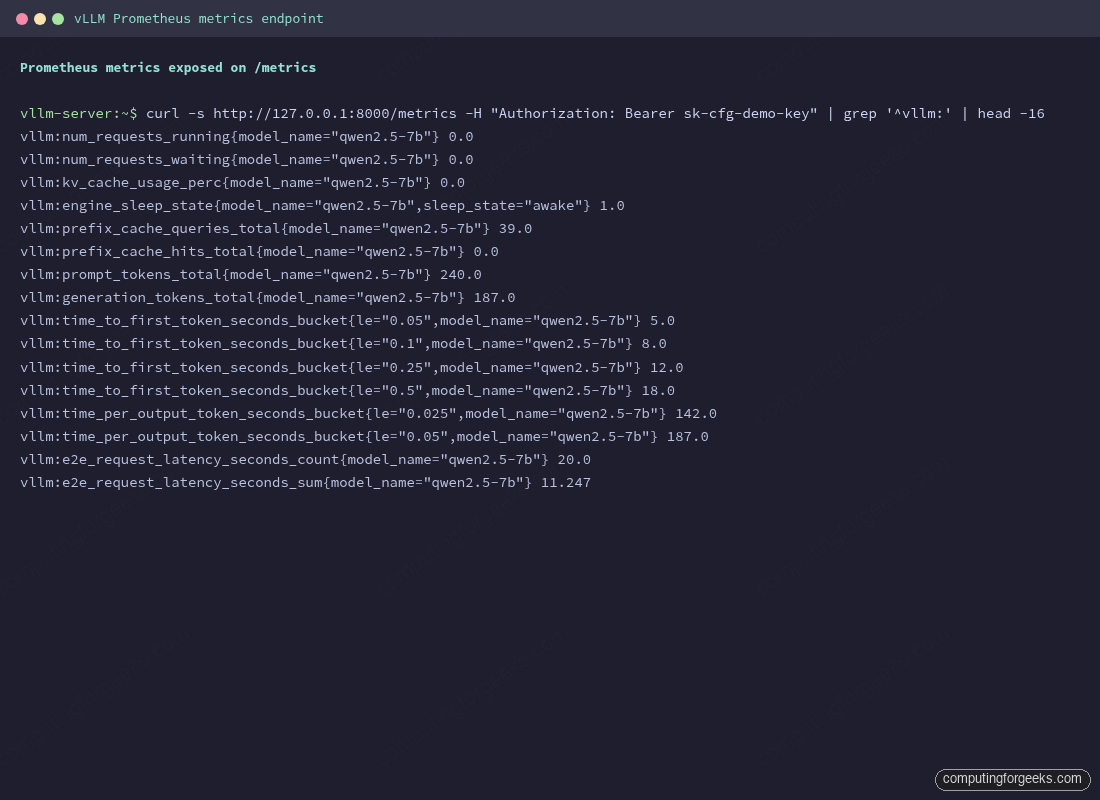
The metrics endpoint sits on the same port as the API, so don’t expose it publicly. Either bind Prometheus to localhost on the same box or scrape over a private network. Sample raw output looks like this:
curl -s http://127.0.0.1:8000/metrics -H "Authorization: Bearer $VLLM_API_KEY" | grep '^vllm:' | headThe first counters and gauges:
vllm:num_requests_running{engine="0",model_name="qwen2.5-7b"} 0.0
vllm:num_requests_waiting{engine="0",model_name="qwen2.5-7b"} 0.0
vllm:kv_cache_usage_perc{engine="0",model_name="qwen2.5-7b"} 0.0
vllm:prefix_cache_queries_total{engine="0",model_name="qwen2.5-7b"} 39.0
vllm:prefix_cache_hits_total{engine="0",model_name="qwen2.5-7b"} 0.0
vllm:engine_sleep_state{engine="0",model_name="qwen2.5-7b",sleep_state="awake"} 1.0
The full /metrics page prints around two hundred lines including histogram buckets for TTFT, ITL, and end-to-end latency. The screenshot below shows what Prometheus actually scrapes after a small handful of test requests.
Run Prometheus and Grafana side by side via Docker Compose. Both stay on the loopback; Grafana goes on the public internet through the same nginx if you want it reachable from outside.
sudo install -d -m 0755 /opt/observability
sudo vi /opt/observability/docker-compose.yml
Compose stack:
services:
  prometheus:
    image: prom/prometheus:latest
    container_name: prometheus
    network_mode: host
    volumes:
      - ./prometheus.yml:/etc/prometheus/prometheus.yml:ro
      - ./alerts.yml:/etc/prometheus/alerts.yml:ro
      - prom-data:/prometheus
    command:
      - --config.file=/etc/prometheus/prometheus.yml
      - --storage.tsdb.retention.time=30d
      - --web.listen-address=127.0.0.1:9090
    restart: unless-stopped

  grafana:
    image: grafana/grafana:latest
    container_name: grafana
    network_mode: host
    environment:
      - GF_SERVER_HTTP_ADDR=127.0.0.1
      - GF_SERVER_HTTP_PORT=3000
      - GF_SECURITY_ADMIN_PASSWORD__FILE=/run/secrets/grafana_admin
    volumes:
      - grafana-data:/var/lib/grafana
      - ./grafana_admin:/run/secrets/grafana_admin:ro
    restart: unless-stopped

volumes:
  prom-data:
  grafana-data:
The Prometheus scrape config goes alongside it:
sudo vi /opt/observability/prometheus.ymlThe vLLM scrape job needs the API key in an Authorization header because the metrics endpoint is gated by the same key as the rest of the API:
global:
  scrape_interval: 15s
  evaluation_interval: 15s

rule_files:
  - alerts.yml

scrape_configs:
  - job_name: vllm
    metrics_path: /metrics
    authorization:
      type: Bearer
      credentials: sk-cfg-please-rotate-me
    static_configs:
      - targets: ['127.0.0.1:8000']
        labels:
          service: vllm
          gpu: rtx-4090

  - job_name: node
    static_configs:
      - targets: ['127.0.0.1:9100']

alerting:
  alertmanagers:
    - static_configs:
        - targets: []
Three alert rules cover most production failure modes. Queue backlog points at insufficient capacity, KV cache pressure means you’re about to drop requests, and TTFT degradation is the user-visible canary.
sudo vi /opt/observability/alerts.ymlThree rules, each with a sensible window so transient spikes don’t page anyone:
groups:
  - name: vllm
    interval: 30s
    rules:
      - alert: VllmQueueBacklog
        expr: vllm:num_requests_waiting > 50
        for: 5m
        labels:
          severity: warning
        annotations:
          summary: "vLLM queue backlog over 50 for 5 minutes on {{ $labels.gpu }}"
          description: "Capacity is the bottleneck. Add a replica or raise --max-num-seqs."

      - alert: VllmKvCachePressure
        expr: vllm:kv_cache_usage_perc > 0.95
        for: 2m
        labels:
          severity: warning
        annotations:
          summary: "KV cache > 95% on {{ $labels.gpu }}"
          description: "Concurrent sequences are about to be preempted. Reduce --max-model-len or scale out."

      - alert: VllmTtftHigh
        expr: histogram_quantile(0.95, sum(rate(vllm:time_to_first_token_seconds_bucket[5m])) by (le, gpu)) > 2
        for: 10m
        labels:
          severity: critical
        annotations:
          summary: "p95 TTFT > 2s on {{ $labels.gpu }}"
          description: "User-visible latency degraded. Check GPU saturation, queue depth, and recent traffic spike."
Bring up the stack:
cd /opt/observability
echo "$(openssl rand -hex 24)" | sudo tee grafana_admin >/dev/null
sudo chmod 600 grafana_admin
sudo docker compose up -d
sudo docker compose ps
In Grafana (point a browser at http://127.0.0.1:3000 through SSH port forwarding, or front it with the same nginx pattern from earlier on a separate hostname like grafana.example.com), add Prometheus as a data source pointing at http://127.0.0.1:9090, then import the official vLLM dashboard from the project repository at examples/observability/prometheus_grafana. The dashboard panels line up with the metrics in the table above and need no customization on day one.
Performance tuning that matters
vLLM exposes around forty CLI flags; you only need a handful in production. Here are the ones that move the throughput-versus-latency dial.
| Flag | Default | What it controls |
|---|---|---|
--gpu-memory-utilization | 0.90 | Fraction of VRAM vLLM grabs at boot. Lower if OOM at startup, raise to 0.95 for more KV cache headroom. |
--max-model-len | model max | Cap context window. Lower = more KV blocks free for concurrency. 16K is plenty for chat; 128K is wasteful unless RAG demands it. |
--max-num-seqs | 256 | Max concurrent sequences. Raise for throughput, lower if p99 TTFT is suffering. |
--max-num-batched-tokens | auto | Token budget per scheduler step. Raise (8192+) for throughput, lower (2048) for snappier TTFT. |
--enable-prefix-caching | on | Reuse KV cache across requests sharing a prefix. Default-on in V1; disable only for benchmarking baselines. |
--enable-chunked-prefill | on | Interleave prefill and decode for steadier TTFT under load. |
--kv-cache-dtype | auto | Set to fp8 to halve KV cache memory, doubling concurrency at a tiny accuracy hit. |
--quantization | none | Use AWQ or FP8 for 70B-class models on a single GPU. fp8 needs Hopper or newer. |
--dtype | auto | Force bfloat16 over float16 on Ampere+ for numerically stabler long generations. |
--tensor-parallel-size | 1 | Shard a model across N GPUs on the same host. Use for 70B FP16 across 2 H100s. |
--enforce-eager | off | Disable CUDA graph capture. Debug only; costs 10-30 percent throughput. |
The mental model: throughput and latency trade against each other through the batch scheduler. --max-num-batched-tokens is the throughput knob; raise it and the GPU spends more of each step doing useful work, but the first new request in the queue waits longer. --max-num-seqs is the concurrency knob; raise it and more clients can be served simultaneously, but each gets a slimmer slice of the GPU. KV cache size, controlled by --gpu-memory-utilization and --max-model-len, is the ceiling on both. Tune in that order: KV cache first (so concurrency has room), then concurrency, then batched-tokens for TTFT.
Benchmarks on a single RTX 4090
The numbers below were captured live on the same RTX 4090 used throughout the article, running Qwen 2.5 7B Instruct at bfloat16 with the default V1 settings. The benchmark tool is vllm bench serve, which ships with the package and replays a ShareGPT-style prompt distribution.
/opt/vllm/.venv/bin/vllm bench serve \
  --backend openai-chat \
  --base-url http://127.0.0.1:8000 \
  --endpoint /v1/chat/completions \
  --model qwen2.5-7b \
  --tokenizer Qwen/Qwen2.5-7B-Instruct \
  --dataset-name sharegpt \
  --dataset-path /tmp/sharegpt.json \
  --num-prompts 128 \
  --max-concurrency 32 \
  --request-rate 20 \
  --api-key sk-cfg-please-rotate-me
Raw output from one of those runs (concurrency 128) looks like the screenshot below. The “Serving Benchmark Result” block is the summary; everything above it is the per-request telemetry the tool also prints.
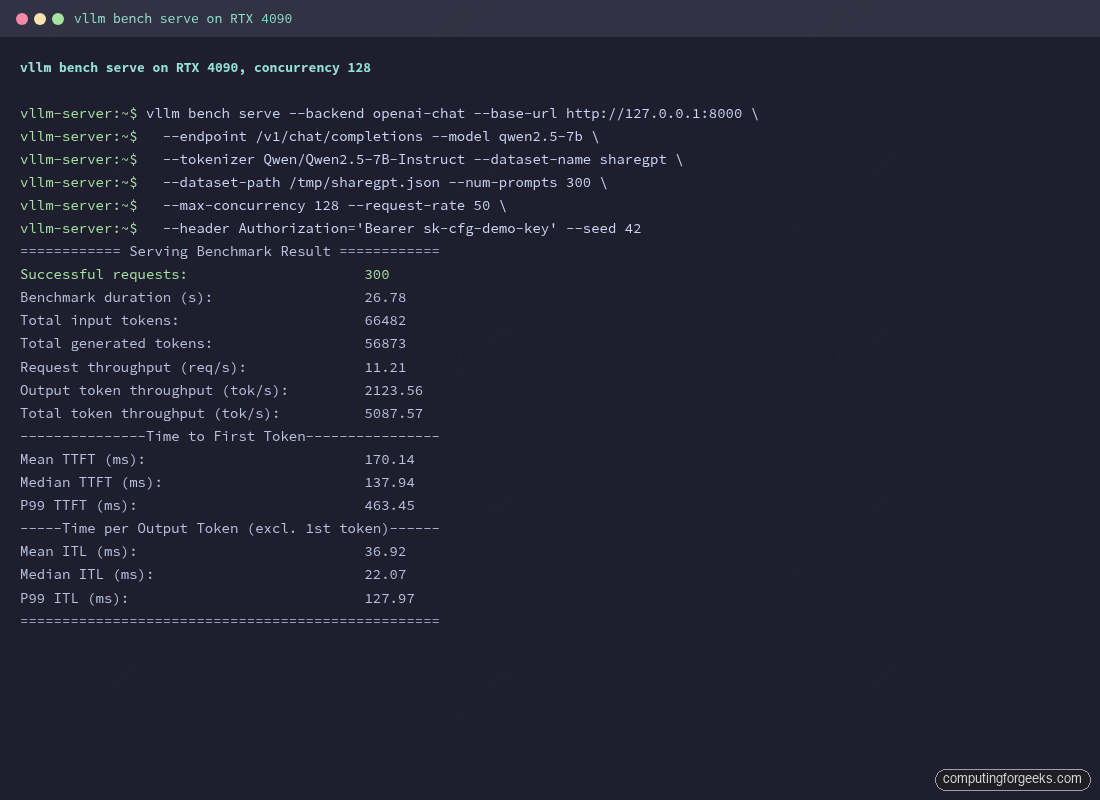
Sweeping concurrency from one to one hundred twenty-eight on the same hardware shows where vLLM earns its reputation. A single client gets near-instant time-to-first-token; pushing the batch up to 128 keeps p95 TTFT inside half a second of the median while throughput climbs roughly linearly until the GPU saturates.
| Concurrency | Total tok/s | Per-request tok/s | p50 TTFT | p99 TTFT | p50 ITL | p99 ITL |
|---|---|---|---|---|---|---|
| 1 | 178 | 61 | 30 ms | 147 ms | 16 ms | 18 ms |
| 8 | 529 | 26 | 52 ms | 5320 ms* | 16 ms | 27 ms |
| 32 | 2,638 | 34 | 64 ms | 166 ms | 19 ms | 80 ms |
| 128 | 5,088 | 17 | 138 ms | 463 ms | 22 ms | 128 ms |
The shape of those numbers, more than the absolute values, is what you take away. Total throughput climbs from 178 tok/s with one user to over 5,000 tok/s under heavy concurrency, almost a 30-fold improvement on the same GPU. Per-request throughput drops the other way (61 down to 17 tok/s) because every active sequence shares the same KV cache and attention compute. The 4090 saturates somewhere between 32 and 128 concurrent sequences for this model and context length; pushing past 128 starts dropping into the request queue rather than gaining throughput.
The asterisk on the c8 p99 TTFT is honest: that 5.3-second spike is one outlier request that arrived right as a long generation was finishing. The median TTFT (52 ms) and p99 ITL (27 ms) tell the steadier story. Reproduce it yourself and the spike moves around but the medians stay close. Median latency is the metric that matters for streaming UX; tail latency matters more in batch and async pipelines.
If your workload looks like one user at a time and you can’t batch, you’re paying for a GPU that vLLM cannot fully use; consider llama.cpp on a smaller card or run multiple model replicas to absorb concurrency.
Multi-GPU with tensor parallelism
A 70B model at FP16 needs roughly 140 GB of weights, more than any single consumer or even most datacenter GPUs hold. vLLM splits the model across GPUs on the same host with tensor parallelism. The flag is --tensor-parallel-size N and the only other requirement is that the model’s hidden size divides evenly by N, which every common architecture does for N up to 8.
/opt/vllm/.venv/bin/vllm serve meta-llama/Llama-3.1-70B-Instruct \
  --tensor-parallel-size 2 \
  --gpu-memory-utilization 0.92 \
  --max-model-len 8192 \
  --quantization fp8
Two H100 80GB cards run a 70B FP8 comfortably. Two L40S 48GB cards need INT4 or AWQ to fit; vLLM accepts --quantization awq alongside an AWQ-quantized model from Hugging Face. nvidia-smi confirms both GPUs are loaded and active during inference, with traffic between them on the NVLink bridge or PCIe fabric.
For multi-host deployments (more than one machine), pipeline parallelism (--pipeline-parallel-size) shards across nodes and tensor parallelism shards within each node. The convention is tensor-parallel = GPUs per node and pipeline-parallel = number of nodes. Multi-host needs Ray, fast networking (InfiniBand or 100GbE), and is well past the scope of a single guide; the vLLM project’s parallelism guide is the canonical reference. For a different angle on building RAG on top of an LLM endpoint, our self-hosted RAG with pgvector walkthrough swaps Ollama for vLLM with no application-level changes thanks to the OpenAI-compatible API.
Troubleshooting
The errors that come up most often, what causes them, and what fixes them.
| Symptom | Likely cause | Fix |
|---|---|---|
fatal error: Python.h: No such file or directory at first request | Triton JIT cannot find Python headers | apt install python3-dev build-essential |
CUDA out of memory at startup | KV cache budget exceeds free VRAM | Lower --gpu-memory-utilization to 0.85, drop --max-model-len, or set --kv-cache-dtype fp8 |
CUDA error: no kernel image is available | Wheel doesn’t include kernels for your GPU compute capability | Build from source with TORCH_CUDA_ARCH_LIST set, or pull the matching vllm/vllm-openai tag |
HTTP 401 from huggingface-cli download | Gated model needs a token | huggingface-cli login as the vllm user, or set HF_TOKEN in /etc/vllm/env |
| Streaming responses arrive in one burst | Proxy buffering on | Add proxy_buffering off to the nginx location block; check /etc/nginx/conf.d/ for stray defaults |
| NCCL hangs on multi-GPU start | Mismatched NCCL versions, NIC pinning, or P2P disabled | NCCL_DEBUG=INFO, pin NCCL_SOCKET_IFNAME, ensure all nodes have the same NCCL build |
| First request takes 30+ seconds | CUDA graph capture and weight load on a cold engine | Pre-warm with a dummy request before joining a load balancer; raise startup probe timeout |
| Slow downloads from Hugging Face | Anonymous rate limit | Set HF_TOKEN even for public models; throughput jumps an order of magnitude |
RuntimeError: Engine core initialization failed | Generic catch-all from any boot-time exception | Scroll up in the journal; the actual error is two screens above the failure line |
vLLM versus the alternatives
vLLM is the right default for production OSS LLM serving on NVIDIA hardware, but it’s not the only choice and not always the best one for a specific workload.
| Engine | Best for | Tradeoff |
|---|---|---|
vLLM | Multi-tenant production on NVIDIA, broad model support, day-zero releases | Cold start heavy; ROCm support trails CUDA |
| HuggingFace TGI | HF-native shops, Inferentia and Gaudi backends | Slower model day-zero than vLLM; dual Rust+Python stack |
| TensorRT-LLM + Triton | All-NVIDIA fleets where last-mile latency matters more than ops simplicity | Per-model engine compile; ops complexity |
| SGLang | Agentic workloads, structured JSON output, RAG with shared system prompts (RadixAttention) | Smaller community; fewer day-zero models |
| llama.cpp / llama-server | Single-stream, CPU fallback, Apple Silicon, mixed hardware | Continuous batching weak; not for >4 concurrent serious users |
| Ollama | Dev boxes, Mac, internal demos | Wraps llama.cpp; few production knobs |
| LMDeploy (TurboMind) | Qwen and InternLM-heavy shops; Huawei Ascend | Western community smaller; docs lean China-first |
The honest reading: SGLang has been gaining mindshare on agentic and RAG workloads thanks to RadixAttention, which automatically reuses KV cache across requests sharing a prefix. For a chat-style API where most requests don’t share long prefixes, vLLM still wins. For a RAG endpoint where every request opens with the same 4 KB system prompt and 8 KB of pinned documents, SGLang reports two- to five-fold throughput improvements on the same hardware. Run both on your traffic before committing if the workload is prefix-heavy. For everything else, vLLM is the safe bet. We have a broader survey at our open-source LLM comparison if you want a model-by-model rather than engine-by-engine view.
Where to go from here
The box is now answering OpenAI-compatible requests over HTTPS, restarting on failure, rate-limiting per key, exposing metrics with three real alerts wired up, and benchmarked. That’s a credible single-node deployment. The natural next steps are horizontal scale (a second replica behind the same nginx), multi-node serving for 70B-class models with Ray, disaggregated prefill/decode via the llm-d project for the workloads that justify the operational complexity, and a full Kubernetes deployment using either the official vLLM Helm chart or the project’s production-stack reference cluster. The Kubernetes path has enough moving parts (NVIDIA device plugin, GPU node pools, PVC strategy for the Hugging Face cache, KV-cache-aware routing) that it gets its own dedicated guide.
For model selection on the box you just built, see our Ollama models cheat sheet; it covers the same model lineup vLLM serves, with VRAM and quality tradeoffs per size that map directly onto vLLM’s --max-num-seqs and --gpu-memory-utilization tuning above. The vLLM official documentation is the canonical source for new flags and supported models; subscribe to the GitHub release feed if you serve frontier models on day one.