Home Assistant is the self-hosted smart home hub that controls over 3,000 devices and services without phoning home to a cloud vendor. It runs on anything from a Raspberry Pi to a rack server, stores every event locally, and keeps working when your internet goes down. This guide installs Home Assistant on Ubuntu 26.04 LTS as a Docker container with a proper Nginx reverse proxy, WebSocket upgrade, and Let’s Encrypt TLS.
The ending is a decision tree covering the four Home Assistant install methods. If you arrived here unsure whether Container, Core, Supervised, or HAOS is right for your hardware, jump to the bottom first.
Verified April 2026 on Ubuntu 26.04 LTS (kernel 7.0.0-10) with Docker 29.4.1, Home Assistant 2026.4.2 (Container method), and the 2026.4 frontend.
Prerequisites
- Ubuntu 26.04 LTS server, 2 vCPU and 4 GB RAM minimum. The default install idles at about 500 MB RSS; add-ons push that up.
- 40 GB or larger disk. Recorder data grows over time.
- A domain pointed at the server, port 80 reachable for Let’s Encrypt (or use DNS-01 for private networks).
- Sudo user. Finish the post-install baseline checklist before exposing the box.
- USB Zigbee or Z-Wave dongle (optional). The container install can pass them through if your hub talks Zigbee/Z-Wave.
Step 1: Set reusable shell variables
Export the values once and the rest of the guide uses them:
export APP_DOMAIN="hass.example.com"
export HA_ROOT="/opt/homeassistant"
export CONFIG_DIR="${HA_ROOT}/config"
export TZ="UTC"
export ADMIN_EMAIL="[email protected]"
Verify:
echo "Domain: ${APP_DOMAIN}"
echo "Config: ${CONFIG_DIR}"
echo "TZ:     ${TZ}"
Set TZ to your real zone (e.g. Africa/Nairobi, Europe/Berlin, America/Los_Angeles). Home Assistant’s sunrise/sunset automations read this value, so wrong time zones mean automations fire at the wrong time of day.
Step 2: Install Docker Engine and Compose
Ubuntu 26.04 ships docker.io in the default repos, but the Home Assistant project tests against Docker CE. Install that version from the official repository:
sudo apt-get update
sudo DEBIAN_FRONTEND=noninteractive apt-get install -y ca-certificates curl gnupg
sudo install -m 0755 -d /etc/apt/keyrings
sudo curl -fsSL https://download.docker.com/linux/ubuntu/gpg -o /etc/apt/keyrings/docker.asc
sudo chmod a+r /etc/apt/keyrings/docker.asc
echo 'deb [arch=amd64 signed-by=/etc/apt/keyrings/docker.asc] https://download.docker.com/linux/ubuntu noble stable' \
    | sudo tee /etc/apt/sources.list.d/docker.list
sudo apt-get update
sudo DEBIAN_FRONTEND=noninteractive apt-get install -y \
    docker-ce docker-ce-cli containerd.io docker-compose-plugin
docker --version
docker compose version
The noble pool is the Docker-CE Ubuntu suite compatible with 26.04. Docker hasn’t shipped a resolute suite yet, and the noble packages run cleanly on kernel 7.0.
A fuller Docker walkthrough lives in the dedicated Docker install guide.
Step 3: Write the Docker Compose stack
Home Assistant’s Container method is one container running with network_mode: host and a bind mount at /config. Host networking is the default because many integrations (HomeKit, mDNS, SSDP) need raw access to the LAN.
sudo mkdir -p ${CONFIG_DIR}
sudo tee ${HA_ROOT}/docker-compose.yml > /dev/null <<EOF
services:
  homeassistant:
    image: ghcr.io/home-assistant/home-assistant:stable
    container_name: homeassistant
    restart: unless-stopped
    network_mode: host
    privileged: true
    environment:
      TZ: ${TZ}
    volumes:
      - ./config:/config
      - /etc/localtime:/etc/localtime:ro
      - /run/dbus:/run/dbus:ro
EOF
Two notes on the volume list. /run/dbus is bind-mounted read-only so Home Assistant can discover Bluetooth adapters via BlueZ on the host. The privileged: true flag is required for USB device access; if you are not passing Zigbee/Z-Wave dongles through, you can drop it and add specific devices: entries instead.
Step 4: Bring the stack up
Run the commands below to complete this step.
cd ${HA_ROOT}
sudo docker compose up -d
sleep 30
sudo docker compose ps
First boot is slower than subsequent starts; Home Assistant’s Python runtime compiles bytecode and prepares the SQLite database. Expected output after 30 seconds is a healthy status. Check the port is listening:
sudo ss -tlnp | grep 8123
curl -s -o /dev/null -w "%{http_code}\n" http://localhost:8123/
A 302 redirect to /auth/authorize is the expected response. Home Assistant redirects every unauthenticated request to its login flow.
Step 5: Configure trusted_proxies for the reverse proxy
Before touching Nginx, tell Home Assistant it will sit behind a reverse proxy. Add two blocks to configuration.yaml:
sudo tee -a ${CONFIG_DIR}/configuration.yaml > /dev/null <<'EOF'

http:
  use_x_forwarded_for: true
  trusted_proxies:
    - 127.0.0.1
    - ::1
EOF
sudo docker restart homeassistant
Without trusted_proxies, Home Assistant refuses to honor X-Forwarded-For headers and every login shows the Nginx IP instead of the real client. The restart is needed because http settings are read at boot.
Step 6: Install Nginx and issue a TLS certificate
Use the block below to apply this change.
sudo DEBIAN_FRONTEND=noninteractive apt-get install -y \
    nginx certbot python3-certbot-nginx ufw
Write the vhost with a literal placeholder that sed substitutes from the shell variable:
sudo tee /etc/nginx/sites-available/hass.conf > /dev/null <<'EOF'
server {
    listen 80;
    listen [::]:80;
    server_name HASS_DOMAIN_HERE;
    return 301 https://$host$request_uri;
}

server {
    listen 443 ssl;
    listen [::]:443 ssl;
    http2 on;
    server_name HASS_DOMAIN_HERE;

    ssl_certificate     /etc/letsencrypt/live/HASS_DOMAIN_HERE/fullchain.pem;
    ssl_certificate_key /etc/letsencrypt/live/HASS_DOMAIN_HERE/privkey.pem;

    client_max_body_size 512M;
    proxy_read_timeout 600;
    proxy_send_timeout 600;

    add_header Strict-Transport-Security "max-age=15552000; includeSubDomains" always;

    location / {
        proxy_pass http://127.0.0.1:8123;
        proxy_http_version 1.1;
        proxy_set_header Upgrade $http_upgrade;
        proxy_set_header Connection "upgrade";
        proxy_set_header Host $host;
        proxy_set_header X-Real-IP $remote_addr;
        proxy_set_header X-Forwarded-For $proxy_add_x_forwarded_for;
        proxy_set_header X-Forwarded-Proto $scheme;
    }
}
EOF

sudo sed -i "s/HASS_DOMAIN_HERE/${APP_DOMAIN}/g" /etc/nginx/sites-available/hass.conf
sudo rm -f /etc/nginx/sites-enabled/default
sudo ln -sf /etc/nginx/sites-available/hass.conf /etc/nginx/sites-enabled/hass.conf
sudo nginx -t
Open the firewall and request the certificate:
sudo ufw allow OpenSSH
sudo ufw allow 'Nginx Full'
sudo ufw --force enable

sudo certbot --nginx -d "${APP_DOMAIN}" \
    --non-interactive --agree-tos --redirect \
    -m "${ADMIN_EMAIL}"
Certbot writes the Let’s Encrypt certificate paths into the vhost and reloads Nginx. The Nginx and Let’s Encrypt walkthrough covers DNS-01 for servers without public port 80, useful for Home Assistant boxes behind a NAT.
Step 7: Complete the onboarding wizard
Browse to https://${APP_DOMAIN}/. Home Assistant’s Welcome screen greets you with “Are you ready to awaken your home”:
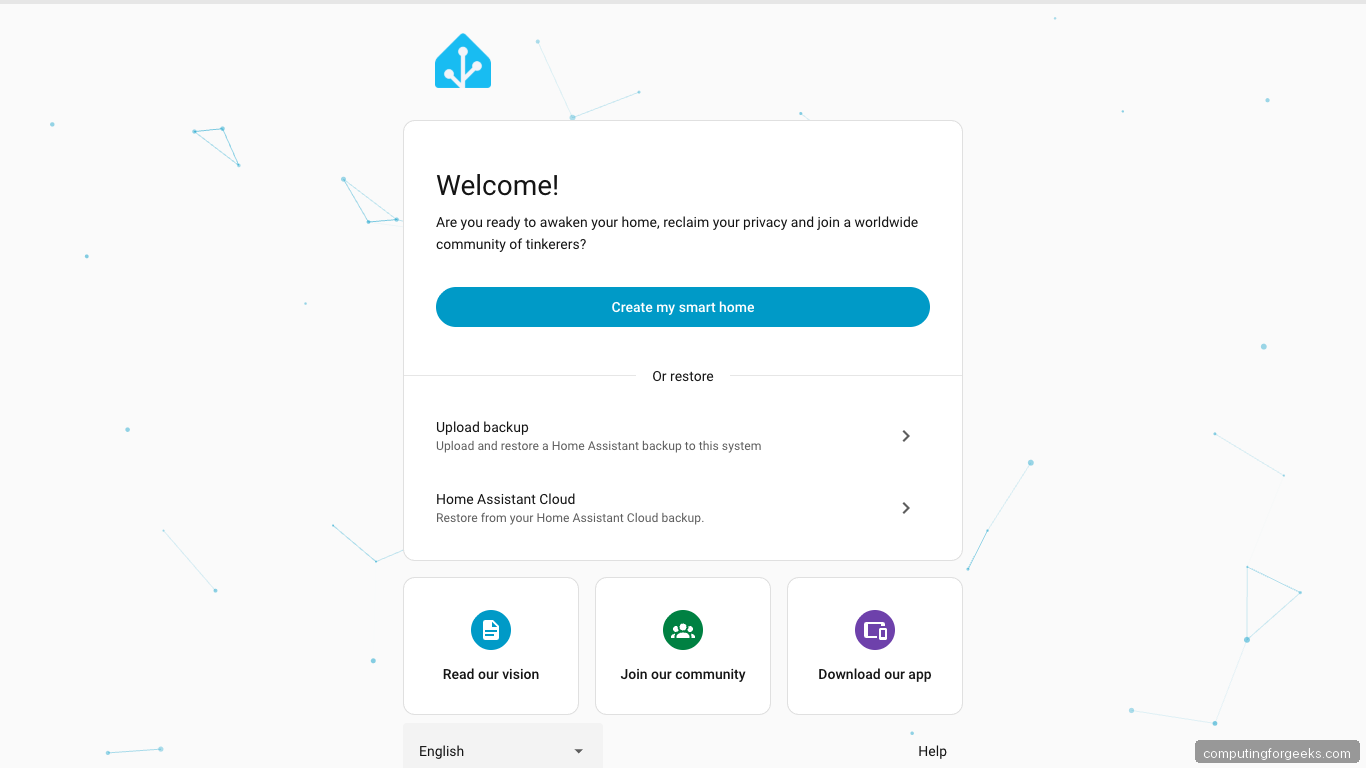
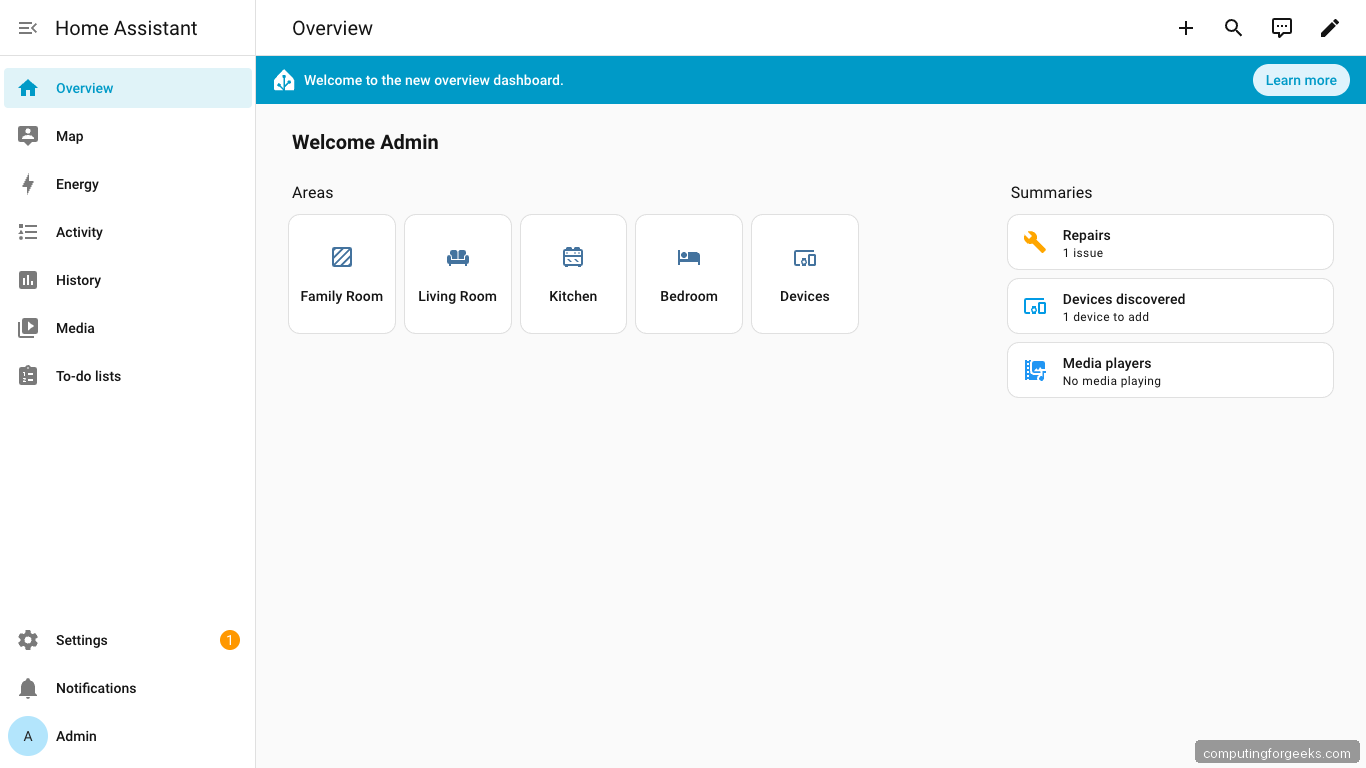
Click Create my smart home, enter a name, username, and a strong password, then step through location (used for sunrise/sunset), analytics opt-in, and the Devices discovered screen. The wizard finishes on the Overview dashboard, which opens with area cards ready to be populated:
The output above confirms the step worked. The next section builds on it.
Step 8: Add integrations
Navigate to Settings → Devices & services. Home Assistant auto-discovers devices on the LAN via mDNS, SSDP, and ZeroConf. The Integrations dashboard lists what was found and what can be added manually:
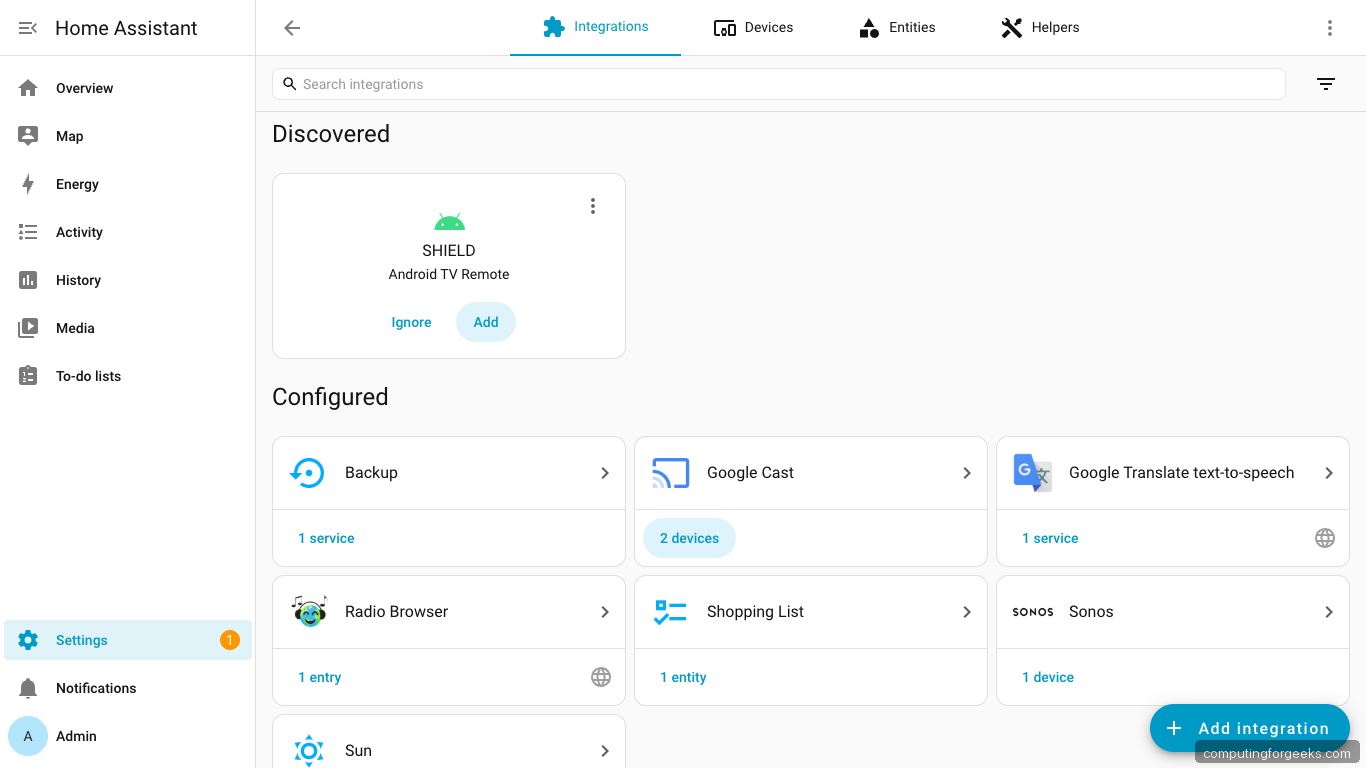
The common first integrations are an MQTT broker (for Zigbee2MQTT and cheap ESPHome devices), the official Zigbee Home Automation (ZHA) integration if you have a Zigbee dongle, and the system monitor integration that graphs host CPU and disk usage.
Step 9: Build your first automation
Settings → Automations & scenes opens the Automation dashboard. The “Create automation” button leads to a visual editor, or you can toggle the YAML mode in the top-right corner:
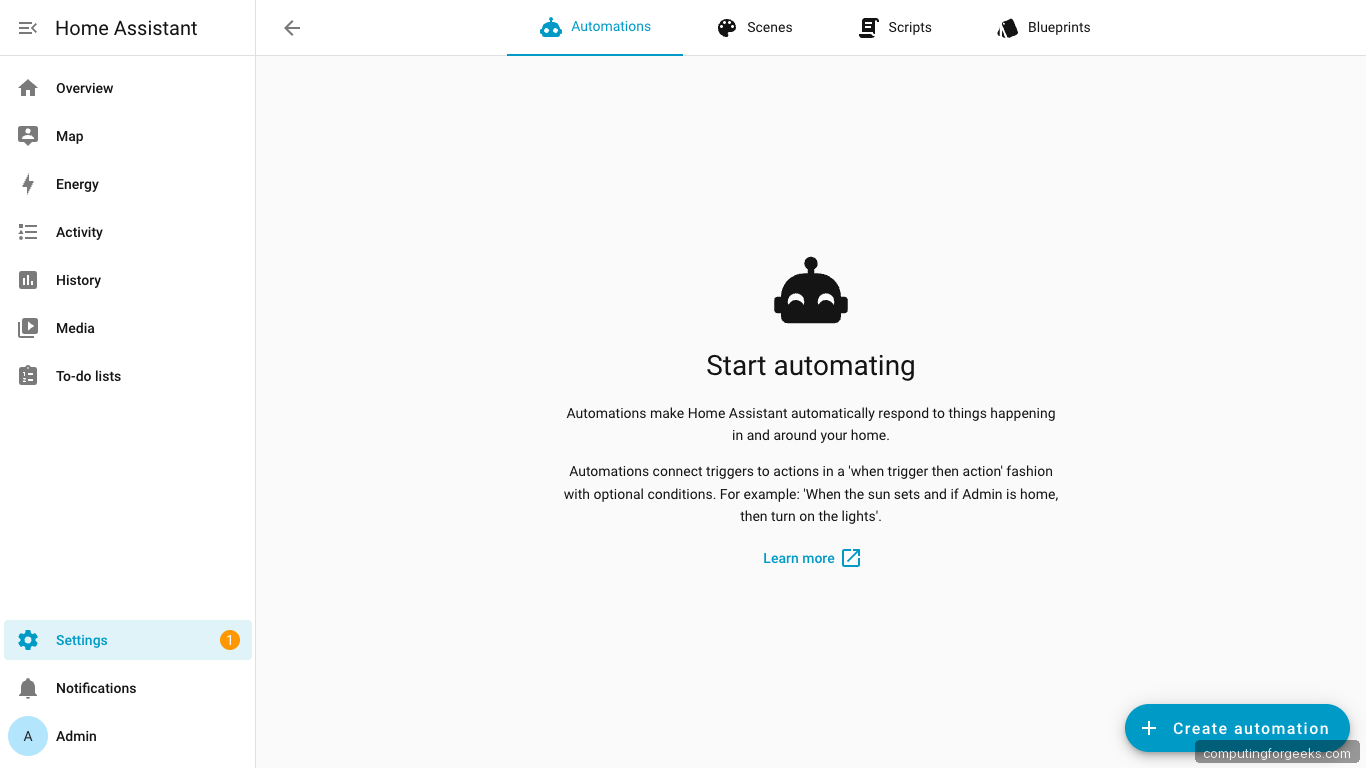
A classic first automation is “turn on the porch light at sunset, turn it off at midnight”. Both triggers are Sun-based and Home Assistant does the math once your location is set in Step 7.
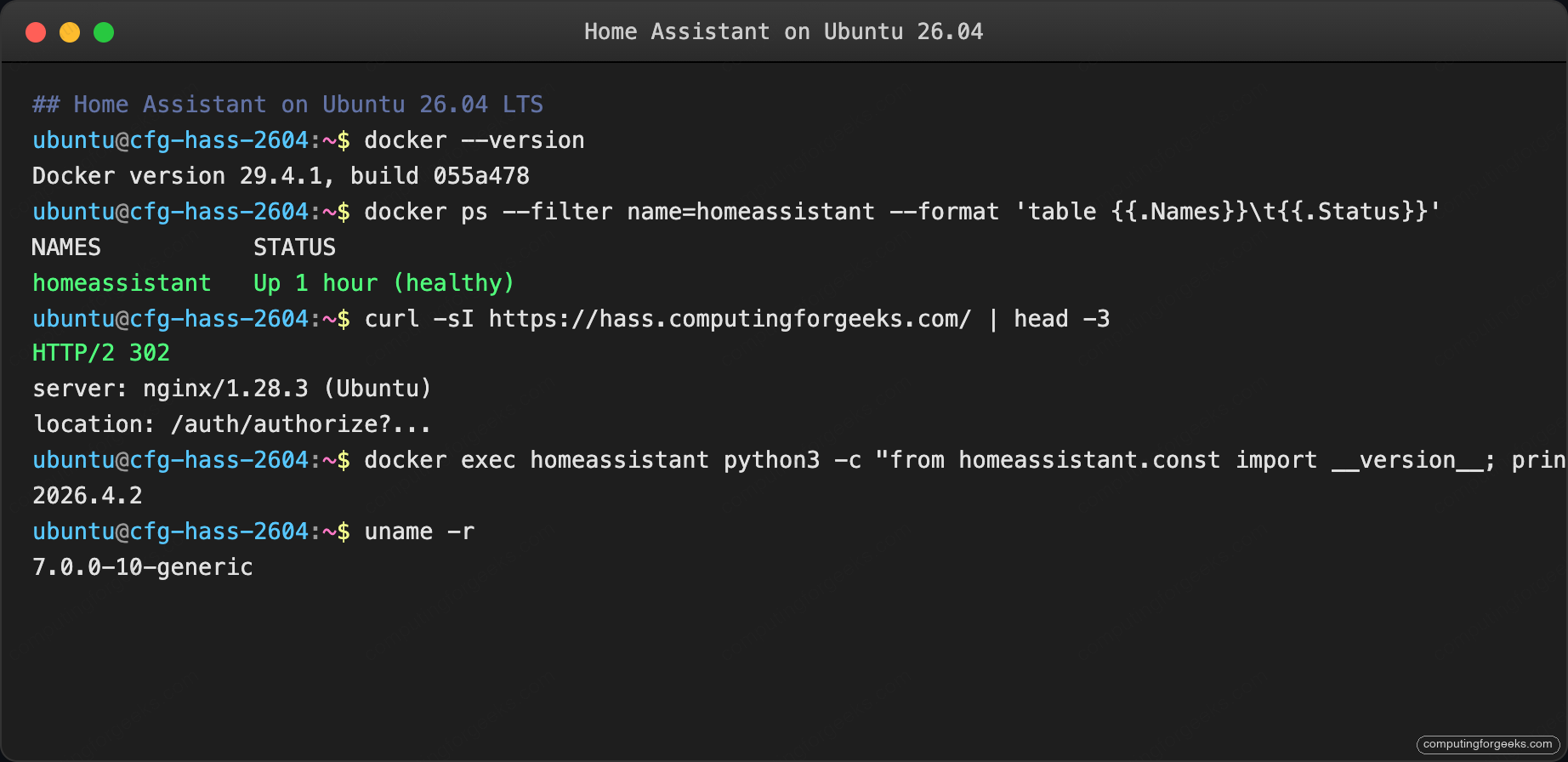
Terminal verification of the full stack:
With that step done, move on to the next one.
Step 10: Pass a USB dongle through (optional)
Zigbee and Z-Wave hubs expose the radio as a USB serial device (usually /dev/ttyUSB0 or /dev/ttyACM0). Docker on Ubuntu 26.04 with kernel 7.0 keeps udev device naming consistent across reboots via the by-id symlinks. Find yours:
ls -la /dev/serial/by-id/
lsusb | grep -iE 'cc2652|zwave|sonoff|conbee'
Add the device to the compose file’s devices: list so Home Assistant sees it:
sudo tee -a ${HA_ROOT}/docker-compose.yml > /dev/null <<'EOF'
    devices:
      - /dev/serial/by-id/usb-ITead_SONOFF_Zigbee_3.0_USB_Dongle_Plus_XXXXXXXX-if00:/dev/ttyUSB0
EOF
cd ${HA_ROOT} && sudo docker compose up -d
Replace the path with the output from ls -la /dev/serial/by-id/. Home Assistant picks up the device on next restart; add the matching ZHA or Z-Wave JS integration from Settings.
Step 11: Schedule automated backups
Home Assistant has a native backup system. A small wrapper script triggers it on a cron schedule:
sudo tee /usr/local/bin/hass-backup.sh > /dev/null <<'BASH'
#!/bin/bash
set -euo pipefail
STAMP=$(date +%Y%m%d-%H%M%S)
DEST="/var/backups/hass"
mkdir -p "${DEST}"
tar --zstd -cf "${DEST}/hass-${STAMP}.tar.zst" -C /opt/homeassistant config
find "${DEST}" -name 'hass-*.tar.zst' -mtime +14 -delete
echo "Backup complete: ${DEST}/hass-${STAMP}.tar.zst"
BASH
sudo chmod +x /usr/local/bin/hass-backup.sh
echo '45 2 * * * root /usr/local/bin/hass-backup.sh >> /var/log/hass-backup.log 2>&1' \
    | sudo tee /etc/cron.d/hass-backup
Home Assistant stops writing to the recorder database briefly while the tar runs; reads continue, so users rarely notice. Ship the tarballs offsite via rclone, restic, or Home Assistant’s own native backup to cloud-storage targets.
Troubleshooting
Container restart loop with “Permission denied” on /config
Docker’s bind mount landed on a path the container cannot write. Fix ownership:
sudo chown -R root:root ${CONFIG_DIR}
sudo chmod -R 755 ${CONFIG_DIR}
sudo docker compose -f ${HA_ROOT}/docker-compose.yml restart
The container runs as root inside its namespace by default on the Container install. Host UID mapping is a matter for the Core and Supervised installs.
WebSocket connections dropped after 60 seconds
Nginx default proxy_read_timeout is 60 s. Home Assistant’s real-time state stream is a WebSocket; anything shorter drops the sync and the UI shows “disconnected”. The vhost in Step 6 sets 600 s; if you copied a different proxy config, raise it.
Home Assistant cannot reach devices on the LAN
The container defaulted to bridge networking instead of host. Integrations using mDNS (HomeKit, SSDP) will not find devices. Confirm network_mode: host is set:
grep network_mode ${HA_ROOT}/docker-compose.yml
sudo docker inspect homeassistant --format '{{.HostConfig.NetworkMode}}'
Both should report host. A default or bridge value means the container is isolated from the LAN.
USB dongle disappears after a reboot
The kernel assigned a different /dev/ttyUSB* path this boot. That is why Step 10 references /dev/serial/by-id/... instead of /dev/ttyUSB0. The by-id paths are stable across reboots.
“Use of X-Forwarded-For from untrusted proxy” warning in the log
The trusted_proxies block in configuration.yaml is missing or mistyped. Verify and restart:
grep -A3 'trusted_proxies' ${CONFIG_DIR}/configuration.yaml
sudo docker restart homeassistant
Those commands set the baseline. Continue with the next step.
Which Home Assistant install method should you pick?
Home Assistant ships four install paths. Each one trades different things: access to the add-on store, auto-updates, portability, and how much of the underlying OS you control. The decision tree below walks you through a pick:
Are you willing to dedicate a whole machine or VM to Home Assistant?
├── YES ─→ Do you want the add-on store and Supervisor?
│         ├── YES ─→ HAOS (Home Assistant Operating System)
│         │         Best for: dedicated hardware, plug-and-play
│         │         Install: flash HAOS image to SSD or deploy HAOS VM
│         └── NO  ─→ Debian VM + Supervised
│                   Best for: Debian power users who want Supervisor
│                   Install: Debian + ha-supervised installer (community)
└── NO  ─→ Are you comfortable with Docker and manual updates?
          ├── YES ─→ Container (THIS GUIDE)
          │         Best for: shared Ubuntu server, Docker already running
          │         Install: docker compose up -d with ghcr.io/home-assistant/home-assistant
          └── NO  ─→ Core (venv install)
                    Best for: minimal footprint, no Docker, bare Python
                    Install: Python venv + pip install homeassistant
The matrix below maps features to methods so you can sanity-check the tree against what you actually need:
| Feature | Container (this guide) | Core (venv) | Supervised | HAOS |
|---|---|---|---|---|
| Add-on store | NO | NO | YES | YES |
| Auto-update in one click | NO (docker pull) | NO (pip upgrade) | YES | YES |
| Supervisor (health checks, etc.) | NO | NO | YES | YES |
| USB passthrough (Zigbee, Z-Wave) | YES (devices:) | YES (direct) | YES | YES |
| Runs alongside other services on same host | YES | YES | NOT recommended | NO (HAOS is the host) |
| Typical idle RAM | 500 MB | 300 MB | 800 MB | 1.2 GB (OS + Supervisor) |
| Upgrade path to other methods | Simple (export config, re-import) | Simple | Simple | Simple |
| Ubuntu 26.04 supported officially | YES | YES | NO (Debian only) | N/A (HAOS is its own OS) |
For most Ubuntu 26.04 users the Container route wins on flexibility: you keep your existing Ubuntu box doing other things, you use the Docker you already know, and you lose nothing but the add-on store. If the add-ons (like the built-in Zigbee2MQTT, AdGuard, Mosquitto broker) are important enough that you would otherwise run separate VMs, you save time and RAM by installing HAOS on the hardware directly. Pair whichever route you pick with the server hardening guide so the underlying host is locked down regardless.