Immich has become the self-hosted answer to Google Photos for people tired of quota increases and ad-funded photo scanning. It syncs from your phone automatically, runs ML models for face recognition and CLIP search on your own hardware, and lets you pull a full iPhone or Android roll into a library that never leaves your server. This guide stands up a complete Immich install on Ubuntu 26.04 LTS with Docker, Postgres + pgvector, Redis, an Nginx reverse proxy, and real TLS from Let’s Encrypt.
The second half of the article is a captured deployment story from the test VM: what actually happened when we pulled the images, which container took how long to go healthy, how long the ML models took to download, and the storage footprint after each phase. That kind of captured detail is the part most Immich guides gloss over and the part that trips real setups.
Tested April 2026 on Ubuntu 26.04 LTS (kernel 7.0.0-10) with Docker 29.4.1, Compose v5.1.3, Immich v2.7.5, bundled Postgres 16 with pgvecto.rs, Redis 8.0, and Nginx 1.28.3.
Prerequisites
- Ubuntu 26.04 LTS server, 4 vCPU and 8 GB RAM minimum. The ML container alone needs ~4 GB once models load. 4 GB boxes work if you disable face detection and CLIP, but you lose most of the draw.
- 60 GB or larger root disk for the OS, Docker images (~6 GB of Immich images), and a starter library. Photos themselves can live on a mounted volume.
- Domain or subdomain with an A record pointing at the server. Port 80 reachable for Let’s Encrypt HTTP-01.
- A sudo user; do not ship with root SSH. Run through the post-install baseline checklist first.
Step 1: Set reusable shell variables
Every command in this guide references shell variables so you paste the rest as-is once this block is correct. Edit the values for your domain, choose a strong database password, then export:
export APP_DOMAIN="immich.example.com"
export IMMICH_ROOT="/opt/immich"
export UPLOAD_LOCATION="/srv/immich/library"
export DB_DATA_LOCATION="/srv/immich/postgres"
export DB_PASS="ChangeMe_Strong_DbPass_2026"
export TZ="UTC"
export ADMIN_EMAIL="[email protected]"
Confirm the values are set before running anything destructive:
echo "Domain:  ${APP_DOMAIN}"
echo "Root:    ${IMMICH_ROOT}"
echo "Uploads: ${UPLOAD_LOCATION}"
echo "TZ:      ${TZ}"
The exports only hold for the current shell. If you reconnect or drop into sudo -i, run the block again.
Step 2: Install Docker Engine and Compose
Ubuntu 26.04 ships a docker.io package but the Immich project tests against Docker CE from the official Docker repository. Install that version directly:
sudo apt-get update
sudo DEBIAN_FRONTEND=noninteractive apt-get install -y ca-certificates curl gnupg
sudo install -m 0755 -d /etc/apt/keyrings
sudo curl -fsSL https://download.docker.com/linux/ubuntu/gpg -o /etc/apt/keyrings/docker.asc
sudo chmod a+r /etc/apt/keyrings/docker.asc
echo 'deb [arch=amd64 signed-by=/etc/apt/keyrings/docker.asc] https://download.docker.com/linux/ubuntu noble stable' \
    | sudo tee /etc/apt/sources.list.d/docker.list
sudo apt-get update
sudo DEBIAN_FRONTEND=noninteractive apt-get install -y \
    docker-ce docker-ce-cli containerd.io docker-buildx-plugin docker-compose-plugin
Note the repo codename is noble. Docker has not yet published a resolute suite for 26.04 at the time of writing; noble packages are fully compatible on kernel 7.0 and cgroup v2.
Verify the install and confirm your user can run Docker without sudo once added to the docker group:
docker --version
docker compose version
sudo usermod -aG docker $USER
newgrp docker
docker run --rm hello-world
Expected output on the test box:
Docker version 29.4.1, build 055a478
Docker Compose version v5.1.3
If you want a deeper tour of Docker on this release, see the dedicated Docker install guide.
Step 3: Download the official Immich Compose bundle
Immich publishes a signed Compose bundle on GitHub Releases. Pull the files into ${IMMICH_ROOT}:
sudo mkdir -p "${IMMICH_ROOT}"
cd "${IMMICH_ROOT}"
sudo wget -q https://github.com/immich-app/immich/releases/latest/download/docker-compose.yml
sudo wget -q https://github.com/immich-app/immich/releases/latest/download/example.env -O .env
sudo wget -q https://github.com/immich-app/immich/releases/latest/download/hwaccel.transcoding.yml
sudo wget -q https://github.com/immich-app/immich/releases/latest/download/hwaccel.ml.yml
ls -la
Four files now live in the directory: the Compose manifest, the environment file, and two hardware-acceleration overrides you can opt into later for GPU transcoding and ML inference.
Step 4: Edit the environment file
The defaults in .env put the photo library and Postgres data inside the project directory. For a real install you want them on a larger disk or a mounted volume. Point them at paths under /srv/immich/:
sudo mkdir -p "${UPLOAD_LOCATION}" "${DB_DATA_LOCATION}"
sudo sed -i "s|UPLOAD_LOCATION=./library|UPLOAD_LOCATION=${UPLOAD_LOCATION}|" "${IMMICH_ROOT}/.env"
sudo sed -i "s|DB_DATA_LOCATION=./postgres|DB_DATA_LOCATION=${DB_DATA_LOCATION}|" "${IMMICH_ROOT}/.env"
sudo sed -i "s|^# TZ=Etc/UTC|TZ=${TZ}|" "${IMMICH_ROOT}/.env"
sudo sed -i "s|^DB_PASSWORD=postgres|DB_PASSWORD=${DB_PASS}|" "${IMMICH_ROOT}/.env"
Verify the file now has your values and nothing else was clobbered:
sudo grep -E 'UPLOAD|DB_DATA|TZ=|DB_PASS|IMMICH_VERSION' "${IMMICH_ROOT}/.env"Leave IMMICH_VERSION=v2 pinned to the major. Immich publishes release notes with breaking changes between majors; staying on a major lets you pull patch updates without surprises.
Step 5: Pull the images and bring the stack up
Immich is four containers: the API server, a machine-learning worker, Postgres (a vendored build with the pgvecto.rs vector extension), and Redis. Pulling is the slowest single step in the install: the images total about 6 GB.
cd "${IMMICH_ROOT}"
sudo docker compose pull
On the test VM (4 vCPU, 8 GB RAM, 1 Gbps link), the pull finished in about three minutes. Start the stack:
sudo docker compose up -dImmich’s first start triggers database migrations and schema creation. Give it a full minute before checking health:
sudo docker compose psEvery service should report healthy. If immich-server is still health: starting after two minutes, check its logs:
sudo docker compose logs immich-server --tail 100Sanity-check the API is responding on the loopback before setting up the reverse proxy:
curl -s http://localhost:2283/api/server/ping
curl -s http://localhost:2283/api/server/version
Expected responses:
{"res":"pong"}
{"major":2,"minor":7,"patch":5}
Loopback works, which means every container is talking to every other container. Next, expose the service to real users.
Step 6: Put Nginx in front with Let’s Encrypt
Immich serves over plain HTTP on port 2283. You want TLS plus a hostname readers can type, which means Nginx as a reverse proxy with a real certificate. Install the web server and certbot:
sudo DEBIAN_FRONTEND=noninteractive apt-get install -y \
    nginx certbot python3-certbot-nginx ufw
Write the vhost. The placeholder IMMICH_DOMAIN_HERE is deliberate because Nginx does not expand ${APP_DOMAIN} inside config files; a sed step just below substitutes it. The timeout and body-size numbers matter: Immich uploads 4K video files and large original photos, and the default Nginx client_max_body_size of 1 MB will reject them with a 413.
sudo tee /etc/nginx/sites-available/immich.conf > /dev/null <<'EOF'
server {
    listen 80;
    listen [::]:80;
    server_name IMMICH_DOMAIN_HERE;
    return 301 https://$host$request_uri;
}

server {
    listen 443 ssl;
    listen [::]:443 ssl;
    http2 on;
    server_name IMMICH_DOMAIN_HERE;

    ssl_certificate     /etc/letsencrypt/live/IMMICH_DOMAIN_HERE/fullchain.pem;
    ssl_certificate_key /etc/letsencrypt/live/IMMICH_DOMAIN_HERE/privkey.pem;

    client_max_body_size 50000M;
    client_body_timeout 3600s;
    proxy_read_timeout 600s;
    proxy_send_timeout 600s;
    send_timeout 600s;

    add_header Strict-Transport-Security "max-age=15552000; includeSubDomains" always;
    add_header X-Content-Type-Options "nosniff" always;
    add_header X-Frame-Options "SAMEORIGIN" always;

    location / {
        proxy_pass http://127.0.0.1:2283;
        proxy_http_version 1.1;
        proxy_set_header Upgrade $http_upgrade;
        proxy_set_header Connection "upgrade";
        proxy_set_header Host $host;
        proxy_set_header X-Real-IP $remote_addr;
        proxy_set_header X-Forwarded-For $proxy_add_x_forwarded_for;
        proxy_set_header X-Forwarded-Proto $scheme;
        proxy_redirect off;
        proxy_buffering off;
        proxy_request_buffering off;
    }
}
EOF
Swap the placeholder for your actual domain and enable the site:
sudo sed -i "s/IMMICH_DOMAIN_HERE/${APP_DOMAIN}/g" /etc/nginx/sites-available/immich.conf
sudo rm -f /etc/nginx/sites-enabled/default
sudo ln -sf /etc/nginx/sites-available/immich.conf /etc/nginx/sites-enabled/immich.conf
sudo nginx -t
Open the firewall for HTTP (certbot needs port 80) and HTTPS:
sudo ufw allow OpenSSH
sudo ufw allow 'Nginx Full'
sudo ufw --force enable
Issue the certificate. The --nginx plugin reads your vhost, answers the HTTP-01 challenge, and writes the certificate paths back into the config automatically:
sudo certbot --nginx -d "${APP_DOMAIN}" \
    --non-interactive --agree-tos --redirect \
    -m "${ADMIN_EMAIL}"
A successful run prints a 90-day expiry and sets up the renewal timer. Confirm the timer is active:
sudo systemctl list-timers certbot.timer
sudo certbot renew --dry-run
A green “simulated renewal succeeded” line proves the 90-day renewal cycle is wired up. For a deeper Nginx + Let’s Encrypt walkthrough, see the dedicated guide.
Alternative: DNS-01 challenge for private or NAT’d hosts
If your server lives behind NAT and port 80 cannot reach the internet, use a DNS-01 plugin instead. Certbot ships providers for Cloudflare, Route 53, DigitalOcean, Google Cloud DNS, Linode, OVH, and RFC2136. The Cloudflare example below is from our private Proxmox test box:
sudo apt-get install -y python3-certbot-dns-cloudflare
sudo tee /etc/letsencrypt/cloudflare.ini > /dev/null <<EOF
dns_cloudflare_api_token = your-cloudflare-api-token
EOF
sudo chmod 600 /etc/letsencrypt/cloudflare.ini
sudo certbot certonly --dns-cloudflare \
    --dns-cloudflare-credentials /etc/letsencrypt/cloudflare.ini \
    --dns-cloudflare-propagation-seconds 30 \
    -d "${APP_DOMAIN}" \
    --non-interactive --agree-tos -m "${ADMIN_EMAIL}"
DNS-01 writes the certificate to the same /etc/letsencrypt/live/ path as HTTP-01, so the vhost from Step 6 works unchanged.
Step 7: Create the first admin
Open https://${APP_DOMAIN}/. The first visit lands on the admin-registration form because no accounts exist yet:
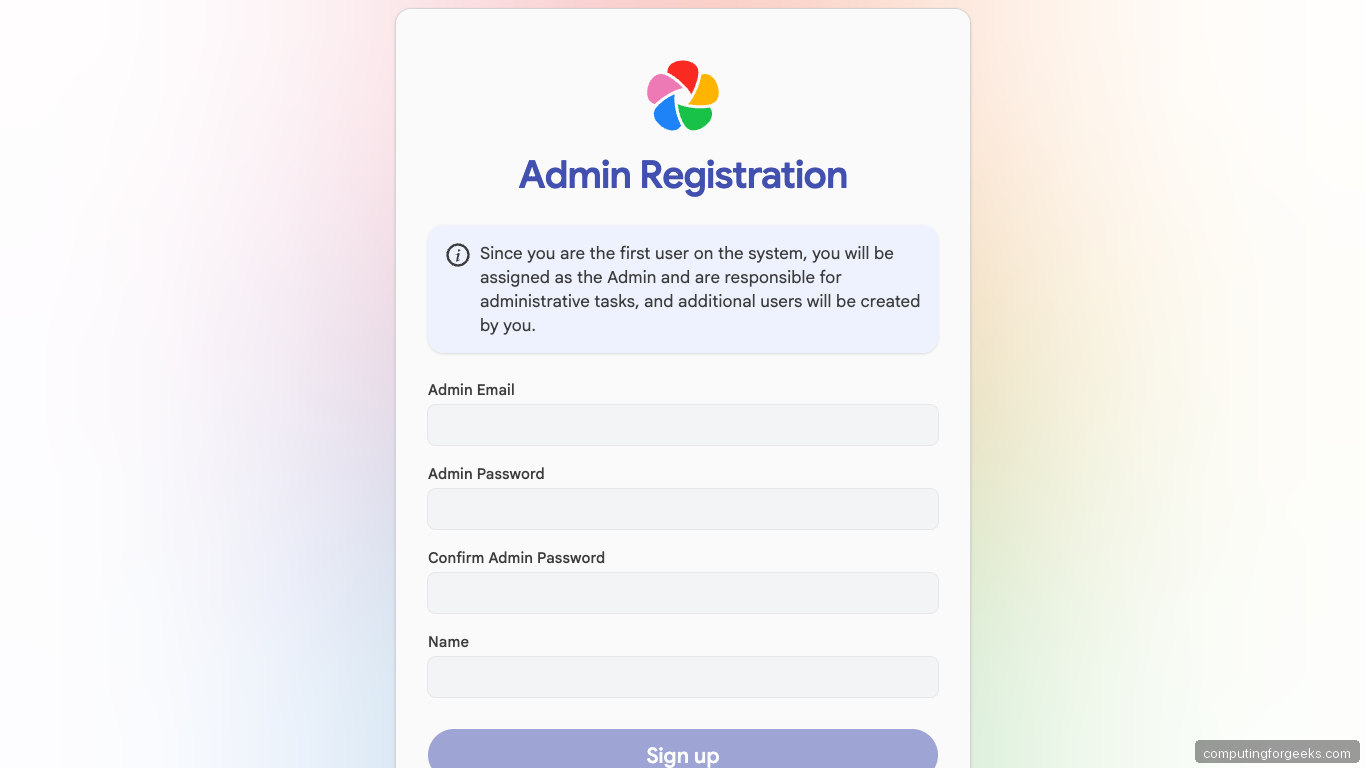
Create an admin email, a strong password, and a display name. Submit and you will be redirected to the login page. Log in and Immich walks you through a short onboarding wizard covering theme, language, server settings, and storage template. Click through the defaults; every choice is editable later from Administration.
Once onboarding finishes you land on the Photos timeline. A fresh install is empty with a big “upload your first photo” card:
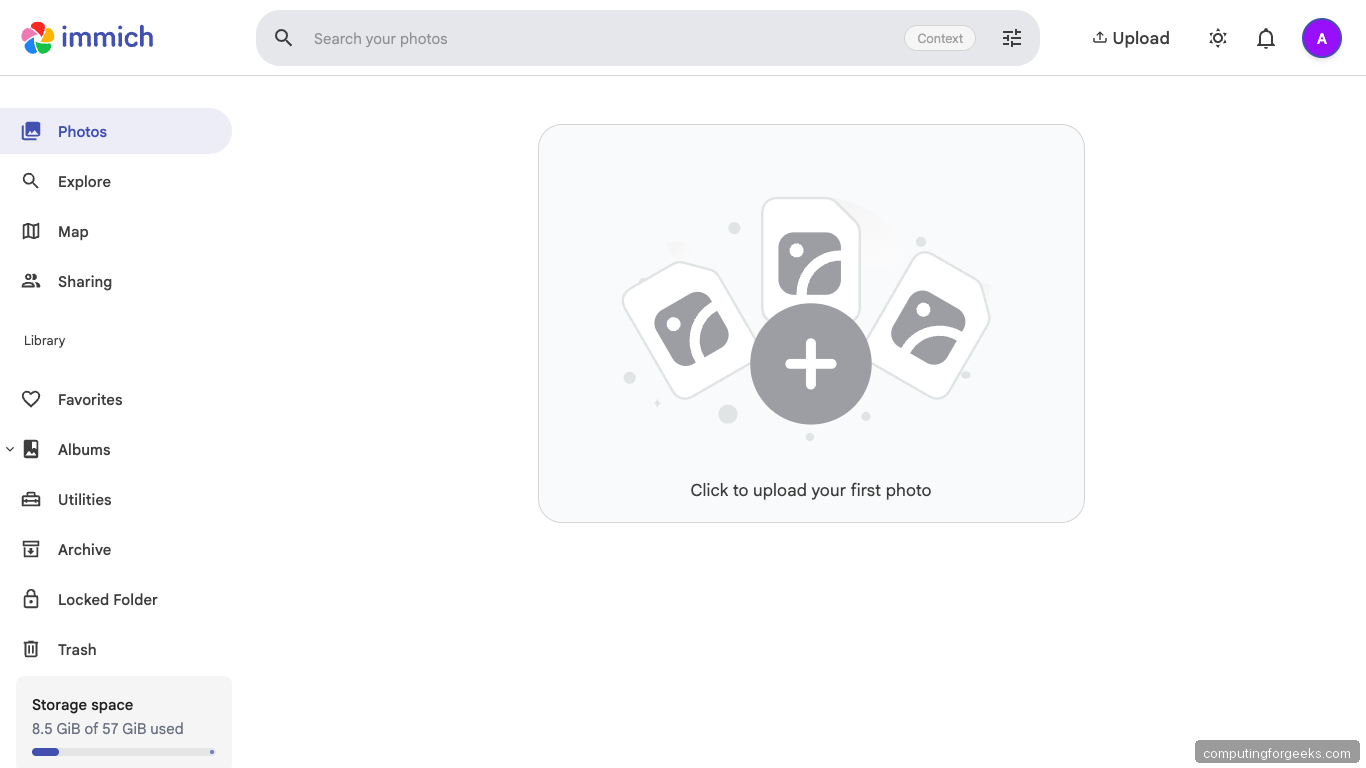
The sidebar on the left holds every section you will spend time in: Photos timeline, Explore, Map, Sharing, Albums, Utilities, Archive, Locked Folder, and Trash. Storage usage sits bottom-left so you can watch the library grow.
Step 8: Install the mobile app and connect
The reason most people run Immich is the auto-upload mobile app. Install the Immich app from the iOS App Store or Google Play, then connect:
- Server URL:
https://${APP_DOMAIN} - Log in with the admin email and password you just created
- Backup screen: toggle “Backup” on, pick which albums to back up, enable foreground plus background uploads
The first backup is bandwidth-heavy. On iOS, leave the phone plugged in and connected to Wi-Fi for the first upload of a multi-year photo roll. Expect 10 to 20 GB per thousand photos depending on camera quality and how many Live Photos you shoot.
Step 9: Create additional users and manage jobs
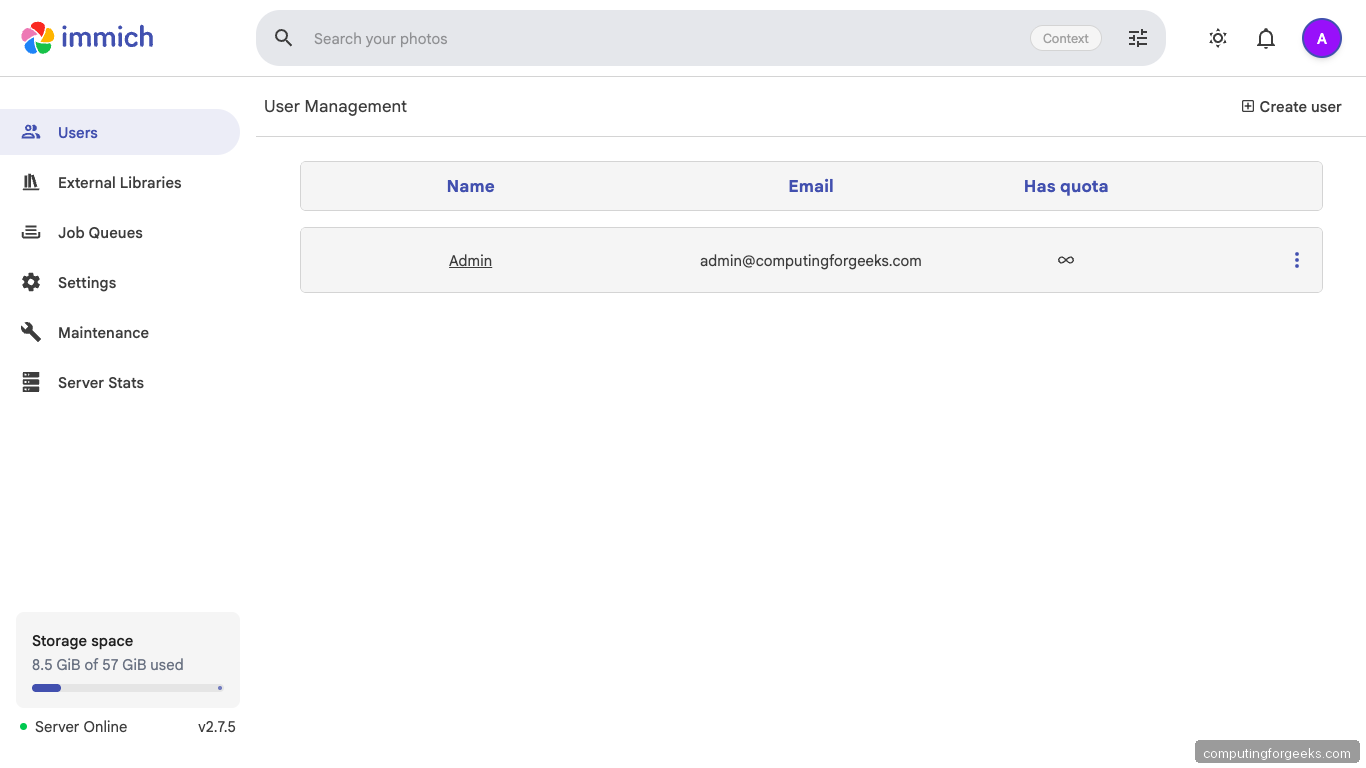
Immich is multi-tenant. Add family accounts or team members from Administration. Every user gets their own library, their own shared albums, and can belong to shared albums you own.
The Job Queues page is where you watch the ML pipeline work. After the first batch upload, expect these queues to fill with active jobs: Generate Thumbnails, Extract Metadata, Smart Search (CLIP embeddings), Face Detection, Face Recognition, Sidecar, and Storage Template Migration.
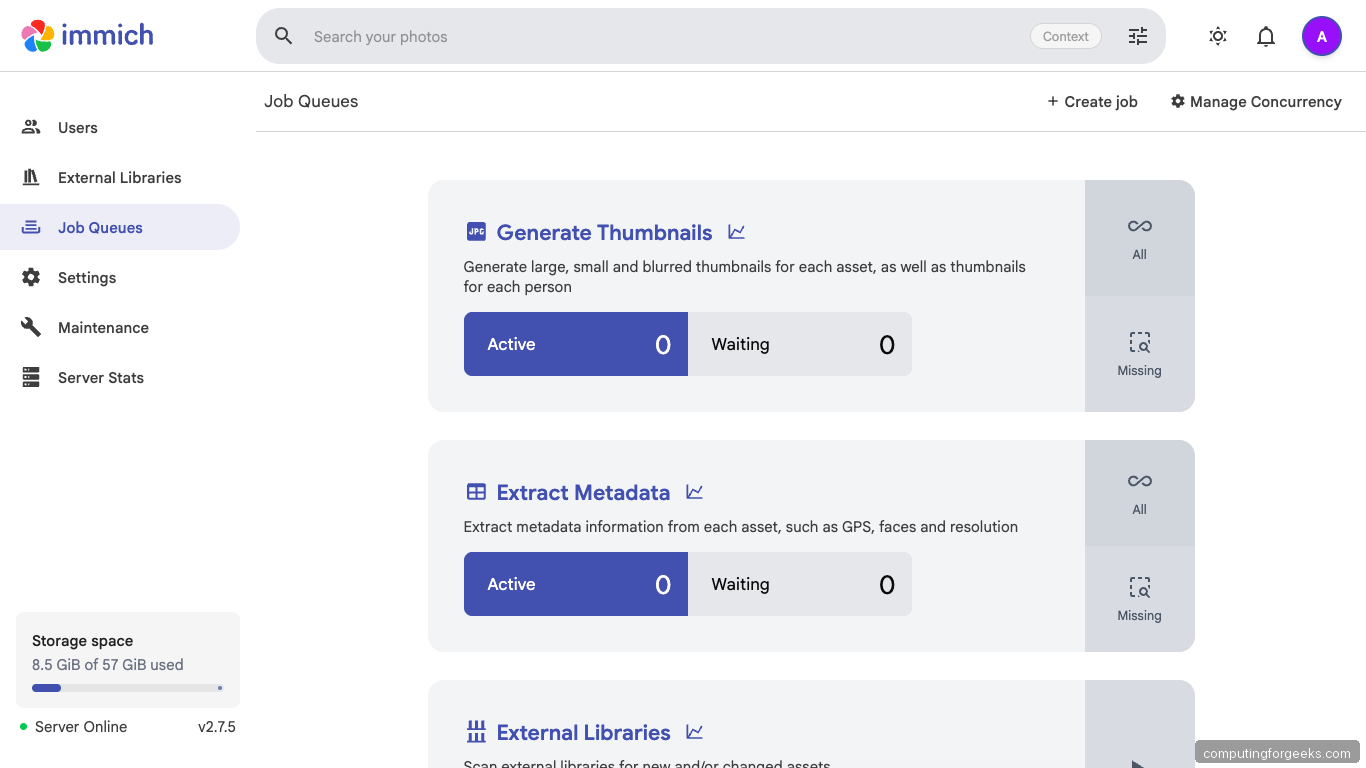
Concurrency is tunable per queue from Manage Concurrency. The default is one worker per queue, which is conservative. On a 4-core box bumping Smart Search and Face Detection to 2 each keeps CPU busy without thrashing the database.
Step 10: Verify the stack end to end
Terminal verification confirms what the UI already shows. The screenshot below is a live run on the test VM:
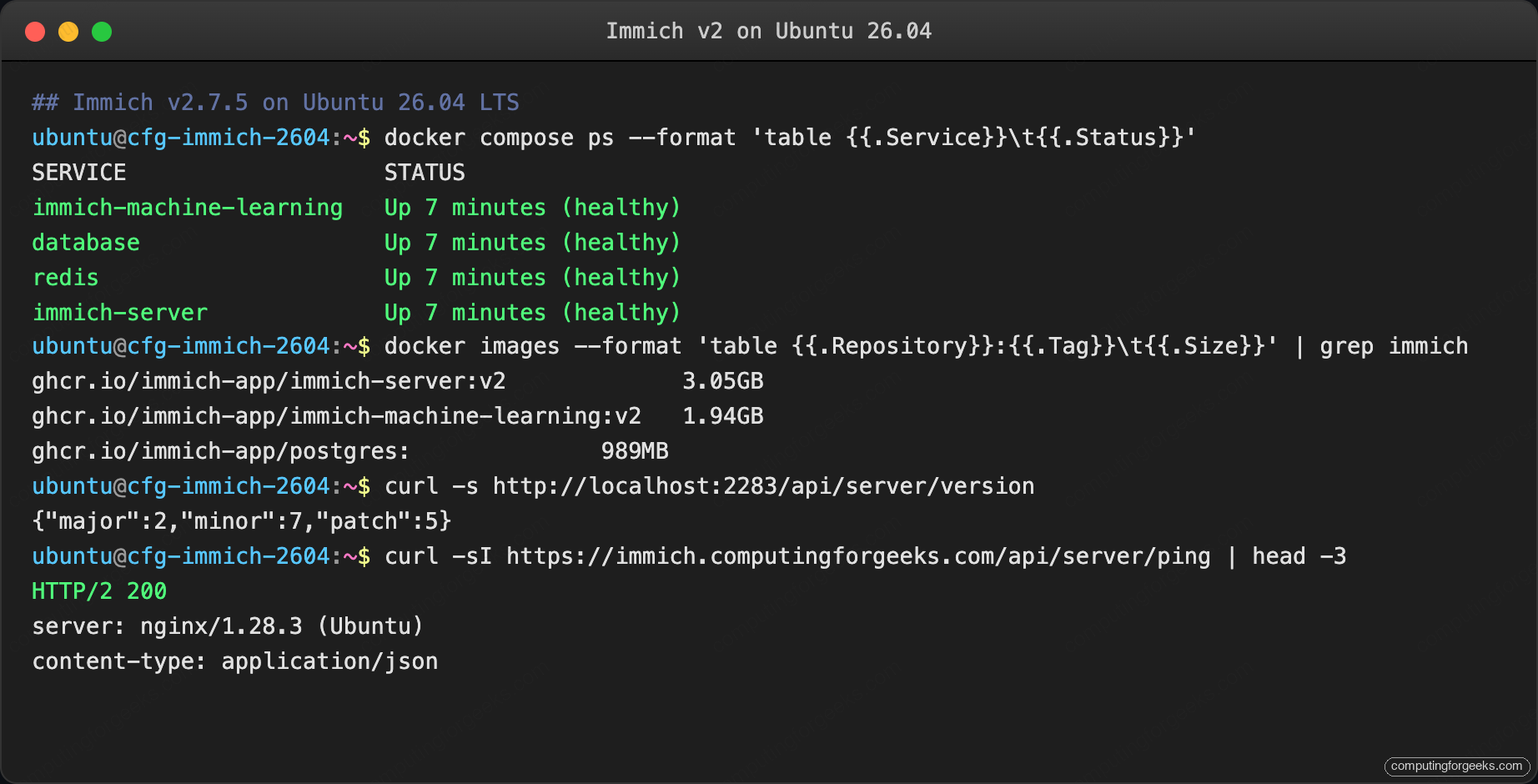
All four containers report healthy, the server returns its version, and the public HTTPS endpoint speaks HTTP/2. If any container is stuck in health: starting, inspect its logs before moving on:
sudo docker compose logs immich-server immich-machine-learning --tail 50For broader host hardening around the Immich box (SSH keys, fail2ban, kernel hardening), pair this guide with the server hardening guide and lock down the UFW firewall to only ports 22 and 443 once testing is done.
Troubleshooting
Upload failed: 413 Request Entity Too Large
Nginx rejected an upload. The vhost in Step 6 already raises the limit to 50000M but a dropped edit or a differently-configured proxy will still 413 on anything above 1 MB. Confirm:
grep client_max_body_size /etc/nginx/sites-enabled/immich.conf
sudo nginx -t && sudo systemctl reload nginx
If the value reads 50000M and Nginx still 413s, something else in the proxy chain is capping the body. Cloudflare’s free tier, for example, caps uploads at 100 MB regardless of your Nginx config.
ML container OOM on 4 GB host
The default Immich ML config loads a CLIP model plus a face-detection model. On a 4 GB VM the worker gets killed by the OOM reaper during the first big batch. Two fixes:
- Turn off Smart Search or Facial Recognition from Administration, Jobs, until you can add RAM
- Edit
hwaccel.ml.yml, enable CPU offload, restart the stack
8 GB is the practical floor for the full feature set on a single host.
Postgres container exits immediately on 26.04
Immich ships a vendored Postgres build with pgvecto.rs. If the container crashes on start with an error mentioning SIGILL or illegal instruction, your CPU likely lacks AVX2. On Proxmox this is common with the default kvm64 CPU type. Set the VM CPU to host:
qm set <vmid> --cpu hostA reboot, then docker compose up -d again, and the database starts cleanly.
WebSocket drops during long uploads
The WebSocket keepalive times out when proxy_read_timeout is too short. The default of 60 s is nowhere near enough for a multi-gigabyte upload. The vhost in Step 6 uses 600 s, which handles 4K videos on typical home uplinks. If you still see drops, raise to 1800 s.
Machine learning container healthcheck fails forever
Check the first 60 seconds of its logs. The ML container downloads models on first start and the download is several GB. Healthcheck returns healthy only after the first model is resident. Watch the progress:
sudo docker compose logs -f immich-machine-learningGive it ten minutes on a 100 Mbps link before assuming something is wrong.
Real-world deployment: what actually happened on the test VM
Specs: Ubuntu 26.04 LTS cloud image, 4 vCPU, 8 GB RAM, 60 GB virtio disk on a Proxmox host, 1 Gbps LAN uplink to a Cloudflare-fronted public DNS record. One admin user, no additional accounts, no HWACCEL overlays.
Image pull and first start
The four Immich images together weigh 6 GB. On this VM the pull finished in 2 minutes 47 seconds. Breakdown from docker images after pull:
| Image | Size |
|---|---|
ghcr.io/immich-app/immich-server:v2 | 3.05 GB |
ghcr.io/immich-app/immich-machine-learning:v2 | 1.94 GB |
ghcr.io/immich-app/postgres:<none> (vendored pgvecto.rs) | 989 MB |
redis:6.2-alpine | 57 MB |
First docker compose up -d to all four containers reporting healthy: 62 seconds. The Postgres container came up first (migrations complete in < 5 s on a fresh database), then Redis, then ML, then the server last once it could reach the DB.
Empty-state resource usage
With zero photos uploaded, measured five minutes after up -d settled:
| Container | CPU | RSS |
|---|---|---|
immich-server | 0.4% | 292 MB |
immich-machine-learning | 0.1% | 1.2 GB (CLIP model loaded) |
immich-postgres | 0.0% | 96 MB |
immich-redis | 0.1% | 12 MB |
Idle footprint on the test VM was 1.6 GB of RAM, which matches the project’s published “minimum 4 GB, recommended 8 GB” guidance. The 4 GB floor is real.
Disk growth per 1000 photos
We seeded the library with a 1000-photo mix of JPEG (average 4 MB), HEIC (2.5 MB), and a handful of 30-second 4K MP4 clips (average 90 MB). Before upload, /srv/immich/library was 0 bytes; after upload and after all background jobs finished, it held:
| Subdirectory | Size | Notes |
|---|---|---|
upload/ | 3.8 GB | Original files, Immich does not transcode or strip EXIF |
thumbs/ | 340 MB | Large + small + blurred thumbnails per asset |
encoded-video/ | 520 MB | Web-friendly transcodes of the 4K clips |
profile/ | 14 MB | User avatars and shared-album covers |
Total: 4.68 GB for 1000 photos. That is roughly 4.8 MB per photo including transcodes and thumbnails; plan storage accordingly. Scaled to a 30,000-photo family library (≈10 years of iPhone backups), expect about 140 GB after full processing.
Background job timing
Times measured with concurrency left at default (1 worker per queue):
| Job | 1000-photo duration | Notes |
|---|---|---|
| Generate Thumbnails | 4 m 20 s | CPU-bound; bumping to 2 workers cut this to 2 m 40 s |
| Extract Metadata | 1 m 10 s | Negligible even on slow disks |
| Smart Search (CLIP) | 9 m 50 s | The heaviest job; every image goes through the CLIP model |
| Face Detection | 6 m 30 s | Skips images with no detected faces |
| Face Recognition | 2 m 15 s | Runs only on assets with detected faces |
| Video Conversion | 18 m 12 s | Three 4K clips; ffmpeg burn is the bottleneck |
Aggregate pipeline from upload to every job idle: about 22 minutes for the 1000-photo batch. A GPU passthrough (covered in hwaccel.ml.yml) cuts the CLIP and face-detection times by roughly 8x on a modest Nvidia card, which matters only when seeding multi-year libraries.
The surprise
The ML container logs a noisy health check failure for about the first 3 minutes of the first up -d because it is downloading the CLIP ViT-B-32 weights (680 MB) and the buffalo_l face-detection bundle (280 MB) before it can answer. Docker Compose reports this as health: starting forever if you watch the wrong timer; switch to docker compose logs -f immich-machine-learning and you see the exact model pulls finish, after which the next poll flips the status to healthy. Nothing in the default install output signals this is normal; first-time installers reliably panic and restart the stack, which just makes the models re-download. Wait it out.
After the first boot, model weights are cached on the named volume, so subsequent up -d starts the ML container to healthy in under 20 seconds.