Ubuntu’s release upgrade tool does not let you jump straight from 22.04 to 26.04. The supported path is two hops, 22.04 → 24.04 → 26.04, with a reboot between each one. It works, it keeps your data, and when it goes sideways the failures are predictable enough to fix in the same session.
This guide walks through the full skip-release upgrade on a real server, not an empty cloud image. The test VM runs a LAMP stack with a PHP dashboard and a MariaDB inventory database holding 500 customers, 120 products, and 2000 orders. Every step below was executed on that workload and the data is re-validated after each hop, with fastfetch output captured on every release so you can compare kernel, shell, OpenSSH, and PHP versions side by side.
Verified working: April 2026 on a Proxmox KVM guest, upgrade path 22.04.5 (kernel 5.15.0-173) → 24.04.4 (kernel 6.8.0-110) → 26.04 “Resolute Raccoon” development branch (kernel 7.0.0-14)
Why two hops, not one
The do-release-upgrade helper reads /etc/update-manager/release-upgrades to decide what release to offer, and on an LTS install it only offers the next LTS. From 22.04 that is 24.04. Ubuntu does not publish a skip-release upgrade metadata file, so there is no supported “22.04 to 26.04” path.
The path that works is sequential. Upgrade 22.04 to 24.04, reboot, confirm your workload, upgrade 24.04 to 26.04, reboot, confirm again. The whole thing took about 55 minutes on the test VM over a gigabit link, of which around 10 minutes was package download and the rest was unpack and post-configure.
Two things to know before starting. First, at the time of writing, 26.04 is still pre-release (GA is April 23 2026), so the second hop needs do-release-upgrade -d to see it. Once 26.04.1 ships around August 6 2026, the -d flag is no longer needed. Second, if you are coming from 24.04 already, skip straight to the second hop.
Test workload used in this guide
An empty server upgrade tells you the upgrade tool works. A server with a real database, a real PHP frontend and real connection pools tells you whether the apps survive. The VM in this walkthrough runs:
- Apache 2.4.52 serving a PHP dashboard at
/and a JSON API at/api/stats.php - MariaDB 10.6.23 with a populated
inventorydatabase (three tables, foreign keys, indexes) - 500 customer rows, 120 product rows, 2000 order rows.
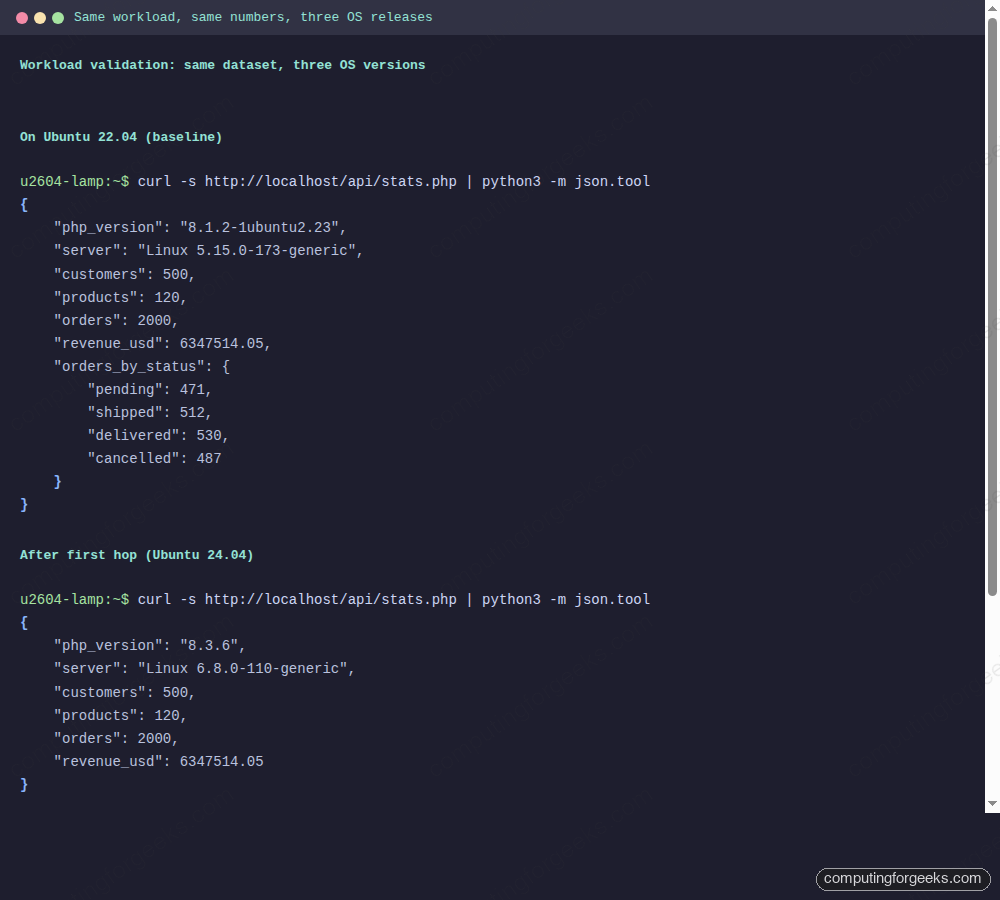
After each upgrade the same curl http://localhost/api/stats.php is re-run. Row counts and the cancelled-order revenue sum must match to the cent, or the upgrade is a regression.
Step 1: Set reusable shell variables
Every command below uses shell variables for the backup path and admin email so you can copy the commands as-is. Export these at the top of your SSH session:
export BACKUP_DIR="/root/upgrade-backups"
export DB_NAME="inventory"
export ADMIN_EMAIL="[email protected]"
mkdir -p "${BACKUP_DIR}"
echo "Backups: ${BACKUP_DIR}"
echo "Database: ${DB_NAME}"
Replace DB_NAME with your own database name if you are following along with a different workload.
Step 2: Baseline the 22.04 host
Install fastfetch so you have a clean before-and-after view of kernel, shell, OpenSSH and PHP. It is not in the default 22.04 repos, grab the latest release from GitHub:
FF_URL=$(curl -sL https://api.github.com/repos/fastfetch-cli/fastfetch/releases/latest \
  | grep -oE 'https://[^"]+fastfetch-linux-amd64.deb' | head -1)
wget -q "${FF_URL}" -O /tmp/fastfetch.deb
sudo dpkg -i /tmp/fastfetch.deb
fastfetch --logo none
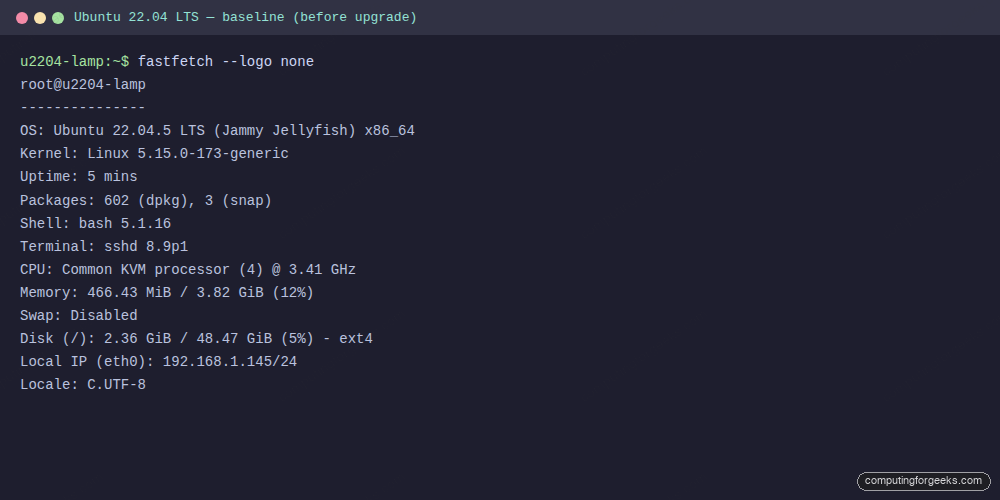
The output below is the baseline captured on the test VM. Note the kernel (5.15), shell (bash 5.1), OpenSSH (8.9p1) and PHP 8.1 signatures, those change on every hop.
With the baseline captured, plan the backups that will let you roll back if the upgrade damages state or configuration.
Step 3: Back up the workload before the first hop
The single most important thing to do before a distro upgrade is to inventory your workload and back up each piece that holds state or carries custom configuration. The commands below reflect the LAMP workload used in this guide. Your stack is almost certainly different, so treat them as a template, not a recipe.
Sit with pen and paper (or a short runbook) and list every piece of state before running anything. A practical checklist for most servers:
- Databases. Dump every running DB engine, not just the one you think the app uses. MariaDB/MySQL via
mariadb-dumpormysqldump --single-transaction, PostgreSQL viapg_dumpall, MongoDB viamongodump, Redis viaredis-cli --rdb, SQLite by copying the.dbfile with the service stopped. - Application code and assets. Document roots, upload directories, user-generated content. For web apps that is typically
/var/www,/srv, or a custom path. Many apps keep uploads outside the code directory, check. - Configuration.
/etcin full is the safest, but at minimum capture the service directories you care about (/etc/apache2,/etc/nginx,/etc/php,/etc/postgresql,/etc/mysql,/etc/letsencrypt,/etc/ssh,/etc/systemd/system,/etc/fstab,/etc/netplan). - Secrets and credentials. Environment files,
.env, cron-user crontabs (crontab -l -u <user>), API key files outside/etc. These are usually missed by generic/etctarballs. - Container and orchestrator state. If you run Docker, back up
docker-compose.ymlfiles, named volume contents, and any bind-mounted host paths. For Kubernetes on the host,etcdand/var/lib/kubelet. Snap data lives under/var/snap/<snap>/commonand/var/snap/<snap>/current. - Queues and background state. RabbitMQ definitions export, Celery beat schedules, systemd timer units, message broker journals.
- User data and logs worth keeping.
/home, custom/optinstallations, the most recent weeks of/var/logfor forensic reference. - The package manifest itself. Save
dpkg --get-selections > "${BACKUP_DIR}/dpkg-selections.txt"andapt-mark showmanual > "${BACKUP_DIR}/apt-manual.txt"so you can tell the difference between what was installed before the upgrade and what survived it.
Copy the outputs off the host. A backup that lives on the same disk as the broken upgrade is not a backup. Push the tarballs to S3/Spaces/B2, an NFS share, or a different VM. Test that you can read the dump back on another machine before you trust it.
The commands below are the minimum LAMP safety net used for this walkthrough. Adapt the database tool, the config paths and the app directories to your own stack before running:
# Example for the LAMP workload in this guide.
# Swap mariadb-dump/paths for your stack's equivalents.
sudo mariadb-dump "${DB_NAME}" > "${BACKUP_DIR}/${DB_NAME}-pre-upgrade.sql"
sudo tar czf "${BACKUP_DIR}/etc-pre-upgrade.tar.gz" /etc/apache2 /etc/php /etc/mysql 2>/dev/null
sudo tar czf "${BACKUP_DIR}/www-pre-upgrade.tar.gz" /var/www/html
sudo dpkg --get-selections > "${BACKUP_DIR}/dpkg-selections.txt"
ls -lh "${BACKUP_DIR}"
Take a hypervisor snapshot too if you are on Proxmox, VMware, or a cloud provider that supports them. The hypervisor-level snapshot is the only rollback that actually works for a broken distro upgrade. There is no supported apt downgrade path. If your workload has a maintenance window, stop the application services before you snapshot so the on-disk state is quiesced rather than mid-transaction.
Step 4: Fully update 22.04 before upgrading
Two things the upgrade tool insists on. The kernel modules it is about to replace must match a kernel that is actually booted, and the package state has to be clean. If you have a pending reboot from a prior apt upgrade, do-release-upgrade refuses with a clear error:
sudo apt update
sudo apt -y upgrade
sudo apt -y autoremove
[ -f /var/run/reboot-required ] && echo "REBOOT REQUIRED" || echo "no reboot needed"
sudo reboot
Reconnect after the reboot. If you skip the reboot and try to upgrade anyway, the tool exits with the message You have not rebooted after updating a package which requires a reboot. Please reboot before upgrading. This caught the first run on the test VM, adding five minutes to the timing.
Step 5: First hop, 22.04 to 24.04
Set the upgrade channel to lts, confirm the release offered, then run the upgrade. Use the non-interactive frontend so it does not stall on Apache, Nginx or SSH config prompts, it keeps local versions by default:
sudo sed -i 's/^Prompt=.*/Prompt=lts/' /etc/update-manager/release-upgrades
sudo do-release-upgrade -c
You should see New release '24.04.4 LTS' available. Run 'do-release-upgrade' to upgrade to it. Kick off the actual upgrade in the non-interactive frontend. This takes roughly 20 to 30 minutes depending on CPU, network and disk speed:
sudo DEBIAN_FRONTEND=noninteractive do-release-upgrade \
  -f DistUpgradeViewNonInteractive
Three things to know while it runs. SSH will briefly reject connections when openssh-server is reconfigured, give it 90 seconds and it comes back. Apache gets restarted multiple times while new modules are unpacked. The tool logs every config file it replaces under /var/log/dist-upgrade/, worth a grep afterwards for Installing new version of config file to see what changed.
When it finishes the tool does not reboot for you under DistUpgradeViewNonInteractive, reboot manually:
sudo rebootReconnect after the reboot and confirm the kernel has flipped to the 6.8 series before moving on.
Step 6: Fix the Apache PHP module gotcha
This is the one predictable failure in a 22.04 → 24.04 hop on any LAMP box. 22.04 ships PHP 8.1, 24.04 ships PHP 8.3. The upgrade installs libapache2-mod-php8.3 but leaves the old php8.1.load and php8.1.conf symlinks in /etc/apache2/mods-enabled/, so Apache on the first boot after the upgrade fails with:
apache2: Syntax error on line 146 of /etc/apache2/apache2.conf:
Syntax error on line 3 of /etc/apache2/mods-enabled/php8.1.load:
Cannot load /usr/lib/apache2/modules/libphp8.1.so into server:
/usr/lib/apache2/modules/libphp8.1.so: cannot open shared object file:
No such file or directory
The fix is two a2*mod calls and a restart. No manual editing:
sudo a2dismod php8.1
sudo a2enmod php8.3
sudo systemctl restart apache2
systemctl is-active apache2
The full error and fix captured on the test VM:
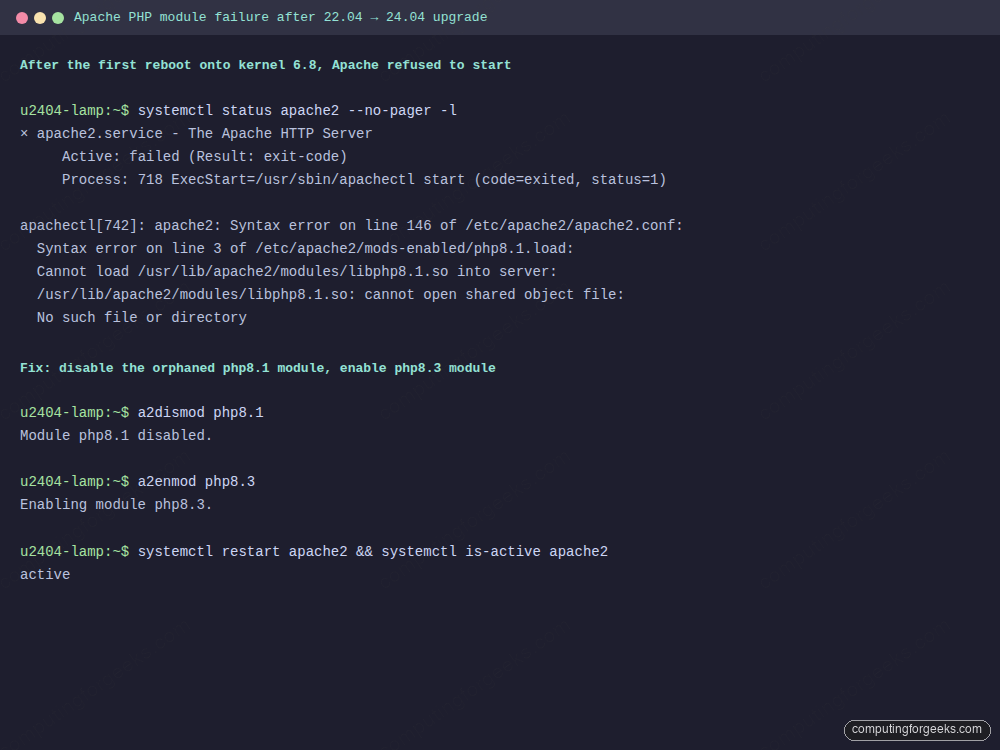
On the test VM the output from systemctl is-active apache2 went from failed to active in under two seconds. The workload curl http://localhost/api/stats.php returned php_version: 8.3.6, server: Linux 6.8.0-110-generic and the same 500 / 120 / 2000 row counts as before the upgrade.
Step 7: Validate the workload before the second hop
Never run the 24.04 → 26.04 hop until you have confirmed the workload on 24.04 is working. A broken app on 24.04 will not magically heal on 26.04, it will be twice as hard to diagnose with two sets of changes mixed together. Run the app’s health checks, read the logs, exercise the write path:
systemctl is-active apache2 mariadb
curl -s http://localhost/api/stats.php | python3 -m json.tool
sudo mariadb -e "SELECT (SELECT COUNT(*) FROM ${DB_NAME}.customers) c, \
  (SELECT COUNT(*) FROM ${DB_NAME}.products) p, \
  (SELECT COUNT(*) FROM ${DB_NAME}.orders) o, \
  (SELECT ROUND(SUM(total),2) FROM ${DB_NAME}.orders WHERE status<>'cancelled') rev"
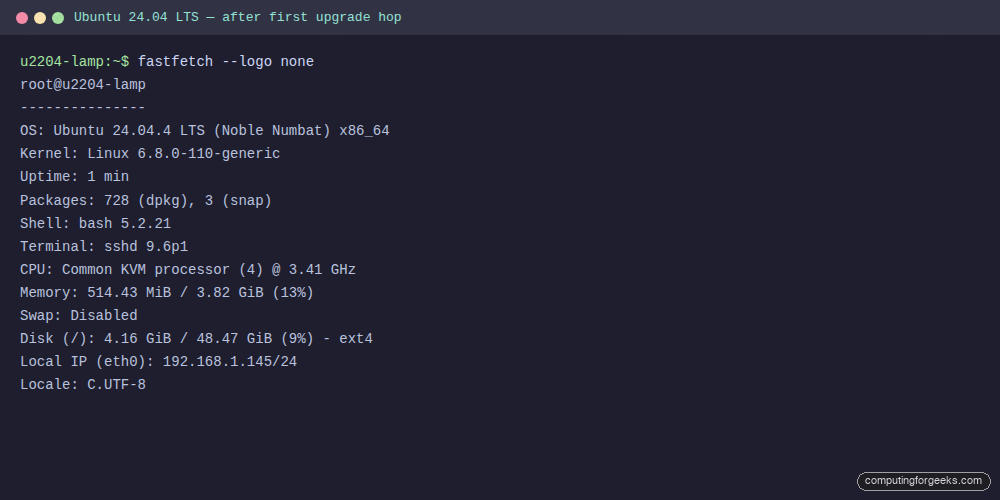
On the test VM the fastfetch snapshot after the first reboot looks like this, PHP is 8.3, kernel is 6.8, OpenSSH is 9.6p1:
With 24.04 stable and the workload verified, start the second hop.
Step 8: Second hop, 24.04 to 26.04
Until 26.04.1 ships on August 6 2026, do-release-upgrade on a plain LTS channel will say “No new release found.” The -d flag tells it to include development releases:
sudo apt update
sudo apt -y upgrade
sudo apt -y autoremove
sudo do-release-upgrade -c --devel-release
If that prints New release '26.04 LTS' available. you are good to proceed. Run the full upgrade with the same non-interactive frontend as before, and the -d flag to pick up 26.04:
sudo DEBIAN_FRONTEND=noninteractive do-release-upgrade -d \
  -f DistUpgradeViewNonInteractive
This is the longer of the two hops because 26.04 brings a much larger change: kernel 7.0, systemd 259, PHP 8.5, Apache 2.4.66, bash 5.3, OpenSSH 10.2 with post-quantum KEX enabled by default, Rust coreutils replacing GNU coreutils on fresh installs, and cgroup v1 dropped entirely from the stack. Total download is around 1.4 GB for a LAMP host like this one.
Reboot once it completes:
sudo rebootAfter the VM comes back up, log in and check the workload one more time.
Step 9: Validate on 26.04
Unlike the first hop, the 24.04 → 26.04 transition handled the Apache PHP module swap cleanly on the test VM, because 24.04 → 26.04 is a single PHP minor step (8.3 → 8.5) and the postinst scripts in libapache2-mod-php8.5 disable the older 8.3 module automatically. Worth checking anyway:
ls /etc/apache2/mods-enabled/ | grep php
systemctl is-active apache2 mariadb
curl -s http://localhost/api/stats.php | python3 -m json.tool
If mods-enabled still shows a php8.3.load symlink, run sudo a2dismod php8.3 && sudo a2enmod php8.5 && sudo systemctl restart apache2 and re-check.
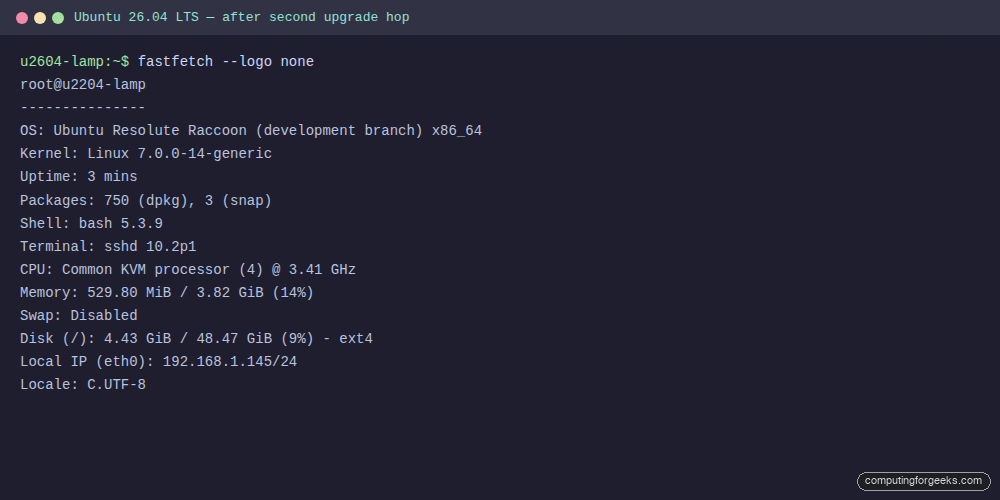
Here is the fastfetch snapshot at the end of the second hop. Everything on the test VM now reports 26.04 signatures, the workload kept its data, and the PHP dashboard renders against a kernel 7.0 host:
And the JSON API response captured on all three OS versions back to back, same counts, same revenue, different PHP and kernel strings:
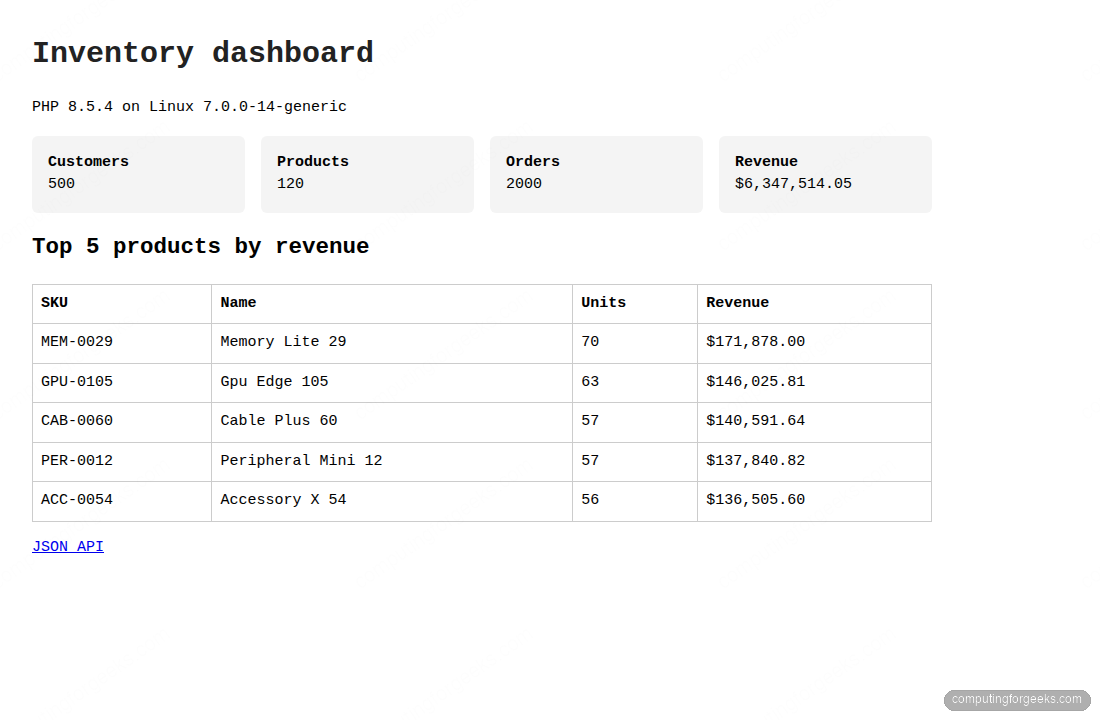
The PHP-rendered dashboard is identical against the live 26.04 host, top-5 products by revenue, 500 customer rows, 120 products, 2000 orders, served by Apache 2.4.66 with libphp8.5.so:
With the workload confirmed, sweep up the leftover state from the two hops.
Step 10: Post-upgrade cleanup
Four cleanup actions that keep the box tidy. Purge the old kernel images that do-release-upgrade leaves around, remove obsolete package configs, rebuild the initramfs so Dracut is consistent, and update GRUB:
sudo apt -y autoremove --purge
sudo apt -y autoclean
dpkg -l | awk '/^rc/ {print $2}' | xargs -r sudo dpkg --purge
sudo update-initramfs -u -k all
sudo update-grub
df -h /boot /
On the test VM, / went from 2.4 GiB used on 22.04 to 4.4 GiB used on 26.04 after cleanup. The jump is almost entirely from bigger kernel modules plus the x86-64-v3 optimised package set that 26.04 pulls in on AVX2-capable CPUs.
Troubleshooting the real errors that came up
Three errors hit the test VM during this upgrade. All three are in the /var/log/dist-upgrade/main.log tail so you can grep for the same strings on your own runs.
Error: “You have not rebooted after updating a package which requires a reboot”
This blocked the first do-release-upgrade invocation. Cause: an earlier apt upgrade installed a new 5.15 kernel and the VM was still running the old one. Fix: sudo reboot, reconnect, retry. If you cannot reboot the host, run sudo unattended-upgrade --dry-run -d to see what still needs a restart and clear it first.
Error: “Cannot load /usr/lib/apache2/modules/libphp8.1.so”
Apache refused to start after the first reboot onto kernel 6.8. The upgrade installed libapache2-mod-php8.3 but left mods-enabled/php8.1.load pointing at a missing shared object. Fix: sudo a2dismod php8.1 && sudo a2enmod php8.3 && sudo systemctl restart apache2. If you run a different PHP extension stack (e.g. PHP-FPM via FastCGI), also re-check /etc/apache2/conf-enabled/php*-fpm.conf.
Warning: “Download is performed unsandboxed as root”
Harmless, prints once during the metadata fetch. It is a systemd hardening warning from a tightened apt sandbox profile in 24.04+ when the upgrade tool runs as root. Ignore it, the download still verifies the GPG signature.
Series navigation
Related Ubuntu 26.04 guides on computingforgeeks: