Samba turns an Ubuntu server into a file share any laptop on the network can open, whether that laptop runs Windows, macOS, or Linux. The use case is not glamorous but it is permanent: a shared drive for the accounting team, a project folder that Mac designers map to their Finder sidebar, a dumping ground for CI artifacts the Windows workstations pull each morning. Ubuntu 26.04 LTS ships Samba 4.23, so the setup takes around twenty minutes and behaves identically across all three clients.
This guide builds a working two-box lab. One Ubuntu 26.04 VM acts as the file server, exposing a public share and an authenticated private share. A second freshly cloned Ubuntu 26.04 VM plays the client role: it enumerates shares with smbclient -L, uploads files to both shares, then mounts the private share with cifs-utils and writes a file from the Linux filesystem. Every command was executed on fresh cloud images, no reused state.
Tested April 2026 on Ubuntu 26.04 LTS (Resolute Raccoon), kernel 7.0.0-10, Samba 4.23.6
Prerequisites
Two Ubuntu 26.04 LTS servers on the same subnet. The file server in this guide sits at 192.168.1.153 (fileserver.c4geeks.local) and the test client at 192.168.1.120. Both were cloned from a fresh Ubuntu 26.04 cloud image with root SSH and UFW in its default state. If you are starting from scratch, run the Ubuntu 26.04 initial server setup first.
Set FQDN and reusable shell variables
Pin a hostname on the server. The name ends up in testparm, Windows network browsers, and every client-side mount log:
sudo hostnamectl set-hostname fileserver.c4geeks.local
hostname -f
Define the share paths, Samba username, and password once. Later commands expand them naturally:
export SMB_SHARED="/srv/samba/shared"
export SMB_PRIVATE="/srv/samba/private"
export SMB_USER="smbuser"
export SMB_PASS='SmbPass#2026'
export WORKGROUP="WORKGROUP"
Swap the values for your real user and a real password, then verify:
echo "Public share:  ${SMB_SHARED}"
echo "Private share: ${SMB_PRIVATE}"
echo "SMB user:      ${SMB_USER}"
echo "Workgroup:     ${WORKGROUP}"
Install Samba on the file server
Both the server and client packages come from the main Ubuntu 26.04 archive. No PPA or third-party repo is needed:
sudo apt-get update
sudo apt-get install -y samba smbclient
smbd --version | head -1
systemctl is-active smbd nmbd
The smbd daemon serves SMB/CIFS clients, while nmbd advertises NetBIOS names so Windows hosts can browse the workgroup. Both should show active on a fresh install:
Version 4.23.6-Ubuntu-4.23.6+dfsg-1ubuntu2
active
active
Create share directories and an SMB user
The public share lives under /srv/samba/shared with wide permissions so guests can read and write. The private share is owned by a dedicated Samba user, smbuser, who logs in with an SMB password (not the Linux account password):
sudo mkdir -p "${SMB_SHARED}" "${SMB_PRIVATE}"
sudo chown nobody:nogroup "${SMB_SHARED}"
sudo chmod 0775 "${SMB_SHARED}"
sudo useradd -M -s /usr/sbin/nologin "${SMB_USER}"
(echo "${SMB_PASS}"; echo "${SMB_PASS}") | sudo smbpasswd -a -s "${SMB_USER}"
sudo smbpasswd -e "${SMB_USER}"
sudo chown -R "${SMB_USER}":"${SMB_USER}" "${SMB_PRIVATE}"
sudo chmod 0770 "${SMB_PRIVATE}"
useradd -M -s /usr/sbin/nologin creates a service account with no home directory and no interactive shell. The SMB password is stored separately via smbpasswd, which is what clients authenticate against.
Write smb.conf with public and private shares
Back up the default smb.conf and write a clean one. The global block disables the insecure SMB1 protocol, maps unknown users to guest on the public share only, and sets reasonable logging. Two share stanzas define the public and private exports:
sudo cp /etc/samba/smb.conf /etc/samba/smb.conf.orig
sudo tee /etc/samba/smb.conf > /dev/null <<CONF
[global]
   workgroup = ${WORKGROUP}
   server string = fileserver (Ubuntu 26.04)
   netbios name = FILESERVER
   security = user
   map to guest = Bad User
   log file = /var/log/samba/log.%m
   max log size = 1000
   server min protocol = SMB2

[public]
   comment = Public read/write share
   path = ${SMB_SHARED}
   browseable = yes
   read only = no
   guest ok = yes
   create mask = 0664
   directory mask = 0775
   force user = nobody

[private]
   comment = Authenticated private share
   path = ${SMB_PRIVATE}
   browseable = yes
   read only = no
   guest ok = no
   valid users = ${SMB_USER}
   create mask = 0660
   directory mask = 0770
   force user = ${SMB_USER}
CONF
server min protocol = SMB2 is non-negotiable. SMB1 has shipped with known remote code execution vulnerabilities and every modern Windows client has it disabled. Keeping the floor at SMB2 ensures secure negotiation and signed packets by default.
Validate config with testparm
testparm parses smb.conf, flags syntax errors, and prints the effective config. Run it before restarting Samba:
sudo testparm -s 2>&1 | head -20
sudo systemctl restart smbd nmbd
systemctl is-active smbd nmbd
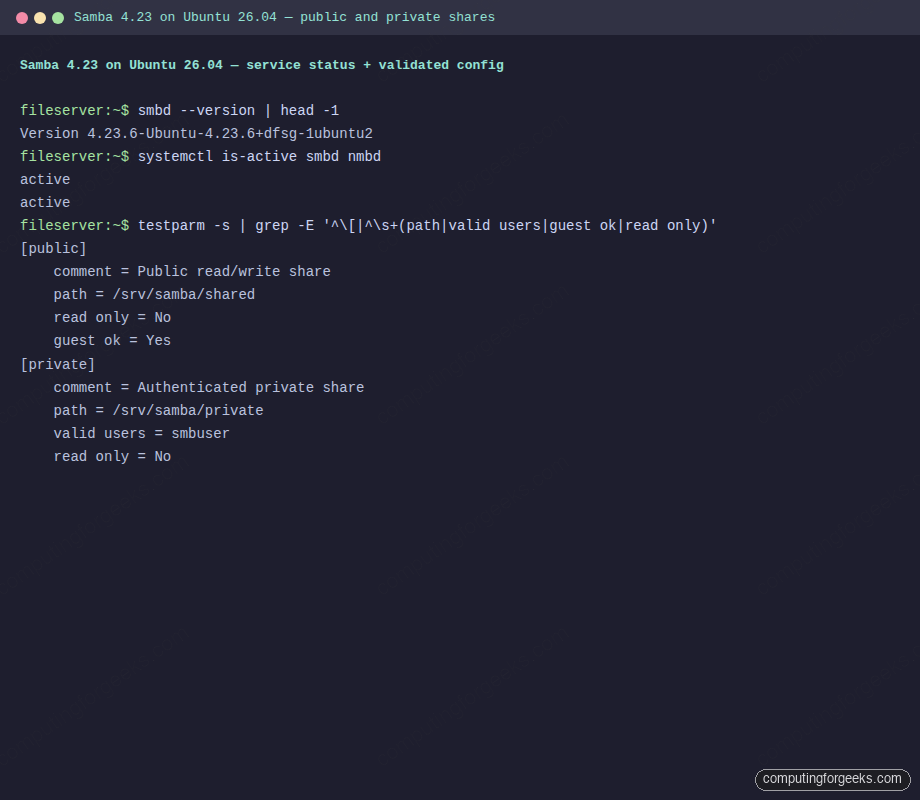
Healthy output shows “Loaded services file OK”, prints every share, and reports both daemons active:
Loaded services file OK.
Server role: ROLE_STANDALONE

# Global parameters
[global]
	security = USER
	server min protocol = SMB2
[public]
	comment = Public read/write share
	path = /srv/samba/shared
	read only = No
	guest ok = Yes
[private]
	comment = Authenticated private share
	path = /srv/samba/private
	valid users = smbuser
active
active
Full testparm + systemctl output captured from the file server:
Open UFW firewall for Samba
Ubuntu ships a pre-built UFW application profile for Samba that opens ports 137, 138, 139, and 445. Use it rather than listing ports by hand:
sudo ufw allow 22/tcp
sudo ufw allow Samba
sudo ufw --force enable
sudo ufw status
For subnet-restricted deployments, replace the broad rule with sudo ufw allow from 192.168.1.0/24 to any app Samba. Public-facing SMB is a very bad idea; keep it inside your LAN or behind a VPN.
List shares from the client with smbclient -L
Switch to the client VM. Install smbclient (SMB command-line utility) and cifs-utils (kernel mount helpers):
sudo apt-get update
sudo apt-get install -y smbclient cifs-utils
Enumerate what the file server advertises:
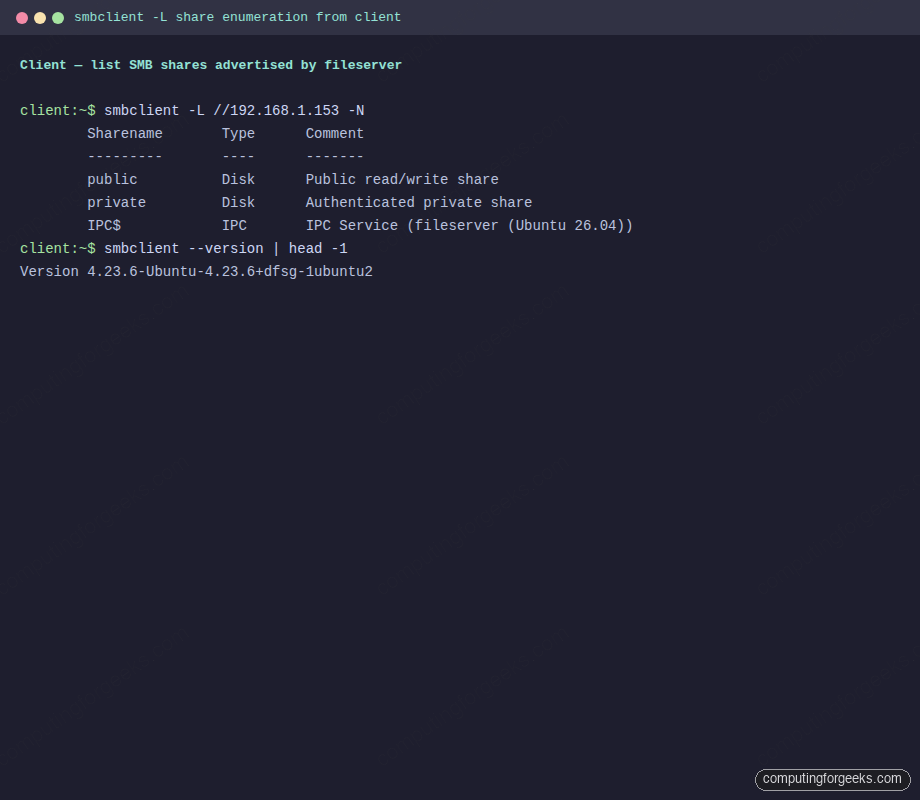
smbclient -L //192.168.1.153 -NThe -N flag means no password. The server returns the share list because the public share is guest-accessible. The “SMB1 disabled” warning at the bottom is expected and correct:
	Sharename       Type      Comment
	---------       ----      -------
	public          Disk      Public read/write share
	private         Disk      Authenticated private share
	IPC$            IPC       IPC Service (fileserver (Ubuntu 26.04))
SMB1 disabled -- no workgroup available
smbclient share enumeration rendered in a terminal window:
Upload a file to the public share as guest
The public share accepts writes without credentials. Create a local file, then drop it in the share and list the result:
echo "Test file from client VM at $(date)" > /tmp/test.txt
smbclient //192.168.1.153/public -N -c 'put /tmp/test.txt from-client.txt; ls; exit'
The upload progress line and the directory listing confirm the file landed:
putting file /tmp/test.txt as \from-client.txt (27.8 kB/s) (average 27.8 kB/s)
  .                                   D        0
  ..                                  D        0
  from-client.txt                     A       57
Upload a file to the private share with authentication
The private share enforces valid users = smbuser, so guest attempts fail with NT_STATUS_ACCESS_DENIED. Supply credentials inline with the -U user%password form:
echo "Private content from client" > /tmp/private.txt
smbclient //192.168.1.153/private -U smbuser%'SmbPass#2026' \
  -c 'put /tmp/private.txt client-priv.txt; ls; exit'
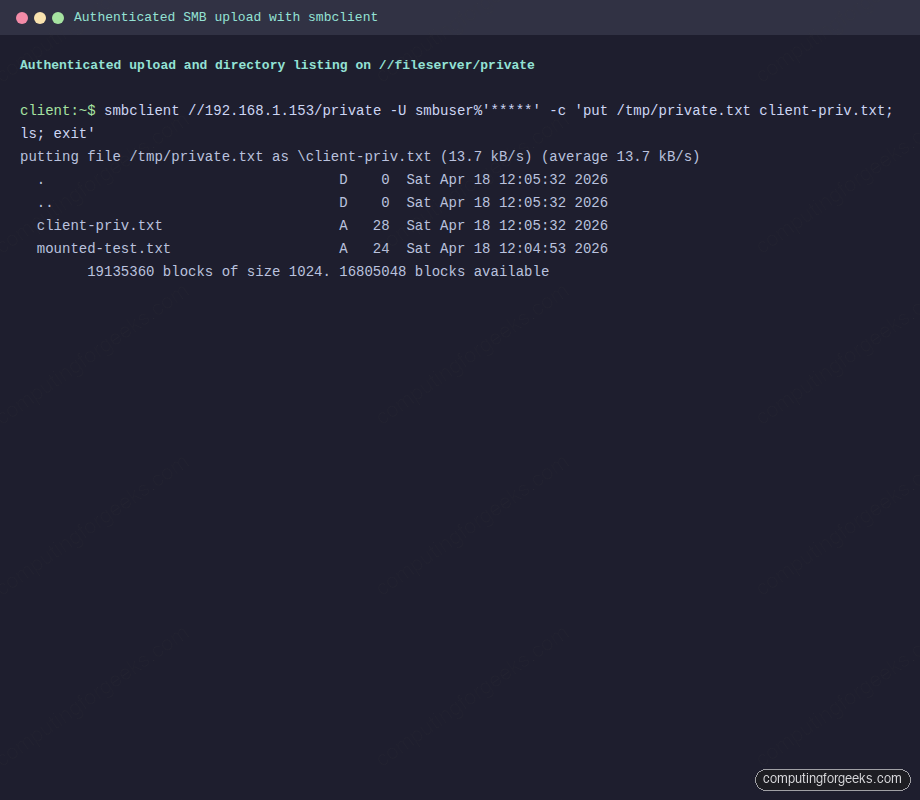
Authenticated put, directory listing, and the free-space footer all come back clean:
putting file /tmp/private.txt as \client-priv.txt (13.7 kB/s)
  .                                   D    0
  ..                                  D    0
  client-priv.txt                     A   28
  mounted-test.txt                    A   24
	19135360 blocks of size 1024. 16805048 blocks available
Authenticated upload session to the private share:
For scripts, put the credentials in a chmod 600 file and pass -A /path/to/creds instead of inline. The file format is three lines: username=smbuser, password=SmbPass#2026, domain=WORKGROUP.
Mount the private share as CIFS on Linux
For a persistent mount the Linux kernel CIFS driver treats the SMB share like any other filesystem. Create a mount point, then mount with the smbuser credentials. The vers=3.0 flag pins the protocol to SMB 3.0 (signed, encrypted, single connection):
sudo mkdir -p /mnt/smbprivate
sudo mount -t cifs //192.168.1.153/private /mnt/smbprivate \
  -o username=smbuser,password='SmbPass#2026',vers=3.0
df -hT /mnt/smbprivate | tail -2
echo "hello from mounted CIFS" | sudo tee /mnt/smbprivate/mounted-test.txt
ls -la /mnt/smbprivate
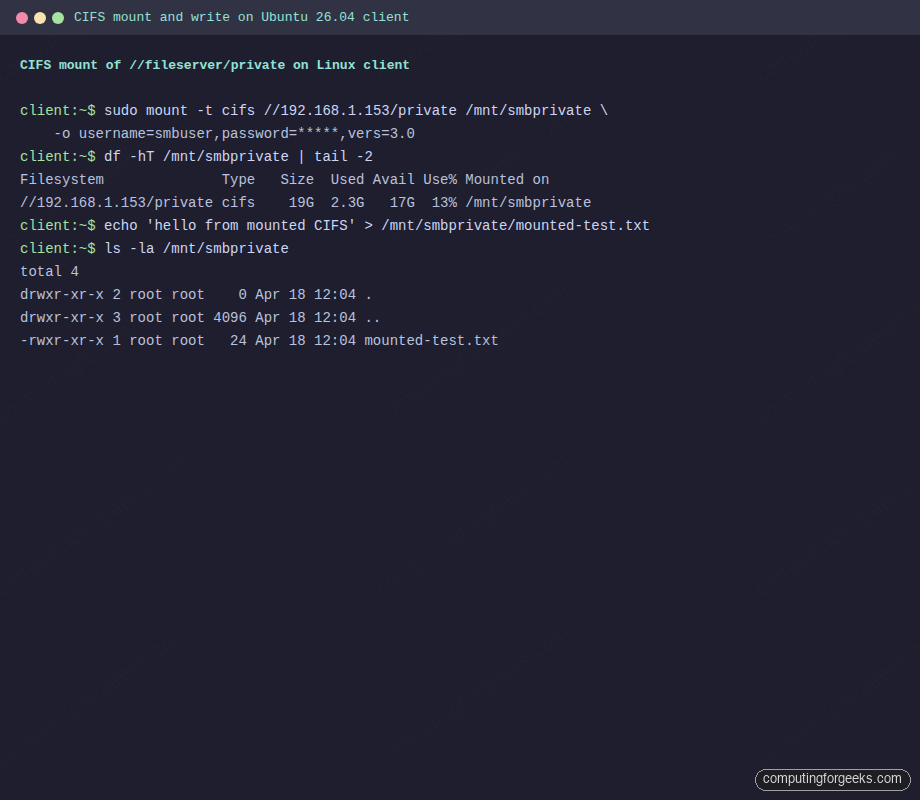
The mount appears as type cifs, and the file you wrote through the mount appears next to the files uploaded earlier via smbclient:
Filesystem              Type   Size  Used Avail Use% Mounted on
//192.168.1.153/private cifs    19G  2.3G   17G  13% /mnt/smbprivate
-rwxr-xr-x 1 root root   24 Apr 18 12:04 mounted-test.txt
-rwxr-xr-x 1 root root   28 Apr 18 12:05 client-priv.txt
CIFS kernel mount transcript from the client VM:
For a permanent mount, add a line to /etc/fstab and store credentials in a chmod 600 file:
sudo tee /etc/smb-creds > /dev/null <<'CREDS'
username=smbuser
password=SmbPass#2026
domain=WORKGROUP
CREDS
sudo chmod 600 /etc/smb-creds
echo '//192.168.1.153/private /mnt/smbprivate cifs credentials=/etc/smb-creds,vers=3.0,_netdev,uid=1000,gid=1000 0 0' | sudo tee -a /etc/fstab
sudo mount -a
The _netdev flag tells systemd to wait for the network before mounting; without it, boot hangs when the file server is unreachable.
Troubleshoot common Samba issues
Error: “NT_STATUS_LOGON_FAILURE”
Wrong password or the SMB user account is disabled. Confirm with sudo smbpasswd -e smbuser (enables the account) and sudo pdbedit -L (lists valid SMB users). If the Linux account and SMB user have different passwords, remember SMB uses its own database.
Error: “NT_STATUS_ACCESS_DENIED” writing to the private share
The valid users line does not list the authenticating user, or the Linux filesystem permissions on the share path do not allow writes. Check both: sudo grep -A10 '\[private\]' /etc/samba/smb.conf and ls -la /srv/samba/private. The force user directive in the share stanza must match the directory owner.
Warning: “SMB1 disabled — no workgroup available”
This is a warning, not an error. SMB1 is insecure and disabled by default since Samba 4.11. Windows 10/11 also disable SMB1 by default. Leave it disabled.
Error: “mount error(13): Permission denied”
Almost always wrong credentials or the server rejecting the SMB protocol version. Retry the mount with vers=3.0 explicitly. Old guides recommend vers=1.0; never use it, it enables SMB1.
“Broken pipe” errors in /var/log/samba/log.smbd
Stale TCP sessions from crashed clients. Safe to ignore unless accompanied by repeated auth_check_ntlm_password failures, which can indicate brute-force attempts. Deploy Fail2ban with a Samba jail to block the attackers.
CIFS mount hangs on boot
Missing _netdev in the fstab entry. Add it and rerun sudo systemctl daemon-reload. If the file server is on a different subnet, also add x-systemd.mount-timeout=30 so the unit gives up quickly when the network is down.
Once the file server is stable, harden it with the Ubuntu 26.04 server hardening guide and scan the share for malware with ClamAV. Pair it with BIND9 so clients resolve \\fileserver.c4geeks.local without hitting a public DNS server.