FreeBSD 15.0 ships with OpenSSH 10.0p2, which supports post-quantum key exchange algorithms out of the box. The defaults are sane for a fresh install, but leaving password authentication enabled and root login wide open is asking for trouble on any internet-facing server. This guide walks through key-based authentication setup, a hardened sshd_config, and brute-force protection with SSHGuard.
If you followed the FreeBSD 15 installation on Proxmox/KVM guide, your system is ready for these steps. For firewall rules that complement SSH hardening, the FreeBSD 15 PF firewall guide covers packet filtering and NAT configuration.
Tested April 2026 on FreeBSD 15.0-RELEASE, OpenSSH 10.0p2, OpenSSL 3.5.4
Prerequisites
Before starting, confirm you have:
- A FreeBSD 15.0-RELEASE server with root or
doas/sudoaccess - A client machine (Linux, macOS, or Windows with OpenSSH) for generating keys
- A non-root user account on the FreeBSD server (we use
adminthroughout this guide) - Tested on: FreeBSD 15.0-RELEASE (amd64), OpenSSH 10.0p2
Check the Current SSH Configuration
Start by confirming the OpenSSH version on your FreeBSD server:
ssh -VThe output shows the version and linked OpenSSL library:
OpenSSH_10.0p2, OpenSSL 3.5.4 30 Sep 2025The default sshd_config on FreeBSD 15 lives at /etc/ssh/sshd_config, same as Linux. One FreeBSD-specific difference: the default PermitRootLogin is set to no in the config comments, but the running daemon may still accept root login depending on how the system was installed. Verify what is actually active:
sshd -T | grep -i permitrootThis queries the running configuration, not just the file. If it shows permitrootlogin yes, you need to lock it down.
Generate SSH Keys on the Client
Ed25519 keys are the recommended choice for SSH authentication. They are smaller, faster, and based on elliptic curve cryptography that has held up well. Generate a key pair on your local machine (the client, not the server):
ssh-keygen -t ed25519 -C "admin@freebsd15"Accept the default path (~/.ssh/id_ed25519) and set a strong passphrase. The passphrase protects the private key if your client machine is compromised.
For environments that require RSA (older jump hosts, legacy automation), generate a 4096-bit key as a fallback:
ssh-keygen -t rsa -b 4096 -C "admin@freebsd15-rsa"Both key types work on FreeBSD 15. Prefer ed25519 unless compatibility forces RSA.
Copy the Public Key to the FreeBSD Server
The fastest method is ssh-copy-id, which appends your public key to the remote ~/.ssh/authorized_keys file:
ssh-copy-id -i ~/.ssh/id_ed25519.pub [email protected]You will be prompted for the user’s password one last time. After this, key-based login should work immediately.
If ssh-copy-id is not available on your client, do it manually. On the FreeBSD server, create the .ssh directory and set permissions:
mkdir -p ~/.ssh
chmod 700 ~/.ssh
touch ~/.ssh/authorized_keys
chmod 600 ~/.ssh/authorized_keys
Then paste the contents of your id_ed25519.pub into ~/.ssh/authorized_keys on the server. FreeBSD’s StrictModes is enabled by default, which means permissions on .ssh and authorized_keys must be correct or key authentication silently fails.
Verify key-based login works before proceeding to disable passwords:
ssh -i ~/.ssh/id_ed25519 [email protected]If you get a shell without a password prompt, key authentication is working.
Disable Password Authentication
Once key-based login is confirmed, disable password authentication entirely. Edit the SSH daemon configuration:
vi /etc/ssh/sshd_configFind and set these directives:
PasswordAuthentication no
KbdInteractiveAuthentication no
Both lines matter. KbdInteractiveAuthentication (formerly ChallengeResponseAuthentication) can bypass the password disable if left enabled, because FreeBSD uses PAM by default and PAM can prompt for passwords through keyboard-interactive.
Restrict Root Login
Allowing direct root login over SSH is a security risk even with key authentication. The safest option is to disable it entirely and use doas or sudo to escalate:
PermitRootLogin noIf you must allow root login for automation (Ansible, backup scripts), restrict it to key-only:
PermitRootLogin prohibit-passwordThis rejects password-based root login while still accepting SSH keys. For most setups, prohibit-password is the practical middle ground.
Change the Default SSH Port
Changing the SSH port from 22 to a non-standard port reduces automated scanning noise significantly. It is not a security measure on its own, but it keeps your auth log from filling with bot attempts.
vi /etc/ssh/sshd_configSet the port:
Port 2222On FreeBSD, there is no need to run semanage or update AppArmor profiles. Unlike RHEL, FreeBSD does not have mandatory access control enforcing port policies by default. Just make sure your firewall (PF or IPFW) allows the new port. If using PF, update your /etc/pf.conf rules to pass traffic on port 2222 instead of 22. The PF firewall guide covers rule syntax.
After changing the port, connect with ssh -p 2222 [email protected].
Configure Idle Timeout and Login Limits
Idle SSH sessions are a security liability, especially on shared servers. Two directives control this behavior:
ClientAliveInterval 300
ClientAliveCountMax 2
The server sends a keepalive message every 300 seconds (5 minutes). After 2 missed responses, the connection is dropped. Total idle timeout: 10 minutes. Adjust these values based on your workflow.
Limit the number of authentication attempts per connection to slow down brute-force attacks:
MaxAuthTries 3The default is 6, which gives attackers room to try multiple passwords. Three attempts is plenty when using keys.
Disable Unnecessary Forwarding
Unless you specifically need X11, TCP, or agent forwarding, turn them off. Each forwarding option is an attack surface that can be used for lateral movement or tunnel abuse:
X11Forwarding no
AllowTcpForwarding no
AllowAgentForwarding no
FreeBSD 15’s default sshd_config already has X11Forwarding no commented out (which means it defaults to no), but explicitly setting it ensures nothing changes if someone uncomments it later.
Enforce Strong Ciphers, MACs, and Key Exchange
OpenSSH 10.0p2 on FreeBSD 15 supports modern cryptographic algorithms, including the post-quantum sntrup761x25519-sha512 key exchange. Restrict the daemon to only the strongest options:
Ciphers [email protected],[email protected],[email protected]
MACs [email protected],[email protected],[email protected]
KexAlgorithms sntrup761x25519-sha512,curve25519-sha256,[email protected],diffie-hellman-group16-sha512
This configuration drops all CBC ciphers, MD5/SHA1 MACs, and weak key exchange methods. The -etm (encrypt-then-MAC) variants are preferred because they are resistant to padding oracle attacks. If you need to connect from older clients that do not support these algorithms, add aes256-ctr to the Ciphers list, but avoid it on servers exposed to the public internet.
Also restrict the host key algorithms to only ed25519 and RSA (dropping ECDSA):
HostKeyAlgorithms ssh-ed25519,rsa-sha2-512,rsa-sha2-256Some operators prefer to remove the RSA host key entirely and keep only ed25519. That works if all your clients support it.
Restrict SSH Access with AllowUsers
Limit which accounts can log in over SSH. This is one of the most effective hardening measures because it creates an explicit whitelist:
AllowUsers adminOnly the admin user can authenticate via SSH. All other accounts are rejected before they even get to try a password or key. To allow multiple users, separate them with spaces: AllowUsers admin deploy backup.
For group-based access control, use AllowGroups instead:
AllowGroups sshusersCreate the group and add users to it:
pw groupadd sshusers
pw groupmod sshusers -m admin
FreeBSD uses pw for user and group management, not usermod -aG as on Linux. Pick either AllowUsers or AllowGroups, not both, because they interact in unexpected ways (user must match both if both are set).
Complete Hardened sshd_config
Here is the full set of changes applied to /etc/ssh/sshd_config. Add these at the end of the file, or replace the existing commented defaults:
Port 2222
PermitRootLogin prohibit-password
MaxAuthTries 3
PubkeyAuthentication yes
AuthorizedKeysFile .ssh/authorized_keys
PasswordAuthentication no
KbdInteractiveAuthentication no
UsePAM yes
X11Forwarding no
AllowTcpForwarding no
AllowAgentForwarding no
ClientAliveInterval 300
ClientAliveCountMax 2
AllowUsers admin
Ciphers [email protected],[email protected],[email protected]
MACs [email protected],[email protected],[email protected]
KexAlgorithms sntrup761x25519-sha512,curve25519-sha256,[email protected],diffie-hellman-group16-sha512
HostKeyAlgorithms ssh-ed25519,rsa-sha2-512,rsa-sha2-256
Banner /etc/ssh/banner
The Banner directive is optional. If you want a warning message before login, create /etc/ssh/banner with your text. On production servers, a legal warning banner satisfies compliance requirements in many regulated environments.
Validate the configuration before restarting. A syntax error in sshd_config can lock you out:
sshd -tNo output means the configuration is valid. If there are errors, sshd -t prints the line number and problem.
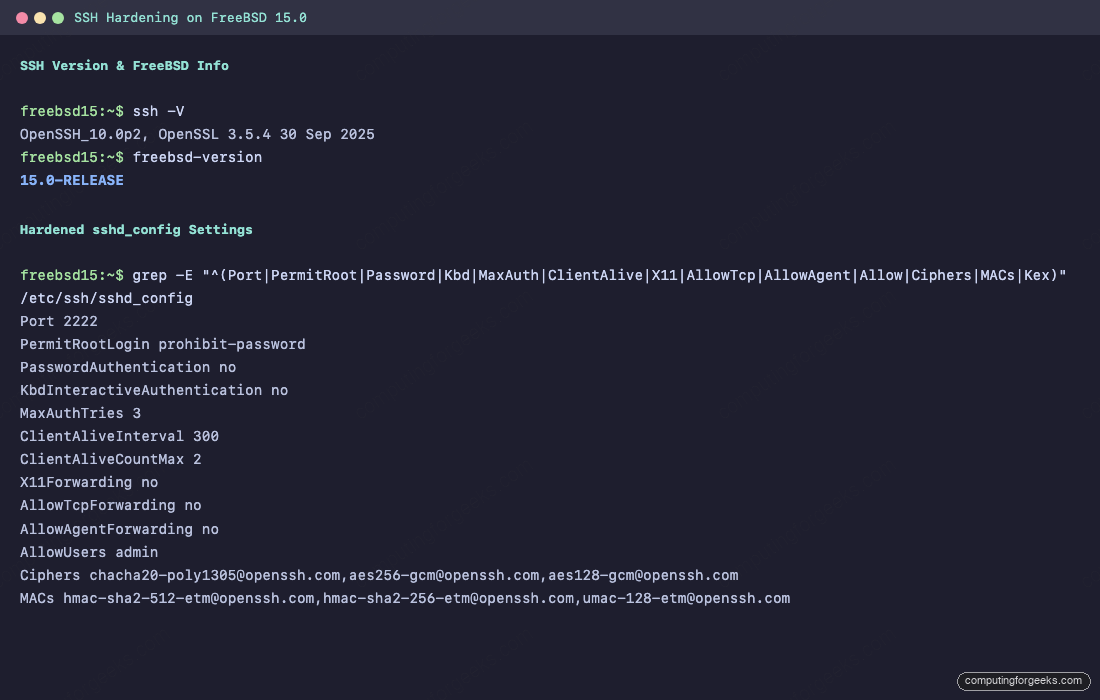
With the configuration validated, apply it by restarting the SSH daemon.
Restart SSH and Verify
On FreeBSD, the SSH daemon is managed through rc.d, not systemd. Restart it:
service sshd restartConfirm it is running on the new port:
sockstat -4 -l | grep sshdYou should see sshd listening on port 2222:
root sshd 1234 4 tcp4 *:2222 *:*FreeBSD uses sockstat instead of ss or netstat -tlnp for socket inspection. The -4 flag shows IPv4 sockets, and -l filters to listening only.
Test from your client with the new port and key:
ssh -p 2222 -i ~/.ssh/id_ed25519 [email protected]Keep this session open while testing. Open a second terminal and verify that password login is rejected:
ssh -p 2222 -o PubkeyAuthentication=no [email protected]This should fail with Permission denied (publickey). That confirms password authentication is fully disabled.
Install and Configure SSHGuard for Brute-Force Protection
SSHGuard monitors authentication logs and blocks IP addresses that fail too many login attempts. It is the FreeBSD-native alternative to Fail2Ban, lightweight and written in C with no runtime dependencies.
Install it from packages:
pkg install -y sshguardSSHGuard supports multiple firewall backends. On FreeBSD, it works with PF, IPFW, or a simple hosts file. Since IPFW is the default FreeBSD packet filter and requires no extra setup, configure SSHGuard to use the IPFW backend.
Edit the SSHGuard configuration:
vi /usr/local/etc/sshguard.confSet the backend and tune the thresholds:
BACKEND="/usr/local/libexec/sshg-fw-pf"
FILES="/var/log/auth.log"
THRESHOLD=30
BLOCK_TIME=120
DETECTION_TIME=1800
BLACKLIST_FILE=120:/var/db/sshguard/blacklist.db
The THRESHOLD of 30 means an attacker is blocked after 3 failed login attempts (each attempt scores 10 points). BLOCK_TIME starts at 120 seconds and increases by 1.5x for repeat offenders. The BLACKLIST_FILE creates a persistent blocklist that survives reboots.
If you are using PF as your firewall, add the SSHGuard anchor to /etc/pf.conf:
vi /etc/pf.confAdd these lines near the top, before your pass rules:
table <sshguard> persist
block in quick on egress proto tcp from <sshguard> to any port 2222
If you prefer IPFW instead of PF, change the backend to /usr/local/libexec/sshg-fw-ipfw and no anchor configuration is needed. SSHGuard manages IPFW rules directly.
Create the blacklist directory and enable the service:
mkdir -p /var/db/sshguard
sysrc sshguard_enable="YES"
service sshguard start
Verify SSHGuard is running:
service sshguard statusThe output confirms the daemon is active:
sshguard is running as pid 12345.To whitelist trusted IPs (your office, VPN, monitoring), create a whitelist file:
vi /usr/local/etc/sshguard.whitelistAdd one IP or CIDR per line:
10.0.1.0/24
192.168.1.0/24
Then uncomment the WHITELIST_FILE line in sshguard.conf and point it to this file. Restart SSHGuard to apply.
FreeBSD-Specific Differences from Linux
Several things work differently on FreeBSD compared to Linux distributions. This table covers the practical differences you will run into when hardening SSH:
| Item | FreeBSD 15 | Linux (Ubuntu/RHEL) |
|---|---|---|
| SSH config path | /etc/ssh/sshd_config | /etc/ssh/sshd_config (same) |
| Service management | service sshd restart | systemctl restart sshd |
| Enable at boot | sysrc sshd_enable="YES" | systemctl enable sshd |
| Socket inspection | sockstat -4 -l | ss -tlnp |
| User/group management | pw useradd / pw groupmod | useradd / usermod -aG |
| Log file | /var/log/auth.log | /var/log/auth.log or journalctl |
| Log rotation | newsyslog | logrotate |
| Mandatory access control | None by default (MAC optional) | SELinux (RHEL) / AppArmor (Ubuntu) |
| Brute-force protection | SSHGuard (native C) | Fail2Ban (Python) |
| Package manager | pkg install | dnf / apt |
The lack of mandatory access control on FreeBSD is actually an advantage for SSH port changes. On RHEL, changing the SSH port requires semanage port -a -t ssh_port_t -p tcp 2222. On FreeBSD, just change the port in sshd_config and restart. No extra steps.
FreeBSD also uses newsyslog instead of logrotate for log rotation. The SSH authentication log at /var/log/auth.log is already configured in /etc/newsyslog.conf with a 1MB size limit and 7 rotations. No additional log configuration is needed for SSH or SSHGuard.
For managing packages and services on FreeBSD, the FreeBSD and OpenBSD package and service management guide covers the essentials. If you are also running WireGuard for VPN access, the WireGuard VPN on FreeBSD 15 guide pairs well with SSH hardening for a defense-in-depth approach.
Monitor SSH Login Attempts
Check the authentication log for failed and successful logins:
grep sshd /var/log/auth.log | tail -20Watch for patterns: repeated failures from the same IP, login attempts for non-existent users, or connections on port 22 (which should not exist after the port change).
To see which keys are being used for authentication, increase the log level temporarily:
LogLevel VERBOSEThis logs the fingerprint of each key used for login, which helps identify which key a user or automation tool is using. Set it back to INFO after debugging.
The SSH key authentication on Ubuntu 26.04 guide covers additional key management strategies, including SSH certificates and agent forwarding, that also apply to FreeBSD. For a broader hardening perspective, the Ubuntu 26.04 server hardening guide covers complementary techniques like kernel hardening and audit logging.
Troubleshooting
Error: “Connection refused” after port change
This usually means the firewall is blocking the new port. On PF, verify the rule allows port 2222. On IPFW, check with ipfw list | grep 2222. Also confirm sshd actually started on the new port with sockstat -4 -l | grep ssh.
Error: “Permission denied (publickey)”
Check three things in order. First, the permissions: ~/.ssh must be 700 and authorized_keys must be 600. FreeBSD’s StrictModes rejects anything else. Second, confirm the public key is in authorized_keys and the username is in the AllowUsers list. Third, check /var/log/auth.log for the specific rejection reason.
Error: “no matching cipher found” or “no matching MAC found”
Your client does not support any of the ciphers configured on the server. This happens with older OpenSSH versions (pre-7.x) that lack ChaCha20-Poly1305 or AES-GCM. Either upgrade the client or temporarily add aes256-ctr to the server’s Ciphers list. Check what your client supports with ssh -Q cipher.
Locked out after sshd_config change
Always run sshd -t before restarting. If you are already locked out, access the FreeBSD console through Proxmox/KVM VNC, fix the config, and restart sshd. Keep a session open while testing changes to avoid this scenario entirely.


![Install Kali Linux 2026.1 Step by Step [Full Guide]](https://computingforgeeks.com/wp-content/uploads/2026/03/install-kali-linux-20261-step-by-step-768x403.png "Install Kali Linux 2026.1 Step by Step [Full Guide] 4")