AppArmor has been Ubuntu’s default Mandatory Access Control layer for over a decade, and on Ubuntu 26.04 LTS it ships pre-enabled with 108 profiles confining everything from chronyd to the snap runtime. Most admins never look at it. That’s a missed opportunity, because AppArmor is where you stop a compromised daemon from reading your secrets, touching your backups, or shelling out to weird places.
This guide walks through the AppArmor toolchain on Ubuntu 26.04 LTS: checking status, reading and switching existing profiles, writing a custom profile from scratch for a small shell script, generating denials on purpose to see how enforcement looks in the logs, and reloading profiles without rebooting. The focus is on what a working sysadmin actually does, not a tour of the policy language.
Tested April 2026 on Ubuntu 26.04 LTS, AppArmor 5.0.0~beta1, kernel 7.0.0-10-generic
AppArmor vs SELinux in one paragraph
AppArmor is path-based. A profile says “this binary at this path may read these paths, write these paths, exec these other binaries.” SELinux is label-based: files carry xattr labels and policy decisions use those labels. Neither model is objectively better. Path-based profiles are easier to read and write, which is why Ubuntu picked AppArmor. Label-based policy holds up better against filesystem reshuffles and hardlink tricks, which is why Fedora and RHEL picked SELinux. If you’ve worked with SELinux on Rocky Linux or RHEL, you already understand the goal (contain a compromised daemon). The syntax is what’s different.
Prerequisites
- Tested on: Ubuntu 26.04 LTS (Resolute Raccoon), kernel 7.0.0-10-generic, AppArmor 5.0.0~beta1
- A user with sudo (examples run as root)
- A clean baseline helps. On a freshly installed Ubuntu 26.04 server, AppArmor is already running and confining 108+ profiles
This guide pairs well with the Ubuntu 26.04 initial server setup and the broader Ubuntu 26.04 hardening guide. AppArmor is one layer; put UFW and Fail2ban alongside it using the UFW guide and the Fail2ban guide.
1. Confirm AppArmor is running
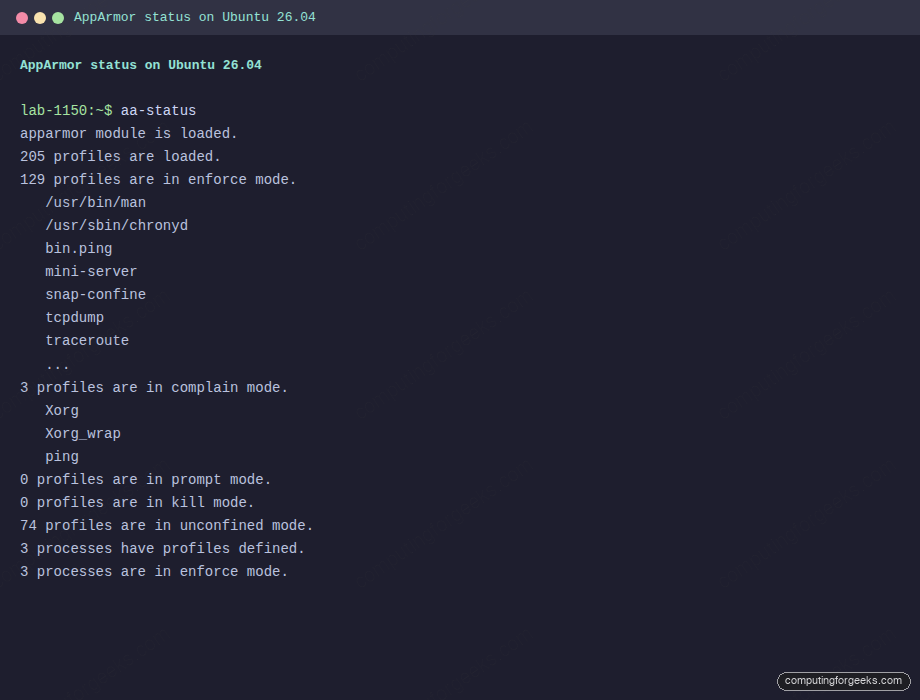
Ubuntu enables AppArmor at boot via the apparmor.service unit. Check the kernel module is loaded and see how many profiles are active:
sudo aa-statusThe first line should say the module is loaded, followed by a headline count of profiles and how many are in enforce vs complain mode:
apparmor module is loaded.
184 profiles are loaded.
108 profiles are in enforce mode.
   /usr/bin/man
   /usr/lib/snapd/snap-confine
   /usr/sbin/chronyd
   ...
2 profiles are in complain mode.
0 profiles are in prompt mode.
0 profiles are in kill mode.
74 profiles are in unconfined mode.
3 processes have profiles defined.
3 processes are in enforce mode.
Key distinctions to remember. Enforce means the kernel blocks actions not in the profile and logs them as denials. Complain means the kernel allows everything but logs what would have been denied, which is how you train a new profile. Unconfined means the profile is loaded but flagged to not enforce, which is different from having no profile at all. Prompt and kill are newer modes most admins will not use day to day.
If aa-status is missing, the apparmor-utils package is not installed. Install it next.
2. Install the AppArmor tooling
The base apparmor package gives you the runtime, but the aa-* user commands live in apparmor-utils. apparmor-profiles adds a collection of extra profiles you can opt into:
sudo apt update
sudo apt install -y apparmor-utils apparmor-profiles
Confirm the commands are on your path:
which aa-status aa-enforce aa-complain aa-disable aa-genprof aa-logprofYou should get back six absolute paths under /usr/sbin/:
/usr/sbin/aa-status
/usr/sbin/aa-enforce
/usr/sbin/aa-complain
/usr/sbin/aa-disable
/usr/sbin/aa-genprof
/usr/sbin/aa-logprof
3. Read an existing profile
All profiles live in /etc/apparmor.d/. File names mirror the confined binary path, with slashes turned into dots. So /usr/bin/man becomes /etc/apparmor.d/usr.bin.man, and /bin/ping becomes /etc/apparmor.d/bin.ping.
ls /etc/apparmor.d/ | head -15You’ll see a mix of profile files, the abstractions/ directory (reusable rule snippets included into profiles), local/ (site overrides), and disable/ (symlinks for disabled profiles):
abi
abstractions
alsamixer
apache2.d
bin.ping
buildah
chrome
code
dig
disable
dnstracer
firefox
force-complain
fusermount3
local
The ping profile is short enough to read in one go and is a clean example of capability, network, and file rules together:
cat /etc/apparmor.d/bin.pingOutput:
abi <abi/5.0>,

include <tunables/global>
profile ping /{usr/,}bin/{,iputils-}ping {
  include <abstractions/base>
  include <abstractions/consoles>
  include <abstractions/nameservice>

  capability net_raw,
  capability setuid,
  network inet raw,
  network inet6 raw,

  @{exec_path} mixr,
  /etc/modules.conf r,
  @{PROC}/sys/net/ipv6/conf/all/disable_ipv6 r,

  include if exists <local/bin.ping>
}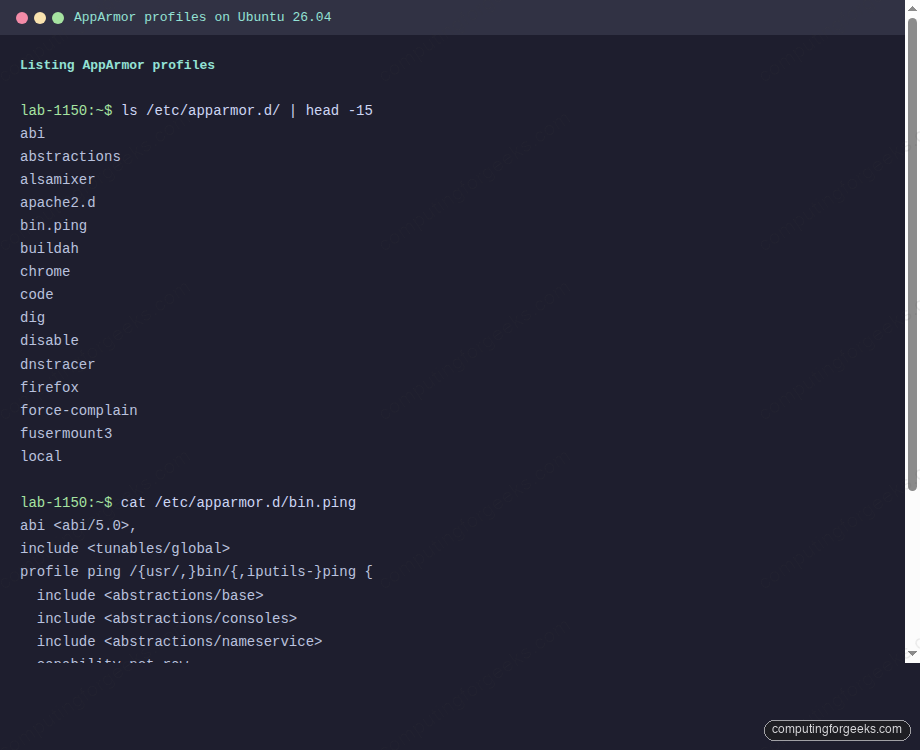
A few things worth knowing. The abi declaration pins the policy language version, so a profile written for a newer kernel feature won’t silently misbehave on an older one. The include lines pull in reusable blocks. The capability lines list Linux kernel capabilities the binary is allowed to use. network inet raw permits raw ICMP sockets. @{exec_path} mixr uses a variable (defined in tunables) and the flag string mixr: mmap, inherit on exec, exec, read. The last include if exists lets you drop local overrides into /etc/apparmor.d/local/bin.ping without editing the upstream file.
4. Switch profiles between enforce and complain
Moving a profile between modes is a one-liner. To put ping into complain mode for troubleshooting:
sudo aa-complain /usr/bin/pingYou’ll see something like:
Setting /usr/bin/ping to complain mode.
Warning: profile ping represents multiple programs
The warning is expected because the profile glob /{usr/,}bin/{,iputils-}ping matches four binary paths. Confirm the mode change with aa-status:
sudo aa-status | awk '/complain mode/{f=1; print; next} f && /^ /{print; next} f{exit}'You should see ping listed under complain profiles:
3 profiles are in complain mode.
   Xorg
   Xorg_wrap
   ping
Put it back under enforcement when you’re done:
sudo aa-enforce /usr/bin/pingUnder the hood, aa-complain and aa-enforce rewrite the flags=(...) header on the profile file and reload it. You can do the same by hand with apparmor_parser, which is useful on servers that don’t have apparmor-utils installed.
5. Write a custom profile for a script
The real muscle memory comes from writing your own profile. For this walkthrough we’ll confine a small shell script that acts like a placeholder service. Create the script first:
sudo tee /usr/local/bin/mini-server.sh >/dev/null <<'SCRIPT'
#!/bin/bash
# Tiny server: logs a request, tries to read secrets, returns OK.
LOG=/var/log/mini-server.log
SECRETS=/etc/mini-server/secrets.conf

echo "$(date) request received" >> "$LOG"
SECRET=$(cat "$SECRETS" 2>&1)
echo "$(date) secret read attempt: $SECRET" >> "$LOG"
echo "OK"
SCRIPT
sudo chmod +x /usr/local/bin/mini-server.sh
Create the log and a fake secrets file the script will try to read:
sudo touch /var/log/mini-server.log
sudo mkdir -p /etc/mini-server
echo "api_key=placeholder" | sudo tee /etc/mini-server/secrets.conf
Profile filenames mirror the binary path with slashes swapped for dots, so this one lives at /etc/apparmor.d/usr.local.bin.mini-server.sh. Write it by hand (it’s easier than iterating with aa-genprof for something this small):
sudo tee /etc/apparmor.d/usr.local.bin.mini-server.sh >/dev/null <<'PROFILE'
abi <abi/5.0>,
include <tunables/global>

profile mini-server /usr/local/bin/mini-server.sh {
  include <abstractions/base>
  include <abstractions/bash>
  include <abstractions/consoles>

  /usr/local/bin/mini-server.sh r,
  /usr/bin/bash ixr,
  /usr/bin/dash ixr,
  /usr/bin/date ixr,
  /usr/bin/cat ixr,
  /usr/lib/cargo/bin/coreutils/** ixr,

  /var/log/mini-server.log w,

  # Secrets are intentionally NOT readable.
  audit deny /etc/mini-server/** r,

  include if exists <local/usr.local.bin.mini-server.sh>
}
PROFILE
Two things in that profile are worth calling out. The /usr/lib/cargo/bin/coreutils/** line exists because Ubuntu 26.04 replaced GNU coreutils with the Rust uutils rewrite. Binaries like date and cat in /usr/bin/ are symlinks into /usr/lib/cargo/bin/coreutils/, and AppArmor resolves symlinks before matching, so your profile has to list the real target. The audit deny prefix on the secrets rule forces the kernel to log every blocked read attempt. Plain deny blocks silently, which is fine in production but useless when you’re debugging.
Load the profile into the kernel:
sudo apparmor_parser -r /etc/apparmor.d/usr.local.bin.mini-server.shConfirm it’s active and in enforce mode:
sudo aa-status | grep mini-serverYou should see one line:
mini-server6. Trigger a denial and read the audit log
Run the script. The profile allows writing to the log and executing date and cat, but it explicitly denies reading the secrets file:
sudo /usr/local/bin/mini-server.shIt prints OK and exits cleanly. The denial is in the log:
sudo tail -3 /var/log/mini-server.logThe last line captures what the shell saw when it tried to read the secrets path:
Tue Apr 14 21:43:58 UTC 2026 request received
Tue Apr 14 21:43:58 UTC 2026 secret read attempt: cat: /etc/mini-server/secrets.conf: Permission denied
That “Permission denied” did not come from file mode bits. The script ran as root. It came from the kernel’s AppArmor hook intercepting the open() syscall. Confirm by grepping the kernel ring buffer:
sudo dmesg | grep DENIED | tail -1The exact audit line, showing profile, operation, path, and mask:
audit: type=1400 audit(1776203038.581:408): apparmor="DENIED" operation="open" class="file" profile="mini-server" name="/etc/mini-server/secrets.conf" pid=4809 comm="cat" requested_mask="r" denied_mask="r" fsuid=0 ouid=0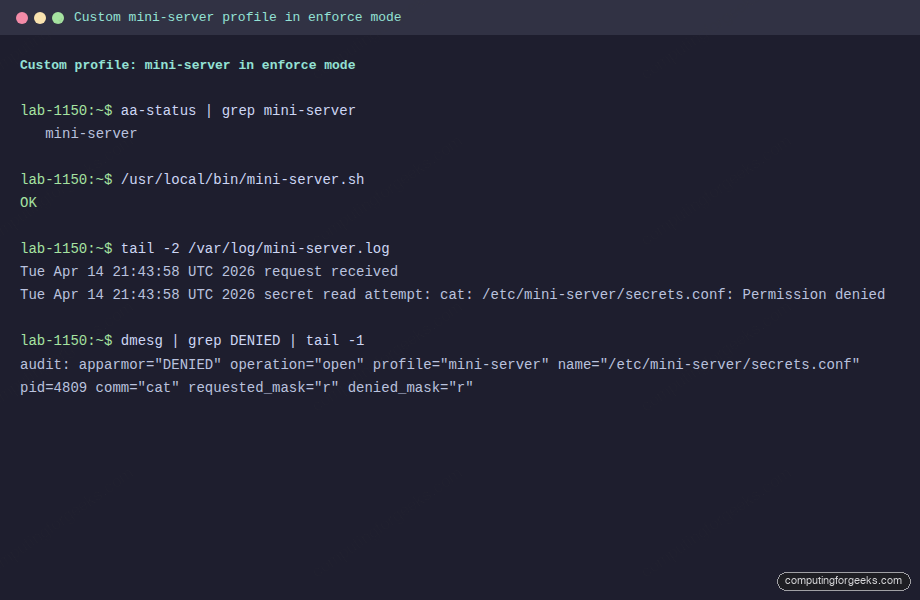
That’s the whole point of MAC. The root user with filesystem permission to read the file was still blocked because policy said no.
journalctl gives the same information in a friendlier form:
sudo journalctl -k --since "5 minutes ago" | grep -i apparmor | tail -57. Using aa-genprof and aa-logprof
For larger programs, hand-writing a profile is slow. The workflow AppArmor was designed around goes: start a stub profile in complain mode, exercise the program, then walk the logged events and accept or reject each one. Two commands drive this.
aa-genprof scaffolds a new profile and puts it into complain mode:
sudo aa-genprof /usr/local/bin/mini-server.shIt prints a prompt telling you to run the program in another shell, exercise its full feature set, then come back and press S to scan the logs. For each logged event, it asks whether to Allow, Deny, or Inherit, offering variants like /usr/bin/cat vs a broader abstractions/base rule. When you’ve walked every event, press F to finish and the tool writes the profile.
aa-logprof is the same idea, but for an existing profile. Run it whenever your application hits a new path in production:
sudo aa-logprofIt scans /var/log/syslog and /var/log/audit/audit.log for AppArmor events, then interactively offers to add rules for each. On Ubuntu 26.04 without auditd installed, events live in the kernel ring buffer and journalctl -k.
For mission-critical services, the safer flow is: deploy with the profile in complain mode, let it run for a couple of weeks under real traffic, run aa-logprof, harden the profile, then flip to enforce.
8. Reloading, parsing, and disabling profiles
You have three ways to push profile changes into the kernel.
Reload a single profile file (fastest, no service restart):
sudo apparmor_parser -r /etc/apparmor.d/usr.local.bin.mini-server.shReload every profile in /etc/apparmor.d/:
sudo systemctl reload apparmorDisable a profile without deleting the file. aa-disable symlinks the profile into /etc/apparmor.d/disable/ and unloads it from the kernel:
sudo aa-disable /usr/local/bin/mini-server.shRe-enable by removing the symlink and reloading:
sudo rm /etc/apparmor.d/disable/usr.local.bin.mini-server.sh
sudo apparmor_parser -r /etc/apparmor.d/usr.local.bin.mini-server.sh
A profile with a syntax error refuses to load and apparmor_parser prints a line number pointing at the offending rule. Test parse a profile before committing:
sudo apparmor_parser -QT /etc/apparmor.d/usr.local.bin.mini-server.sh && echo OKThe -Q suppresses cache writes, -T skips loading. This is the equivalent of nginx -t for AppArmor.
9. AppArmor and snap
Every snap package on Ubuntu is confined by an AppArmor profile generated by snapd at install time. Those profiles live under /var/lib/snapd/apparmor/profiles/, not in /etc/apparmor.d/, and they’re named like snap.firefox.firefox. You don’t edit them by hand. If you want to loosen snap confinement, that’s a snap connect interface decision, not a profile edit.
The base snap-confine profile in /etc/apparmor.d/ is what lets snapd set up its per-snap sandboxes. Leave that one alone.
10. Troubleshooting AppArmor problems
Profile loads but the application still misbehaves
Ninety percent of the time, the application is hitting a path your profile did not allow and the profile is in enforce. Check the kernel log:
sudo journalctl -k --since "10 minutes ago" | grep -i "apparmor.*DENIED"Every denial line carries a name= field with the exact path and an operation= field telling you what the program tried to do. Add the rule, reload, retry.
Error: “Profile doesn’t conform to protocol”
This is apparmor_parser rejecting the profile because the abi declaration is missing or mismatched. Every profile on Ubuntu 26.04 should start with abi <abi/5.0>, before the include <tunables/global> line.
Symlinks resolve to unexpected paths
Ubuntu 26.04 ships the uutils Rust rewrite of coreutils by default, with /usr/bin/cat and friends symlinking into /usr/lib/cargo/bin/coreutils/. AppArmor resolves the symlink before checking rules, so a profile that only allows /usr/bin/cat will see a denied exec of /usr/lib/cargo/bin/coreutils/cat. Always list the real target, or use a glob like /usr/lib/cargo/bin/coreutils/** ixr, alongside the canonical path. This bites people coming from Ubuntu 24.04 and Debian, where coreutils are still GNU.
Denials are not showing in dmesg
A plain deny rule is silent on purpose, so a noisy application doesn’t flood the kernel log. If you’re debugging, use audit deny instead. To audit every allowed action on a profile (very noisy, only for short debugging sessions), add flags=(audit) to the profile header:
profile mini-server /usr/local/bin/mini-server.sh flags=(audit) {
  ...
}
Parent profile works, child process is blocked
Child profiles and the Px, Cx, ix, ux exec transitions decide what happens when the confined program runs another binary. ix (inherit) keeps the child under the same profile. Px (profile-transition) switches the child to a different named profile. ux runs the child unconfined, which is almost never what you want. If a service spawns helpers, the exec mode is usually what you need to fix.
Final checks
Run aa-status one more time and confirm your service’s profile is loaded and in enforce mode:
sudo aa-status | grep -E "mini-server|enforce mode"Then exercise the service with real traffic and grep the kernel log for a clean run. No DENIED lines means the policy matches reality. A handful of DENIED lines means you either tighten the app or widen the rule. That judgment call is where AppArmor pays you back: every rule you add or refuse is a conscious decision about what this binary is allowed to touch.
Want to keep going? Pair AppArmor with host-based intrusion detection and log-driven banning using CrowdSec on Ubuntu 26.04. If you also host web services, the AppArmor abstractions for Nginx are worth reading alongside the Nginx and Let’s Encrypt guide. For the broader picture of what’s new under the hood, the Ubuntu 26.04 LTS features article covers the kernel, init, and default policy changes that affect how AppArmor profiles behave on this release.