

A fresh Ubuntu 26.04 server accepts connections on every open port by default. That is fine on a private lab network, terrible on a public cloud instance, and somewhere in between on a home LAN. UFW (Uncomplicated Firewall) is the front end Ubuntu ships for managing the kernel packet filter, and it is the fastest way to get from “wide open” to “only what I need” without learning nftables syntax.
This guide walks through installing UFW on Ubuntu 26.04 LTS, setting sane default policies, writing rules for real services (SSH, Nginx, MySQL), rate limiting, application profiles (including a custom one), rule ordering, logging, NAT forwarding, and the gotchas that bite when Docker or a misread application profile appears to bypass the firewall. Every command was run on a fresh Ubuntu 26.04 VM with UFW 0.36.2, and the output you see below is copied from that session.
Tested April 2026 on Ubuntu 26.04 LTS, UFW 0.36.2, nftables 1.1.6, kernel 7.0.0-10
Prerequisites
- A server running Ubuntu 26.04 LTS (or the current development branch that became 26.04). See what is new in Ubuntu 26.04 LTS for the release overview.
- A user with sudo privileges. If you have not done the baseline setup yet, work through the initial server setup guide first.
- SSH access to the server. Console access is a nice safety net, but the rules below will not lock you out if you follow them in order.
- Tested on: UFW 0.36.2, nftables 1.1.6, kernel 7.0.0-10-generic.
UFW, iptables, and nftables on Ubuntu 26.04
UFW is not itself a firewall. It is a user-space tool that reads simple rules and translates them into the kernel’s packet filter. On Ubuntu 26.04 the chain goes UFW, iptables-nft (the iptables binary backed by the nftables kernel subsystem), nftables. You can still list rules with iptables -L, and what you see is live nftables state rendered in iptables form. There is nothing to configure for this. It just works. If you ever need the raw view, run nft list ruleset and you will see UFW’s tables and chains.
Step 1: Confirm UFW is installed
UFW ships in the default Ubuntu 26.04 image, but it is inactive until you enable it. Check the package and version first:
sudo apt update
sudo apt install -y ufw
ufw --version
The output on the test VM confirms the version shipped with 26.04:
ufw 0.36.2
Copyright 2008-2023 Canonical Ltd.
If the package was already present, apt will tell you. The important thing is that UFW is installed and ready to load rules.
Step 2: Enable IPv6 handling
Ubuntu 26.04 has IPv6 support enabled in UFW by default, but verify it before adding rules. Every IPv4 rule you write will get a matching IPv6 rule only if this flag is set to yes.
sudo grep IPV6 /etc/default/ufwYou should see:
IPV6=yesIf it reads no, open the file with sudo nano /etc/default/ufw and flip the value. Save and exit.
Step 3: Set default policies
Default policies are the safety net. Anything not matched by an explicit rule falls back to these. The correct defaults for a server are deny incoming, allow outgoing.
sudo ufw default deny incoming
sudo ufw default allow outgoing
sudo ufw default deny routed
UFW confirms each change:
Default incoming policy changed to 'deny'
(be sure to update your rules accordingly)
Default outgoing policy changed to 'allow'
(be sure to update your rules accordingly)
Default routed policy changed to 'deny'
(be sure to update your rules accordingly)
The routed policy matters when the box forwards packets (Docker, a Kubernetes node, a NAT gateway). If this server is purely an endpoint, deny routed is fine. If you plan to forward traffic, you will change it in Step 12.
Step 4: Allow SSH before enabling UFW
This is the step people skip, and then they call the data centre for console access. If you enable UFW with the defaults above and without an SSH rule, your session dies the moment the firewall activates.
sudo ufw allow sshThat matches the named service (port 22/tcp). The named rule is equivalent to sudo ufw allow 22/tcp. Either works. You can also use the OpenSSH application profile, shown later.
Step 5: Enable UFW
With the SSH rule in place, activate the firewall:
sudo ufw enableUFW warns you about existing SSH connections and asks for confirmation. Type y and press Enter:
Command may disrupt existing ssh connections. Proceed with operation (y|n)? y
Firewall is active and enabled on system startup
Your SSH session should stay alive because you allowed port 22 first. Confirm with a status check:
sudo ufw status verboseThe output on the test VM after this step:
Status: active
Logging: on (low)
Default: deny (incoming), allow (outgoing), disabled (routed)
New profiles: skip

To                         Action      From
--                         ------      ----
22/tcp                     ALLOW IN    Anywhere
22/tcp (v6)                ALLOW IN    Anywhere (v6)
Note that the routed column reads “disabled” rather than “deny” until IP forwarding is turned on at the kernel level. That is fine for now.
Step 6: Rate limit SSH
A plain allow ssh lets attackers try passwords as fast as their bot can connect. ufw limit adds a rate limiter. Delete the plain rule and replace it:
sudo ufw delete allow ssh
sudo ufw limit ssh/tcp
The algorithm: if a single source IP opens six or more new connections to port 22 within 30 seconds, additional attempts are dropped for the duration. Legitimate users never hit the limit. Scanners and brute forcers do. The trade off is that a laptop behind a NAT with multiple users sharing the same public IP could hit the limit during a coordinated rollout, which is rare in practice.
Step 7: Allow a web server (service name and application profile)
Installing Nginx registers application profiles with UFW. Install Nginx with Let’s Encrypt first if you have not already, then list the available profiles:
sudo ufw app listOn a host with Nginx and OpenSSH installed, you get:
Available applications:
  Nginx Full
  Nginx HTTP
  Nginx HTTPS
  Nginx QUIC
  OpenSSH
Inspect what a profile actually opens before applying it:
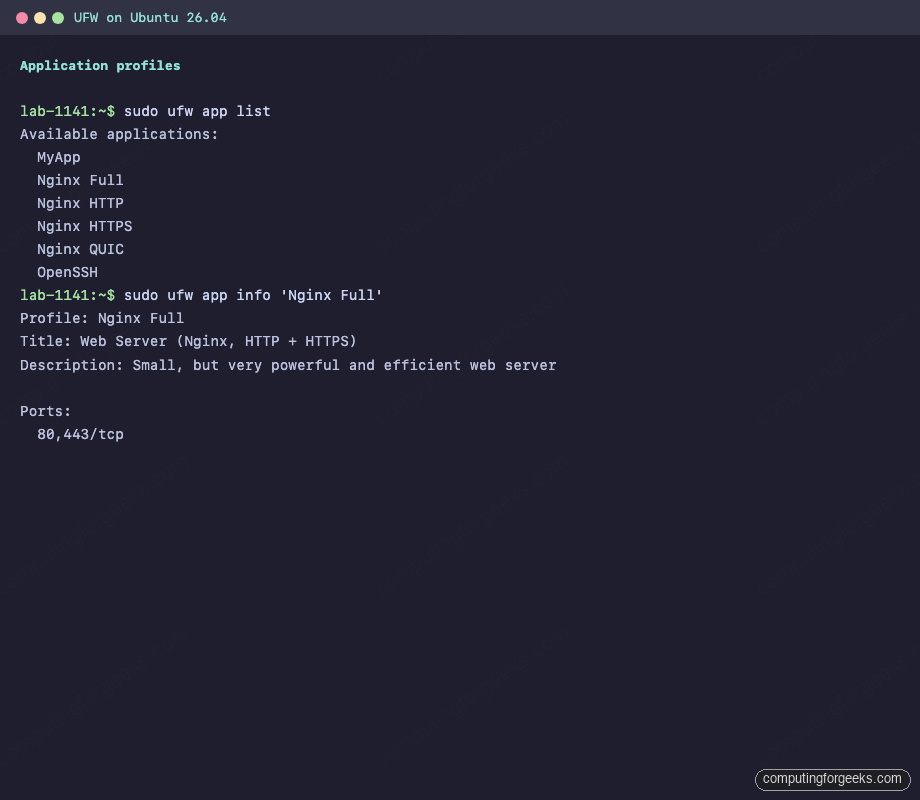
sudo ufw app info 'Nginx Full'The profile is just a name mapped to ports:
Profile: Nginx Full
Title: Web Server (Nginx, HTTP + HTTPS)
Description: Small, but very powerful and efficient web server

Ports:
  80,443/tcp
Apply it:
sudo ufw allow 'Nginx Full'Two rules appear in the table (one IPv4, one IPv6). The equivalent by-port rule would be sudo ufw allow proto tcp to any port 80,443. Either works, but the profile name survives port changes in the packaged defaults.
Step 8: Allow from a specific IP or subnet
Databases and admin services should never listen to the world. UFW lets you scope a rule to a source address, a subnet, or an interface.
Allow MySQL only from the internal subnet, after you have installed MySQL on Ubuntu 26.04:
sudo ufw allow from 192.168.1.0/24 to any port 3306 proto tcpAllow everything from a jump host at 10.0.1.50 (trusted admin box):
sudo ufw allow from 10.0.1.50Scope by interface if you only want the rule to apply to traffic arriving on, say, a VPN tunnel:
sudo ufw allow in on wg0 to any port 6379 proto tcpThe last example is useful when Redis is reachable only through WireGuard and should be invisible on the public interface.
Step 9: Deny vs Reject (the quiet one and the loud one)
Both block traffic. The difference is what the client sees.
Deny drops the packet silently. The client hangs until its own timeout fires. Port scanners treat deny as “filtered” because there is no response.
Reject sends back an ICMP unreachable (for UDP) or a TCP reset (for TCP). The client gets an immediate “connection refused” error. Scanners treat reject as “closed” and move on.
Use deny for everything by default. Use reject only when a friendly quick-fail helps a legitimate internal client, for example a health check that is pointed at the wrong port and should fail fast rather than stall.
sudo ufw deny 23/tcp
sudo ufw reject 111
Step 10: Verify the full rule set
After all of the above, the rule table on the test VM looks like this:
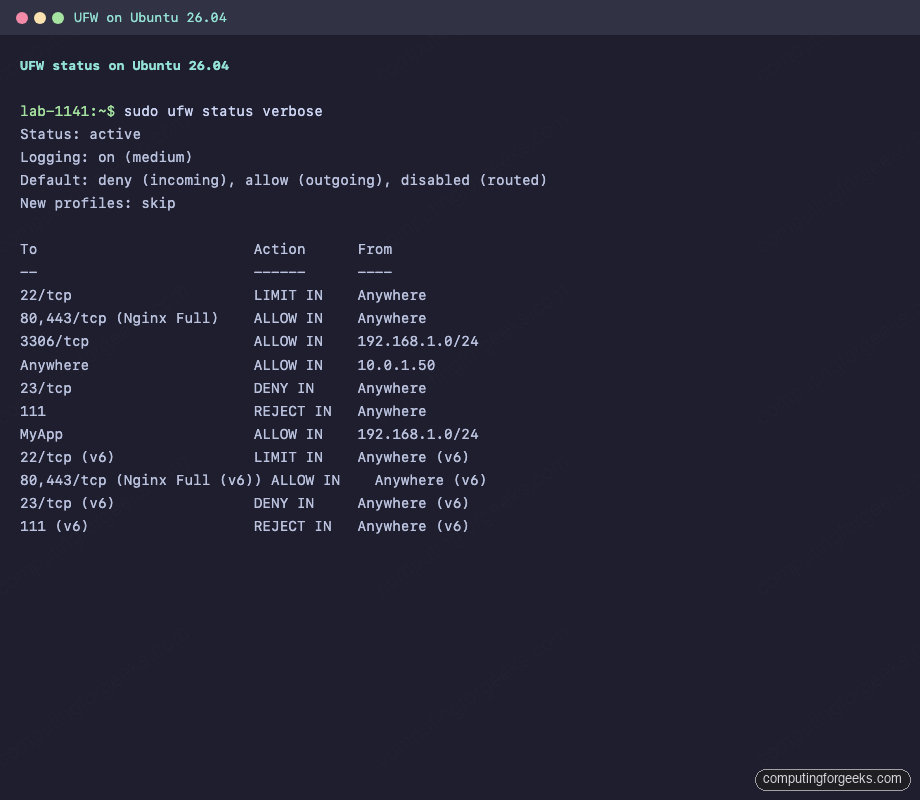
Same output as text, for readers who copy and paste:
Status: active
Logging: on (medium)
Default: deny (incoming), allow (outgoing), disabled (routed)
New profiles: skip

To                         Action      From
--                         ------      ----
22/tcp                     LIMIT IN    Anywhere
80,443/tcp (Nginx Full)    ALLOW IN    Anywhere
3306/tcp                   ALLOW IN    192.168.1.0/24
Anywhere                   ALLOW IN    10.0.1.50
23/tcp                     DENY IN     Anywhere
111                        REJECT IN   Anywhere
22/tcp (v6)                LIMIT IN    Anywhere (v6)
80,443/tcp (Nginx Full (v6)) ALLOW IN    Anywhere (v6)
23/tcp (v6)                DENY IN     Anywhere (v6)
111 (v6)                   REJECT IN   Anywhere (v6)
Step 11: Custom application profile
Profiles live in /etc/ufw/applications.d/. Any service that does not ship its own profile can get one. Imagine a Node.js API listening on port 8080 that you want internal-only access to.
Create the profile file:
sudo nano /etc/ufw/applications.d/myappPaste the profile content:
[MyApp]
title=Internal API service
description=Custom Node.js API listening on 8080
ports=8080/tcp
Tell UFW to read the new profile, then apply it:
sudo ufw app update MyApp
sudo ufw allow from 192.168.1.0/24 to any app MyApp
UFW resolves the profile name when the rule is added, so later port changes to the profile do not automatically update existing rules. If you change the port, delete and re-add the rule. Verify the profile is now listed:
Step 12: Rule ordering and numbering
UFW evaluates rules top to bottom and stops at the first match. This matters when rules overlap, for example a blanket allow ssh sitting above a more specific deny from 203.0.113.7 to any port 22. The blanket allow wins because it is listed first. The fix is to insert the deny rule above the allow.
List rules with numbers:
sudo ufw status numbered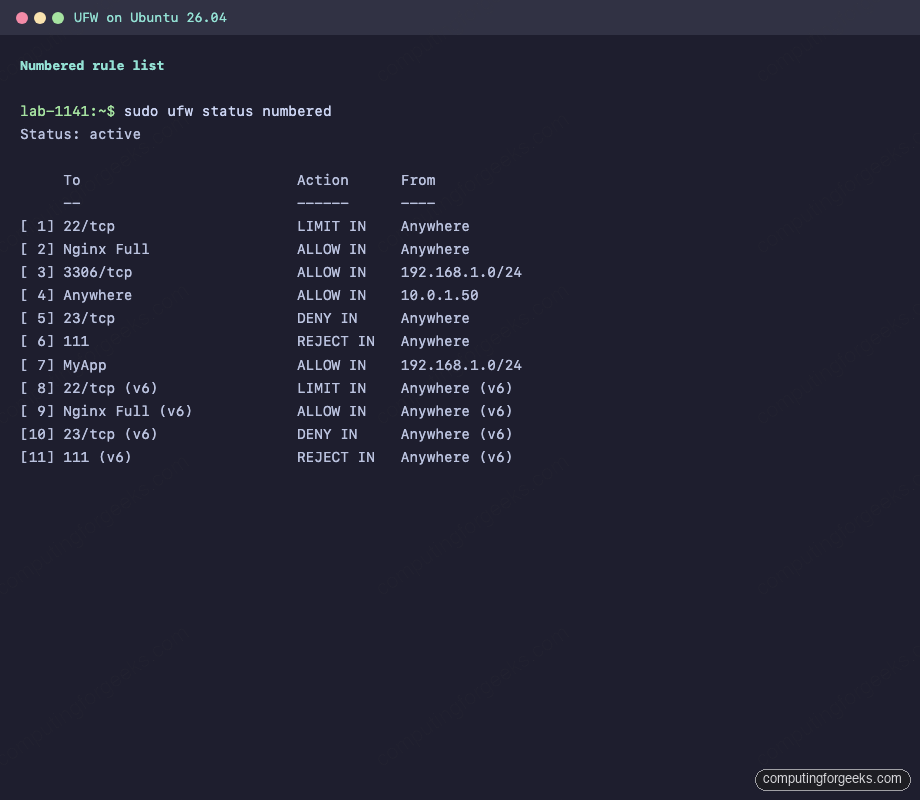
Insert a rule at a specific position. This example inserts an allow from a jump host into slot 2, pushing everything else down:
sudo ufw insert 2 allow from 10.0.1.50 to any port 22 proto tcpDelete by number (with confirmation prompt):
sudo ufw delete 2UFW shows you the rule and asks before removing it:
Deleting:
 allow from 10.0.1.50 to any port 22 proto tcp
Proceed with operation (y|n)? y
Rule deleted
Step 13: Logging
UFW writes to /var/log/ufw.log (and to the journal). Five logging levels are available:
| Level | What gets logged | When to use |
|---|---|---|
| off | Nothing | Never on a server you care about |
| low | Blocked packets not matching default policy, plus rate-limited connections | Default, low disk usage |
| medium | Everything in low, plus INVALID packets and new connections not matching a rule | Production baseline |
| high | Everything in medium, plus packets allowed by rules (with rate limit) | Troubleshooting a specific issue |
| full | Everything, no rate limit | Short audit windows only, fills disks fast |
Set the level:
sudo ufw logging mediumTail the log and watch traffic in real time:
sudo tail -f /var/log/ufw.logA real entry captured on the test VM, where a broadcast packet from a neighbour hit the default deny:
lab-1141 kernel: [UFW BLOCK] IN=eth0 OUT= MAC=33:33:00:00:00:01:fc:ec:da:b0:98:3d:86:dd SRC=fe80:0000:0000:0000:feec:daff:feb0:983d DST=ff02:0000:0000:0000:0000:0000:0000:0001 LEN=297 TC=0 HOPLIMIT=1 FLOWLBL=270289 PROTO=UDP SPT=47756 DPT=10001 LEN=257The fields you care about most are SRC (source IP), DPT (destination port), and PROTO. Grep on those to investigate scans or misconfigured clients.
Step 14: Forwarding and NAT
If this host acts as a gateway or runs a VPN endpoint, you need packet forwarding enabled in the kernel and in UFW. Two files to edit.
Kernel forwarding:
sudo nano /etc/ufw/sysctl.confUncomment these lines:
net/ipv4/ip_forward=1
net/ipv6/conf/default/forwarding=1
net/ipv6/conf/all/forwarding=1
UFW forward policy:
sudo ufw default allow routedFor source NAT (masquerading), edit /etc/ufw/before.rules and add a *nat block above the *filter section. A typical WireGuard-style masquerade looks like this:
*nat
:POSTROUTING ACCEPT [0:0]
-A POSTROUTING -s 10.8.0.0/24 -o eth0 -j MASQUERADE
COMMIT
Reload UFW to apply the before.rules change:
sudo ufw reloadMost article readers will never touch this section, but it is here because every VPN and container host eventually needs it.
Step 15: Reset, disable, and recovery
Two recovery paths when a rule set goes wrong.
Temporarily turn off the firewall without losing rules:
sudo ufw disableRules stay on disk and come back when you re-enable. Useful when debugging whether the firewall is actually the cause of an issue.
Nuke everything and start over:
sudo ufw resetThis wipes all rules and backs them up in /etc/ufw/ with a .YYYYMMDD_HHMMSS suffix, then leaves UFW inactive. Re-enabling starts clean.
Step 16: Backup and restore
UFW rule files are plain text. Back them up with tar:
sudo tar czf ufw-backup-$(date +%F).tar.gz -C /etc/ufw .Restore on a new host by extracting into /etc/ufw/ and reloading:
sudo tar xzf ufw-backup-2026-04-14.tar.gz -C /etc/ufw
sudo ufw reload
Keep these backups in the same place you keep your server configs, not on the server itself.
Troubleshooting
The port is “allowed” but clients still cannot connect
The most common cause is a second firewall in the path (cloud security group, Cloudflare, home router). UFW only controls what lands on the interface. If the hosting provider blocks 443 at the network edge, UFW never sees the packet. Check the cloud console or router UI before blaming UFW.
The second most common cause is binding. A service listening on 127.0.0.1:5432 will not accept external connections no matter what UFW says. Confirm with:
sudo ss -tlnp | grep 5432If the address column shows 127.0.0.1, reconfigure the service to bind to 0.0.0.0 (all interfaces) or the specific LAN IP. The PostgreSQL on Ubuntu 26.04 guide walks through this for Postgres.
Error: “WARN: Rule changed after normalization”
UFW rewrites some rules into a canonical form. For example, allow from any to any port 22 gets normalized to allow 22. This warning is informational. The rule was added successfully in its normalized form. Run sudo ufw status to see the actual stored rule.
Docker publishes ports that bypass UFW
This is the big one. When you run Docker CE on Ubuntu 26.04 and publish a container port with -p 8080:80, Docker inserts its own iptables rules above UFW’s. A container “exposed” to 0.0.0.0 is reachable from the internet even when ufw status says that port is denied.
Two fixes. First, bind the published port to localhost only when external access is not needed: -p 127.0.0.1:8080:80. Second, for containers that really do need external access, put Docker behind UFW by editing /etc/docker/daemon.json to set "iptables": false and managing all NAT manually, or use the ufw-docker helper script. The first fix is usually what you want.
A service’s application profile does not exist
Some packages do not ship profiles. You can tell by running sudo ufw app list and not seeing the service. The fix is to create a custom profile as shown in Step 11. No need to wait for the upstream maintainer.
The firewall seems to block SSH even though port 22 is allowed
This is almost always ufw limit kicking in because the same source IP opened too many connections in 30 seconds. Common trigger: a script that opens and closes SSH sessions in a loop (rsync, ansible, custom automation). Either add a dedicated allow rule for that source IP above the limit rule, or rework the script to reuse a single connection with SSH ControlMaster.
Inspecting the live iptables view
UFW’s user chains are visible in iptables-nft output. This is helpful when a rule does not behave as expected:
sudo iptables -L ufw-user-input -nYou will see the exact sequence the kernel evaluates, including the rate limit state and the named profile comments:
Chain ufw-user-input (1 references)
target     prot opt source               destination
           tcp  --  0.0.0.0/0            0.0.0.0/0            tcp dpt:22 ctstate NEW recent: SET name: DEFAULT side: source mask: 255.255.255.255
ufw-user-limit  tcp  --  0.0.0.0/0            0.0.0.0/0            tcp dpt:22 ctstate NEW recent: UPDATE seconds: 30 hit_count: 6 name: DEFAULT side: source mask: 255.255.255.255
ufw-user-limit-accept  tcp  --  0.0.0.0/0            0.0.0.0/0            tcp dpt:22
ACCEPT     tcp  --  0.0.0.0/0            0.0.0.0/0            multiport dports 80,443 /* 'dapp_Nginx%20Full' */
ACCEPT     tcp  --  192.168.1.0/24       0.0.0.0/0            tcp dpt:3306
ACCEPT     all  --  10.0.1.50            0.0.0.0/0
DROP       tcp  --  0.0.0.0/0            0.0.0.0/0            tcp dpt:23
REJECT     tcp  --  0.0.0.0/0            0.0.0.0/0            tcp dpt:111 reject-with tcp-reset
ACCEPT     tcp  --  192.168.1.0/24       0.0.0.0/0            tcp dpt:8080 /* 'dapp_MyApp' */
The recent: SET and recent: UPDATE lines are the rate limiter. The hit_count: 6 value is the threshold. Knowing where to look saves hours when a client is getting intermittently blocked.
Quick command reference
For a wider tour of UFW syntax including service names, interface specifiers, and combined rules, see common UFW firewall commands with examples.
| Task | Command |
|---|---|
| Enable | sudo ufw enable |
| Disable | sudo ufw disable |
| Status | sudo ufw status verbose |
| Numbered list | sudo ufw status numbered |
| Allow port | sudo ufw allow 443/tcp |
| Allow profile | sudo ufw allow 'Nginx Full' |
| Limit (rate) | sudo ufw limit ssh/tcp |
| Allow from subnet | sudo ufw allow from 192.168.1.0/24 to any port 3306 |
| Delete by number | sudo ufw delete 3 |
| Insert at position | sudo ufw insert 2 allow from 10.0.1.50 |
| Reload | sudo ufw reload |
| Reset | sudo ufw reset |
| List app profiles | sudo ufw app list |
| Set logging level | sudo ufw logging medium |
Production hardening checklist
UFW is only one layer. Combine it with the rest of the toolkit:
- SSH keys only, disable password auth in
/etc/ssh/sshd_config(PasswordAuthentication no,PermitRootLogin prohibit-password). - Fail2ban for log-based IP bans on top of UFW’s rate limit.
- Automatic security updates via
unattended-upgrades. - AppArmor in enforcing mode for services that support it (Nginx, MySQL, Postgres all ship profiles).
- Host the database and application tier on an internal subnet and expose only the reverse proxy. UFW’s source-scoped rules make this trivial.
- Back up
/etc/ufw/along with the rest of your configuration management.
The goal is defence in depth. UFW keeps unwanted packets off the interface. Everything else assumes something got through anyway.