

The whole consolidation story so far collapses toward one wildcard cert on a shared LB. For most services that’s the right answer. For financial workloads (payments, authorization, anything touching PCI-scope data), it’s the wrong answer. You don’t want the cert chain your payment service presents to be the same chain that serves your marketing blog, because the blast radius of a cert compromise then includes the financial data path. This article builds the opposite pattern on purpose: a dedicated Private CA, a cert that nothing else in the org uses, and a separate Load Balancer for the pay.cfg-lab.computingforgeeks.com service.
You end with a working CA hierarchy on Google CA Service (DevOps tier, lab-priced), a cert issued to the financial service, a verified trust chain, and the SPKI hash that the next article in the series pins against.
Tested April 2026 on Google Cloud (labs-491519), CA Service DevOps tier in europe-west1, openssl 3.4, gcloud 490.0
Why Financial Services Get Their Own Chain
Three reasons, each one sufficient on its own:
- Blast radius isolation. If Google Trust Services were ever compromised at the root, every cert issued from
pki.googis at risk. Your payment service should not be in that batch. A private CA root you control means a compromise somewhere else in the ecosystem does not affect your financial chain. - Pinning viability. You can pin against a wildcard that serves 30 services, but any cert rotation for any of those 30 services invalidates the pin. Rotation chaos. A single cert for one financial service rotates on its own schedule, and pinning a mobile app against it becomes sane.
- Audit expectations. PCI-DSS assessors don’t mandate private CAs, but they do expect you to justify why PCI-scope traffic shares a cert chain with non-PCI traffic. “We issue it from our own CA, distinct from the public chain, rotated independently” is a shorter conversation than “we pooled it with everything else and rely on public CA controls.”
Notice the consolidation pattern isn’t broken here: the rest of the fleet still lives on the wildcard + cert map from earlier articles. Only the financial-services cert is carved out.
CA Service Tiers: DevOps vs Enterprise
Google CA Service has two tiers, and the pricing delta is large. Understand both before you provision anything.
Enterprise tier costs around $200/month per CA just for existing. Add per-cert issuance fees. It exposes the full certificate lifecycle API: you can list issued certs, revoke them, rotate them, describe them. Designed for long-lived production CAs where the org cares about audit logs, CA bring-up cost, and full lifecycle control.
DevOps tier costs per certificate issued, no standing charge for the CA itself. It hides the certificate lifecycle API: you can issue, you can’t list or revoke individual certs. Designed for large-scale issuance patterns where the CA is effectively a signing service and individual cert tracking happens elsewhere.
For this series the lab uses DevOps. The lab wouldn’t survive an Enterprise-tier invoice and the discussion of the pattern translates without change to Enterprise. Real financial-services production would typically use Enterprise, with explicit audit trails. Mention this clearly in the article pattern so readers don’t lab-default into Enterprise and get surprised by the bill.
Prerequisites
- Project with
roles/privateca.admin(or equivalent fine-grained permissions) privateca.googleapis.comAPI enabled:gcloud services enable privateca.googleapis.com- A region where CA Service is supported (
europe-west1,us-central1, most common regions) opensslfor CSR generation and chain verification
Creating the CA Hierarchy
CA Service uses pools as the top-level container. A pool holds one or more certificate authorities. For this lab a single root CA in a single pool is enough. Production would usually run root + subordinate, with the root offline or tightly access-controlled.
gcloud privateca pools create cfg-lab-devops-pool \
  --location=europe-west1 \
  --tier=devops
The pool is a grouping and access-control boundary. IAM roles scope to pools, which makes delegating “this team can issue certs from this pool” a clean operation.
Now the root CA inside the pool:
gcloud privateca roots create cfg-lab-root-ca \
  --location=europe-west1 \
  --pool=cfg-lab-devops-pool \
  --subject="CN=CFG Lab Root CA,O=ComputingForGeeks Lab,C=US" \
  --key-algorithm=rsa-pkcs1-4096-sha256 \
  --validity=P10Y \
  --auto-enable
The --auto-enable flag skips the default “STAGED” state and moves straight to ENABLED. In a production root-CA bring-up you’d want STAGED first so you can review the cert profile, then enable when ready. For a lab, auto-enable is fine. If auto-enable doesn’t apply (older gcloud versions), enable manually:
gcloud privateca roots enable cfg-lab-root-ca \
  --location=europe-west1 \
  --pool=cfg-lab-devops-pool
The create and enable steps run back to back. Full apply captured from the lab:
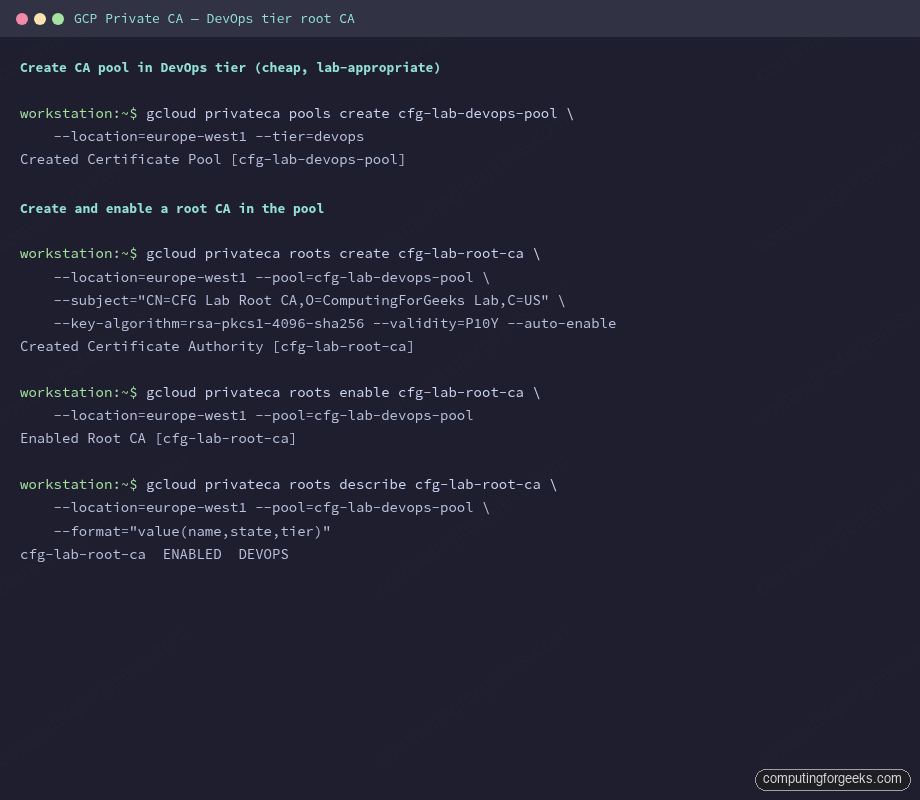
Verify the CA state:
gcloud privateca roots describe cfg-lab-root-ca \
  --location=europe-west1 \
  --pool=cfg-lab-devops-pool \
  --format="value(name,state,tier)"
Expected: ENABLED DEVOPS. If state is STAGED, run the enable command from above.
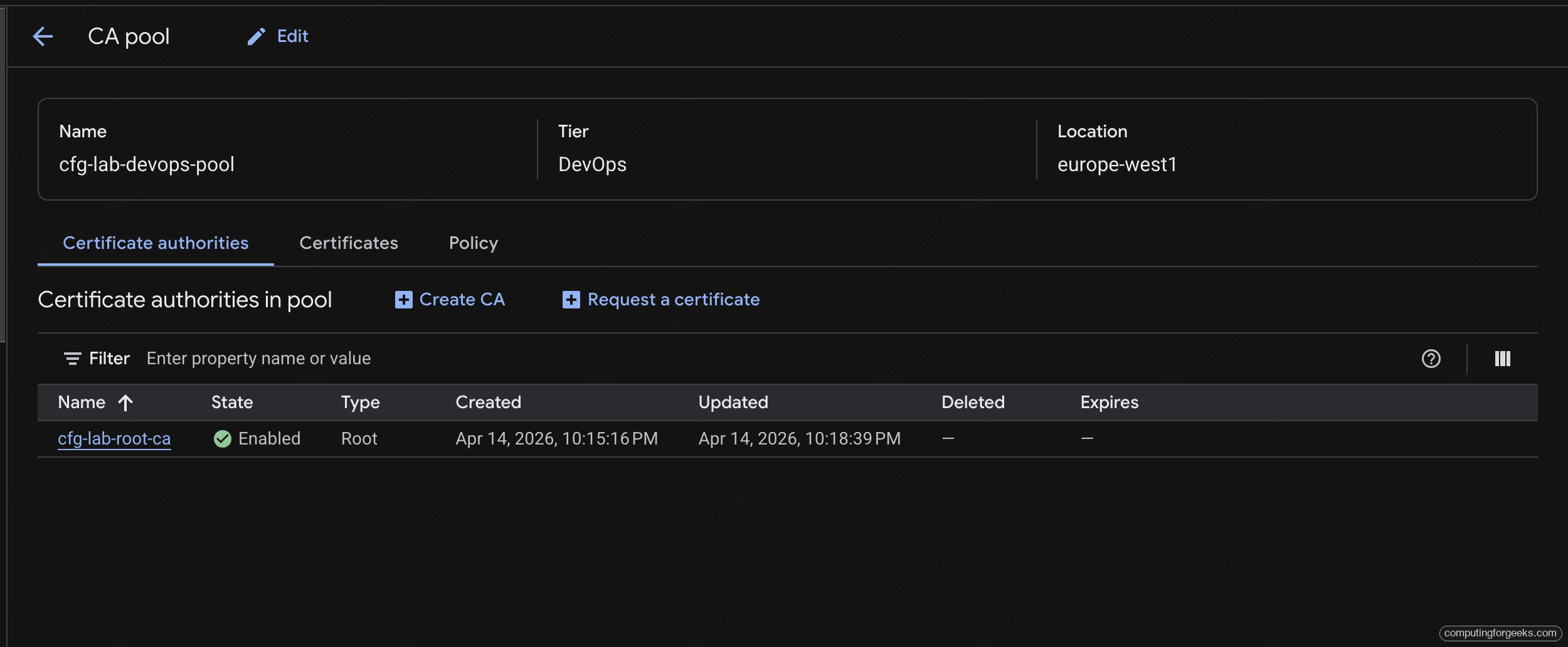
The CA pool page in the Cloud console shows the same state with the DevOps-tier banner prominent. The Certificate authorities tab lists every CA in the pool with its current state:
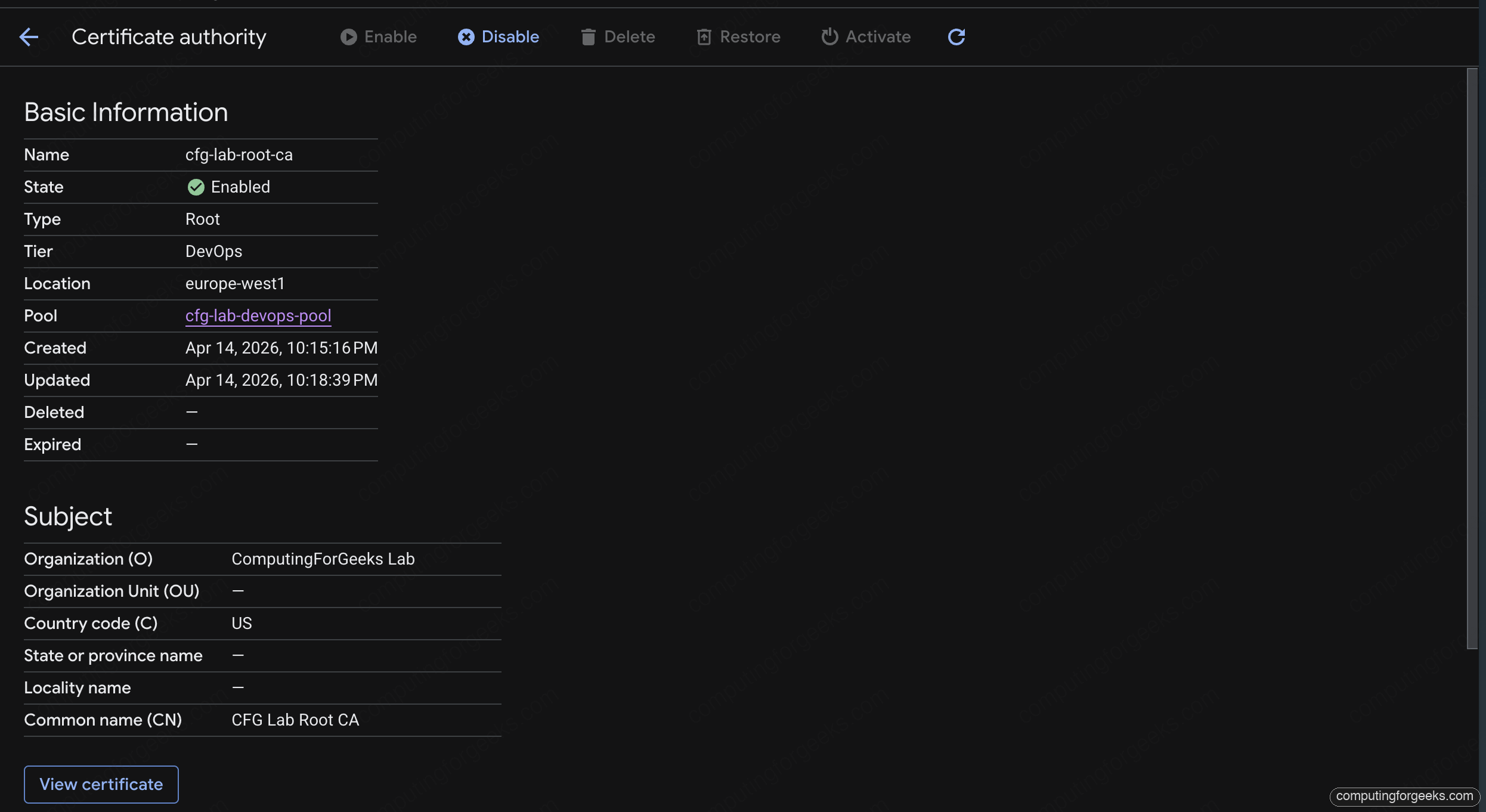
Clicking into the root CA opens its detail view: subject, tier, location, creation timestamps, and a link to view the CA’s own cert. This is where auditors will look when they want proof of who issued what:
Issuing the Cert
Unlike Certificate Manager (which handles keys and CSRs internally), Private CA takes a CSR and returns a signed cert. You own the private key. This is significant: for the financial service, you control the key material start to finish, which is exactly what the isolation story calls for.
openssl genrsa -out pay.key 2048
openssl req -new -key pay.key -out pay.csr \
  -subj "/CN=pay.cfg-lab.computingforgeeks.com/O=ComputingForGeeks Lab"
Submit the CSR to CA Service for signing:
gcloud privateca certificates create pay-cert-001 \
  --issuer-pool=cfg-lab-devops-pool \
  --issuer-location=europe-west1 \
  --csr=pay.csr \
  --cert-output-file=pay.pem \
  --validity=P90D
90-day validity matches the rotation cadence most teams end up landing on for private-CA-issued certs: long enough to avoid constant renewal churn, short enough that key-rotation becomes muscle memory rather than a yearly emergency.
DevOps-tier pools log a warning that certificate IDs aren’t tracked in the lifecycle API. That’s expected and not a problem for this use case.
Verifying the Chain
Export the root CA’s public cert, then verify the issued cert chains back to it:
gcloud privateca roots describe cfg-lab-root-ca \
  --location=europe-west1 \
  --pool=cfg-lab-devops-pool \
  --format="value(pemCaCertificates)" > root-ca.pem

openssl verify -CAfile root-ca.pem pay.pem
Output is one line: pay.pem: OK. That’s the trust-chain proof that anything holding the root CA’s public cert can verify certs issued from the CA.
Error: “unable to get local issuer certificate”
If openssl verify fails with this, the CA PEM file is wrong or empty. Re-run the describe command; make sure --format is exactly value(pemCaCertificates) with no trailing whitespace. An empty root-ca.pem is a common copy-paste trap.
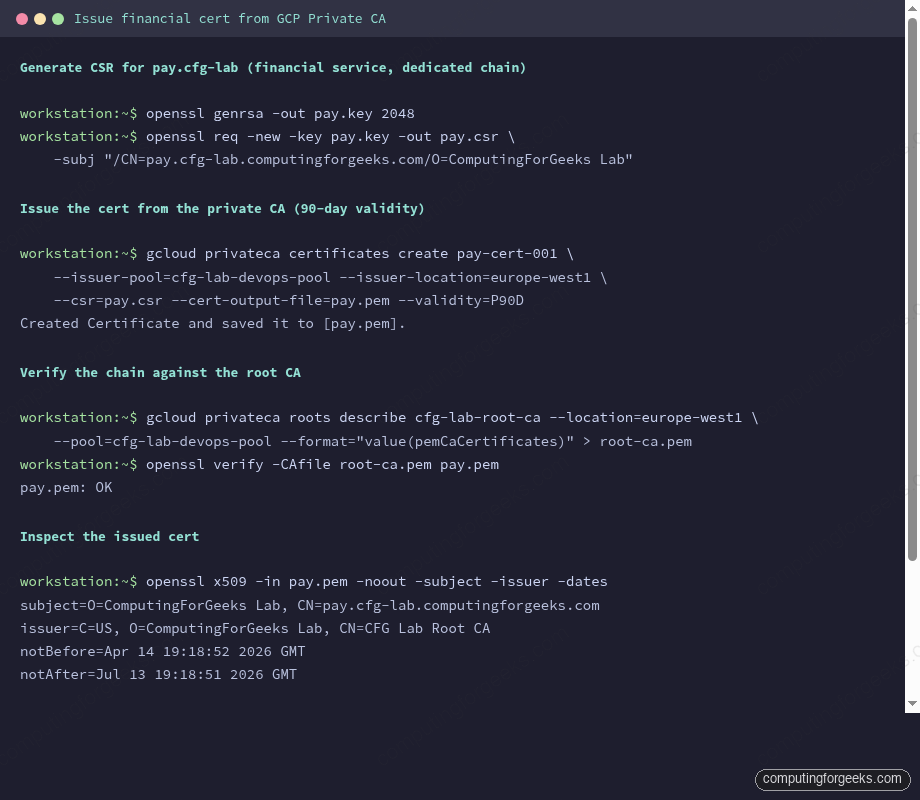
The cert verifies against the root CA. Capture the SPKI hash while you have the PEM handy; the next article pins against it.
The SPKI Hash (for Pinning)
The next article in the series pins a Python client against this cert. The pin is a SHA-256 hash of the cert’s Subject Public Key Info (SPKI), base64-encoded:
openssl x509 -in pay.pem -pubkey -noout \
  | openssl pkey -pubin -outform DER \
  | openssl dgst -sha256 -binary \
  | openssl enc -base64
Output is a single base64 string, for the cert issued above: T54tUdvkmrct4v2MpDvgR1wVgAuKOBaWkZQE/ydREaQ=. Capture this value. It’s the anchor for pinning.
The SPKI pin is on the public key, not the cert itself. Rotating the cert while keeping the same keypair preserves the pin. Rotating the cert with a new keypair breaks the pin. This matters for the rotation playbook: “same-key rotation” is safe; “key rotation” requires coordinated client app updates. The next article in this series demonstrates both paths.
CAA Updates for Private CA
The zone-level CAA policy from earlier in the series currently lists pki.goog and letsencrypt.org. A private CA needs its own CAA entry. Google’s CAA identifier for CA Service isn’t a public CA name; it’s a fully-qualified domain name pointing at the CA pool. You can also use a URI-form CAA entry, but most deployments use the simpler approach of not adding private CAs to CAA at all because CAA only restricts public CAs.
Strictly speaking, CAA records are checked by public CAs before issuance. Private CAs issue certs on direct RPC from you; they don’t consult CAA. If you want to document which private CAs are allowed, it’s an internal policy artifact, not a DNS record. For this series the approach is: CAA records cover public CAs (for the wildcard), and the private CA’s allowed scope is enforced via IAM on the pool.
The Dedicated Financial LB
The pay.cfg-lab.computingforgeeks.com service does not live on the shared LB from earlier in the series. A separate LB exists so the financial chain stays isolated in the data path as well as the cert path.
resource "google_compute_global_address" "pay" {
  project = var.project_id
  name    = "cfg-lab-pay-ip"
}

resource "google_compute_ssl_certificate" "pay" {
  project     = var.project_id
  name        = "cfg-lab-pay-ssl"
  certificate = file("${path.module}/pay.pem")
  private_key = file("${path.module}/pay.key")
}

resource "google_compute_target_https_proxy" "pay" {
  project          = var.project_id
  name             = "cfg-lab-pay-proxy"
  url_map          = google_compute_url_map.pay.id
  ssl_certificates = [google_compute_ssl_certificate.pay.id]
}

resource "google_compute_global_forwarding_rule" "pay" {
  project    = var.project_id
  name       = "cfg-lab-pay-https"
  target     = google_compute_target_https_proxy.pay.id
  port_range = "443"
  ip_address = google_compute_global_address.pay.address
}
Notice this LB uses ssl_certificates (the older path) rather than a Certificate Map. Private-CA certs do attach to cert maps via the self-managed cert resource on Certificate Manager, but for a single-service LB the simpler direct attachment is fine. The cert-map pattern pays off when you have many hostnames sharing one proxy; the financial LB has exactly one hostname, so there’s no consolidation to gain.
Keys live in Terraform state for this lab. In production the private key goes in Secret Manager and is fetched at LB provisioning time or during rotation, never committed anywhere.
Key Material Protection
The key file pay.key is the crown jewel. It must not live in the same state bucket as everything else, must not land in a VCS, must not be logged. Production options, in order of robustness:
- HSM-backed CA Service keys. CA Service can issue certs where the private key is generated inside the issued cert’s key material too. For the LB-side cert, pair with Google Cloud HSM (FIPS 140-2 Level 3).
- Cloud KMS-wrapped keys in Secret Manager. The key is encrypted at rest with a KMS key the LB’s provisioning identity can decrypt.
- Manual rotation with in-memory-only handling. Generate locally, issue, upload to the LB in one apply, delete local copy.
For the lab, option 3 is fine. For production the choice between 1 and 2 depends on whether your regulators accept cloud HSMs (usually yes, sometimes with specific attestation requirements).
Rotation Plan for the Financial Cert
Unlike the public wildcard (auto-renewed by Google), a private-CA cert rotates on your schedule. The rotation cadence that works in practice: 90-day certs, rotated at day 60. That’s a 30-day safety buffer before expiry. Same-key rotation for the common case (pin stays valid); new-key rotation every 12-18 months (triggers coordinated client update).
The cost of a rotation: generate a new cert via gcloud privateca certificates create with the existing CSR (same key), upload to the LB, verify clients still handshake, retire the old cert. Zero downtime if done via the blue-green pattern from earlier in the series. Full operational runbook is in Article 11.
Cost Reality Check (DevOps Tier)
- CA Service DevOps tier: no standing charge for the pool or CA
- Certificate issuance: $0.10 per cert at DevOps rates (small numbers; exact rate depends on tier/region)
- Global LB for the financial service: ~$25/month for the forwarding rule + static IP
- Key storage: free in Terraform state (lab), ~$0.06/month per secret version in Secret Manager (production)
Monthly lab cost for this article: well under $5. Tear down the pool + root CA at the end of the series to clean up; DevOps-tier pools with no active certs cost nothing to leave in place but look untidy in the console.
Cleanup
Teardown order matters because enabled CAs have key material that can’t just be deleted:
gcloud privateca roots disable cfg-lab-root-ca \
  --location=europe-west1 --pool=cfg-lab-devops-pool

gcloud privateca roots delete cfg-lab-root-ca \
  --location=europe-west1 --pool=cfg-lab-devops-pool \
  --skip-grace-period

gcloud privateca pools delete cfg-lab-devops-pool \
  --location=europe-west1
--skip-grace-period bypasses the default 30-day soft-delete window, which is fine for a lab but should not be the default in production. In real life you want the grace period so an accidental delete can be reversed.
What’s Next
The cert is issued, the chain verifies, the SPKI pin is captured. The next article takes that pin and uses it in a Python client to demonstrate SPKI pinning end-to-end: happy path, same-key rotation (pin still works), new-key rotation (pin fails), backup pin recovery. That’s where the isolation decision you just made starts paying off.
