The LAMP stack is still the default starting point for most PHP-based web applications. Ubuntu 26.04 LTS (Resolute Raccoon) ships with Apache 2.4.66, and the default repos include MariaDB 11.8 and PHP 8.5, which means you can get a production-ready stack running in under 10 minutes without adding third-party repositories.
This guide walks through installing and configuring Apache, MariaDB 11.8.6, and PHP 8.5.4 with PHP-FPM on a fresh Ubuntu 26.04 server. It covers securing the database, enabling the firewall, testing PHP-to-MariaDB connectivity, and hardening the stack for production use. If you have not yet prepared your server, the Ubuntu 26.04 initial server setup guide covers SSH keys, a non-root user, and basic firewall configuration.
Tested April 2026 on Ubuntu 26.04 LTS with Apache 2.4.66, MariaDB 11.8.6, PHP 8.5.4
Prerequisites
- Ubuntu 26.04 LTS server (minimal or standard install)
- Root or sudo access
- Tested on: Apache 2.4.66, MariaDB 11.8.6, PHP 8.5.4 (all from default Ubuntu repos)
- At least 1 GB RAM and 10 GB disk (2 GB RAM recommended for production workloads)
Update the System
Start with a package index refresh and apply any pending security patches.
sudo apt update && sudo apt upgrade -yOnce that finishes, reboot if a new kernel was installed. Otherwise, continue.
Install Apache
Apache is available in the default Ubuntu 26.04 repositories as apache2.
sudo apt install -y apache2The installer enables and starts Apache automatically. Confirm it is running:
sudo systemctl status apache2The output should show active (running):
● apache2.service - The Apache HTTP Server
     Loaded: loaded (/usr/lib/systemd/system/apache2.service; enabled; preset: enabled)
     Active: active (running) since Tue 2026-04-14 00:24:41 UTC; 8s ago
   Main PID: 2892 (apache2)
     Status: "Processing requests..."
      Tasks: 55 (limit: 3522)
     Memory: 5.4M (peak: 5.7M)
     CGroup: /system.slice/apache2.service
             ├─2892 /usr/sbin/apache2 -k start -DFOREGROUND
Check the installed version:
apache2 -vYou should see Apache 2.4.66:
Server version: Apache/2.4.66 (Ubuntu)
Server built:   2026-03-05T17:18:22
Install MariaDB
Ubuntu 26.04 includes MariaDB 11.8 in its default repositories. Install both the server and client packages.
sudo apt install -y mariadb-server mariadb-clientVerify the service is active:
sudo systemctl status mariadbThe status line confirms MariaDB 11.8.6 is running:
● mariadb.service - MariaDB 11.8.6 database server
     Loaded: loaded (/usr/lib/systemd/system/mariadb.service; enabled; preset: enabled)
     Active: active (running) since Tue 2026-04-14 00:25:08 UTC; 8s ago
     Status: "Taking your SQL requests now..."
      Tasks: 13 (limit: 23249)
     Memory: 93.1M (peak: 97.6M)
     CGroup: /system.slice/mariadb.service
Secure MariaDB
By default, MariaDB on Ubuntu uses unix_socket authentication for the root user. The interactive mariadb-secure-installation script handles the basics: setting a root password, removing anonymous users, disabling remote root login, and dropping the test database. Run it and answer the prompts:
sudo mariadb-secure-installationWhen prompted, set a strong root password and answer Y to all remaining questions (remove anonymous users, disallow remote root login, remove test database, reload privilege tables).
Alternatively, if you prefer to script it (useful for automation), the same steps can be done with SQL:
sudo mariadbThen run:
ALTER USER 'root'@'localhost' IDENTIFIED BY 'StrongPass123';
DELETE FROM mysql.global_priv WHERE User='';
DELETE FROM mysql.global_priv WHERE User='root' AND Host NOT IN ('localhost', '127.0.0.1', '::1');
DROP DATABASE IF EXISTS test;
DELETE FROM mysql.db WHERE Db='test' OR Db='test\_%';
FLUSH PRIVILEGES;
EXIT;
Test the new root password by logging in:
mariadb -u root -pEnter the password you set. If you land at the MariaDB [(none)]> prompt, authentication is working correctly. Type EXIT; to return to the shell.
Install PHP 8.5
Ubuntu 26.04 ships PHP 8.5 in the default repos. Install the core packages along with the most commonly needed extensions for web applications.
sudo apt install -y php php-fpm php-mysql php-cli php-curl php-gd php-mbstring php-xml php-zip libapache2-mod-phpConfirm the PHP version:
php -vPHP 8.5.4 with OPcache enabled:
PHP 8.5.4 (cli) (built: Apr  1 2026 09:36:11) (NTS)
Copyright (c) The PHP Group
Built by Ubuntu
Zend Engine v4.5.4, Copyright (c) Zend Technologies
    with Zend OPcache v8.5.4, Copyright (c), by Zend Technologies
Verify that all the extensions loaded correctly:
php -m | grep -iE 'mysql|curl|gd|mbstring|xml|zip'All requested modules should appear in the output:
curl
gd
libxml
mbstring
mysqli
mysqlnd
pdo_mysql
SimpleXML
xml
xmlreader
xmlwriter
zip
Configure Apache with PHP-FPM
While libapache2-mod-php works for basic setups, PHP-FPM is the recommended approach for production. It handles PHP processing as a separate service, which improves performance under load. Enable the required Apache modules and the PHP-FPM configuration:
sudo a2enmod proxy_fcgi setenvif
sudo a2enconf php8.5-fpm
sudo systemctl restart apache2
Start and enable the PHP-FPM service:
sudo systemctl enable --now php8.5-fpmConfirm PHP-FPM is active:
sudo systemctl status php8.5-fpmThe output shows the FPM master process and its workers:
● php8.5-fpm.service - The PHP 8.5 FastCGI Process Manager
     Loaded: loaded (/usr/lib/systemd/system/php8.5-fpm.service; enabled; preset: enabled)
     Active: active (running) since Tue 2026-04-14 00:26:21 UTC; 13s ago
     Status: "Processes active: 0, idle: 2, Requests: 0, slow: 0, Traffic: 0.00req/sec"
      Tasks: 3 (limit: 3522)
     Memory: 11.1M (peak: 13.2M)
     CGroup: /system.slice/php8.5-fpm.service
             ├─17352 "php-fpm: master process (/etc/php/8.5/fpm/php-fpm.conf)"
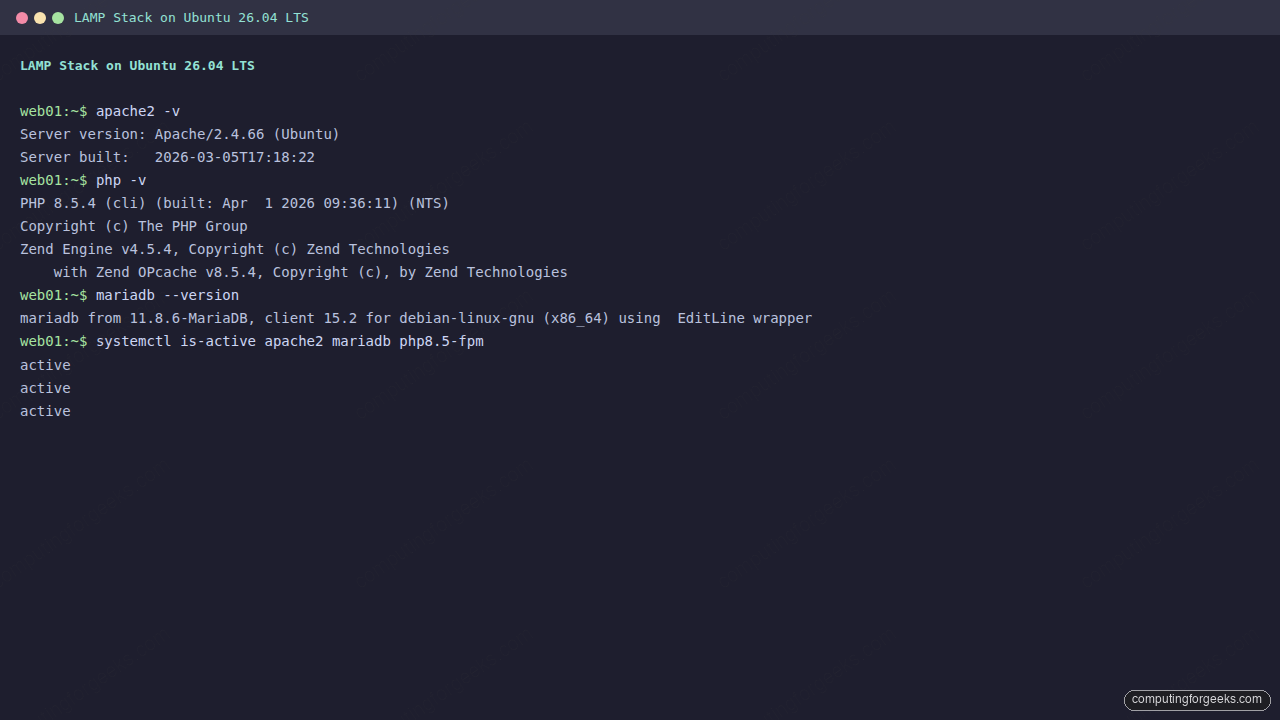
All three services (Apache, MariaDB, PHP-FPM) are active and running on Ubuntu 26.04.
Configure the Firewall
If UFW is active on your server, allow HTTP and HTTPS traffic for Apache along with SSH access.
sudo ufw allow 'Apache Full'
sudo ufw allow OpenSSH
sudo ufw enable
Verify the firewall rules:
sudo ufw status verboseBoth Apache (ports 80 and 443) and OpenSSH should be listed:
Status: active
Logging: on (low)
Default: deny (incoming), allow (outgoing), disabled (routed)
New profiles: skip

To                         Action      From
--                         ------      ----
80,443/tcp (Apache Full)   ALLOW IN    Anywhere
22/tcp (OpenSSH)           ALLOW IN    Anywhere
80,443/tcp (Apache Full (v6)) ALLOW IN    Anywhere (v6)
22/tcp (OpenSSH (v6))      ALLOW IN    Anywhere (v6)
Test the LAMP Stack
With all three components installed and running, create a PHP info page to confirm Apache is processing PHP through FPM.
PHP Info Page
Create a quick test file in the Apache document root:
echo '<?php phpinfo(); ?>' | sudo tee /var/www/html/info.phpOpen http://10.0.1.50/info.php in a browser. You should see the full PHP information page showing PHP 8.5.4, the loaded extensions, and the Server API listed as FPM/FastCGI. Remove this file after testing because it exposes sensitive configuration details:
sudo rm /var/www/html/info.phpCreate a Test Database
To verify the full stack end to end (Apache serving PHP that queries MariaDB), create a test database with sample data.
mariadb -u root -pStrongPass123At the MariaDB prompt, create the database, a dedicated user, and a table with some rows:
CREATE DATABASE testdb;
CREATE USER 'testuser'@'localhost' IDENTIFIED BY 'TestPass456';
GRANT ALL PRIVILEGES ON testdb.* TO 'testuser'@'localhost';
FLUSH PRIVILEGES;

USE testdb;
CREATE TABLE servers (
  id INT AUTO_INCREMENT PRIMARY KEY,
  hostname VARCHAR(50) NOT NULL,
  ip_address VARCHAR(15) NOT NULL,
  os VARCHAR(50) NOT NULL,
  role VARCHAR(30) NOT NULL
);

INSERT INTO servers (hostname, ip_address, os, role) VALUES
('web01', '10.0.1.10', 'Ubuntu 26.04', 'Web Server'),
('db01', '10.0.1.20', 'Ubuntu 26.04', 'Database'),
('app01', '10.0.1.30', 'Ubuntu 26.04', 'Application');

SELECT * FROM servers;
EXIT;
The SELECT query confirms the data was inserted:
+----+----------+------------+-------------+-------------+
| id | hostname | ip_address | os          | role        |
+----+----------+------------+-------------+-------------+
|  1 | web01    | 10.0.1.10  | Ubuntu 26.04| Web Server  |
|  2 | db01     | 10.0.1.20  | Ubuntu 26.04| Database    |
|  3 | app01    | 10.0.1.30  | Ubuntu 26.04| Application |
+----+----------+------------+-------------+-------------+
PHP + MariaDB Connection Test
Create a PHP script that connects to MariaDB and queries the test table. This proves the entire LAMP pipeline works.
sudo vi /var/www/html/dbtest.phpAdd the following PHP code:
<?php
$host = "localhost";
$user = "testuser";
$pass = "TestPass456";
$db   = "testdb";

$conn = new mysqli($host, $user, $pass, $db);
if ($conn->connect_error) {
    die("Connection failed: " . $conn->connect_error);
}

echo "<h2>LAMP Stack - PHP + MariaDB Connection Test</h2>";
echo "<p>Connected to MariaDB successfully.</p>";
echo "<p>Server info: " . $conn->server_info . "</p>";
echo "<p>PHP version: " . phpversion() . "</p>";

$result = $conn->query("SELECT * FROM servers");
if ($result->num_rows > 0) {
    echo "<table border='1' cellpadding='8'>";
    echo "<tr><th>ID</th><th>Hostname</th><th>IP</th><th>OS</th><th>Role</th></tr>";
    while ($row = $result->fetch_assoc()) {
        echo "<tr><td>".$row["id"]."</td><td>".$row["hostname"]."</td>";
        echo "<td>".$row["ip_address"]."</td><td>".$row["os"]."</td>";
        echo "<td>".$row["role"]."</td></tr>";
    }
    echo "</table>";
}
$conn->close();
?>
Open http://10.0.1.50/dbtest.php in a browser. The page displays the MariaDB server version, PHP version, and the server inventory table pulled from the database. This confirms Apache, PHP-FPM, and MariaDB are all working together.
Clean up the test files once you have verified everything works:
sudo rm /var/www/html/dbtest.php
mariadb -u root -pStrongPass123 -e "DROP DATABASE testdb; DROP USER 'testuser'@'localhost';"
Production Hardening
The default Apache and PHP configuration is fine for testing but leaks version information and serves unnecessary content. Before exposing this stack to the internet, tighten a few settings.
Hide Apache Version Information
By default, Apache broadcasts its version in HTTP headers and error pages. Disable this.
sudo vi /etc/apache2/conf-enabled/security.confFind and change these two directives:
ServerTokens Prod
ServerSignature Off
ServerTokens Prod reduces the Server header to just “Apache” with no version. ServerSignature Off removes the version footer from error pages.
Disable Directory Listing
Prevent Apache from showing directory contents when no index file exists.
sudo vi /etc/apache2/apache2.confFind the <Directory /var/www/> block and remove Indexes from the Options line, so it reads:
Options FollowSymLinksHarden PHP Settings
Edit the PHP-FPM php.ini to disable dangerous functions and hide the PHP version from response headers.
sudo vi /etc/php/8.5/fpm/php.iniSet these values:
expose_php = Off
display_errors = Off
log_errors = On
upload_max_filesize = 64M
post_max_size = 64M
max_execution_time = 300
memory_limit = 256M
expose_php = Off strips the X-Powered-By: PHP/8.5.4 header. Turning off display_errors prevents stack traces from leaking to users in production, while log_errors ensures they still get captured in /var/log.
Remove the Default Apache Page
The default “It works!” page tells attackers you have a stock installation. Disable it:
sudo a2dissite 000-default.confApply all changes by restarting both services:
sudo systemctl restart apache2 php8.5-fpmEnable SSL/TLS
Never serve production traffic over plain HTTP. For SSL with Apache, you can use certbot with the Apache plugin. If you prefer the LEMP stack (Nginx instead of Apache), that guide covers the full Nginx, MariaDB, and PHP-FPM setup. If you prefer Nginx as a reverse proxy with Let’s Encrypt, the Nginx on Ubuntu 26.04 with Let’s Encrypt guide covers that setup.
sudo apt install -y certbot python3-certbot-apache
sudo certbot --apache -d yourdomain.com --non-interactive --agree-tos -m [email protected]
Certbot configures the Apache VirtualHost with SSL, sets up automatic certificate renewal, and redirects HTTP to HTTPS.
Verify auto-renewal is working:
sudo certbot renew --dry-runFor containerized deployments on this same Ubuntu 26.04 base, see the Docker CE installation guide. If you need a more powerful database backend, PostgreSQL 18 on Ubuntu 26.04 is a solid alternative to MariaDB. The previous version of this guide covering LAMP on Ubuntu 24.04 is available if you are running an older LTS release. For RHEL-based systems, the MariaDB on Rocky Linux guide covers the RPM-based workflow. For a full overview of what changed in this release, check the Ubuntu 26.04 LTS features roundup.