So Graylog 7 is installed, the services are green, and port 9000 is listening. Now what? The installation is the easy part. Knowing where everything lives in the web interface, setting up your first input, and actually getting logs flowing into the system is where most people stall out.
This guide picks up exactly where the Graylog 7 installation on Ubuntu/Debian and Rocky Linux/AlmaLinux guides left off. We will walk through the preflight wizard, explore every section of the Graylog web UI, create an input, push test data through it, set up a stream, and run search queries. If you deployed Graylog with Docker Compose, the web interface is identical once you reach the login screen.
Verified April 2026 on Graylog 7.0.6 with Data Node (OpenSearch 2.19.3), MongoDB 7.0.31, Debian 13
Complete the Preflight Setup Wizard
The first time Graylog 7 boots, it does not drop you straight into the dashboard. Instead, you land on a preflight wizard at https://your-server:9000. This wizard handles certificate provisioning for secure communication between Graylog server and the Data Node (OpenSearch). It creates a Certificate Authority, sets a renewal policy, and provisions TLS certificates for each data node in the cluster.
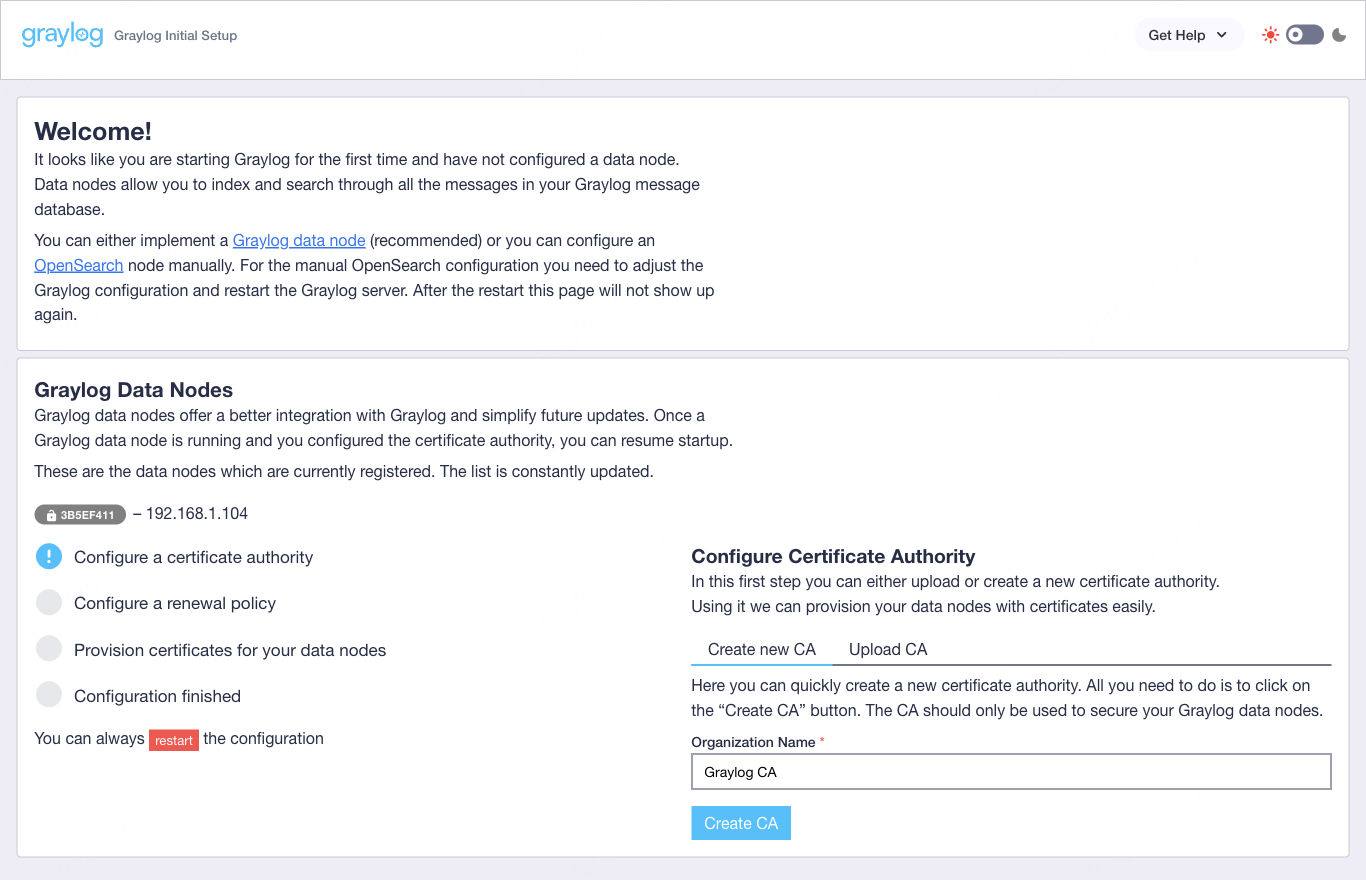
The wizard needs an initial admin password to proceed. This is a temporary password generated at startup, separate from the admin password you configured in server.conf. Grab it from the Graylog server log:
sudo grep -i "initial" /var/log/graylog-server/server.log | tail -1The output looks something like this:
2026-04-10T14:22:18.341Z INFO [preflight] - Initial configuration is accessible at 0.0.0.0:9000, with username 'admin' and password 'arGn8Y5kFq'Use that temporary password to authenticate with the preflight wizard. Click through the steps: the wizard detects your Data Node automatically, creates the CA, provisions certificates, and restarts the connections. The entire process takes about 30 seconds on a single-node setup.
Once all checks pass, you will see green checkmarks across the board:
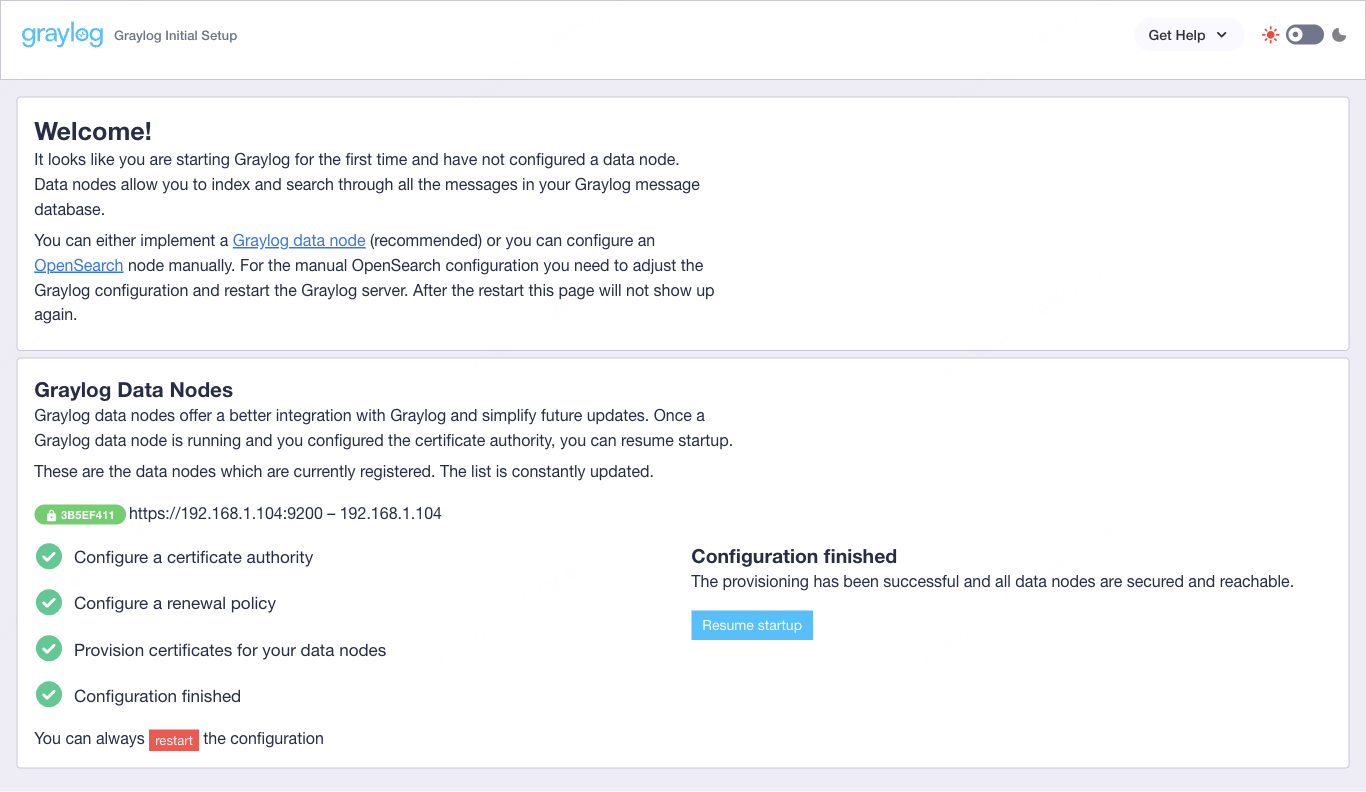
Click Resume startup and Graylog proceeds to its normal boot sequence. The preflight wizard only runs once. On subsequent restarts, Graylog skips it entirely and boots directly into the main application.
Log in to Graylog
After the preflight completes and Graylog finishes starting, the login page appears at https://your-server:9000.

The default username is admin. The password is the one you set via root_password_sha2 in /etc/graylog/server/server.conf during installation, not the temporary preflight password from the previous step. That preflight password is no longer valid.
If you forgot which password you hashed, you will need to regenerate it:
echo -n "YourPassword" | shasum -a 256Replace the root_password_sha2 value in server.conf with the new hash and restart Graylog:
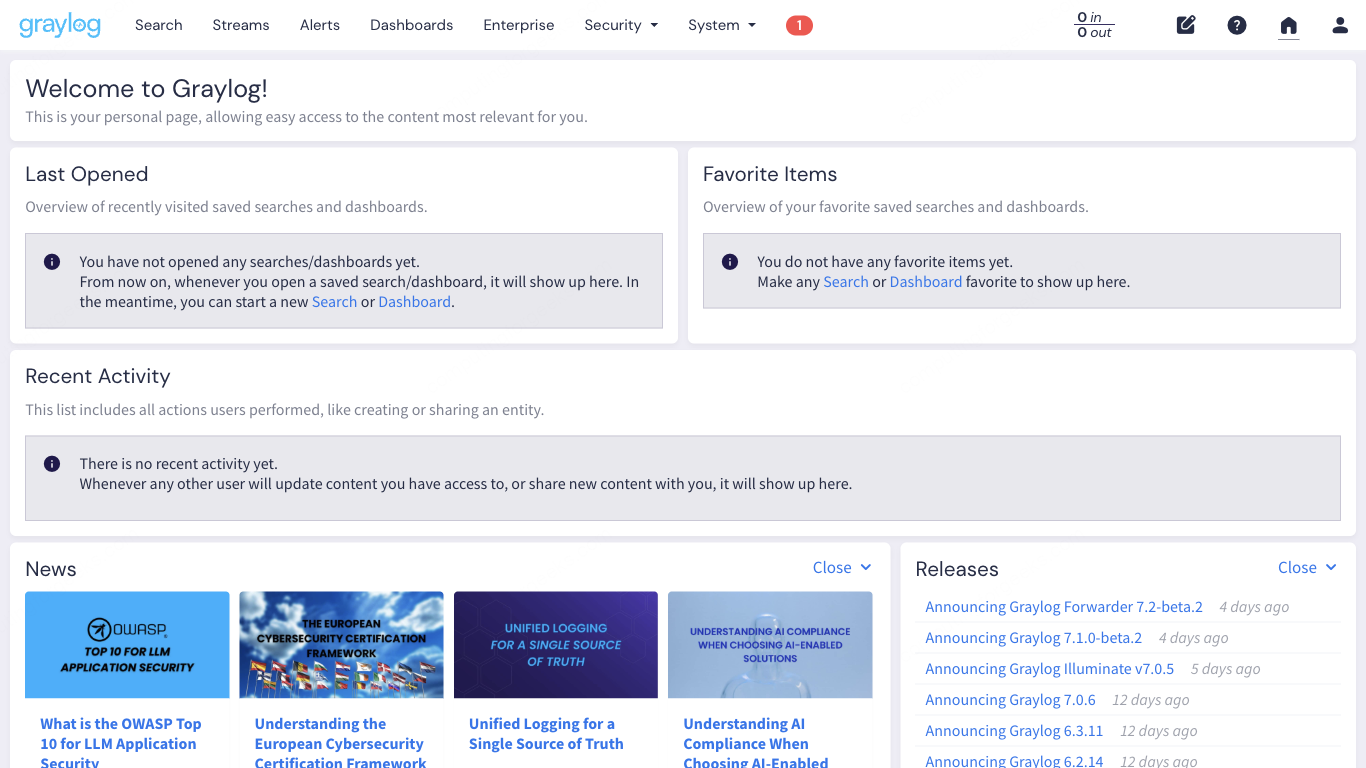
sudo systemctl restart graylog-serverAfter a successful login, the Welcome page loads with a quick-start guide and links to documentation:
Navigate the Main Interface
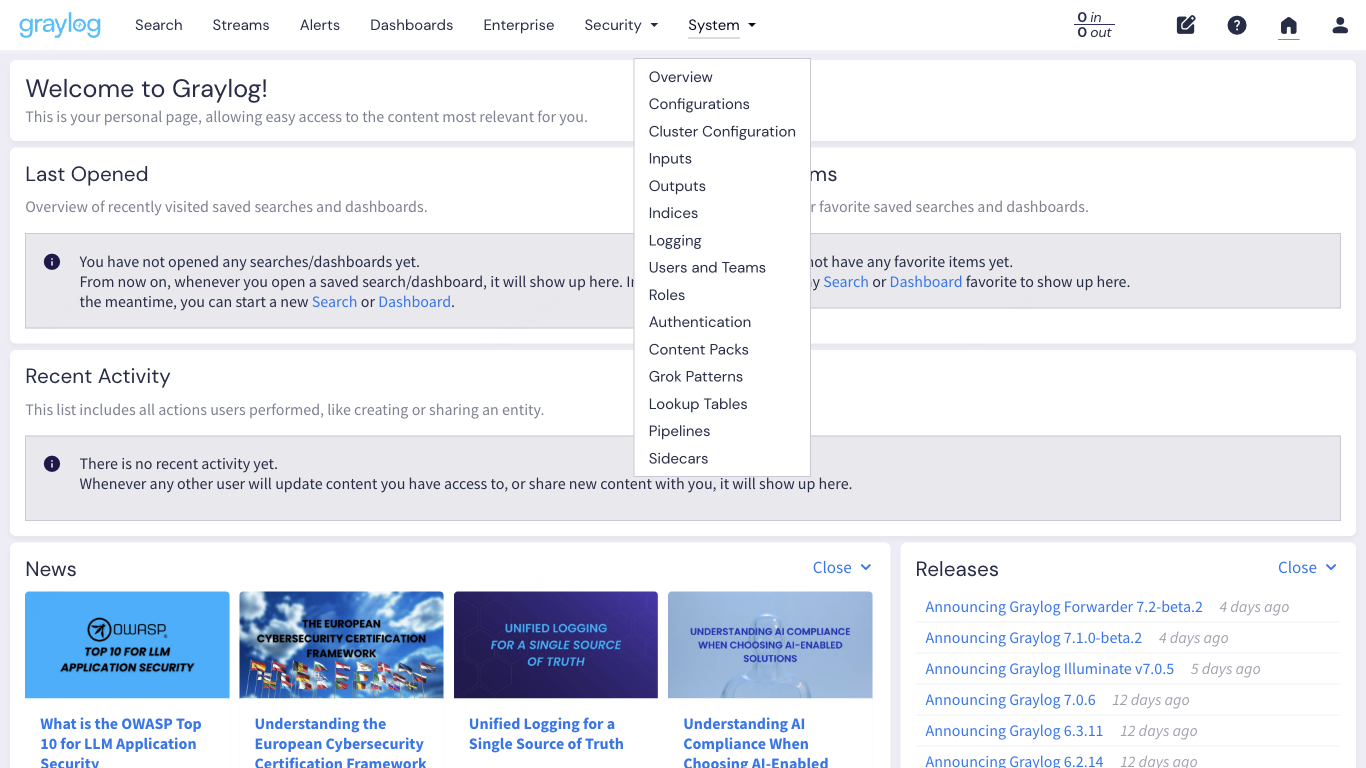
Graylog’s top navigation bar is where everything begins. Seven main sections span the header, each leading to a distinct functional area. Here is what each one does.
Search is where you spend most of your time. This is the log query interface with a time range selector, histogram, and message table. Every search query runs against the OpenSearch indices behind the scenes.
Streams route incoming messages into categories based on rules you define. Think of them as filters: messages matching certain criteria land in specific streams, which makes searching and alerting more targeted.
Alerts trigger notifications when specific conditions are met. You define event conditions (threshold, correlation, aggregation) and attach notification channels (email, Slack, HTTP callbacks).
Dashboards let you build custom views with widgets: message counts, field statistics, histograms, maps, and tables. These are useful for NOC screens or team-specific monitoring views.
Enterprise contains features specific to the Graylog Operations or Security editions. On the open-source version, this section is mostly placeholder links to the commercial features.
Security provides access to Graylog’s security-focused features like threat intelligence lookups, anomaly detection, and sigma rule support (available in Graylog Security edition).
System is the administration hub. Inputs, outputs, indices, pipelines, sidecars, authentication, content packs, and cluster configuration all live under this dropdown.
System Overview
Under System > Overview, you get a single-pane view of the entire Graylog cluster. This page shows the Graylog server node, its JVM heap usage, throughput, journal size, and the Data Node status with OpenSearch version and cluster health. The traffic graph at the bottom visualizes message volume over the last 24 hours.
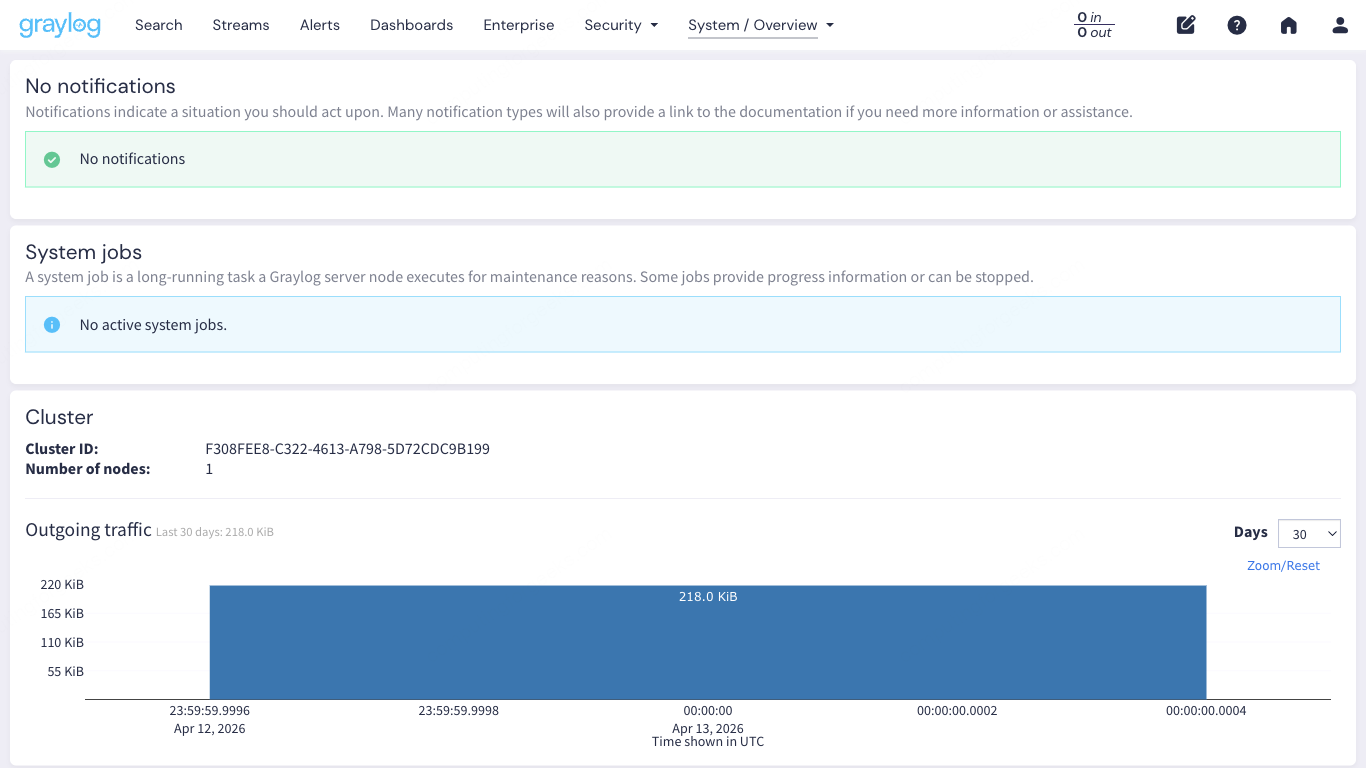
Check this page first when troubleshooting. If the Data Node shows red, OpenSearch is down. If the journal utilization is climbing, Graylog is receiving messages faster than it can index them.
Set Up Your First Input
Inputs are how data enters Graylog. Without at least one running input, nothing gets collected. Navigate to System > Inputs to get started.
Graylog supports many input types out of the box. The most common ones for a first setup:
- Syslog UDP (port 1514): standard syslog from Linux servers, network devices, firewalls
- Syslog TCP (port 1514): same as UDP but with delivery guarantees
- GELF UDP/TCP (port 12201): Graylog’s own structured log format, supports custom fields
- Beats (port 5044): receives logs from Filebeat, Winlogbeat, and other Elastic Beats agents
- Raw/Plaintext TCP/UDP: for applications that send unstructured text
Create a Syslog UDP Input via the Web UI
From the System > Inputs page, select Syslog UDP from the dropdown and click Launch new input. Fill in the following:
- Title: Linux Syslog UDP
- Bind address: 0.0.0.0
- Port: 1514
- No. of worker threads: 2 (default is fine for a lab; increase to 4 or 8 in production with high volume)
Leave the other fields at their defaults and click Launch Input. The input starts immediately.
Port 1514 instead of 514 is deliberate. Graylog runs as a non-root user, so it cannot bind to privileged ports below 1024 without extra configuration. Using 1514 avoids that complexity. You configure your syslog clients to send to port 1514 instead.
Create an Input via the API
If you prefer automation over clicking, Graylog’s REST API can create inputs directly. This creates a GELF UDP input on port 12201:
curl -u admin:YourPassword -X POST "http://10.0.1.50:9000/api/system/inputs" \
  -H "Content-Type: application/json" \
  -H "X-Requested-By: cli" \
  -d '{
    "title": "GELF UDP",
    "type": "org.graylog2.inputs.gelf.udp.GELFUDPInput",
    "configuration": {
      "bind_address": "0.0.0.0",
      "port": 12201,
      "recv_buffer_size": 262144
    },
    "global": true
  }'
A successful response returns the input ID and configuration:
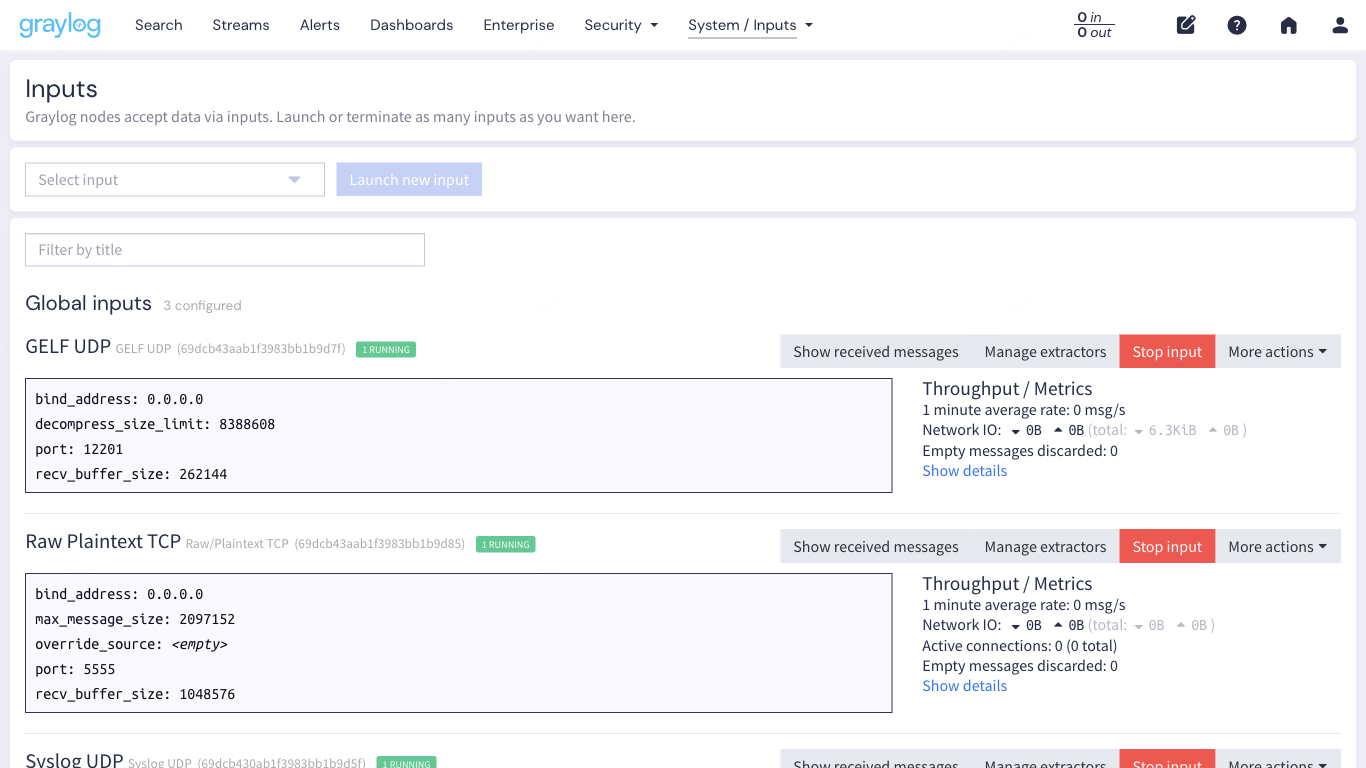
{"id":"6617a3f2b8e1c40001d3a5e7","persist":true}After creating both inputs, the Inputs page shows them in the Running state:
Open Firewall Ports
On Debian/Ubuntu with UFW:
sudo ufw allow 1514/udp comment "Graylog Syslog UDP"
sudo ufw allow 12201/udp comment "Graylog GELF UDP"
sudo ufw allow 5044/tcp comment "Graylog Beats"
sudo ufw reload
On Rocky Linux/AlmaLinux with firewalld:
sudo firewall-cmd --permanent --add-port=1514/udp
sudo firewall-cmd --permanent --add-port=12201/udp
sudo firewall-cmd --permanent --add-port=5044/tcp
sudo firewall-cmd --reload
Send Test Data to Graylog
Inputs are running, firewall is open. Time to push some actual log data through and confirm everything works end to end.
Forward System Logs with rsyslog
The quickest way to get real data flowing is to configure the Graylog server itself (or any Linux box) to forward syslog to Graylog. Create an rsyslog forwarding rule:
sudo vi /etc/rsyslog.d/60-graylog.confAdd the following configuration:
*.* @10.0.1.50:1514;RSYSLOG_SyslogProtocol23FormatThe single @ means UDP. Use @@ for TCP. The RSYSLOG_SyslogProtocol23Format template sends RFC 5424 formatted syslog, which Graylog parses cleanly. Restart rsyslog to apply:
sudo systemctl restart rsyslogWithin seconds, system logs start arriving in Graylog. Generate some activity to speed things up:
logger "Test message from rsyslog to Graylog"Send GELF Messages with Netcat
GELF (Graylog Extended Log Format) supports structured fields, which makes it more powerful than plain syslog for application logging. You can test it directly from the command line:
echo -n '{"version":"1.1","host":"web01","short_message":"Deployment complete","level":6,"_environment":"staging","_app":"myapp","_deploy_id":"d-4521"}' | nc -u -w1 10.0.1.50 12201That sends a single GELF message over UDP to port 12201. The fields prefixed with an underscore (_environment, _app, _deploy_id) become searchable custom fields in Graylog. This is one of GELF’s biggest advantages over plain syslog.
Send a few more messages with different severity levels to populate the search view:
echo -n '{"version":"1.1","host":"db01","short_message":"Replication lag exceeded 5s","level":4,"_environment":"production","_app":"postgres","_lag_seconds":5.2}' | nc -u -w1 10.0.1.50 12201

echo -n '{"version":"1.1","host":"web01","short_message":"Health check passed","level":6,"_environment":"production","_app":"nginx","_response_time_ms":12}' | nc -u -w1 10.0.1.50 12201

echo -n '{"version":"1.1","host":"app03","short_message":"OutOfMemoryError in worker thread","level":3,"_environment":"production","_app":"java-api","_heap_used_mb":3891}' | nc -u -w1 10.0.1.50 12201
GELF level 3 is error, 4 is warning, 6 is informational. These follow the standard syslog severity scale.
Search and Explore Messages
Click Search in the top navigation bar. This is the core of Graylog, the page you will use more than any other.
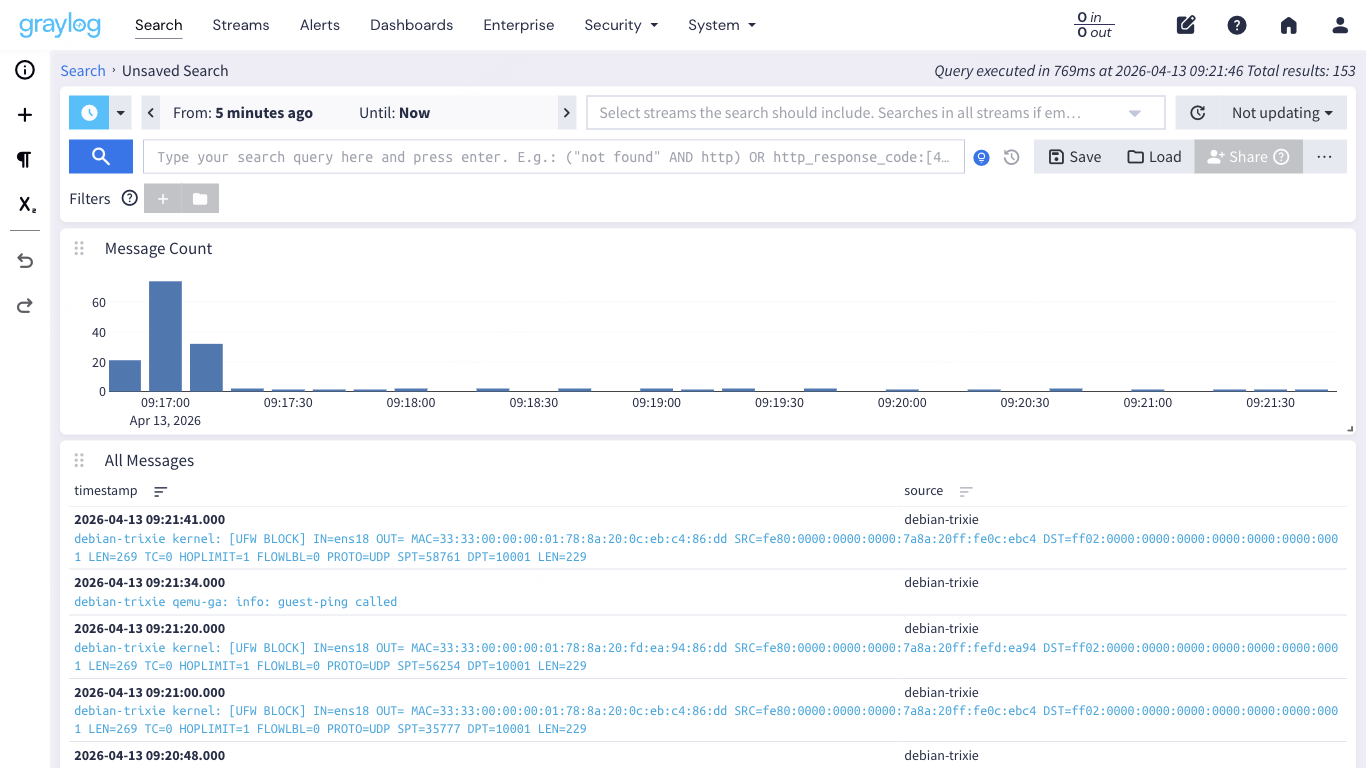
The search page has three main components. The histogram at the top visualizes message volume over your selected time range. The message table below shows individual log entries with their timestamp, source, and message content. The sidebar on the left lists available fields you can use for filtering and statistics.
Search Query Syntax
Graylog uses a Lucene-based query syntax. The search bar at the top accepts field-specific queries, boolean operators, wildcards, and ranges. Here are practical examples you can use right away:
| Query | What it finds |
|---|---|
source:web01 | All messages from host web01 |
level:3 | All error-level messages (syslog severity 3) |
_app:nginx AND level:[0 TO 4] | Warning and above from the nginx app |
short_message:"OutOfMemory*" | Messages containing OutOfMemory (wildcard match) |
NOT source:graylog-server | Everything except Graylog’s own internal messages |
_environment:production AND _response_time_ms:>500 | Slow responses in production |
facility:auth OR facility:authpriv | Authentication-related syslog messages |
http_response_code:[400 TO 599] | All HTTP 4xx and 5xx errors (if using GELF with HTTP fields) |
The time range selector defaults to the last 5 minutes. For broader searches, switch to “Last 1 hour”, “Last 24 hours”, or set a custom absolute range. Keep the time range as narrow as possible when searching large volumes because wider ranges scan more indices and take longer.
Click on any field name in the left sidebar to see its top values, statistics, and options to add it as a search filter. This is faster than typing queries manually when you are exploring unfamiliar data.
Understand Streams and Index Sets
Streams are Graylog’s mechanism for routing and categorizing messages. Every message that enters Graylog passes through stream rules, and messages matching those rules land in the corresponding stream. One message can belong to multiple streams.
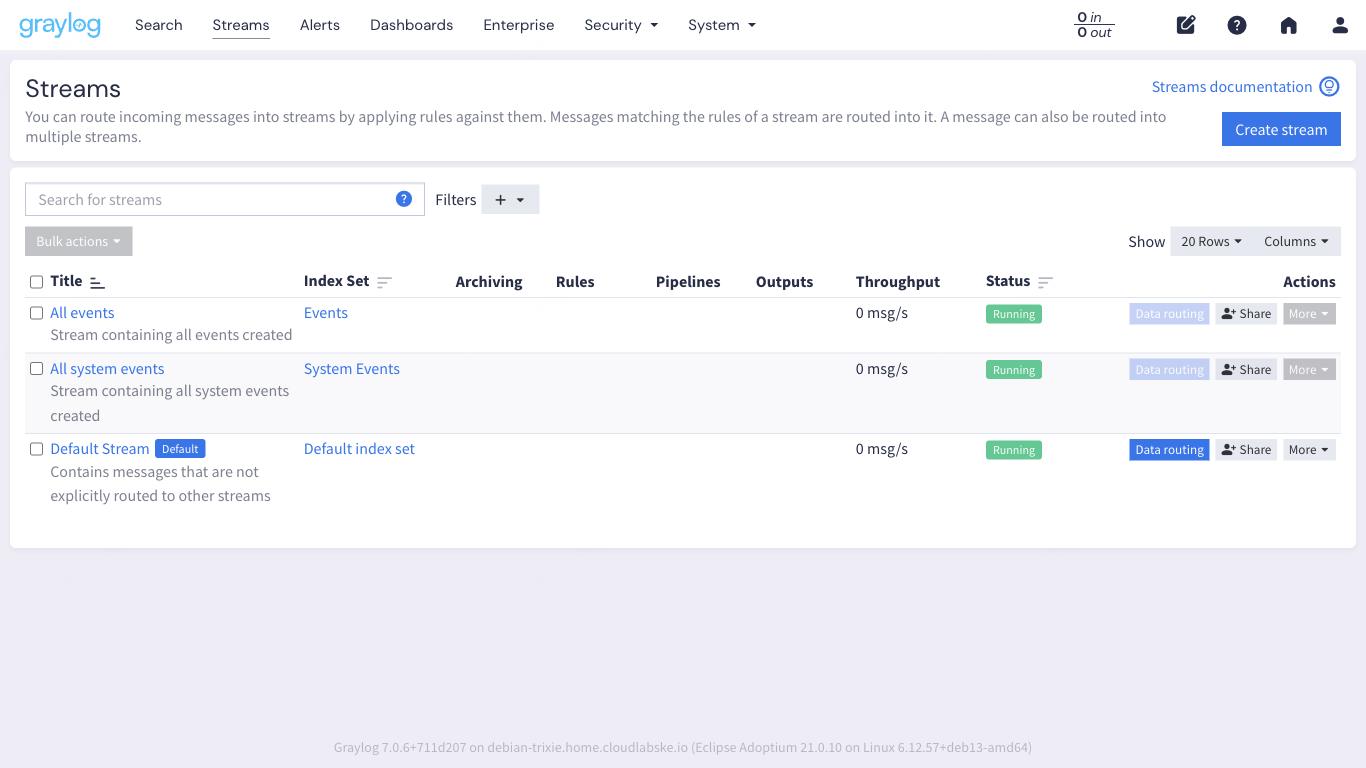
Graylog comes with three default streams:
- All messages: every single message that Graylog receives, regardless of source or type
- Default Stream: messages that do not match any other stream’s rules. This catches everything that falls through
- All system events: internal Graylog events like alerts firing, input state changes, and node lifecycle events
In practice, you create custom streams to separate different log sources. For example, a “Linux Servers” stream that matches messages where facility is kern, auth, or daemon. Or an “Application Errors” stream that matches messages where level is less than or equal to 3. Streams become powerful when combined with alerts because you can set up notifications on specific streams rather than searching all messages globally.
Index Sets and Retention
Each stream writes to an index set, which controls how messages are stored in OpenSearch. Navigate to System > Indices to see the configured index sets.
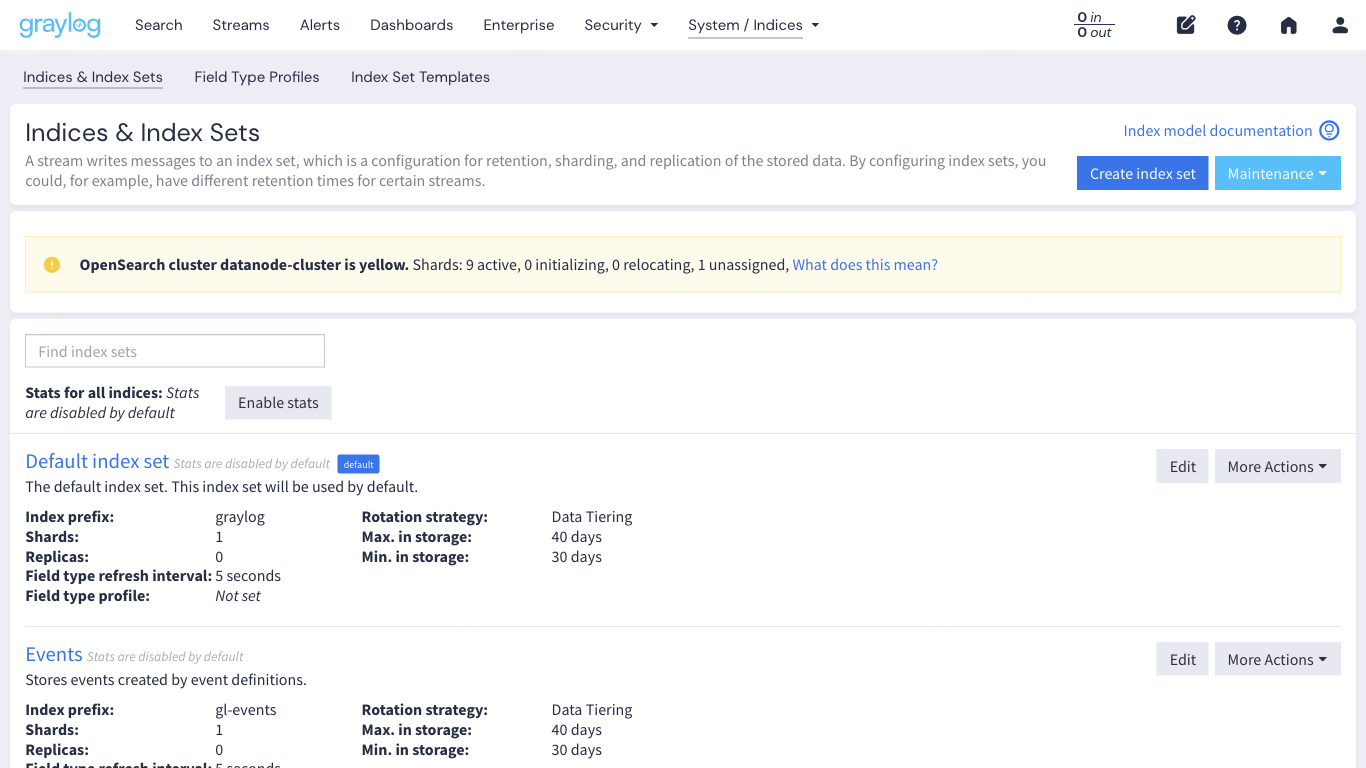
The default index set rotates based on index size (1 GB) or time (1 day, whichever comes first) and retains 20 indices. This means roughly 20 GB of logs before the oldest data gets deleted. For production, you will want to tune these numbers based on your log volume and storage capacity. High-volume environments (50,000+ messages per second) typically need larger indices and shorter retention to keep disk usage predictable.
You can create separate index sets with different retention policies for different streams. Security logs might need 90-day retention for compliance, while debug logs from a staging environment could rotate after 3 days.
Alerts, Dashboards, and Pipelines
These three features round out Graylog’s core functionality. Each one builds on the search and stream concepts covered above.
Alerts
Graylog’s alerting system works in two parts: event definitions and notifications. An event definition specifies the condition (for example, “more than 100 error messages in 5 minutes from the Application Errors stream”). A notification defines what happens when that condition is met (email, Slack webhook, PagerDuty, or a custom HTTP callback).
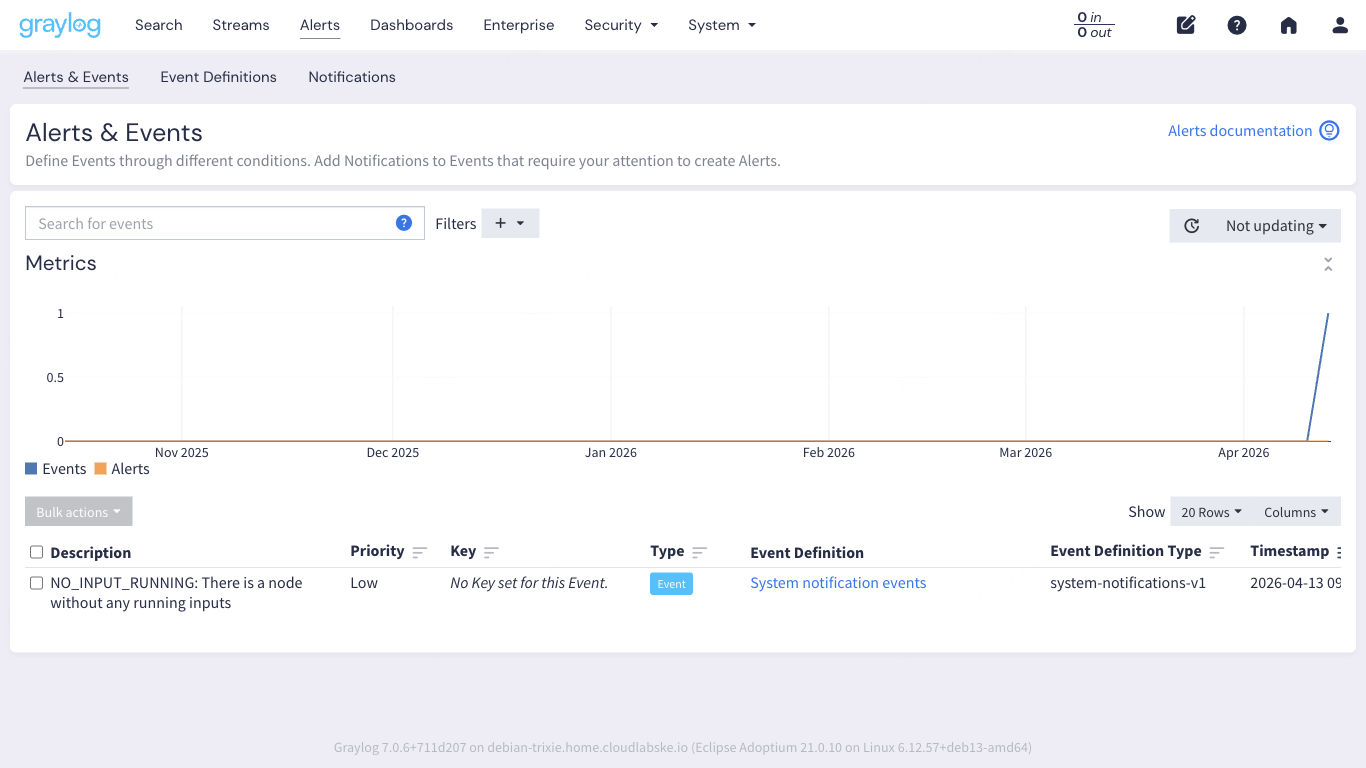
Out of the box, Graylog already generates system events for internal state changes. The screenshot above shows a real system event that fired when the Data Node completed its provisioning. You build on this by creating your own event definitions that match your operational needs.
Dashboards
Dashboards aggregate search results into visual widgets. You can create message count charts, field value statistics, quick value breakdowns, and world maps (if your logs contain geolocation data). Each widget is backed by a saved search, so the data stays live.
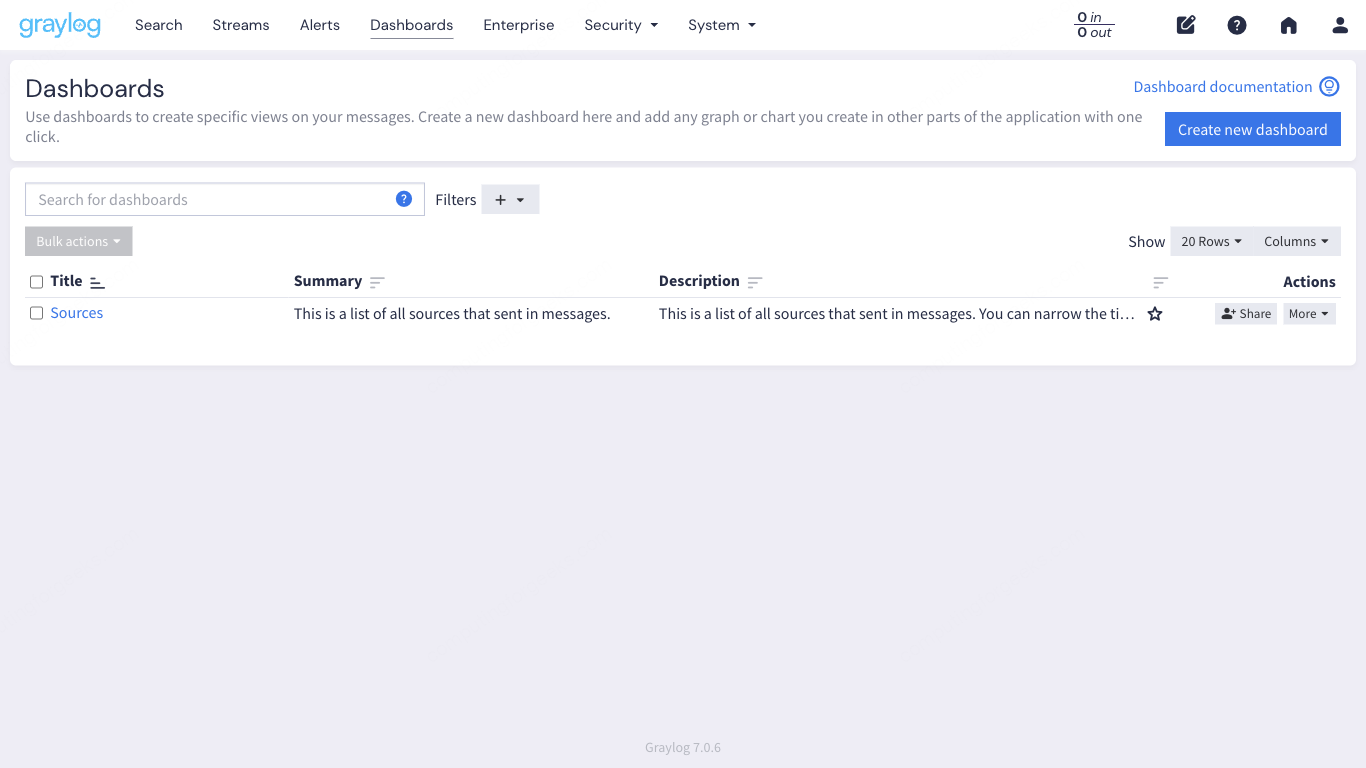
A common first dashboard includes four widgets: total messages received (last 24h), top 10 sources by message count, error rate over time, and a quick values breakdown of the facility field. Building this takes about 5 minutes once you understand the widget creation flow.
Pipelines
Pipelines process messages after they arrive but before they are stored. They are Graylog’s ETL layer. You use pipeline rules to parse unstructured messages, enrich data with lookup tables, drop unwanted messages, rename fields, or route messages to specific streams based on content.
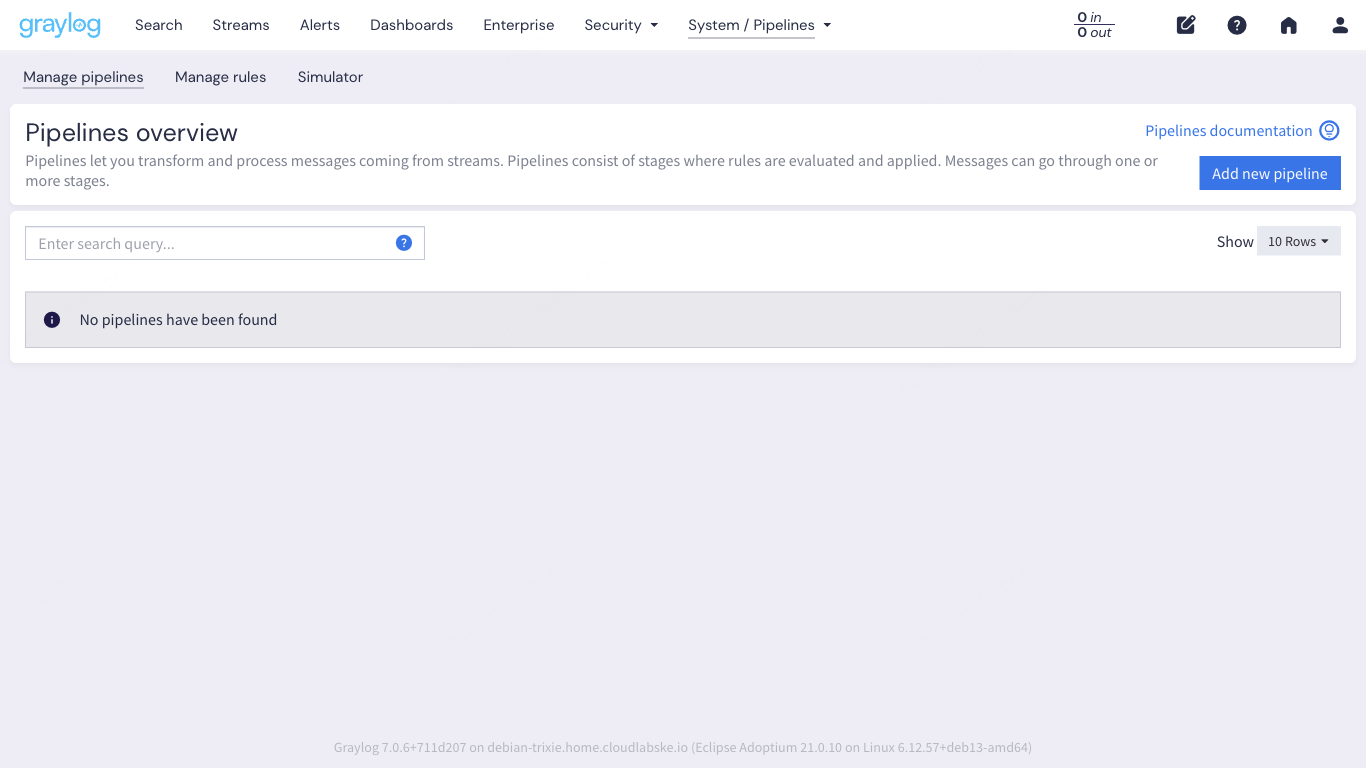
Pipeline rules use Graylog’s own rule language. Here is a simple example that adds a field to messages from a specific source:
rule "tag production web servers"
when
  has_field("source") AND starts_with(to_string($message.source), "web")
then
  set_field("environment", "production");
  set_field("tier", "frontend");
end
Pipelines are connected to streams. A pipeline attached to the “All messages” stream processes every message. Attaching it to a specific stream limits processing to only the messages in that stream, which is more efficient.
Verify the Full Data Path
Before moving on, confirm that the entire pipeline works from source to search. This quick check uses the Graylog REST API to verify message counts:
curl -s -u admin:YourPassword "http://10.0.1.50:9000/api/count/total" \
  -H "Accept: application/json"
The response shows the total number of indexed messages:
{"events":4,"count":1247}If the count is zero and you sent test messages, check these things in order: is the input showing as “Running” on the Inputs page, is the firewall allowing traffic on the input port, and is rsyslog actually sending (check with tcpdump -i any udp port 1514).
You can also verify from the OpenSearch side directly through the Data Node:
curl -s -u admin:YourPassword "http://10.0.1.50:9000/api/system/indexer/cluster/health" \
  -H "Accept: application/json" | python3 -m json.tool
Healthy output looks like this:
{
    "status": "green",
    "shards": {
        "active": 10,
        "initializing": 0,
        "relocating": 0,
        "unassigned": 0
    }
}
A green status with zero unassigned shards means OpenSearch is healthy and indexing is working correctly.
Production Hardening
What we covered above gets Graylog working in a lab. Moving to production requires a few more steps that go beyond a UI walkthrough but are worth listing here so nothing falls through the cracks.
- SSL reverse proxy: put Nginx or Apache in front of Graylog with a valid TLS certificate. Port 9000 over plain HTTP is fine for local testing, but production traffic should be encrypted. The Nginx reverse proxy with Let’s Encrypt SSL guide covers this step by step
- Graylog Sidecar: instead of configuring rsyslog or Filebeat on every server manually, deploy Graylog Sidecar. It is a lightweight agent manager that lets you push Filebeat/NXLog configurations from the Graylog web interface to all your servers centrally
- Index retention tuning: the default 20-index retention works for small environments. Calculate your daily log volume, multiply by your retention requirement in days, and size your OpenSearch storage accordingly. Set rotation to time-based (daily) for predictable index sizes
- LDAP or SSO authentication: the built-in admin account is a single point of failure. Connect Graylog to your organization’s LDAP, Active Directory, or SAML provider so each team member has their own account with appropriate roles
- Backup strategy: back up the MongoDB database (Graylog configuration, users, dashboards, streams) regularly. OpenSearch indices can be snapshot to S3 or NFS. Losing MongoDB means losing your entire Graylog configuration, not just the log data