

Ubuntu 26.04 LTS, codenamed “Resolute Raccoon”, is the latest long-term support release from Canonical. It ships with Linux kernel 7.0, GNOME 50 on a Wayland-only desktop session, and the new Flutter-based installer that landed in 25.10 and has been polished for the LTS cycle. This guide walks through a fresh desktop installation end-to-end, from ISO to first login, with screenshots captured against the real installer.
Every screen in this guide matches what you will see on your own hardware. The walkthrough covers language selection, accessibility, keyboard, network, the new “Interactive” install type, default app selection, proprietary driver handling, disk layout, encryption, account creation, timezone, and the review screen. After the install reboots, we confirm the release with the Settings → About panel and System Details dialog showing kernel 7.0. For what landed in this release see our Ubuntu 26.04 LTS new features guide. Already on 24.04 and want to keep your existing setup? Use the in-place upgrade walkthrough instead of a clean install.
Verified working: April 2026 on Ubuntu 26.04 LTS Beta (Resolute Raccoon) with Linux kernel 7.0.0-14-generic, GNOME 50 on Wayland
Prerequisites
A machine that meets the baseline Canonical published for 26.04. The minimum memory requirement bumped up in this cycle.
- 64-bit x86 (amd64) system with UEFI firmware. Legacy BIOS still boots but UEFI is expected
- Minimum 6 GB RAM, 8 GB or more recommended (up from 4 GB on 24.04)
- At least 25 GB of free disk. Default app selection plus a few snap seeds lands around 12 GB used after install
- A USB flash drive 4 GB or larger for bootable media, or a hypervisor (VirtualBox, Proxmox, VMware, UTM) if installing in a VM
- Wired network is optional during install but recommended so updates land in one pass
Download Ubuntu 26.04 LTS Desktop ISO
Grab the desktop ISO from the official Ubuntu releases mirror. The file is approximately 6.5 GB.
wget https://releases.ubuntu.com/26.04/ubuntu-26.04-desktop-amd64.isoFor 64-bit ARM (ARMv8/AArch64) desktop image, download from daily builds page.
Always verify the download against the published checksum before writing it to a USB drive. A truncated or tampered ISO will either fail to boot or install a broken system.
sha256sum ubuntu-26.04-desktop-amd64.isoCompare the output against the value in SHA256SUMS on the release page. If they match, the ISO is intact.
An ARM64 desktop ISO is also published for 26.04, supporting Snapdragon-based laptops and ACPI/EFI ARM hardware. The flow below is identical on ARM64; only the boot menu and the absence of certain proprietary drivers differ.
Create Bootable USB Drive
Write the ISO to a USB stick. Any of these tools works well:
- Ventoy – multi-ISO boot drive. See creating bootable USB with Ventoy
- Rufus (Windows) – simple and fast for single-ISO sticks
- balenaEtcher (cross-platform) – GUI for macOS, Linux, and Windows
dd(Linux/macOS) – lowest-level approach for terminal users
On Linux the dd one-liner is still the fastest path. Replace /dev/sdX with your actual USB device (double-check with lsblk or you will overwrite the wrong disk).
sudo dd if=ubuntu-26.04-desktop-amd64.iso of=/dev/sdX bs=4M status=progress oflag=syncWhen the command returns, the USB is ready. Plug it into the target machine and boot from it. On most laptops the boot menu is on F12, F9, or Esc; desktops vary by vendor.
Boot the Installer
After selecting the USB from the firmware boot menu, the Ubuntu 26.04 boot splash appears. The kernel loads and Plymouth hands off to the Flutter-based installer.
On UEFI machines you can usually skip past the GRUB menu and the installer starts within 30 to 60 seconds. On slower hardware give it up to two minutes.
Step 1 – Choose Your Language
The first installer screen is language selection. The list includes common locales at the top with English pre-selected. Pick the language you want the installed system to use. This setting also determines the default locale and language packs that get installed.
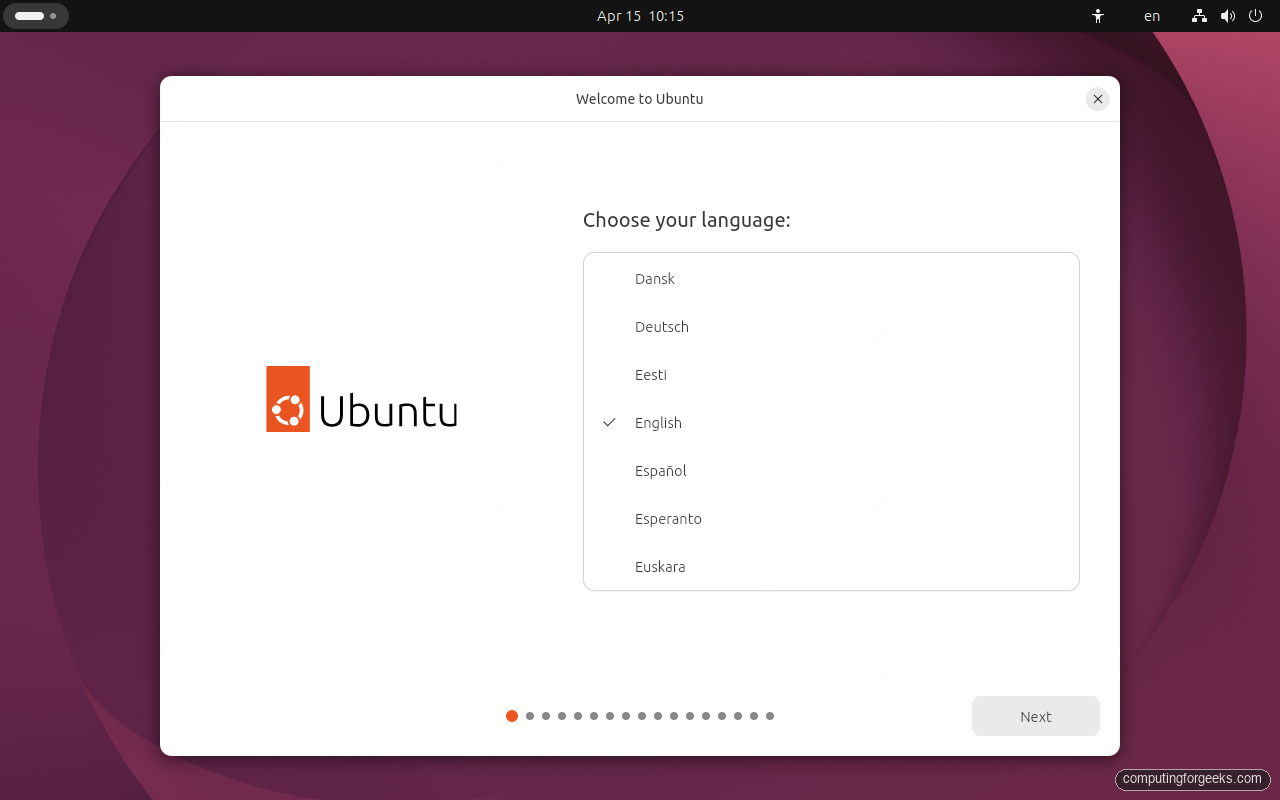
Click Next in the bottom right to continue. The progress dots at the bottom centre of the window show roughly where you are in the flow.
Step 2 – Accessibility Options
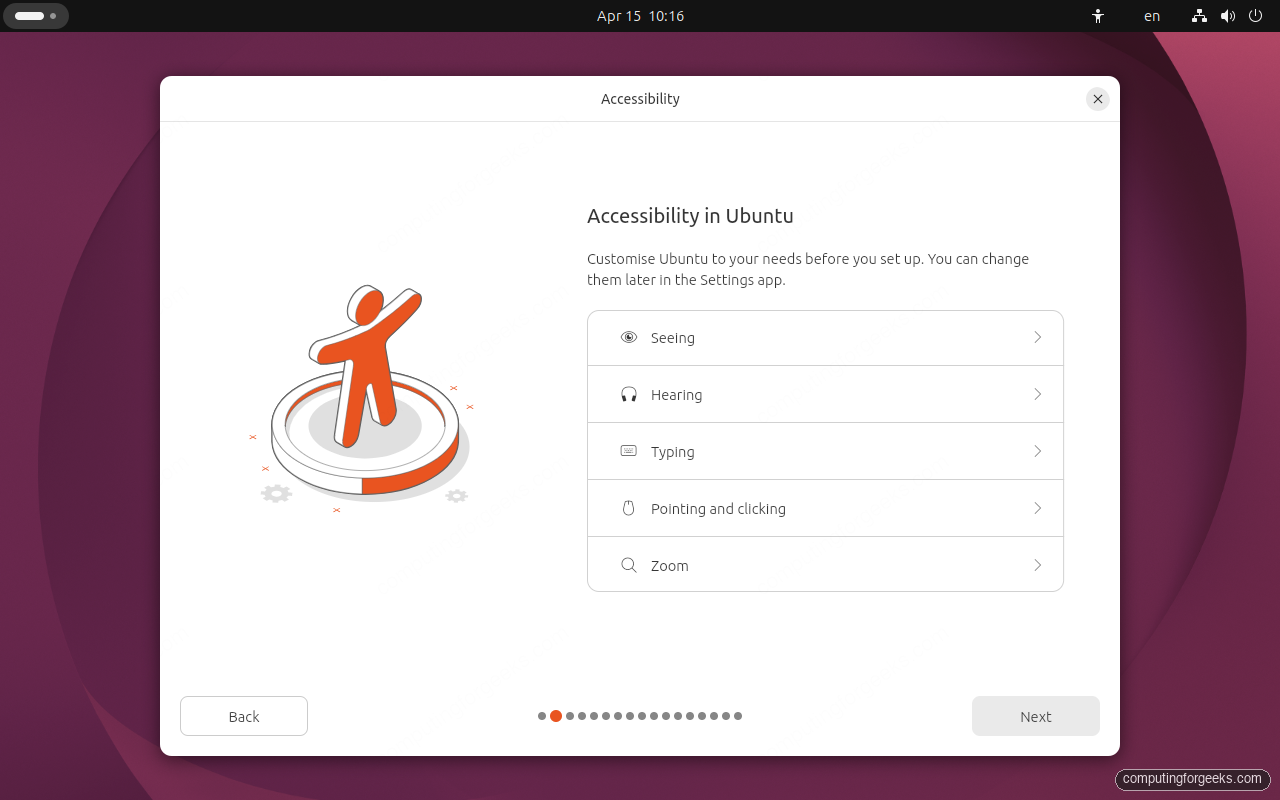
Ubuntu 26.04 places accessibility right after language. You can enable seeing, hearing, typing, pointing and clicking, or zoom assistive tools before you even finish the install. None are required. Every option here is also available from the Settings app after the install, so it is safe to skip if you do not need any of these features today.
Step 3 – Keyboard Layout
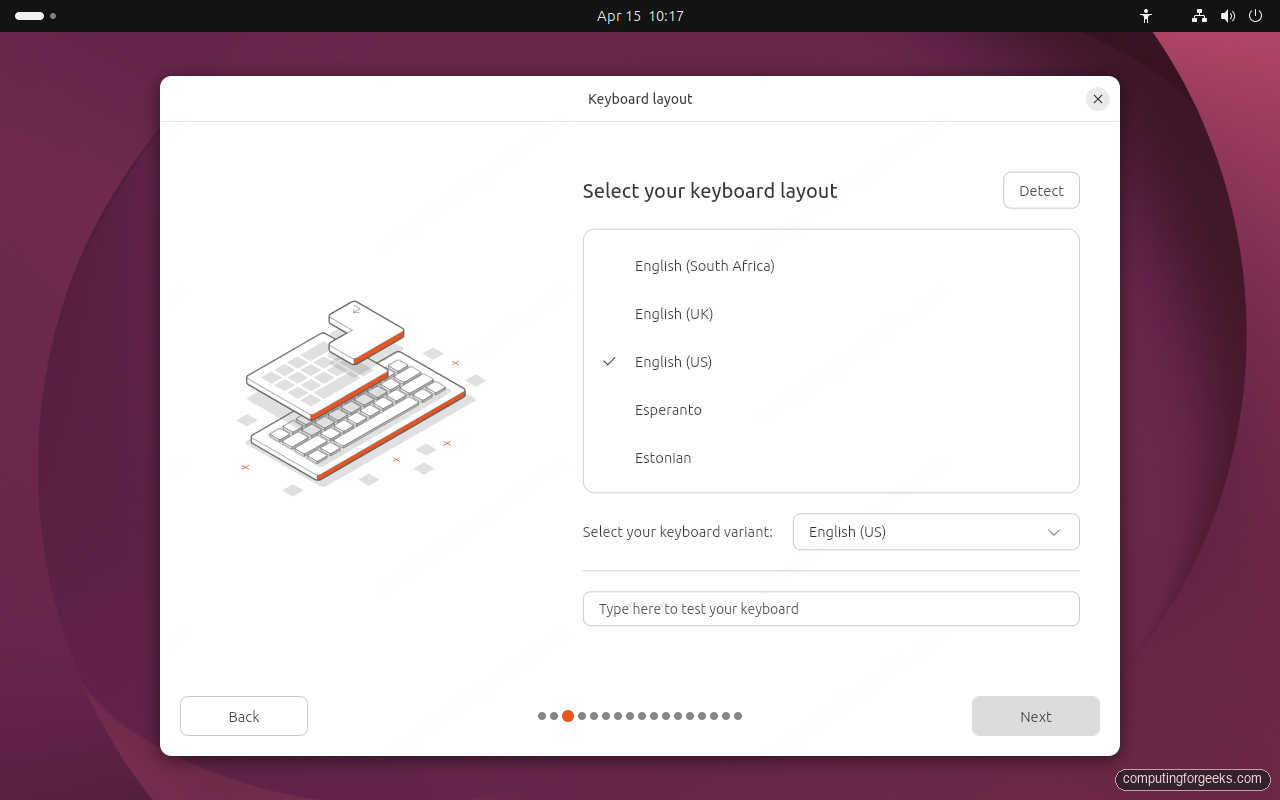
Pick the keyboard layout and variant that matches your physical keyboard. The installer auto-detects a reasonable default from the language choice, so most users just confirm. There is a test field at the bottom; type a few characters to confirm the layout before clicking Next. This is the simplest way to catch a mis-detected keyboard before you end up with a wrong login password.
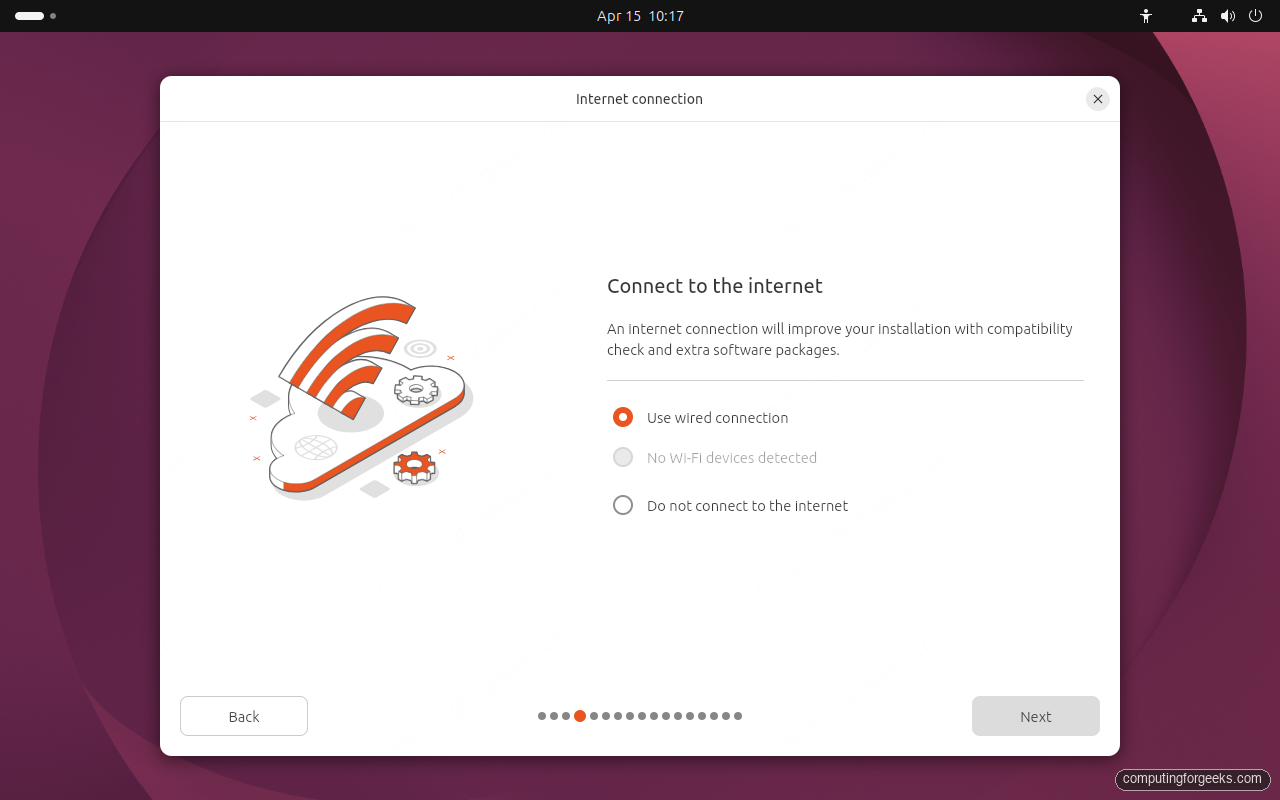
Step 4 – Connect to the Internet
For wired setups this screen is a formality: “Use wired connection” is selected and DHCP just works. For Wi-Fi, pick the second option and the installer walks you through SSID and passphrase entry. Offline installs are possible by choosing “Do not connect to the internet”, but the installer will skip third-party drivers and post-install updates, which means a longer first-boot sequence.
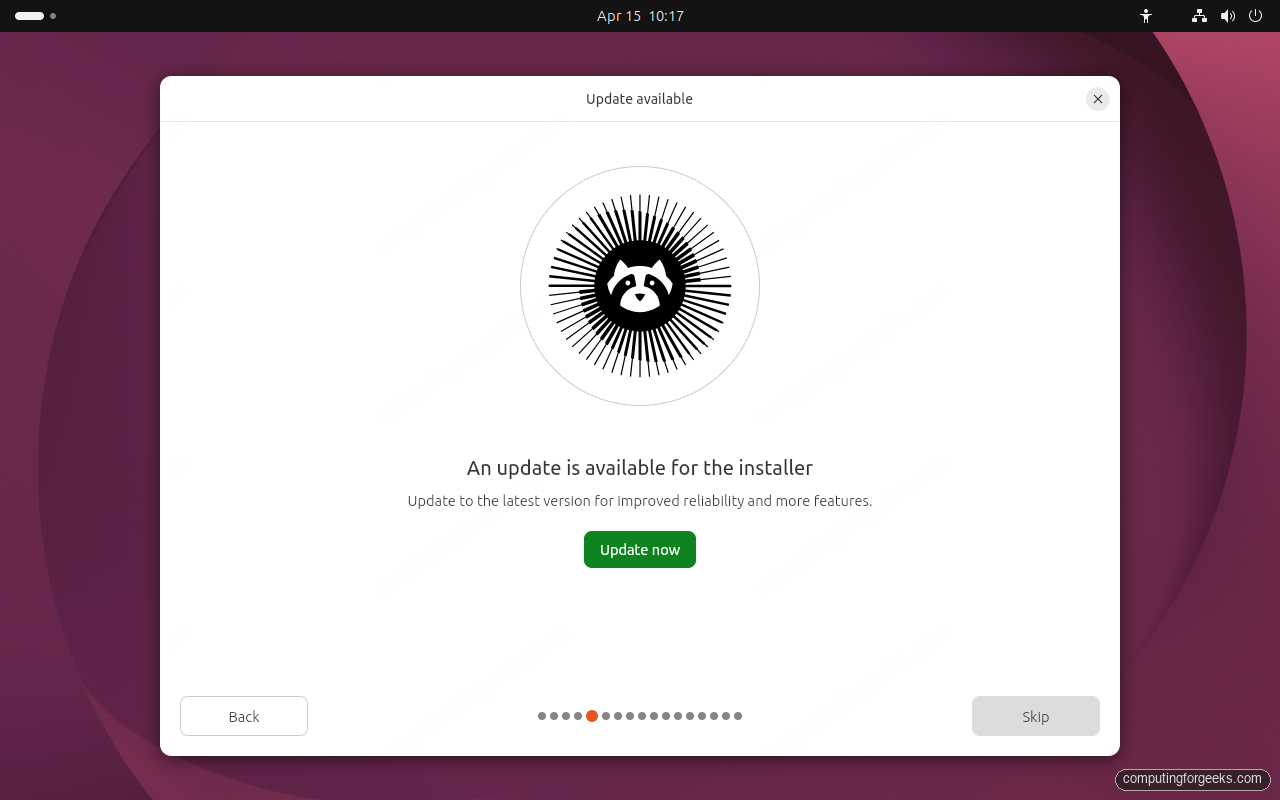
Step 5 – Installer Update (Optional)
If the installer itself has a newer version available since the ISO was cut, this screen offers to pull it. For a first install this is worth doing only if you plan to automate more machines from the same ISO; for a one-shot desktop install, clicking Skip keeps the flow predictable and is what we used.
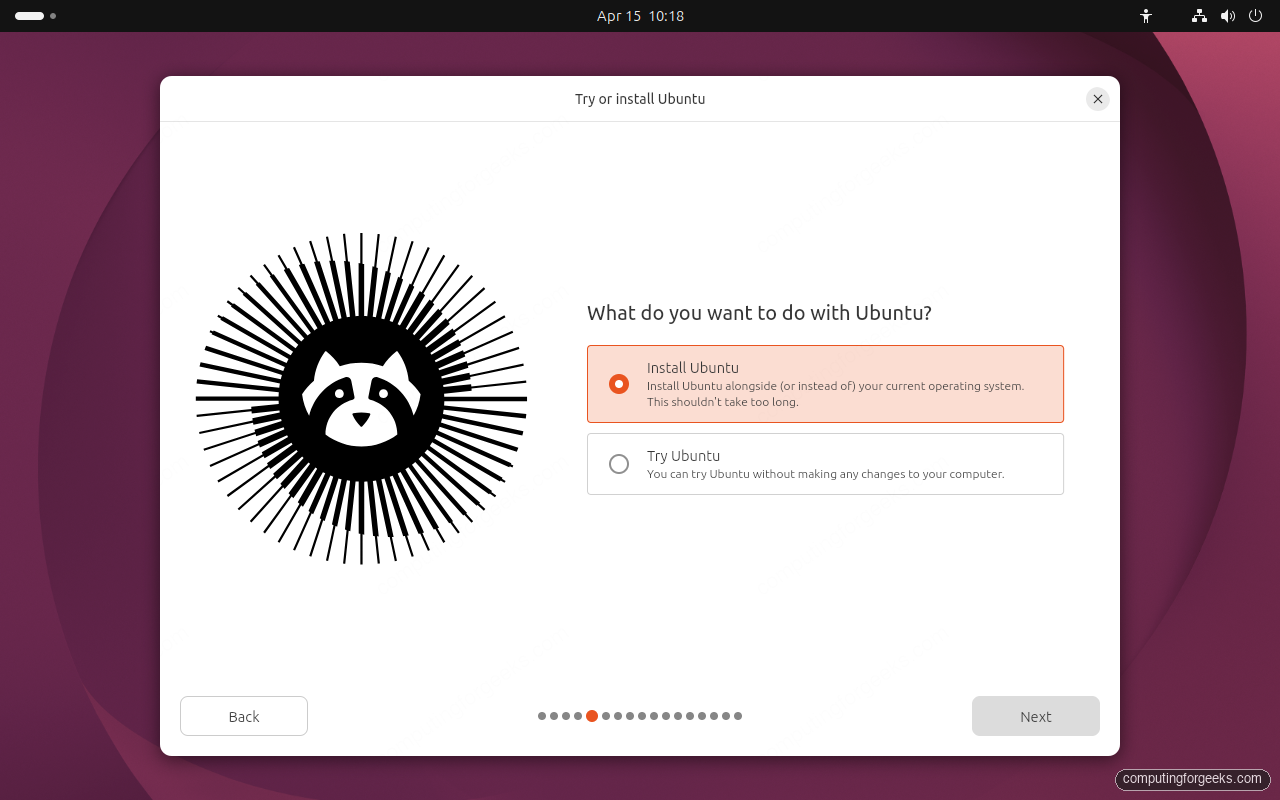
Step 6 – Try or Install Ubuntu
This is where the live session branches. “Try Ubuntu” boots straight to the live desktop so you can kick the tyres on your hardware without writing to disk. “Install Ubuntu” starts the real install. Pick Install Ubuntu to proceed.
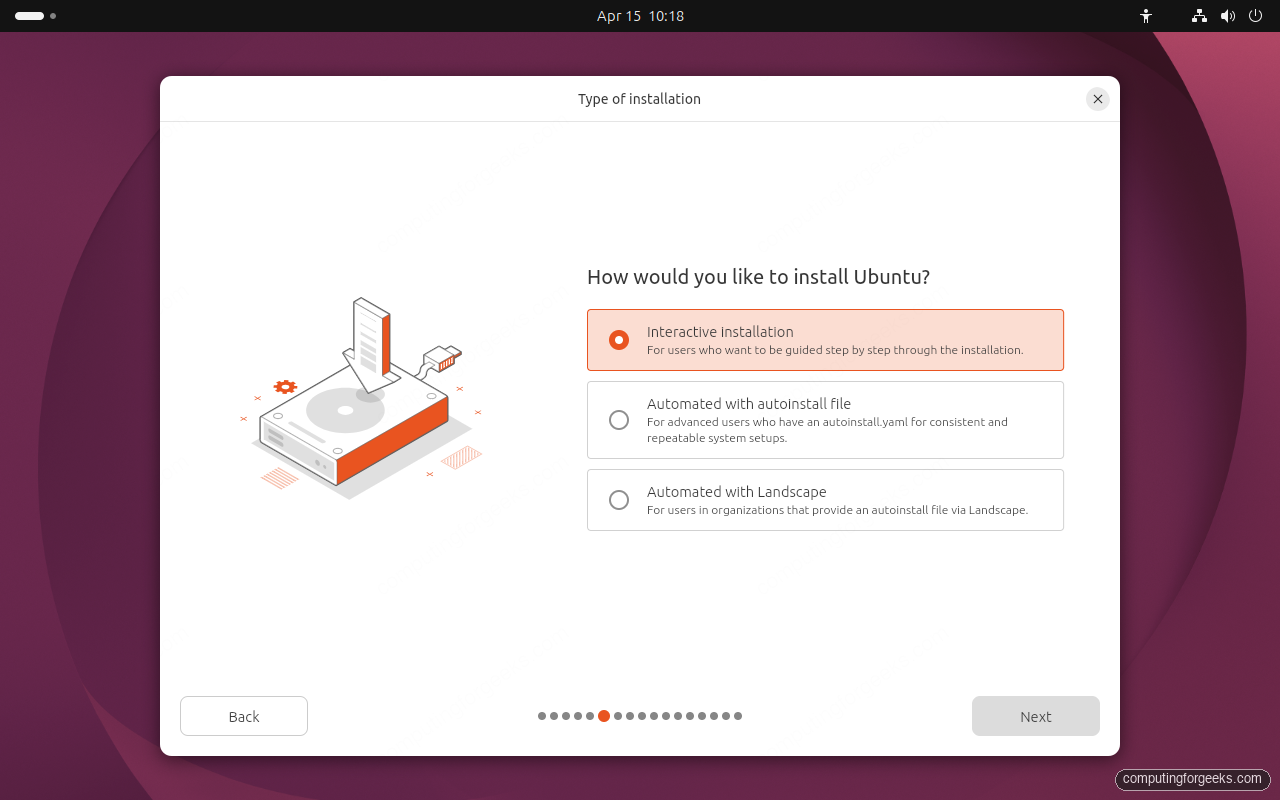
Step 7 – Installation Type
26.04 exposes three install modes. Interactive installation is the classic click-through flow and is what you want for a workstation. Automated with autoinstall file uses a user-data YAML to preseed everything (handy for building multiple identical machines). Automated with Landscape pairs the machine with a Canonical Landscape server for enrolment at first boot. Keep it on Interactive.
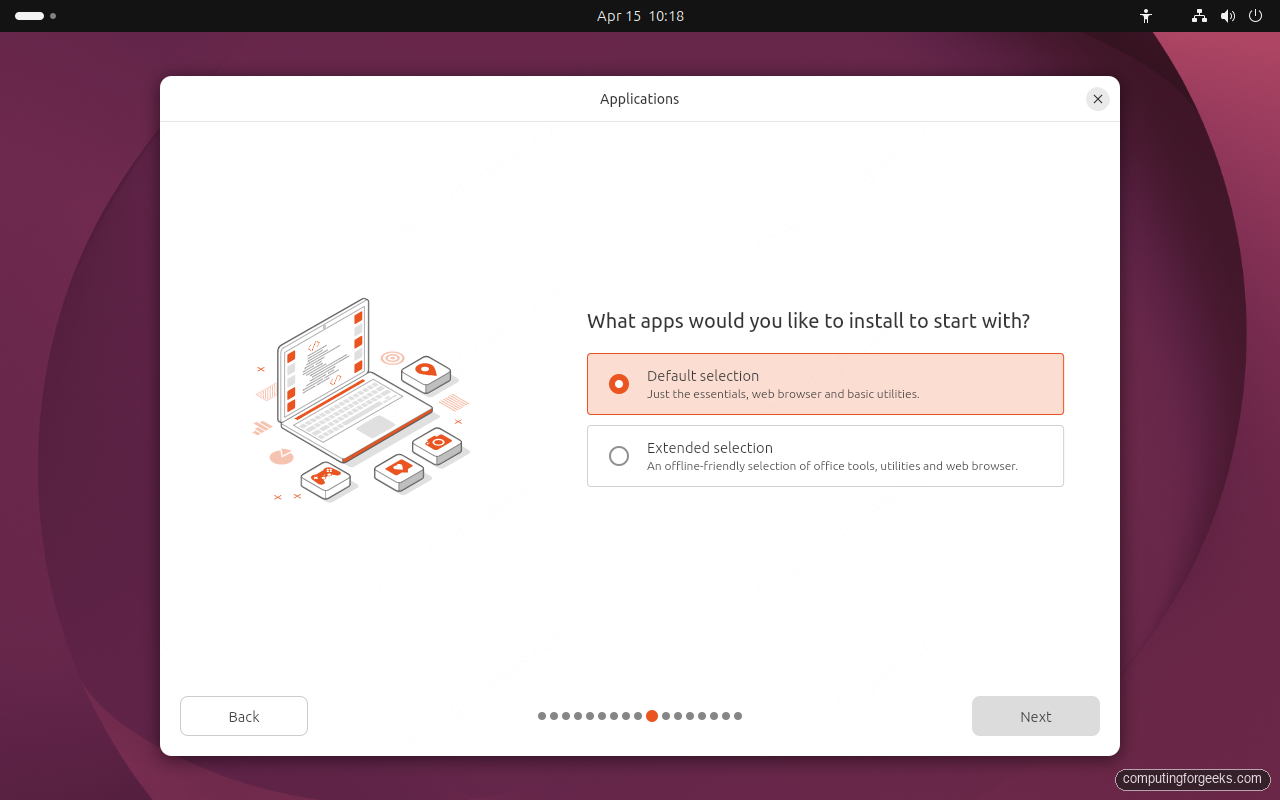
Step 8 – Applications
Canonical split the historical “Normal vs Minimal” choice into Default selection and Extended selection. Default installs Firefox, Files, LibreOffice core, Thunderbird, and the standard GNOME apps. Extended adds office utilities, additional media tools, and extra fonts. Default is the right pick for most desktops; you can always apt-install extras later.
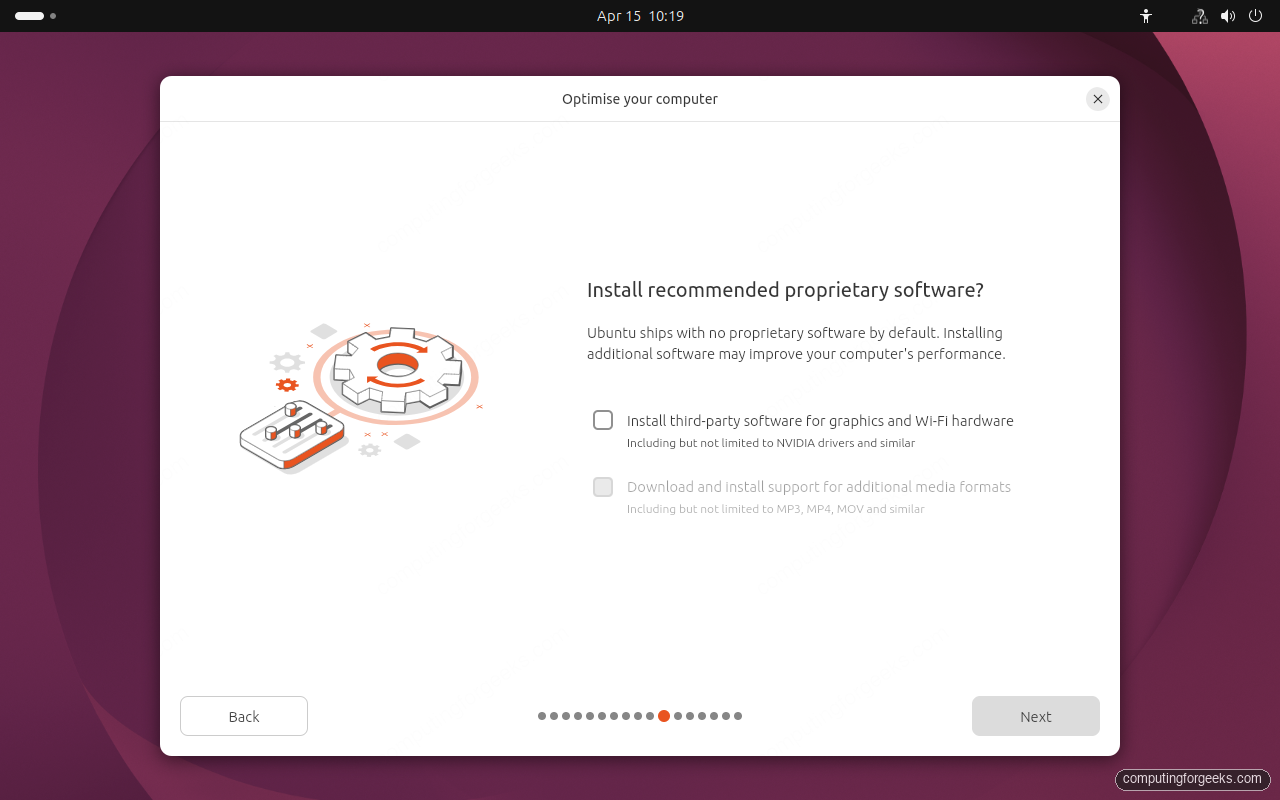
Step 9 – Proprietary Software (Drivers and Codecs)
Two optional opt-ins live on this screen. The first pulls third-party drivers for Nvidia graphics and certain Wi-Fi chipsets; the second downloads restricted-format codecs (MP3, H.264, proprietary fonts). On physical hardware with Nvidia or Broadcom Wi-Fi, tick the first box to save yourself a troubleshooting round after install. In a VM neither option matters, so both can stay off.
Step 10 – Disk Setup
Two paths here. Erase disk and install Ubuntu wipes the target drive and lets the installer lay out an optimal partition scheme (EFI, root ext4, no swap partition – swap file instead). Manual installation opens the partition editor for dual-boot scenarios, separate /home, LVM, or custom filesystems. Most single-OS machines take the erase path.
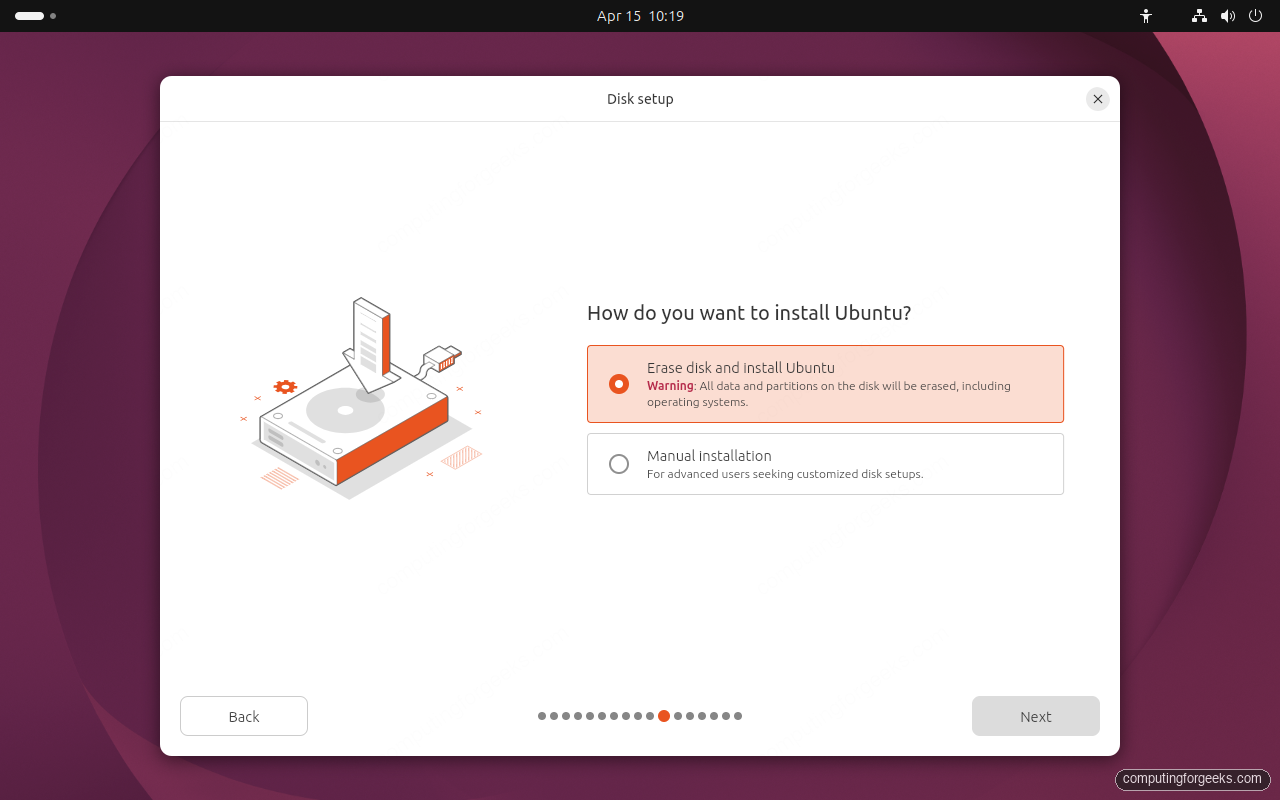
If you go manual, Ubuntu 26.04 still requires a FAT32 EFI partition of at least 512 MB mounted at /boot/efi and a root filesystem at /. The installer refuses to continue without both, which is worth knowing before you start carving partitions by hand.
Step 11 – Encryption and Filesystem
Three options here, pick one. No encryption uses plain ext4 and is fine for lab machines, servers, and VMs. Encrypt with a passphrase turns on LUKS full-disk encryption, prompting you to unlock the volume at every boot; this is the right default for laptops. Use hardware-backed encryption binds the key to TPM 2.0 so the system unlocks transparently if the hardware is intact, and refuses if anyone tries to move the drive to another machine.
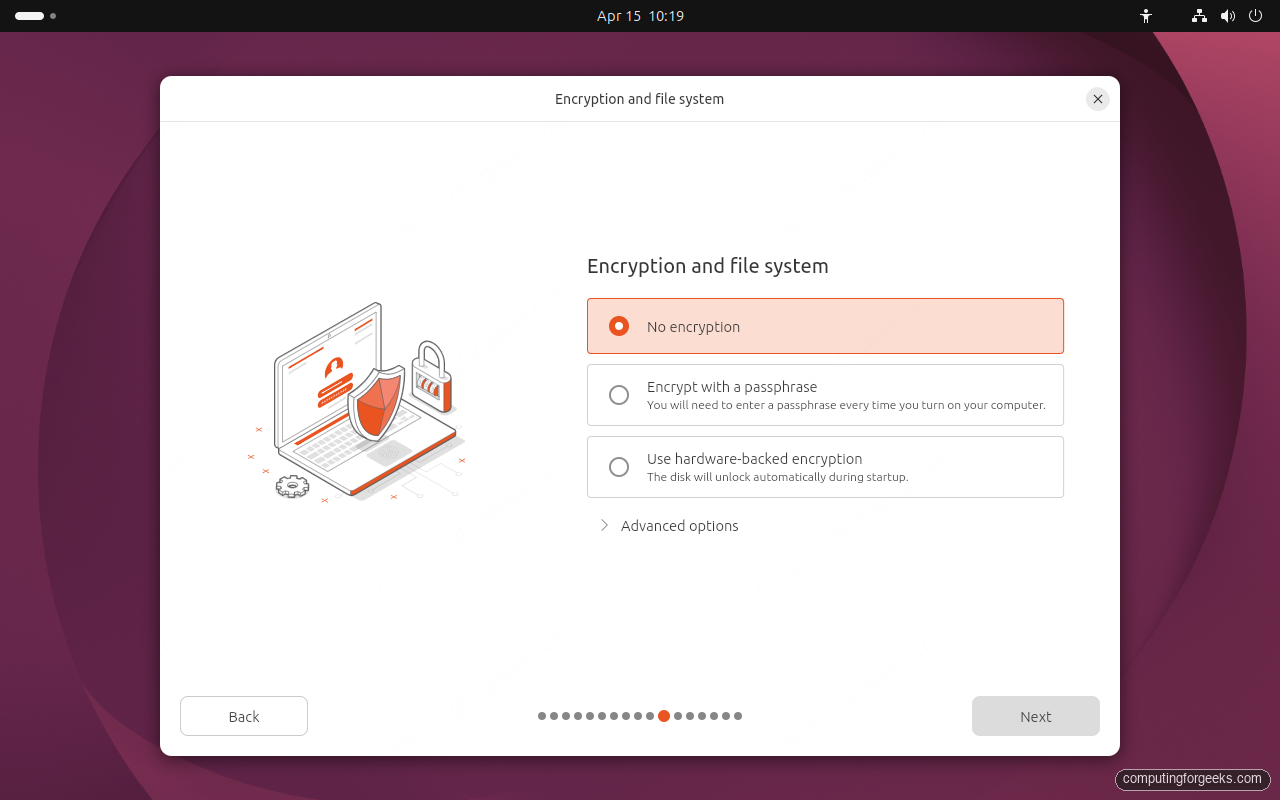
Under “Advanced options” you can also switch the filesystem to ZFS, which exposes snapshots through zsys. ZFS-on-root is fully supported as of 26.04 but most users stay on ext4.
Step 12 – Create Your Account
Fill in your full name, a hostname for the machine, a short username, and a password. The hostname is what identifies the box on your LAN and in /etc/hostname. The username becomes your home directory name under /home and your default sudo account.
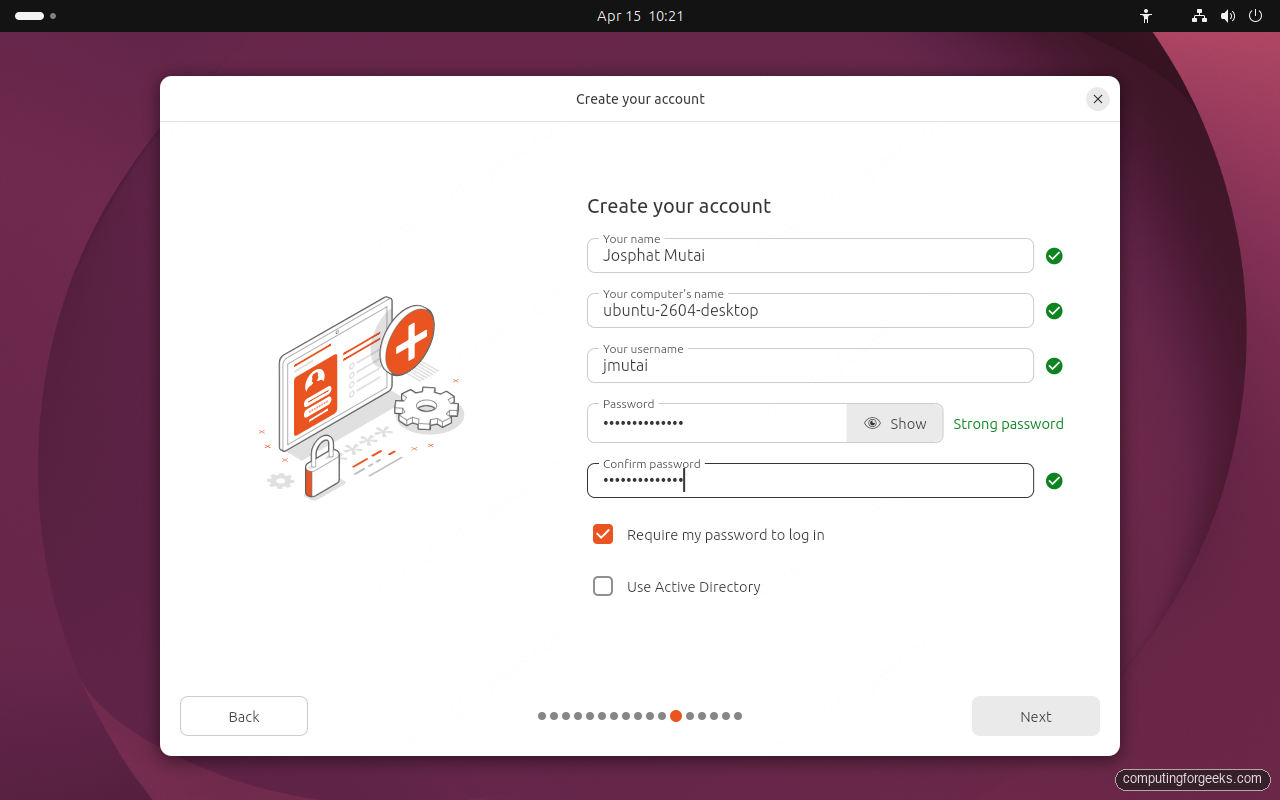
Two checkboxes under the form are worth noting. Require my password to log in is on by default; turning it off enables auto-login and is a bad idea on any portable device. Use Active Directory joins the machine to an AD domain at first boot, provisioning a domain-user home directory instead of a local one.
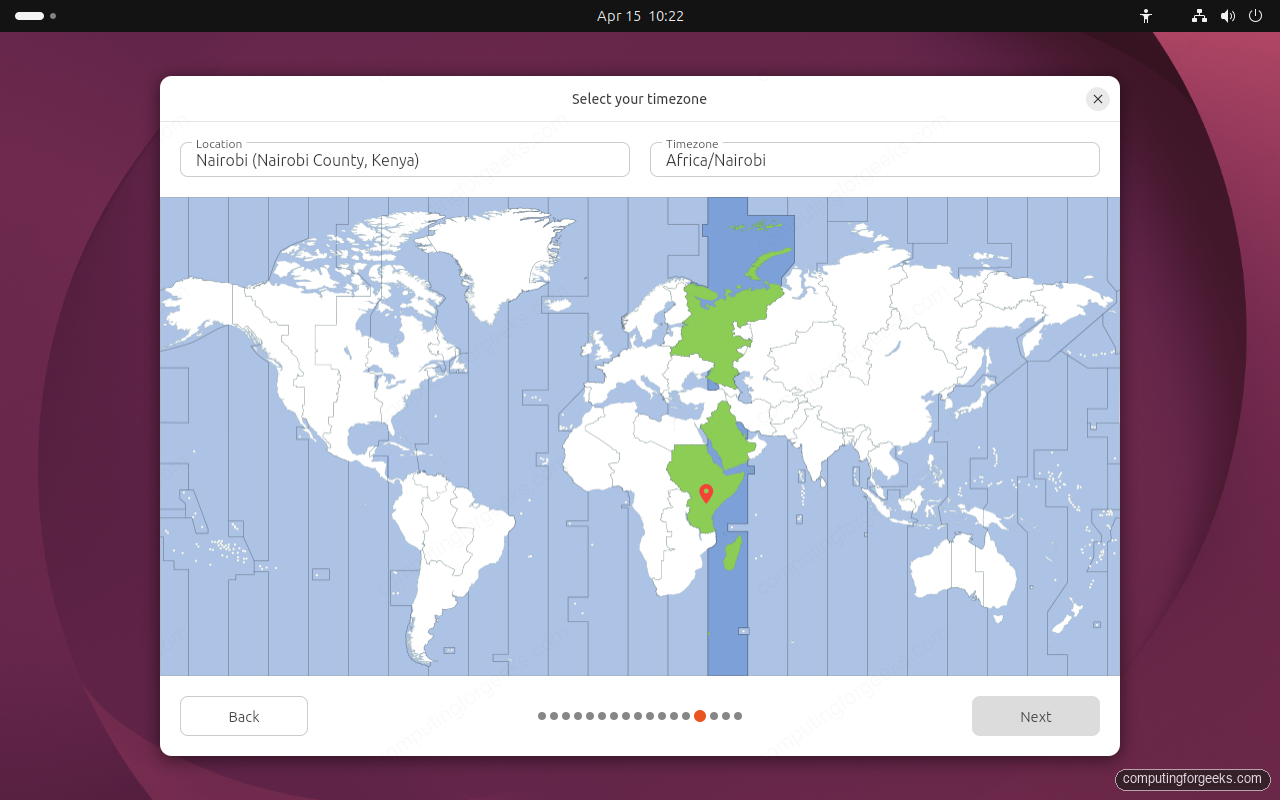
Step 13 – Select Your Timezone
The installer pings a geo-IP service to pre-select your timezone. Confirm the city and region, or click the map to pick a different one. This sets /etc/localtime and systemd-timedated; time itself syncs from pool.ntp.org via systemd-timesyncd after first boot.
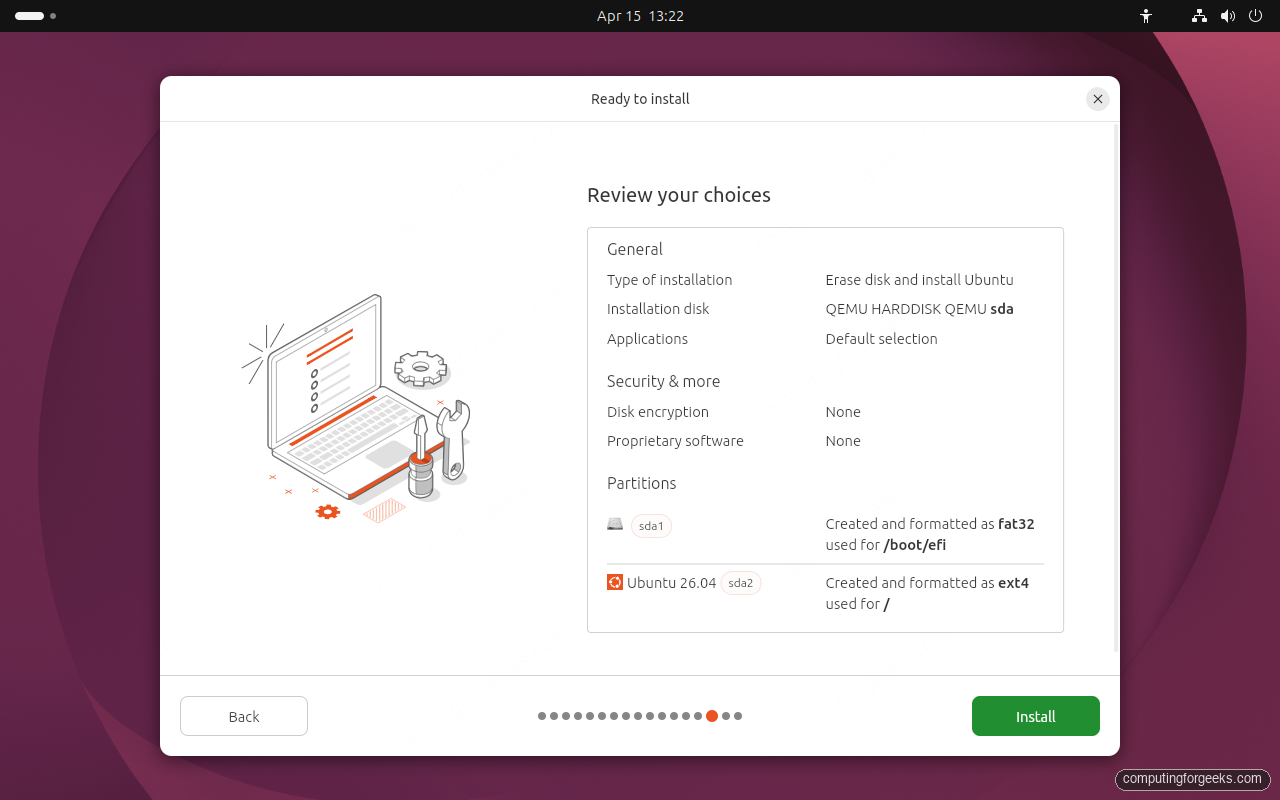
Step 14 – Review Your Choices
The summary screen is the last chance to go back. Verify the install type, target disk, security choices, partition layout, and app selection before clicking the green Install button. Once you proceed, the target disk is wiped; there is no undo after this.
Step 15 – Installation Progress
Once you click Install, the Flutter installer writes partitions, extracts the squashfs root, configures GRUB, seeds initial snaps, and runs first-boot hooks while showing a slideshow of Ubuntu features. On fast NVMe hardware this phase lands in 8 to 15 minutes. On spinning disks or heavily-contended virtualisation storage expect 30 to 45 minutes, most of it spent on snap seeding. Do not close the window or power-cycle the machine during this phase.
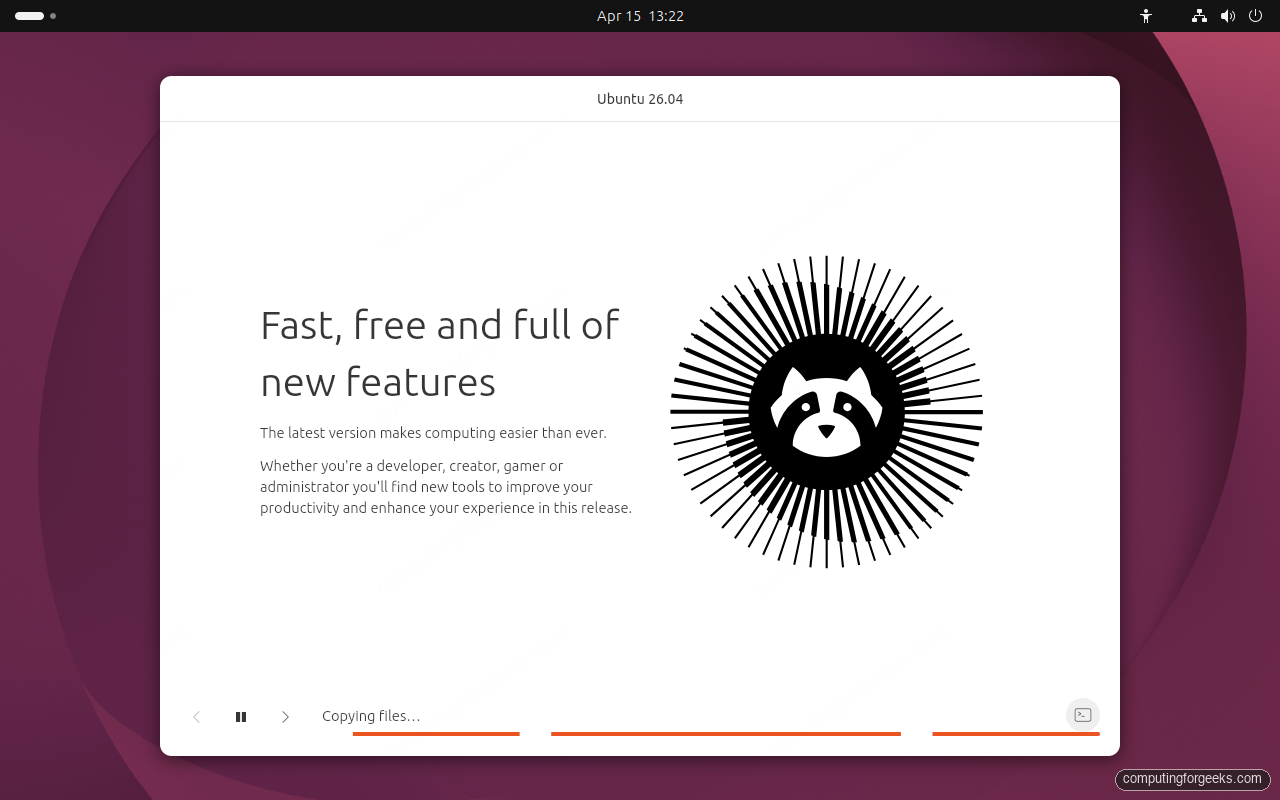
When the install completes, the installer prompts you to remove the USB drive and reboot. Eject the media and click Restart.
First Boot – Login Screen
After reboot the system comes up to the GDM greeter with your username pre-filled. The Ubuntu 26.04 login screen keeps the clean dark-tone greeter from 24.10, with a minimal user tile, accessibility shortcut at the bottom right, and the Ubuntu logotype anchoring the screen.
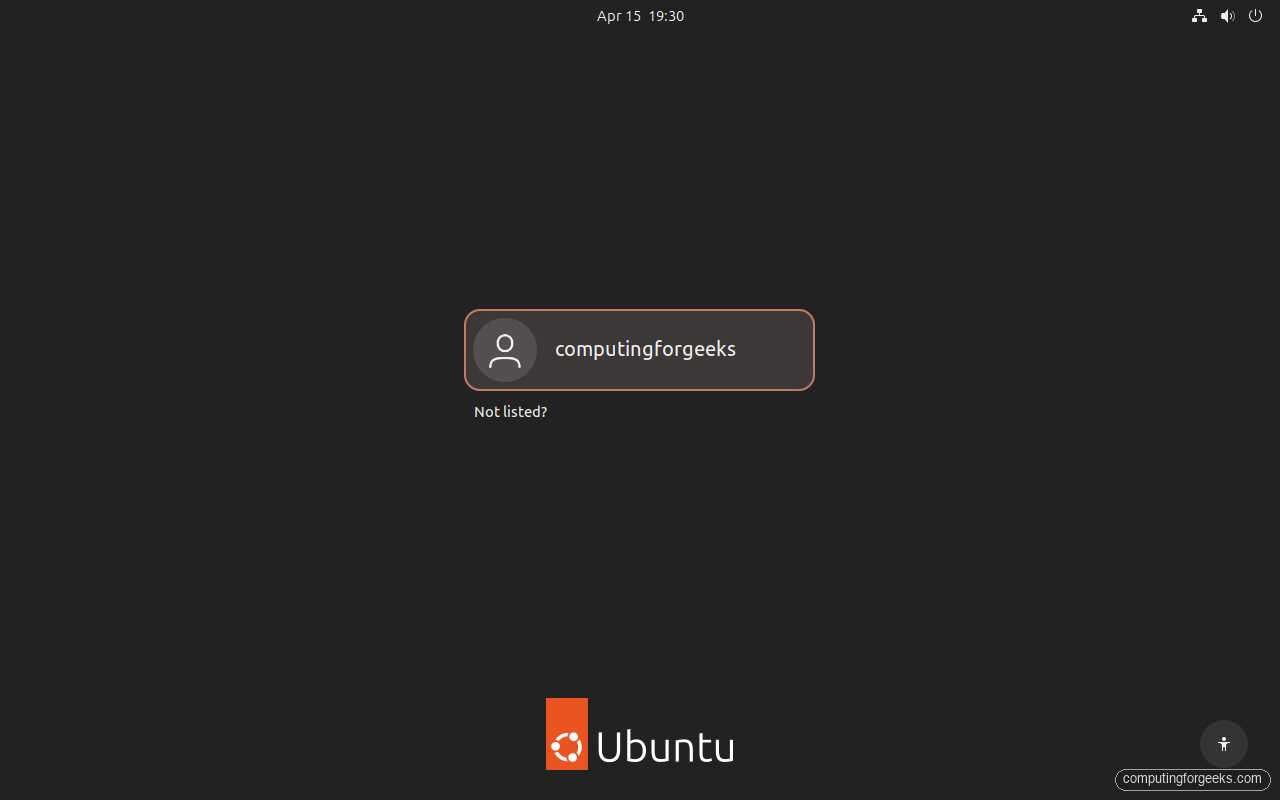
Enter your password and press Enter. The default session is GNOME 50 on Wayland; there is no Xorg session shipped in the LTS.
First Boot – Welcome to Resolute Raccoon
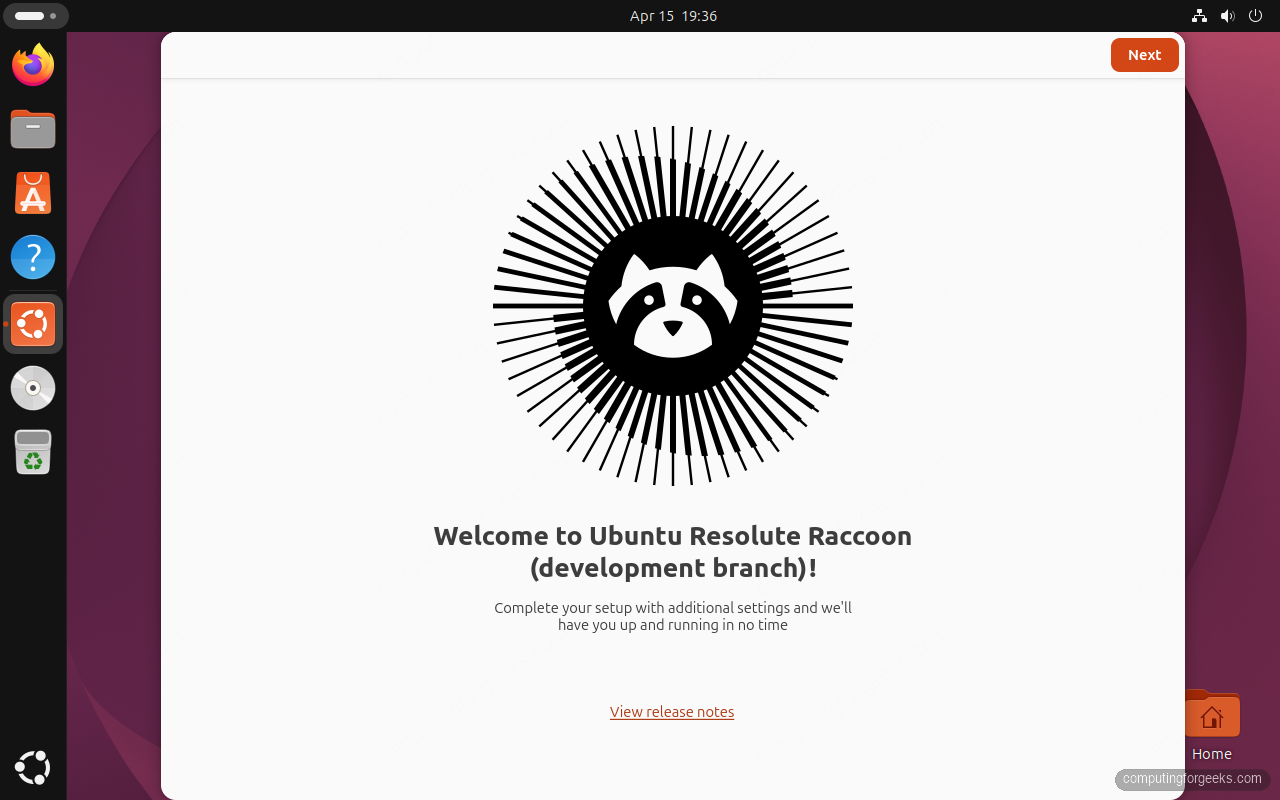
The first time you log in, the Ubuntu welcome tour greets you with the release mascot. The tour walks through Ubuntu Pro enrolment, telemetry opt-in, default apps, and appearance settings. You can step through it or skip it and revisit everything later in Settings.
The GNOME 50 Desktop
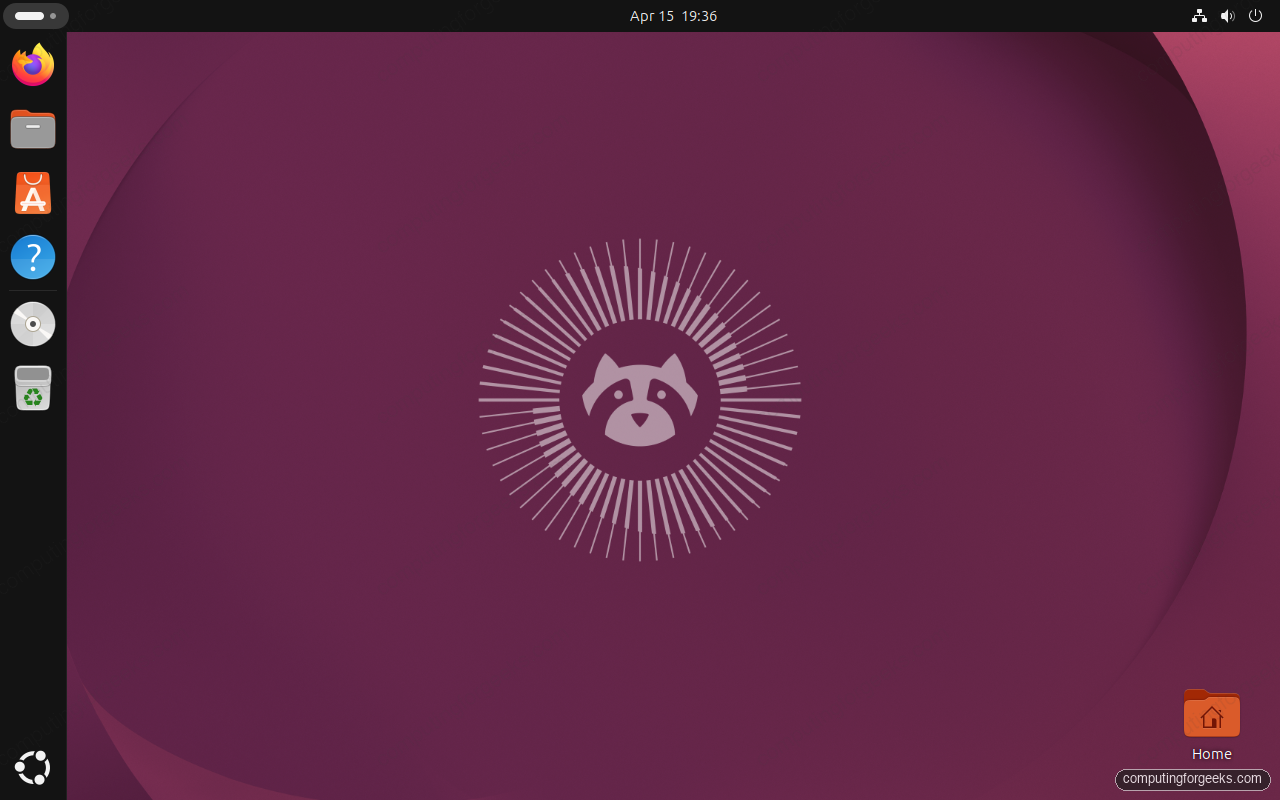
After dismissing the tour you land on the GNOME 50 desktop. The left dock holds Files, Firefox, Thunderbird, Rhythmbox, and the applications grid. The top bar hosts the calendar, system indicators, and the settings menu. Default wallpaper for 26.04 is the “Resolute Raccoon” artwork, a warm purple gradient with the mascot sunburst centred.
Verify the Installed Release
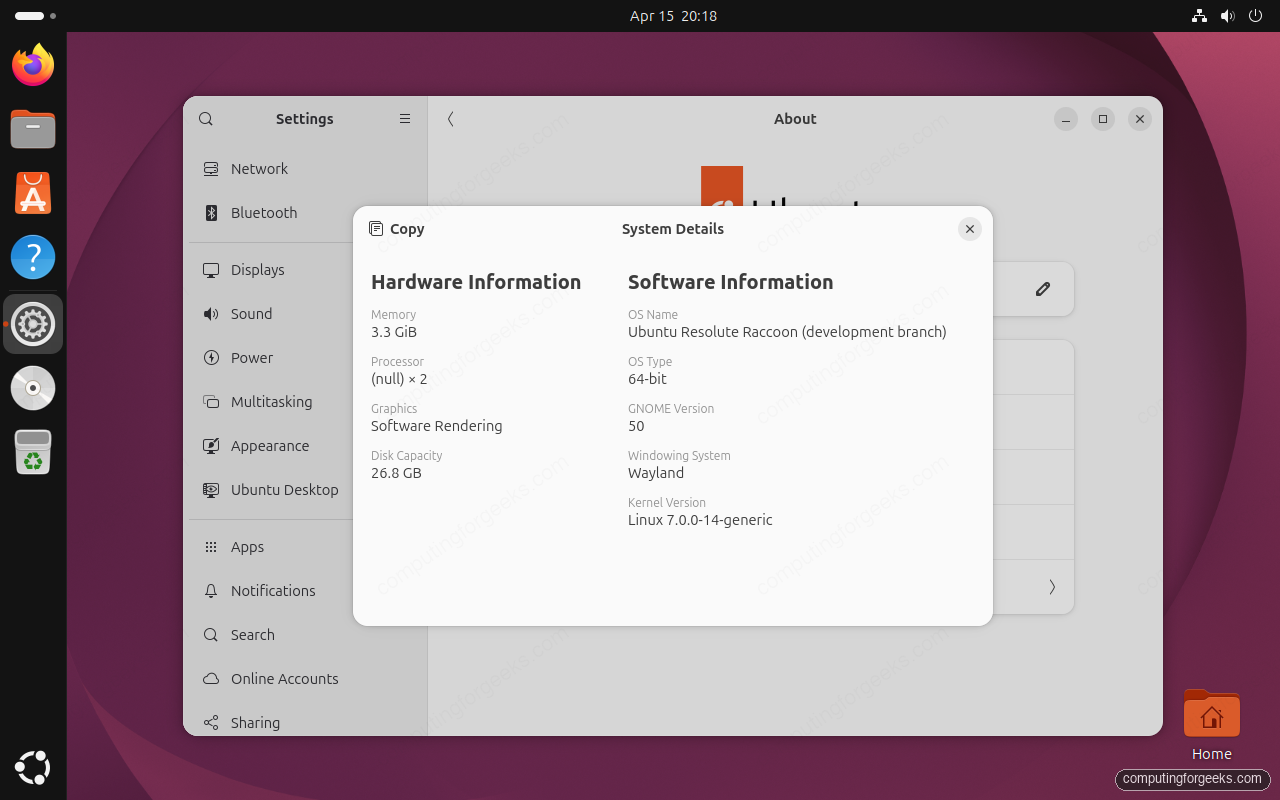
Open Settings and scroll to the bottom of the sidebar. The About panel confirms the installed release, hostname, installed memory, disk size, and graphics.
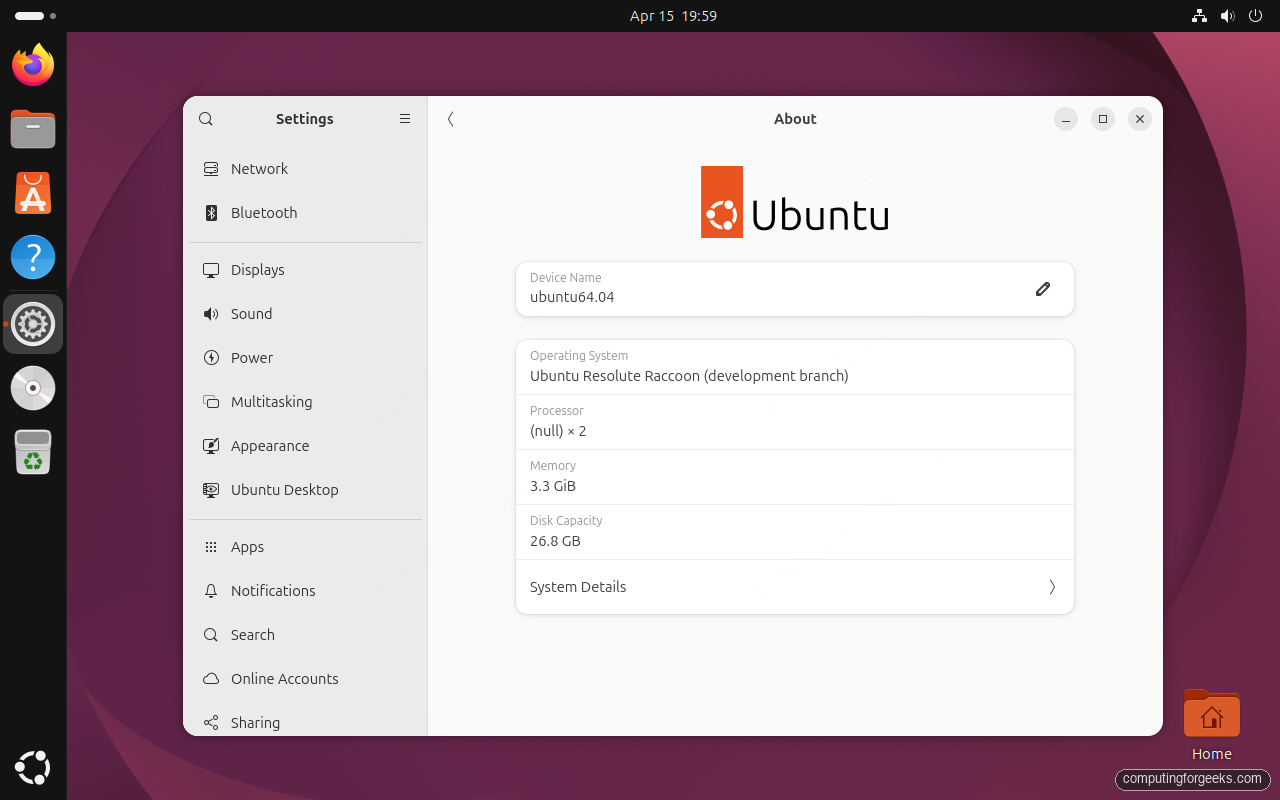
Click System Details for the full hardware/software breakdown. This reveals the kernel version, windowing system, firmware, and virtualisation status.
Prefer the terminal? Two commands give you the same information:
lsb_release -aThe output confirms you are on 26.04:
No LSB modules are available.
Distributor ID: Ubuntu
Description:    Ubuntu 26.04 LTS
Release:        26.04
Codename:       resolute
Check the running kernel:
uname -rOn a fresh 26.04 Beta install the kernel reports as:
7.0.0-14-genericWhat To Do Right After the Install
Before customising the desktop, apply any outstanding updates so you are on the latest security patches. The Software Updater will prompt you within the first hour, but the terminal route is faster.
sudo apt update && sudo apt full-upgrade -yReboot if the kernel or systemd was updated:
sudo systemctl rebootFrom here, common next steps include installing codec packs, flipping GNOME to dark mode, setting up a developer toolchain, or enabling SSH for remote access. Depending on what you plan to use the machine for, those choices can differ wildly – a laptop gets tuned for power savings and Wi-Fi; a workstation gets dev tools; a home-lab box gets SSH and Docker.
If you plan to run server workloads on this machine, the Docker CE install guide for Ubuntu 26.04 and the initial server setup walkthrough are good follow-ups.
Troubleshooting
Installer stuck on “Setting up the system…”
On slow storage (spinning disks, contended SAN, oversubscribed VM hosts) the final snap-seeding and first-boot-hook phase can legitimately take 45 minutes or more while the slideshow appears frozen. Confirm the installer is still working by checking CPU usage on the host – if the qemu/VirtualBox process is still consuming CPU, leave it alone. Power-cycling during this phase almost always leaves you with a broken GRUB.
Proxmox VM boots to black screen after install
Ubuntu 26.04 defaults to Wayland on GNOME 50. On Proxmox, set the display to virtio (not the legacy std) and give the VM cpu=host so kernel 7.0 sees the CPU flags it expects. Without these two settings you get either a black screen or an unusable 800×600 framebuffer on first boot.
“Error: no such device” at GRUB after an encrypted install
This happens when the firmware boots the install drive from the legacy BIOS path instead of the EFI path. Enter firmware setup, pick the “UBUNTU” EFI entry as the primary boot option, and reboot. The installer always writes a valid EFI stub; the firmware just needs to be told to use it.
Wi-Fi not detected on laptops with Broadcom or Realtek chips
If you skipped the proprietary software checkbox at Step 9, the closed-source firmware for some chipsets was not installed. Plug in over Ethernet, then run:
sudo ubuntu-drivers installThis pulls the right firmware and reloads the relevant kernel module. Reboot and Wi-Fi should appear in the network indicator.
Wrap Up
That is the full Ubuntu 26.04 LTS (Resolute Raccoon) desktop install, from ISO to a working GNOME 50 session running on kernel 7.0 with Wayland. The Flutter-based installer is the biggest quality-of-life improvement in this cycle – faster to navigate, clearer on the consequences of each choice, and more honest about what the automation paths actually do. Keep the guide tab open for your next install; the screens barely change between the Beta, Release Candidate, and final GA builds.
Where to Go Next
The install is just the starting line. From here, the path forks based on what the machine is for. For a workstation, run through the initial setup and hardening walkthrough, then add a developer toolchain: Docker CE, Node.js, Python 3.14, Go 1.26, or Rust. For a server, pick a stack: Nginx with Let’s Encrypt, PostgreSQL 18, LEMP, LAMP, or container platforms like Kubernetes (kubeadm) and K3s. To lock the box down before exposing it, work through the full hardening guide, enable UFW, and add Fail2ban plus AppArmor. The Ubuntu 26.04 server post-install checklist walks through the first-hour setup tasks every new server needs. The full features guide covers everything that changed in this release.






