MariaDB 12.0 is the latest rolling release branch of the popular open-source relational database, built as a drop-in replacement for MySQL. It introduces UCA 14.0 collation defaults, SYS_REFCURSOR support, SET SESSION AUTHORIZATION, new GIS functions, multi-event triggers, and ships with Galera 26.4.23 for clustering. See the official MariaDB 12.0 release notes for the full changelog.
This guide walks through installing MariaDB 12.0 on Debian 13 (Trixie) and Debian 12 (Bookworm) from the official MariaDB repository. We cover repository setup, package installation, secure initialization, firewall configuration, remote access, and basic database operations. MariaDB 12.0 follows a rolling release model – it is not an LTS branch, so plan upgrades accordingly for production workloads.
Prerequisites
- A server running Debian 13 (Trixie) or Debian 12 (Bookworm)
- Root or sudo access
- At least 1 GB RAM (2 GB recommended for production)
- Port 3306/TCP open if allowing remote connections
Step 1: Update System Packages
Start by updating the package index and upgrading installed packages to their latest versions.
sudo apt update && sudo apt upgrade -yStep 2: Add MariaDB 12.0 Official Repository
Debian ships with an older MariaDB version in its default repositories. To get MariaDB 12.0, add the official MariaDB repository using the automated setup script.
curl -LsS https://r.mariadb.com/downloads/mariadb_repo_setup | sudo bash -s -- --mariadb-server-version=mariadb-12.0The script adds the MariaDB APT repository and GPG key. However, it also adds MaxScale repository lines which are not yet supported on Trixie. Remove them and refresh the package list.
sudo sed -i '/maxscale/,$d' /etc/apt/sources.list.d/mariadb.list
sudo apt-get update
Step 3: Install MariaDB 12.0 on Debian
Install the MariaDB server, client, and backup packages.
sudo apt install mariadb-server mariadb-client mariadb-backup -yThis installs the MariaDB 12.0 server daemon, the command-line client, and mariadb-backup for physical backups (Mariabackup). If you need a graphical interface for database management, consider setting up phpMyAdmin on Debian.
Step 4: Start and Enable MariaDB Service
MariaDB should start automatically after installation. Enable the service so it starts on boot, then verify it is running.
sudo systemctl enable --now mariadbCheck the service status to confirm MariaDB is active and running.
systemctl status mariadbThe output should show the service as active (running) with the MariaDB 12.0.2 version string:
● mariadb.service - MariaDB 12.0.2 database server
     Loaded: loaded (/usr/lib/systemd/system/mariadb.service; enabled; preset: enabled)
     Active: active (running)
Step 5: Verify MariaDB 12.0 Installation
Confirm the installed version by connecting to the MariaDB server.
mariadb --versionYou should see version 12.0.2 confirmed in the output:
mariadb from 12.0.2-MariaDB, client 15.2 for debian-linux-gnu (x86_64) using EditLine wrapper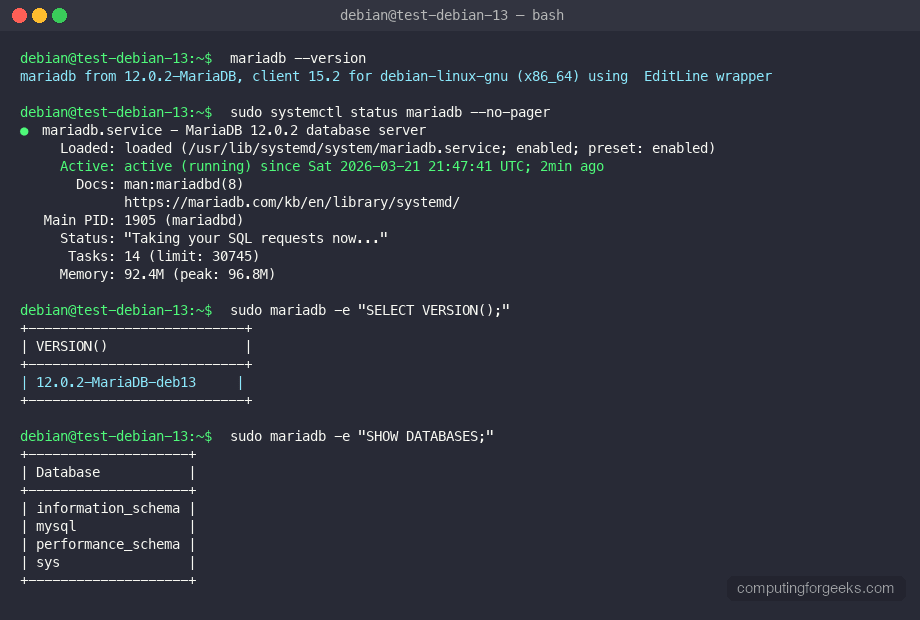
Step 6: Secure MariaDB Installation
Run the security script to set a root password, remove anonymous users, disable remote root login, and drop the test database.
sudo mariadb-secure-installationAnswer the prompts as follows for a production-ready setup:
- Enter current password for root – press Enter (blank by default)
- Switch to unix_socket authentication – Y (recommended)
- Change the root password – Y, then set a strong password
- Remove anonymous users – Y
- Disallow root login remotely – Y
- Remove test database – Y
- Reload privilege tables now – Y
Step 7: Connect to MariaDB Server
Log into the MariaDB shell as root using unix socket authentication.
sudo mariadbAt the MariaDB prompt, verify the server version and connection details:
MariaDB [(none)]> SELECT VERSION();
+---------------------+
| VERSION()           |
+---------------------+
| 12.0.2-MariaDB-deb13|
+---------------------+
1 row in set (0.000 sec)
Step 8: Create a Database and User
Create a new database, a dedicated user with a password, and grant full privileges on that database. Replace the database name, username, and password with your own values.
MariaDB [(none)]> CREATE DATABASE app_db;
Query OK, 1 row affected (0.001 sec)

MariaDB [(none)]> CREATE USER 'app_user'@'localhost' IDENTIFIED BY 'StrongPassword123!';
Query OK, 0 rows affected (0.003 sec)

MariaDB [(none)]> GRANT ALL PRIVILEGES ON app_db.* TO 'app_user'@'localhost';
Query OK, 0 rows affected (0.002 sec)

MariaDB [(none)]> FLUSH PRIVILEGES;
Query OK, 0 rows affected (0.001 sec)

MariaDB [(none)]> EXIT;
For replication setups, see how to configure MariaDB replication on Debian for master-slave or multi-master topologies.
Step 9: Configure MariaDB for Remote Access
By default, MariaDB 12.0 listens only on 127.0.0.1. To allow connections from remote hosts, edit the server configuration file.
sudo vi /etc/mysql/mariadb.conf.d/50-server.cnfFind the bind-address directive under the [mysqld] section and change it to listen on all interfaces, or a specific IP:
[mysqld]
# Listen on all interfaces (use a specific IP in production)
bind-address = 0.0.0.0
Restart MariaDB to apply the change.
sudo systemctl restart mariadbVerify MariaDB is now listening on all interfaces:
ss -tlnp | grep 3306The output should show MariaDB listening on 0.0.0.0:3306:
LISTEN 0 80 0.0.0.0:3306 0.0.0.0:* users:(("mariadbd",pid=12345,fd=20))You also need to create a user that can connect from a remote host. Replace 10.0.1.50 with the client IP or use % for any host (less secure).
sudo mariadb -e "CREATE USER 'remote_user'@'10.0.1.50' IDENTIFIED BY 'SecurePass456!'; GRANT ALL ON app_db.* TO 'remote_user'@'10.0.1.50'; FLUSH PRIVILEGES;"Step 10: Configure Firewall for MariaDB
If you enabled remote access, open port 3306/TCP in your firewall. Debian uses nftables by default, but iptables is also common. Use whichever matches your setup.
Using nftables
Add a rule to allow MariaDB traffic from a specific subnet:
sudo nft add rule inet filter input tcp dport 3306 ip saddr 10.0.1.0/24 acceptTo make this rule persistent across reboots, save the current ruleset:
sudo nft list ruleset | sudo tee /etc/nftables.confUsing iptables
If you use iptables instead, allow port 3306 from a trusted network:
sudo iptables -A INPUT -p tcp --dport 3306 -s 10.0.1.0/24 -j ACCEPT
sudo iptables-save | sudo tee /etc/iptables/rules.v4
Step 11: Configure MariaDB Performance Tuning
The default MariaDB configuration works for development but needs tuning for production. Edit the server configuration file to adjust key settings.
sudo vi /etc/mysql/mariadb.conf.d/50-server.cnfAdd or modify these settings under the [mysqld] section. Adjust values based on your available RAM:
[mysqld]
# InnoDB buffer pool - set to 50-70% of available RAM
innodb_buffer_pool_size = 1G

# Log file size - larger means better write performance but longer recovery
innodb_log_file_size = 256M

# Maximum connections - adjust based on application needs
max_connections = 200

# Query cache is removed in newer versions, use ProxySQL for caching
# Slow query log for identifying problematic queries
slow_query_log = ON
slow_query_log_file = /var/log/mysql/mariadb-slow.log
long_query_time = 2
Restart MariaDB to apply the new settings:
sudo systemctl restart mariadbStep 12: Set Up Automated Backups
Regular backups are critical for any database. Use mariadb-dump for logical backups or mariabackup for physical backups. Here is a simple script using mariadb-dump to back up all databases daily.
sudo mkdir -p /var/backups/mariadbCreate a backup script:
sudo vi /usr/local/bin/mariadb-backup.shAdd the following content:
#!/bin/bash
BACKUP_DIR="/var/backups/mariadb"
DATE=$(date +%Y%m%d_%H%M%S)
mariadb-dump --all-databases --single-transaction --routines --triggers > "$BACKUP_DIR/all_databases_$DATE.sql"
find "$BACKUP_DIR" -name "*.sql" -mtime +7 -delete
Make the script executable and add a cron job to run it daily at 2 AM:
sudo chmod +x /usr/local/bin/mariadb-backup.sh
echo "0 2 * * * root /usr/local/bin/mariadb-backup.sh" | sudo tee /etc/cron.d/mariadb-backup
For offsite backups, you can back up MySQL/MariaDB databases to Amazon S3 for disaster recovery.
Step 13: Monitor MariaDB Server
Check key server metrics to make sure MariaDB is running smoothly.
sudo mariadb -e "SHOW GLOBAL STATUS LIKE 'Threads_connected';"This shows the number of currently connected threads:
+-------------------+-------+
| Variable_name     | Value |
+-------------------+-------+
| Threads_connected | 1     |
+-------------------+-------+
Check the InnoDB buffer pool hit ratio to verify memory is being used efficiently:
sudo mariadb -e "SHOW GLOBAL STATUS LIKE 'Innodb_buffer_pool_read%';"For production environments, set up proper monitoring with Prometheus and MySQL/MariaDB exporter to track query performance, replication lag, and resource usage over time.
MariaDB 12.0 Key Features
MariaDB 12.0 brings several improvements over previous releases. Here is a summary of the notable changes:
| Feature | Description |
|---|---|
| Rolling release model | Not an LTS branch – receives frequent updates with new features |
| UCA 14.0 collation | New default Unicode Collation Algorithm for improved sorting accuracy |
| SYS_REFCURSOR | Oracle-compatible cursor support in stored procedures |
| SET SESSION AUTHORIZATION | Change the effective user within a session without reconnecting |
| New GIS functions | Additional spatial/geographic analysis functions |
| Multi-event triggers | Single trigger can fire on multiple events (INSERT, UPDATE, DELETE) |
| Galera 26.4.23 | Updated Galera cluster library for synchronous replication |
If you are running a LAMP stack on Debian, upgrading to MariaDB 12.0 gives you better Unicode handling and improved stored procedure compatibility with Oracle workloads.
Conclusion
MariaDB 12.0 is now installed and running on your Debian system. We covered repository setup, installation, security hardening, remote access configuration, firewall rules, performance tuning, backups, and basic monitoring. For production deployments, enable SSL/TLS encryption for client connections, set up MariaDB replication for high availability, or the full Galera HA build, and implement regular backup verification to ensure data recoverability.