The default version of Tailscale client package available in pfSense package repository may be older that the latest release in FreeBSD repositories. In this guide, we will provide a hack on the installation of the latest Tailscale Client Package on pfSense. The FreeBSD Ports Collection is another method for installing from source but we didn’t test this.
Step 1: Enable SSH access
Login to your pfSense web console and go to System > Advanced.

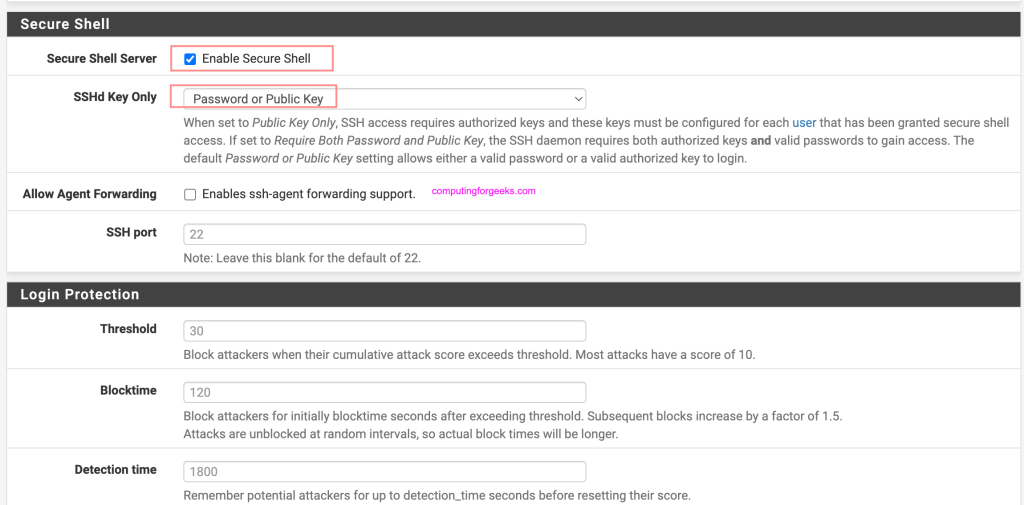
Under Admin Access there is “Secure Shell” section. Tick the box to enable the service and select authentication methods.
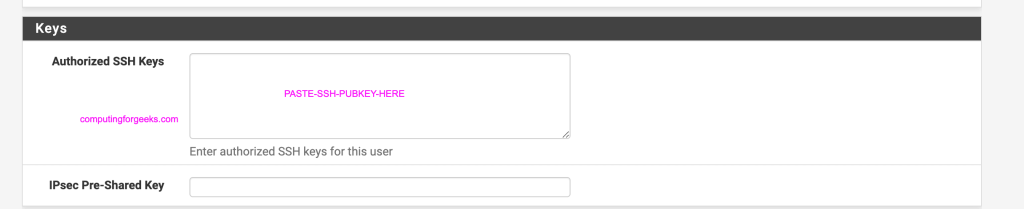
For ssh key authentication, add ssh key for the user under System > User Manager, click on the name of the user e.g admin and paste your SSH public key.
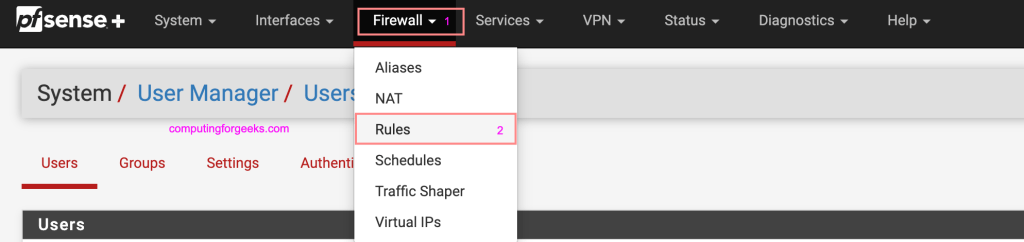
Go to Firewall > Rules > (WAN/LAN) depending your setup and traffic flow and allow incoming traffic for SSH.
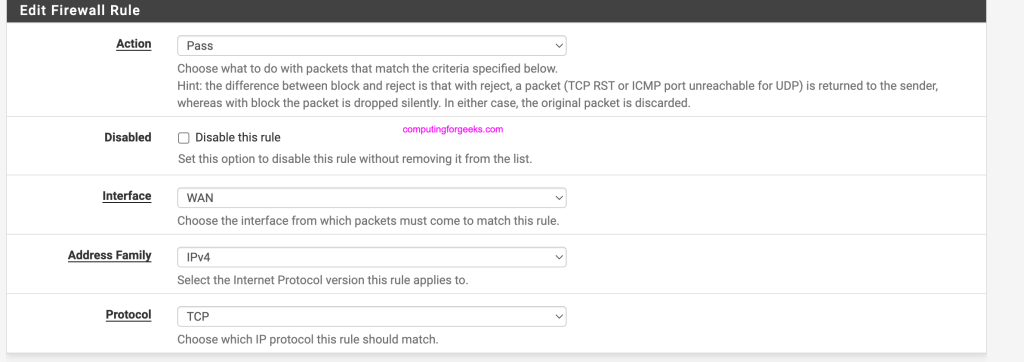
Add new rule that allows incoming traffic on port 22 (SSH). Protocol is TCP
Destination port should be 22.
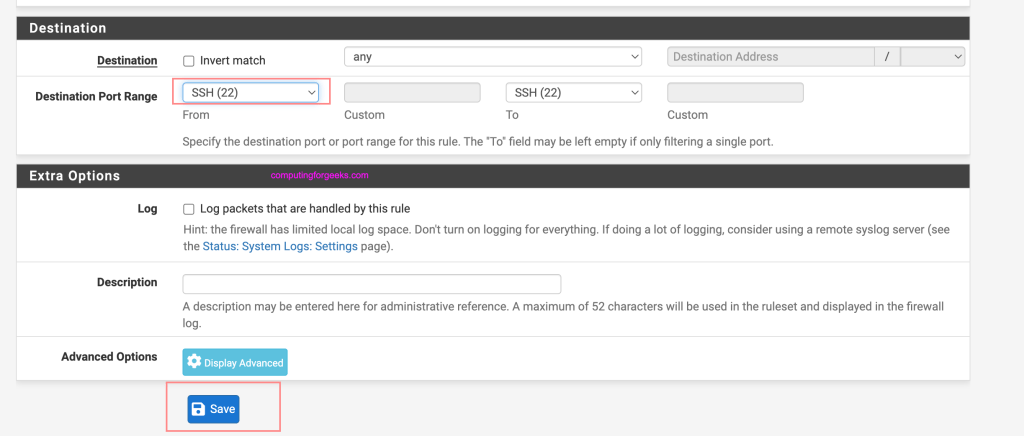
Save and apply the rules.

Step 2: Uninstall old Tailscale package
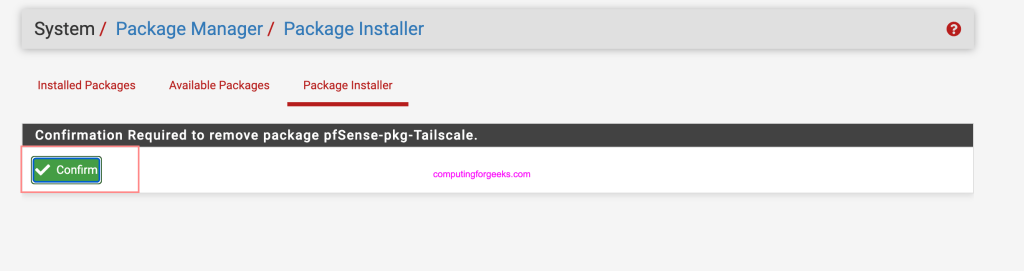
Go to System > Package Manager > Installed Packages to remove older installation of Tailscale.
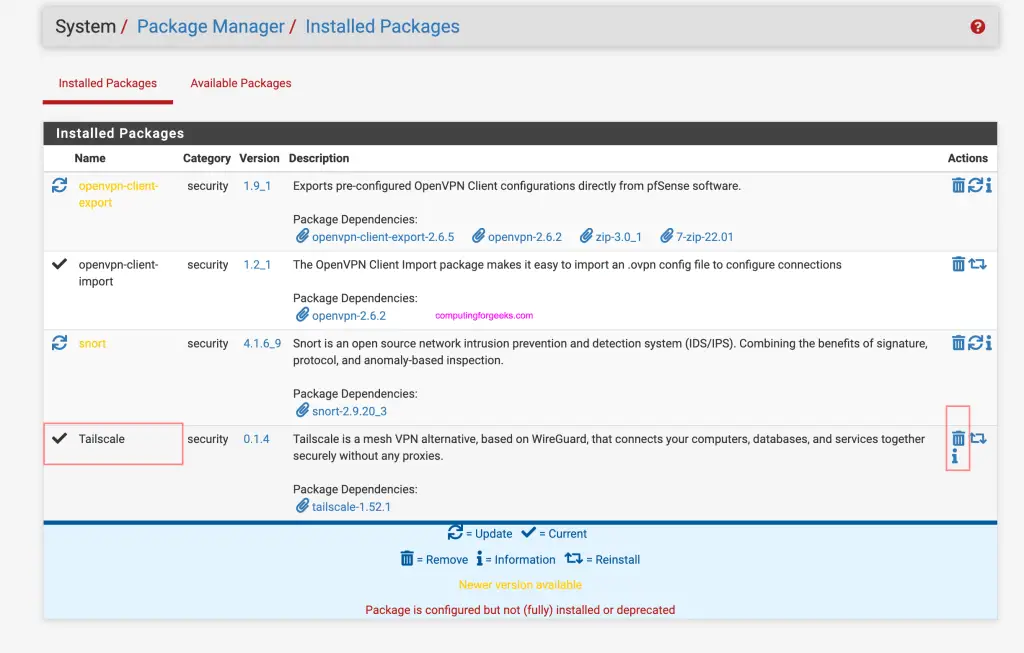
Confirm package removal.
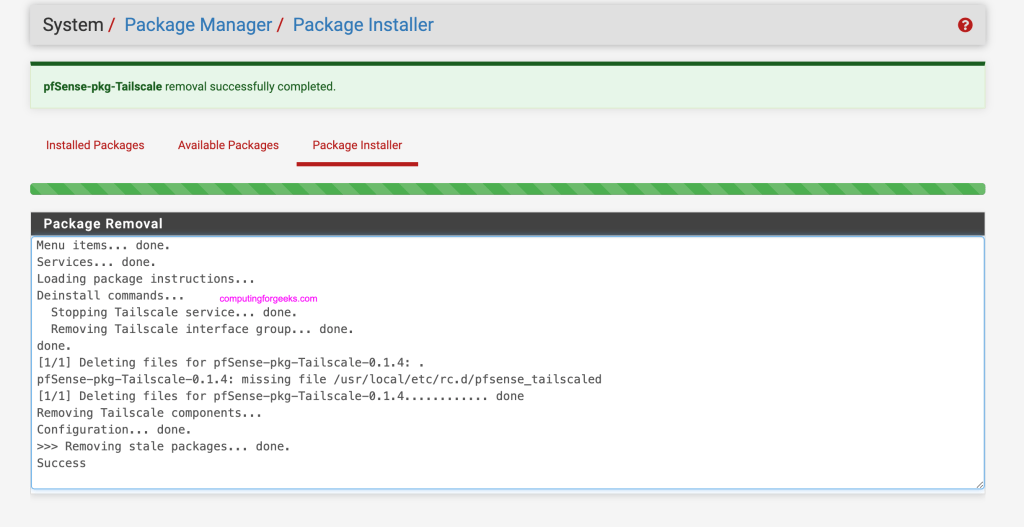
If successful you’ll get a message like below.
Step 3: Upgrade pfSense packages
Login to your pfSense server
$ ssh admin@pfSenseIP
Enter passphrase for key '/Users/jmutai/.ssh/id_rsa':
Select option 8 to start new shell session.
Netgate 2100                             Netgate Device ID: yyyyyyyy
Serial: xxxxxxxx                         Netgate Crypto ID: zzzzzzz

*** Welcome to Netgate pfSense Plus 23.05.1-RELEASE (arm64) on pfSense ***

 Current Boot Environment:  default
    Next Boot Environment:  default

 WAN (wan)       -> mvneta0    -> v4: pfSenseIP/30
 LAN (lan)       -> mvneta1    -> v4: 192.168.89.1/24

 0) Logout (SSH only)                  9) pfTop
 1) Assign Interfaces                 10) Filter Logs
 2) Set interface(s) IP address       11) Restart webConfigurator
 3) Reset webConfigurator password    12) PHP shell + Netgate pfSense Plus tools
 4) Reset to factory defaults         13) Update from console
 5) Reboot system                     14) Disable Secure Shell (sshd)
 6) Halt system                       15) Restore recent configuration
 7) Ping host                         16) Restart PHP-FPM
 8) Shell

Enter an option: 8
Run the following commands to perform an upgrade.
# pkg-static upgrade -f
...
Number of packages to be installed: 9
Number of packages to be upgraded: 85
Number of packages to be reinstalled: 94

The process will require 392 MiB more space.
352 MiB to be downloaded.

Proceed with this action? [y/N]: y
Consider doing a system reboot if the upgrade was successful.
rebootStep 4: Install latest Tailscale release
Search for the latest Tailscale pkg file to download for your CPU architecture.
# ARM Architecture example
pkg add https://pkg.freebsd.org/FreeBSD:12:aarch64/quarterly/All/tailscale-1.56.0.pkg

# Intel 64-bit example
pkg add https://pkg.freebsd.org/FreeBSD:12:aarch64/quarterly/All/tailscale-1.56.1.pkg
Expected installation output:
Fetching tailscale-1.56.1.pkg: 100%    9 MiB   9.5MB/s    00:01
Installing tailscale-1.56.1...
Extracting tailscale-1.56.1: 100%
If you encounter an error “pkg: wrong architecture: FreeBSD:12:amd64 instead of FreeBSD:14:amd64“.
Fetching tailscale-1.56.1.pkg: 100%    9 MiB   9.5MB/s    00:01
Installing tailscale-1.56.1...
pkg: wrong architecture: FreeBSD:12:amd64 instead of FreeBSD:14:amd64
We need to change FreeBSD version for pfSense temporarily on the file below.
# cat /usr/local/etc/pkg.conf
ABI=FreeBSD:14:aarch64
ALTABI=freebsd:14:aarch64:64
PKG_ENV {
	SSL_CA_CERT_FILE=/etc/ssl/netgate-ca.pem
	SSL_CLIENT_CERT_FILE=/usr/local/etc/pfSense/pkg/repos/pfSense-repo-23_09_1_rel-cert.pem
	SSL_CLIENT_KEY_FILE=/usr/local/etc/pfSense/pkg/repos/pfSense-repo-23_09_1_rel-key.pem
}
Update using sed
cp /usr/local/etc/pkg.conf .
sed -i .bak 's/FreeBSD:14/FreeBSD:12/g' /usr/local/etc/pkg.conf
sed -i .bak 's/freebsd:14/freebsd:12/g' /usr/local/etc/pkg.conf
Now retry package installation.
Fetching tailscale-1.56.0.pkg: 100%    8 MiB   2.8MB/s    00:03
Installing tailscale-1.56.0...
Extracting tailscale-1.56.0: 100%
Restore pkg.conf file when done.
cp pkg.conf /usr/local/etc/pkg.confLogout and back in
exitOnce logged in back start and enable tailscale service.
# service tailscaled enable
tailscaled enabled in /etc/rc.conf

# service tailscaled start
Step 5: Join pfSense to Tailscale / Headscale
This installation doesn’t come with UI as described in our previous article:
See example below on how to join pfSense to Headscale
tailscale up --login-server https://vpn.example.net:443 --authkey <AUTH-KEY> --accept-routes --force-reauth --advertise-routes=192.168.90.0/24Where:
- https://vpn.example.net:443 is the URL address of Headscale server installation. See Install and Configure Headscale on Ubuntu
- <AUTH-KEY> is replace with actual Headscale authentication key you generated.
- 192.168.90.0/24 is an example of local pfSense subnet to be exposed.
If successful you should see other devices in the mesh using status command.
# tailscale status
fd7a:115c:a1e0::a pfsense-2llf0luh     jmutai      freebsd -
fd7a:115c:a1e0::2 my-macbook-pro jmutai      macOS   offline
fd7a:115c:a1e0::4 deb12                jmutai      linux   offline
fd7a:115c:a1e0::3 fw01                 jmutai      freebsd offline
fd7a:115c:a1e0::5 jammy                jmutai      linux   offline
fd7a:115c:a1e0::8 opnsense             jmutai      freebsd -
fd7a:115c:a1e0::1 pfsense-gulled       jmutai      freebsd idle; offers exit node
fd7a:115c:a1e0::6 pfsense              jmutai      freebsd -
fd7a:115c:a1e0::9 t16                  jmutai      windows offline
fd7a:115c:a1e0::7 techwizpro           jmutai      macOS   -
We have successfully installed the more recent Tailscale client on pfSense firewall.