

NetworkManager runs your network stack on most Ubuntu Desktop and Debian Desktop installs, and it’s available as an optional service on Ubuntu Server and Debian Server. nmcli is the CLI front-end. Once you learn it, you don’t need a GUI to add a static IP, spin up a VLAN, build a bridge, or swap DNS resolvers on the fly. It also reads the same config the desktop tools write, which means a setting you make over SSH survives a reboot and shows up in the tray applet unchanged.
This guide covers the whole nmcli surface on current Ubuntu and Debian: installing NetworkManager where it isn’t there yet, listing connections and devices, creating static ethernet profiles, routing, DNS, VLAN, bridge, bond, WiFi, and the gotchas that trip people up on headless servers (where running nmcli con down on the wrong NIC will lock you out).
Tested April 2026 on Debian 13 (trixie) with NetworkManager 1.52.1. Commands also apply to Ubuntu 24.04 LTS, Ubuntu 26.04 LTS, and Debian 12 (bookworm) shipping NetworkManager 1.44+.
Prerequisites
- Ubuntu 24.04 LTS, Ubuntu 26.04 LTS, Debian 12, or Debian 13 with a user in
sudo. - A public DNS A record if you plan to test with Let’s Encrypt or reverse proxies later. A domain through Namecheap or Cloudflare Registrar keeps DNS cheap.
- Critical: a test NIC or virtual interface for write operations. Do NOT run
nmcli con modon the NIC that carries your SSH session. If you’re on a laptop with a desktop GUI, you already have that covered. On a headless VM, create a dummy interface as shown in step 3 before doing any mutation. - Basic shell access (SSH or console). A KVM/IPMI or cloud serial console is handy for recovery if you do misconfigure the primary NIC.
Step 1: Set reusable shell variables
Every lab command below uses a handful of values you can tweak once rather than edit in 20 places. Export these at the top of your shell session:
export LAB_IF="dummy0"
export LAB_ADDR="10.99.99.10/24"
export LAB_GW="10.99.99.1"
export LAB_DNS="1.1.1.1 8.8.8.8"
export LAB_CON="demo-static"
Confirm the variables are set before running anything destructive:
echo "iface=${LAB_IF} addr=${LAB_ADDR} gw=${LAB_GW} dns='${LAB_DNS}' con=${LAB_CON}"The values above assume a lab subnet of 10.99.99.0/24. If you’re working against a real secondary NIC with a routable subnet, swap them for your own. Keep them in RFC1918 space unless you own the addresses.
Step 2: Install NetworkManager on Ubuntu or Debian
Ubuntu Desktop and Debian Desktop install NetworkManager by default. Ubuntu Server uses systemd-networkd + netplan, and Debian Server uses ifupdown or systemd-networkd. Check what’s currently driving the stack before installing anything:
systemctl is-active NetworkManager systemd-networkd 2>/dev/nullIf NetworkManager is missing or inactive, install it. On Debian 12, Debian 13, and any Ubuntu release the package name is network-manager:
sudo apt update
sudo apt install -y network-manager
sudo systemctl enable --now NetworkManager
Verify it started and can report its version:
systemctl is-active NetworkManager
nmcli --version
You should see output confirming the service is running and the CLI version:
active
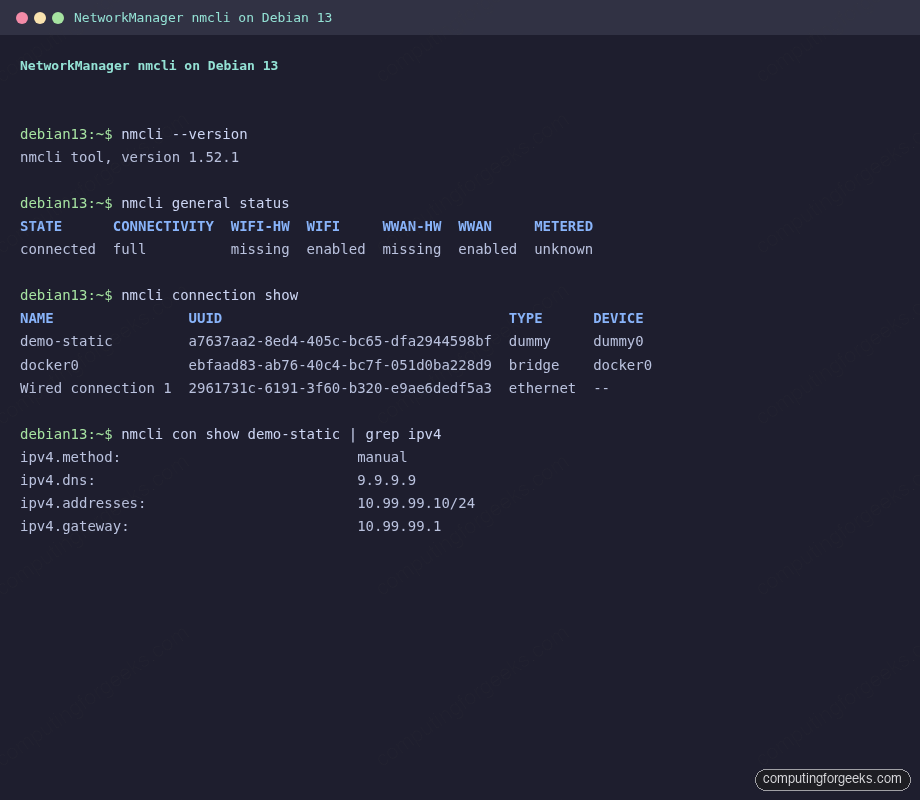
nmcli tool, version 1.52.1
On a server that was already using ifupdown or netplan, installing network-manager does NOT automatically take over the existing interfaces. Interfaces declared in /etc/network/interfaces or in a netplan YAML remain under their original renderer and show up as unmanaged in nmcli device status. That’s intentional and it’s the safe default.
To let NetworkManager take over an interface, either remove it from the competing config file or, for netplan, change the renderer:
sudo vi /etc/netplan/50-cloud-init.yamlSet the renderer under the network: block:
network:
  version: 2
  renderer: NetworkManager
  ethernets:
    enp0s3:
      dhcp4: true
Apply with sudo netplan apply. We’ve covered the netplan side in detail in how to manage Ubuntu / Debian networking using netplan if you need the long version.
Step 3: Create a safe test interface with a dummy device
On a remote server you only have one NIC, and it’s the one carrying your SSH session. Running nmcli con add directly against it works, but a typo on ipv4.addresses or a stray nmcli con down cuts you off instantly. The fix is a dummy kernel interface. It looks like a real NIC to nmcli, accepts every profile type, but carries no traffic. Break it all you want.
Load the module and create the interface:
sudo modprobe dummy
sudo ip link add "${LAB_IF}" type dummy
sudo ip link set "${LAB_IF}" up
By default, NetworkManager marks new dummy interfaces as unmanaged. Tell it to manage this one so nmcli commands apply:
sudo nmcli device set "${LAB_IF}" managed yes
nmcli device status | grep "${LAB_IF}"
The device should now appear as disconnected, ready for a profile:
dummy0 dummy disconnected --Every mutating command in the rest of this guide targets ${LAB_IF}. If you’re following along on a production server, either skip the write commands or point LAB_IF at a spare NIC. Never point it at your management interface.
Step 4: Inspect connections, devices, and general status
Three commands give you the full picture before you touch anything:
nmcli general status
nmcli connection show
nmcli device status
nmcli general status returns one line of high-level health. NAME is the profile; DEVICE is the kernel interface it’s bound to. A profile with -- in the DEVICE column exists but is not activated right now:
STATE      CONNECTIVITY  WIFI-HW  WIFI     WWAN-HW  WWAN     METERED
connected  full          missing  enabled  missing  enabled  unknown

NAME                UUID                                  TYPE      DEVICE
docker0             ebfaad83-ab76-40c4-bc7f-051d0ba228d9  bridge    docker0
lo                  7250636b-17f4-40ed-8d09-86d01a51c463  loopback  lo
Wired connection 1  2961731c-6191-3f60-b320-e9ae6dedf5a3  ethernet  --
Drill into any device with nmcli device show <iface> to see MAC, MTU, active IP addresses, and routes the kernel holds:
nmcli device show "${LAB_IF}"Output shows GENERAL, WIRED-PROPERTIES, IP4, and IP6 sections. If a device is unmanaged, NetworkManager sees it but refuses to apply profiles. If it’s disconnected, NM will activate the first compatible profile you create.
Connection profiles vs devices: the distinction that confuses everyone
A connection is a saved config (IP settings, DNS, routes, bond members). A device is the kernel interface (ens18, wlan0, dummy0). You can have dozens of connection profiles for one device, but only one is active at a time. nmcli con up picks a profile and binds it to the matching device; nmcli con down unbinds it. Deleting a profile with nmcli con delete removes the saved config; the device itself stays.
Step 5: Create a static IP connection
For ethernet NICs use type ethernet. For the dummy interface in our lab, use type dummy. Everything else on the command line is identical. This subtlety is a common mistake: creating an ethernet profile with ifname dummy0 will add the profile but refuse to activate with No suitable device found for this connection.
sudo nmcli connection add type dummy \
  ifname "${LAB_IF}" \
  con-name "${LAB_CON}" \
  ipv4.method manual \
  ipv4.addresses "${LAB_ADDR}" \
  ipv4.gateway "${LAB_GW}" \
  ipv4.dns "${LAB_DNS}"
For a real ethernet NIC (say a second disk on a cloud VM at enp0s8) the command is:
sudo nmcli connection add type ethernet \
  ifname enp0s8 \
  con-name lan-static \
  ipv4.method manual \
  ipv4.addresses 10.0.1.50/24 \
  ipv4.gateway 10.0.1.1 \
  ipv4.dns "1.1.1.1 8.8.8.8"
NetworkManager saves the profile and prints a UUID:
Connection 'demo-static' (a7637aa2-8ed4-405c-bc65-dfa2944598bf) successfully added.Activate the profile to push the config into the kernel:
sudo nmcli connection up "${LAB_CON}"Verify with either nmcli con show or plain ip addr:
ip addr show "${LAB_IF}"The address is live on the interface:
10: dummy0: <BROADCAST,NOARP,UP,LOWER_UP> mtu 1500 qdisc noqueue state UNKNOWN group default qlen 1000
    link/ether ee:dc:47:d4:4a:88 brd ff:ff:ff:ff:ff:ff
    inet 10.99.99.10/24 brd 10.99.99.255 scope global noprefixroute dummy0
       valid_lft forever preferred_lft forever
The noprefixroute flag tells the kernel that NetworkManager will install any needed routes through the connection profile instead of auto-generating a route from the subnet mask. That keeps routing behaviour predictable even if multiple profiles overlap.
Step 6: Modify a connection without recreating it
nmcli con mod changes individual fields. You don’t have to delete and readd the profile. Change the DNS server:
sudo nmcli connection modify "${LAB_CON}" ipv4.dns "9.9.9.9"
nmcli connection show "${LAB_CON}" | grep ipv4.dns
The profile reflects the change immediately:
ipv4.dns:                               9.9.9.9
ipv4.dns-search:                        --
ipv4.dns-options:                       --
ipv4.dns-priority:                      0
Changes to an active profile are saved but not pushed to the kernel until you cycle the connection. Restart the activation:
sudo nmcli connection up "${LAB_CON}"Other common modifiers:
sudo nmcli connection modify "${LAB_CON}" ipv4.addresses 10.99.99.11/24
sudo nmcli connection modify "${LAB_CON}" ipv4.gateway 10.99.99.254
sudo nmcli connection modify "${LAB_CON}" connection.autoconnect yes
sudo nmcli connection modify "${LAB_CON}" ipv4.dns-search example.internal
To append rather than replace a value, prefix the field with +. To remove a value, prefix with -:
sudo nmcli connection modify "${LAB_CON}" +ipv4.dns 149.112.112.112
sudo nmcli connection modify "${LAB_CON}" -ipv4.dns 8.8.8.8
The same + / - syntax applies to ipv4.routes, ipv4.addresses, and any other list-type property. It saves you from resetting a five-entry DNS list every time you want to add one resolver.
Step 7: Persistent static routes
Routes tied to a connection profile come up with the profile and go down with it. No cron job, no rc.local. Append a route to reach a remote office subnet through the lab gateway:
sudo nmcli connection modify "${LAB_CON}" +ipv4.routes "172.16.0.0/16 10.99.99.1"
sudo nmcli connection up "${LAB_CON}"
ip route show dev "${LAB_IF}"
The kernel routing table shows the new entry alongside the profile-managed default:
default via 10.99.99.1 proto static metric 550
10.99.99.0/24 proto kernel scope link src 10.99.99.10 metric 550
172.16.0.0/16 via 10.99.99.1 proto static metric 550
Use -ipv4.routes to strip a route, or ipv4.never-default yes to stop the profile from installing a default route (useful for secondary NICs on a dual-homed server).
Step 8: VLAN interfaces
802.1Q VLAN tagging works as a child connection on top of a parent device. The parent does not need its own IP. Tag 100 on ${LAB_IF}:
sudo nmcli connection add type vlan \
  con-name vlan100 \
  dev "${LAB_IF}" \
  id 100 \
  ipv4.method manual \
  ipv4.addresses 10.100.0.10/24
sudo nmcli connection up vlan100
Verify the child interface with ip -br addr:
ip -br addr show dummy0.100The kernel creates dummy0.100 automatically:
dummy0.100@dummy0 UP 10.100.0.10/24 fe80::b232:d6b0:1533:f76d/64Delete the VLAN cleanly when you’re done:
sudo nmcli connection delete vlan100For a netplan-based alternative or when you need VLAN + bridge together, see the Debian VLAN-on-bridge guide.
Step 9: Linux bridge with nmcli
A bridge is a software switch. VM hosts, containers, and any scenario that needs multiple interfaces on one L2 domain use bridges. Creating one with nmcli takes two profiles: the bridge itself, and a slave connection for each port. The slave profile MUST name its device explicitly or NM will try to attach it to any random ethernet it finds.
Add a second dummy so we can attach it to the bridge:
sudo ip link add dummy1 type dummy
sudo ip link set dummy1 up
sudo nmcli device set dummy1 managed yes
Create the bridge profile with an IP of its own, then a slave profile for dummy1:
sudo nmcli connection add type bridge \
  ifname br-demo \
  con-name br-demo \
  ipv4.method manual \
  ipv4.addresses 10.77.77.1/24

sudo nmcli connection add type dummy \
  ifname dummy1 \
  con-name dummy1-bridge \
  master br-demo \
  slave-type bridge
Bring the bridge up first, then the slave:
sudo nmcli connection up br-demo
sudo nmcli connection up dummy1-bridge
The kernel shows dummy1 is now a port on br-demo:
bridge link show | grep dummyThe output lists each enslaved port with its current STP state and cost:
14: dummy1: <BROADCAST,NOARP,UP,LOWER_UP> mtu 1500 master br-demo state listening priority 32 cost 100Bridge-specific knobs are under the bridge. namespace:
nmcli connection show br-demo | grep -E 'bridge.stp|bridge.priority|ipv4.addresses'The saved values show STP enabled with default priority:
bridge.stp:                             yes
bridge.priority:                        32768
ipv4.addresses:                         10.77.77.1/24
Turn STP off for a simple host-only bridge:
sudo nmcli connection modify br-demo bridge.stp noFor KVM or LXD the typical pattern is: create the bridge with nmcli, assign an IP, enslave the physical NIC, then point libvirt/LXD at br0. The bridge + VLAN netplan guide covers the Ubuntu renderer side of the same concept.
Step 10: Bond two NICs for redundancy
Bonding uses the same pattern as bridging: one master profile (the bond), multiple slave profiles (one per port). The interesting field is bond.options, which accepts the mode name plus mode-specific tuning. Modes you’ll actually use on a Linux server:
active-backup: failover only, no LACP, works on any switch. Default choice for dumb switches.802.3ad(LACP): requires a managed switch with LACP configured on the matching ports. Gives you real aggregation.balance-xor: static load balance by hash, no switch cooperation needed.
An active-backup bond across enp0s8 and enp0s9 on a real server looks like:
sudo nmcli connection add type bond con-name bond0 ifname bond0 \
  bond.options "mode=active-backup,miimon=100" \
  ipv4.method manual ipv4.addresses 10.0.1.50/24 ipv4.gateway 10.0.1.1

sudo nmcli connection add type ethernet con-name bond0-slave-0 \
  ifname enp0s8 master bond0 slave-type bond

sudo nmcli connection add type ethernet con-name bond0-slave-1 \
  ifname enp0s9 master bond0 slave-type bond

sudo nmcli connection up bond0
We didn’t activate this on the test VM because both its dummies would be the bond, and dummy interfaces don’t carry traffic. The commands are identical in shape to the bridge example above; only the master type changes from bridge to bond. Verify a real bond with cat /proc/net/bonding/bond0 once it’s active.
Step 11: Connect to WiFi
On Ubuntu Desktop, Debian Desktop, or a laptop with a WiFi radio the flow is: scan, connect. NetworkManager handles WPA2, WPA3, enterprise 802.1X, and hidden SSIDs without any external supplicant config. Check that WiFi is enabled and the radio is present:
nmcli radio wifi
nmcli device wifi list
On the server we tested against, there’s no radio, so the output is short. On a real desktop you’ll see a table of SSIDs with signal strength, security mode, and channel. Connect to a WPA2/WPA3 network:
sudo nmcli device wifi connect "HomeWiFi" password "SuperSecretPass"For a hidden SSID add hidden yes:
sudo nmcli device wifi connect "HiddenSSID" password "SuperSecretPass" hidden yesTo disconnect and re-connect later from the saved profile:
sudo nmcli connection down HomeWiFi
sudo nmcli connection up HomeWiFi
To turn the radio off entirely (useful in airports, on flights, or when you want wired-only):
nmcli radio wifi offBring it back with nmcli radio wifi on. The state survives suspend/resume but not a reboot; set connection.autoconnect on your saved WiFi profile so it comes up automatically when the radio returns.
Step 12: DNS, resolv.conf, and systemd-resolved
DNS is where nmcli surprises people. Three possible setups:
- NetworkManager writes
/etc/resolv.confdirectly. Default on Debian Desktop and Debian Server with NM installed. The file rewrites every time a connection activates. - systemd-resolved owns /etc/resolv.conf (symlink to
/run/systemd/resolve/stub-resolv.conf). Default on Ubuntu Desktop and Ubuntu Server. NM pushes DNS into resolved via D-Bus; queries go through127.0.0.53. - Custom resolver like Unbound or dnsmasq bound to loopback, and NM told to leave DNS alone.
Check which one you have:
readlink -f /etc/resolv.conf
systemctl is-active systemd-resolved
If resolv.conf points to stub-resolv.conf, systemd-resolved is in charge. Query the live DNS state with resolvectl:
resolvectl status
resolvectl dns
To push a specific DNS server onto one connection and override whatever DHCP offered, set ipv4.dns AND tell NM to ignore DHCP DNS:
sudo nmcli connection modify "${LAB_CON}" ipv4.dns "9.9.9.9 149.112.112.112"
sudo nmcli connection modify "${LAB_CON}" ipv4.ignore-auto-dns yes
sudo nmcli connection up "${LAB_CON}"
If you want NM to stop managing DNS globally (so another tool like Unbound can own /etc/resolv.conf), drop a config snippet:
sudo mkdir -p /etc/NetworkManager/conf.d
echo -e "[main]\ndns=none" | sudo tee /etc/NetworkManager/conf.d/no-dns.conf
sudo systemctl restart NetworkManager
Valid values for [main] dns= are default (NM writes resolv.conf), systemd-resolved (NM talks to resolved over D-Bus), and none (hands off entirely). On Ubuntu the default is systemd-resolved; on Debian it’s default.
Step 13: Useful day-to-day commands
A short reference for commands you’ll type most often once the basics are out of the way:
# List, bring up, bring down a saved profile
nmcli connection show --active
sudo nmcli connection up "${LAB_CON}"
sudo nmcli connection down "${LAB_CON}"

# Reload all profiles from disk (after editing files directly)
sudo nmcli connection reload

# Rename a connection
sudo nmcli connection modify old-name connection.id new-name

# Export a profile for backup or diff
nmcli -f all connection show "${LAB_CON}"

# Set autoconnect priority when two profiles match one device
sudo nmcli connection modify "${LAB_CON}" connection.autoconnect-priority 10

# Inspect NM logs for the last 5 minutes
sudo journalctl -u NetworkManager --since "5 minutes ago"
Profiles live in /etc/NetworkManager/system-connections/ as keyfiles with mode 0600. You can back them up with tar and restore on another host of the same distro. Store the archive in a password manager like 1Password alongside the root credentials so you’re not grabbing WPA keys out of a git repo.
Step 14: Troubleshooting common nmcli issues
Connection activation failed: No suitable device found for this connection
This message appears when the profile’s type or connection.interface-name doesn’t match any current device. The most common cause is creating type ethernet on a dummy or veth interface. Fix it by deleting the profile and recreating it with type dummy:
sudo nmcli connection delete "${LAB_CON}"
sudo nmcli connection add type dummy ifname "${LAB_IF}" con-name "${LAB_CON}" ipv4.method manual ipv4.addresses "${LAB_ADDR}"
The same error also appears when a bridge-slave profile doesn’t name its device. Always use ifname <device> master <bridge-con> on slaves.
Device shows “unmanaged” and nmcli refuses to activate a profile on it
NetworkManager’s default policy is to leave interfaces alone if another tool (ifupdown, netplan, or a hardcoded NM_CONTROLLED=no hint) claims them. Check /etc/network/interfaces and any file under /etc/netplan/ for a reference to the device. Remove it there, then:
sudo nmcli device set ens18 managed yes
sudo systemctl reload NetworkManager
The device should flip to disconnected (if no profile is bound) or connected (if a matching profile exists).
DNS changes don’t apply
If you set ipv4.dns on a connection and the resolver still uses DHCP-supplied servers, you likely forgot ipv4.ignore-auto-dns yes. DHCP-supplied DNS wins by default and gets appended to your manual list. Set the ignore flag and cycle the connection.
If /etc/resolv.conf points to stub-resolv.conf, check what systemd-resolved actually received with resolvectl status. The Link 2 (ens18) block shows the effective DNS; if it’s empty, NM didn’t push a config and you probably have [main] dns=none somewhere.
Profile activates but no IP assigned
Look at NM’s log around the activation attempt:
sudo journalctl -u NetworkManager -n 50 --no-pagerThe usual culprit is ipv4.method auto on a link without DHCP, or ipv4.method manual without ipv4.addresses. Recheck with nmcli con show <name> | grep ipv4.
“Wired connection 1” keeps reappearing
NetworkManager auto-creates a default DHCP profile for any ethernet device with no matching saved profile. If you dislike the auto-profile, create your own and set connection.autoconnect yes; NM prefers saved profiles over auto-generated ones.
Step 15: Full cleanup
Tear down every test artifact created in this guide so the box returns to the state it started in:
sudo nmcli connection down "${LAB_CON}" 2>/dev/null
sudo nmcli connection delete "${LAB_CON}" 2>/dev/null
sudo nmcli connection delete br-demo dummy1-bridge vlan100 2>/dev/null
sudo ip link delete dummy1 2>/dev/null
sudo ip link delete "${LAB_IF}" 2>/dev/null
sudo modprobe -r dummy 2>/dev/null
Confirm no demo profiles or interfaces remain:
nmcli connection show | grep -vE '^NAME|docker|lo |Wired connection'An empty result means the lab is clean.
Where nmcli fits next to netplan and systemd-networkd
Ubuntu Server ships with netplan as its front-end; netplan’s renderer picks either systemd-networkd or NetworkManager to do the actual work. Debian Server and most cloud images run ifupdown or systemd-networkd directly without netplan in the middle. NetworkManager plus nmcli runs in parallel on Desktop editions and is available as an opt-in on any server. Three practical rules:
- Desktop or laptop: NetworkManager is already in charge;
nmcliis the CLI equivalent of the tray applet. - Ubuntu Server: keep netplan as the config source of truth, set its renderer to NetworkManager if you want
nmclito drive, otherwise stay withsystemd-networkdand edit YAML. - Debian Server: pick one. Either
/etc/network/interfaces, or migrate to NetworkManager by installingnetwork-managerand removing entries frominterfaces. Running both against the same NIC causes race conditions on boot.
For a fresh server build, the post-install checklist for Debian 13 and the Ubuntu 26.04 server setup guide walk through which stack to pick and how to lock it down. If you’re running a public-facing box, pair either renderer with a hardened SSH config as covered in our post-quantum SSH hardening guide.
If the CLI is all you wanted, you’re done. WiFi, bridges, bonds, VLANs, DNS overrides, static routes, persistent profiles: NetworkManager covers them through one binary, and keyfiles in /etc/NetworkManager/system-connections/ survive reboots without an init script in sight. The same nmcli syntax works on RHEL, Rocky Linux, AlmaLinux, Fedora, Arch, and any other distro that ships NetworkManager, which is why learning it pays off outside the Debian / Ubuntu world too.
Running through this guide in a fresh lab? A $5 droplet on DigitalOcean with two attached networks, or a Hetzner CX22 with a secondary vSwitch, gives you enough surface area to try every step without touching a production NIC.
Subscribe for more: Get weekly Linux, networking, and DevOps walk-throughs delivered to your inbox. Hit the subscribe widget in the sidebar or footer to join the ComputingForGeeks newsletter.
Need custom help? We consult on Linux networking, automation, and hardening for teams. Reach us via the Contact form in the site footer.




On Raspberry Pi with network-manager version 1.42.0-1 and wanted to upgrade to this bleeding edge one one.. https://github.com/NetworkManager/NetworkManager but they didn’t explain how to compile/install