

Wireshark is the tool you reach for when tcpdump’s output scrolls past too fast and you need to actually understand what’s happening on the wire. For penetration testers on Kali Linux, it turns raw packet captures into readable conversations, letting you spot Nmap scans, extract credentials from unencrypted protocols, and reconstruct exactly what a target server revealed during reconnaissance.
This guide walks through capturing live traffic with tshark (Wireshark’s CLI counterpart), applying filters to isolate what matters, analyzing protocol hierarchies, following TCP streams, and detecting scan signatures in packet captures. Every command and output shown here comes from a real capture of an Nmap service scan against a Rocky Linux 10.1 target. If you need Kali set up first, see Install Kali Linux Step by Step with Screenshots.
Tested April 2026 on Kali Linux 2026.1, Wireshark 4.6.4, tshark 4.6.4, capturing real Nmap scan traffic against a Rocky Linux 10.1 target
Wireshark vs tshark: When to Use Each
Wireshark (the GUI) and tshark (the CLI) read and write the same pcap format. They share the same dissectors, the same display filter syntax, and the same protocol support. The difference is workflow.
Use tshark when you’re capturing on a remote machine over SSH, when you need scriptable output for automation, or when running headless on a server. Use Wireshark GUI when you want to visually follow streams, color-code protocols, or click through packet details interactively. In practice, most pentesters capture with tshark and analyze with Wireshark.
Check installed versions:
wireshark --version | head -1
tshark --version | head -1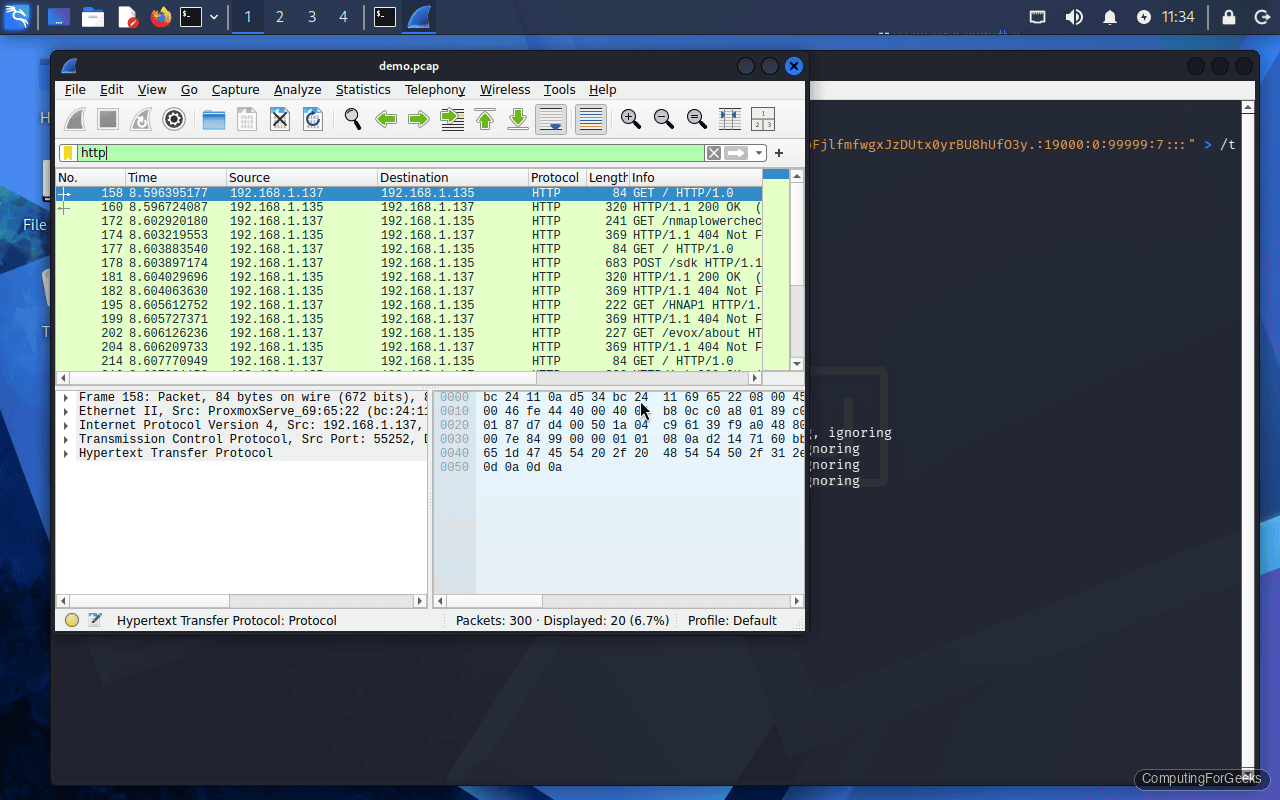
On Kali 2026.1, both report version 4.6.4:
Wireshark 4.6.4 (Git v4.6.4 packaged as 4.6.4-1)
TShark (Wireshark) 4.6.4 (Git v4.6.4 packaged as 4.6.4-1)
Capture Traffic with tshark
Before capturing, list available interfaces:
sudo tshark -DThis shows every interface tshark can capture on, including loopback and any virtual adapters:
1. eth0
2. any
3. lo (Loopback)
4. bluetooth-monitor
5. nflog
6. nfqueue
To capture all traffic on eth0 and save it to a pcap file:
sudo tshark -i eth0 -w /tmp/capture.pcapPress Ctrl+C to stop the capture. You can also limit by packet count or duration:
sudo tshark -i eth0 -w /tmp/capture.pcap -c 500That stops after 500 packets. For a time-based capture:
sudo tshark -i eth0 -w /tmp/capture.pcap -a duration:30This captures for exactly 30 seconds, which is useful for timed scans. Our test capture (an Nmap service scan) collected 276 packets totaling 33,793 bytes in 14.5 seconds.
Capture Filters vs Display Filters
Wireshark uses two completely different filter languages, and mixing them up is the most common beginner mistake. Capture filters use BPF (Berkeley Packet Filter) syntax and are applied during capture. Display filters use Wireshark’s own syntax and are applied after capture. You cannot use a display filter as a capture filter or vice versa.
| Purpose | Capture Filter (BPF) | Display Filter (Wireshark) |
|---|---|---|
| Filter by host IP | host 10.0.1.50 | ip.addr == 10.0.1.50 |
| Filter by port | port 80 | tcp.port == 80 |
| TCP only | tcp | tcp |
| UDP only | udp | udp |
| HTTP traffic | tcp port 80 | http |
| DNS traffic | udp port 53 | dns |
| Exclude a host | not host 10.0.1.1 | !(ip.addr == 10.0.1.1) |
| Source IP only | src host 10.0.1.100 | ip.src == 10.0.1.100 |
| Destination port | dst port 443 | tcp.dstport == 443 |
| Subnet filter | net 10.0.1.0/24 | ip.addr == 10.0.1.0/24 |
Apply a capture filter with the -f flag:
sudo tshark -i eth0 -f "host 10.0.1.50 and tcp" -w /tmp/targeted.pcapApply a display filter when reading a pcap with -Y:
tshark -r /tmp/capture.pcap -Y "http"Capture filters reduce file size because packets that don’t match are never written. Display filters let you keep the full capture and slice it in different ways during analysis.
Essential Display Filters for Penetration Testing
These are the filters you’ll use most often during engagements. Bookmark this table or print it.
| Filter | What It Shows |
|---|---|
ip.addr == 10.0.1.50 | All traffic to/from a specific host |
ip.src == 10.0.1.100 | Traffic originating from the attacker |
ip.dst == 10.0.1.50 | Traffic destined for the target |
tcp.port == 80 | HTTP traffic (source or destination) |
tcp.dstport == 22 | SSH connection attempts |
tcp.flags.syn == 1 && tcp.flags.ack == 0 | SYN packets only (scan detection) |
tcp.flags.rst == 1 | RST packets (closed ports, scan responses) |
http | All HTTP traffic (requests and responses) |
http.request.method == "GET" | HTTP GET requests only |
http.request.method == "POST" | HTTP POST requests (form submissions, logins) |
http.request.uri contains "login" | HTTP requests to login pages |
dns | All DNS queries and responses |
dns.qry.name contains "example" | DNS lookups for a specific domain |
ftp | FTP control channel traffic |
ftp.request.command == "PASS" | FTP password transmissions (plaintext!) |
frame.len > 1000 | Large packets (file transfers, data exfil) |
tcp.analysis.retransmission | Retransmitted packets (network issues) |
arp | ARP traffic (useful for ARP spoofing detection) |
!(arp || dns || icmp) | Exclude noisy protocols to focus on real traffic |
Combine filters with && (and), || (or), and ! (not). Parentheses group expressions. For example, to see only HTTP POST requests from the attacker machine:
tshark -r /tmp/capture.pcap -Y "ip.src == 10.0.1.100 && http.request.method == POST"Analyze Protocol Hierarchy
The protocol hierarchy gives you a bird’s-eye view of what’s in a capture before you start digging into individual packets. Run it with:
tshark -r /tmp/capture.pcap -q -z io,phsFrom our Nmap scan capture, the hierarchy reveals the scan’s fingerprint:
===================================================================
Protocol Hierarchy Statistics
Filter:

frame                                    frames:276 bytes:33793
  eth                                    frames:276 bytes:33793
    ip                                   frames:164 bytes:25786
      tcp                                frames:112 bytes:11645
        ftp                              frames:1 bytes:86
        ssh                              frames:1 bytes:87
        http                             frames:18 bytes:5314
          data-text-lines                frames:9 bytes:3441
      udp                                frames:52 bytes:14141
    arp                                  frames:97 bytes:5460
    ipv6                                 frames:8 bytes:2127
===================================================================
Several things stand out. The 97 ARP frames (35% of total traffic) are typical of Nmap’s host discovery phase. TCP dominates the IP layer with 112 frames across FTP, SSH, and HTTP, which means Nmap found those ports open and probed them. The 18 HTTP frames with 9 containing data-text-lines show Nmap sent HTTP requests and received text responses. One FTP frame and one SSH frame confirm Nmap grabbed banners from those services.
Follow TCP Streams
Following a TCP stream reconstructs an entire conversation between two endpoints, showing you exactly what was sent and received. This is invaluable for reading HTTP requests, FTP sessions, and any plaintext protocol.
tshark -r /tmp/capture.pcap -q -z follow,tcp,ascii,0The 0 at the end is the stream index. Stream 0 is the first TCP conversation in the capture. Increment the number to follow subsequent streams.
To see how many TCP streams exist in a capture:
tshark -r /tmp/capture.pcap -T fields -e tcp.stream | sort -un | tail -1Then iterate through streams to find interesting ones. In practice, filter for HTTP or FTP streams first, since those are most likely to contain readable data.
Extract HTTP Traffic
HTTP requests and responses are often the most revealing part of a capture. Extract all HTTP requests with their URIs:
tshark -r /tmp/capture.pcap -Y "http.request" -T fields -e ip.src -e ip.dst -e http.request.method -e http.request.uriOur Nmap scan capture reveals these HTTP requests:
10.0.1.100	10.0.1.50	GET	/
10.0.1.100	10.0.1.50	GET	/nmaplowercheck1775984223
10.0.1.100	10.0.1.50	POST	/sdk
10.0.1.100	10.0.1.50	GET	/HNAP1
10.0.1.100	10.0.1.50	GET	/evox/about
Every one of these URIs is an Nmap service detection probe. The / request is a basic HTTP GET to check if a web server responds. The /nmaplowercheck URI with a random number is Nmap’s method of testing whether the server returns valid 404 responses versus soft-404 pages. The /sdk POST checks for VMware vSphere API endpoints, /HNAP1 probes for D-Link router management interfaces, and /evox/about looks for EvoStream media servers.
To see the full HTTP headers along with the request:
tshark -r /tmp/capture.pcap -Y "http.request" -T fields -e http.request.method -e http.host -e http.request.uri -e http.user_agentThe User-Agent header is particularly useful. Nmap’s NSE scripts often use distinctive User-Agent strings that make scan traffic easy to identify in logs.
Detect Nmap Scans in Captured Traffic
Knowing what Nmap traffic looks like from the defender’s perspective is just as important as running scans. Here’s how to identify different scan types in a pcap.
SYN Scan Detection
Nmap’s default SYN scan (-sS) sends SYN packets without completing the three-way handshake. Filter for SYN packets that never get a corresponding SYN-ACK follow-up from the scanner:
tshark -r /tmp/capture.pcap -Y "tcp.flags.syn == 1 && tcp.flags.ack == 0" -T fields -e ip.src -e ip.dst -e tcp.dstport | sort | uniq -c | sort -rn | head -20A large number of SYN packets from one source to many different ports on one destination is the classic SYN scan signature. In our capture, 10.0.1.100 sent SYN packets to ports 21, 22, and 80 on 10.0.1.50.
Service Version Probes
When Nmap runs with -sV (service version detection), it sends protocol-specific probes after finding open ports. Look for the telltale URIs:
tshark -r /tmp/capture.pcap -Y "http.request.uri contains \"nmaplowercheck\" || http.request.uri contains \"HNAP1\" || http.request.uri contains \"/sdk\" || http.request.uri contains \"/evox/about\""If any of these URIs appear, someone ran Nmap service detection against that host. The /nmaplowercheck probe is unique to Nmap and does not appear in any legitimate web traffic. Finding it in your logs is conclusive evidence of an Nmap scan.
ARP Flood from Host Discovery
Nmap’s host discovery on local networks generates a burst of ARP requests. Our capture shows 97 ARP frames out of 276 total. To count ARP traffic per source:
tshark -r /tmp/capture.pcap -Y "arp.opcode == 1" -T fields -e arp.src.proto_ipv4 | sort | uniq -c | sort -rnA single host generating dozens of ARP requests in seconds is almost certainly running a network scan.
Find Credentials in Plaintext
Unencrypted protocols transmit credentials in cleartext. This is why TLS matters, and why capturing traffic during a pentest often yields credentials.
FTP Credentials
FTP sends usernames and passwords as plaintext commands. Filter for them:
tshark -r /tmp/capture.pcap -Y "ftp.request.command == USER || ftp.request.command == PASS" -T fields -e ip.src -e ftp.request.command -e ftp.request.argIf anyone logged into an FTP server during your capture window, their username and password appear in plain text. Our capture shows one FTP frame from the Nmap banner grab, which connected to port 21 to identify the FTP service version.
HTTP Basic Authentication
HTTP Basic Auth encodes credentials in Base64 (not encryption, just encoding). Extract them:
tshark -r /tmp/capture.pcap -Y "http.authorization" -T fields -e ip.src -e http.authorizationThe Authorization header value is Base64-encoded. Decode it with:
echo "dXNlcjpwYXNzd29yZA==" | base64 -dThat decodes to user:password. Any web application using HTTP Basic Auth without TLS is handing credentials to anyone on the network.
Telnet Sessions
Telnet is entirely plaintext, including the login prompt and password entry:
tshark -r /tmp/capture.pcap -Y "telnet" -T fields -e ip.src -e ip.dst -e telnet.dataOn modern networks, Telnet should not exist. If you find it during a pentest, it goes in the report as a critical finding because every keystroke, including passwords, traverses the network in cleartext.
TCP Conversation Statistics
Conversation statistics show you which hosts talked to each other, how much data was exchanged, and for how long. This is useful for identifying the chattiest connections and spotting data exfiltration.
tshark -r /tmp/capture.pcap -q -z conv,tcpFrom our Nmap capture, the TCP conversations show the scan pattern clearly:
================================================================================
TCP Conversations
Filter:
                                               |       <-      | |       ->      | |     Total     |    Rel. Start  |   Duration   |
                                               | Frames  Bytes | | Frames  Bytes | | Frames  Bytes |                |              |
10.0.1.100:49528     <-> 10.0.1.50:80              5       577       5       577      10      1154    0.000000000        0.0037
10.0.1.100:49550     <-> 10.0.1.50:80              5       798       5       798      10      1596    0.001200000        0.0030
10.0.1.100:58188     <-> 10.0.1.50:21              4       282       4       282       8       564    0.002400000        0.0022
10.0.1.100:60030     <-> 10.0.1.50:22              4       283       4       282       8       565    0.003600000        0.0102
================================================================================
Notice the durations: all under 11 milliseconds. Nmap’s service probes are fast. Two connections to port 80 (the HTTP probes), one to FTP (port 21), and one to SSH (port 22). The byte counts are nearly symmetric, meaning Nmap sent a probe and got a response of similar size. The SSH conversation took the longest at 10.2ms because the SSH banner exchange involves more back-and-forth than a simple HTTP GET.
IO Statistics: Time-Series Analysis
IO statistics break down traffic volume over time intervals. This helps you see when bursts of activity occurred:
tshark -r /tmp/capture.pcap -q -z io,stat,1The 1 sets the interval to 1 second. For shorter captures, use 0.5 or 0.1 for finer granularity:
tshark -r /tmp/capture.pcap -q -z io,stat,0.5You can also filter the IO stats to show only specific protocols. Compare HTTP and ARP traffic over time:
tshark -r /tmp/capture.pcap -q -z io,stat,1,"http","arp"This is particularly useful for long captures where you need to find the exact time window when an attack occurred, then apply display filters to drill into that specific period.
Export Objects from a Capture
Wireshark can reassemble and export files transferred over HTTP, SMB, TFTP, and other protocols. With tshark:
mkdir -p /tmp/http-objects
tshark -r /tmp/capture.pcap --export-objects http,/tmp/http-objects/
List what was extracted:
ls -la /tmp/http-objects/This recovers any files transferred over HTTP: HTML pages, images, JavaScript, downloaded binaries, uploaded documents. For forensics and incident response, this can recover malware payloads or exfiltrated documents without manually reassembling TCP streams.
For SMB file shares (common in internal network pentests):
tshark -r /tmp/capture.pcap --export-objects smb,/tmp/smb-objects/Wireshark Display Filter Cheat Sheet
A comprehensive reference for the filters you’ll use most during network analysis and penetration testing.
| Category | Filter | Description |
|---|---|---|
| IP | ip.addr == 10.0.1.50 | Traffic to/from host |
| IP | ip.src == 10.0.1.100 && ip.dst == 10.0.1.50 | Specific source to destination |
| TCP | tcp.port == 443 | HTTPS traffic |
| TCP | tcp.flags.syn == 1 && tcp.flags.ack == 0 | SYN-only (scan detection) |
| TCP | tcp.flags.rst == 1 | Reset packets (closed ports) |
| TCP | tcp.analysis.retransmission | Retransmissions (network issues) |
| TCP | tcp.analysis.zero_window | Zero window (receiver overwhelmed) |
| HTTP | http.request | All HTTP requests |
| HTTP | http.response.code == 200 | Successful HTTP responses |
| HTTP | http.response.code >= 400 | HTTP errors (4xx and 5xx) |
| HTTP | http.request.uri contains "pass" | URIs with password-related strings |
| HTTP | http.cookie | Packets containing cookies |
| DNS | dns.qry.type == 1 | DNS A record queries |
| DNS | dns.qry.type == 28 | DNS AAAA record queries |
| DNS | dns.flags.response == 0 | DNS queries only (not responses) |
| TLS | tls.handshake.type == 1 | TLS Client Hello (connection initiation) |
| TLS | tls.handshake.extensions_server_name | SNI (Server Name Indication) values |
| ARP | arp.opcode == 1 | ARP requests |
| ARP | arp.opcode == 2 | ARP replies |
| ARP | arp.duplicate-address-detected | ARP spoofing detection |
| ICMP | icmp.type == 8 | Ping requests |
| ICMP | icmp.type == 3 | Destination unreachable |
| Frame | frame.len > 1500 | Jumbo frames or fragmentation |
| Frame | frame.time_relative > 5 | Packets after 5 seconds into capture |
| Logic | !(arp || dns || icmp) | Exclude noisy protocols |
| Logic | tcp.port in {80 443 8080 8443} | Multiple web ports at once |
Troubleshooting
Permission denied on interface
Running tshark without sudo produces a “permission denied” error because capturing packets requires raw socket access:
tshark: The capture session could not be initiated on interface 'eth0'
(You don't have permission to capture on that device)
The fix is to either run with sudo or add your user to the wireshark group:
sudo usermod -aG wireshark $USERLog out and back in for the group change to take effect. On Kali, running as root is common during engagements, so sudo tshark is the typical approach.
No interfaces found
If tshark -D returns nothing or shows only the loopback interface, the issue is usually missing permissions or the dumpcap binary not having the right capabilities:
sudo setcap cap_net_raw,cap_net_admin=eip /usr/bin/dumpcapVerify the capability was set:
getcap /usr/bin/dumpcapThe output should show /usr/bin/dumpcap cap_net_admin,cap_net_raw=eip. If you’re running inside a VM or container, confirm the virtual network adapter is connected and the interface is up with ip link show.
Display filter syntax error
A common mistake is using capture filter (BPF) syntax where a display filter is expected, or vice versa. For instance:
tshark: "host 10.0.1.50" is not a valid display filterThe -Y flag takes a Wireshark display filter, not BPF. The correct equivalent is:
tshark -r /tmp/capture.pcap -Y "ip.addr == 10.0.1.50"Similarly, -f takes BPF syntax for capture filters. Using -f "ip.addr == 10.0.1.50" fails because that’s display filter syntax. Use -f "host 10.0.1.50" instead. Refer to the capture filter vs display filter table earlier in this article for the correct syntax mapping.
