

Ubuntu 22.04 LTS still has security support until April 2027, but Noble Numbat (24.04) ships enough improvements to justify an early move: GCC 14, Python 3.12, systemd 255, a 6.8 kernel, netplan.io 1.0, and overhauled AppArmor profiles. Server-side you also pick up newer OpenSSL and the reworked sources.list.d/ubuntu.sources deb822 format. If your workloads depend on modern toolchains, the full LTS window is not worth waiting out.
This guide covers a full in-place upgrade from Ubuntu 22.04 to 24.04 using do-release-upgrade in unattended mode, which makes it safe for headless servers. Every step was tested on a real 22.04.5 LTS cloud image and verified clean on the other side as 24.04.4 LTS. If you’re already on 24.04 and want to jump to the next LTS, see our guide on upgrading Ubuntu 24.04 to 26.04.
Tested April 2026 | Upgraded Ubuntu 22.04.5 LTS (kernel 5.15.0-174) to Ubuntu 24.04.4 LTS (kernel 6.8.0-110) on a 2 vCPU / 4 GB RAM VM
Before you start
A release upgrade touches nearly every package on the system. Three things to do first so you can recover if it goes wrong:
- Snapshot or back up the VM (Proxmox, VMware, EC2, or whatever hypervisor you’re on). If you don’t have a hypervisor snapshot, at least rsync
/etc,/home, and any custom data directories to another host. - Free up disk space. The upgrade downloads around 1 GB of new packages and needs another gigabyte during dpkg operations. Check with
df -hT /and clean up if you’re under 3 GB free. - Use screen or tmux if you’re remote. An SSH disconnect mid-upgrade leaves the system in a half-upgraded state. The noninteractive method below is safer because it detaches from your session, but a multiplexer is still a good habit.
Check the current system
Confirm you’re on 22.04 and note the running kernel so you have a baseline to compare after the upgrade:
lsb_release -a
uname -r
Jammy should show up as the codename with the 5.15 kernel:
Distributor ID: Ubuntu
Description:    Ubuntu 22.04.5 LTS
Release:        22.04
Codename:       jammy
5.15.0-174-generic
For a quick overview of the full system state, fastfetch (the modern replacement for neofetch) gives you everything in one shot. Install it from the PPA since the 22.04 repos don’t carry it:
sudo add-apt-repository -y ppa:zhangsongcui3371/fastfetch
sudo apt update
sudo apt install -y fastfetch
Run it to capture the pre-upgrade snapshot:
fastfetchHere’s what the system looks like before the upgrade:
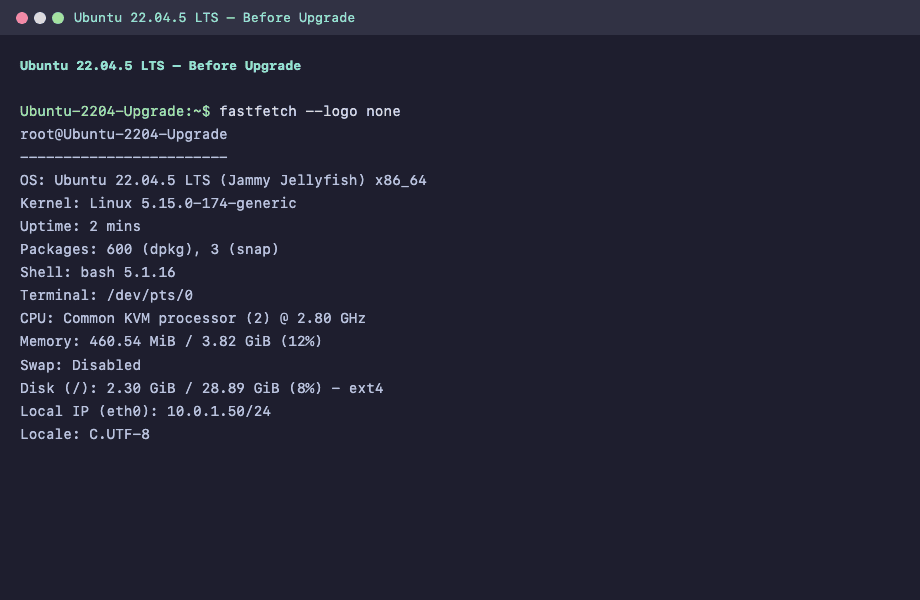
The 22.04.5 point release should be the latest available. Canonical only tests the upgrade path from the most recent point release.
Bring the system fully up to date
Upgrade every package on the running 22.04 install before trying to change releases. This catches the most common upgrade failures:
sudo apt update
sudo apt upgrade -y
sudo apt full-upgrade -y
sudo apt autoremove --purge -y
If any of these steps install a new kernel, reboot before going further. The release upgrader refuses to start with the message “You have not rebooted after updating a package which requires a reboot” in that case.
This catches people off guard on cloud images because the image might ship with kernel 5.15.0-174 installed but 5.15.0-173 running (the image was built before the kernel was booted). Check with:
cat /var/run/reboot-required 2>/dev/null && echo "Reboot needed" || echo "No reboot needed"If it says reboot is needed:
sudo rebootWait about 30 seconds, reconnect, and keep going.
Configure the release upgrader
The tool lives in update-manager-core. Make sure it’s installed and that the LTS upgrade prompt is active:
sudo apt install -y update-manager-core
grep ^Prompt /etc/update-manager/release-upgrades
The output should read:
Prompt=ltsIf it’s set to never or normal, fix it:
sudo sed -i 's/^Prompt=.*/Prompt=lts/' /etc/update-manager/release-upgradesWith Prompt=lts, do-release-upgrade offers the next LTS (24.04) rather than an interim release like 23.10.
Disable unattended-upgrades
If unattended-upgrades fires while the release upgrade is running, it grabs the dpkg lock and the upgrader will fail. Stop and disable it for the duration:
sudo systemctl stop unattended-upgrades
sudo systemctl disable unattended-upgrades
We’ll re-enable it after everything is confirmed working.
Run the release upgrade
The -f DistUpgradeViewNonInteractive flag makes the tool accept every default without prompting, which is what you want on a headless server. Combined with nohup, the process survives even if your SSH session drops:
sudo DEBIAN_FRONTEND=noninteractive do-release-upgrade -f DistUpgradeViewNonInteractiveThe upgrader works in phases: it rewrites the apt sources to noble, downloads around 750 MB of packages, removes obsolete ones, and installs the new release. On a fresh 22.04.5 cloud image with 2 vCPUs, the whole run takes roughly 10 to 15 minutes depending on mirror speed and disk I/O.
Watch progress in a second terminal by tailing the dist-upgrade log:
sudo tail -f /var/log/dist-upgrade/apt-term.logYou’ll see packages being unpacked, configured, and removed as dpkg works through them.
Reboot into the new kernel
When do-release-upgrade finishes it updates /etc/os-release, rewrites the sources to use noble suites, and installs the 6.8 kernel. The running kernel is still the old 5.15 from jammy. Reboot to activate the new kernel:
sudo rebootReconnect after about 30 seconds and verify both the release and kernel:
lsb_release -a
uname -r
Noble Numbat confirmed with the new kernel:
Distributor ID: Ubuntu
Description:    Ubuntu 24.04.4 LTS
Release:        24.04
Codename:       noble
6.8.0-110-generic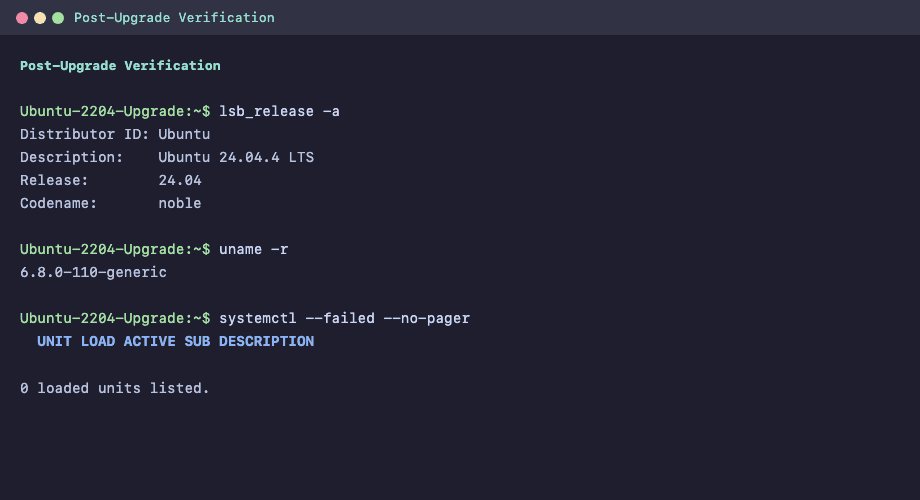
Verify the upgraded system
Check for failed systemd units first, since the upgrade may have left stale unit files behind:
systemctl --failed --no-pagerA clean run returns zero:
  UNIT LOAD ACTIVE SUB DESCRIPTION

0 loaded units listed.
Confirm the apt sources have been switched to the deb822 format with noble suites:
cat /etc/apt/sources.list.d/ubuntu.sourcesThe file should use the new format:
Types: deb
URIs: http://archive.ubuntu.com/ubuntu
Suites: noble noble-updates noble-backports
Components: main restricted universe multiverse
Signed-By: /usr/share/keyrings/ubuntu-archive-keyring.gpg

Types: deb
URIs: http://security.ubuntu.com/ubuntu
Suites: noble-security
Components: main restricted universe multiverse
Signed-By: /usr/share/keyrings/ubuntu-archive-keyring.gpg
The old /etc/apt/sources.list is now empty or commented out. Ubuntu moved to this deb822 format in 24.04, so ubuntu.sources is the single source of truth going forward.
Clean up leftover packages from the old release and make sure nothing was held back:
sudo apt update
sudo apt full-upgrade -y
sudo apt autoremove --purge -y
Everything should already be at noble versions:
0 upgraded, 0 newly installed, 0 to remove and 0 not upgraded.Re-enable unattended-upgrades so security patches resume automatically:
sudo systemctl enable --now unattended-upgradesRun fastfetch again to see the full picture after the upgrade:
fastfetch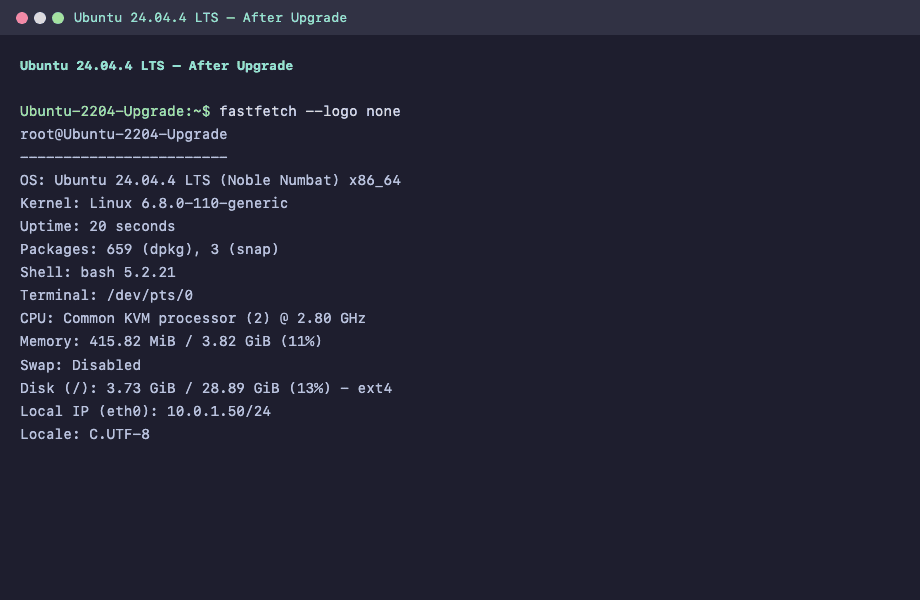
Compare against the pre-upgrade fastfetch output: kernel jumped from 5.15 to 6.8, bash from 5.1 to 5.2, sshd from 8.9 to 9.6, and the package count went from 600 to 659 dpkg packages.
Common issues and fixes
Error: “You have not rebooted after updating a package which requires a reboot”
The upgrader refuses to start when the running kernel doesn’t match the latest installed one. This happens consistently on cloud images where the kernel shipped in the image is newer than the one that booted. Reboot (sudo reboot) and rerun the command. You can check what package triggered the flag with cat /var/run/reboot-required.pkgs.
Error: dpkg lock held by another process
Unattended-upgrades grabbed the lock before the release upgrader could. Stop it with sudo systemctl stop unattended-upgrades, wait for its current run to finish (sudo lsof /var/lib/dpkg/lock-frontend should return nothing), then retry.
Third-party PPA packages held back
The release upgrader disables PPAs during the upgrade because most don’t have noble builds yet. After rebooting into 24.04, re-enable any PPA you still need (sudo add-apt-repository --enable ppa:foo/bar) and run sudo apt update && sudo apt upgrade. For abandoned PPAs, look for a noble replacement or remove the packages entirely.
SSH connection drops during upgrade
The release upgrader restarts sshd as part of the process. If your terminal freezes, wait a minute and reconnect. The upgrade continues in the background. Check progress with sudo tail -f /var/log/dist-upgrade/apt-term.log after reconnecting.
What changed under the hood
Here’s a side-by-side of the key version changes between the two releases:
| Component | Ubuntu 22.04 (Jammy) | Ubuntu 24.04 (Noble) |
|---|---|---|
| Kernel | 5.15.0-174-generic | 6.8.0-110-generic |
| GCC | 11.4 | 13.3 |
| Python | 3.10 | 3.12 |
| OpenSSH | 8.9p1 | 9.6p1 |
| systemd | 249 | 255 |
| Bash | 5.1 | 5.2 |
| OpenSSL | 3.0 | 3.0 (with backported patches) |
| Apt sources format | sources.list (one-line) | ubuntu.sources (deb822) |
The 24.04 LTS support window runs until April 2029 (standard) or April 2034 with Ubuntu Pro’s Expanded Security Maintenance. From here you can set up Node.js 24, PostgreSQL 17 from the upstream apt repo, Java 25, or Docker CE with the latest features. Lock down network access with the UFW firewall before exposing any services.






I gave up going from 20.04 to 22.04
I kept getting dependency issues and endless python glitches
I ended up going 20.04 to 20.10 to 21.04 21.10 then 22.04
and letting everything unused to be removed
and even this almost failed because I forgotten to remove Oibaf’s Video drivers
and had to rollback and attempt again (btrfs snapshots can be handy at times like this )
Downloading over 10gb of updates just to do 1 upgrade …
https://ibb.co/D47VYfc
22.04 sucks !
Hehe What were your expectations Marcos?
Something stable probably, this has been the worst release in a long time and that’s from a fresh install. I lost count of how often the KDE popup appears to inform me “an application has crashed”…
Worked perfectly, thanks for the posting.
Welcome Stephen.