

Blurred or pixelated text in images can be incredibly frustrating. Whether it’s a phone number in a photo you need to call or small print in a scanned document you need to read, the blurry text keeps you from accessing the information you need.
Thankfully, there are ways to unblur and enhance image text using software-based image text enhancers.
In this article, we’ll look at 5 top methods for clarifying blurred words and numbers in photos using an image text enhancer. Read on to find the best image text enhancer option for your needs.
Exploring Possible Reasons for Text Blur in Images

There are a few common reasons you may be dealing with fuzzy, illegible text in a photo or scan. The image resolution may be too low, the camera wasn’t focused properly when the picture was taken, or you may be viewing a low-quality version of the image, like a preview or thumbnail.
Text can also become pixelated when an image is enlarged or compressed too much. Regardless of what caused the blur, there are ways to enhance text in images to make it clear and legible again.
Now let’s look at 5 effective methods for enhancing photo resolution, clarifying and unblurring text in images.
Part 1: Best AI Image Text Enhancer for Desktop: HitPaw Photo Enhancer
HitPaw’s AI Photo Enhancer is a powerful AI-based photo enhancement software for Windows and Mac. It can effectively clarify and sharpen blurred or pixelated text in images using AI upscaling and enhancement technology.
To use HitPaw as an AI text image enhancer, simply:
- Launch the program and upload your image containing blurry text.
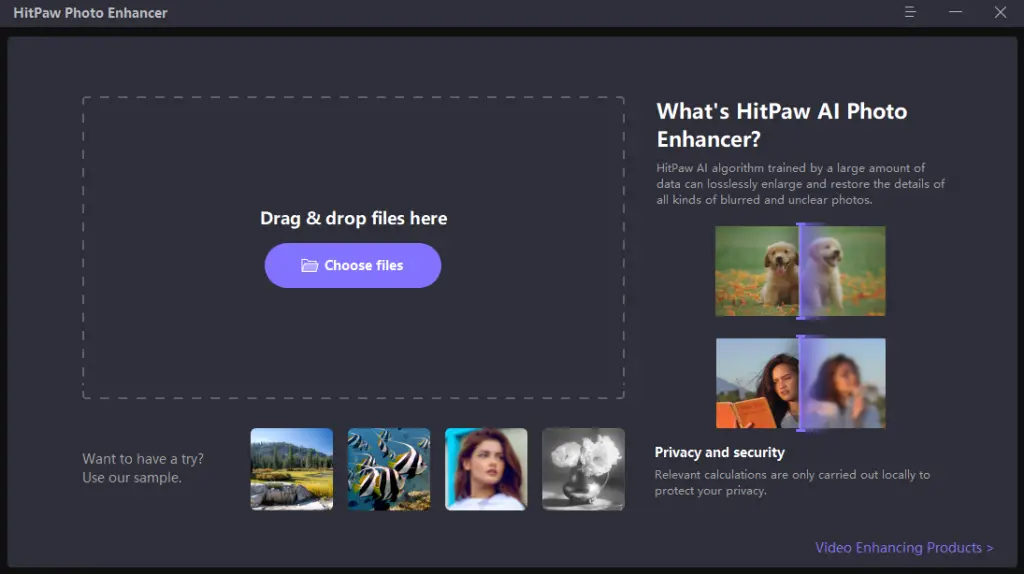
- Select the “Denoise” AI model, which is optimized for resharpening fine details like text. You can also choose the “General” AI model if the blurry text is part of a larger scene image.
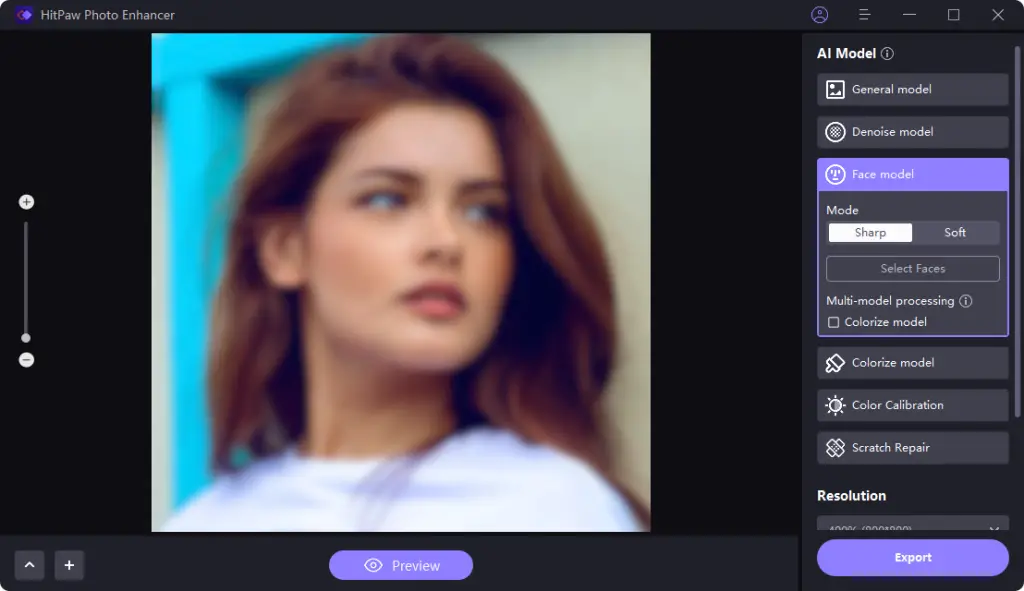
- Hit “Enhance,” and HitPaw will automatically analyze and enhance the image to make the text crisper and clearer.
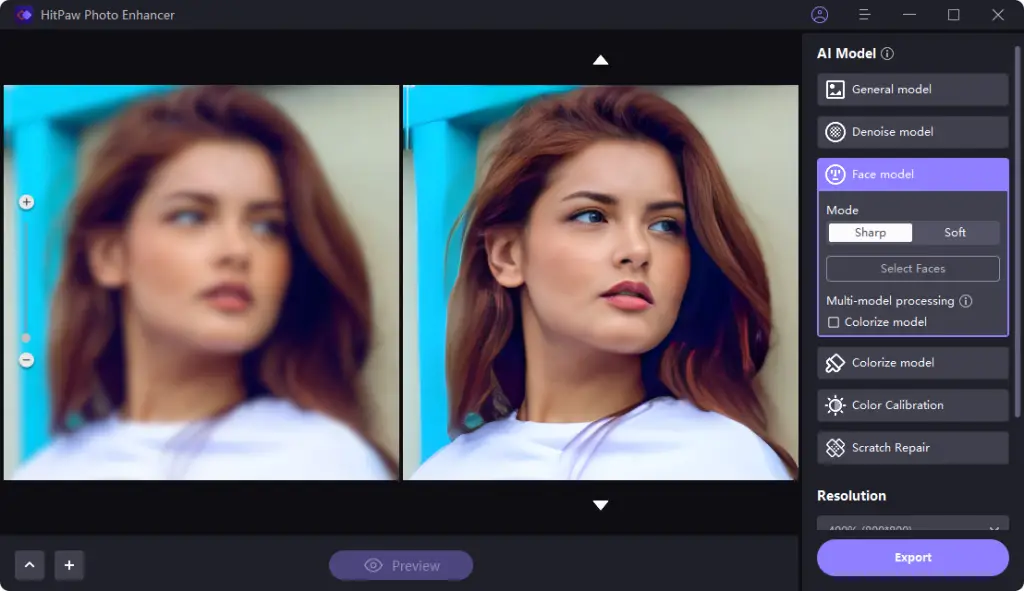
Part 2: How to Sharpen & Unblur Text in Gimp
GIMP is a free, open-source photo editing program & photo quality enhancer that provides professional-level tools for enhancing image quality. While not as full-featured as Photoshop, GIMP can be highly effective for clarifying illegible text in photos using its sharpening filters.
Here are the steps to sharpen and unblur text in GIMP:
- Open the image containing the blurry text in GIMP.
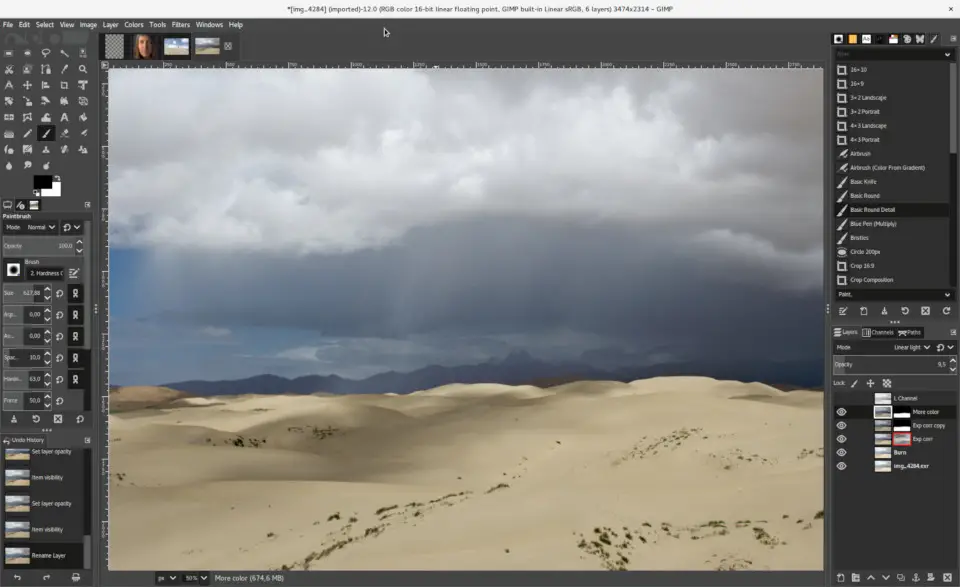
- In the toolbox, select the Blur/Sharpen tool (looks like a water drop). You can also press Shift+U as a keyboard shortcut.
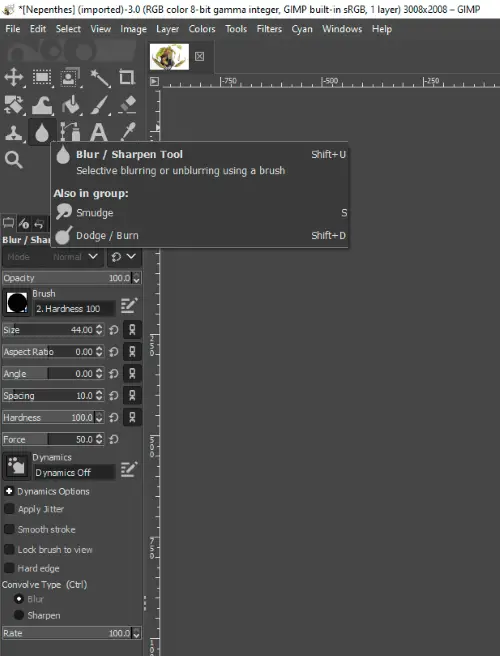
- Choose the Sharpen option from the Blur/Sharpen menu.
- Hover over the blurry text in your photo, and GIMP will automatically apply sharpening to make the text crisper. When satisfied, save your enhanced image with sharpened text.
- Also, you can easily create your own NFTs with GIMP
Part 3: Unblur Text Online with Media.io Online Image Text Enhancer
Media.io offers a free online AI-powered image sharpener that can help clarify the blurred text in photos. Here’s how to use AI enhance text:
- Go to media.io and click “Unblur Image Now”
- Upload your image containing the blurry text.
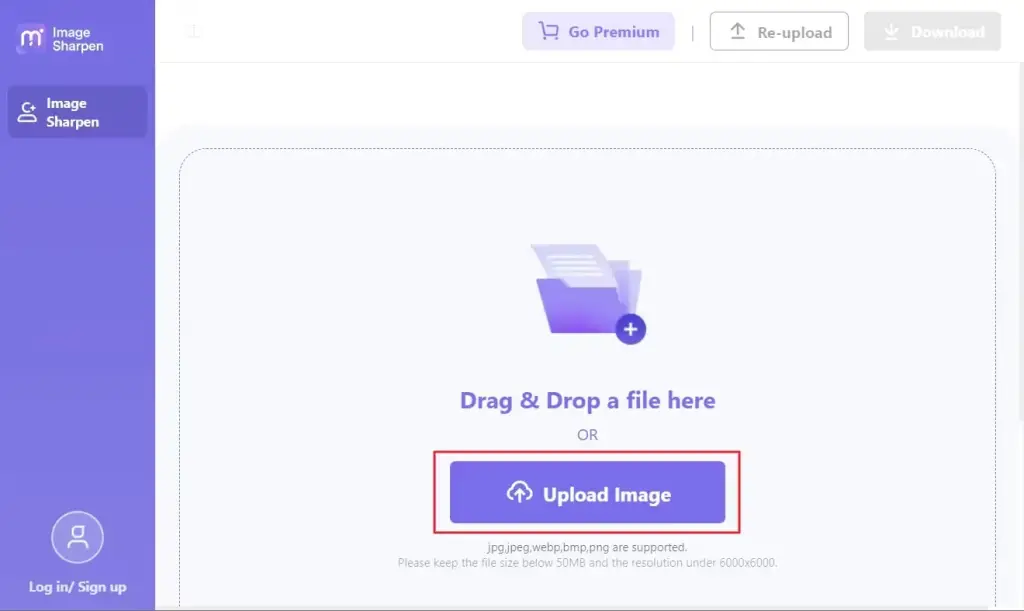
- Media.io will automatically analyze and enhance your photo using AI to sharpen and unblur the text.
- Use the “Compare” slider to view the original and enhanced images side-by-side. Move it around to compare different areas.
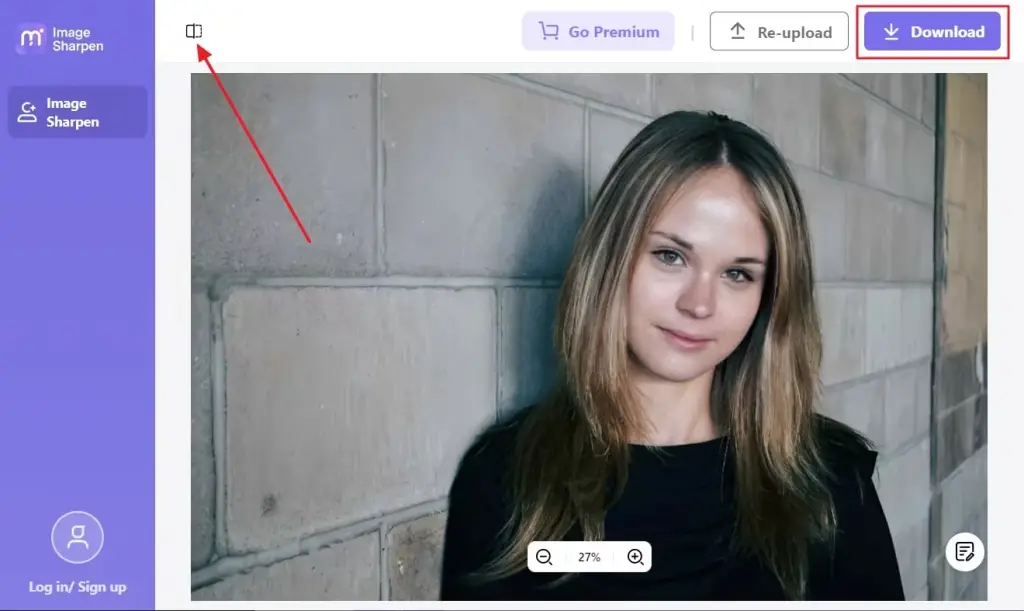
- When satisfied with the text clarity, click “Download” to save the enhanced image to your device.
Part 4: AI Enhance Image Text Using Pixelup on Android & iOS
Pixelup is a powerful photo editing & photo enhancer app for Android and iOS that can clarify blurred or pixelated text using AI-based image enhancement.
To sharpen text with Pixelup Ai text enhancer, follow these steps:
- Open the app and upload the image with illegible text.
- Tap the “Enhance” button, which will automatically analyze and sharpen the image.
- Use the “Compare” slider to toggle between original and enhanced versions.
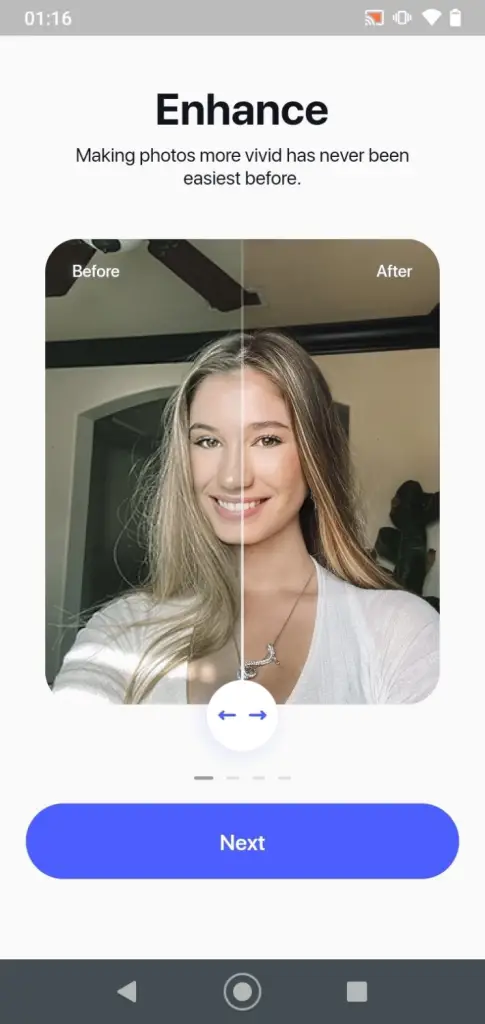
- Adjust enhancement intensity with the Strength slider if needed.
- When satisfied, save the enhanced photo with readable text.
Part 5: How to Enhance Text with Photoshop
Photoshop provides powerful sharpening filters that can help clarify the blurred or pixelated text in images. Here are the steps for how to unblur text:
- Open the image containing illegible text in Photoshop.
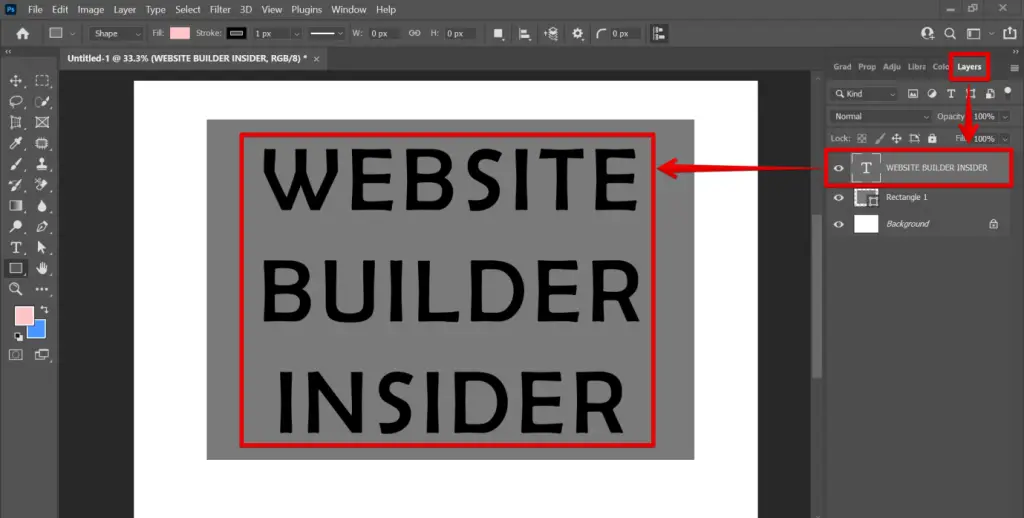
- Select the area(s) with blurry text using the Layers panel.
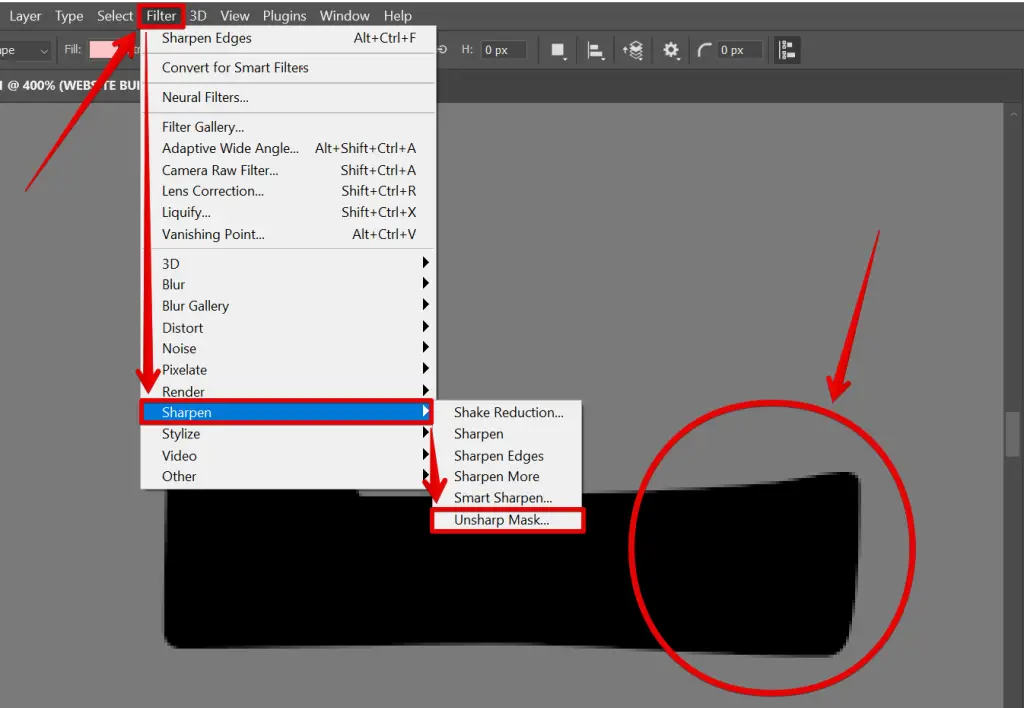
- Go to Filter > Sharpen and pick an option like Unsharp Mask.
- In the filter settings, adjust the Amount, Radius, and Threshold sliders to sharpen the text. Amount controls intensity, Radius affects sharpened area size, and Threshold minimizes artifacts.
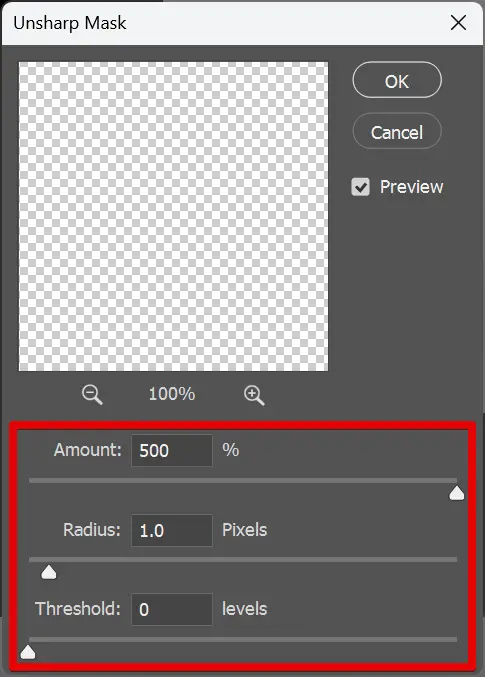
- Experiment with the settings until the text appears sufficiently clear and sharp. When satisfied, hit OK to apply the sharpening filter.
Conclusion
When you need to rescue important but illegible text from blurry images, one of the most effective solutions is HitPaw Photo Enhancer.
With its specialized AI models, HitPaw Photo Enhancer can automatically sharpen and clarify the blurred, pixelated, or distorted text in photos and scans. Use this image text enhancer today and unblur your text images in seconds without relying on expensive tools.
Unblur Text Image FAQ
- How can I enhance text from a picture?
For sharpening and clarifying blurry text in images, I recommend using HitPaw Photo Enhancer. It utilizes powerful AI models to automatically analyze and improve image quality, including enhancing text areas specifically.
With just one click, it can unblur and sharpen text, making it readable again. The specialized enhancement algorithms in HitPaw make it the top solution for rescuing illegible text from photos.
- How to improve text quality in images online?
If you need a quick online way to fix blurry text in images, your best option is Media.io. It offers a free AI-powered image sharpener that will automatically unblur and enhance text with a single upload.
The intelligent sharpening algorithms can clarify even very low-resolution or heavily compressed text. For fast, automated improvements to illegible image text, Media.io is a top free online tool to use.
