

How can I setup personal Music streaming server on Ubuntu / Debian / CentOS / Fedora with Koel?. Koel is an open source, simple web-based personal audio streaming service written in Vue and Laravel PHP Framework. This streaming server is targeting web developers, and it embraces modern web technologies such as CSS grid, audio, and drag-and-drop API e.t.c.

These are the two components of Koel media streaming service.
Server side
- MySQL, MariaDB, PostgresSQL, or SQLite. Actually, any DBMS supported by Laravel should work.
- PHP, OpenSSL, Composer – For Laravel
- NodeJS latest stable with yarn
Client requirements
- Any decent web browser will do – Koel has been tested on Chrome 47, Firefox 42, Safari 8, Opera 34, and Edge.
Our next sections will discuss how you can install and configure the dependencies required by Koel Music Streaming Server.
Step 1: Install Database Server
We’ll focus on using MariaDB database server. These are the reference guides for the installation.
### RHEL based systems ###
sudo yum -y install mariadb-server
sudo systemctl enable --now mariadb

### Debian based systems ###
sudo apt update
sudo apt install mariadb-server
Once you have database service running, create the database, a user for the service, and then grant permissions for that user.
$ sudo mysql -u root -p
CREATE DATABASE koel DEFAULT CHARACTER SET utf8 DEFAULT COLLATE utf8_general_ci;
CREATE USER 'koel'@'localhost' IDENTIFIED BY 'k03lDBP@s3';
GRANT ALL PRIVILEGES ON koel.* TO 'koel'@'localhost' WITH GRANT OPTION;
EXIT;
Step 2: Install PHP and Composer
In this step, we’ll install PHP, Composer and Nginx httpd server.
Debian / Ubuntu:
sudo apt update
sudo apt -y install git curl g++ nginx
sudo apt -y install php php-cli php-fpm php-json php-pdo php-mysql php-zip php-gd  php-mbstring php-curl php-xml php-pear php-bcmath
CentOS 7:
sudo yum -y install http://rpms.remirepo.net/enterprise/remi-release-7.rpm
sudo yum -y install git wget curl epel-release yum-utils libpng-devel

sudo yum-config-manager --disable remi-php54
sudo yum-config-manager --enable remi-php80
sudo yum -y install php  php-cli php-fpm php-mysqlnd php-zip php-devel php-gd php-mcrypt php-mbstring php-curl php-xml php-pear php-bcmath php-json
CentOS 8 / Rocky 8:
sudo dnf -y install git wget curl yum-utils
sudo dnf -y install https://dl.fedoraproject.org/pub/epel/epel-release-latest-8.noarch.rpm
sudo dnf -y install https://rpms.remirepo.net/enterprise/remi-release-8.rpm
sudo dnf module reset php -y
sudo dnf module install php:remi-8.0 -y
sudo yum -y install wget php php-{pear,cgi,common,curl,mbstring,gd,mysqlnd,gettext,bcmath,json,xml,fpm,intl,zip,imap}
Step 3: Install Node.js
Install Nodejs:
### RHEL based systems ###
sudo curl -sL https://rpm.nodesource.com/setup_18.x | sudo bash -
sudo yum -y install nodejs

### Ubuntu / Debian ###
sudo curl -sL https://deb.nodesource.com/setup_18.x | sudo bash -
sudo apt update
sudo apt -y install nodejs
Install yarn:
### RHEL based systems ###
curl -sL https://dl.yarnpkg.com/rpm/yarn.repo | sudo tee /etc/yum.repos.d/yarn.repo
sudo yum -y install yarn

### Ubuntu / Debian ###
curl -sL https://dl.yarnpkg.com/debian/pubkey.gpg | sudo apt-key add -
echo "deb https://dl.yarnpkg.com/debian/ stable main" | sudo tee /etc/apt/sources.list.d/yarn.list
sudo apt-get update && sudo apt-get install yarn
Install Composer:
sudo su -
curl -sS https://getcomposer.org/installer | php -- --install-dir=/usr/bin --filename=composer
exit
Verify installation by querying for version.
$ composer  --version
Composer version 2.5.8 2023-06-09 17:13:21
Step 4: Install Koel Music Streaming server
Install build dependencies:
### Ubuntu / Debian ###
sudo apt install -y build-essential libpng-dev gcc make ffmpeg

### RHEL based systems ###
sudo yum -y install epel-release
sudo yum group install "Development Tools" -y
sudo yum -y install libpng-devel
For ffmpeg installation on CentOS, check:
Clone koel project code form Github.
git clone https://github.com/phanan/koel.git
cd koel
git checkout latest # Check out the latest version at https://github.com/koel/koel/releases
composer install
You can edit the .env file with the necessary configuration changes – Set database credentials
Then initialize the database and then start serving the site.
php artisan koel:init # Populate necessary configurations during the processAfter successful installation you should get output like below.
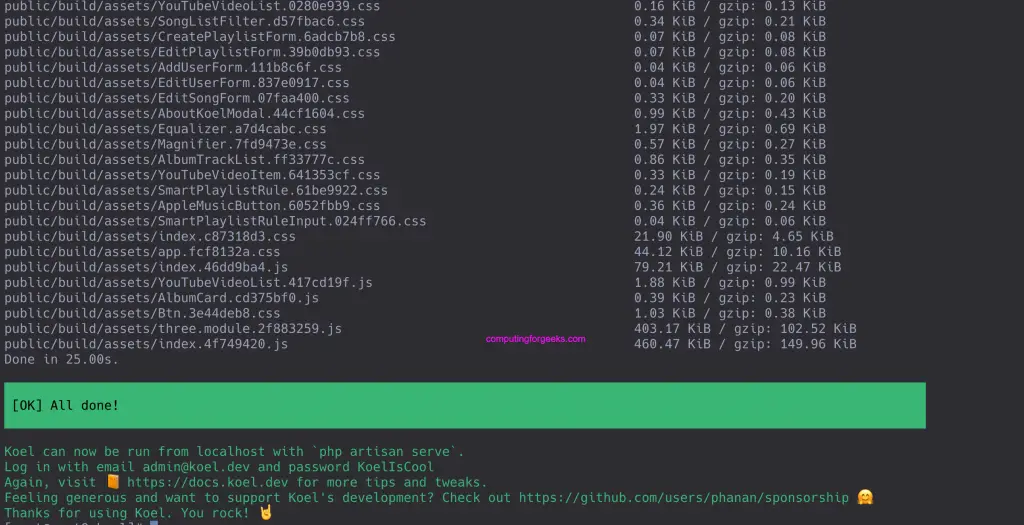
To access Koel from your local machine browser run:
php artisan serveThis will only allow connections from the localhost. If you would like to accept connections from other hosts, start the server by providing the ‘host’ option.
php artisan serve --host 0.0.0.0Step 5: Configure Nginx Proxy
For optimal performance, you’ll want to set up the production version with Apache or Nginx web server. Install nginx with the commands:
### Debian / Ubuntu ###
sudo apt update
sudo apt -y install nginx php-fpm
sudo systemctl enable --now nginx

### CentOS / RHEL ###
sudo yum -y install nginx
sudo systemctl enable --now nginx php-fpm
sudo firewall-cmd --add-service={http,https} --permanent
sudo firewall-cmd --reload
Move your koel project folder to /var/www/html directory.
cd ..
sudo mv koel /var/www/html
Set permissions:
### Debian / Ubuntu ###
sudo chown -R www-data:www-data /var/www/html/koel

### RHEL based ###
sudo chown -R apache:apache /var/www/html/koel
Configure Nginx
sudo vim /etc/nginx/conf.d/koel.confPaste and modify below.
server {
  listen          *:80;
  server_name     koel.example.com;
  root            /var/www/html/koel/public;
  index           index.php;

  gzip            on;
  gzip_types      text/plain text/css application/x-javascript text/xml application/xml application/xml+rss text/javascript application/json;
  gzip_comp_level  9;

  # Whitelist only index.php, robots.txt, and some special routes
  if ($request_uri !~ ^/$|index\.php|robots\.txt|(public|api)/|remote|api-docs|sw\.js) {
    return 404;
  }

  location /media/ {
    internal;

    alias       $upstream_http_x_media_root;
    access_log /var/log/nginx/koel.access.log;
    error_log  /var/log/nginx/koel.error.log;
  }

  location / {
    try_files   $uri $uri/ /index.php?$args;
  }

  location ~ \.php$ {
    try_files $uri $uri/ /index.php?$args;

    fastcgi_param     PATH_INFO $fastcgi_path_info;
    fastcgi_param     PATH_TRANSLATED $document_root$fastcgi_path_info;
    fastcgi_param     SCRIPT_FILENAME $document_root$fastcgi_script_name;

    #fastcgi_pass              127.0.0.1:9000;
    fastcgi_pass               unix:/run/php-fpm/www.sock;
    fastcgi_index             index.php;
    fastcgi_split_path_info   ^(.+\.php)(/.+)$;
    fastcgi_intercept_errors  on;
    include                   fastcgi_params;
  }
}
Check nginx configuration for any syntax errors:
$ sudo nginx  -t
nginx: the configuration file /etc/nginx/nginx.conf syntax is ok
nginx: configuration file /etc/nginx/nginx.conf test is successful
Restart nginx:
sudo systemctl restart nginxAccess Koel dashboard on: koel.example.com – Domain configured.
More guides:
How To Create Hard Links and Soft (Symbolic) Links in Linux
Understanding the Linux File System Hierarchy
