

The prospect of having your own media streaming server can be indeed exhilarating. Thanks to the good work of Opensource and the relentless hard work by awesome people around the world, you can have your own media streaming server purring and creating fantastic music for you. One amazing opensource media streaming server you should check out for and support is Koel.
Koel (also stylized as koel, with a lowercase k) is a simple web-based personal audio streaming service written in Vue on the client-side and Laravel on the server-side. Targeting web developers, Koel embraces some of the more modern web technologies – CSS grid, audio, and drag-and-drop API to name a few – to do its job. Source: (Koel)
“And those who were seen dancing were thought to be insane by those who could not hear the music.”
― Friedrich Nietzsche
Server Requirements
Koel has the following requirements it asks of us before it can settle comfortably:
- All requirements by Laravel – PHP, OpenSSL,
- Composer
- PHP >= 7.1.3
- BCMath, Ctype, JSON, Mbstring, OpenSSL, PDO, Tokenizer, XML PHP Extension
- Consider setting PHP’s memory_limit to a good value (512M or better) if you have a big library.
- MySQL, MariaDB, PostgresSQL, or SQLite. Actually, any DBMS supported by Laravel should work.
- NodeJS latest stable with yarn
1) Update and install essential tools
Once in the terminal of your fresh Ubuntu server, update it and install essential tools we shall use in our installation process
sudo apt update && sudo apt upgrade -yCheck if reboot is required.
[ -f /var/run/reboot-required ] && sudo reboot -fInstall other dependencies.
sudo apt install vim git unzip nginx curl build-essential libpng-dev gcc make ffmpeg -y2) Install and setup database
We are going to use MariaDB for this setup. Fortunately, we have a detailed guide already to get MariaDB installed.
sudo apt install mariadb-server mariadb-clientAfter you have the database installed, the next step is to create a database and user for our streaming server. Let us therefore go ahead and get this done as shown below. You are free to name your database and user differently and ensure you use a safe password.
$ sudo mysql -u root -p
CREATE DATABASE koel;
CREATE USER 'koel'@'localhost' IDENTIFIED BY 'StrongPassword';
GRANT ALL PRIVILEGES ON koel . * TO 'koel'@'localhost';
FLUSH PRIVILEGES;
exit;
3) Install PHP and configure a web server
In order to get Koel web pages served, there has to be a webserver. Here, you have the freedom of either picking Apache or Nginx. We shall use Nginx in this guide. Additionally, as we have seen in the requirements, Koel needs PHP and therefore we will have to set it up as well.
sudo apt install php php-cli php-fpm php-json php-common php-mysql php-zip php-gd php-mbstring php-curl php-xml php-pear php-bcmath php-tokenizer openssl php-json php-sqlite3 -yFore more details, we have a complete guide that covers the installation of Nginx and PHP-FPM on Ubuntu.
$ php --version
PHP 8.1.2-1ubuntu2.14 (cli) (built: Aug 18 2023 11:41:11) (NTS)
Copyright (c) The PHP Group
Zend Engine v4.1.2, Copyright (c) Zend Technologies
    with Zend OPcache v8.1.2-1ubuntu2.14, Copyright (c), by Zend Technologies
Add recommemded PHP Settings
Open up your php-fpm ini file and add/edit the details shown below. They include Timezone, and memory limit settings. Add your date.timezone and change memory_limit to 512MB or more.
$ sudo vim /etc/php/*/fpm/php.ini

memory_limit = 512M

[Date]
date.timezone = Africa/Nairobi
Install composer
Composer is required to in order to get Koel’s dependencies installed. Do the following to setup composer
cd ~
curl -sS https://getcomposer.org/installer -o composer-setup.php
sudo php composer-setup.php --install-dir=/usr/local/bin --filename=composer
Test if composer is successfully installed by running the composer version command
$ composer -V
Composer version 2.7.1 2024-02-09 15:26:28
4) Get Yarn and Node installed
In this step, we will enable the official Yarn repository, import the repository GPG key, and install the packages of our interest. Let us proceed to import the repository’s GPG key and add the Yarn APT repository to your system by issuing the commands below:
Install Node.js
Install Node using the commands below
curl -sL https://deb.nodesource.com/setup_20.x | sudo -E bash -
sudo apt install nodejs
Install Yarn
Install Yarn as well using the commands below
curl -sS https://dl.yarnpkg.com/debian/pubkey.gpg | sudo apt-key add -
echo "deb https://dl.yarnpkg.com/debian/ stable main" | sudo tee /etc/apt/sources.list.d/yarn.list
After the importation is successful, the command below will update the package list and install yarn.
sudo apt update
sudo apt install --no-install-recommends yarn
5) Prepare Koel Project
The root directory is the folder in which our Webserver will check out for Koel’s files and serve them upon request. You can create a different one according to your needs. After creating the root directory, clone Koel’s files from Git, install all Node dependencies as well as PHP dependencies using Yarn and Composer respectively.
VER=$(curl --silent "https://api.github.com/repos/koel/koel/releases/latest"|grep '"tag_name"'|sed -E 's/.*"([^"]+)".*/\1/'|sed 's/v//')
echo $VER
Download pre-compiled archive of Koel, which eliminates the need to manually compile the front-end assets.
wget https://github.com/koel/koel/releases/download/v${VER}/koel-v${VER}.tar.gzExtract the downloaded archive.
tar xvf koel-v${VER}.tar.gzChange to koel directory.
cd koelCreate .env file from template.
cp .env.example .envEdit .env file containing Database details
$ vim .env
DB_CONNECTION=mysql
DB_HOST=127.0.0.1
DB_PORT=3306
DB_DATABASE=koel
DB_USERNAME=koel
DB_PASSWORD=StrongPassword

MEMORY_LIMIT=512

#The full path of ffmpeg binary.
FFMPEG_PATH=/usr/bin/ffmpeg
After you are done editing the file, initialize the database.
$ php artisan koel:init --no-assets
************************************
*     KOEL INSTALLATION WIZARD     *
************************************

As a reminder, you can always install/upgrade manually following the guide at https://docs.koel.dev

  Clearing caches ........................................................................................................................ 11ms DONE
   INFO  .env file exists -- skipping.

  Retrieving app key ...................................................................................................................... 0ms DONE

   INFO  Using app key: base64:v+nO5643L...

  Migrating database .................................................................................................................... 914ms DONE
  Creating default admin account ......................................................................................................... 80ms DONE
  Seeding data ........................................................................................................................... 28ms DONE

The absolute path to your media directory. If this is skipped (left blank) now, you can set it later via the web interface.

 Media path []:
 >


 [OK] All done!


Koel can now be run from localhost with `php artisan serve`.
Log in with email [email protected] and password KoelIsCool
Again, visit 📙 https://docs.koel.dev for more tips and tweaks.
Feeling generous and want to support Koel's development? Check out https://github.com/users/phanan/sponsorship 🤗
Thanks for using Koel. You rock! 🤘
To Start Koel server, run:
$ php artisan serve --host=0.0.0.0
 INFO  Server running on [http:////0.0.0.0:8000].

  Press Ctrl+C to stop the server
At this point, you can load your Koel server from the browser and it should load. Point your browser to http://server-ip:8000 and a login screen like below will show up.
Enter the email and password that you set in the .env file above. If it all goes well, the test was successful, so let us proceed to setup Koel for production.
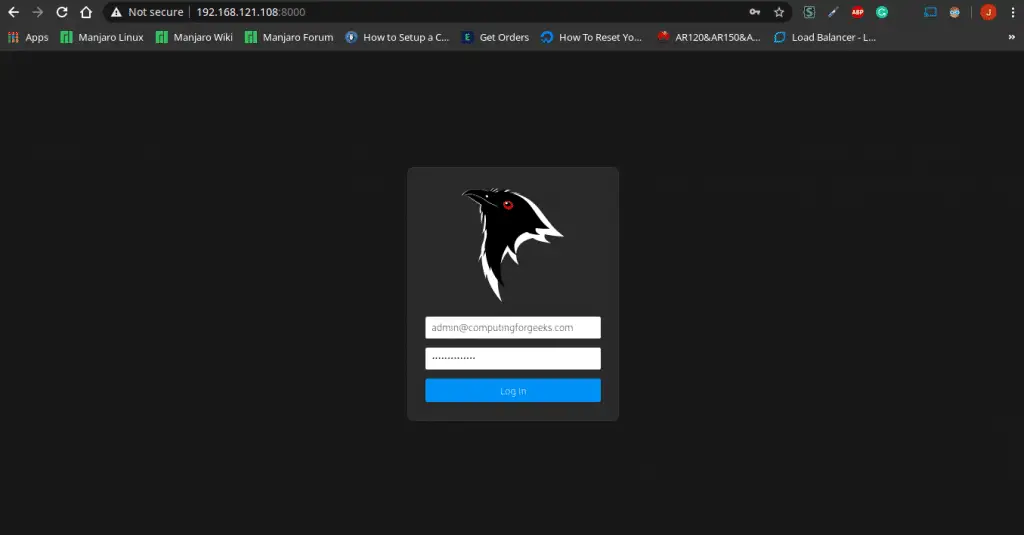
Default login details are:
- Username: [email protected]
- Password: KoelIsCool
Issue Ctrl+c at the terminal to kill koel test.
Create a new directory to be used as the Document| webroot for koel and copy Koel files and folders into it.
cd ~/
sudo mv ~/koel /var/www/
Configure Nginx
We have to make a few changes to the Nginx configuration defaults by adding the details we need for Koel. Change into sites-enabled, back up the default file, and create a new one with new configurations.
sudo unlink /etc/nginx/sites-enabled/default Copy nginx configuration example file.
sudo cp nginx.conf.example /etc/nginx/sites-enabled/koel.confEdit the details shown below. If you have an FQDN, replace koel.example.com with it.
$ sudo vim /etc/nginx/sites-enabled/koel.conf
server {
  listen          80 default_server;
  server_name     koel.example.com;
  root            /var/www/koel/public;
  index           index.php;

  gzip            on;
  gzip_types      text/plain text/css application/x-javascript text/xml application/xml application/xml+rss text/javascript application/json;
  gzip_comp_level  9;

  send_timeout    3600;
  client_max_body_size  50M;

  location / {
    try_files   $uri $uri/ /index.php?$args;
  }

  location /media/ {
    internal;

    alias       $upstream_http_x_media_root;

    access_log /var/log/nginx/koel.access.log;
    error_log  /var/log/nginx/koel.error.log;
  }

  location ~ \.php$ {
    try_files $uri $uri/ /index.php?$args;

    fastcgi_param     PATH_INFO $fastcgi_path_info;
    fastcgi_param     PATH_TRANSLATED $document_root$fastcgi_path_info;
    fastcgi_param     SCRIPT_FILENAME $document_root$fastcgi_script_name;

    fastcgi_pass 	      unix:/run/php/php-fpm.sock;
    fastcgi_index             index.php;
    fastcgi_split_path_info   ^(.+\.php)(/.+)$;
    fastcgi_intercept_errors  on;
    include                   fastcgi_params;
  }
}
Change Koel’s files permissions
In order for Nginx to read the files, we have to grant it correct rights and the right permissions. Issue the commands below to get that done.
sudo chown -R www-data:www-data /var/www/koel
sudo chmod -R 755 /var/www/koel
sudo systemctl restart nginx php*-fpm.service
6) Access Koel’s Web Interface
To complete setting up Koel Media Streaming Server, point your browser to the IP or domain name of the webserver serving the files. [http://[ip-or-domain-name]. You should get a page like below which is exactly the same as the one we had interacted with before. Again enter the email and password that you had set in the .env file above.
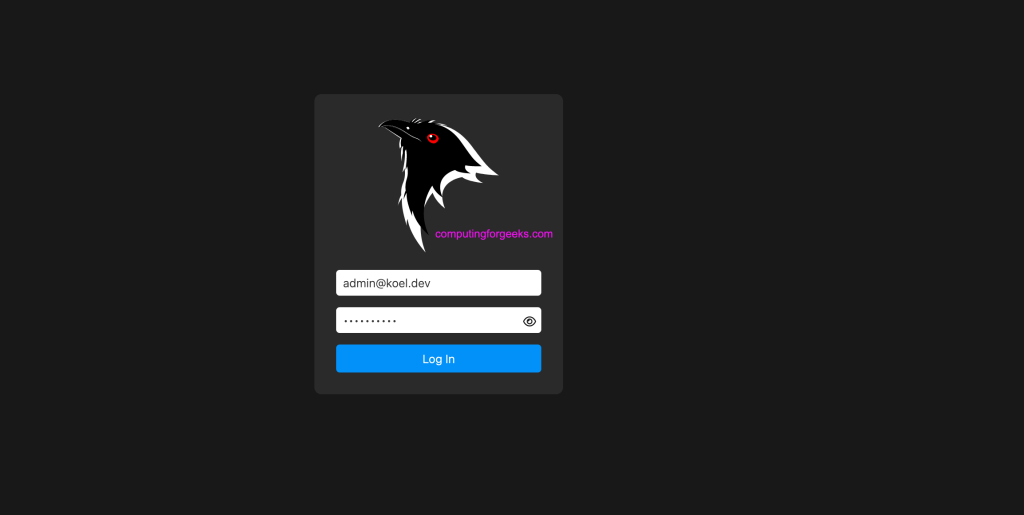
Default login details are:
- Username: [email protected]
- Password: KoelIsCool
You should be ushered into the dashboard when well authenticated.
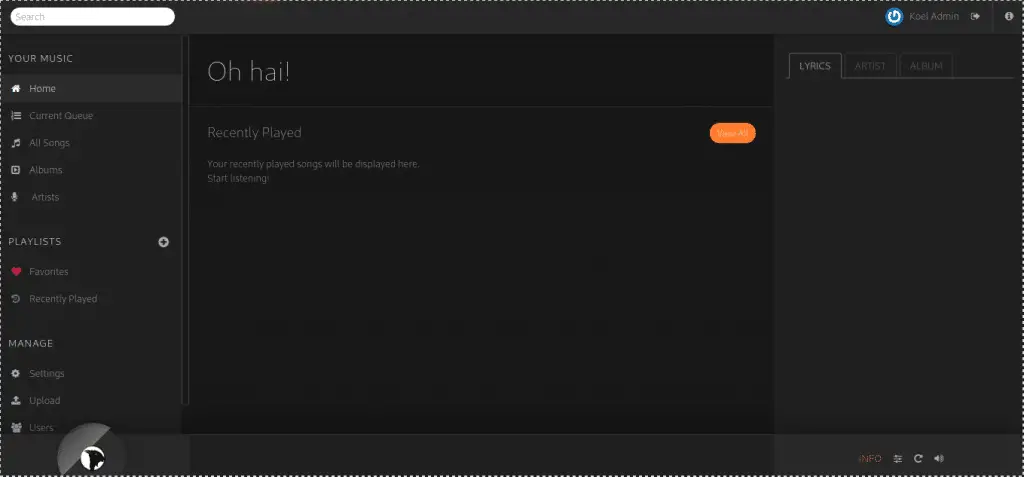
7) Setting a Media directory
You will notice that our streaming server does not have any media directory. For this example, we are going to make ~/Music directory the place Koel will be fetching our media. I created the “Music” directory and copied some music files (mp3,m4a, etc) into it.
$ mkdir ~/Music

# Copy music/any media into this directory
After you are done, log back into Koel Server and click on “Settings” and set the created directory as the Media Path then click on “Scan“.
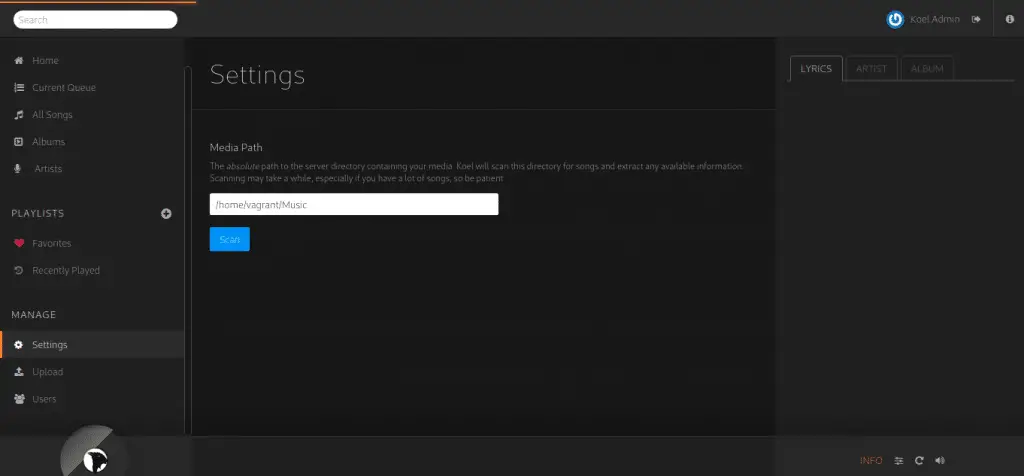
And your music files should avail themselves for your felicity time.
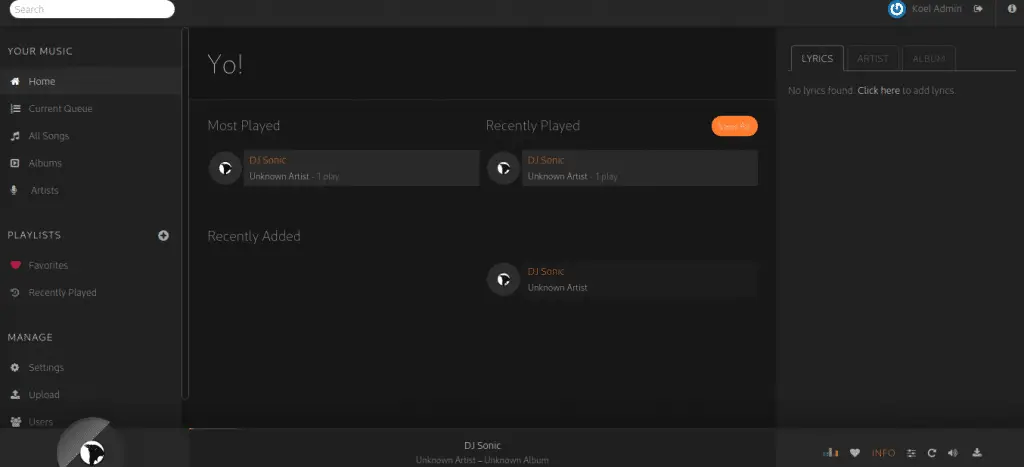
This command can also be added as a cron job, for example to run every midnight o sync your music files in case you keep adding them into the media path
0 0 * * * cd /var/www/koel/ && /usr/bin/php artisan koel:sync >/dev/null 2>&1And there we have it guys. Koel’s client interface looks like Spotify. So you will feel right at home as you search, sort, view by artists or albums, create playlists, like/unlike songs, and create other users to share the juices.
Denouement
There are other settings you should to do to fine-tune and optimize your server when Streaming Music heavily. For example, using Apache’s mod_xsendfile module and Nginx’s X-Accel module to make your streaming experience far better. For more details about Koel Media Streaming, kindly visit their Official Documentation and get all the electricity the Streaming server was built with.
Satiate your curiosity with the guides below:

I am now stuck at this point.
“warning package-lock.json found. Your project contains lock files generated by tools other than Yarn. It is advised not to mix package managers in order to av
oid resolution inconsistencies caused by unsynchronized lock files. To clear this warning, remove package-lock.json.
[1/4] Resolving packages…
success Already up-to-date.
Done in 0.66s.
yarn run v1.22.5
$ cross-env NODE_ENV=production node_modules/webpack/bin/webpack.js –progress –hide-modules –config=node_modules/laravel-mix/setup/webpack.config.js –colo
rs
[webpack-cli] Error: Unknown option ‘–hide-modules’
[webpack-cli] Run ‘webpack –help’ to see available commands and options
error Command failed with exit code 2.
info Visit https://yarnpkg.com/en/docs/cli/run for documentation about this command.
Oops! Koel installation or upgrade didn’t finish successfully.
Please try again, or visit https://docs.koel.dev for manual installation.
Sorry for this. You deserve better.”
Did you find the fix for this? I am in same situation.