

OpenCode is an open source AI coding agent that runs in your terminal. It connects to over 75 AI providers – from Anthropic and OpenAI to local models via Ollama – and gives you file editing, code generation, shell access, and project understanding through a single Go binary. With 11,500+ GitHub stars, built-in free models, and a privacy-first design where your code never gets stored, OpenCode is the most flexible terminal-based AI coding tool available today.
This guide covers full installation on macOS, Linux, and Windows, provider configuration, the TUI interface, built-in tools, agents, MCP integration, custom instructions, LSP support, theming, scripting, and VS Code integration. Whether you want to use free models with zero setup or bring your own API keys from any major provider, you will have OpenCode running and customized by the end. The official documentation is available at opencode.ai/docs.
Prerequisites
- macOS 12+, Linux (any modern distro), or Windows 10/11 with WSL
- Terminal access with a modern shell (bash, zsh, fish, PowerShell)
- Git installed for project-level configurations
- Optional: API key from Anthropic, OpenAI, Google, or any supported provider (free models work without keys)
- Optional: Node.js 18+ if installing via npm
- Optional: Homebrew (macOS/Linux) for the easiest install path
Step 1: Install OpenCode on macOS
macOS has three installation methods. Homebrew is the simplest and handles updates automatically.
Install via Homebrew (recommended)
Install OpenCode with a single Homebrew command:
brew install opencodeHomebrew installs the opencode binary along with the ripgrep dependency. The total download is approximately 157.4MB. After installation, verify it works:
opencode --versionThe version output confirms OpenCode is installed and ready:
1.2.20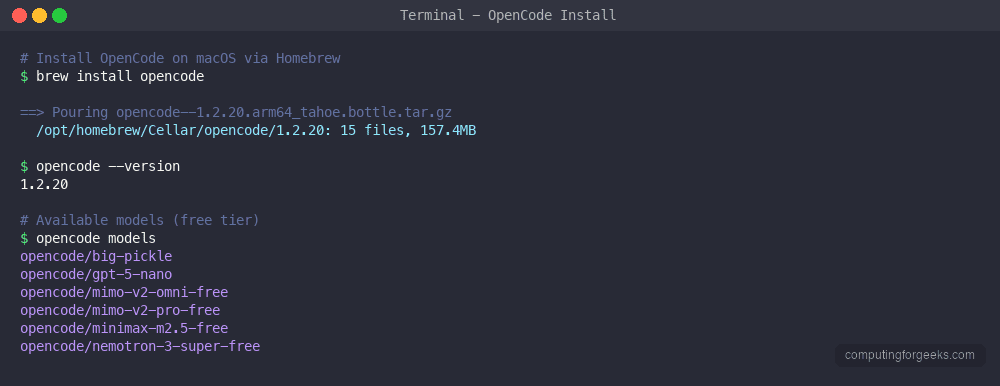
Install via curl script
The universal install script works on macOS and Linux. It downloads the correct binary for your architecture:
curl -fsSL https://opencode.ai/install | bashThis installs OpenCode to ~/.opencode/bin/opencode. Add it to your PATH if the installer does not do it automatically:
export PATH="$HOME/.opencode/bin:$PATH"Add that line to your ~/.zshrc or ~/.bashrc to make it permanent.
Install via npm
If you already have Node.js installed, npm works as another install method:
npm install -g opencode-aiStep 2: Install OpenCode on Linux
Linux has the most installation options. The curl script is the fastest universal method.
Install via curl script (recommended)
Run the official install script:
curl -fsSL https://opencode.ai/install | bashThe script detects your CPU architecture (amd64 or arm64), downloads the correct binary, and installs to ~/.opencode/bin/opencode. After installation, verify the version:
opencode --versionYou should see the current version confirmed:
1.2.27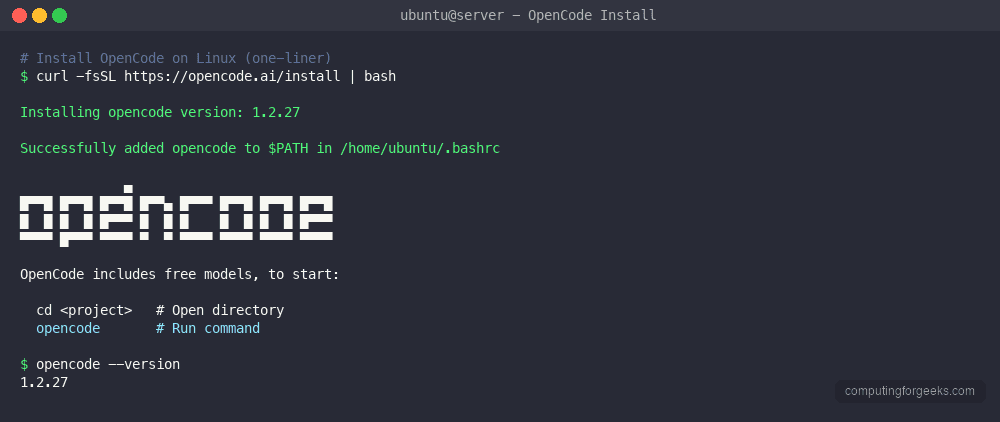
Install via Homebrew on Linux
If you use Linuxbrew, the same Homebrew command works:
brew install opencodeInstall on Arch Linux (AUR)
Arch Linux users can install from the AUR:
yay -S opencode-binInstall on NixOS
Nix users can run OpenCode without permanent installation:
nix run nixpkgs#opencodeOr install it permanently:
nix-env -iA nixpkgs.opencodeStep 3: Install OpenCode on Windows
Windows users have native package managers and WSL as options.
Install via Chocolatey
Open an elevated PowerShell and run:
choco install opencodeInstall via Scoop
Scoop users can install from the default bucket:
scoop install opencodeInstall via WSL
For the best experience on Windows, use WSL with Ubuntu and follow the Linux installation steps above. OpenCode works best in a Unix-like environment where it can access standard tools like ripgrep, git, and shell utilities directly.
Docker installation (all platforms)
Run OpenCode in a container without installing anything on your host system:
docker run -it -v $(pwd):/app anomalyco/opencode:latestThis mounts your current directory into the container so OpenCode can read and modify your project files. Useful for CI/CD pipelines or environments where you want full isolation.
Step 4: Configure AI Providers
OpenCode supports over 75 AI providers – more than any other terminal coding agent. You can start immediately with free built-in models or connect your own API keys.
Use free models (no API key needed)
OpenCode ships with free models you can use immediately after installation. Run the models command to see what is available:
opencode modelsThe free models available at the time of writing include:
- opencode/big-pickle – general purpose model
- opencode/gpt-5-nano – lightweight and fast
- opencode/mimo-v2-omni-free – multimodal capable
- opencode/mimo-v2-pro-free – enhanced multimodal
- opencode/minimax-m2.5-free – fast responses
- opencode/nemotron-3-super-free – NVIDIA’s open model
These free models let you test OpenCode and do real work without spending anything on API credits.
Authenticate with a provider
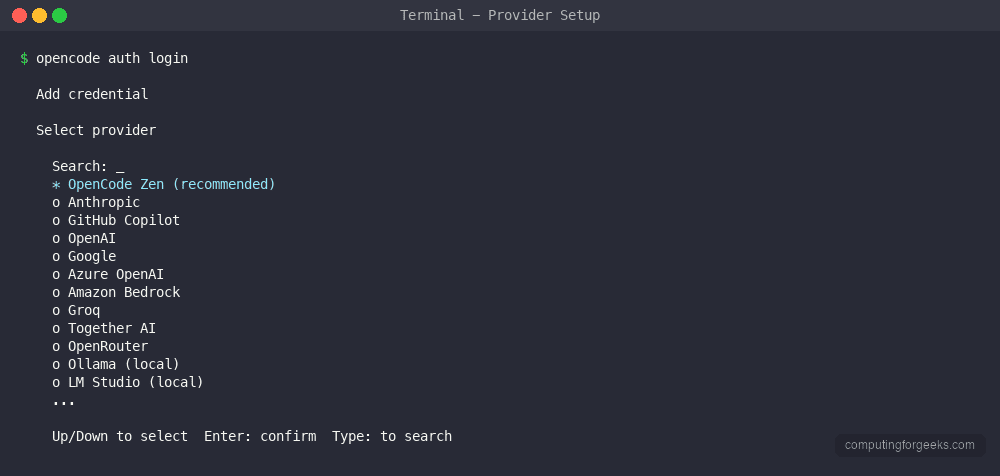
To use premium models like Claude Sonnet 4, GPT-4.1, or Gemini 2.5 Pro, authenticate with your provider:
opencode auth loginThis presents a list of all supported providers:
- OpenCode Zen – OpenCode’s own managed service
- Anthropic – Claude models (Sonnet 4, Opus 4, Haiku)
- GitHub Copilot – use your existing Copilot subscription
- OpenAI – GPT-4.1, o3, o4-mini
- Google – Gemini 2.5 Pro, Flash
- Azure OpenAI – enterprise Azure deployments
- Amazon Bedrock – AWS-hosted models
- Groq – ultra-fast inference
- Together AI – open source model hosting
- OpenRouter – multi-provider routing
- Ollama – local models on your machine
- LM Studio – local model management
Set API keys via environment variables
You can also set API keys directly without the interactive login flow. Export the relevant environment variable for your provider:
export ANTHROPIC_API_KEY="sk-ant-your-key-here"
export OPENAI_API_KEY="sk-your-key-here"
export GOOGLE_API_KEY="your-google-key"
export GROQ_API_KEY="gsk_your-key-here"
Add these to your shell profile (~/.zshrc or ~/.bashrc) for persistence. OpenCode automatically detects configured keys and makes the corresponding models available.
Use local models with Ollama
For fully private AI coding with no data leaving your machine, use Ollama as your provider. Start Ollama, pull a model, and configure OpenCode to use it. No API keys needed – everything runs locally.
Step 5: Configure OpenCode with opencode.json
OpenCode uses JSON configuration files at two levels: global (applies to all projects) and project-specific (overrides global settings for one project).
Global configuration
The global config lives at ~/.config/opencode/opencode.json. Create or edit it:
mkdir -p ~/.config/opencodeOpen the config file for editing:
vi ~/.config/opencode/opencode.jsonAdd your preferred configuration. Here is a full example with common settings:
{
  "$schema": "https://opencode.ai/config.json",
  "model": "anthropic/claude-sonnet-4-20250514",
  "providers": {
    "anthropic": {
      "apiKey": "env:ANTHROPIC_API_KEY"
    },
    "openai": {
      "apiKey": "env:OPENAI_API_KEY"
    }
  },
  "theme": "opencode",
  "instructions": [
    "docs/",
    "README.md"
  ]
}
The env: prefix tells OpenCode to read the value from an environment variable instead of storing the key in plain text. This is the recommended approach for API keys.
Project configuration
Create a opencode.json file in your project root to set project-specific options. This overrides global config for that project:
vi opencode.jsonAdd project-specific settings:
{
  "$schema": "https://opencode.ai/config.json",
  "model": "anthropic/claude-sonnet-4-20250514",
  "instructions": [
    "docs/architecture.md",
    "CONTRIBUTING.md"
  ],
  "mcp": {
    "postgres": {
      "type": "local",
      "command": ["npx", "-y", "@modelcontextprotocol/server-postgres", "postgresql://localhost:5432/mydb"]
    }
  }
}
Project configs are useful for teams. Commit opencode.json to your repo so everyone uses the same model and tools. Sensitive values like API keys should always use the env: prefix.
Data storage
OpenCode stores session data, conversation history, and tool results in a SQLite database at ~/.local/share/opencode/. Sessions persist across restarts, so you can close your terminal and pick up where you left off. The SQLite format makes it easy to query your history programmatically if needed.
Step 6: Understanding the OpenCode TUI
Launch OpenCode in any project directory to enter the Terminal User Interface:
cd /path/to/your/project
opencode
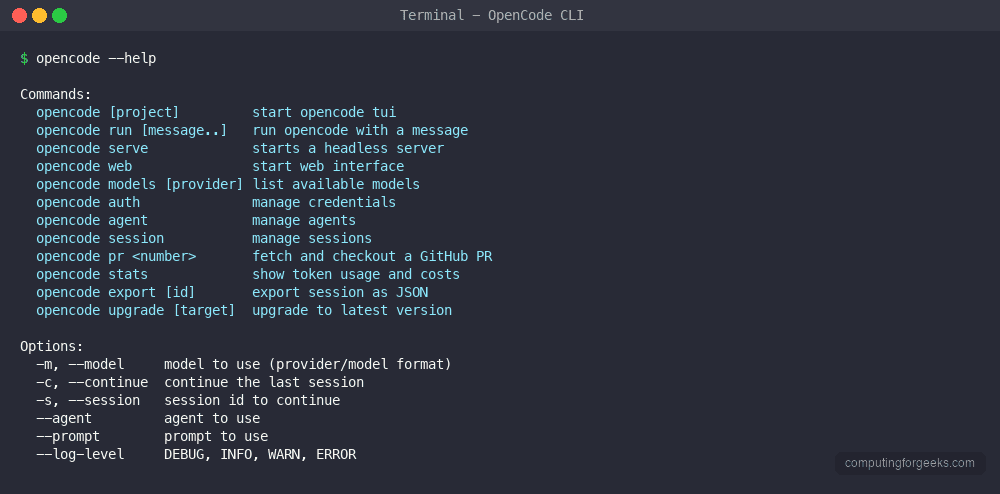
The TUI provides a chat-like interface with full project context. Type natural language requests and OpenCode reads your code, edits files, runs commands, and explains what it does.
Slash commands
Inside the TUI, slash commands control your session:
| Command | Description |
|---|---|
/models | Switch AI model mid-session |
/sessions | Switch between saved sessions |
/compact | Summarize and compress context |
/share | Create public shareable link to conversation |
/theme | Change TUI color theme |
/editor | Open external editor for composing messages |
/init | Create or update AGENTS.md file |
/thinking | Toggle display of AI reasoning process |
/details | Toggle tool execution details |
/export | Export conversation to Markdown |
/help | Show all available commands |
Multi-session support
OpenCode supports multiple concurrent sessions. Each session maintains its own conversation history and context. Use /session to switch between them. Sessions persist in the SQLite database, so you can have a long-running debugging session alongside a feature development session without losing context in either.
Auto-compacting
When your conversation approaches 95% of the model’s context window, OpenCode automatically compacts the conversation by summarizing earlier messages. This keeps the session running without manual intervention. You can also trigger compacting manually with the /compact command when you want to free up context space.
Step 7: Built-in Tools
OpenCode gives the AI model access to a set of built-in tools for interacting with your codebase and system. These tools run locally on your machine.
| Tool | Description |
|---|---|
read | Read file contents with line numbers |
write | Create new files or overwrite existing ones |
edit | Make targeted edits with search-and-replace |
bash | Execute shell commands |
grep | Search file contents with regex patterns |
glob | Find files matching name patterns |
webfetch | Fetch and parse web page content |
diagnostics | Get LSP diagnostics (errors, warnings) |
codesymbols | List code symbols (functions, classes) |
codedefinition | Jump to symbol definitions |
codereferences | Find all references to a symbol |
todo_read | Read the current task list |
todo_write | Update the task checklist |
The edit tool uses a diff-based approach – it searches for a specific string in the file and replaces it. This is more reliable than line-number-based editing because it works even if the file has been modified since it was last read. The bash tool executes commands in your default shell with the project directory as the working directory.
Step 8: Agents System
OpenCode includes specialized agents that focus on different types of tasks. Each agent has its own system prompt, tool set, and behavior pattern optimized for specific workflows.
Built-in agents
| Agent | Purpose |
|---|---|
| build | Default agent with full access for development – file editing, shell commands, and iterative builds |
| general | General-purpose agent for multi-step tasks and research with full tool access |
| plan | Creates implementation plans without making changes – read-only analysis |
| explore | Fast read-only agent for codebase exploration – searches, reads files, but cannot modify anything |
Switch between agents using the Tab key in the TUI, or specify one at launch with the --agent flag:
opencode --agent planThe build agent is particularly useful for CI/CD workflows. It runs your build command, reads the errors, fixes the code, and keeps iterating until the build passes – similar to how Claude Code handles automated fix loops.
Custom agents
Define custom agents in your opencode.json to create specialized workflows for your team:
{
  "agents": {
    "reviewer": {
      "description": "Code review specialist",
      "systemPrompt": "You are a senior code reviewer. Focus on security, performance, and maintainability. Never make changes - only suggest improvements with explanations.",
      "tools": ["read", "grep", "glob", "codesymbols"]
    },
    "migrator": {
      "description": "Database migration helper",
      "systemPrompt": "You help write and review database migrations. Always check for backward compatibility and include rollback steps.",
      "tools": ["read", "write", "edit", "bash", "grep"]
    }
  }
}
Custom agents inherit the base configuration but use their own system prompt and restricted tool set. This is useful for limiting what an agent can do – a review agent that can only read files prevents accidental edits during code review.
Step 9: Custom Instructions with AGENTS.md
OpenCode reads instruction files from your project to understand your coding standards, conventions, and project-specific rules. This works similarly to how other AI tools use system prompts but lives in your repository.
AGENTS.md file
Create an AGENTS.md file in your project root:
vi AGENTS.mdAdd your project-specific instructions:
# Project Guidelines

## Code Style
- Use Go standard formatting (gofmt)
- All exported functions must have doc comments
- Error handling: always wrap errors with fmt.Errorf("context: %w", err)
- No global state - pass dependencies through constructors

## Testing
- Table-driven tests for all public functions
- Integration tests go in _test/ directories
- Use testcontainers for database tests

## Architecture
- Clean architecture: handlers -> services -> repositories
- No business logic in HTTP handlers
- All database queries go through repository interfaces
OpenCode reads this file automatically when you start a session in the project directory. Every AI interaction follows these rules without you repeating them.
Rules directory
For larger projects, use a rules/ directory to organize instructions by topic:
mkdir -p rulesCreate separate rule files for different aspects of your project:
rules/
  api-design.md
  database.md
  testing.md
  security.md
OpenCode loads all markdown files from the rules/ directory and applies them as context. This keeps instructions maintainable as your project grows. Commit these files to your repo so every team member gets the same AI behavior.
Step 10: LSP Integration
OpenCode integrates with Language Server Protocol (LSP) servers to provide code intelligence. This gives the AI access to real-time diagnostics, symbol information, type checking, and code navigation – the same data your editor uses.
Auto-detection
OpenCode automatically detects and starts LSP servers for 40+ languages when they are installed on your system. If you have gopls installed, OpenCode uses it for Go projects. If pyright or pylsp is available, it uses them for Python.
Common LSP servers OpenCode detects:
- Go – gopls
- Python – pyright, pylsp
- TypeScript/JavaScript – typescript-language-server
- Rust – rust-analyzer
- C/C++ – clangd
- Java – jdtls
- Ruby – solargraph
- PHP – intelephense
Manual LSP configuration
Configure custom LSP servers in your opencode.json:
{
  "lsp": {
    "go": {
      "command": ["gopls", "serve"],
      "filetypes": ["go", "gomod"]
    },
    "python": {
      "command": ["pyright-langserver", "--stdio"],
      "filetypes": ["py"]
    }
  }
}
With LSP integration, when the AI edits code, it can immediately check for type errors, unused imports, and other issues – then fix them in the same turn. This dramatically reduces the back-and-forth typical of AI coding tools.
Step 11: MCP Server Integration
Model Context Protocol (MCP) servers extend OpenCode with external tools and data sources. MCP is an open standard that lets AI models interact with databases, APIs, file systems, and other services through a structured protocol.
Stdio MCP servers
The most common MCP setup uses stdio-based servers. Configure them in your opencode.json:
{
  "mcp": {
    "filesystem": {
      "type": "local",
      "command": ["npx", "-y", "@modelcontextprotocol/server-filesystem", "/path/to/allowed/dir"]
    },
    "postgres": {
      "type": "local",
      "command": ["npx", "-y", "@modelcontextprotocol/server-postgres", "postgresql://localhost:5432/mydb"]
    },
    "github": {
      "type": "local",
      "command": ["npx", "-y", "@modelcontextprotocol/server-github"],
      "env": {
        "GITHUB_TOKEN": "env:GITHUB_TOKEN"
      }
    }
  }
}
With the PostgreSQL MCP server configured, you can ask OpenCode to query your database, analyze schema, write migrations, and debug query performance – all within the same session where it edits your application code.
Remote MCP servers
OpenCode also supports remote MCP servers over HTTP with optional OAuth authentication:
{
  "mcp": {
    "remote-tools": {
      "type": "remote",
      "url": "https://mcp.example.com/sse"
    }
  }
}
Remote servers are useful for team-shared tools like internal documentation search, deployment triggers, or monitoring dashboards that everyone on the team can access through OpenCode.
Step 12: Permissions and Access Control
OpenCode uses a permission system to control what the AI can do. By default, it asks for confirmation before running potentially destructive operations.
Permission levels
Configure permissions in your opencode.json:
{
  "permission": {
    "allowEdit": true,
    "allowWrite": true,
    "allowBash": "ask",
    "allowWebfetch": true
  }
}
The permission values are:
- true – always allow without asking
- false – never allow
- “ask” – prompt for confirmation each time
For production environments, set allowBash to "ask" so you review every shell command before it runs. In development, you might set everything to true for faster iteration.
File access restrictions
Restrict which files OpenCode can access using ignore patterns:
{
  "ignore": [
    ".env",
    ".env.*",
    "secrets/",
    "*.pem",
    "*.key"
  ]
}
OpenCode respects .gitignore by default and skips files like node_modules/, .git/, and build artifacts. The ignore config adds extra restrictions on top of .gitignore. This is important for keeping sensitive files like API keys, certificates, and environment files away from the AI context.
Step 13: Themes and Keybindings
OpenCode ships with multiple TUI themes and supports custom keybindings.
Built-in themes
Switch themes with the /theme command in the TUI or set a default in your config:
{
  "theme": "catppuccin"
}
Available themes include opencode (default dark theme), catppuccin, dracula, tokyonight, and several others. The themes control the full TUI appearance including syntax highlighting in code blocks, status bar colors, and message bubble styling.
Keybindings
Common keybindings in the TUI:
| Key | Action |
|---|---|
Ctrl+C | Cancel current generation |
Ctrl+D | Exit OpenCode |
Ctrl+L | Clear screen |
Ctrl+R | Search session history |
Tab | Accept autocomplete suggestion |
Up/Down | Navigate message history |
Step 14: Non-interactive Mode for Scripts
OpenCode runs in non-interactive mode for CI/CD pipelines, automation scripts, and batch processing. This skips the TUI and outputs results directly to stdout.
Basic non-interactive usage
Pass your prompt directly as a command argument:
opencode run "Add error handling to all HTTP handlers in this project"Pipe input from other commands:
git diff HEAD~1 | opencode run "Review this diff for security issues"CI/CD integration
Use OpenCode in GitHub Actions or other CI pipelines for automated code review:
name: AI Code Review
on: [pull_request]
jobs:
  review:
    runs-on: ubuntu-latest
    steps:
      - uses: actions/checkout@v4
      - name: Install OpenCode
        run: curl -fsSL https://opencode.ai/install | bash
      - name: Review PR
        run: |
          git diff origin/main...HEAD | ~/.opencode/bin/opencode run "Review this diff. Flag security issues, performance problems, and bugs."
        env:
          ANTHROPIC_API_KEY: ${{ secrets.ANTHROPIC_API_KEY }}
The non-interactive mode returns a non-zero exit code on failures, making it suitable for automated pipelines where you need to gate on AI review results.
Step 15: VS Code Integration
OpenCode provides a VS Code extension that brings the full agent experience into your editor. Install it from the VS Code marketplace by searching for “OpenCode” or install from the command line:
code --install-extension opencode.opencode-vscodeThe extension opens a chat panel inside VS Code where you interact with OpenCode just like the TUI. It shares the same configuration files, agents, and MCP servers. The advantage over the terminal TUI is direct integration with VS Code features – clicking file paths opens them in the editor, diffs show in the built-in diff viewer, and diagnostics flow into the Problems panel.
OpenCode also supports a web-based interface. Start the web server from any project directory:
opencode webThis launches a browser-based UI at http://localhost:3000 that mirrors the TUI functionality. Useful for remote development over SSH tunnels or when you prefer a browser-based workflow.
Demo: Building a Go API with OpenCode
Here is a practical workflow showing how OpenCode handles a real task – creating a REST API from scratch.
Start by creating a new project directory and launching OpenCode:
mkdir -p ~/projects/todo-api && cd ~/projects/todo-api
go mod init github.com/example/todo-api
opencode
In the OpenCode TUI, type your request:
Create a REST API with the following:
- GET /todos - list all todos
- POST /todos - create a todo
- PUT /todos/:id - update a todo
- DELETE /todos/:id - delete a todo
- Use net/http standard library, no frameworks
- SQLite storage with migrations
- Structured logging with slog
- Graceful shutdown on SIGTERM
OpenCode reads your go.mod, understands the Go project structure, and generates the full API. It creates files using the write tool, runs go mod tidy via the bash tool to fetch dependencies, and uses gopls diagnostics to catch and fix any type errors before presenting the final result.
The key workflow advantage here is iteration. After the initial generation, you can say “add pagination to the list endpoint” or “add JWT authentication” and OpenCode modifies the existing code in place, understanding the full project context. It runs go build after each change to verify compilation succeeds.
OpenCode vs Claude Code vs Aider
Here is how OpenCode compares to other popular terminal-based AI coding agents:
| Feature | OpenCode | Claude Code | Aider |
|---|---|---|---|
| License | Open source (MIT) | Proprietary | Open source (Apache 2.0) |
| Language | Go | TypeScript | Python |
| Provider count | 75+ | 1 (Anthropic) | 15+ |
| Free models | Yes (6+ built-in) | No | No |
| Local models | Ollama, LM Studio | No | Ollama, LiteLLM |
| TUI interface | Yes (Bubble Tea) | Yes | Yes |
| LSP integration | 40+ languages | Limited | No |
| MCP support | stdio + remote + OAuth | stdio + remote | No |
| Agent system | 7 built-in + custom | Sub-agents | No |
| Session persistence | SQLite | File-based | Git-based |
| Auto-compacting | At 95% context | At limit | No |
| VS Code extension | Yes | Yes | No |
| Docker support | Yes | No | Yes |
| Web UI | Yes | No | Yes (browser) |
OpenCode stands out for provider flexibility and the free tier. Claude Code delivers the best single-model experience with deep Anthropic integration. Aider focuses on git-native workflows where every AI edit becomes a commit. For a lightweight alternative, OpenAI Codex CLI is worth considering for OpenAI-only workflows. Choose based on your priorities – OpenCode for provider choice, Claude Code for deep Anthropic integration, or Aider for git-tracked changes.
Troubleshooting OpenCode
OpenCode command not found after installation
If you installed via the curl script and the opencode command is not found, add the install directory to your PATH:
echo 'export PATH="$HOME/.opencode/bin:$PATH"' >> ~/.zshrc
source ~/.zshrc
For bash users, replace ~/.zshrc with ~/.bashrc.
API key not recognized
Verify your environment variable is set correctly:
echo $ANTHROPIC_API_KEYIf it is empty, the variable was not exported in your current shell session. Re-export it or add it to your shell profile and start a new terminal.
LSP server not starting
OpenCode only starts LSP servers for languages it detects in your project. If the server is not starting, verify the language server binary is in your PATH:
which goplsIf the binary exists but OpenCode still does not detect it, add explicit LSP configuration in your opencode.json as shown in the LSP section above.
Session data location
All session data is stored at ~/.local/share/opencode/. If you need to reset OpenCode completely, remove this directory:
rm -rf ~/.local/share/opencode/This deletes all sessions, conversation history, and cached data. Your configuration files at ~/.config/opencode/ are not affected.
High memory usage
If OpenCode uses too much memory on large projects, restrict the context paths in your config to only include relevant directories instead of letting it index the entire project:
{
  "instructions": [
    "src/",
    "lib/",
    "docs/"
  ]
}
Conclusion
OpenCode gives you a terminal-based AI coding agent with unmatched provider flexibility – 75+ providers, free built-in models, and full support for local models via Ollama. The combination of LSP integration, MCP servers, custom agents, and a privacy-first design makes it a strong choice for developers who want control over their AI tooling without vendor lock-in.
For production use, set up project-level opencode.json configs, create custom agents for your team’s workflows, and connect MCP servers for database and API access. The OpenCode GitHub repository tracks active development with frequent releases.
