

Ceph is an open-source, distributed storage system that provides object, block, and file storage in a single unified platform. It handles data replication, failure detection, and self-healing automatically – making it a production-grade choice for organizations that need scalable, fault-tolerant storage.
This guide walks through deploying a multi-node Ceph Tentacle (v20) storage cluster on Rocky Linux 10 / AlmaLinux 10 using cephadm. We cover the full setup from bootstrap to creating RBD block devices, CephFS filesystems, and RADOS Gateway (S3-compatible) object storage – plus how to expand the cluster by adding new disks later. All commands were tested on a real 3-node cluster. For official documentation, see the Ceph releases page.
Prerequisites
Before starting, make sure you have the following:
- Minimum 3 servers running Rocky Linux 10 or AlmaLinux 10 with at least 4GB RAM and 2 vCPUs each (8GB+ RAM recommended for production)
- Dedicated OSD disks – at least 1 per node, raw/unformatted. For production, use multiple disks per node (SSDs for journals/WAL, HDDs or NVMe for data). More disks = more throughput and better fault tolerance
- Root or sudo access on all nodes
- Static IP addresses on the same network for all nodes
- Time synchronization (chrony) configured on all nodes – Ceph is very sensitive to clock skew
- Podman container runtime (cephadm uses containers to deploy Ceph services)
Production Network Recommendations
For production deployments, Ceph strongly recommends two separate networks:
- Public network – used by clients (applications, VMs, Kubernetes) to access Ceph services. This is where Monitors, RGW, and MDS daemons listen. Example:
10.0.1.0/24 - Cluster network – a dedicated, isolated network used exclusively for OSD-to-OSD replication and recovery traffic. This keeps data replication off the client network, preventing rebalancing storms from impacting application performance. Example:
10.0.2.0/24
Each node should have two NICs – one on each network. The --cluster-network flag during bootstrap configures this separation. In our lab we use a single network (192.168.1.0/24) for simplicity, but production environments should always separate these. Use 10GbE or faster for the cluster network – OSD replication is bandwidth-intensive.
Lab Environment
Our test cluster uses these nodes, each with one initial 30GB OSD disk (we add more disks in a later step to demonstrate cluster expansion):
| Hostname | IP Address | Role | Initial OSD Disk |
|---|---|---|---|
| ceph-node1 | 192.168.1.33 | Mon, Mgr, OSD, Dashboard, RGW | /dev/vdb (30GB) |
| ceph-node2 | 192.168.1.31 | Mon, OSD | /dev/vdb (30GB) |
| ceph-node3 | 192.168.1.32 | Mon, Mgr, OSD | /dev/vdb (30GB) |
Step 1: Configure All Nodes (Hostnames and /etc/hosts)
Run these commands on all 3 nodes. Set the hostname on each node to match the table above.
sudo hostnamectl set-hostname ceph-node1   # on node1
sudo hostnamectl set-hostname ceph-node2   # on node2
sudo hostnamectl set-hostname ceph-node3   # on node3
Add all cluster nodes to /etc/hosts on every node so they can resolve each other by hostname:
sudo vi /etc/hostsAdd the following entries (adjust IPs to match your environment):
192.168.1.33 ceph-node1
192.168.1.31 ceph-node2
192.168.1.32 ceph-node3
Step 2: Install Required Packages on All Nodes
Cephadm deploys Ceph services inside containers using Podman. Install Podman along with LVM2 (needed for OSD devices) and chrony for time synchronization on all nodes:
sudo dnf install -y podman lvm2 chronyEnable and start the chrony time synchronization service:
sudo systemctl enable --now chronydVerify time sync is active:
chronyc trackingStep 3: Install cephadm on All Nodes
Cephadm is a standalone tool that bootstraps and manages the full Ceph cluster lifecycle. Download the Tentacle (v20) release binary from the official Ceph project. Run this on all 3 nodes:
curl -sL https://download.ceph.com/rpm-tentacle/el9/noarch/cephadm -o /tmp/cephadm
sudo install -m 0755 /tmp/cephadm /usr/sbin/cephadm
rm -f /tmp/cephadm
Verify the installation shows Ceph Tentacle version 20.x:
cephadm versionThe output confirms cephadm is installed with the Tentacle release:
cephadm version 20.2.0 (69f84cc2651aa259a15bc192ddaabd3baba07489) tentacle (stable)Step 4: Open Firewall Ports for Ceph
Ceph uses several ports for inter-daemon communication. Open them on all nodes using firewalld:
sudo firewall-cmd --permanent --add-port=3300/tcp
sudo firewall-cmd --permanent --add-port=6789/tcp
sudo firewall-cmd --permanent --add-port=6800-7300/tcp
sudo firewall-cmd --permanent --add-port=8443/tcp
sudo firewall-cmd --permanent --add-port=8080/tcp
sudo firewall-cmd --permanent --add-port=9283/tcp
sudo firewall-cmd --permanent --add-port=9100/tcp
sudo firewall-cmd --permanent --add-port=3000/tcp
sudo firewall-cmd --permanent --add-port=9093-9095/tcp
sudo firewall-cmd --reload
The table below summarizes all ports used by Ceph services:
| Port | Service |
|---|---|
| 3300/tcp | Ceph Monitor (v2 protocol) |
| 6789/tcp | Ceph Monitor (v1 protocol) |
| 6800-7300/tcp | OSDs, MDS, Manager daemons |
| 8443/tcp | Ceph Dashboard (HTTPS) |
| 8080/tcp | RADOS Gateway (S3/Swift API) |
| 9283/tcp | Ceph Exporter metrics |
| 3000/tcp | Grafana monitoring dashboard |
| 9095/tcp | Prometheus metrics |
Step 5: Bootstrap the Ceph Cluster
Run the bootstrap on the first node only (ceph-node1). This creates the initial Monitor, Manager, and Dashboard services. The bootstrap pulls container images from quay.io/ceph/ceph:v20 so it requires internet access:
sudo cephadm bootstrap \
  --mon-ip 192.168.1.33 \
  --cluster-network 192.168.1.0/24 \
  --initial-dashboard-user admin \
  --initial-dashboard-password YourSecurePass123 \
  --dashboard-password-noupdate \
  --allow-fqdn-hostname
For production with separate networks, specify both networks:
sudo cephadm bootstrap \
  --mon-ip 10.0.1.10 \
  --cluster-network 10.0.2.0/24 \
  --initial-dashboard-user admin \
  --initial-dashboard-password YourSecurePass123 \
  --dashboard-password-noupdate
The bootstrap process takes a few minutes. It pulls the Ceph container image, creates the first Monitor and Manager daemons, and configures the Ceph Dashboard. Once complete, you see output similar to:
Ceph version: ceph version 20.2.0 (69f84cc2651aa259a15bc192ddaabd3baba07489) tentacle (stable)

Ceph Dashboard is now available at:

         URL: https://ceph-node1:8443/
        User: admin
    Password: YourSecurePass123

Bootstrap complete.
The bootstrap command generates SSH keys for cluster communication and writes the Ceph configuration to /etc/ceph/ceph.conf and the admin keyring to /etc/ceph/ceph.client.admin.keyring.
Step 6: Add Remaining Nodes to the Cluster
Before adding nodes, copy the Ceph public SSH key from node1 to the other nodes. This allows cephadm to deploy services remotely. Get the key:
sudo cat /etc/ceph/ceph.pubCopy the output and append it to /root/.ssh/authorized_keys on ceph-node2 and ceph-node3:
echo "ssh-rsa AAAA...your-key-here..." | sudo tee -a /root/.ssh/authorized_keysNow add the nodes from ceph-node1:
sudo cephadm shell -- ceph orch host add ceph-node2 192.168.1.31
sudo cephadm shell -- ceph orch host add ceph-node3 192.168.1.32
Each command returns confirmation that the host was added:
Added host 'ceph-node2' with addr '192.168.1.31'
Added host 'ceph-node3' with addr '192.168.1.32'
Verify all 3 hosts are visible in the cluster:
sudo cephadm shell -- ceph orch host lsThe output lists all cluster members:
HOST        ADDR          LABELS  STATUS
ceph-node1  192.168.1.33  _admin
ceph-node2  192.168.1.31
ceph-node3  192.168.1.32
3 hosts in cluster
Step 7: Add OSD Storage Devices
OSDs (Object Storage Daemons) are responsible for storing data, handling replication, and performing recovery. Each OSD uses one dedicated disk. First, check which devices are available across all nodes:
sudo cephadm shell -- ceph orch device lsYou should see the OSD-designated disk on each node listed as Available:
HOST        PATH      TYPE  SIZE   AVAILABLE
ceph-node1  /dev/vdb  hdd  30.0G  Yes
ceph-node2  /dev/vdb  hdd  30.0G  Yes
ceph-node3  /dev/vdb  hdd  30.0G  Yes
Add each disk as an OSD individually using ceph orch daemon add osd. This gives you explicit control over which disks are used:
sudo cephadm shell -- ceph orch daemon add osd ceph-node1:/dev/vdb
sudo cephadm shell -- ceph orch daemon add osd ceph-node2:/dev/vdb
sudo cephadm shell -- ceph orch daemon add osd ceph-node3:/dev/vdb
Each command returns the OSD ID that was created:
Created osd(s) 0 on host 'ceph-node1'
Created osd(s) 1 on host 'ceph-node2'
Created osd(s) 2 on host 'ceph-node3'
Alternatively, to let Ceph automatically use all available unused disks as OSDs (useful for production clusters with many disks):
sudo cephadm shell -- ceph orch apply osd --all-available-devicesWait 1-2 minutes, then verify the OSD tree shows all disks as up:
sudo cephadm shell -- ceph osd treeAll 3 OSDs should appear under their respective hosts with status up:
ID  CLASS  WEIGHT   TYPE NAME            STATUS  REWEIGHT  PRI-AFF
-1         0.08789  root default
-3         0.02930      host ceph-node1
 0    hdd  0.02930          osd.0            up   1.00000  1.00000
-7         0.02930      host ceph-node2
 1    hdd  0.02930          osd.1            up   1.00000  1.00000
-5         0.02930      host ceph-node3
 2    hdd  0.02930          osd.2            up   1.00000  1.00000
Step 8: Verify Cluster Health
Check the overall cluster status to confirm everything is healthy:
sudo cephadm shell -- ceph -sA healthy cluster shows HEALTH_OK with all services running – 3 Monitors in quorum, 2 Managers (1 active + 1 standby), and 3 OSDs all up:
  cluster:
    id:     41709c12-262c-11f1-a563-bc2411261faa
    health: HEALTH_OK

  services:
    mon: 3 daemons, quorum ceph-node1,ceph-node3,ceph-node2
    mgr: ceph-node1.nftygr(active, since 3m), standbys: ceph-node3.qkzbwk
    osd: 3 osds: 3 up (since 60s), 3 in (since 84s)

  data:
    pools:   1 pools, 1 pgs
    objects: 2 objects, 449 KiB
    usage:   81 MiB used, 90 GiB / 90 GiB avail
    pgs:     1 active+clean
Check total storage capacity:
sudo cephadm shell -- ceph dfStep 9: Create an RBD Block Storage Pool
RBD (RADOS Block Device) provides block-level storage – similar to a virtual disk. Use this for VM disk images, database volumes, or any workload that needs a raw block device. If you run Kubernetes with Ceph RBD, this is the pool type you need.
Create a replicated RBD pool with 32 placement groups:
sudo cephadm shell -- ceph osd pool create rbd-pool 32
sudo cephadm shell -- ceph osd pool application enable rbd-pool rbd
sudo cephadm shell -- rbd pool init rbd-pool
Create a 10GB RBD image in the pool:
sudo cephadm shell -- rbd create rbd-pool/test-image --size 10GVerify the image was created with the correct size and features:
sudo cephadm shell -- rbd info rbd-pool/test-imageThe output confirms the image details:
rbd image 'test-image':
	size 10 GiB in 2560 objects
	order 22 (4 MiB objects)
	snapshot_count: 0
	id: 3885e40c3ca6
	format: 2
	features: layering, exclusive-lock, object-map, fast-diff, deep-flatten
Step 10: Create a CephFS Filesystem
CephFS provides a POSIX-compliant distributed filesystem. It is useful for shared storage that multiple clients can mount simultaneously – shared home directories, media storage, or application data. For Kubernetes environments, see our guide on CephFS persistent storage for Kubernetes.
Create a CephFS volume – this automatically creates the required metadata and data pools and deploys MDS (Metadata Server) daemons:
sudo cephadm shell -- ceph fs volume create cephfsVerify the filesystem was created:
sudo cephadm shell -- ceph fs lsThe output shows the filesystem name and its associated pools:
name: cephfs, metadata pool: cephfs.cephfs.meta, data pools: [cephfs.cephfs.data ]Mounting CephFS on a Client
To mount CephFS using the kernel driver, get the admin secret key from the keyring:
sudo grep 'key =' /etc/ceph/ceph.client.admin.keyring | awk '{print $3}'Create the mount point and mount CephFS with all 3 monitor addresses for redundancy:
sudo mkdir -p /mnt/cephfs
sudo mount -t ceph ceph-node1,ceph-node2,ceph-node3:/ /mnt/cephfs \
  -o name=admin,secret=YOUR_ADMIN_SECRET_KEY
Verify the mount shows the distributed filesystem capacity:
df -h /mnt/cephfsCephFS reports the usable capacity from the data pool (roughly 1/3 of raw storage due to 3x replication):
Filesystem                          Size  Used Avail Use% Mounted on
ceph-node1,ceph-node2,ceph-node3:/   29G     0   29G   0% /mnt/cephfs
To make the mount persistent across reboots, add an entry to /etc/fstab:
sudo vi /etc/fstabAdd the following line (replace YOUR_SECRET with the actual key):
ceph-node1,ceph-node2,ceph-node3:/ /mnt/cephfs ceph name=admin,secret=YOUR_SECRET,noatime,_netdev 0 0Step 11: Deploy RADOS Gateway (S3-Compatible Object Storage)
The RADOS Gateway (RGW) provides S3-compatible and Swift-compatible object storage APIs. Use tools like aws s3 CLI, s3cmd, or any S3-compatible client to store and retrieve objects. For detailed S3 CLI usage, see our guide on configuring AWS S3 CLI for Ceph Object Gateway.
Deploy an RGW daemon on ceph-node1 listening on port 8080:
sudo cephadm shell -- ceph orch apply rgw myrgw --placement='1 ceph-node1' --port=8080Wait about 30 seconds for the RGW service to start, then create an S3 user:
sudo cephadm shell -- radosgw-admin user create \
  --uid=s3user \
  --display-name='S3 Storage User' \
  [email protected]
The command returns a JSON response containing the access key and secret key. Save these – you need them to configure S3 clients. The relevant section looks like:
"keys": [
    {
        "access_key": "C58852NZDGPFSQG388L8",
        "secret_key": "zh4jhDVnDuhv1ZATi4lxYXpLKZCj4l2OOfgzgvmw"
    }
]
Step 12: Expanding the Cluster – Adding More OSD Disks
One of Ceph’s strengths is the ability to expand storage capacity by adding new disks to existing nodes without downtime. Ceph automatically rebalances data across the new OSDs. This section demonstrates adding 2 extra disks (20GB each) per node to our running cluster.
After physically attaching (or hot-adding) the new disks, verify they are visible to the OS on each node:
lsblk -d -o NAME,SIZE,TYPE | grep diskYou should see the new disks alongside the existing ones:
vda   20G disk
vdb   30G disk
vdc   20G disk
vdd   20G disk
Confirm Ceph detects them as available:
sudo cephadm shell -- ceph orch device lsThe new disks (/dev/vdc and /dev/vdd) should show as Available on all nodes. Add them as OSDs one device at a time per node:
sudo cephadm shell -- ceph orch daemon add osd ceph-node1:/dev/vdc
sudo cephadm shell -- ceph orch daemon add osd ceph-node2:/dev/vdc
sudo cephadm shell -- ceph orch daemon add osd ceph-node3:/dev/vdc

sudo cephadm shell -- ceph orch daemon add osd ceph-node1:/dev/vdd
sudo cephadm shell -- ceph orch daemon add osd ceph-node2:/dev/vdd
sudo cephadm shell -- ceph orch daemon add osd ceph-node3:/dev/vdd
Each command creates a new OSD and returns its ID:
Created osd(s) 3 on host 'ceph-node1'
Created osd(s) 4 on host 'ceph-node2'
Created osd(s) 5 on host 'ceph-node3'
Created osd(s) 6 on host 'ceph-node1'
Created osd(s) 7 on host 'ceph-node2'
Created osd(s) 8 on host 'ceph-node3'
After a minute, verify the expanded OSD tree now shows 9 OSDs (3 per node):
sudo cephadm shell -- ceph osd treeThe output shows 3 disks under each host – the original 30GB disk and the two new 20GB disks:
ID  CLASS  WEIGHT   TYPE NAME            STATUS  REWEIGHT  PRI-AFF
-1         0.20480  root default
-3         0.06827      host ceph-node1
 0    hdd  0.02930          osd.0            up   1.00000  1.00000
 3    hdd  0.01949          osd.3            up   1.00000  1.00000
 6    hdd  0.01949          osd.6            up   1.00000  1.00000
-7         0.06827      host ceph-node2
 1    hdd  0.02930          osd.1            up   1.00000  1.00000
 4    hdd  0.01949          osd.4            up   1.00000  1.00000
 7    hdd  0.01949          osd.7            up   1.00000  1.00000
-5         0.06827      host ceph-node3
 2    hdd  0.02930          osd.2            up   1.00000  1.00000
 5    hdd  0.01949          osd.5            up   1.00000  1.00000
 8    hdd  0.01949          osd.8            up   1.00000  1.00000
The total cluster capacity has grown from 90 GiB to 210 GiB. Ceph automatically starts rebalancing existing data across the new OSDs in the background:
sudo cephadm shell -- ceph dfThe raw storage now reflects all 9 disks:
--- RAW STORAGE ---
CLASS     SIZE    AVAIL     USED  RAW USED  %RAW USED
hdd    210 GiB  210 GiB  451 MiB   451 MiB       0.21
TOTAL  210 GiB  210 GiB  451 MiB   451 MiB       0.21
Step 13: Access and Use the Ceph Dashboard
The Ceph Dashboard provides a web-based management interface for monitoring and managing every aspect of the cluster. It was deployed automatically during bootstrap and is accessible at:
https://ceph-node1:8443/Open it in your browser and log in with the credentials set during bootstrap. The dashboard uses a self-signed SSL certificate by default, so you will need to accept the browser security warning.
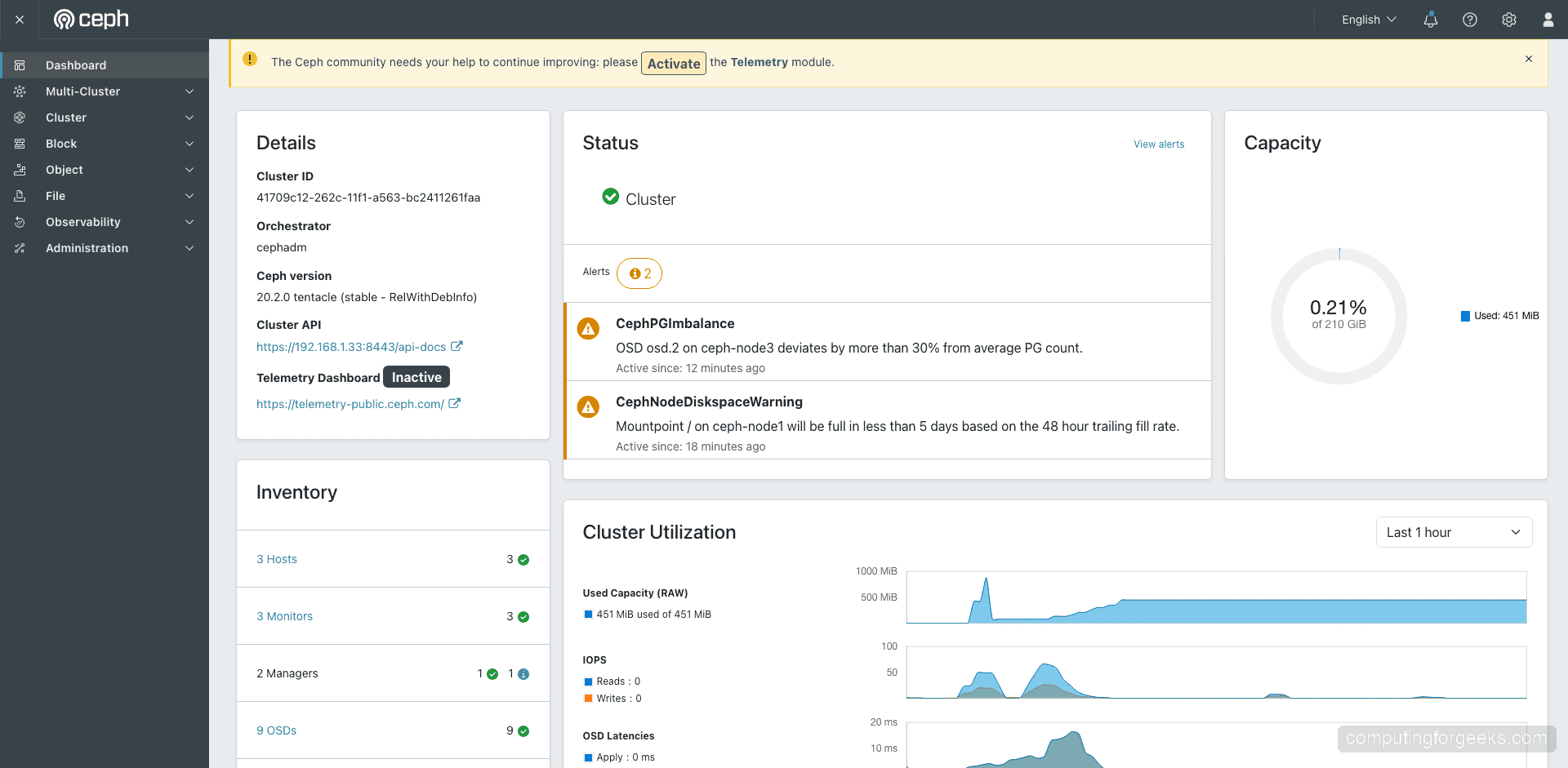
After logging in, the main dashboard shows the cluster overview – health status, capacity usage, cluster utilization graphs, and service inventory. Our cluster reports HEALTH_OK with 9 OSDs, 210 GiB capacity, and all services running:
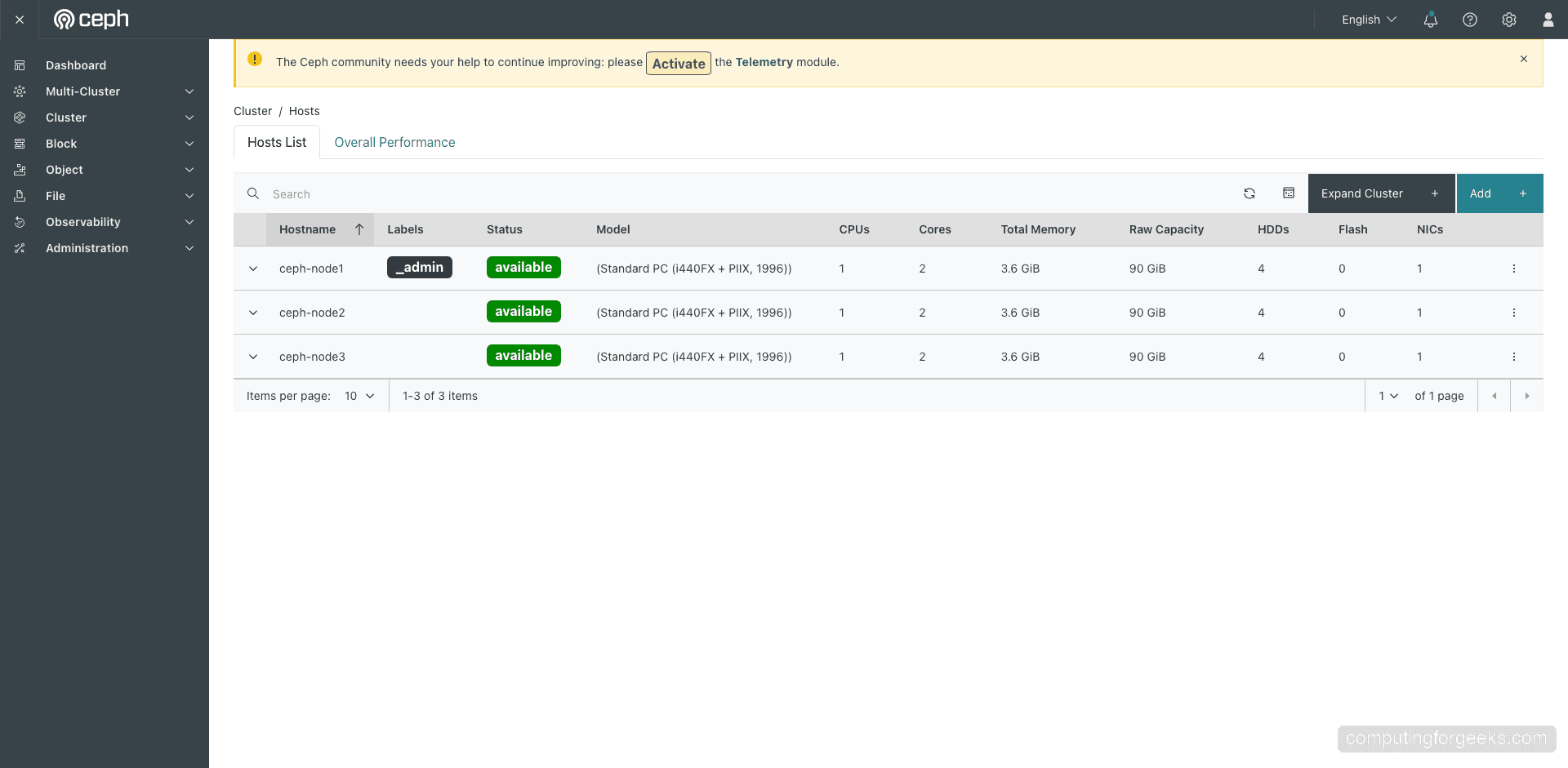
Navigate to Cluster > Hosts to view all cluster nodes, their status, CPU model, memory, and raw storage capacity per host:
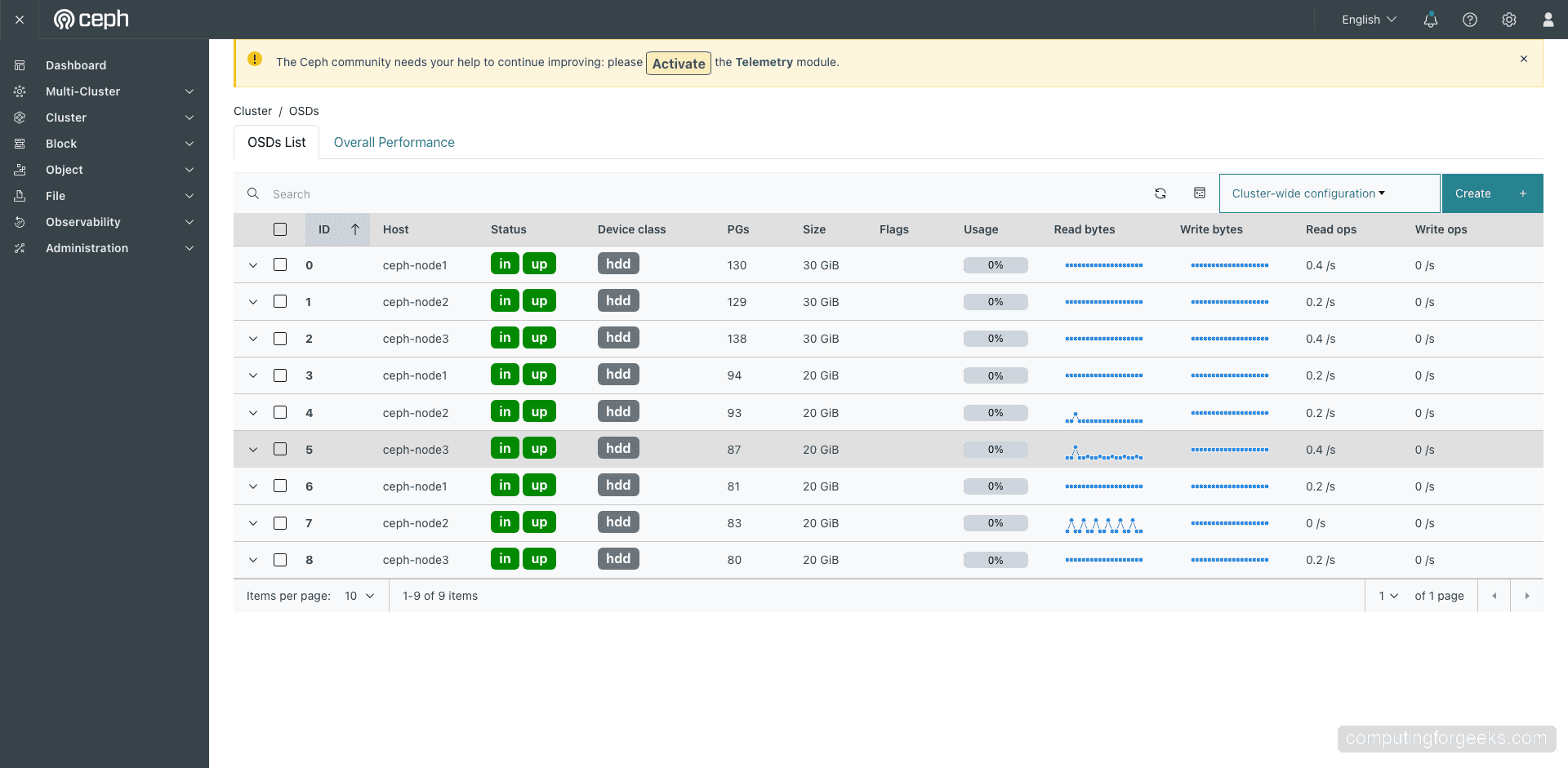
The Cluster > OSDs page displays every OSD daemon with its host, device class, size, PG count, read/write throughput, and health flags. All 9 OSDs show green status indicators confirming they are up and healthy:
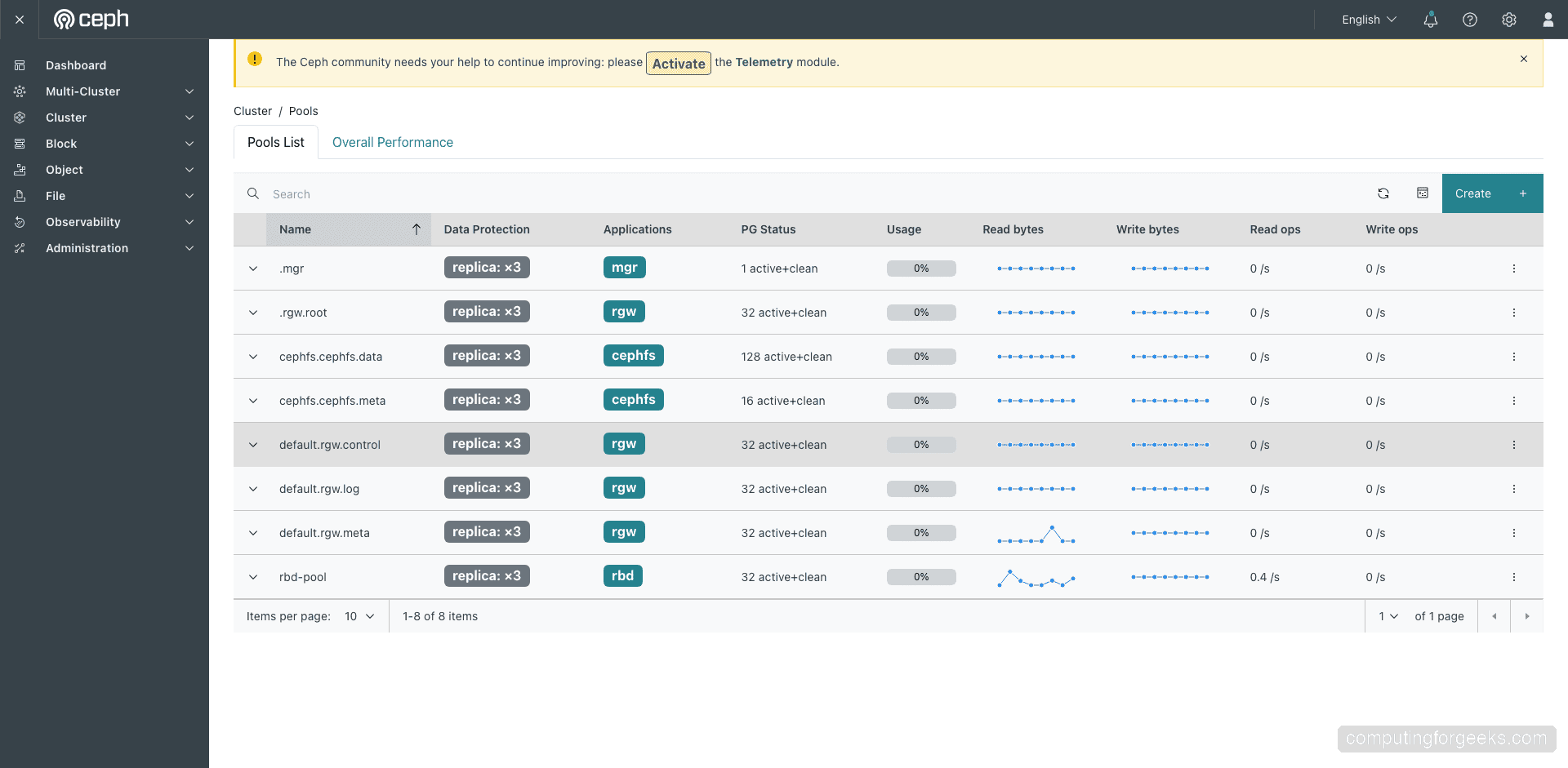
The Cluster > Pools page shows all storage pools with their replication settings, PG count, usage, and I/O statistics. You can see the rbd-pool, cephfs pools, and RGW pools we created:
The dashboard also integrates with Grafana (deployed automatically on port 3000) for detailed performance monitoring and historical metrics.
For production, replace the self-signed SSL certificate with a proper one:
sudo cephadm shell -- ceph dashboard set-ssl-certificate -i /path/to/cert.pem
sudo cephadm shell -- ceph dashboard set-ssl-certificate-key -i /path/to/key.pem
Useful Ceph Management Commands
Here are the most commonly used commands for day-to-day Ceph cluster management. All commands should be run inside cephadm shell or prefixed with sudo cephadm shell --:
| Command | Description |
|---|---|
ceph -s | Show cluster status and health |
ceph osd tree | Display OSD hierarchy and status |
ceph df | Show cluster and pool disk usage |
ceph health detail | Show detailed health warnings |
ceph orch host ls | List all cluster hosts |
ceph orch ls | List all deployed services |
ceph orch device ls | List available and used devices |
ceph osd pool ls detail | List pools with full configuration |
rbd ls POOL | List RBD images in a pool |
ceph fs ls | List CephFS filesystems |
radosgw-admin user list | List RGW/S3 users |
ceph orch daemon add osd HOST:DEVICE | Add a new OSD on a specific disk |
Conclusion
We deployed a 3-node Ceph Tentacle (v20) storage cluster on Rocky Linux 10 with 210GB of replicated storage across 9 OSDs. The cluster provides RBD block storage, CephFS distributed filesystem, and S3-compatible object storage through the RADOS Gateway – covering all three major storage types from a single platform. We also demonstrated how to expand the cluster by hot-adding new disks without any downtime.
For production hardening, consider adding more OSD nodes for better fault tolerance, configuring CRUSH rules for rack-aware data placement, setting up separate public and cluster networks on dedicated 10GbE+ interfaces, enabling Prometheus and Grafana alerting, and scheduling regular RBD snapshots for backups.
