

Incus 7.0 LTS shipped on 2026-05-01, and it is now the install LXC and Incus path of record on Ubuntu. This guide walks through three install paths tested top to bottom on real Ubuntu 26.04, 24.04, and 22.04 virtual machines: the Zabbly stable repository (recommended, ships 7.0), the native Ubuntu archive (24.04 and 26.04, ships the 6.0 LTS branch), and the legacy lxc/lxc-utils path for readers who still need it. Every command was copy-pasted from a working install. Every screenshot is real output from the lab.
Incus is the LXD fork maintained by the Linux Containers community. It runs system containers (full userland, like a lightweight VM) and real QEMU virtual machines from the same CLI, on the same host, with the same storage and networking primitives. Lighter than KVM-only setups, heavier than Docker, and the sweet spot for homelab and small-fleet hosting.
LXC, LXD, and Incus: who is who in 2026
Three names get conflated in tutorials and search results. Here is what each one actually is today:
| Project | What it is | Use when |
|---|---|---|
| LXC (lxc-utils) | The original low-level Linux container runtime. lxc-create, lxc-start, raw cgroup and namespace plumbing. | You need the lowest-level API or you are wiring containers into your own orchestrator. |
| LXD | Canonical’s snap-only daemon on top of LXC. Still shipped by Canonical, but no longer the community focus. | You are on a managed Ubuntu fleet that already standardised on the snap. |
| Incus | The LXD fork run by the Linux Containers project. Same daemon model, same images, system containers and KVM VMs from one CLI. Active development, faster release cycle. | Almost everyone else. This is the install LXC and Incus path most new readers want. |
If you have an existing LXD install you want to keep using its data, jump to the Migrate from LXD to Incus section. The lxd-to-incus tool moves containers, profiles, networks, and storage pools in place.
What is new in Incus 7.0 LTS
Incus 7.0 LTS is the second long-term support release after the 6.0 LTS line. A few items in the release notes affect this guide directly:
- CGroup v1 support removed. The host kernel must be running CGroup v2 (the default on every Ubuntu LTS shipped after 22.04 and on 22.04 with a recent kernel).
- xtables removed. Incus 7.0 uses nftables only. Any custom iptables rules around the bridge need to be ported.
- Built-in S3 endpoint. The MinIO dependency is gone. Object storage on a custom volume is now a native daemon feature.
- NBD-based backup API and dirty bitmap support. Faster incremental backups for instances with large block volumes.
- Higher minimum kernel. 6.0 LTS supported older kernels. 7.0 LTS expects the kernel features that ship in Ubuntu 22.04’s HWE stack and newer.
Ubuntu 22.04 with the original 5.15 kernel runs Incus 7.0 fine in everyday container workloads, which is what was tested below. If you plan to lean on the new S3 endpoint or NBD backups, run the 22.04 HWE kernel.
Prerequisites
- A fresh or close-to-fresh Ubuntu host. Tested on Ubuntu 26.04 (Resolute), 24.04 LTS (Noble), and 22.04 LTS (Jammy).
- Root or
sudoaccess. - 2 GB of RAM minimum for the host. Containers add as little as 20 MB each; full VMs add 256 MB and up.
- 10 GB of free disk on the partition that holds
/var/lib/incus. The defaultdirbackend writes there. - Outbound HTTPS to
pkgs.zabbly.comand the publicimages.linuxcontainers.orgmirror.
If the host will also run KVM virtual machines through Incus, the CPU needs hardware virtualisation. Confirm with this one-liner, which prints vmx on Intel or svm on AMD:
grep -oE '(vmx|svm)' /proc/cpuinfo | sort -uEmpty output means containers will work but incus launch --vm will fail. Enable VT-x or AMD-V in the BIOS, or, when the host is itself a Proxmox VM, set the CPU type to host.
Step 1: Add the Zabbly stable repository
Zabbly is the upstream package repository maintained by Stéphane Graber, the Incus lead. It ships current Incus on Ubuntu 22.04, 24.04, and 26.04 with the same package names, and it carries 7.0 LTS as the current stable branch. The Ubuntu archive carries Incus too (on 24.04 and 26.04 only) but holds the older 6.0 LTS line and does not ship the incus-ui-canonical web UI. Zabbly is the recommended path on all three releases.
Install the bootstrap packages and create the keyrings directory:
sudo apt update
sudo apt install -y curl gpg ca-certificates
sudo mkdir -p /etc/apt/keyrings
Download the Zabbly signing key into /etc/apt/keyrings/:
sudo curl -fsSL https://pkgs.zabbly.com/key.asc -o /etc/apt/keyrings/zabbly.ascConfirm the fingerprint matches 4EFC 5906 96CB 15B8 7C73 A3AD 82CC 8797 C838 DCFD. This is the value Zabbly publishes on the repository README:
gpg --show-keys --with-colons /etc/apt/keyrings/zabbly.asc | awk -F: '/^fpr:/{print $10; exit}'Write the Deb822-format sources file. The $VERSION_CODENAME shell expansion picks jammy on 22.04, noble on 24.04, or resolute on 26.04 automatically, so the same block works on all three:
sudo sh -c 'cat > /etc/apt/sources.list.d/zabbly-incus-stable.sources <<EOF
Enabled: yes
Types: deb
URIs: https://pkgs.zabbly.com/incus/stable
Suites: $(. /etc/os-release && echo ${VERSION_CODENAME})
Components: main
Architectures: $(dpkg --print-architecture)
Signed-By: /etc/apt/keyrings/zabbly.asc
EOF'
Refresh the package cache and check that Incus 7.0 is now the install candidate:
sudo apt update
apt-cache policy incus | head -8
On Ubuntu 26.04 the candidate looks like 1:7.0-ubuntu26.04-202605061507; on 24.04 it is 1:7.0-ubuntu24.04-...; on 22.04 1:7.0-ubuntu22.04-.... Same upstream Incus 7.0 across all three.
Step 2: Install Incus, the CLI tools, and the web UI
Install the daemon, the canonical web UI, the extras pack that ships lxd-to-incus, and the full QEMU stack for virtual machine support:
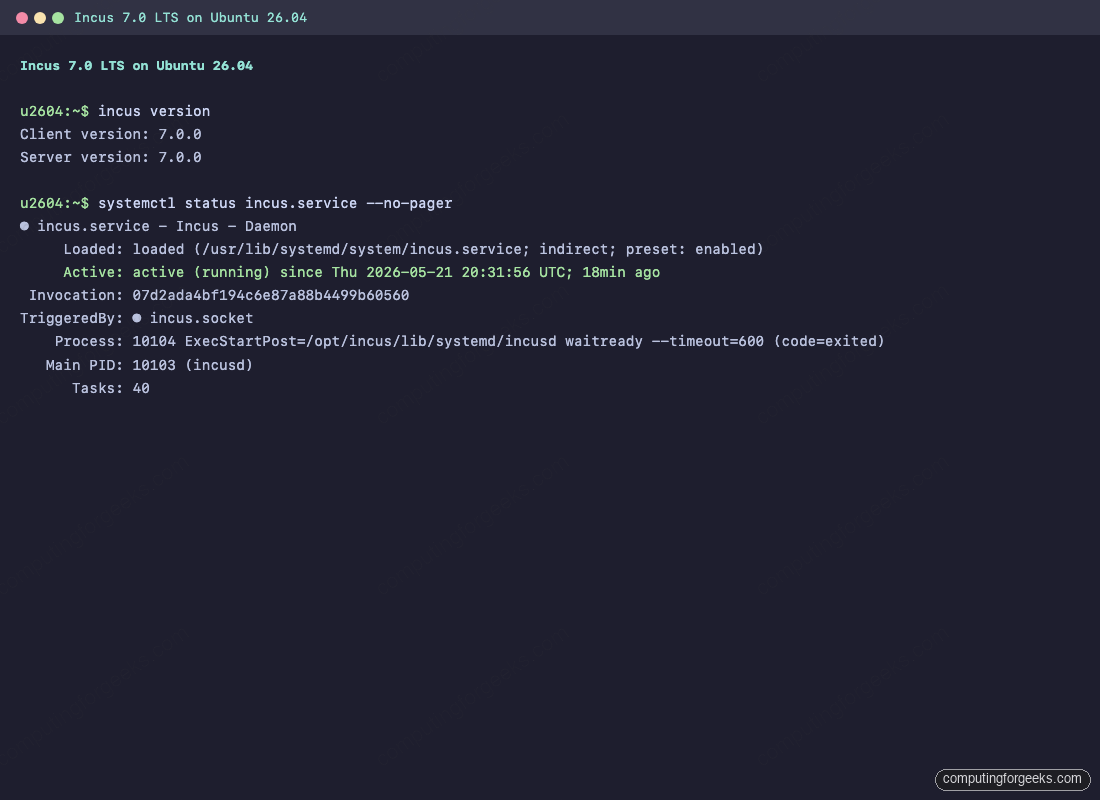
sudo apt install -y incus incus-ui-canonical incus-extra qemu-systemConfirm both the client and the server report 7.0.0:
incus version
systemctl status incus.service --no-pager
The service should show active (running) with incusd as the main process. This is what a clean install looks like on Ubuntu 26.04:
Add your shell user to the incus-admin group so you can drive the daemon without sudo every time. Log out and back in (or open a fresh shell) for the new group to take effect:
sudo usermod -aG incus-admin $USER
newgrp incus-admin
Step 3: Initialise Incus
Incus needs one initialisation pass to lay down a default storage pool, a managed bridge, and a default profile. The --minimal flag picks safe defaults: a dir storage pool under /var/lib/incus/storage-pools/default, an incusbr0 bridge with auto-assigned IPv4 and IPv6, and a default profile that wires both into every new instance.
sudo incus admin init --minimalVerify the default resources came up:
incus storage list
incus network list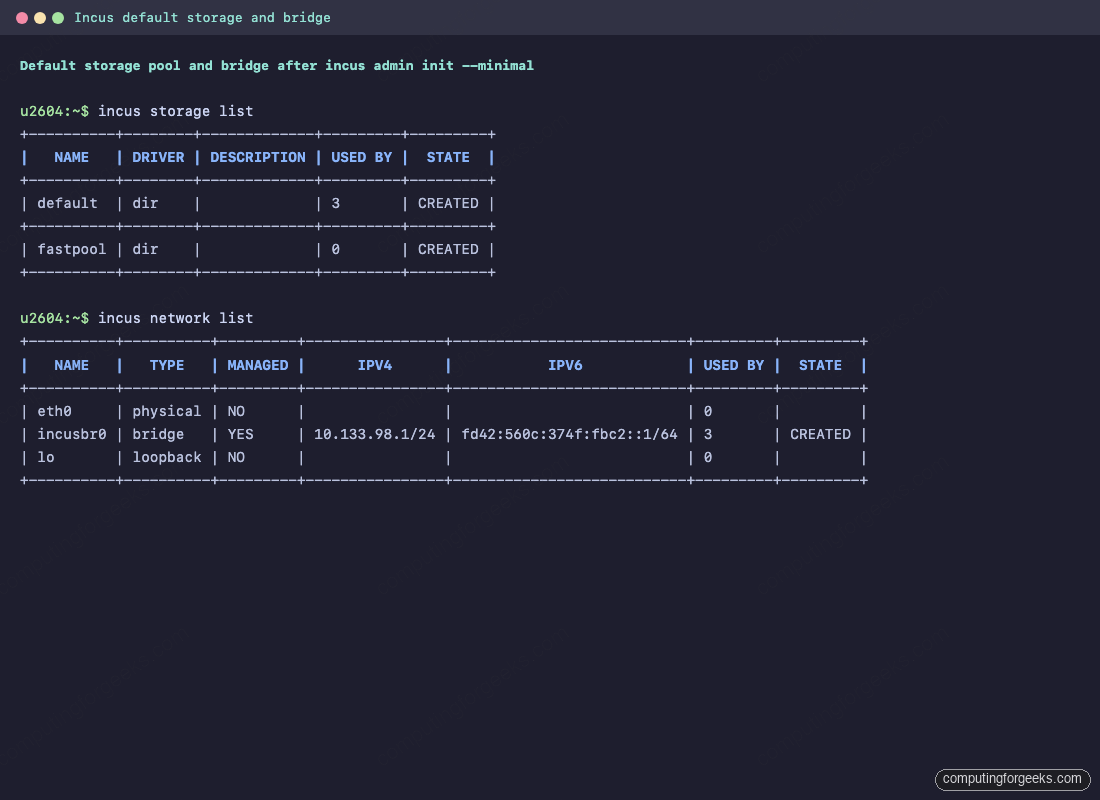
The bridge picks a free 10.0.0.0/8 subnet for IPv4 and a ULA for IPv6, runs its own DHCP via dnsmasq, and NATs out through the host. New instances attach to it automatically through the default profile.
Need a non-minimal init?
Drop the flag to walk through the interactive wizard. It asks about clustering, MAAS integration, storage backend (dir, btrfs, zfs, lvm), bridge naming, and whether to expose the HTTPS API on the network. For repeatable provisioning, pipe a preseed YAML in instead:
cat <<'EOF' | sudo incus admin init --preseed
config:
  core.https_address: '[::]:8443'
networks:
  - name: incusbr0
    type: bridge
    config:
      ipv4.address: auto
      ipv6.address: none
storage_pools:
  - name: default
    driver: dir
profiles:
  - name: default
    devices:
      eth0:
        name: eth0
        network: incusbr0
        type: nic
      root:
        path: /
        pool: default
        type: disk
EOF
Step 4: Launch your first container
The images: remote is the public Linux Containers image server. It carries dozens of distributions, each in container and VM variants. Launch an Ubuntu 24.04 container called web1:
incus launch images:ubuntu/24.04 web1The first launch downloads and caches the image, which takes a minute on a typical home connection. Subsequent containers from the same image are nearly instant. List the running instances to confirm the new IPv4 lease:
incus listDrop into a shell inside web1, install nginx, and confirm it answers HTTP on port 80:
incus exec web1 -- bash
# inside the container:
apt update && apt install -y nginx
systemctl is-active nginx
curl -sI http://localhost | head -3
exit
Need to push a file from the host into the container? incus file push reads like scp:
echo "deployed at $(date)" | sudo tee /tmp/note.txt
incus file push /tmp/note.txt web1/root/note.txt
incus exec web1 -- cat /root/note.txt
Step 5: Launch a real VM with the same CLI
This is where Incus splits from Docker. Add --vm and you get a full KVM virtual machine with its own kernel, instead of a container sharing the host kernel. The -c flags set live config keys at launch time:
incus launch images:ubuntu/24.04 vm1 --vm -c limits.cpu=2 -c limits.memory=1GiBGive the guest agent ten seconds to come up, then run any command inside the VM. The kernel string is the guest’s own, not the host’s, proving this is a real VM and not a container:
incus exec vm1 -- uname -r
incus list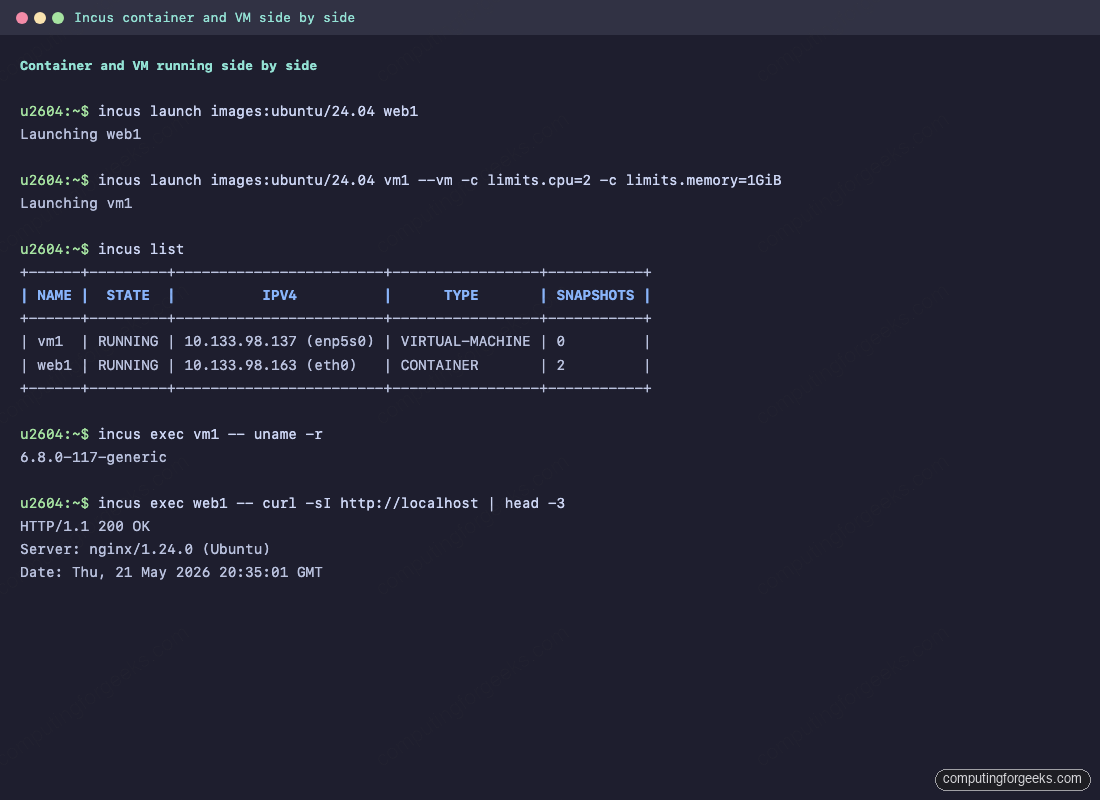
A container and a full VM, managed by the same daemon, scheduled on the same bridge, listed in the same table. That is the Incus value proposition.
Step 6: Snapshots, profiles, and live resource limits
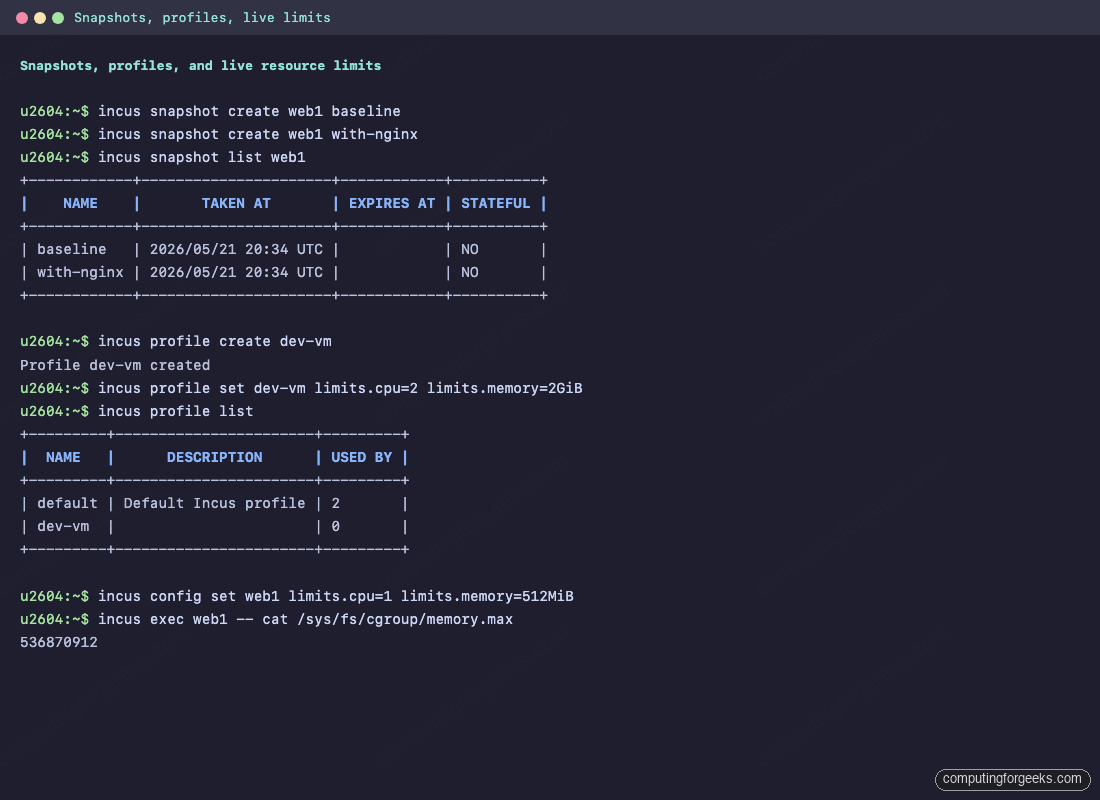
Snapshots in Incus are copy-on-write off the underlying storage pool. They are cheap to create and almost free to keep on the dir backend, and instant on btrfs or zfs. Take two snapshots of web1 at different stages:
incus snapshot create web1 baseline
incus snapshot create web1 with-nginx
incus snapshot list web1
Restoring to a snapshot is one command. If a configuration change breaks the container, roll back without losing the working snapshot history:
incus snapshot restore web1 baselineProfiles are reusable bundles of config keys and devices. Create a dev-vm profile that any new instance can opt into for a consistent 2 vCPU / 2 GiB shape:
incus profile create dev-vm
incus profile set dev-vm limits.cpu=2 limits.memory=2GiB
incus profile list
Resource limits can also be set live on a running container or VM. The change applies through the kernel cgroup interface without a restart:
incus config set web1 limits.cpu=1 limits.memory=512MiB
incus exec web1 -- cat /sys/fs/cgroup/memory.max
The memory.max file inside the container reflects the new limit (536870912 bytes is 512 MiB). The snapshot, profile, and live-limit output looks like this on the lab box:
Step 7: Network port forwarding and instance backups
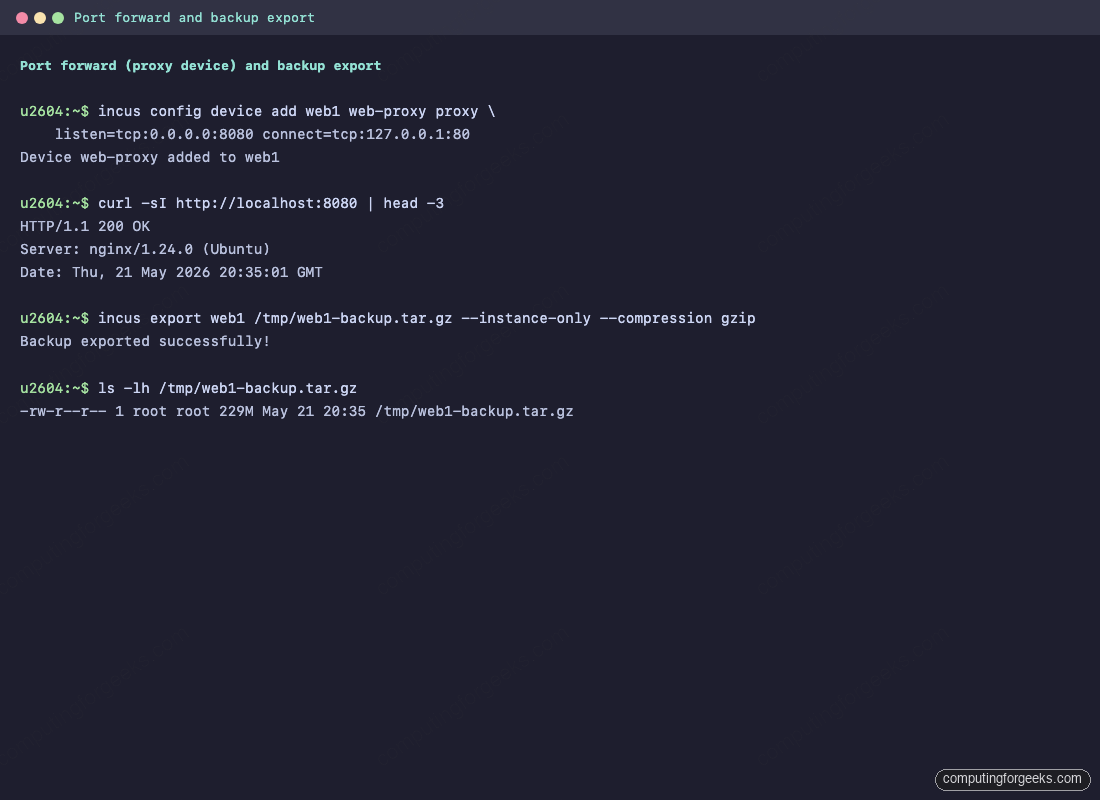
Containers on incusbr0 sit behind NAT. To publish the nginx in web1 on the host’s port 8080, attach a proxy device. This is the Incus equivalent of docker -p 8080:80:
incus config device add web1 web-proxy proxy \
    listen=tcp:0.0.0.0:8080 connect=tcp:127.0.0.1:80
curl -sI http://localhost:8080 | head -3
For full backups of an instance, including its storage volume and all snapshots, incus export writes a single compressed tarball that incus import can rehydrate on any host running the same major Incus version:
incus export web1 /tmp/web1-backup.tar.gz --instance-only --compression gzip
ls -lh /tmp/web1-backup.tar.gz
Drop --instance-only to include every snapshot in the same tarball. The Incus 7.0 release added an NBD-based path for this so large block volumes export with dirty bitmap tracking, which is why even multi-GiB instances finish in seconds on a fast pool.
Step 8: Access the Incus web UI
The incus-ui-canonical package adds a SvelteKit single-page UI served by the daemon itself on the HTTPS endpoint. First, tell the daemon to listen for HTTPS clients on every interface (the default install binds only the local Unix socket):
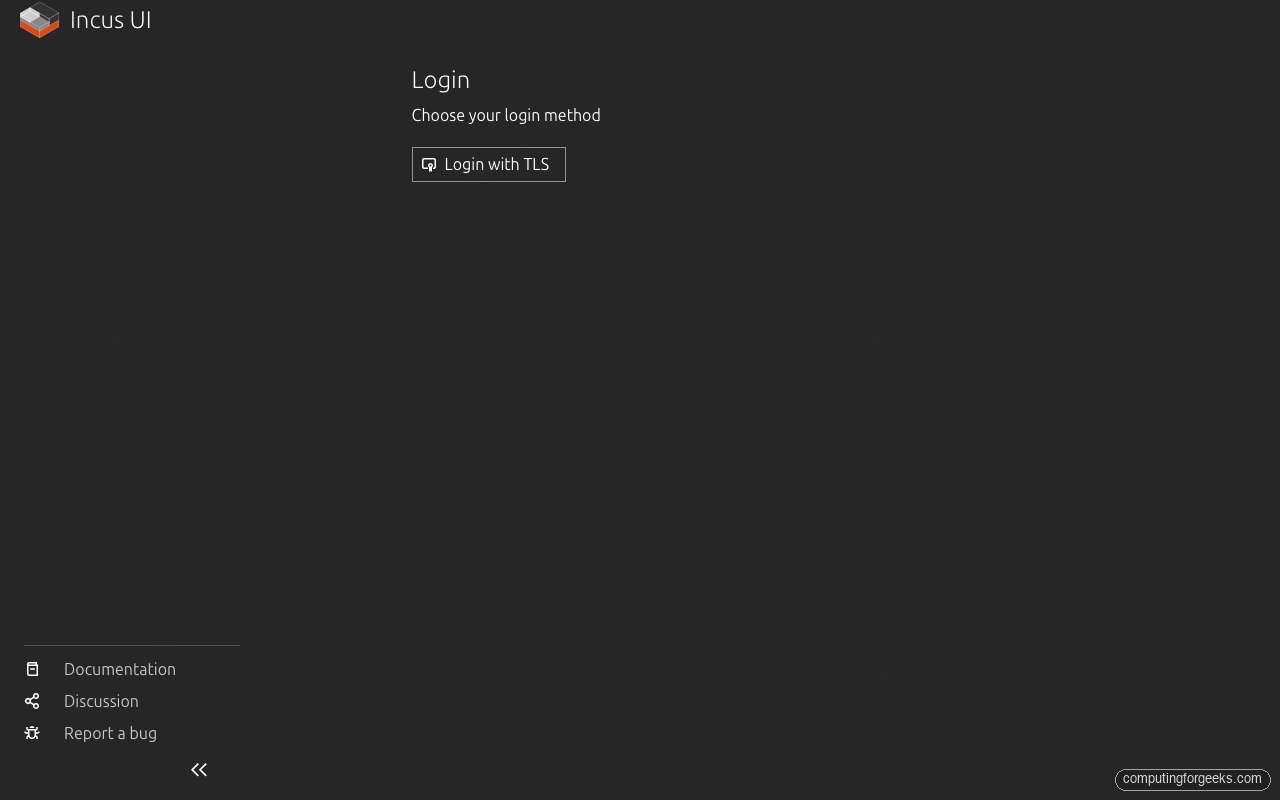
sudo incus config set core.https_address=:8443Open https://YOUR_HOST_IP:8443/ in a browser. The first hit shows the login chooser. Incus 7.0 supports TLS client certificates and OIDC; the simplest desktop flow is “Login with TLS”, which prompts the browser to generate a client certificate on the fly:
To trust that browser certificate from the CLI, generate a one-time token on the host and paste it in the UI when prompted:
incus config trust add browser
# Copy the token printed below and paste it into the web UI
Once trusted, the UI gives a dashboard with instance counts, a project switcher, and per-instance pages for console, terminal, file browser, snapshots, and live config edits. It is a useful “look at this” surface for teammates who do not want to touch the CLI; the CLI is still the source of truth.
Option B: install LXC and Incus from the Ubuntu archive
If your host cannot reach Zabbly, or company policy pins everything to the Ubuntu archive, the native packages are an option on 24.04 and 26.04 only. They carry the 6.0 LTS Incus branch, not 7.0, and they do not ship the incus-ui-canonical web UI package. Ubuntu 22.04 has no Incus in the archive at all, so Option A is the only path there.
sudo apt update
sudo apt install -y incus incus-tools qemu-system
incus version
sudo incus admin init --minimal
The package names differ from Zabbly: the archive ships incus-tools (which carries lxd-to-incus) where Zabbly ships incus-extra. Everything else is identical. The same three Ubuntu releases give three different default versions side by side:
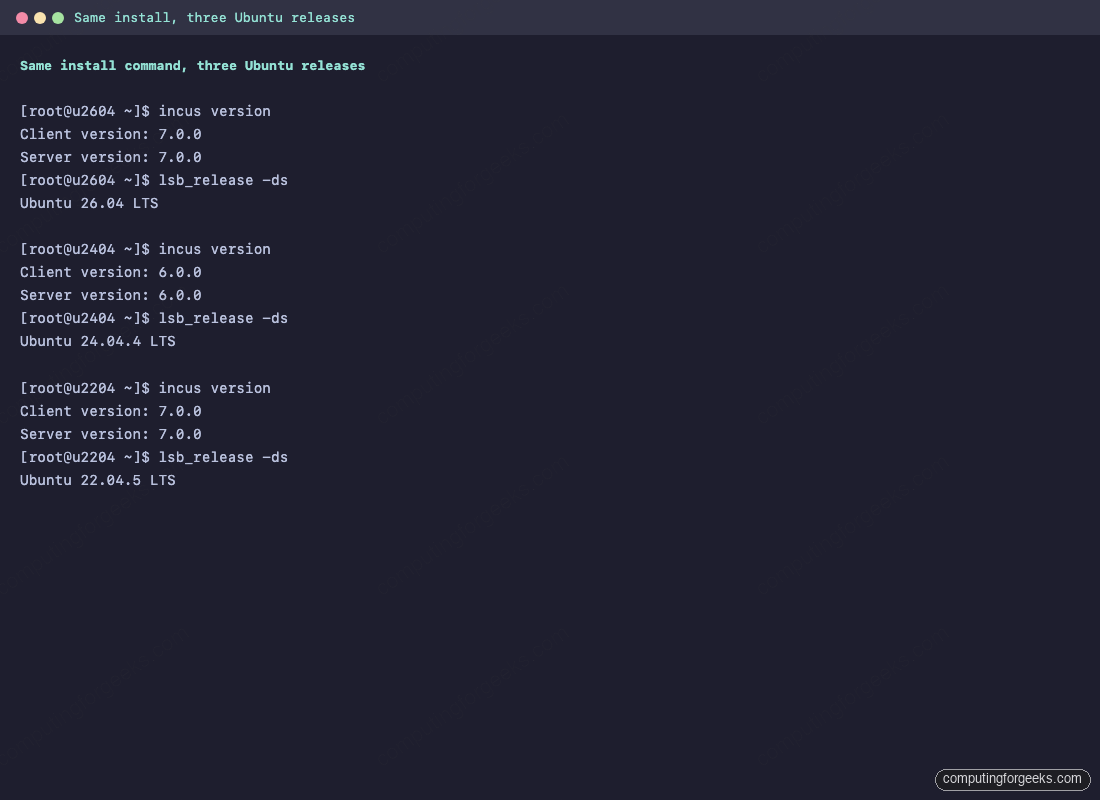
Pick Option A (Zabbly) when you want Incus 7.0 LTS or the web UI. Pick Option B (archive) when you want the Ubuntu-supported security updates on Ubuntu’s own schedule and you can live with 6.0.
Option C: the legacy LXC stack
For readers who need raw lxc-* commands (typically because an existing automation system targets them), the original LXC tools still ship in the Ubuntu archive on every supported release. They are independent of Incus and do not share a daemon:
sudo apt update
sudo apt install -y lxc lxc-templates lxc-utils bridge-utils
Create a container with the LXC template, list it, and start it. Note that the lxc-* CLI is wholly separate from incus; these instances do not appear in incus list:
sudo lxc-create -n c1 -t download -- -d ubuntu -r noble -a amd64
sudo lxc-start -n c1
sudo lxc-ls --fancy
For greenfield work, prefer Incus. The Linux Containers project develops new features against the Incus daemon and ports back to lxc-utils only when they are non-disruptive. This section is here so existing tooling does not break, not as a recommendation.
Migrate from LXD to Incus
The incus-extra (Zabbly) and incus-tools (Ubuntu archive) packages both ship the lxd-to-incus migrator. It moves containers, profiles, networks, storage pools, custom volumes, and the trust list from the LXD snap into a fresh Incus install in place. Run it on the host that holds the LXD data, after Incus is installed and initialised:
sudo lxd-to-incusThe tool does a pre-flight check (LXD running, no in-progress operations, no name collisions), prints a summary of what it will move, and asks for confirmation. After it finishes, LXD is stopped, all instances run under Incus, and incus list shows everything that used to be in lxc list. Keep the LXD snap installed until you have verified the move, then sudo snap remove lxd.
Useful container and VM images
The images: remote ships hundreds of distro+version+arch combinations as both containers and VMs. List the catalog or filter to one family:
incus image list images: | head -40
incus image list images: alpine
incus image list images: rockylinux
Common picks tested in the lab:
images:ubuntu/24.04,images:ubuntu/22.04,images:ubuntu/26.04for Ubuntu workloads.images:debian/12for a small, predictable Debian base.images:alpine/edgeorimages:alpine/3.21when you want the smallest possible footprint (a starting RSS under 5 MB).images:rockylinux/10andimages:almalinux/10for RHEL-family containers and VMs.images:fedora/42for the bleeding edge.
Append --vm to any of these in incus launch to get a virtual machine instead of a container, assuming the host has VT-x / AMD-V exposed.
Troubleshooting
incus: command not found after install
The shell session that ran apt install may not yet have the updated PATH. Open a new terminal, or run hash -r, then retry incus version.
Permission denied connecting to socket
The shell user is not in incus-admin yet. Run sudo usermod -aG incus-admin $USER and start a new shell. Verify with id: incus-admin should appear in the groups list.
incus launch –vm fails with KVM error
Either VT-x/AMD-V is disabled in BIOS, or the host is itself a VM without nested virtualisation. kvm-ok (in the cpu-checker package) gives a one-line verdict. Inside Proxmox, set the VM CPU type to host and confirm the Proxmox host has kvm_intel nested=1 or kvm_amd nested=1.
incusbr0 missing IPv4
Another tool on the box may have taken the 10.x range Incus tried to use. Check with ip -br a and incus network show incusbr0. Reassign with incus network set incusbr0 ipv4.address 10.99.0.1/24.
Web UI returns 404 or “connection refused”
The HTTPS listener was not enabled. Run sudo incus config set core.https_address=:8443 and confirm with ss -tlnp | grep 8443. Verify incus-ui-canonical is installed; the Ubuntu archive does not ship that package (Zabbly does).
Uninstall
To remove Incus, stop and delete every instance, then purge the packages and the data directory. This is destructive and irreversible:
for i in $(incus list -c n --format csv); do
  incus stop "$i" --force 2>/dev/null
  incus delete "$i"
done
sudo apt purge -y incus incus-base incus-client incus-extra incus-ui-canonical
sudo rm -rf /var/lib/incus /etc/apt/sources.list.d/zabbly-incus-stable.sources
sudo rm -f /etc/apt/keyrings/zabbly.asc
sudo apt update
Wrap up
Incus 7.0 LTS is the sweet spot for self-hosted container and VM workloads in 2026. One daemon, one CLI, system containers and KVM virtual machines side by side, the same images and storage pools for both, a working web UI, and a clean migration path off LXD. The Zabbly stable repository is the install LXC and Incus path you want on Ubuntu 26.04, 24.04, and 22.04; the Ubuntu archive is an acceptable fallback on 24.04 and 26.04 when you can live with the 6.0 LTS branch.
Next stops from here:
- Read the upstream Incus documentation for cluster mode, OIDC auth, and the new built-in S3 endpoint.
- Check the Zabbly repository for the daily channel if you want to ride 7.x point releases as they land.
- Compare against the Docker install guide for a sense of when each tool is the right pick.





This no longer works on ubuntu 22.04. Install says successful, but no joy.
Additional libraries required include for install include:
python-is-python3
python3-pyflakes
pyflakes
python3-pip
Last additional library:
python3-flask
python3-itsdangerous
Successful launch after these two installed. However, there are deprecated classes that will be removed in python 3.12. SafeConfigParser needs to be altered to ConfigParser
Thank you, this worked well for following on with an older tutorial which was using 18.04 LTS. Cheers
Great thank you!