Managing Ansible playbooks from the command line works fine until you have a dozen playbooks, multiple environments, and a team that needs visibility into what ran, when, and whether it succeeded. Semaphore gives you a clean web UI for all of that, and running it in Docker keeps the setup minimal.
Semaphore is an open-source alternative to Ansible AWX (the upstream of Red Hat’s Ansible Automation Platform). It handles playbook execution, scheduling, inventory management, and access control through a browser. Written in Go, it’s lightweight compared to AWX and supports MySQL, PostgreSQL, and BoltDB as backends. This guide walks through deploying Semaphore with Docker Compose using PostgreSQL on Rocky Linux 10 and Ubuntu 24.04.
Tested April 2026 on Rocky Linux 10.1 (SELinux enforcing) with Docker 29.3.1, Docker Compose v5.1.1, Semaphore v2.17.33, PostgreSQL 17
Prerequisites
- A Linux server running Rocky Linux 10 / AlmaLinux 10 or Ubuntu 24.04 / Debian 13
- Root or sudo access
- Docker Engine with the Compose plugin installed (Install Docker on Rocky / AlmaLinux | Install Docker on Ubuntu / Debian)
- A domain name pointed to the server (for SSL configuration)
Verify Docker and Compose are installed and running:
docker --version
docker compose version
Expected output on Rocky Linux 10:
Docker version 29.3.1, build c2be9cc
Docker Compose version v5.1.1
If Docker is not running yet, enable and start it:
sudo systemctl enable --now dockerCreate the Docker Compose Configuration
Create a dedicated directory for Semaphore and the Compose file. This setup uses PostgreSQL 17 as the database backend, which is the recommended choice for production workloads.
sudo mkdir -p /opt/semaphore
sudo vi /opt/semaphore/docker-compose.yml
Add the following configuration:
services:
  postgres:
    image: postgres:17
    container_name: semaphore-db
    hostname: postgres
    restart: unless-stopped
    environment:
      POSTGRES_USER: semaphore
      POSTGRES_PASSWORD: YourDbPassword
      POSTGRES_DB: semaphore
    volumes:
      - semaphore-postgres:/var/lib/postgresql/data

  semaphore:
    image: semaphoreui/semaphore:v2.17.33
    container_name: semaphore
    restart: unless-stopped
    ports:
      - "3000:3000"
    environment:
      SEMAPHORE_DB_USER: semaphore
      SEMAPHORE_DB_PASS: YourDbPassword
      SEMAPHORE_DB_HOST: postgres
      SEMAPHORE_DB_PORT: 5432
      SEMAPHORE_DB_DIALECT: postgres
      SEMAPHORE_DB: semaphore
      SEMAPHORE_PLAYBOOK_PATH: /tmp/semaphore/
      SEMAPHORE_ADMIN_PASSWORD: YourAdminPassword
      SEMAPHORE_ADMIN_NAME: admin
      SEMAPHORE_ADMIN_EMAIL: [email protected]
      SEMAPHORE_ADMIN: admin
      SEMAPHORE_ACCESS_KEY_ENCRYPTION: CHANGE_ME
    depends_on:
      - postgres

volumes:
  semaphore-postgres:
A few things to note about this configuration:
- SEMAPHORE_DB_DIALECT must be set to
postgreswhen using PostgreSQL. The other supported values aremysqlandbolt - SEMAPHORE_ACCESS_KEY_ENCRYPTION encrypts access keys stored in the database. Generate a unique key for your deployment
- The PostgreSQL port is not exposed to the host (no
portsmapping on the postgres service) because only Semaphore needs access to it through Docker’s internal network
Generate the encryption key before starting the containers:
head -c32 /dev/urandom | base64Copy the output and replace CHANGE_ME in the Compose file with the generated key.
Start Semaphore Containers
Launch the stack from the Semaphore directory:
cd /opt/semaphore
sudo docker compose up -d
Docker pulls the PostgreSQL 17 and Semaphore v2.17.33 images, then starts both containers:
[+] Running 3/3
 ✔ Network semaphore_default  Created                                0.3s
 ✔ Container semaphore-db     Started                                1.6s
 ✔ Container semaphore        Started                                1.5s
Verify both containers are running:
sudo docker ps --format "table {{.Names}}\t{{.Image}}\t{{.Status}}\t{{.Ports}}"Both containers should show as “Up”:
NAMES          IMAGE                            STATUS         PORTS
semaphore      semaphoreui/semaphore:v2.17.33   Up 6 seconds   0.0.0.0:3000->3000/tcp, [::]:3000->3000/tcp
semaphore-db   postgres:17                      Up 6 seconds   5432/tcp
Check the Semaphore logs to confirm the server started successfully:
sudo docker logs semaphoreThe output confirms the server is running on port 3000:
Postgres semaphore@postgres:5432 semaphore
Tmp Path (projects home) /tmp/semaphore
Semaphore v2.17.33
Port :3000
Server is running
Configure the Firewall
Open the required ports in the firewall. Port 3000 is for direct access (useful for initial testing), while ports 80 and 443 are for the Nginx reverse proxy with SSL.
Rocky Linux / AlmaLinux (firewalld):
sudo firewall-cmd --add-port={80/tcp,443/tcp,3000/tcp} --permanent
sudo firewall-cmd --reload
Ubuntu / Debian (ufw):
sudo ufw allow 80/tcp
sudo ufw allow 443/tcp
sudo ufw allow 3000/tcp
sudo ufw reload
Access the Semaphore Web UI
Open your browser and navigate to http://10.0.1.50:3000 (replace with your server’s IP). The Semaphore login page appears:

Log in with the admin credentials you set in the Compose file (admin / your password). After the first login, Semaphore prompts you to create a project. Projects are how you organize playbooks, inventories, and credentials.
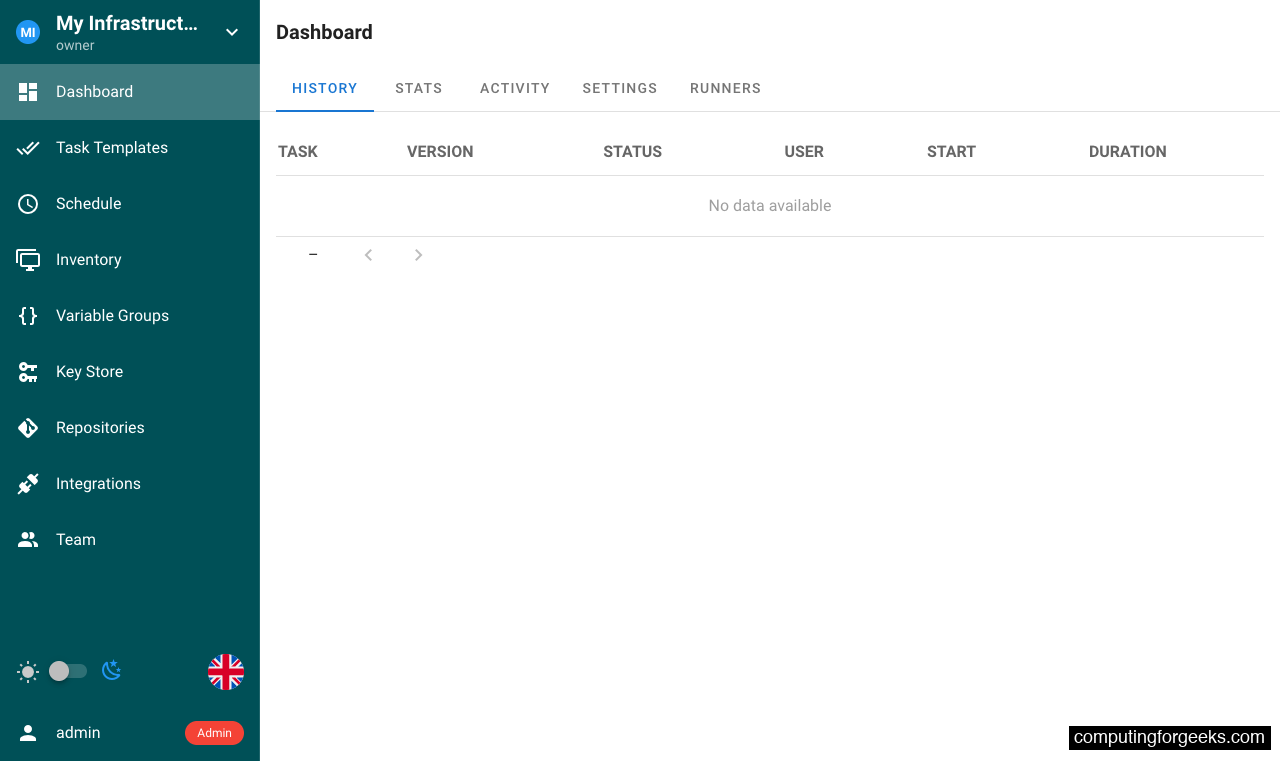
The project dashboard gives you access to Task Templates, Schedule, Inventory, Variable Groups, Key Store, Repositories, Integrations, and Team management from the sidebar.
Using Semaphore: Keys, Repos, Inventory, and Playbooks
Before running playbooks, Semaphore needs four things configured: credentials (Key Store), a Git repository containing your playbooks, an inventory of target hosts, and a task template that ties them together.
Add Credentials in Key Store
Navigate to Key Store in the sidebar and click NEW KEY. Semaphore supports several key types: SSH keys for connecting to remote hosts, login/password pairs for API or database credentials, and “None” for local connections or public repositories that don’t require authentication.
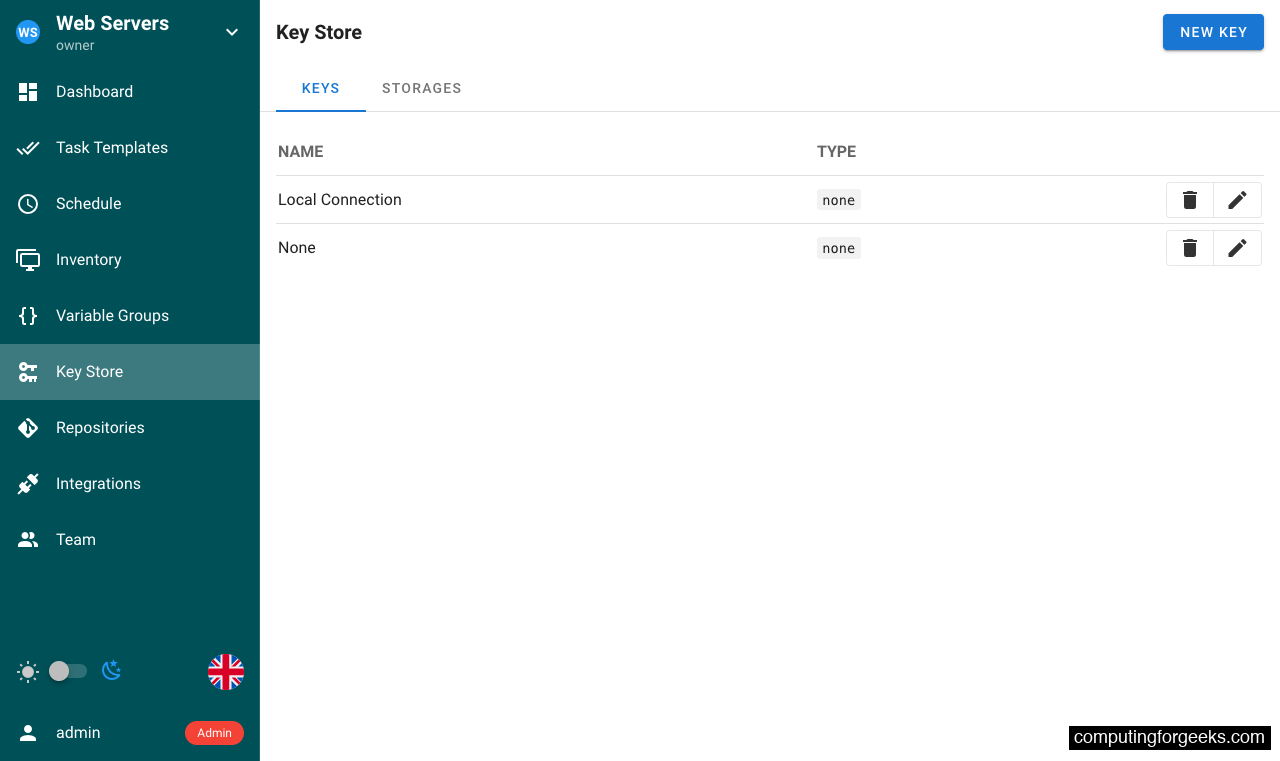
For SSH key authentication, paste your private key directly. Semaphore stores it encrypted using the SEMAPHORE_ACCESS_KEY_ENCRYPTION key you configured in the Compose file.
Add a Playbook Repository
Go to Repositories and click NEW REPOSITORY. Point it at a Git repository containing your Ansible playbooks. This can be a GitHub/GitLab URL for remote repos, or a local path inside the container if you mount a volume.
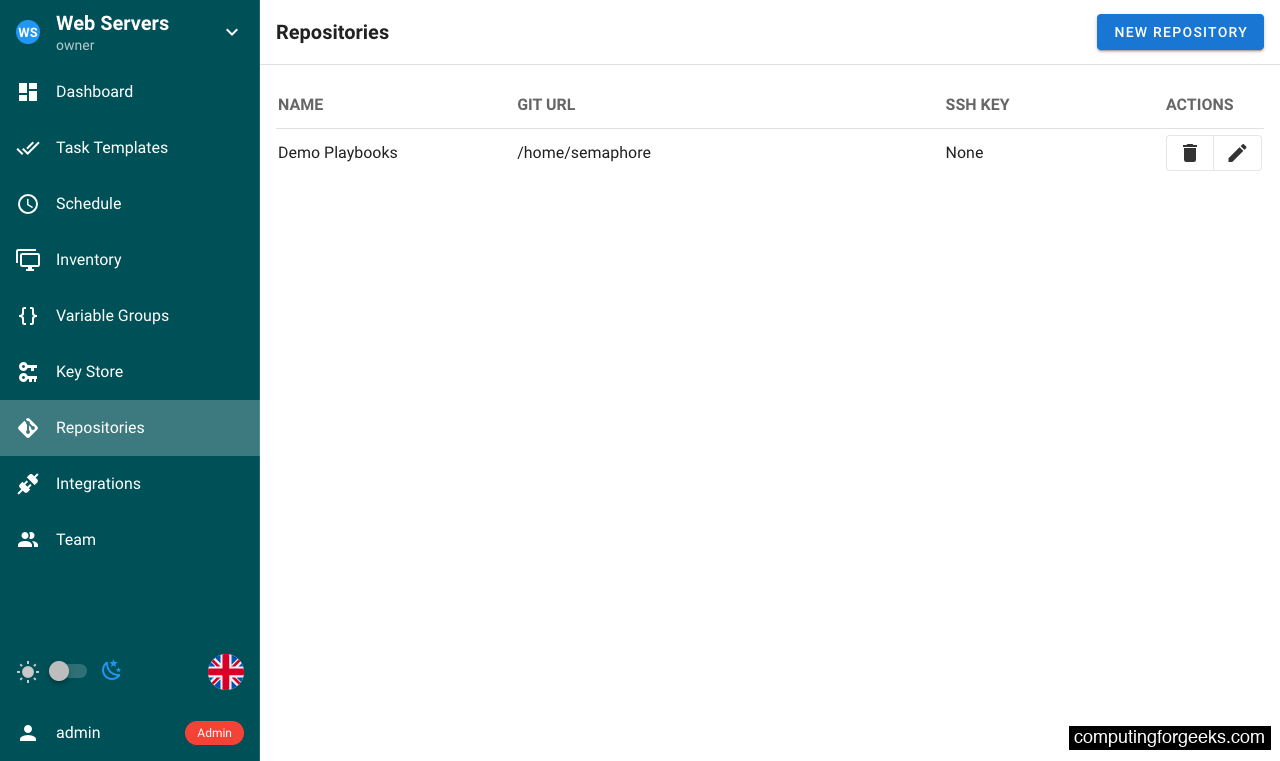
Select the appropriate key from the Key Store for repository access. Public repositories can use the “None” key type.
Define Your Inventory
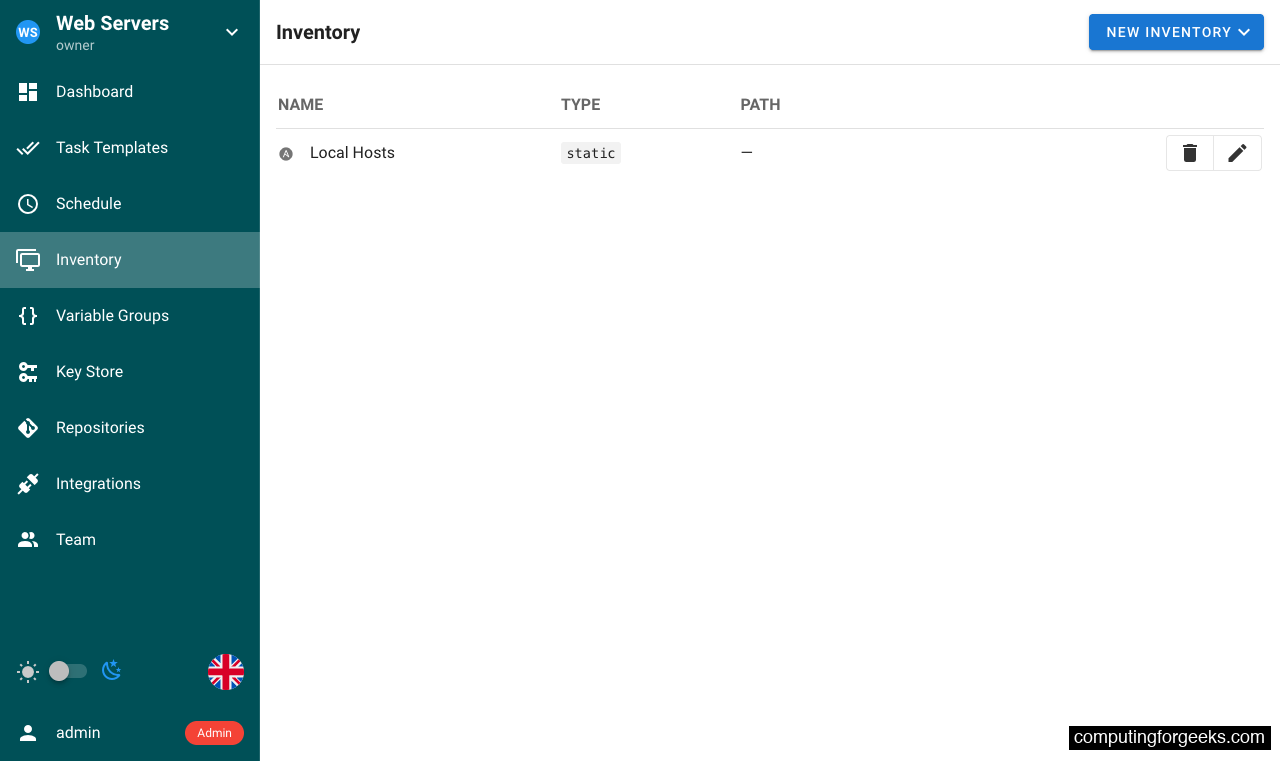
Under Inventory, click NEW INVENTORY to define your target hosts. Semaphore supports static inventory (inline host definitions), static YAML files from your repository, or Terraform state as inventory source.
Create Task Templates
Task Templates are where everything comes together. Go to Task Templates and click NEW TEMPLATE. Each template combines a playbook file from your repository, an inventory, an environment (variables), and optional settings like the Ansible vault password or extra CLI arguments.
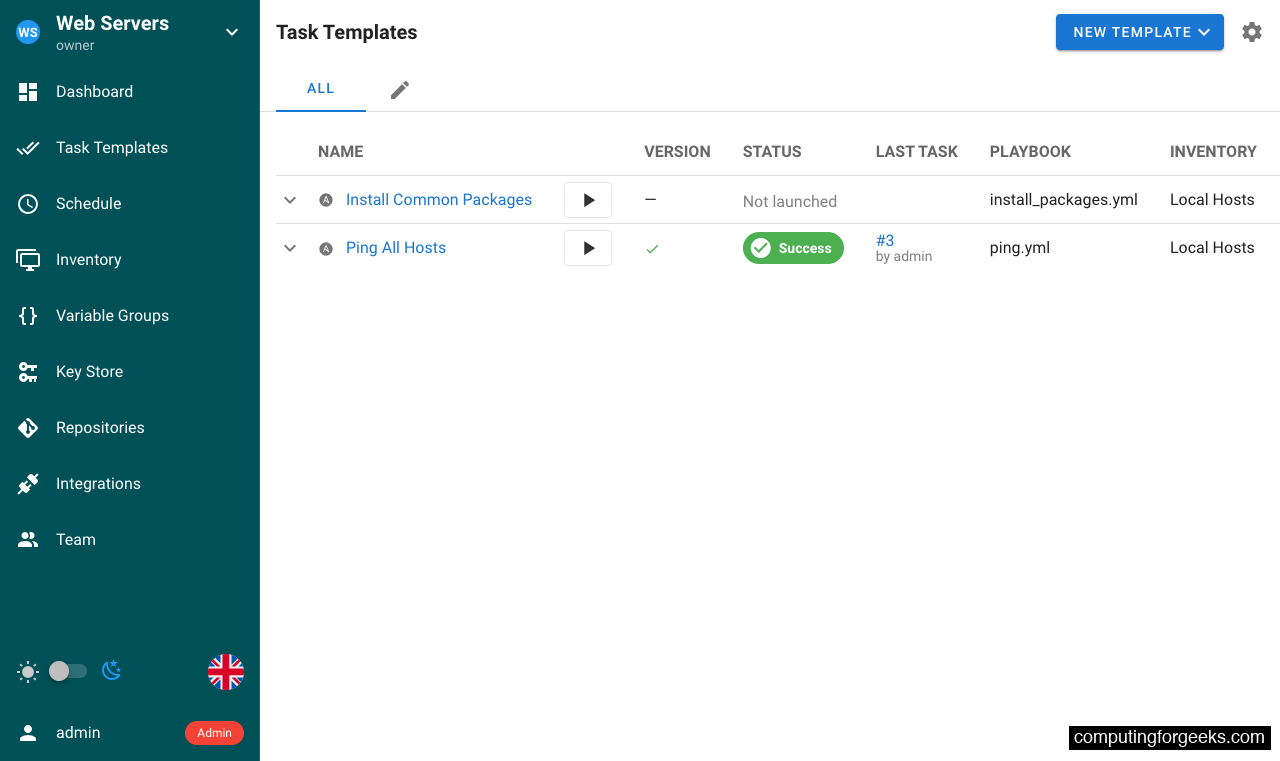
The templates list shows each template’s status (last run result), the playbook file it uses, and the assigned inventory. From here you can run, schedule, or edit any template.
Run a Playbook
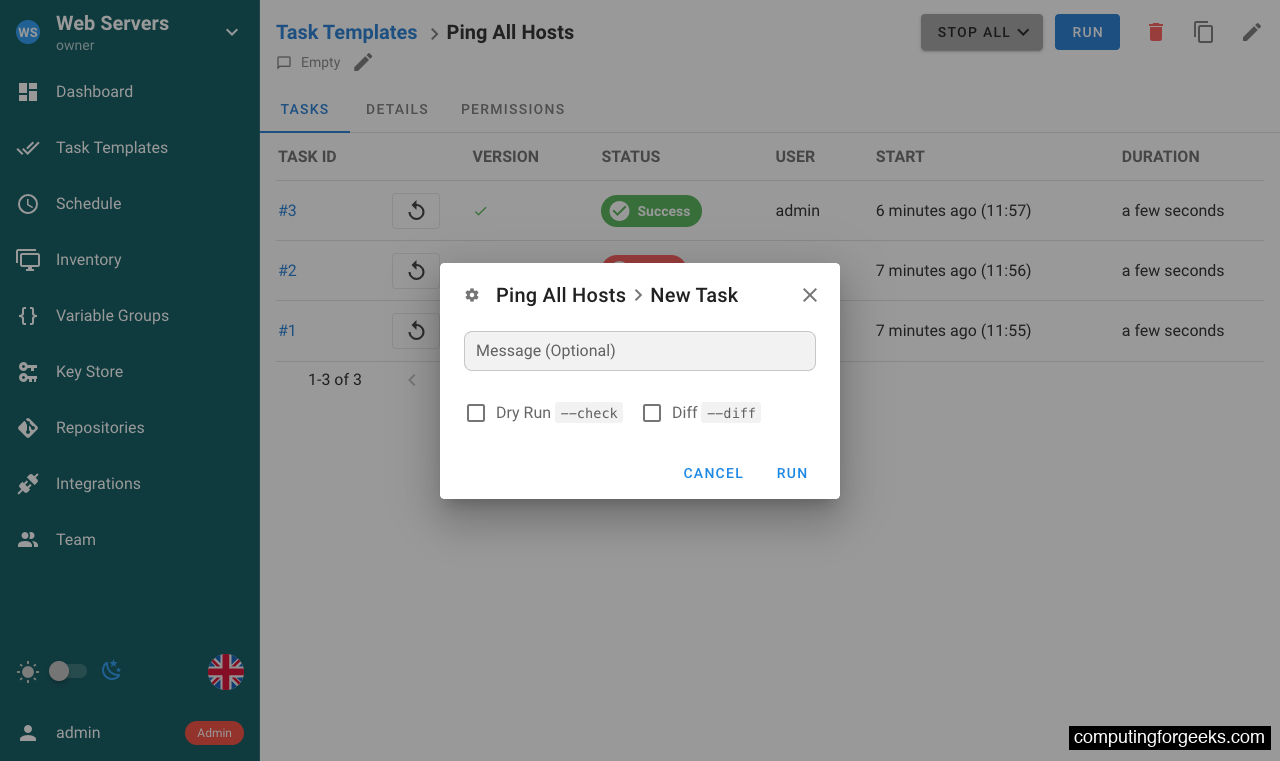
Click RUN on any template to execute it. Semaphore opens a dialog where you can add an optional message (useful for tracking why a run was triggered) and choose between a dry run or a diff-only check.
After clicking RUN, Semaphore clones the repository, installs any Galaxy requirements, and executes the playbook. The output streams in real time:
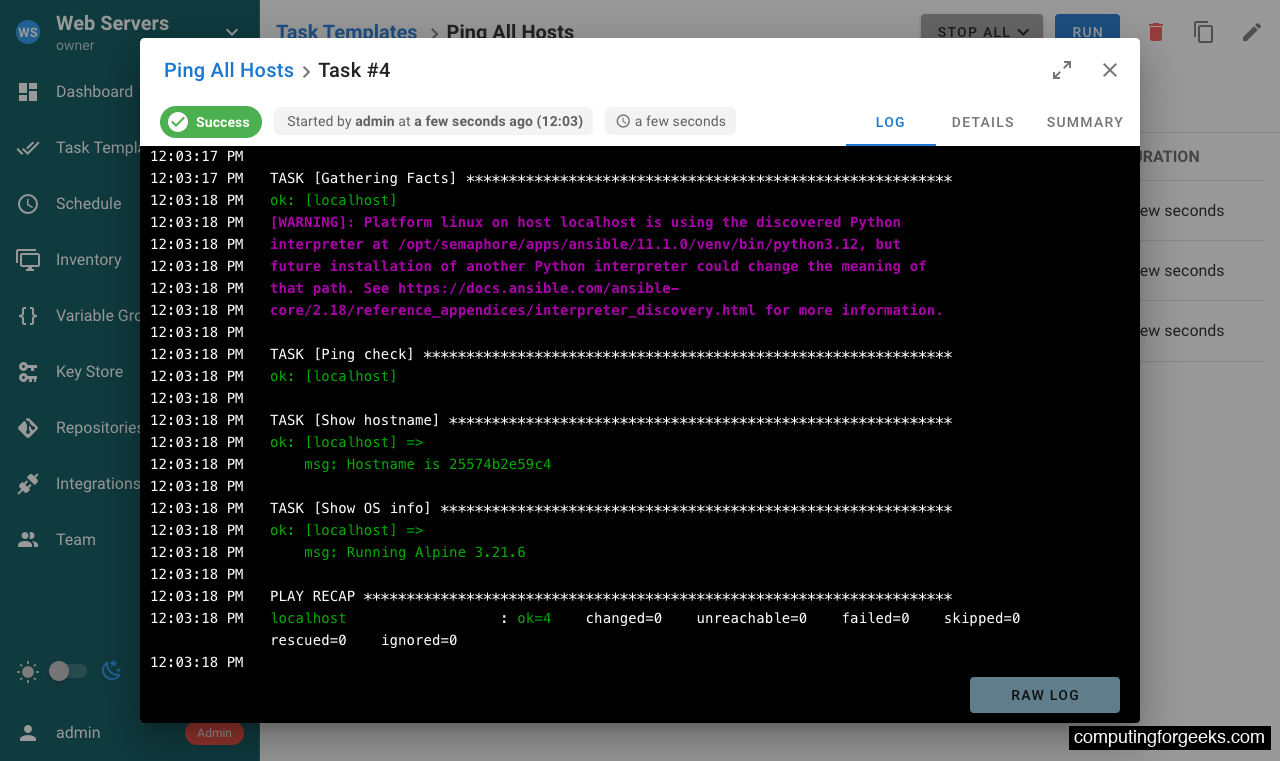
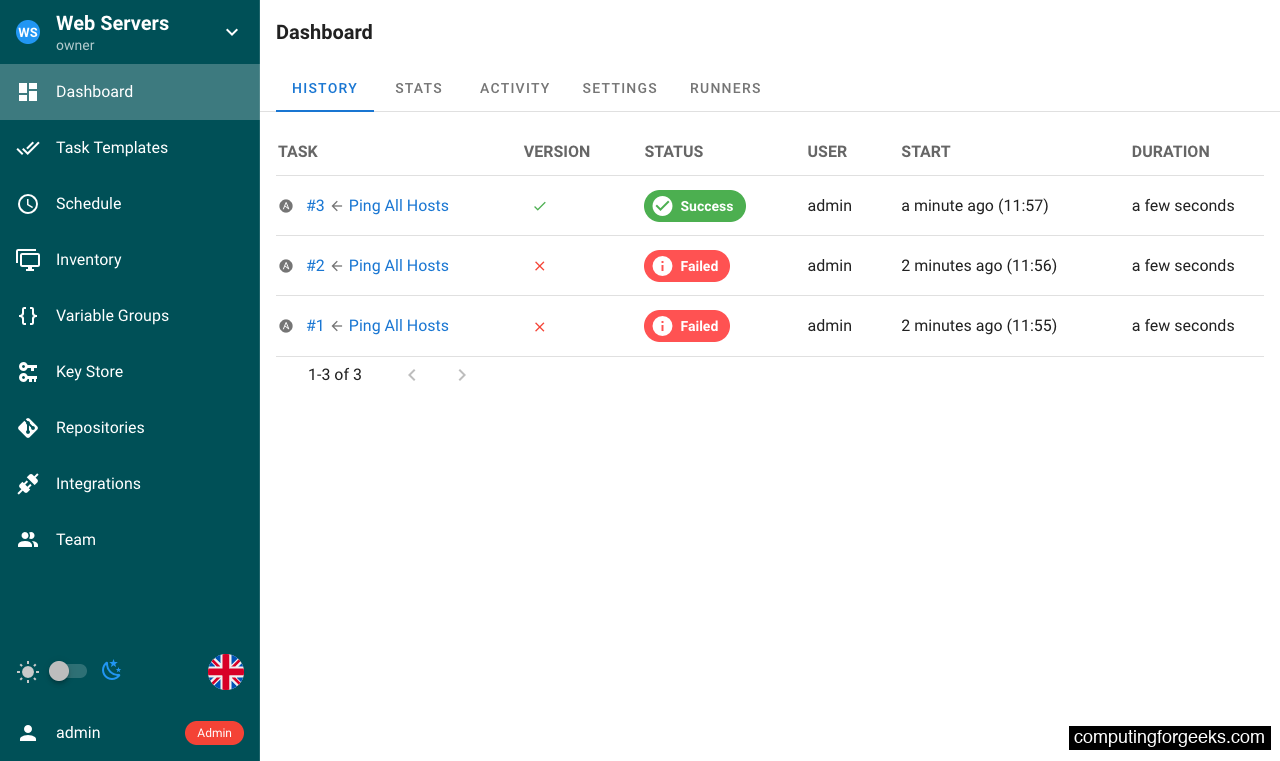
The task output shows the full Ansible output including the PLAY RECAP with host-level results. All task history is retained on the Dashboard, where you can review past runs, filter by status, and track who triggered each execution.
Set Up Nginx Reverse Proxy with SSL
Running Semaphore behind Nginx with SSL is essential for production. Install Nginx on the host:
Rocky Linux / AlmaLinux:
sudo dnf install -y nginxUbuntu / Debian:
sudo apt install -y nginxCreate the Nginx virtual host configuration:
sudo vi /etc/nginx/conf.d/semaphore.confAdd the following server block. Replace semaphore.example.com with your actual domain:
upstream semaphore {
    server 127.0.0.1:3000;
}

server {
    listen 80;
    server_name semaphore.example.com;

    location / {
        proxy_pass http://semaphore/;
        proxy_set_header Host $http_host;
        proxy_set_header X-Real-IP $remote_addr;
        proxy_set_header X-Forwarded-For $proxy_add_x_forwarded_for;
        proxy_set_header X-Forwarded-Proto $scheme;
        proxy_buffering off;
        proxy_request_buffering off;
    }

    location /api/ws {
        proxy_pass http://semaphore/api/ws;
        proxy_http_version 1.1;
        proxy_set_header Upgrade $http_upgrade;
        proxy_set_header Connection "upgrade";
        proxy_set_header Origin "";
    }
}
The WebSocket configuration under /api/ws is important. Semaphore uses WebSockets for real-time task output streaming. Without it, you won’t see live playbook output in the browser.
Test and start Nginx:
sudo nginx -t
sudo systemctl enable --now nginx
SELinux (Rocky / AlmaLinux only): Allow Nginx to connect to the upstream Semaphore port:
sudo setsebool -P httpd_can_network_connect 1Obtain a Let’s Encrypt SSL Certificate
Install certbot with the Nginx plugin:
Rocky Linux / AlmaLinux:
sudo dnf install -y epel-release
sudo dnf install -y certbot python3-certbot-nginx
Ubuntu / Debian:
sudo apt install -y certbot python3-certbot-nginxRequest the certificate. Certbot automatically updates the Nginx configuration with SSL settings:
sudo certbot --nginx -d semaphore.example.com --non-interactive --agree-tos -m [email protected]After certbot finishes, your Nginx config will include the SSL certificate paths and a redirect from HTTP to HTTPS. Verify the certificate renewal timer is active:
sudo certbot renew --dry-runYou can now access Semaphore at https://semaphore.example.com with a valid certificate.
Container Management
Docker Compose handles container lifecycle. All commands should be run from /opt/semaphore:
Stop the stack:
sudo docker compose downStart it again:
sudo docker compose up -dView logs from both services:
sudo docker compose logs -fTo upgrade Semaphore to a newer version, update the image tag in docker-compose.yml and recreate the container:
sudo docker compose pull
sudo docker compose up -d
The PostgreSQL data persists in a Docker volume (semaphore-postgres), so upgrades preserve your projects, templates, and run history.
Backup and Restore
Back up the PostgreSQL database while the containers are running:
sudo docker exec semaphore-db pg_dump -U semaphore semaphore > semaphore_backup_$(date +%Y%m%d).sqlRestore from a backup:
cat semaphore_backup_20260405.sql | sudo docker exec -i semaphore-db psql -U semaphore semaphoreTroubleshooting
Docker fails to start on Rocky Linux 10: “missing kernel module”
If Docker fails with an error about iptables or missing kernel modules like xt_addrtype, install the kernel modules extra package:
sudo dnf install -y kernel-modules-extra
sudo modprobe br_netfilter
sudo systemctl restart docker
This is common on minimal Rocky Linux 10 installations where the base kernel package doesn’t include all networking modules Docker needs. The error message typically includes Extension addrtype revision 0 not supported.
Semaphore container exits immediately
Check the logs for database connection errors:
sudo docker compose logs semaphoreCommon causes: the SEMAPHORE_DB_DIALECT is missing or wrong (must be postgres for PostgreSQL), the database password doesn’t match between the postgres and semaphore services, or the postgres container hasn’t finished initializing. Restart with sudo docker compose restart semaphore if the database needed more time.
Nginx returns 502 Bad Gateway
On Rocky Linux and AlmaLinux with SELinux enforcing, Nginx cannot connect to backend services by default. Run sudo setsebool -P httpd_can_network_connect 1 and reload Nginx. Check ausearch -m avc -ts recent to confirm SELinux was blocking the connection.