A Power over Ethernet switch sends both data and electricity down the same cable. That one fact is why a wireless access point on a ceiling, an IP phone on a desk, or a camera on a wall needs no power outlet next to it: the switch port that carries its traffic also powers it. PoE removes the wall wart and the electrician from the equation, which is most of why it is everywhere.
This guide covers what PoE delivers, how a switch negotiates power safely before it sends a single watt, the 802.3af, PoE+, and PoE++ standards and what each one supplies, and how to check it on a Cisco switch. The wattages and standards below were checked against the IEEE 802.3 PoE specifications in June 2026.
What Power over Ethernet does
PoE carries DC power and data over the same twisted-pair cable. The device supplying the power is the PSE, the Power Sourcing Equipment, almost always a PoE-capable switch (a separate midspan injector can do it too). The device drawing the power is the PD, the Powered Device. Access points, IP phones, security cameras, badge readers, and small sensors are all PDs.
The shape of it is simple: one PoE switch sources the power, and every device hangs off it over a single cable that carries data and DC power together.
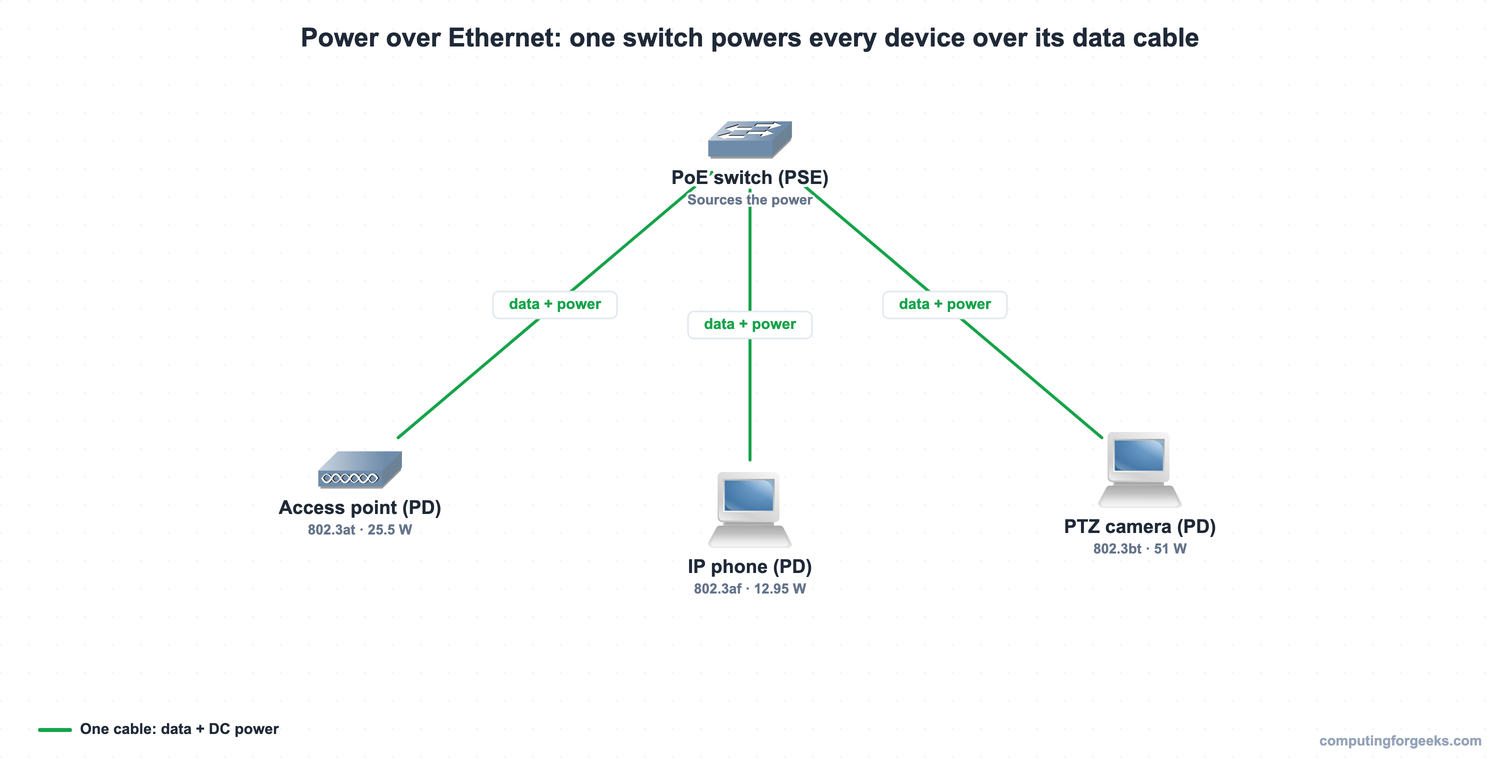
The payoff is reach. A PD lands wherever a network cable reaches, not where a power outlet happens to be, so an access point goes on the ceiling and a camera goes in the corner with one cable doing both jobs. It also centralises power: plug the switch into a UPS and every PD rides through an outage, no per-device battery needed.
How a switch negotiates PoE
A PoE switch never just energises a port. It runs a negotiation first, and that handshake is what keeps it from frying a non-PoE laptop you plug in. Three steps happen before power flows:
- Detection: the PSE applies a small voltage and looks for the signature resistance (around 25 kilohms) that every standard PD presents. No signature, no power.
- Classification: the PSE determines the PD’s power class so it can allocate the right budget rather than assume the maximum.
- Power-up: only now does the port deliver full power, and 802.3at and 802.3bt devices then use LLDP to fine-tune the allocation in 0.1 watt steps.
That negotiation is the difference between standard PoE and the cheap “passive PoE” injectors. Passive PoE is always on and dumps power down the cable whether the far end can take it or not, which can destroy a device that was not built for it. This catches people out when they reuse a passive injector from one product with another vendor’s gear. Standard 802.3 PoE detects and classifies first, so a non-PoE device never gets powered at all.
The PoE standards: 802.3af, PoE+, and PoE++
Three IEEE amendments define how much power a port can deliver. The number that trips people up is that the PSE always sends more than the PD receives, because some power is lost as heat over the cable run. Both numbers matter, so the table lists each:
| Standard | Name | Type | Power at PSE | Power at PD | Pairs | Year |
|---|---|---|---|---|---|---|
| 802.3af | PoE | Type 1 | 15.4 W | 12.95 W | 2 | 2003 |
| 802.3at | PoE+ | Type 2 | 30 W | 25.5 W | 2 | 2009 |
| 802.3bt | PoE++ (4PPoE) | Type 3 | 60 W | 51 W | 4 | 2018 |
| 802.3bt | PoE++ (4PPoE) | Type 4 | ~90-100 W | 71.3 W | 4 | 2018 |
The standards are backward compatible. An older 802.3af phone plugged into a newer 802.3bt switch negotiates down to the 12.95 watts it needs, and a high-draw PD will not power up on a switch that cannot supply its class. Cisco also shipped power before the standards caught up: the pre-standard Cisco Inline Power delivered around 6 to 7 watts, and Cisco UPOE (Universal PoE) reached 60 watts over four pairs before 802.3bt standardised it. Where you can, match the standard to the PD’s class rather than relying on a proprietary mode.
Power classes and two-pair versus four-pair
During classification the PD declares a power class, and the class is what the switch budgets against. Class 0 is the default that allocates the full 15.4 watts, classes 1 through 3 carve out lower power levels, class 4 is PoE+ at 30 watts, and classes 5 through 8 cover the higher 802.3bt levels. Getting the class right matters because the switch reserves power per class, not per actual draw.
How many wire pairs carry the power changed with the standards too. The original 802.3af and 802.3at run power over two of the four pairs, either the data pairs (called Alternative A) or the spare pairs (Alternative B). The higher wattages of 802.3bt are physically impossible on two pairs, so Type 3 and Type 4 use all four pairs at once, which is where the “4PPoE” name comes from. That is also why a true 802.3bt run needs all eight conductors in good shape, not just the four a gigabit link uses.
Verifying PoE on a Cisco switch
On a Catalyst switch, one command reports the PoE state of every port:
show power inlineThe output is a per-port table, and reading its columns tells you whether a device is being powered, how much it is drawing, and what the switch detected. These are the fields it reports:
| Column | What it tells you |
|---|---|
| Admin | The configured PoE mode: auto, static, or never |
| Oper | The operational state: on, off, faulty, or power-deny (budget exhausted) |
| Power | The wattage the port is currently delivering |
| Device | The detected device: a generic Ieee PD, or a model name when CDP/LLDP supplies one |
| Class | The negotiated power class (0 to 8) |
| Max | The maximum power the port will allocate |
The per-port mode is set on the interface. The default is power inline auto, which powers any detected PD up to the port’s limit; power inline static reserves a fixed budget for a port whatever it draws; and power inline never disables PoE on a port entirely, which you do on ports that should only ever carry data. A port that shows Oper: power-deny with a device attached means the switch detected the PD but refused to power it because the budget was exhausted, which is the next thing to understand.
Practice Power over Ethernet
Flip the cards to lock in the af/at/bt wattages, the PSE-versus-PD numbers, and the detect-classify-power negotiation, then take the quiz. The cable that carries this power is covered in the guide to copper and fiber cabling, and the full path to certification is the CCNA 200-301 study roadmap.
Sizing the PoE power budget
The mistake that bites real deployments is treating a switch’s port count as its PoE capacity. A 48-port switch does not deliver full PoE+ on all 48 ports at once. Each switch has a total PoE power budget, often a few hundred watts, and the PDs draw against that shared pool. Add up the class-rated power of every device you plan to attach and compare it to the switch’s budget, not its port count.
The arithmetic is blunt: a 370 watt PoE budget powers about twelve full 30 watt PoE+ access points, not 48. Plug in the thirteenth and the switch refuses it, which shows as Oper: power-deny in show power inline. So size the switch by adding up the PD classes plus headroom for growth, and on the devices that must never lose power, plan a model with a redundant or higher-capacity power supply. Get the budget math right up front and the only surprise left is how few cables you had to run.