

QuestDB is a high-performance open-source time-series database built in Java and C, designed for fast ingestion and SQL queries over timestamped data. It exposes a Prometheus-compatible metrics endpoint that makes it straightforward to track database health, query performance, memory consumption, and write throughput. This guide walks through installing QuestDB on Ubuntu 24.04, enabling its metrics endpoint, scraping those metrics with Prometheus, building Grafana dashboards, setting up alerting rules, and using QuestDB directly as a Grafana data source for time-series queries.
Prerequisites
- A server running Ubuntu 24.04 LTS with at least 4 GB RAM and 2 CPU cores
- Root or sudo access
- Java 17 or newer installed (OpenJDK 17 works well)
- Ports 9000 (QuestDB web console), 9003 (metrics), 8812 (PostgreSQL wire), 9090 (Prometheus), and 3000 (Grafana) available
- Firewall configured to allow traffic on the above ports
Step 1: Install QuestDB on Ubuntu 24.04
QuestDB provides official packages through its apt repository. Start by installing the required dependencies and adding the repository.
Install Java 17 if it is not already present:
sudo apt update
sudo apt install -y openjdk-17-jre-headless curl gnupg
Verify the Java version:
$ java -version
openjdk version "17.0.13" 2024-10-15
OpenJDK Runtime Environment (build 17.0.13+11-Ubuntu-2ubuntu1)
OpenJDK 64-Bit Server VM (build 17.0.13+11-Ubuntu-2ubuntu1, mixed mode, sharing)
Download and install QuestDB using the official binary tarball. Create a dedicated user for running QuestDB:
sudo useradd --system --no-create-home --shell /usr/sbin/nologin questdb
export QUESTDB_VERSION="8.2.3"
curl -fSL "https://github.com/questdb/questdb/releases/download/${QUESTDB_VERSION}/questdb-${QUESTDB_VERSION}-rt-linux-amd64.tar.gz" -o /tmp/questdb.tar.gz
sudo tar xzf /tmp/questdb.tar.gz -C /opt/
sudo mv /opt/questdb-${QUESTDB_VERSION}-rt-linux-amd64 /opt/questdb
sudo mkdir -p /var/lib/questdb
sudo chown -R questdb:questdb /opt/questdb /var/lib/questdb
Create a systemd service file for QuestDB:
$ sudo tee /etc/systemd/system/questdb.service > /dev/null <<'UNIT'
[Unit]
Description=QuestDB Time-Series Database
After=network.target

[Service]
Type=simple
User=questdb
Group=questdb
ExecStart=/opt/questdb/bin/questdb.sh start -d /var/lib/questdb -n
ExecStop=/opt/questdb/bin/questdb.sh stop -d /var/lib/questdb
Restart=on-failure
LimitNOFILE=65536

[Install]
WantedBy=multi-user.target
UNIT
Enable and start the service:
sudo systemctl daemon-reload
sudo systemctl enable --now questdb
sudo systemctl status questdb
Confirm QuestDB is listening on all expected ports:
$ ss -tlnp | grep -E '9000|9003|8812|9009'
LISTEN  0  128  *:9000  *:*  users:(("java",pid=12345,fd=45))
LISTEN  0  128  *:9003  *:*  users:(("java",pid=12345,fd=48))
LISTEN  0  128  *:8812  *:*  users:(("java",pid=12345,fd=50))
LISTEN  0  128  *:9009  *:*  users:(("java",pid=12345,fd=52))
Port 9000 serves the web console and REST API, 9003 is the metrics endpoint, 8812 handles PostgreSQL wire protocol connections, and 9009 is the InfluxDB Line Protocol port for high-throughput ingestion.
Step 2: Enable QuestDB Prometheus Metrics Endpoint
QuestDB exposes an HTTP endpoint at port 9003 that returns metrics in Prometheus exposition format. This must be explicitly enabled in the server configuration.
Edit the QuestDB server configuration file:
sudo vim /var/lib/questdb/conf/server.confAdd or update the following line to enable metrics:
# Enable Prometheus metrics endpoint on port 9003
metrics.enabled=true
Restart QuestDB to apply the change:
sudo systemctl restart questdbTest the metrics endpoint with curl:
$ curl -s http://127.0.0.1:9003/metrics | head -30
# TYPE questdb_json_queries_total counter
questdb_json_queries_total 0

# TYPE questdb_json_queries_completed_total counter
questdb_json_queries_completed_total 0

# TYPE questdb_commits_total counter
questdb_commits_total 1

# TYPE questdb_committed_rows_total counter
questdb_committed_rows_total 1

# TYPE questdb_memory_mem_used gauge
questdb_memory_mem_used 8388608

# TYPE questdb_memory_jvm_free gauge
questdb_memory_jvm_free 234881024

# TYPE questdb_memory_jvm_total gauge
questdb_memory_jvm_total 536870912

# TYPE questdb_memory_jvm_max gauge
questdb_memory_jvm_max 1073741824
If you see metric names starting with questdb_, the endpoint is working correctly.
Step 3: Install and Configure Prometheus to Scrape QuestDB
If Prometheus is not yet installed on your server, follow our guide on installing Prometheus Server on Ubuntu 24.04. The steps below assume Prometheus is already running.
Open the Prometheus configuration file:
sudo vim /etc/prometheus/prometheus.ymlAdd a new scrape job under the scrape_configs section:
scrape_configs:
  # Existing jobs above...

  - job_name: 'questdb'
    scrape_interval: 15s
    scrape_timeout: 10s
    static_configs:
      - targets: ['192.168.1.50:9003']
        labels:
          instance: 'questdb-prod'
          environment: 'production'
Replace 192.168.1.50 with the actual IP address of your QuestDB server. If Prometheus and QuestDB run on the same host, use 127.0.0.1:9003.
Validate the configuration and restart Prometheus:
$ promtool check config /etc/prometheus/prometheus.yml
Checking /etc/prometheus/prometheus.yml
 SUCCESS: /etc/prometheus/prometheus.yml is valid prometheus config file

$ sudo systemctl restart prometheus
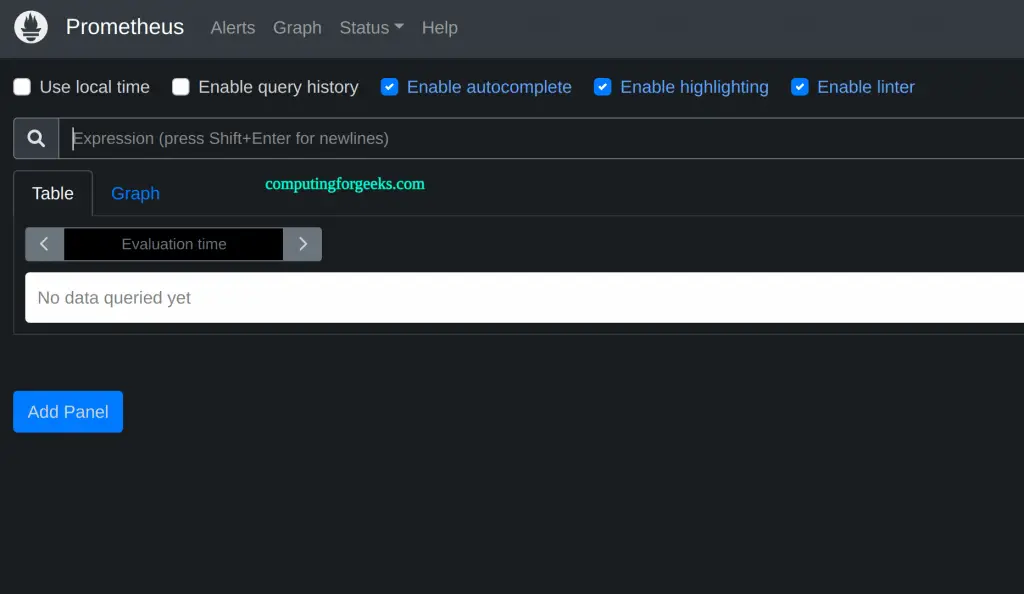
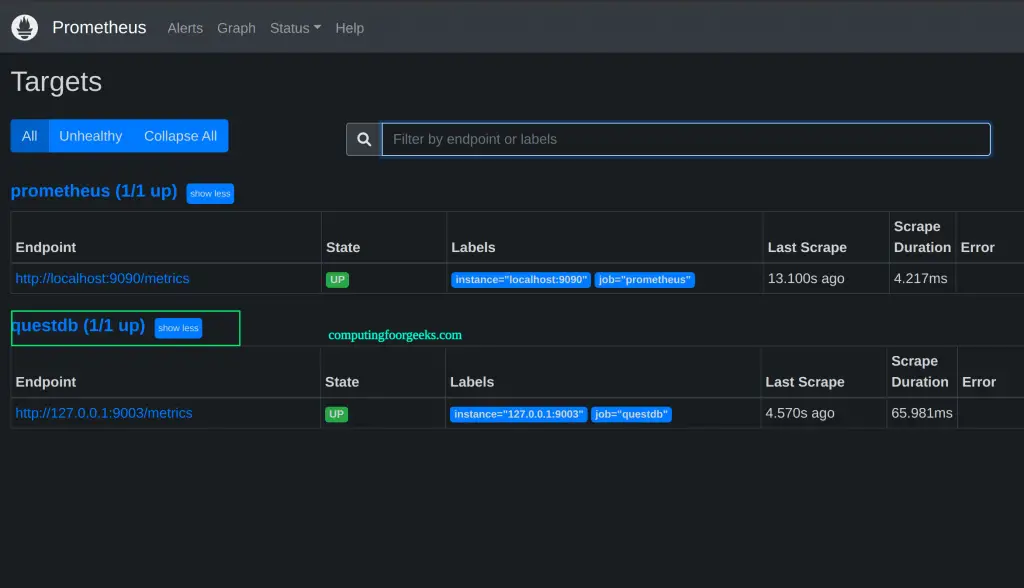
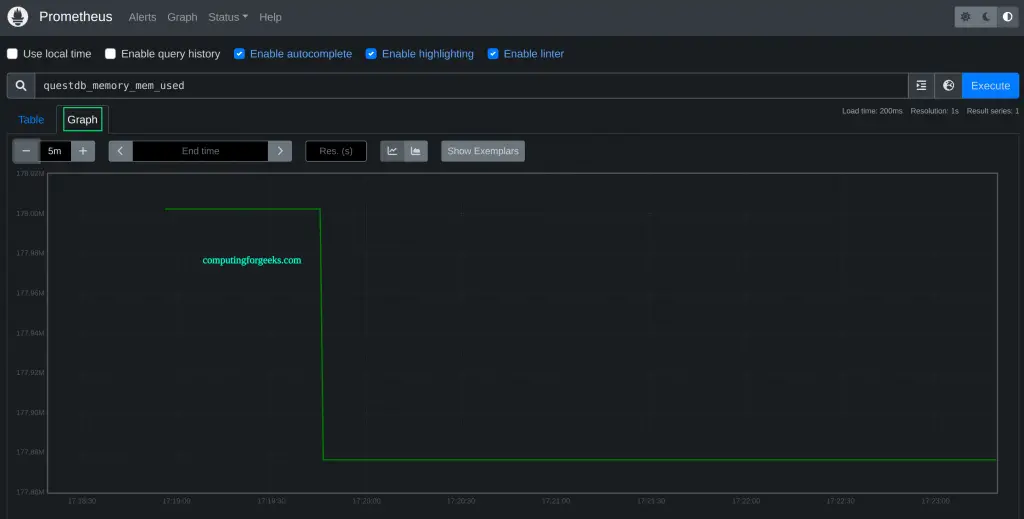
Open the Prometheus web UI at http://192.168.1.50:9090 and navigate to Status > Targets. The QuestDB target should show as UP.
Step 4: Key QuestDB Metrics to Monitor
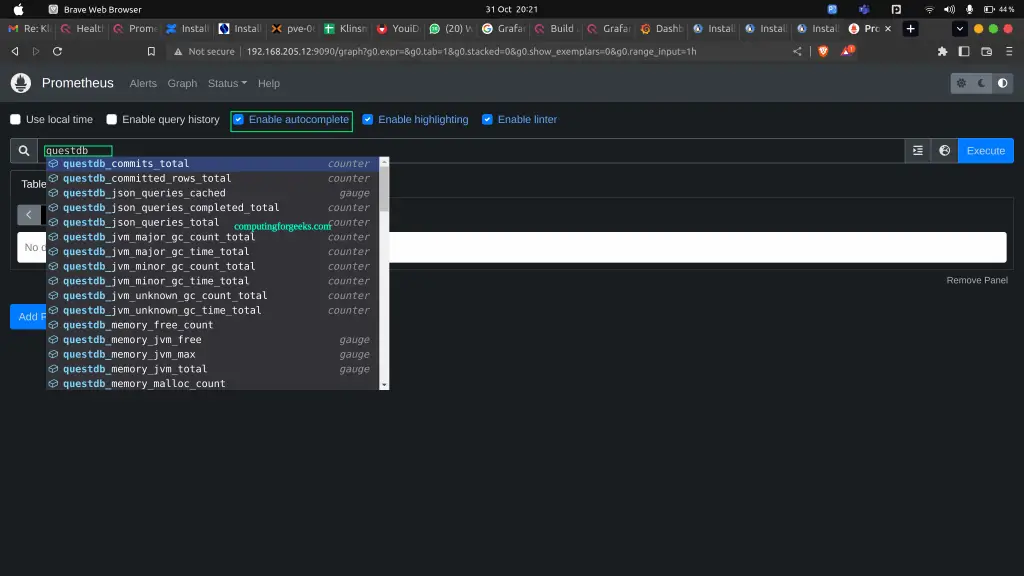
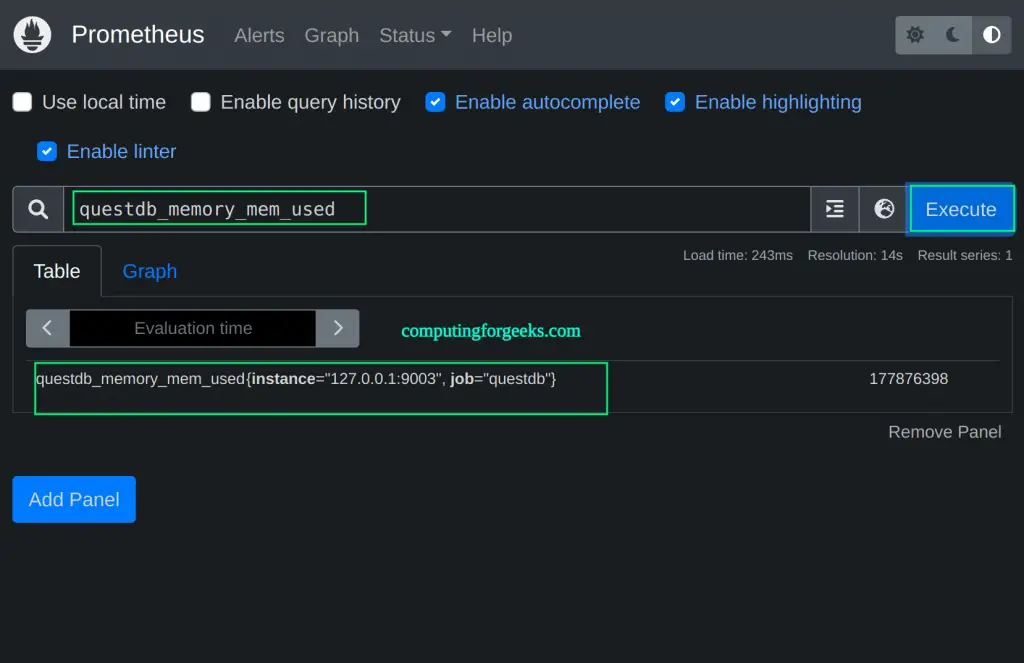
QuestDB exposes a rich set of metrics. Understanding what each metric tracks is critical for building useful dashboards and alert rules. Here are the most important categories.
Query Latency and Throughput
| Metric | Type | Description |
|---|---|---|
questdb_json_queries_total | counter | Total REST API queries received |
questdb_json_queries_completed_total | counter | Total REST API queries that completed successfully |
questdb_json_queries_cached | gauge | Number of currently cached REST API query plans |
questdb_pg_wire_select_queries_cached | gauge | Cached SELECT query plans via PostgreSQL wire protocol |
questdb_pg_wire_update_queries_cached | gauge | Cached UPDATE query plans via PostgreSQL wire protocol |
Track query rate with this PromQL expression in the Prometheus console:
rate(questdb_json_queries_completed_total[5m])Memory Usage
| Metric | Type | Description |
|---|---|---|
questdb_memory_mem_used | gauge | Current native (off-heap) memory allocated in bytes |
questdb_memory_malloc_count | counter | Number of native memory allocation calls |
questdb_memory_realloc_count | counter | Number of native memory reallocation calls |
questdb_memory_free_count | counter | Number of native memory free calls |
questdb_memory_jvm_free | gauge | Free Java heap memory in bytes |
questdb_memory_jvm_total | gauge | Current Java heap size in bytes |
questdb_memory_jvm_max | gauge | Maximum Java heap memory the JVM can allocate |
JVM heap utilization as a percentage:
(questdb_memory_jvm_total - questdb_memory_jvm_free) / questdb_memory_jvm_max * 100Write Throughput and Commits
| Metric | Type | Description |
|---|---|---|
questdb_commits_total | counter | Total commits (in-order and out-of-order) across all tables |
questdb_o3_commits_total | counter | Out-of-order (O3) commits only |
questdb_committed_rows_total | counter | Total rows committed to tables |
questdb_physically_written_rows_total | counter | Rows physically written to disk (higher than committed rows when O3 is active) |
questdb_rollbacks_total | counter | Total transaction rollbacks |
Write amplification ratio (values significantly above 1.0 indicate heavy out-of-order ingestion):
questdb_physically_written_rows_total / questdb_committed_rows_totalWAL Metrics and Table Health
QuestDB’s Write-Ahead Log (WAL) tables expose additional metrics for tracking write durability and performance:
| Metric | Type | Description |
|---|---|---|
questdb_wal_apply_rows_total | counter | Total rows applied from WAL segments |
questdb_wal_apply_physical_rows_total | counter | Physical rows written during WAL apply |
questdb_unhandled_errors_total | counter | Unhandled errors – indicates critical service degradation |
The questdb_unhandled_errors_total metric is especially important. Any increase signals a serious problem that needs immediate investigation.
Step 5: Install Grafana on Ubuntu 24.04
If Grafana is not already installed, add the official Grafana APT repository and install it. Our detailed guide on installing Grafana on Ubuntu 24.04 covers additional configuration options.
sudo apt install -y apt-transport-https software-properties-common
curl -fsSL https://apt.grafana.com/gpg.key | sudo gpg --dearmor -o /usr/share/keyrings/grafana-archive-keyring.gpg
echo "deb [signed-by=/usr/share/keyrings/grafana-archive-keyring.gpg] https://apt.grafana.com stable main" | sudo tee /etc/apt/sources.list.d/grafana.list
sudo apt update
sudo apt install -y grafana
Enable and start the Grafana service:
sudo systemctl enable --now grafana-server
sudo systemctl status grafana-server
Grafana listens on port 3000 by default. Open http://192.168.1.50:3000 in a browser and log in with the default credentials:
Username: admin
Password: admin
You will be prompted to change the password on first login.
Step 6: Add Prometheus as Grafana Data Source
To visualize QuestDB metrics collected by Prometheus, add Prometheus as a data source in Grafana.
From the Grafana sidebar, go to Connections > Data Sources and click Add data source. Select Prometheus and configure it with these settings:
- Name: Prometheus
- URL: http://127.0.0.1:9090 (if Prometheus runs on the same server)
- Scrape interval: 15s
Click Save & Test. You should see a green success message confirming the data source is working.
Step 7: Build QuestDB Monitoring Dashboard in Grafana
Create a new dashboard from Dashboards > New > New Dashboard. Add panels for each key metric category. Below are the recommended panels and their PromQL queries.
Panel 1: JVM Heap Usage
Create a time series panel with this query to track Java heap memory consumption:
# Query A - Used heap
questdb_memory_jvm_total - questdb_memory_jvm_free

# Query B - Max heap
questdb_memory_jvm_max
Set the unit to “bytes (IEC)” under Standard Options. Use a meaningful title like “QuestDB JVM Heap Usage”.
Panel 2: Native Memory Allocated
Track off-heap memory used by QuestDB for memory-mapped files and column storage:
questdb_memory_mem_usedSet the unit to “bytes (IEC)”. Native memory growth without corresponding data growth may indicate a memory leak.
Panel 3: Write Throughput (Rows/sec)
Visualize the ingestion rate using a rate function over committed rows:
rate(questdb_committed_rows_total[5m])This shows the average rows per second being committed. For comparison, add a second query for physically written rows:
rate(questdb_physically_written_rows_total[5m])Panel 4: Commit Rate and Rollbacks
Monitor commit activity and detect failed transactions:
# Query A - Commit rate
rate(questdb_commits_total[5m])

# Query B - Rollback rate
rate(questdb_rollbacks_total[5m])
A rising rollback rate typically indicates data schema issues or ingestion problems.
Panel 5: Query Rate
Track REST API and PostgreSQL wire query throughput:
# Query A - REST API queries per second
rate(questdb_json_queries_completed_total[5m])

# Query B - Failed queries (total minus completed)
rate(questdb_json_queries_total[5m]) - rate(questdb_json_queries_completed_total[5m])
Panel 6: Write Amplification
A stat panel showing write amplification helps identify out-of-order ingestion overhead:
questdb_physically_written_rows_total / questdb_committed_rows_totalValues above 2.0 suggest tuning the o3.commit.lag and o3.max.lag settings in the QuestDB server configuration.
Panel 7: Unhandled Errors
A single-stat panel showing the current total of unhandled errors:
questdb_unhandled_errors_totalThis value should always be zero in a healthy instance. Any non-zero value warrants checking the QuestDB log at /var/lib/questdb/log/questdb-stderr.log.
Save the dashboard once all panels are configured. A well-organized QuestDB monitoring dashboard gives instant visibility into database health, similar to what you would set up when monitoring Linux servers with Prometheus and Grafana.
Step 8: Configure Alerting Rules for QuestDB Health
Prometheus alerting rules let you get notified before small problems become outages. Create a new rules file for QuestDB alerts.
sudo vim /etc/prometheus/rules/questdb_alerts.ymlAdd the following alerting rules:
groups:
  - name: questdb_alerts
    rules:
      # Alert when QuestDB instance is down
      - alert: QuestDBDown
        expr: up{job="questdb"} == 0
        for: 2m
        labels:
          severity: critical
        annotations:
          summary: "QuestDB instance is unreachable"
          description: "The QuestDB metrics endpoint has been down for more than 2 minutes."

      # Alert on high JVM heap usage
      - alert: QuestDBHighHeapUsage
        expr: (questdb_memory_jvm_total - questdb_memory_jvm_free) / questdb_memory_jvm_max * 100 > 85
        for: 5m
        labels:
          severity: warning
        annotations:
          summary: "QuestDB JVM heap usage above 85%"
          description: "JVM heap is at {{ $value | printf \"%.1f\" }}% for the last 5 minutes."

      # Alert on unhandled errors
      - alert: QuestDBUnhandledErrors
        expr: increase(questdb_unhandled_errors_total[10m]) > 0
        for: 1m
        labels:
          severity: critical
        annotations:
          summary: "QuestDB unhandled errors detected"
          description: "{{ $value }} unhandled errors in the last 10 minutes. Check QuestDB logs immediately."

      # Alert on high rollback rate
      - alert: QuestDBHighRollbackRate
        expr: rate(questdb_rollbacks_total[5m]) > 0.5
        for: 5m
        labels:
          severity: warning
        annotations:
          summary: "QuestDB experiencing frequent rollbacks"
          description: "Rollback rate is {{ $value | printf \"%.2f\" }}/sec over the last 5 minutes."

      # Alert on excessive write amplification
      - alert: QuestDBHighWriteAmplification
        expr: questdb_physically_written_rows_total / questdb_committed_rows_total > 5
        for: 10m
        labels:
          severity: warning
        annotations:
          summary: "QuestDB write amplification is high"
          description: "Write amplification ratio is {{ $value | printf \"%.1f\" }}x. Consider tuning O3 commit lag settings."

      # Alert on high native memory usage (over 8GB)
      - alert: QuestDBHighNativeMemory
        expr: questdb_memory_mem_used > 8589934592
        for: 10m
        labels:
          severity: warning
        annotations:
          summary: "QuestDB native memory usage exceeds 8 GB"
          description: "Native memory is at {{ $value | humanize1024 }}."
Now reference this rules file in the Prometheus configuration:
sudo vim /etc/prometheus/prometheus.ymlAdd the rules file under the rule_files section:
rule_files:
  - "rules/*.yml"
Create the rules directory if it does not exist, then validate and restart:
$ sudo mkdir -p /etc/prometheus/rules
$ sudo mv /etc/prometheus/rules/questdb_alerts.yml /etc/prometheus/rules/ 2>/dev/null; true
$ promtool check rules /etc/prometheus/rules/questdb_alerts.yml
Checking /etc/prometheus/rules/questdb_alerts.yml
  SUCCESS: 6 rules found

$ sudo systemctl restart prometheus
Verify the rules are loaded by visiting the Prometheus web UI at Alerts. All six rules should appear with their current states. To receive alert notifications via email or Slack, connect Prometheus to Alertmanager with email notifications.
Step 9: Use QuestDB as a Grafana Data Source for Time-Series Queries
Beyond monitoring QuestDB itself, you can query data stored in QuestDB tables directly from Grafana. QuestDB supports the PostgreSQL wire protocol, so Grafana’s built-in PostgreSQL data source plugin works without any extra installation.
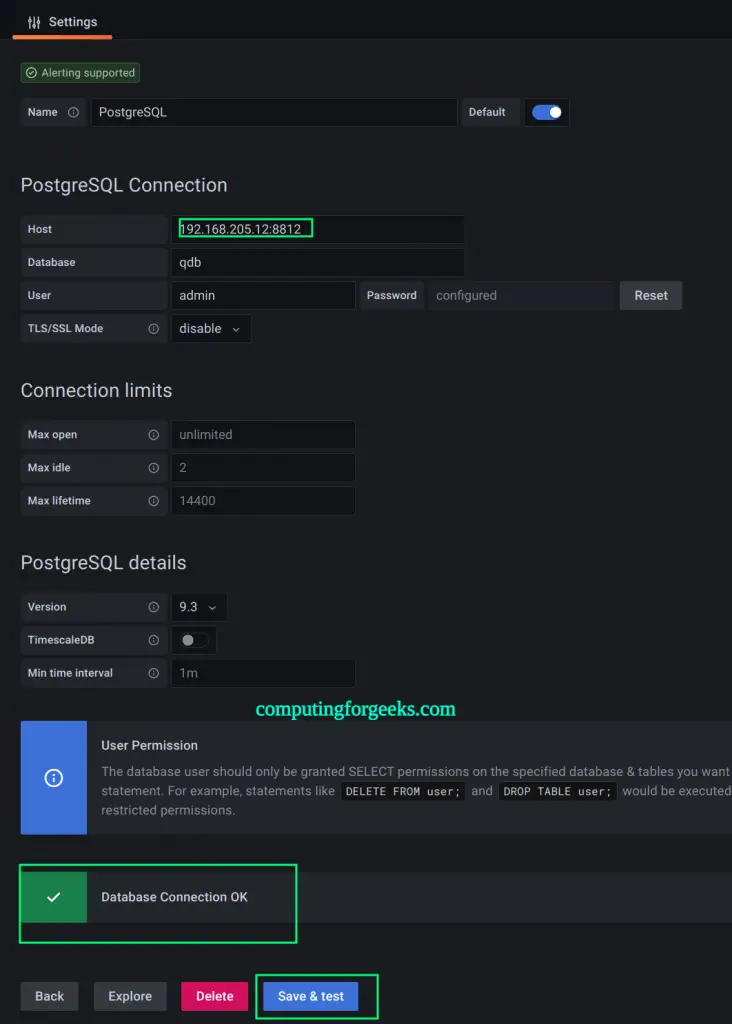
From the Grafana sidebar, go to Connections > Data Sources and click Add data source. Select PostgreSQL and enter these connection details:
Host: 192.168.1.50:8812
Database: qdb
User: admin
Password: quest
TLS/SSL Mode: disable
Version: 14
Replace 192.168.1.50 with the IP address of your QuestDB server.

Click Save & Test. A successful connection confirms that Grafana can query QuestDB tables.
Loading Sample Data for Testing
To test the data source, load the QuestDB demo taxi dataset. Download and import it through the REST API:
curl -fSL https://s3-eu-west-1.amazonaws.com/questdb.io/datasets/grafana_tutorial_dataset.tar.gz -o /tmp/grafana_data.tar.gz
tar xzf /tmp/grafana_data.tar.gz -C /tmp/
Import both CSV files into QuestDB:
curl -F data=@/tmp/taxi_trips_feb_2018.csv http://192.168.1.50:9000/imp
curl -F data=@/tmp/weather.csv http://192.168.1.50:9000/imp
Building Time-Series Panels with QuestDB SQL
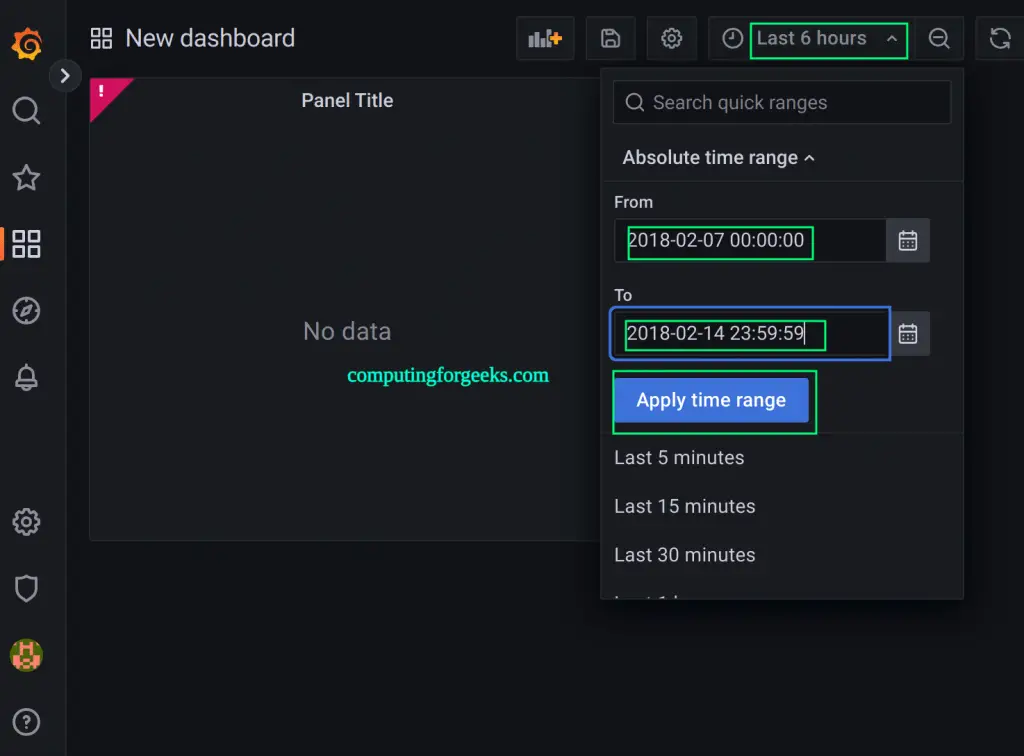
Create a new dashboard and add a panel. Select the QuestDB (PostgreSQL) data source and switch the query editor to Code mode. QuestDB supports standard SQL with time-series extensions like SAMPLE BY for downsampling.
Average trip distance over time:
SELECT pickup_datetime AS time,
       avg(trip_distance) AS distance
FROM ('taxi_trips_feb_2018.csv' timestamp(pickup_datetime))
WHERE $__timeFilter(pickup_datetime)
SAMPLE BY $__interval
Set the time range to February 2018 (2018-02-01 to 2018-02-28) to see data from the demo dataset.
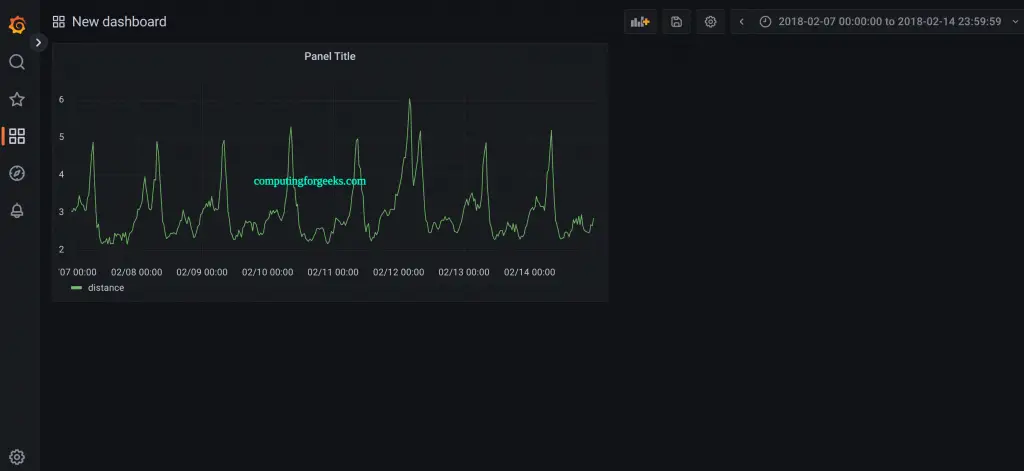
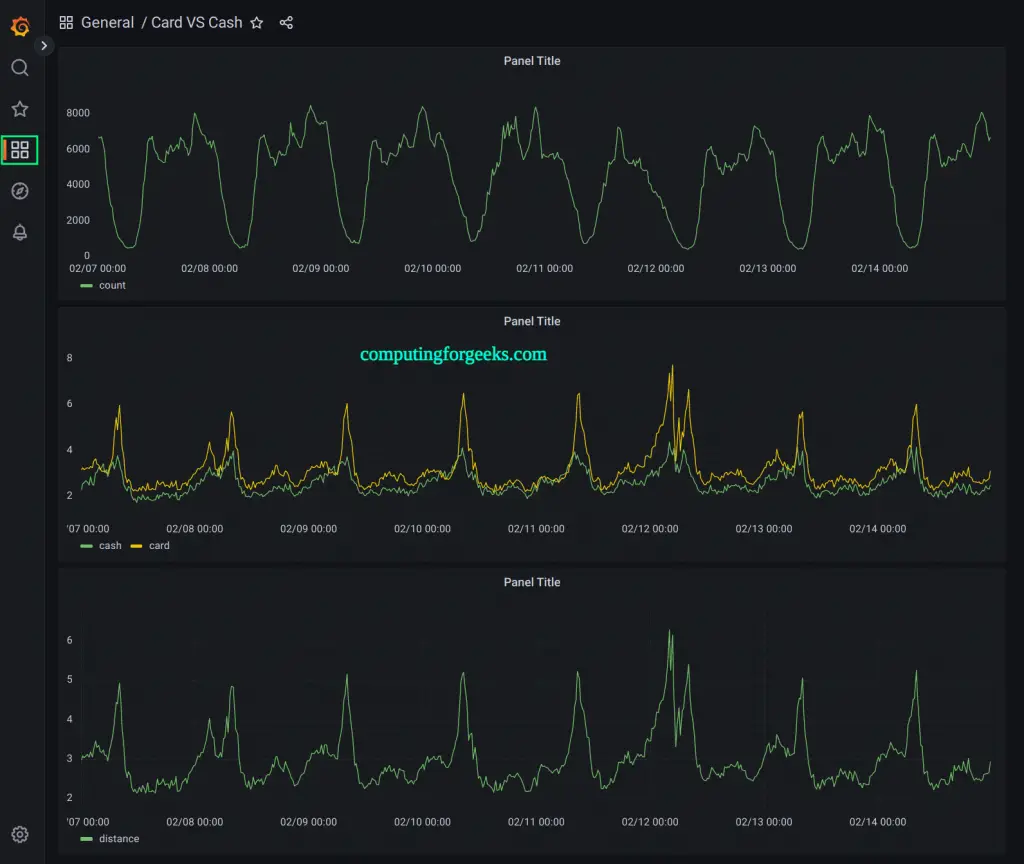
Add a second panel to compare payment methods. Use two queries in a single panel (tabs A and B).
Query A – cash payment distance:
SELECT pickup_datetime AS time,
       avg(trip_distance) AS cash
FROM ('taxi_trips_feb_2018.csv' timestamp(pickup_datetime))
WHERE $__timeFilter(pickup_datetime)
AND payment_type IN ('Cash')
SAMPLE BY $__interval
Query B – card payment distance:
SELECT pickup_datetime AS time,
       avg(trip_distance) AS card
FROM ('taxi_trips_feb_2018.csv' timestamp(pickup_datetime))
WHERE $__timeFilter(pickup_datetime)
AND payment_type IN ('Card')
SAMPLE BY $__interval
Add a trip count panel to track ride volume:
SELECT pickup_datetime AS "time",
       count() AS trips
FROM ('taxi_trips_feb_2018.csv' timestamp(pickup_datetime))
WHERE $__timeFilter(pickup_datetime)
SAMPLE BY $__interval;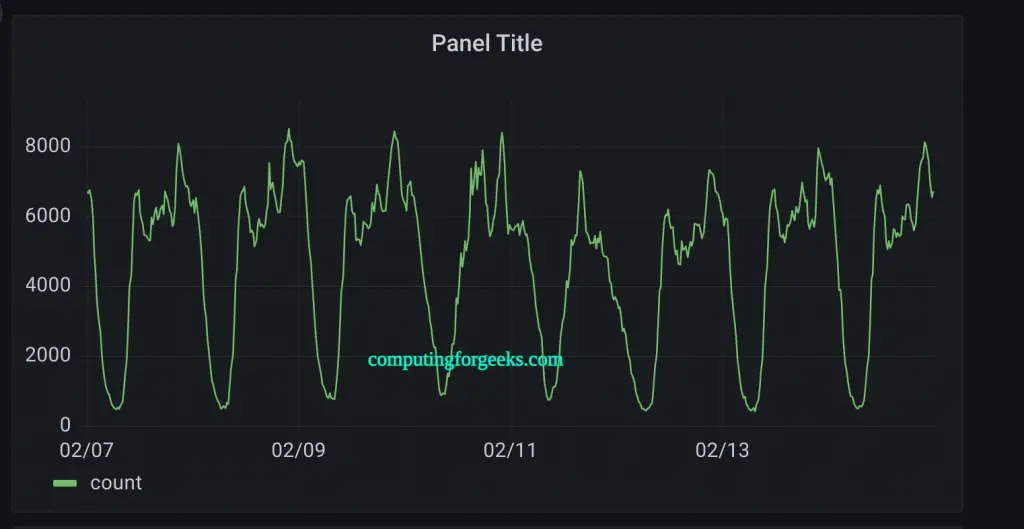
Save the dashboard. All panels update automatically as Grafana sends queries through the PostgreSQL wire protocol to QuestDB.
Step 10: Configure Firewall Rules
If UFW is enabled on your Ubuntu 24.04 server, open the required ports for all three services:
sudo ufw allow 9000/tcp comment "QuestDB Web Console"
sudo ufw allow 9003/tcp comment "QuestDB Metrics"
sudo ufw allow 8812/tcp comment "QuestDB PostgreSQL Wire"
sudo ufw allow 9009/tcp comment "QuestDB ILP Ingestion"
sudo ufw allow 9090/tcp comment "Prometheus"
sudo ufw allow 3000/tcp comment "Grafana"
sudo ufw reload
sudo ufw status verbose
In production, restrict the metrics port (9003) and Prometheus port (9090) to internal network addresses only. Only Grafana (3000) and the QuestDB ingestion ports should be accessible from application servers.
Conclusion
We installed QuestDB on Ubuntu 24.04, enabled its Prometheus metrics endpoint, configured Prometheus to scrape QuestDB health metrics, built Grafana dashboards covering memory, write throughput, query rates, and error tracking, set up alerting rules for proactive monitoring, and connected QuestDB as a direct Grafana data source for SQL-based time-series visualization. For production deployments, enable TLS on all endpoints, set strong QuestDB authentication credentials, run Prometheus behind a reverse proxy, and keep regular backups of the /var/lib/questdb data directory.
