

PostgreSQL’s internal statistics collector tracks everything from tuple operations to lock waits, but those metrics are only useful if you can trend them over time and alert on anomalies. The postgres_exporter from the Prometheus community project queries PostgreSQL’s statistics views and exposes them as Prometheus metrics – giving you time-series visibility into connections, transaction rates, cache efficiency, dead tuples, and replication lag.
This guide covers the full setup on Ubuntu/Debian and Rocky Linux/AlmaLinux: creating a monitoring role in PostgreSQL, installing postgres_exporter, configuring Prometheus scrape jobs, defining alert rules, and importing a Grafana dashboard. The instructions target PostgreSQL 17, though they work with PostgreSQL 14+ with minor differences noted where applicable.
Prerequisites
- PostgreSQL 14 or newer installed and running
- A running Prometheus server
- Grafana connected to your Prometheus data source
- Root or sudo access on the PostgreSQL server
Step 1: Create a PostgreSQL Monitoring User
The exporter needs a dedicated PostgreSQL role with read access to system statistics. Switch to the postgres system user and create it:
sudo -u postgres psqlRun the following SQL commands to create the monitoring role and grant the necessary permissions:
CREATE USER exporter WITH PASSWORD 'StrongExporterPass123!';
GRANT pg_monitor TO exporter;
\q
The pg_monitor role (available since PostgreSQL 10) bundles pg_read_all_settings, pg_read_all_stats, and pg_stat_scan_tables into a single role. This gives the exporter everything it needs without granting superuser privileges.
You also need to allow the exporter to connect via password authentication. Edit the pg_hba.conf file to add a local entry for the exporter user.
On Ubuntu/Debian, the file is at /etc/postgresql/17/main/pg_hba.conf. On Rocky/AlmaLinux, it’s at /var/lib/pgsql/17/data/pg_hba.conf.
Add this line before any existing local all all peer entry:
host all exporter 127.0.0.1/32 scram-sha-256Reload PostgreSQL to apply the change:
sudo systemctl reload postgresqlVerify the connection works:
PGPASSWORD='StrongExporterPass123!' psql -h 127.0.0.1 -U exporter -d postgres -c "SELECT version();"You should see the PostgreSQL version banner confirming a successful connection.
Step 2: Install postgres_exporter
Create a dedicated system user:
sudo useradd --system --no-create-home --shell /usr/sbin/nologin postgres_exporterDownload the latest release (version 0.19.1 at the time of writing):
VER=$(curl -sI https://github.com/prometheus-community/postgres_exporter/releases/latest | tr -d "\r" | grep -i ^location | grep -o "[0-9]\+\.[0-9]\+\.[0-9]\+" | tail -1)
echo "Downloading postgres_exporter v${VER}"
curl -fSL -o /tmp/postgres_exporter.tar.gz \
  https://github.com/prometheus-community/postgres_exporter/releases/download/v${VER}/postgres_exporter-${VER}.linux-amd64.tar.gz
Extract and install:
cd /tmp
tar xzf postgres_exporter.tar.gz
sudo mv postgres_exporter-*/postgres_exporter /usr/local/bin/
sudo chmod 755 /usr/local/bin/postgres_exporter
Confirm the binary runs:
postgres_exporter --versionThe output should show the installed version:
postgres_exporter, version 0.19.1 (branch: HEAD, revision: ...)SELinux context (Rocky/AlmaLinux only):
sudo semanage fcontext -a -t bin_t "/usr/local/bin/postgres_exporter"
sudo restorecon -v /usr/local/bin/postgres_exporter
Step 3: Create the Systemd Service
The exporter takes the PostgreSQL connection string via the DATA_SOURCE_NAME environment variable. Create an environment file to keep the credentials out of the unit file:
sudo mkdir -p /etc/postgres_exporter
sudo tee /etc/postgres_exporter/env > /dev/null <<'EOF'
DATA_SOURCE_NAME=postgresql://exporter:[email protected]:5432/postgres?sslmode=disable
EOF
sudo chown -R postgres_exporter:postgres_exporter /etc/postgres_exporter
sudo chmod 600 /etc/postgres_exporter/env
Now create the systemd service unit:
sudo tee /etc/systemd/system/postgres_exporter.service > /dev/null <<'EOF'
[Unit]
Description=PostgreSQL Prometheus Exporter
Documentation=https://github.com/prometheus-community/postgres_exporter
After=network-online.target postgresql.service
Wants=network-online.target

[Service]
Type=simple
User=postgres_exporter
Group=postgres_exporter
EnvironmentFile=/etc/postgres_exporter/env
ExecStart=/usr/local/bin/postgres_exporter \
    --web.listen-address=:9187 \
    --auto-discover-databases
Restart=on-failure
RestartSec=5

[Install]
WantedBy=multi-user.target
EOF
The --auto-discover-databases flag tells the exporter to automatically detect and collect metrics from all databases on the server, not just the one in the connection string.
Enable and start the service:
sudo systemctl daemon-reload
sudo systemctl enable --now postgres_exporter
Check the service status:
sudo systemctl status postgres_exporterThe service should show active (running). Verify metrics are being exposed:
curl -s http://localhost:9187/metrics | grep pg_upA value of 1 means the exporter is connected to PostgreSQL:
pg_up 1Step 4: Configure Firewall Rules
Open port 9187 for Prometheus if it runs on a separate host.
Ubuntu/Debian (ufw):
sudo ufw allow from 10.0.1.10/32 to any port 9187 proto tcp comment "PostgreSQL Exporter"
sudo ufw reload
Rocky/AlmaLinux (firewalld):
sudo firewall-cmd --permanent --add-rich-rule='rule family="ipv4" source address="10.0.1.10/32" port port="9187" protocol="tcp" accept'
sudo firewall-cmd --reload
SELinux port (Rocky/AlmaLinux only):
sudo semanage port -a -t http_port_t -p tcp 9187Step 5: Add Prometheus Scrape Configuration
On your Prometheus server, add the PostgreSQL scrape job to /etc/prometheus/prometheus.yml:
  - job_name: 'postgresql'
    scrape_interval: 15s
    static_configs:
      - targets: ['10.0.1.20:9187']
        labels:
          instance: 'pg-server-01'
Reload Prometheus:
sudo systemctl reload prometheusVerify the target is UP at http://your-prometheus:9090/targets.
Key PostgreSQL Metrics to Watch
| Metric | Description |
|---|---|
pg_stat_database_tup_fetched | Number of rows fetched by queries in each database |
pg_stat_database_tup_inserted | Number of rows inserted |
pg_stat_database_tup_updated | Number of rows updated |
pg_stat_database_tup_deleted | Number of rows deleted |
pg_stat_database_numbackends | Current number of connections per database |
pg_stat_database_deadlocks | Total deadlocks detected per database |
pg_stat_database_blks_hit | Blocks found in buffer cache (no disk read needed) |
pg_stat_database_blks_read | Blocks read from disk |
pg_settings_max_connections | Configured max_connections value |
PromQL Query Examples
Active connections across all databases:
sum(pg_stat_database_numbackends)Connection usage percentage:
sum(pg_stat_database_numbackends) / pg_settings_max_connections * 100Transaction rate per second (commits + rollbacks):
sum(rate(pg_stat_database_xact_commit[5m])) + sum(rate(pg_stat_database_xact_rollback[5m]))Cache hit ratio – this should be above 99% on a production server with adequate shared_buffers. Below 95% means too many reads are hitting disk:
sum(rate(pg_stat_database_blks_hit[5m])) / (sum(rate(pg_stat_database_blks_hit[5m])) + sum(rate(pg_stat_database_blks_read[5m])))Deadlock rate per second:
sum(rate(pg_stat_database_deadlocks[5m]))Dead tuples – a high count means autovacuum isn’t keeping up:
pg_stat_user_tables_n_dead_tupStep 6: Create Prometheus Alert Rules
Create alert rules for the most critical PostgreSQL failure scenarios:
sudo tee /etc/prometheus/rules/postgresql_alerts.yml > /dev/null <<'EOF'
groups:
  - name: postgresql_alerts
    rules:
      - alert: PostgreSQLDown
        expr: pg_up == 0
        for: 2m
        labels:
          severity: critical
        annotations:
          summary: "PostgreSQL is down on {{ $labels.instance }}"
          description: "The postgres_exporter on {{ $labels.instance }} cannot connect to PostgreSQL for more than 2 minutes."

      - alert: HighConnectionUsage
        expr: (sum(pg_stat_database_numbackends) by (instance) / pg_settings_max_connections) * 100 > 80
        for: 5m
        labels:
          severity: warning
        annotations:
          summary: "PostgreSQL connection usage above 80% on {{ $labels.instance }}"
          description: "{{ $value | printf \"%.1f\" }}% of max_connections are in use on {{ $labels.instance }}."

      - alert: ReplicationLag
        expr: pg_replication_lag > 30
        for: 5m
        labels:
          severity: warning
        annotations:
          summary: "PostgreSQL replication lag on {{ $labels.instance }}"
          description: "Replication lag on {{ $labels.instance }} is {{ $value | printf \"%.0f\" }} seconds."

      - alert: DeadlockRate
        expr: rate(pg_stat_database_deadlocks[5m]) > 0
        for: 10m
        labels:
          severity: warning
        annotations:
          summary: "Deadlocks detected on {{ $labels.instance }}"
          description: "Deadlocks are occurring at {{ $value | printf \"%.3f\" }}/s on {{ $labels.instance }}."

      - alert: HighDeadTuples
        expr: pg_stat_user_tables_n_dead_tup > 100000
        for: 30m
        labels:
          severity: warning
        annotations:
          summary: "High dead tuple count on {{ $labels.instance }}"
          description: "Table {{ $labels.relname }} on {{ $labels.instance }} has {{ $value }} dead tuples. Autovacuum may need tuning."
EOF
Reload Prometheus:
sudo systemctl reload prometheusStep 7: Import Grafana Dashboard
Dashboard 9628 is the most widely used PostgreSQL dashboard for Prometheus. Import it in Grafana:
- Navigate to Dashboards > New > Import
- Enter dashboard ID 9628 and click Load
- Select your Prometheus data source
- Click Import
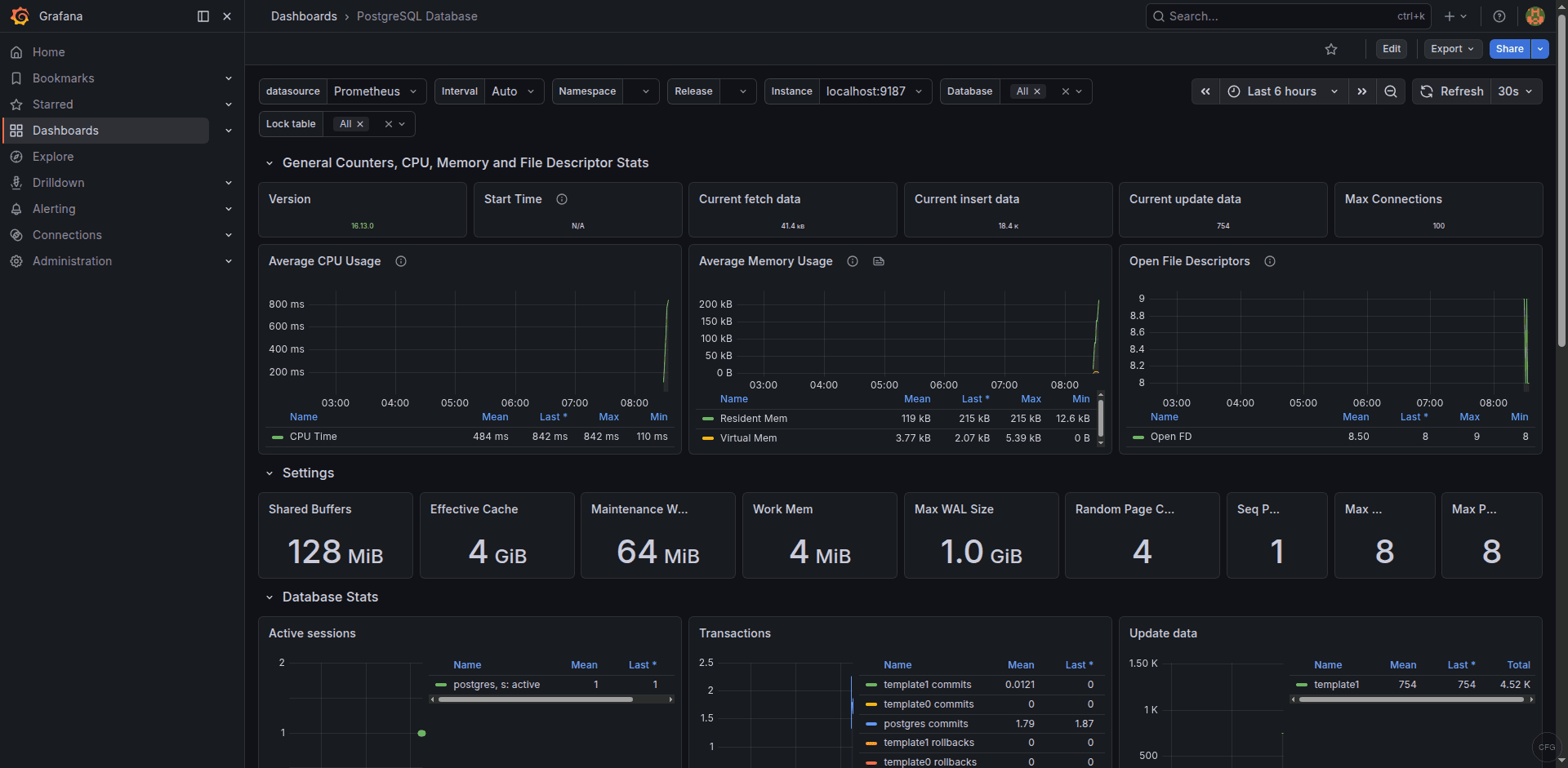
This dashboard provides panels for connection counts, transaction rates, tuple operations, cache hit ratio, lock statistics, and database sizes. Find it on the Grafana dashboard directory.
PostgreSQL 17 Specific Notes
PostgreSQL 17 introduced several changes that affect monitoring:
- The
pg_monitorrole now has access to additional statistics views introduced in PG 17, so no extra grants are needed - The default
password_encryptionisscram-sha-256– make sure your pg_hba.conf usesscram-sha-256and not the legacymd5 - On Rocky/AlmaLinux with the PGDG repository, the service name is
postgresql-17and the data directory is/var/lib/pgsql/17/data/ - On Ubuntu/Debian with the PGDG apt repository, the service name is
postgresqland the config directory is/etc/postgresql/17/main/
Troubleshooting Common Issues
pg_up shows 0
The exporter cannot connect to PostgreSQL. Check the DATA_SOURCE_NAME in the environment file and verify the connection manually:
PGPASSWORD='StrongExporterPass123!' psql -h 127.0.0.1 -U exporter -d postgres -c "SELECT 1"Common causes: wrong password, missing pg_hba.conf entry, PostgreSQL not listening on 127.0.0.1 (check listen_addresses in postgresql.conf).
No per-database metrics appearing
Without the --auto-discover-databases flag, the exporter only collects metrics for the database specified in the connection string. Make sure the flag is present in the ExecStart line of the systemd unit.
SELinux blocking the exporter on Rocky/AlmaLinux
If the exporter fails to start or connect, check for AVC denials:
sudo ausearch -m avc -ts recentThe exporter connects via TCP to 127.0.0.1:5432, which typically works under SELinux without custom policies. If you see denials related to network connections, ensure port 9187 has the correct SELinux label as shown in Step 4.
The Grafana dashboard shows real-time PostgreSQL metrics from the exporter:
Conclusion
The postgres_exporter with Prometheus and Grafana dashboard 9628 gives you continuous visibility into PostgreSQL’s connection pool, transaction throughput, cache performance, and vacuum health. The alert rules catch database outages, connection exhaustion, replication drift, and deadlocks before they cascade into application failures. For larger deployments, consider adding custom queries via the exporter’s --extend.query-path flag to monitor application-specific tables and workload patterns.
