

Prometheus is an open-source monitoring system that collects time-series metrics from your infrastructure using a pull model over HTTP. Paired with Grafana for visualization and Alertmanager for notifications, it gives you full visibility into Linux server uptime, health, and availability from a single stack.
This guide walks through setting up a complete monitoring pipeline to track Linux server uptime using Prometheus and Grafana on Ubuntu 24.04 and Rocky Linux 10. We cover Prometheus installation, node_exporter deployment on target servers, blackbox_exporter for HTTP/TCP endpoint checks, PromQL queries for uptime calculation, Grafana dashboard creation, Alertmanager configuration for email and Slack notifications, and recording rules for performance.
Tested March 2026 | Prometheus 3.10.0, node_exporter 1.10.2, Grafana 12.4.2, Rocky Linux 10.1
Prerequisites
- A dedicated Prometheus server running Ubuntu 24.04 or Rocky Linux 10 with at least 2 CPU cores and 4GB RAM
- One or more target Linux servers to monitor (Ubuntu 24.04 or Rocky Linux 10)
- Root or sudo access on all servers
- Network connectivity between the Prometheus server and targets on ports 9090, 9100, 9115, and 9093
- A Grafana instance (can run on the same server as Prometheus or separately)
- SMTP server details for email alerts (optional) and a Slack webhook URL for Slack alerts (optional)
For reference, our setup uses these IPs throughout the guide:
- Prometheus server: 192.168.1.142
- Target Linux server: 192.168.1.143
Step 1: Install Prometheus on the Monitoring Server
Prometheus runs as a single binary with a YAML configuration file. Create a dedicated system user first.
sudo useradd -M -r -s /bin/false prometheusCreate the required directories for Prometheus data and configuration.
sudo mkdir -p /etc/prometheus /var/lib/prometheus
sudo chown prometheus:prometheus /var/lib/prometheus
Download the latest Prometheus release. Check the Prometheus downloads page for the current version.
cd /tmp
curl -sL https://api.github.com/repos/prometheus/prometheus/releases/latest \
  | grep browser_download_url \
  | grep linux-amd64 \
  | cut -d '"' -f 4 \
  | wget -qi -
Extract the archive and install the binaries.
tar xvf prometheus-*.linux-amd64.tar.gz
cd prometheus-*.linux-amd64
sudo cp prometheus promtool /usr/local/bin/
sudo cp -r consoles console_libraries /etc/prometheus/
sudo chown -R prometheus:prometheus /etc/prometheus
Verify the installation.
prometheus --versionThe output should confirm the installed version:
prometheus, version 3.10.0 (branch: HEAD, revision: 54e010926b0a270cadb22be1113ad45fe9bcb90a)
  build user:       root@...
  build date:       ...
  go version:       go1.26.0
  platform:         linux/amd64
Create the main Prometheus configuration file. We will add scrape targets in later steps.
sudo vi /etc/prometheus/prometheus.ymlAdd the following configuration:
global:
  scrape_interval: 15s
  evaluation_interval: 15s

alerting:
  alertmanagers:
    - static_configs:
        - targets:
            - localhost:9093

rule_files:
  - "rules/*.yml"

scrape_configs:
  - job_name: "prometheus"
    static_configs:
      - targets: ['localhost:9090']
Create the rules directory for recording and alerting rules.
sudo mkdir -p /etc/prometheus/rules
sudo chown -R prometheus:prometheus /etc/prometheus
Create a systemd service file for Prometheus.
sudo vi /etc/systemd/system/prometheus.serviceAdd the following service definition:
[Unit]
Description=Prometheus Monitoring System
Wants=network-online.target
After=network-online.target

[Service]
User=prometheus
Group=prometheus
Type=simple
ExecStart=/usr/local/bin/prometheus \
  --config.file=/etc/prometheus/prometheus.yml \
  --storage.tsdb.path=/var/lib/prometheus \
  --web.console.templates=/etc/prometheus/consoles \
  --web.console.libraries=/etc/prometheus/console_libraries \
  --storage.tsdb.retention.time=90d \
  --web.enable-lifecycle
ExecReload=/bin/kill -HUP $MAINPID
Restart=always

[Install]
WantedBy=multi-user.target
Start and enable the service.
sudo systemctl daemon-reload
sudo systemctl enable --now prometheus
Confirm Prometheus is running.
sudo systemctl status prometheusThe service should show active (running):
● prometheus.service - Prometheus Monitoring System
     Loaded: loaded (/etc/systemd/system/prometheus.service; enabled; preset: disabled)
     Active: active (running) since Thu 2026-03-26 18:20:25 EAT
   Main PID: 5788 (prometheus)
     Memory: 52.4M
        CPU: 1.8s
Open the firewall port so you can reach the Prometheus web UI.
On Ubuntu 24.04:
sudo ufw allow 9090/tcpOn Rocky Linux 10:
sudo firewall-cmd --add-port=9090/tcp --permanent
sudo firewall-cmd --reload
Browse to http://192.168.1.142:9090 and confirm you see the Prometheus expression browser. If you already have Prometheus installed on Ubuntu, skip ahead to the node_exporter section.
Step 2: Install node_exporter on Target Servers
The node_exporter is a Prometheus exporter that exposes hardware and OS-level metrics from Linux systems. Install it on every server you want to monitor for uptime and health. Run these commands on each target server.
Create a dedicated system user.
sudo useradd -M -r -s /bin/false node_exporterDownload the latest node_exporter release.
cd /tmp
curl -sL https://api.github.com/repos/prometheus/node_exporter/releases/latest \
  | grep browser_download_url \
  | grep linux-amd64 \
  | cut -d '"' -f 4 \
  | wget -qi -
Extract and install the binary.
tar xvf node_exporter-*.linux-amd64.tar.gz
sudo cp node_exporter-*.linux-amd64/node_exporter /usr/local/bin/
sudo chown node_exporter:node_exporter /usr/local/bin/node_exporter
Verify the installation.
node_exporter --versionYou should see version 1.10.2 confirmed:
node_exporter, version 1.10.2 (branch: HEAD, revision: ...)
  build user:       root@...
  build date:       ...
  go version:       go1.26.0
  platform:         linux/amd64
Create the systemd service file.
sudo vi /etc/systemd/system/node_exporter.serviceAdd the following service definition:
[Unit]
Description=Prometheus Node Exporter
Wants=network-online.target
After=network-online.target

[Service]
User=node_exporter
Group=node_exporter
Type=simple
ExecStart=/usr/local/bin/node_exporter \
  --collector.systemd \
  --collector.processes
Restart=always

[Install]
WantedBy=multi-user.target
Start and enable node_exporter.
sudo systemctl daemon-reload
sudo systemctl enable --now node_exporter
Confirm the service is active.
sudo systemctl status node_exporterThe output confirms node_exporter is running:
● node_exporter.service - Prometheus Node Exporter
     Loaded: loaded (/etc/systemd/system/node_exporter.service; enabled; preset: disabled)
     Active: active (running) since Thu 2026-03-26 18:25:10 EAT
   Main PID: 5678 (node_exporter)
     Memory: 12.5M
Open port 9100 on the firewall. On Ubuntu 24.04:
sudo ufw allow 9100/tcpOn Rocky Linux 10:
sudo firewall-cmd --add-port=9100/tcp --permanent
sudo firewall-cmd --reload
Test that metrics are being exposed by curling the endpoint.
curl -s http://localhost:9100/metrics | head -5You should see metric lines like these:
# HELP go_gc_duration_seconds A summary of the pause duration of garbage collection cycles.
# TYPE go_gc_duration_seconds summary
go_gc_duration_seconds{quantile="0"} 2.5e-05
go_gc_duration_seconds{quantile="0.25"} 3.8e-05
go_gc_duration_seconds{quantile="0.5"} 5.1e-05
For RHEL-family systems, you can also follow our guide to install Prometheus and Node Exporter on Rocky Linux / AlmaLinux for distribution-specific details.
Step 3: Configure Prometheus Scrape Targets
Back on the Prometheus server, add your target nodes to the scrape configuration.
sudo vim /etc/prometheus/prometheus.ymlAppend the following job under the scrape_configs section.
  - job_name: "linux-nodes"
    static_configs:
      - targets:
          - 192.168.1.143:9100
        labels:
          environment: production
Validate the configuration before reloading.
promtool check config /etc/prometheus/prometheus.ymlA valid configuration produces this output:
Checking /etc/prometheus/prometheus.yml
 SUCCESS: /etc/prometheus/prometheus.yml is valid prometheus config file syntax
Reload Prometheus to apply the new targets. Since we enabled --web.enable-lifecycle, a hot reload works without restarting.
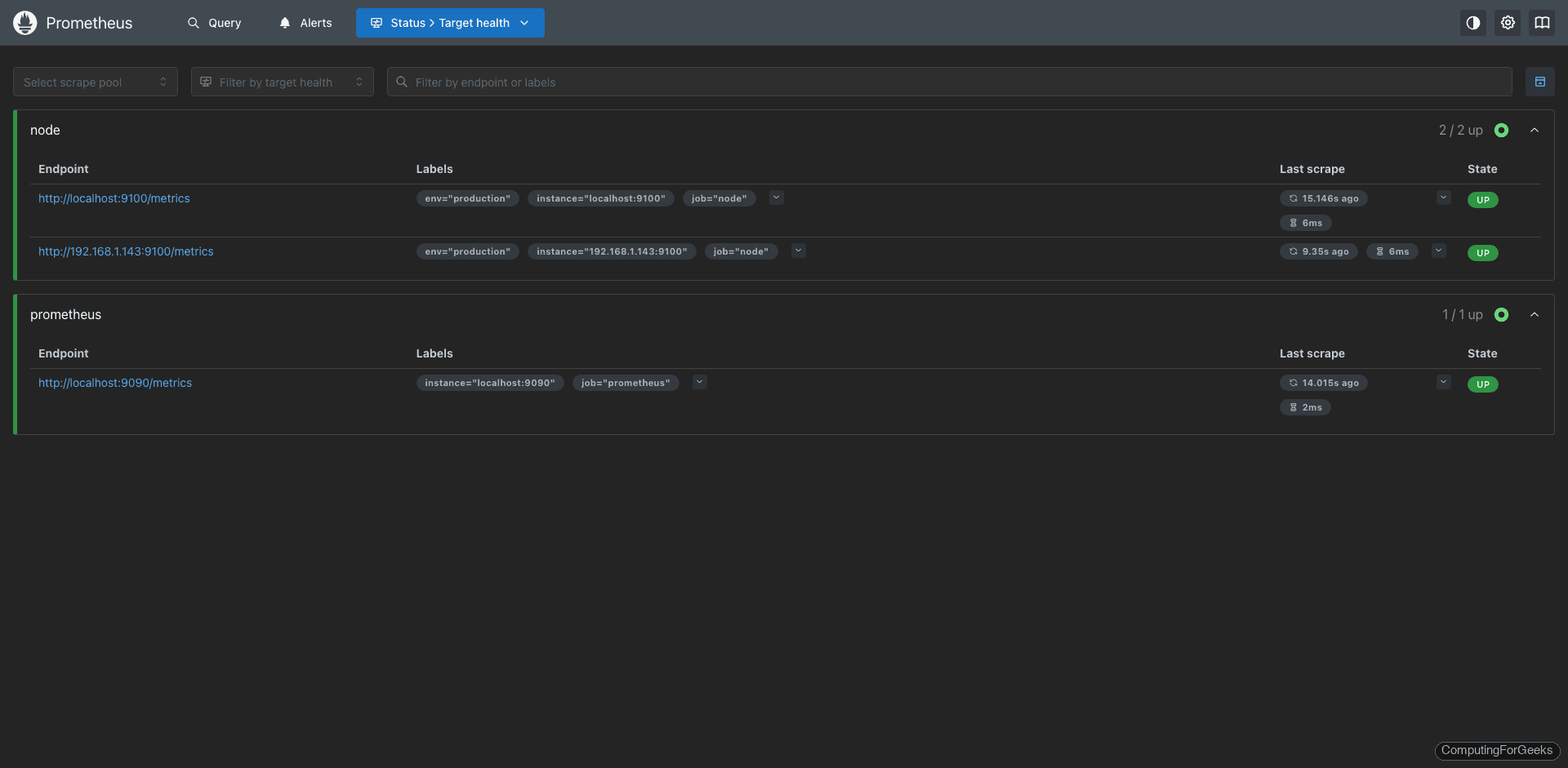
curl -X POST http://localhost:9090/-/reloadNavigate to http://192.168.1.142:9090/targets in your browser and confirm all targets show a State of UP.
Step 4: Key Uptime and Health Metrics to Monitor
With node_exporter running, Prometheus now scrapes hundreds of metrics from each target. Here are the most important ones for tracking server uptime and health.
Server Availability: the up Metric
The up metric is automatically generated by Prometheus for every scrape target. A value of 1 means the target responded successfully; 0 means the scrape failed. This is your primary indicator for whether a server is reachable.
up{job="linux-nodes"}System Uptime: node_boot_time_seconds
This metric records the Unix timestamp of the last boot. To calculate how long a server has been running, subtract the boot time from the current time.
# Uptime in days
(time() - node_boot_time_seconds{job="linux-nodes"}) / 86400
CPU Usage: node_cpu_seconds_total
The node_cpu_seconds_total counter tracks CPU time spent in each mode (user, system, idle, iowait, etc). To get the overall CPU utilization as a percentage over the last 5 minutes:
100 - (avg by(instance) (rate(node_cpu_seconds_total{mode="idle",job="linux-nodes"}[5m])) * 100)Memory Usage: node_memory_MemAvailable_bytes
The node_memory_MemAvailable_bytes metric shows how much memory is available for new processes without swapping. Calculate memory usage percentage with:
(1 - (node_memory_MemAvailable_bytes / node_memory_MemTotal_bytes)) * 100Disk Space: node_filesystem_avail_bytes
Track free disk space on mounted filesystems. Filter out temporary and virtual filesystems for cleaner results.
(1 - (node_filesystem_avail_bytes{mountpoint="/",fstype!="tmpfs"} / node_filesystem_size_bytes{mountpoint="/",fstype!="tmpfs"})) * 100Network Traffic: node_network Metrics
Monitor network throughput on each interface. These counters track total bytes received and transmitted.
# Inbound traffic rate in Mbps
rate(node_network_receive_bytes_total{device!~"lo|veth.*|docker.*"}[5m]) * 8 / 1024 / 1024

# Outbound traffic rate in Mbps
rate(node_network_transmit_bytes_total{device!~"lo|veth.*|docker.*"}[5m]) * 8 / 1024 / 1024
Step 5: PromQL Queries for Uptime Calculation
Beyond simple up/down checks, you often need to calculate uptime percentages over a time window for SLA reporting. Here are PromQL expressions for common uptime calculations.
Availability Percentage Over 30 Days
This query calculates the percentage of time each target was reachable over the past 30 days.
avg_over_time(up{job="linux-nodes"}[30d]) * 100Total Downtime Minutes in the Last 24 Hours
Count how many 15-second scrape intervals returned a failed result, then convert to minutes.
count_over_time((up{job="linux-nodes"} == 0)[24h:15s]) * 15 / 60Time Since Last Reboot
Display uptime in a human-friendly format for each server.
# Uptime in hours
(time() - node_boot_time_seconds) / 3600

# Uptime in days
(time() - node_boot_time_seconds) / 86400
Load Average Relative to CPU Count
A high load relative to the number of CPU cores indicates the server is struggling. This ratio should stay below 1.0 under normal conditions.
node_load15 / count without(cpu) (count without(mode) (node_cpu_seconds_total{mode="idle"}))Step 6: Install blackbox_exporter for Endpoint Monitoring
The blackbox_exporter probes endpoints over HTTP, HTTPS, TCP, ICMP, and DNS. It answers questions that node_exporter cannot: “Is the web application responding?” or “Is the database port accepting connections?”
Install it on the Prometheus server. Create a system user first.
sudo useradd -M -r -s /bin/false blackboxDownload the latest blackbox_exporter release.
cd /tmp
curl -sL https://api.github.com/repos/prometheus/blackbox_exporter/releases/latest \
  | grep browser_download_url \
  | grep linux-amd64 \
  | cut -d '"' -f 4 \
  | wget -qi -
Extract and install.
tar xvf blackbox_exporter-*.linux-amd64.tar.gz
cd blackbox_exporter-*.linux-amd64
sudo cp blackbox_exporter /usr/local/bin/
sudo chown blackbox:blackbox /usr/local/bin/blackbox_exporter
Create the configuration directory and copy the default config.
sudo mkdir -p /etc/blackbox
sudo cp blackbox.yml /etc/blackbox/
sudo chown -R blackbox:blackbox /etc/blackbox
The default /etc/blackbox/blackbox.yml includes modules for HTTP, TCP, and ICMP probing. You can customize it, but the defaults work for most use cases. Here is a version with an added SSH banner check:
modules:
  http_2xx:
    prober: http
    timeout: 5s
    http:
      valid_http_versions: ["HTTP/1.1", "HTTP/2.0"]
      valid_status_codes: []  # defaults to 2xx
      method: GET
      follow_redirects: true

  tcp_connect:
    prober: tcp
    timeout: 5s

  ssh_banner:
    prober: tcp
    timeout: 5s
    tcp:
      query_response:
        - expect: "^SSH-2.0-"

  icmp_check:
    prober: icmp
    timeout: 5s
Create the systemd service file for blackbox_exporter.
sudo vi /etc/systemd/system/blackbox_exporter.serviceAdd the following service definition:
[Unit]
Description=Blackbox Exporter
Wants=network-online.target
After=network-online.target

[Service]
User=blackbox
Group=blackbox
Type=simple
ExecStart=/usr/local/bin/blackbox_exporter \
  --config.file=/etc/blackbox/blackbox.yml \
  --web.listen-address=":9115"
Restart=always

[Install]
WantedBy=multi-user.target
Start the service.
sudo systemctl daemon-reload
sudo systemctl enable --now blackbox_exporter
Verify it is running.
sudo systemctl status blackbox_exporterThe service should be active:
● blackbox_exporter.service - Blackbox Exporter
     Loaded: loaded (/etc/systemd/system/blackbox_exporter.service; enabled; preset: disabled)
     Active: active (running) since Thu 2026-03-26 18:32:40 EAT
   Main PID: 7890 (blackbox_export)
     Memory: 8.1M
Allow port 9115 through the firewall. On Ubuntu 24.04:
sudo ufw allow 9115/tcpOn Rocky Linux 10:
sudo firewall-cmd --add-port=9115/tcp --permanent
sudo firewall-cmd --reload
Add Blackbox Probe Jobs to Prometheus
Edit the Prometheus configuration to add blackbox probe jobs. Append these to the scrape_configs section in /etc/prometheus/prometheus.yml:
  # HTTP endpoint monitoring
  - job_name: "blackbox-http"
    metrics_path: /probe
    params:
      module: [http_2xx]
    static_configs:
      - targets:
          - https://example.com
          - https://api.example.com/health
    relabel_configs:
      - source_labels: [__address__]
        target_label: __param_target
      - source_labels: [__param_target]
        target_label: instance
      - target_label: __address__
        replacement: 192.168.1.142:9115

  # ICMP ping monitoring
  - job_name: "blackbox-icmp"
    metrics_path: /probe
    params:
      module: [icmp_check]
    static_configs:
      - targets:
          - 192.168.1.143
    relabel_configs:
      - source_labels: [__address__]
        target_label: __param_target
      - source_labels: [__param_target]
        target_label: instance
      - target_label: __address__
        replacement: 192.168.1.142:9115

  # SSH port check
  - job_name: "blackbox-ssh"
    metrics_path: /probe
    params:
      module: [ssh_banner]
    static_configs:
      - targets:
          - 192.168.1.143:22
    relabel_configs:
      - source_labels: [__address__]
        target_label: __param_target
      - source_labels: [__param_target]
        target_label: instance
      - target_label: __address__
        replacement: 192.168.1.142:9115

  # TCP port check (e.g., database port)
  - job_name: "blackbox-tcp"
    metrics_path: /probe
    params:
      module: [tcp_connect]
    static_configs:
      - targets:
          - 192.168.1.143:3306
    relabel_configs:
      - source_labels: [__address__]
        target_label: __param_target
      - source_labels: [__param_target]
        target_label: instance
      - target_label: __address__
        replacement: 192.168.1.142:9115
Validate and reload.
promtool check config /etc/prometheus/prometheus.yml
curl -X POST http://localhost:9090/-/reload
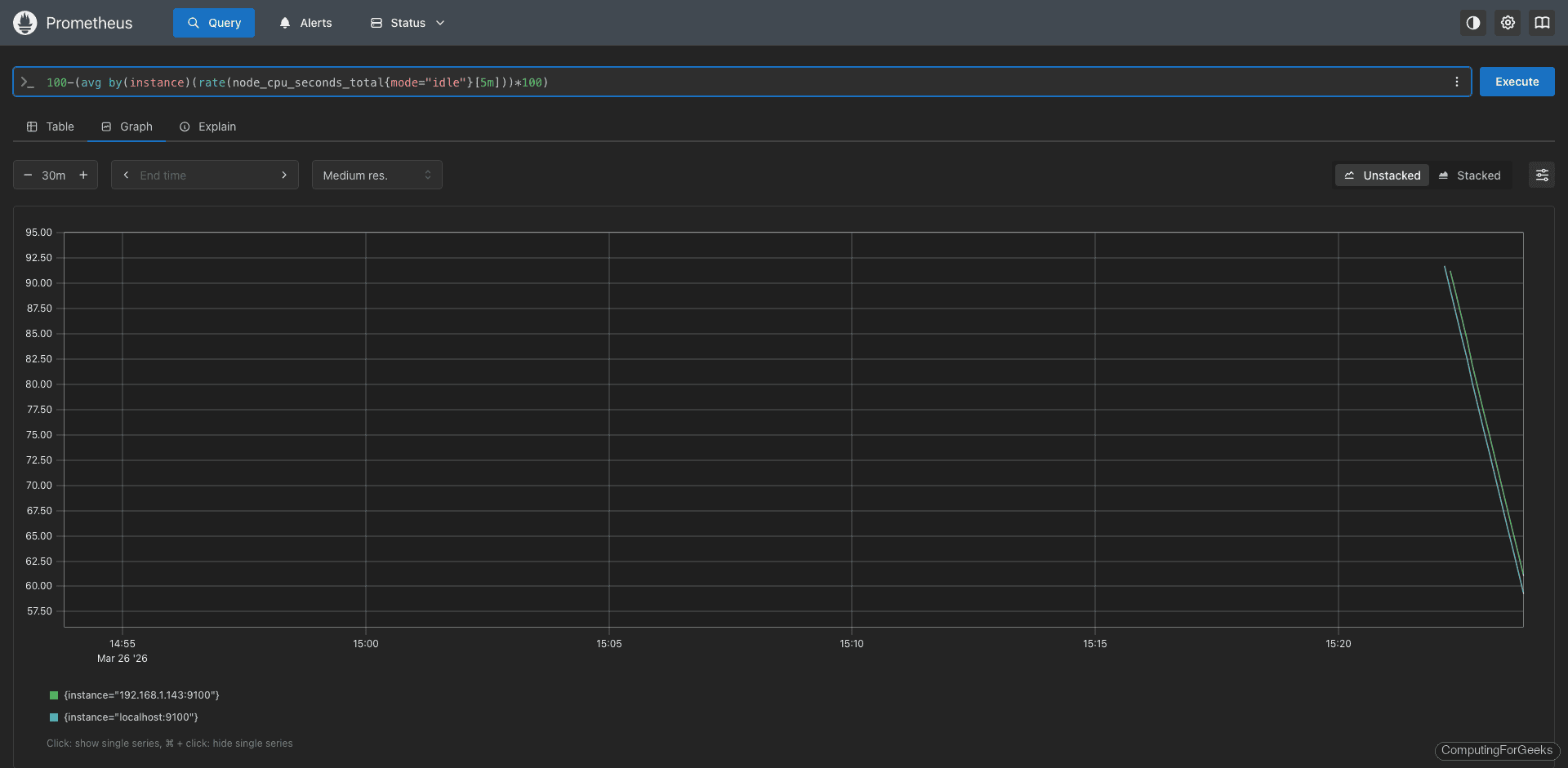
Check the targets page at http://192.168.1.142:9090/targets to confirm all blackbox probe jobs are active.
Step 7: Create Recording Rules for Performance
Recording rules pre-compute frequently used or expensive PromQL expressions and save the results as new time series. This speeds up dashboard queries and reduces load on the Prometheus server, especially when you have many targets.
Create a recording rules file.
sudo vim /etc/prometheus/rules/recording_rules.ymlAdd these recording rules for uptime and health metrics.
groups:
  - name: node_health_recording
    interval: 30s
    rules:
      # CPU utilization percentage per instance
      - record: instance:node_cpu_utilization:rate5m
        expr: 100 - (avg by(instance) (rate(node_cpu_seconds_total{mode="idle"}[5m])) * 100)

      # Memory usage percentage per instance
      - record: instance:node_memory_usage:percent
        expr: (1 - (node_memory_MemAvailable_bytes / node_memory_MemTotal_bytes)) * 100

      # Root filesystem usage percentage per instance
      - record: instance:node_disk_root_usage:percent
        expr: (1 - (node_filesystem_avail_bytes{mountpoint="/"} / node_filesystem_size_bytes{mountpoint="/"})) * 100

      # System uptime in days per instance
      - record: instance:node_uptime:days
        expr: (time() - node_boot_time_seconds) / 86400

      # Availability over the last 24 hours
      - record: instance:node_availability:24h
        expr: avg_over_time(up{job="linux-nodes"}[24h]) * 100

      # Network receive rate in bytes per second
      - record: instance:node_network_receive:rate5m
        expr: sum by(instance) (rate(node_network_receive_bytes_total{device!~"lo|veth.*"}[5m]))

      # Network transmit rate in bytes per second
      - record: instance:node_network_transmit:rate5m
        expr: sum by(instance) (rate(node_network_transmit_bytes_total{device!~"lo|veth.*"}[5m]))
Validate the rules file.
promtool check rules /etc/prometheus/rules/recording_rules.ymlA successful check looks like this:
Checking /etc/prometheus/rules/recording_rules.yml
  SUCCESS: 7 rules found
Reload Prometheus to load the rules.
curl -X POST http://localhost:9090/-/reloadConfirm the rules are loaded by checking http://192.168.1.142:9090/rules in the browser.
Step 8: Set Up Alertmanager for Downtime Alerts
Alertmanager handles alert routing, grouping, silencing, and sending notifications. We will configure it to send alerts through both email and Slack when servers go down or health thresholds are breached.
Install Alertmanager
Create a system user for Alertmanager.
sudo useradd -M -r -s /bin/false alertmanagerDownload and install the latest release.
cd /tmp
curl -sL https://api.github.com/repos/prometheus/alertmanager/releases/latest \
  | grep browser_download_url \
  | grep linux-amd64 \
  | cut -d '"' -f 4 \
  | wget -qi -

tar xvf alertmanager-*.linux-amd64.tar.gz
cd alertmanager-*.linux-amd64
sudo cp alertmanager amtool /usr/local/bin/
sudo mkdir -p /etc/alertmanager /var/lib/alertmanager
sudo chown -R alertmanager:alertmanager /etc/alertmanager /var/lib/alertmanager
For a detailed walkthrough of Alertmanager email setup, see our guide on configuring Prometheus email alert notifications.
Configure Alertmanager for Email and Slack
Create the Alertmanager configuration file with both email and Slack receivers.
sudo vim /etc/alertmanager/alertmanager.ymlAdd the following configuration. Replace the placeholder values with your actual SMTP credentials and Slack webhook URL.
global:
  resolve_timeout: 5m
  smtp_smarthost: 'smtp.example.com:587'
  smtp_from: '[email protected]'
  smtp_auth_username: '[email protected]'
  smtp_auth_password: 'your-smtp-password'
  smtp_require_tls: true
  slack_api_url: 'https://hooks.slack.com/services/T00/B00/XXXXX'

route:
  receiver: 'default'
  group_by: ['alertname', 'instance']
  group_wait: 30s
  group_interval: 5m
  repeat_interval: 4h
  routes:
    - match:
        severity: critical
      receiver: 'critical-alerts'
      repeat_interval: 1h
    - match:
        severity: warning
      receiver: 'warning-alerts'
      repeat_interval: 4h

receivers:
  - name: 'default'
    email_configs:
      - to: '[email protected]'
        send_resolved: true
    slack_configs:
      - channel: '#alerts'
        send_resolved: true
        title: '{{ .GroupLabels.alertname }}'
        text: '{{ range .Alerts }}{{ .Annotations.description }}{{ end }}'

  - name: 'critical-alerts'
    email_configs:
      - to: '[email protected]'
        send_resolved: true
    slack_configs:
      - channel: '#critical-alerts'
        send_resolved: true
        title: 'CRITICAL: {{ .GroupLabels.alertname }}'
        text: '{{ range .Alerts }}Instance: {{ .Labels.instance }} - {{ .Annotations.description }}{{ end }}'

  - name: 'warning-alerts'
    slack_configs:
      - channel: '#alerts'
        send_resolved: true
        title: 'WARNING: {{ .GroupLabels.alertname }}'
        text: '{{ range .Alerts }}Instance: {{ .Labels.instance }} - {{ .Annotations.description }}{{ end }}'

inhibit_rules:
  - source_match:
      severity: 'critical'
    target_match:
      severity: 'warning'
    equal: ['alertname', 'instance']
Create the Alertmanager systemd service file.
sudo vi /etc/systemd/system/alertmanager.serviceAdd this service definition:
[Unit]
Description=Prometheus Alertmanager
Wants=network-online.target
After=network-online.target

[Service]
User=alertmanager
Group=alertmanager
Type=simple
ExecStart=/usr/local/bin/alertmanager \
  --config.file=/etc/alertmanager/alertmanager.yml \
  --storage.path=/var/lib/alertmanager \
  --web.listen-address=":9093"
Restart=always

[Install]
WantedBy=multi-user.target
Start the service.
sudo systemctl daemon-reload
sudo systemctl enable --now alertmanager
Confirm it is running and accessible.
sudo systemctl status alertmanagerAlertmanager should show active:
● alertmanager.service - Prometheus Alertmanager
     Loaded: loaded (/etc/systemd/system/alertmanager.service; enabled; preset: disabled)
     Active: active (running) since Thu 2026-03-26 18:40:15 EAT
   Main PID: 9012 (alertmanager)
     Memory: 18.3M
Open port 9093 on the firewall. On Ubuntu 24.04:
sudo ufw allow 9093/tcpOn Rocky Linux 10:
sudo firewall-cmd --add-port=9093/tcp --permanent
sudo firewall-cmd --reload
Create Alerting Rules for Uptime and Health
Create an alerting rules file on the Prometheus server.
sudo vim /etc/prometheus/rules/alerting_rules.ymlAdd alerting rules that cover server downtime, high resource usage, and endpoint failures.
groups:
  - name: uptime_alerts
    rules:
      # Server unreachable for more than 1 minute
      - alert: InstanceDown
        expr: up{job="linux-nodes"} == 0
        for: 1m
        labels:
          severity: critical
        annotations:
          summary: "Server {{ $labels.instance }} is down"
          description: "{{ $labels.instance }} has been unreachable for more than 1 minute."

      # Server rebooted within the last 10 minutes
      - alert: ServerReboot
        expr: (time() - node_boot_time_seconds) < 600
        for: 0m
        labels:
          severity: warning
        annotations:
          summary: "Server {{ $labels.instance }} recently rebooted"
          description: "{{ $labels.instance }} was rebooted {{ $value | humanizeDuration }} ago."

  - name: resource_alerts
    rules:
      # CPU usage above 90% for 5 minutes
      - alert: HighCpuUsage
        expr: instance:node_cpu_utilization:rate5m > 90
        for: 5m
        labels:
          severity: warning
        annotations:
          summary: "High CPU on {{ $labels.instance }}"
          description: "CPU usage is {{ $value | printf \"%.1f\" }}% on {{ $labels.instance }}."

      # Memory usage above 90% for 5 minutes
      - alert: HighMemoryUsage
        expr: instance:node_memory_usage:percent > 90
        for: 5m
        labels:
          severity: warning
        annotations:
          summary: "High memory on {{ $labels.instance }}"
          description: "Memory usage is {{ $value | printf \"%.1f\" }}% on {{ $labels.instance }}."

      # Disk usage above 85%
      - alert: DiskSpaceLow
        expr: instance:node_disk_root_usage:percent > 85
        for: 5m
        labels:
          severity: warning
        annotations:
          summary: "Low disk space on {{ $labels.instance }}"
          description: "Root filesystem is {{ $value | printf \"%.1f\" }}% full on {{ $labels.instance }}."

      # Disk usage above 95% - critical
      - alert: DiskSpaceCritical
        expr: instance:node_disk_root_usage:percent > 95
        for: 1m
        labels:
          severity: critical
        annotations:
          summary: "Disk almost full on {{ $labels.instance }}"
          description: "Root filesystem is {{ $value | printf \"%.1f\" }}% full on {{ $labels.instance }}."

  - name: endpoint_alerts
    rules:
      # HTTP endpoint is down
      - alert: HttpEndpointDown
        expr: probe_success{job="blackbox-http"} == 0
        for: 2m
        labels:
          severity: critical
        annotations:
          summary: "HTTP endpoint {{ $labels.instance }} is down"
          description: "HTTP probe to {{ $labels.instance }} has failed for 2 minutes."

      # SSH not responding
      - alert: SshDown
        expr: probe_success{job="blackbox-ssh"} == 0
        for: 2m
        labels:
          severity: critical
        annotations:
          summary: "SSH is down on {{ $labels.instance }}"
          description: "SSH probe to {{ $labels.instance }} has failed for 2 minutes."

      # SSL certificate expiring within 7 days
      - alert: SslCertExpiring
        expr: probe_ssl_earliest_cert_expiry - time() < 86400 * 7
        for: 1h
        labels:
          severity: warning
        annotations:
          summary: "SSL cert expiring on {{ $labels.instance }}"
          description: "SSL certificate for {{ $labels.instance }} expires in {{ $value | humanizeDuration }}."
Validate the rules and reload.
promtool check rules /etc/prometheus/rules/alerting_rules.yml
curl -X POST http://localhost:9090/-/reload
Browse to http://192.168.1.142:9090/alerts to verify the alert rules are loaded. Active alerts appear on the http://192.168.1.142:9093 Alertmanager UI.
Step 9: Create Grafana Dashboards for Linux Server Uptime
Grafana turns your Prometheus metrics into visual dashboards. If you do not have Grafana installed yet, follow our guide to install Grafana on Ubuntu 24.04 or install Grafana on Rocky Linux / AlmaLinux.
Add Prometheus as a Data Source
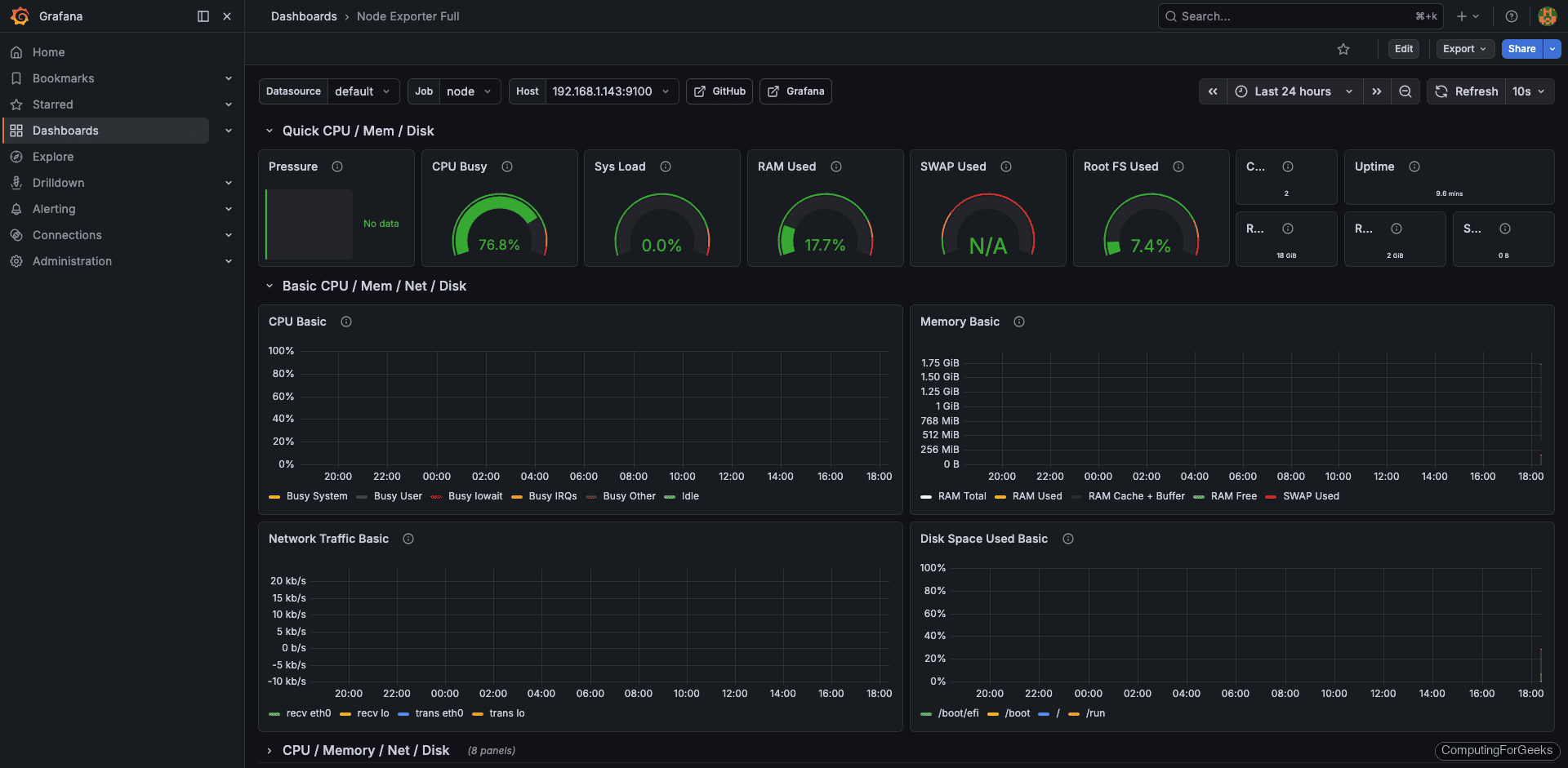
Log in to Grafana at http://192.168.1.142:3000 (default credentials are admin/admin). Navigate to Connections, then Data Sources, and click Add data source. Select Prometheus and set the URL to http://localhost:9090 (or the Prometheus server IP if Grafana runs on a different host). Click Save and Test to verify the connection.
Import the Node Exporter Full Dashboard
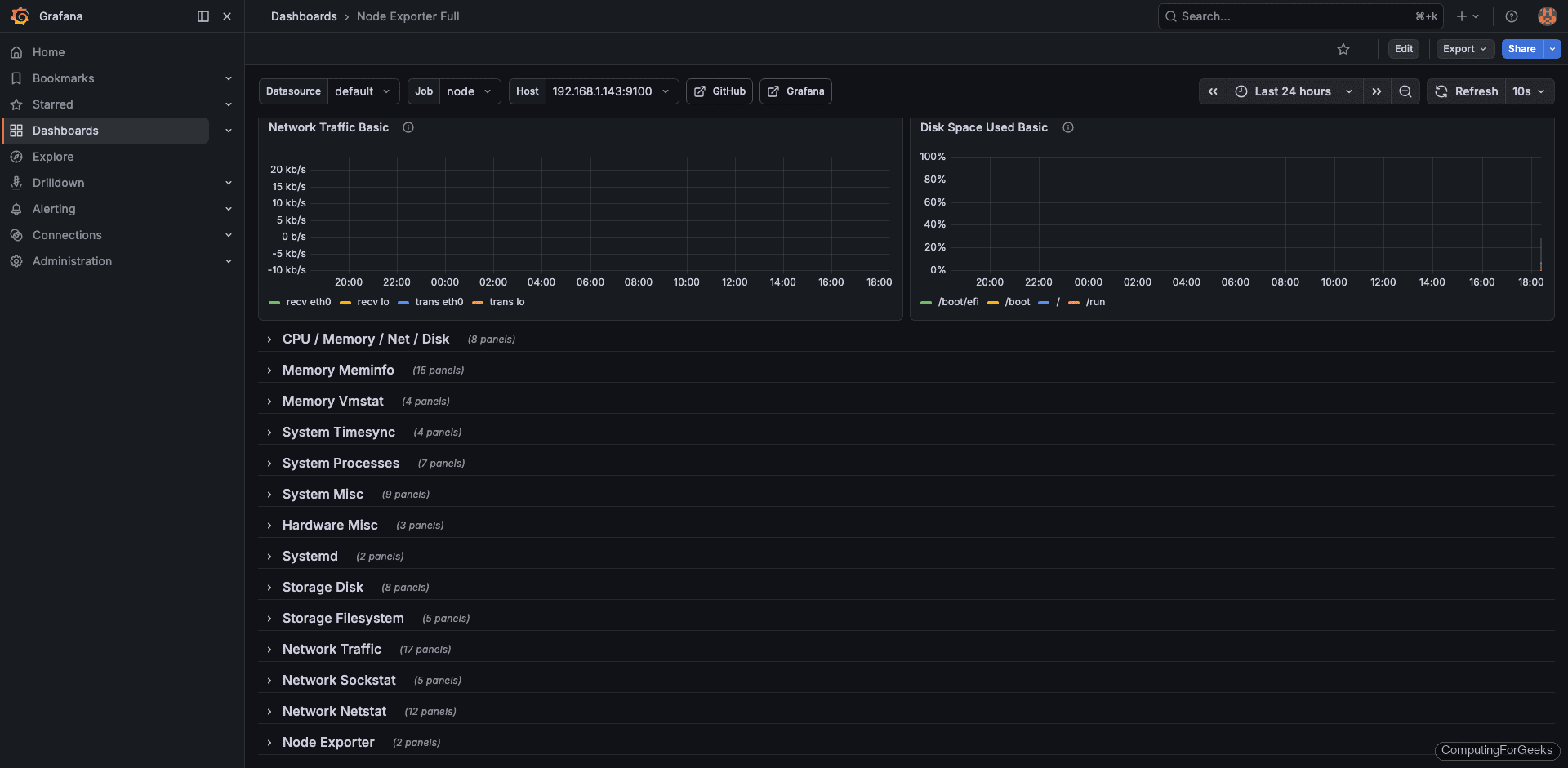
The fastest way to get a full server health dashboard is to import one from the Grafana community. Go to Dashboards and click New, then Import. Enter dashboard ID 1860 (Node Exporter Full, UID rYdddlPWk) and click Load. Select your Prometheus data source and click Import.
This dashboard provides panels for CPU, memory, disk, network, and system uptime out of the box.
Build a Custom Uptime Overview Dashboard
For a focused uptime dashboard, create a new dashboard and add panels with these queries.
Panel 1: Server Status (Stat panel) Use up{job="linux-nodes"} with value mappings: 1 = UP (green), 0 = DOWN (red).
Panel 2: Uptime in Days (Table panel) Use the recording rule instance:node_uptime:days to show each server's uptime.
Panel 3: 30-Day Availability (Gauge panel) Use avg_over_time(up{job="linux-nodes"}[30d]) * 100 with thresholds at 99.9 (green), 99 (yellow), and below 99 (red).
Panel 4: CPU Usage (Time series) Use instance:node_cpu_utilization:rate5m for a line graph.
Panel 5: Memory Usage (Time series) Use instance:node_memory_usage:percent per instance.
Panel 6: Disk Usage (Bar gauge) Use instance:node_disk_root_usage:percent with thresholds at 80% and 90%.
Panel 7: HTTP Probe Status (Stat panel) Use probe_success{job="blackbox-http"} with the same UP/DOWN value mappings.
Panel 8: HTTP Response Time (Time series) Use probe_duration_seconds{job="blackbox-http"} to visualize endpoint latency over time.
Save the dashboard. You can also export it as JSON for version control or sharing across Grafana instances.
Step 10: Test the Complete Monitoring Pipeline
With all components in place, run through a validation to confirm everything works end to end.
Check that Prometheus is scraping all targets successfully.
curl -s http://localhost:9090/api/v1/targets | python3 -m json.tool | grep -A2 '"health"'Each target should report "up":
    "health": "up",
    "health": "up",
Verify recording rules are producing data.
curl -s 'http://localhost:9090/api/v1/query?query=instance:node_uptime:days' | python3 -m json.tool | grep '"value"'You should see a value representing uptime in days:
"value": [1710849600, "45.23"]Test Alertmanager by temporarily stopping node_exporter on a target server.
# On target server 192.168.1.143
sudo systemctl stop node_exporter
Wait about 2 minutes, then check the Alertmanager UI at http://192.168.1.142:9093 for the InstanceDown alert. You should also receive email and Slack notifications. Start node_exporter again after testing.
sudo systemctl start node_exporterCheck Grafana dashboards to confirm data is flowing in for all panels. For additional server monitoring insights, see our guide on monitoring Linux servers with Prometheus and Grafana.
