

kube-ops-view (Kubernetes Operational View) is a read-only dashboard that gives you a visual overview of your Kubernetes clusters. It renders nodes as boxes, shows CPU and memory usage, and displays individual pods with color-coded status indicators – all in a single animated view. Unlike the Kubernetes Dashboard, kube-ops-view is purely observational. You cannot manage workloads through it, which makes it a safe tool to leave running on a wall monitor or shared screen for your team.
This guide covers how to deploy kube-ops-view on a Kubernetes cluster using both Helm and raw kubectl manifests, how to access and interpret the dashboard, configure it with environment variables, expose it via Ingress, and integrate it with Prometheus for metrics. The project repository has moved from GitHub to Codeberg. The latest release is version 23.5.0 (May 2023) – the project is in maintenance mode with no recent updates, but it remains functional on modern Kubernetes clusters.
Prerequisites
Before you begin, make sure you have the following in place:
- A running Kubernetes cluster (v1.24 or later) – single node or multi-node
kubectlinstalled and configured with cluster access- Helm 3 installed (for the Helm installation method)
- Metrics Server deployed in the cluster (optional but recommended for CPU/memory usage data)
- Cluster admin or sufficient RBAC permissions to create ClusterRoles and ClusterRoleBindings
If you need to set up a Kubernetes cluster first, follow our guide on deploying a Kubernetes cluster with kubeadm.
Step 1: Install kube-ops-view with Helm
Helm is the quickest way to get kube-ops-view running. A community-maintained Helm chart is available on ArtifactHub under the christianhuth repository.
Add the Helm repository and update:
helm repo add christianhuth https://charts.christianhuth.de
helm repo update
Install kube-ops-view into its own namespace:
kubectl create namespace kube-ops-view
helm install kube-ops-view christianhuth/kube-ops-view --namespace kube-ops-view
After the install completes, verify that the pods are running:
kubectl get pods -n kube-ops-viewYou should see the kube-ops-view pod in Running state:
NAME                             READY   STATUS    RESTARTS   AGE
kube-ops-view-6d4f8b7c5f-xk2m9  1/1     Running   0          45s
To customize the deployment, you can override values during installation. For example, to enable Redis as a data cache and set resource limits:
helm install kube-ops-view christianhuth/kube-ops-view \
  --namespace kube-ops-view \
  --set redis.enabled=true \
  --set resources.requests.cpu=50m \
  --set resources.requests.memory=50Mi \
  --set resources.limits.cpu=200m \
  --set resources.limits.memory=100Mi
To uninstall later, run:
helm uninstall kube-ops-view --namespace kube-ops-viewStep 2: Install kube-ops-view with kubectl (YAML Manifests)
If you prefer not to use Helm, deploy kube-ops-view directly with kubectl using the official Kustomize manifests from the project repository. This method gives you full control over the YAML and is straightforward to audit.
First, create a namespace for the deployment:
kubectl create namespace kube-ops-viewCreate the ServiceAccount and RBAC
kube-ops-view needs read access to nodes and pods across the cluster. Create a file called rbac.yaml:
sudo vi rbac.yamlAdd the following RBAC configuration:
apiVersion: v1
kind: ServiceAccount
metadata:
  name: kube-ops-view
  namespace: kube-ops-view
---
apiVersion: rbac.authorization.k8s.io/v1
kind: ClusterRole
metadata:
  name: kube-ops-view
rules:
- apiGroups:
  - ""
  resources:
  - nodes
  - pods
  verbs:
  - list
- apiGroups:
  - metrics.k8s.io
  resources:
  - nodes
  - pods
  verbs:
  - get
  - list
---
apiVersion: rbac.authorization.k8s.io/v1
kind: ClusterRoleBinding
metadata:
  name: kube-ops-view
roleRef:
  apiGroup: rbac.authorization.k8s.io
  kind: ClusterRole
  name: kube-ops-view
subjects:
- kind: ServiceAccount
  name: kube-ops-view
  namespace: kube-ops-view
Create the Redis Deployment (Optional)
Redis acts as a data cache for kube-ops-view. It is optional for single-instance deployments but recommended for better performance. Create redis.yaml:
sudo vi redis.yamlAdd the Redis deployment and service:
apiVersion: apps/v1
kind: Deployment
metadata:
  name: kube-ops-view-redis
  namespace: kube-ops-view
  labels:
    application: kube-ops-view
    component: redis
spec:
  replicas: 1
  selector:
    matchLabels:
      application: kube-ops-view
      component: redis
  template:
    metadata:
      labels:
        application: kube-ops-view
        component: redis
    spec:
      containers:
      - name: redis
        image: redis:7-alpine
        ports:
        - containerPort: 6379
          protocol: TCP
        readinessProbe:
          tcpSocket:
            port: 6379
        resources:
          limits:
            cpu: 200m
            memory: 100Mi
          requests:
            cpu: 50m
            memory: 50Mi
        securityContext:
          readOnlyRootFilesystem: true
          runAsNonRoot: true
          runAsUser: 999
---
apiVersion: v1
kind: Service
metadata:
  name: kube-ops-view-redis
  namespace: kube-ops-view
  labels:
    application: kube-ops-view
    component: redis
spec:
  selector:
    application: kube-ops-view
    component: redis
  type: ClusterIP
  ports:
  - port: 6379
    protocol: TCP
    targetPort: 6379
Create the kube-ops-view Deployment and Service
Create the main deployment file deployment.yaml:
sudo vi deployment.yamlAdd the kube-ops-view deployment and service definitions:
apiVersion: apps/v1
kind: Deployment
metadata:
  name: kube-ops-view
  namespace: kube-ops-view
  labels:
    application: kube-ops-view
    component: frontend
spec:
  replicas: 1
  selector:
    matchLabels:
      application: kube-ops-view
      component: frontend
  template:
    metadata:
      labels:
        application: kube-ops-view
        component: frontend
    spec:
      serviceAccountName: kube-ops-view
      containers:
      - name: kube-ops-view
        image: hjacobs/kube-ops-view:23.5.0
        ports:
        - containerPort: 8080
          protocol: TCP
        readinessProbe:
          httpGet:
            path: /health
            port: 8080
          initialDelaySeconds: 5
          timeoutSeconds: 5
        resources:
          limits:
            cpu: 200m
            memory: 100Mi
          requests:
            cpu: 50m
            memory: 50Mi
        securityContext:
          readOnlyRootFilesystem: true
          runAsNonRoot: true
          runAsUser: 1000
        env:
        - name: REDIS_URL
          value: redis://kube-ops-view-redis:6379
---
apiVersion: v1
kind: Service
metadata:
  name: kube-ops-view
  namespace: kube-ops-view
  labels:
    application: kube-ops-view
    component: frontend
spec:
  selector:
    application: kube-ops-view
    component: frontend
  type: ClusterIP
  ports:
  - port: 80
    protocol: TCP
    targetPort: 8080
Apply the Manifests
Deploy everything in order – RBAC first, then Redis, then the main application:
kubectl apply -f rbac.yaml
kubectl apply -f redis.yaml
kubectl apply -f deployment.yaml
Verify all pods are running in the namespace:
kubectl get all -n kube-ops-viewThe output should show the kube-ops-view and Redis pods both running, along with their services:
NAME                                       READY   STATUS    RESTARTS   AGE
pod/kube-ops-view-6d4f8b7c5f-xk2m9        1/1     Running   0          30s
pod/kube-ops-view-redis-7f8c4d5b6a-t9r2w   1/1     Running   0          35s

NAME                          TYPE        CLUSTER-IP      EXTERNAL-IP   PORT(S)    AGE
service/kube-ops-view         ClusterIP   10.96.142.38    <none>        80/TCP     30s
service/kube-ops-view-redis   ClusterIP   10.96.203.115   <none>        6379/TCP   35s
Step 3: Access the kube-ops-view Dashboard
The simplest way to access kube-ops-view is through kubectl port-forward. This creates a tunnel from your local machine to the service inside the cluster.
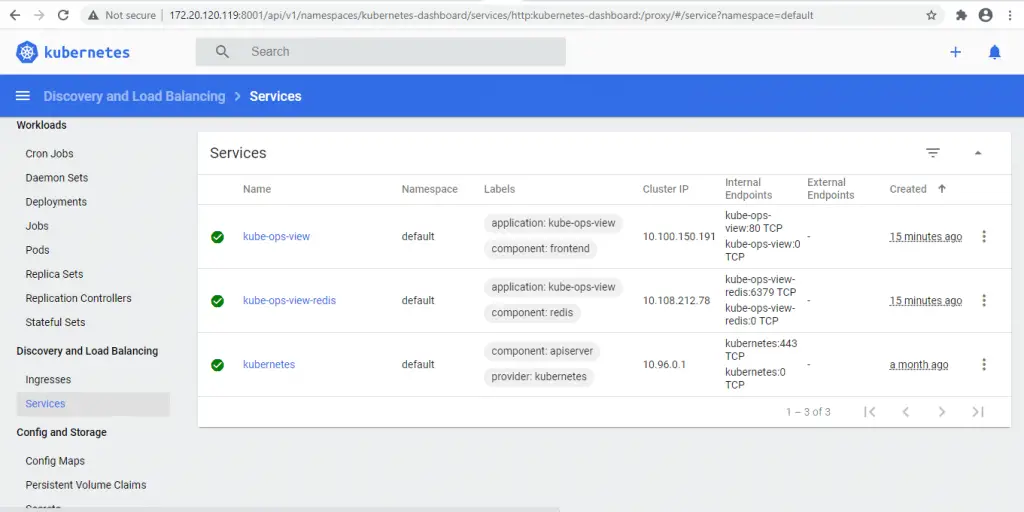
kubectl port-forward service/kube-ops-view 8080:80 -n kube-ops-viewOpen your browser and go to http://localhost:8080. You should see the kube-ops-view dashboard rendering your cluster nodes and pods.
To run the port-forward in the background so your terminal stays free:
kubectl port-forward service/kube-ops-view 8080:80 -n kube-ops-view &If you want to expose it using a NodePort instead, patch the service:
kubectl patch svc kube-ops-view -n kube-ops-view -p '{"spec":{"type":"NodePort"}}'Then get the assigned NodePort:
kubectl get svc kube-ops-view -n kube-ops-viewAccess the dashboard at http://<node-ip>:<nodeport> using any of your cluster node IPs.
Step 4: Understand the kube-ops-view Visualization
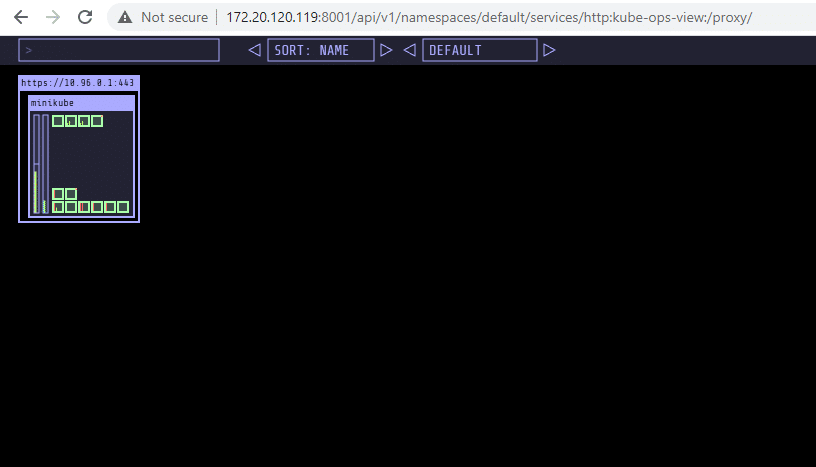
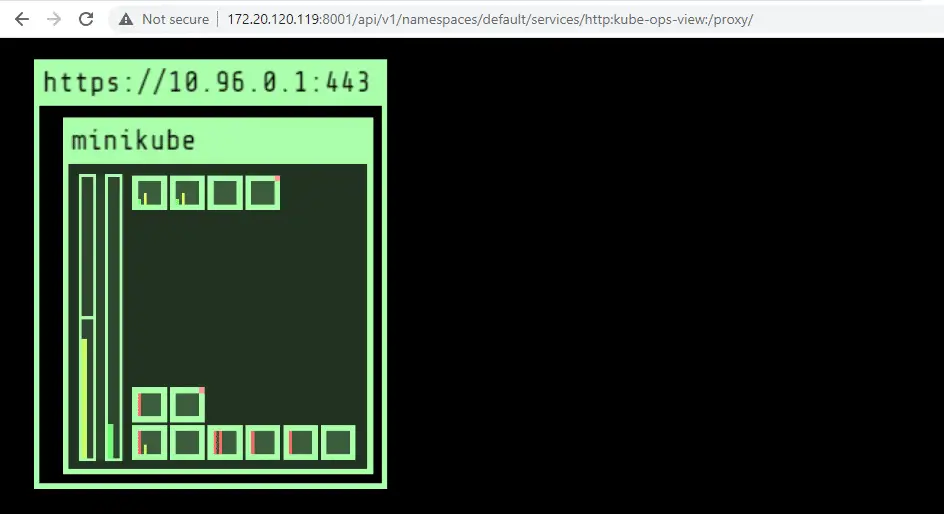
The kube-ops-view dashboard displays a real-time animated view of your cluster. Here is what each visual element represents.
Nodes
Each node appears as a large rectangle. The node name and status are shown at the top. A green border means the node is in “Ready” state. A red border indicates the node has issues (NotReady, MemoryPressure, DiskPressure, etc.).
CPU Representation
Each CPU core on a node is rendered as a small box. The boxes fill up based on the sum of pod CPU requests or actual usage. This gives you a quick visual sense of how much CPU capacity is consumed on each node.
Memory Representation
Memory is shown as a vertical bar on the side of each node. The bar fills up based on the sum of pod memory requests or actual usage. When the bar is nearly full, you know the node is running low on allocatable memory.
Pod Status Colors
Individual pods are rendered as small colored boxes inside their node. The border color indicates the pod status:
- Green – Pod is Running and Ready
- Yellow – Pod is Pending (waiting for scheduling or image pull)
- Red – Pod is in an error state (CrashLoopBackOff, ImagePullBackOff, OOMKilled)
- Grey – Pod is in an unknown or terminating state
System pods in the kube-system namespace are grouped together at the bottom of each node, keeping them visually separate from your application workloads.
Tooltips and Animations
Hover over any node or pod to see detailed tooltip information – resource requests, limits, actual usage, labels, and status conditions. Pod creation and termination are animated, which makes it easy to spot deployments rolling out or pods being evicted in real time.
Step 5: Configure kube-ops-view with Environment Variables
kube-ops-view supports several environment variables that control its behavior. You can set these in the deployment manifest under the container env section.
| Environment Variable | Description | Default |
|---|---|---|
REDIS_URL | Redis connection URL for data caching | None (in-memory) |
CLUSTERS | Comma-separated list of Kubernetes API server URLs for multi-cluster view | Local cluster |
KUBECONFIG_PATH | Path to kubeconfig file for multi-cluster access | None |
KUBECONFIG_CONTEXTS | Comma-separated list of kubeconfig contexts to use | All contexts |
NODE_LINK_URL_TEMPLATE | URL template for node links (use {name} placeholder) | None |
POD_LINK_URL_TEMPLATE | URL template for pod links (use {namespace}/{name} placeholders) | None |
To add environment variables to your deployment, edit the container spec. For example, to configure multi-cluster monitoring and custom pod links:
        env:
        - name: REDIS_URL
          value: redis://kube-ops-view-redis:6379
        - name: CLUSTERS
          value: https://cluster1-api:6443,https://cluster2-api:6443
        - name: NODE_LINK_URL_TEMPLATE
          value: https://grafana.example.com/d/nodes?var-node={name}
        - name: POD_LINK_URL_TEMPLATE
          value: https://grafana.example.com/d/pods?var-namespace={namespace}&var-pod={name}
The link URL templates are useful for connecting node and pod clicks directly to your Grafana dashboards or other monitoring tools.
Step 6: Expose kube-ops-view with Ingress
For production or shared team access, expose kube-ops-view through a Kubernetes Ingress resource instead of port-forwarding. This example uses an Nginx Ingress controller – adjust the ingressClassName if you use Traefik or another controller.
Create an Ingress manifest ingress.yaml:
sudo vi ingress.yamlAdd the following Ingress configuration – replace kube-ops-view.example.com with your actual domain:
apiVersion: networking.k8s.io/v1
kind: Ingress
metadata:
  name: kube-ops-view
  namespace: kube-ops-view
  annotations:
    nginx.ingress.kubernetes.io/rewrite-target: /
spec:
  ingressClassName: nginx
  rules:
  - host: kube-ops-view.example.com
    http:
      paths:
      - path: /
        pathType: Prefix
        backend:
          service:
            name: kube-ops-view
            port:
              number: 80
Apply the Ingress:
kubectl apply -f ingress.yamlVerify the Ingress was created and has an address assigned:
kubectl get ingress -n kube-ops-viewThe output shows the Ingress with its assigned address:
NAME            CLASS   HOSTS                        ADDRESS        PORTS   AGE
kube-ops-view   nginx   kube-ops-view.example.com    10.96.0.1      80      10s
Point your DNS record for kube-ops-view.example.com to the Ingress controller’s external IP. For TLS, add a tls section to the Ingress spec with a cert-manager certificate or manually provisioned Secret.
Since kube-ops-view is a read-only dashboard, consider adding basic authentication or OAuth2 proxy in front of it if your cluster is internet-facing. You can add Nginx Ingress auth annotations for basic auth protection. For setup details, see our guide on installing Ingress controllers on Kubernetes.
Step 7: Integrate kube-ops-view with Prometheus
kube-ops-view exposes a /metrics endpoint in Prometheus format. This lets you scrape operational data from the tool itself and build alerts around it.
If you are running Prometheus with the Prometheus Operator (ServiceMonitor CRDs), create a ServiceMonitor:
sudo vi servicemonitor.yamlAdd the following ServiceMonitor definition:
apiVersion: monitoring.coreos.com/v1
kind: ServiceMonitor
metadata:
  name: kube-ops-view
  namespace: kube-ops-view
  labels:
    release: prometheus
spec:
  selector:
    matchLabels:
      application: kube-ops-view
      component: frontend
  endpoints:
  - port: http
    path: /metrics
    interval: 30s
Apply the ServiceMonitor:
kubectl apply -f servicemonitor.yamlIf you use a standalone Prometheus deployment without the Operator, add a scrape job to your prometheus.yml configuration:
  - job_name: 'kube-ops-view'
    kubernetes_sd_configs:
    - role: service
      namespaces:
        names:
        - kube-ops-view
    relabel_configs:
    - source_labels: [__meta_kubernetes_service_label_application]
      regex: kube-ops-view
      action: keep
After Prometheus picks up the target, you can query metrics like kube_ops_view_request_duration_seconds and build Grafana dashboards for the kube-ops-view service itself.
Step 8: Alternative Kubernetes Dashboard Tools
kube-ops-view serves a specific purpose – a read-only visual overview of cluster state. Depending on your needs, you may want additional tools alongside it or as alternatives.
k9s
k9s is a terminal-based Kubernetes UI that runs in your shell. It provides real-time views of pods, deployments, services, and logs with keyboard navigation. Unlike kube-ops-view, k9s is fully interactive – you can exec into pods, delete resources, and tail logs directly. It is ideal for day-to-day cluster operations from the command line.
Lens
Lens is a desktop application for Kubernetes management. It provides a full GUI with cluster overview, resource management, log viewing, and terminal access. It supports multiple clusters and includes built-in Prometheus integration for metrics. Lens is well suited for developers who prefer a graphical interface over kubectl commands.
Headlamp
Headlamp is an open-source, extensible Kubernetes web UI maintained as a CNCF Sandbox project. It can run as a desktop app or in-cluster deployment. Headlamp supports plugins for custom functionality and provides a modern interface for viewing and managing cluster resources. It is a strong choice if you want a self-hosted web dashboard with community-driven development.
Kubernetes Dashboard
The official Kubernetes Dashboard is the default web UI for Kubernetes clusters. It allows viewing and managing workloads, checking resource usage, and troubleshooting applications. It complements kube-ops-view well – use the official dashboard for management tasks and kube-ops-view for the operational overview on a shared screen.
For deploying Prometheus on your Kubernetes cluster, a dedicated monitoring stack is the right approach for alerting and long-term metrics storage.
Conclusion
You now have kube-ops-view deployed on your Kubernetes cluster, providing a real-time visual overview of your nodes, pods, and resource usage. The tool works best as a wall-mounted display or shared team dashboard where everyone can see cluster health at a glance.
For production environments, secure the dashboard behind authentication (OAuth2 proxy or Ingress basic auth), enable TLS on the Ingress, and pair kube-ops-view with a proper monitoring stack like Prometheus and Grafana for alerting and historical metrics. If you manage multiple clusters, configure the CLUSTERS or KUBECONFIG_PATH environment variables to get all your clusters on a single screen.
