

This guide installs Incus, the LXD fork run by the Linux Containers project, on Rocky Linux 10, Rocky Linux 9, and AlmaLinux 10 / 9. The install command set works the same on either Rocky or AlmaLinux because both distributions are binary-compatible RHEL 10 / 9 rebuilds. Every step below was run on real Rocky 10.1 and Rocky 9.7 lab VMs, including the bits that go wrong out of the box: the missing qemu-system-x86_64 binary, the empty /etc/subuid, and the daemon restart that is needed before the first container will start.
Incus runs system containers (full distribution userland, like a lightweight VM) and real KVM virtual machines from the same CLI on the same host. Pair it with EPEL and the community neelc/incus COPR and you get a tidy hosting platform on RHEL family that compares well to Docker for long-running workloads and to libvirt for full VMs.
LXC, LXD, and Incus in one paragraph
LXC is the original low-level container runtime (lxc-create, lxc-start, raw cgroups and namespaces). LXD is Canonical’s snap-only daemon on top of LXC. Incus is the community fork of LXD, run by the Linux Containers project, with the same daemon model, the same image catalog, faster release cadence, and packaging that does not depend on the snap. For everything new on Rocky and AlmaLinux, you want Incus. The other two are covered briefly at the end for legacy work.
Versions and packages tested
The neelc/incus Community Project (COPR) is the practical upstream for RHEL family right now. Incus is not in EPEL itself yet (as of 2026-05), so EPEL is used only for shared dependencies. The COPR builds Incus directly against EL 9 and EL 10.
| OS | Codename | Incus version (COPR) | Repo setup |
|---|---|---|---|
| Rocky Linux 10 / AlmaLinux 10 | Red Quartz / Tepid | 6.23-3.el10 | wget the .repo file |
| Rocky Linux 9 / AlmaLinux 9 | Blue Onyx / Teal Serval | 6.23-3.el9 | dnf copr enable neelc/incus + CRB |
The COPR ships the 6.23 feature release. Incus 7.0 LTS, released upstream on 2026-05-01, is currently only packaged on Ubuntu through the Zabbly repository. For RHEL family, 6.23 is the latest stable that lands in the COPR; everything in this guide works against it without modification. Rocky 8 and AlmaLinux 8 are not in scope: the COPR does not build for EL 8, and the EL 8 lifecycle ends in 2029 with a kernel too old for current Incus.
Prerequisites
- A fresh Rocky Linux 10 or 9 host, or the AlmaLinux equivalent. Lab versions used here: Rocky Linux 10.1, Rocky Linux 9.7.
- Root access. The
rockycloud-image user withsudoworks equally well. - 2 GB of RAM minimum for the host. Each container starts at roughly 20 MB; a KVM VM starts at 256 MB.
- 10 GB free on the partition that backs
/var/lib/incus. The defaultdirstorage pool writes there. - Outbound HTTPS to
copr.fedorainfracloud.orgfor the repository, plusimages.linuxcontainers.orgfor the public image catalog. - SELinux can stay in enforcing mode (Incus ships its own policy module on EL).
If you intend to launch real KVM virtual machines, the CPU needs vmx (Intel) or svm (AMD) exposed. Confirm with:
grep -oE '(vmx|svm)' /proc/cpuinfo | sort -uEmpty output means containers will still work but incus launch --vm will refuse to schedule. On Proxmox, set the guest CPU type to host and confirm the Proxmox host has kvm_intel nested=1 (or kvm_amd nested=1).
Step 1: Enable EPEL and the neelc/incus COPR
EPEL provides the shared dependencies. The COPR provides Incus itself. The repo setup differs between Rocky 10 and Rocky 9 because the COPR builder names changed between EL major versions.
Rocky Linux 10 / AlmaLinux 10
Install EPEL, then drop the COPR .repo file under /etc/yum.repos.d/ using wget. The dnf copr enable shortcut does not work here because the COPR is built against the rhel+epel-10 chroot, not CentOS Stream 10:
sudo dnf install -y epel-release
cd /etc/yum.repos.d
sudo wget https://copr.fedorainfracloud.org/coprs/neelc/incus/repo/rhel+epel-10/neelc-incus-rhel+epel-10.repo
Confirm the new repository is enabled and lists the Incus packages:
sudo dnf repolist enabled
sudo dnf info incus | head -10
Rocky Linux 9 / AlmaLinux 9
On EL 9 you can use the cleaner dnf copr enable form. You also need to enable CRB (CodeReady Builder) so the COPR’s build dependencies resolve:
sudo dnf install -y epel-release dnf-plugins-core
sudo dnf config-manager --set-enabled crb
sudo dnf copr enable -y neelc/incus
sudo dnf info incus | head -10
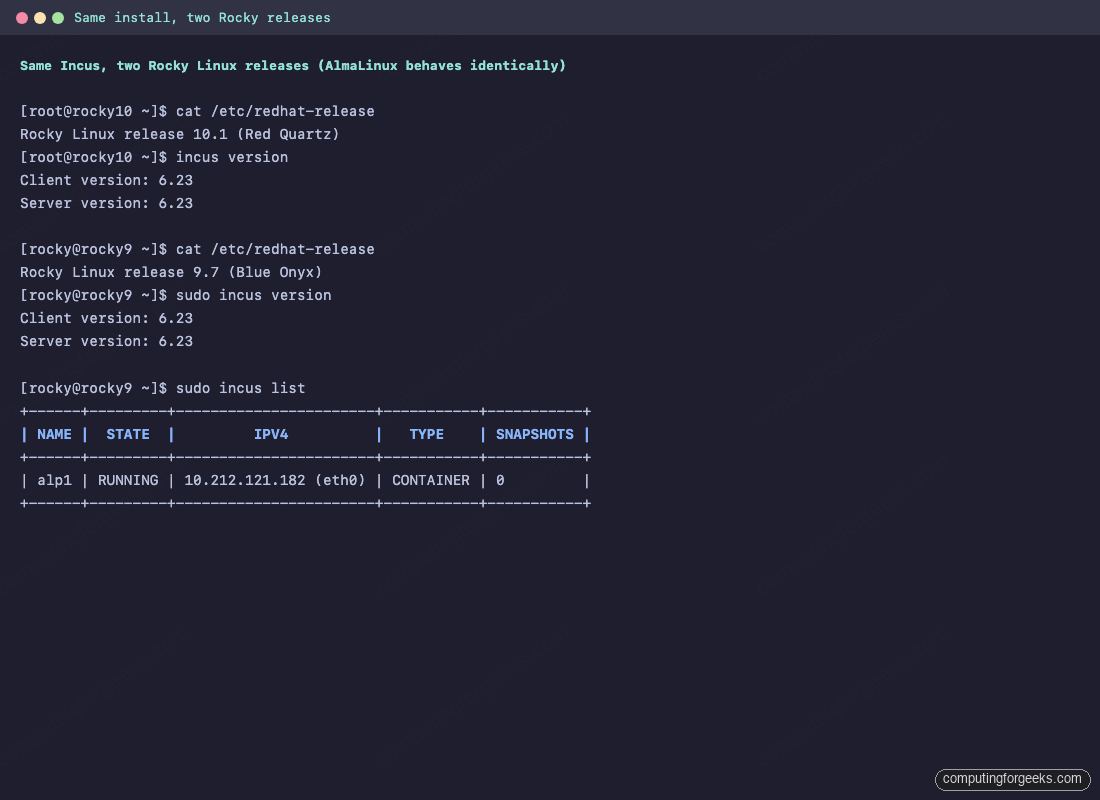
Either path produces the same package set:
Step 2: Install Incus, the SELinux policy, and qemu
Install the daemon, the client, the LXD migration tool, the SELinux policy module (so Incus runs cleanly in enforcing mode), and the QEMU stack for KVM VM support:
sudo dnf install -y incus incus-tools incus-selinux qemu-kvmVerify the client binary works and check what shipped:
rpm -q incus incus-tools incus-selinux qemu-kvm
incus --version
Incus expects qemu-system-x86_64 in $PATH when it does its VM feature check. Rocky and AlmaLinux ship the binary under a different name and path: /usr/libexec/qemu-kvm. Symlink it so the Incus feature probe finds it:
sudo ln -sf /usr/libexec/qemu-kvm /usr/local/bin/qemu-system-x86_64
qemu-system-x86_64 --version | head -1
This symlink is the cleanest workaround for the Debian-vs-RHEL packaging difference. Container support works without it; only incus launch --vm needs it.
Step 3: Set up subuid and subgid for user namespaces
RHEL-family cloud images ship with empty /etc/subuid and /etc/subgid. Incus needs a mapped range for the unprivileged user namespaces it gives each container; without it, container creation fails with System doesn't have a functional idmap setup:
echo "root:1000000:65536" | sudo tee /etc/subuid /etc/subgidThat gives the root user 65,536 subordinate IDs starting at 1,000,000. If you plan to run a lot of unprivileged containers, widen the range (the practical maximum is 200,000-300,000 contiguous IDs per host).
Step 4: Start the Incus daemon and initialise it
Enable the socket so the daemon starts on demand, then start the service explicitly the first time so the next steps work:
sudo systemctl enable --now incus.socket
sudo systemctl start incus.service
sudo systemctl is-active incus.service incus.socket
If you set up subuid/subgid after the daemon was already running, restart it now so it picks up the new map:
sudo systemctl restart incus.serviceRun the minimal init. It creates a dir-backed default storage pool under /var/lib/incus/storage-pools/default, an incusbr0 bridge with auto-assigned IPv4 and IPv6, and a default profile that wires both into every new instance:
sudo incus admin init --minimal
incus version
sudo systemctl status incus.service --no-pager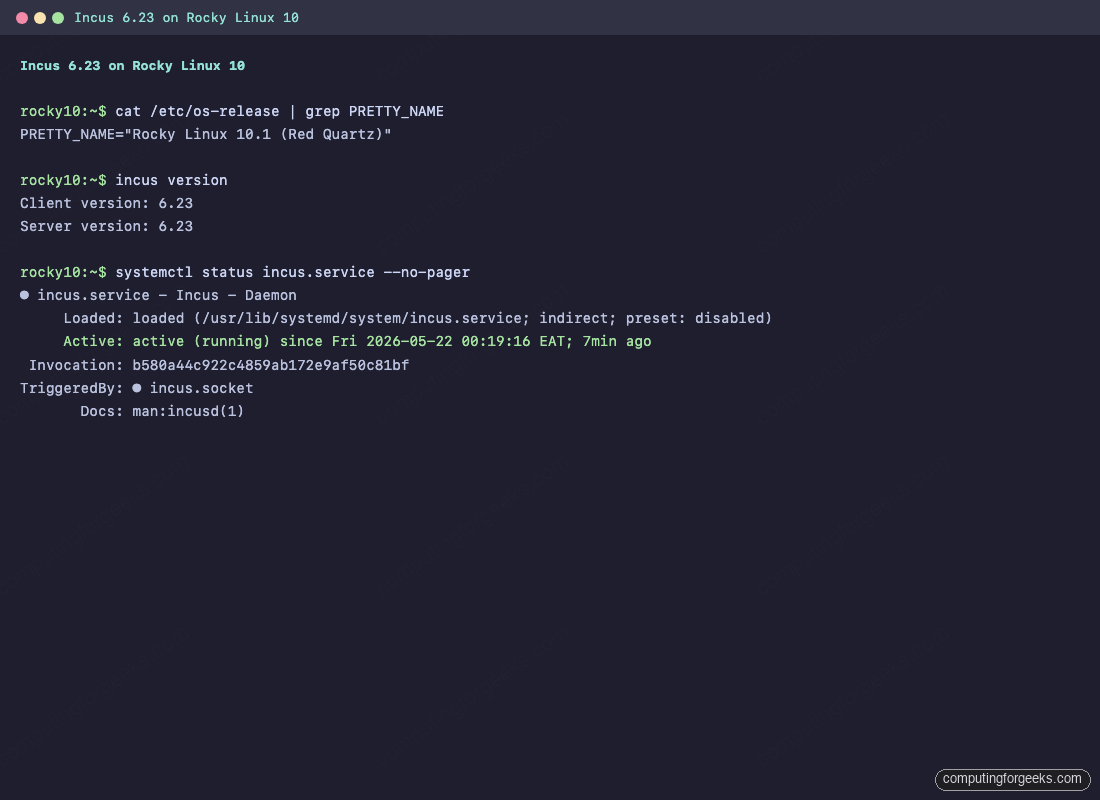
Confirm the default resources came up:
incus storage list
incus network list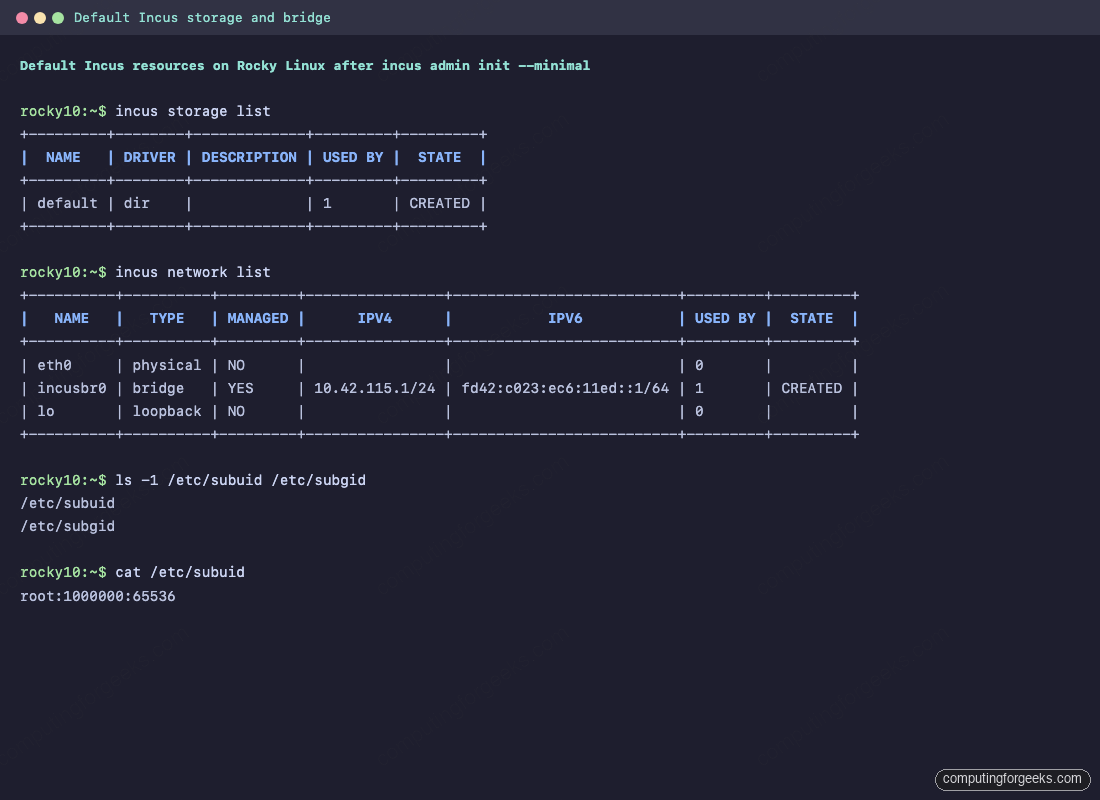
The bridge picks a free 10.x subnet for IPv4 and a ULA for IPv6, runs its own dnsmasq for DHCP, and NATs out through the host’s default route. New containers attach to it through the default profile.
Step 5: Launch your first container
The images: remote is the public Linux Containers image catalog. It carries Rocky, Alma, Ubuntu, Debian, Alpine, Fedora, openSUSE, and many more, each as a container and a VM. Launch an Ubuntu 24.04 container called web1:
incus launch images:ubuntu/24.04 web1
incus list
Drop into a shell inside web1 and install nginx. Note that the Rocky host runs an Ubuntu userland inside the container with no version match required:
incus exec web1 -- bash
# inside the container:
apt-get update && apt-get install -y nginx
systemctl is-active nginx
curl -sI http://localhost | head -3
exit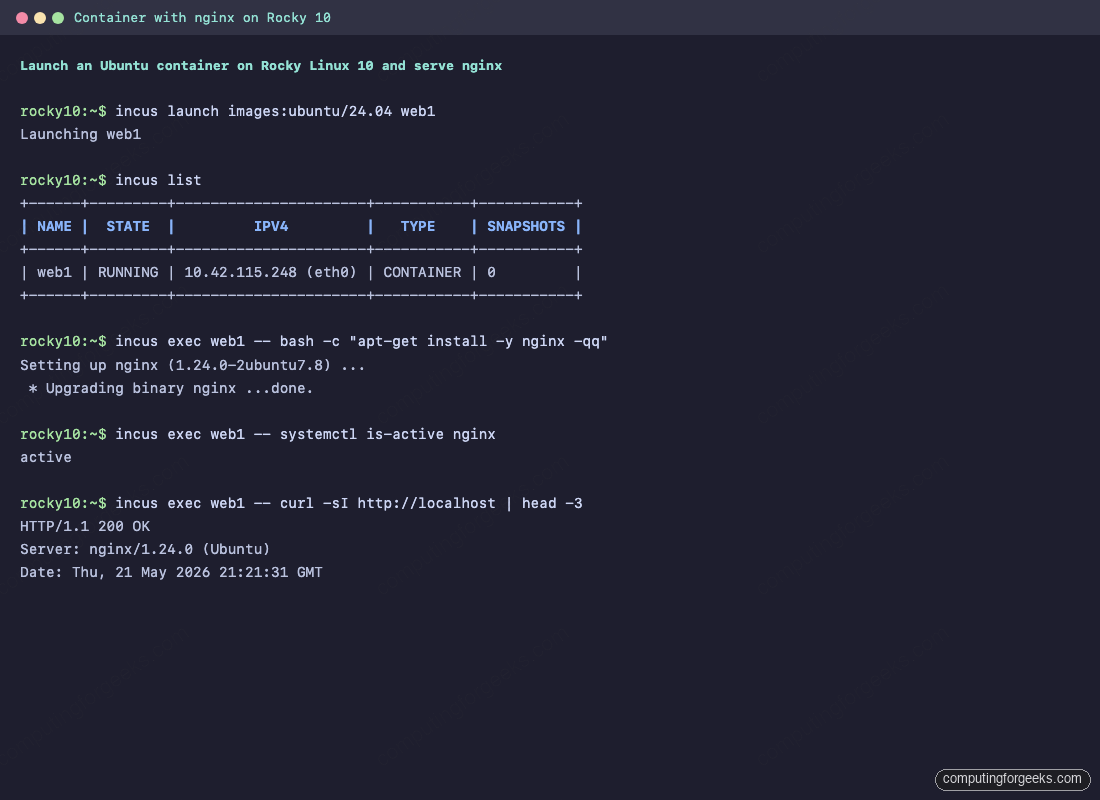
Pushing a file from the Rocky host into the container reads exactly like scp:
echo "deployed at $(date)" | sudo tee /tmp/note.txt
incus file push /tmp/note.txt web1/root/note.txt
incus exec web1 -- cat /root/note.txt
Step 6: Launch a real VM with the same CLI
This is where Incus splits from Docker. Add --vm and you get a full KVM virtual machine with its own kernel, instead of a container that shares the host kernel:
incus launch images:rockylinux/10 rocky-vm --vm -c limits.cpu=2 -c limits.memory=1GiB
incus list
incus exec rocky-vm -- cat /etc/redhat-release
incus exec rocky-vm -- uname -r
The kernel string is the guest’s own, not the host’s, proving this is a KVM VM and not a container. If this step errors with QEMU failed to run feature checks, the qemu-system-x86_64 symlink from Step 2 is the fix.
Step 7: Snapshots, profiles, and live resource limits
Snapshots are copy-on-write off the underlying storage pool. They are cheap on the dir backend, instant on btrfs or zfs. Take two snapshots of web1 at different stages:
incus snapshot create web1 baseline
incus snapshot create web1 with-nginx
incus snapshot list web1
If a later change breaks the container, restore the last good snapshot in one command:
incus snapshot restore web1 baselineProfiles are reusable bundles of config keys and devices. Create a dev-vm profile that any new instance can opt into for a consistent 2 vCPU / 2 GiB shape, then list profiles:
incus profile create dev-vm
incus profile set dev-vm limits.cpu=2 limits.memory=2GiB
incus profile list
Resource limits can also be set live on a running container. The kernel applies the new ceiling through the cgroup interface immediately, no restart required:
incus config set web1 limits.cpu=1 limits.memory=512MiB
incus exec web1 -- cat /sys/fs/cgroup/memory.max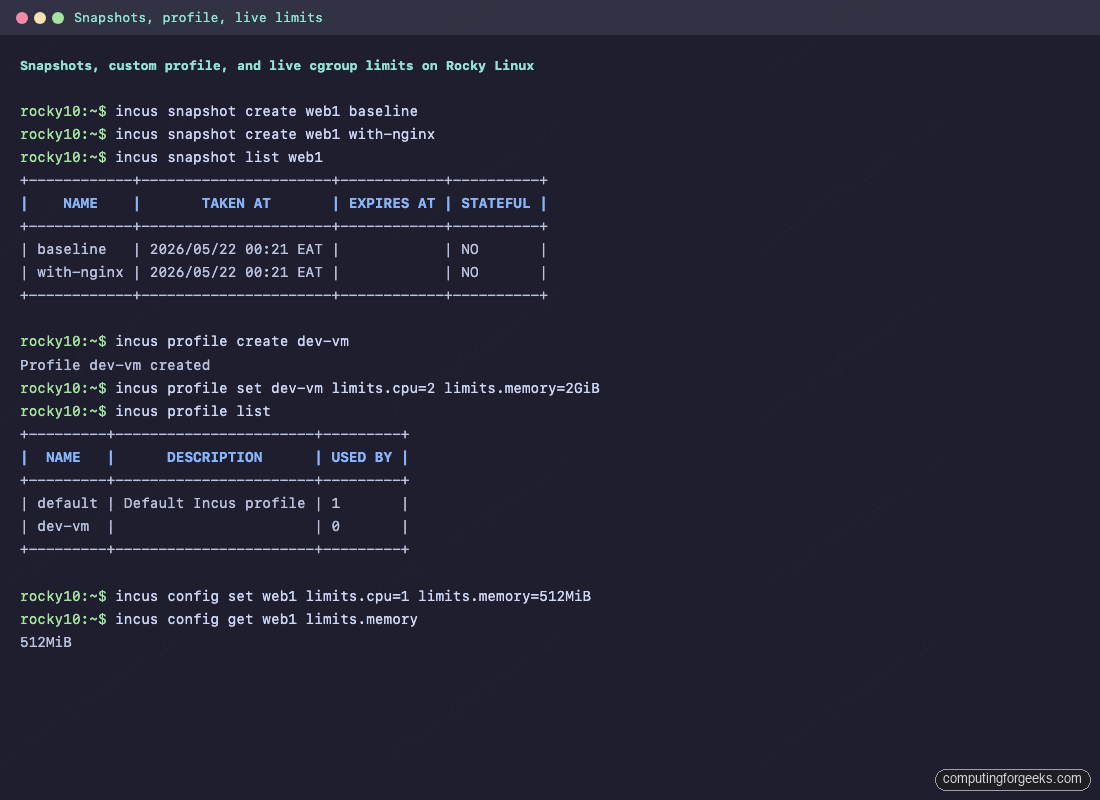
Step 8: Port forwarding and instance backups
Containers on incusbr0 sit behind NAT. To publish nginx running inside web1 on the host’s port 8080, attach a proxy device. This is the Incus equivalent of docker -p 8080:80:
incus config device add web1 web-proxy proxy \
    listen=tcp:0.0.0.0:8080 connect=tcp:127.0.0.1:80
curl -sI http://localhost:8080 | head -3
If firewalld is running on the host (it is not installed by default on Rocky 10 cloud images but is common on bare-metal installs), open the exposed port:
sudo firewall-cmd --add-port=8080/tcp --permanent
sudo firewall-cmd --reload
For full backups, incus export writes a single compressed tarball that incus import can rehydrate on any host running the same Incus major version. Drop --instance-only to bundle every snapshot in the same archive:
incus export web1 /tmp/web1-backup.tar.gz --instance-only --compression gzip
ls -lh /tmp/web1-backup.tar.gz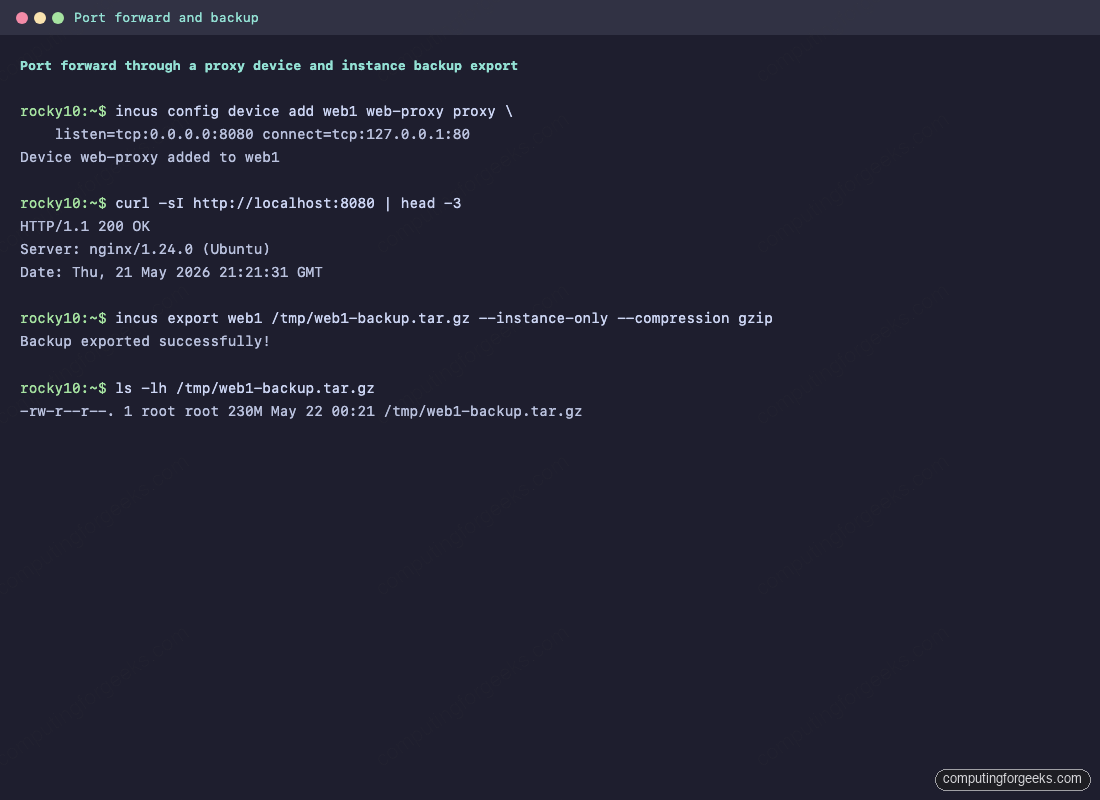
SELinux and Incus on Rocky / Alma
The incus-selinux package installed in Step 2 ships a custom policy module that lets the daemon work with SELinux in enforcing mode. The community COPR version is good enough for a single-host or homelab setup. Verify the mode and confirm there are no fresh denials after running through Steps 5 to 8:
getenforce
sudo ausearch -m AVC -ts recent 2>/dev/null | tail -20
If denials appear in production traffic, generate a local policy module from the audit log and load it. For a homelab, switching that one boundary to permissive is acceptable:
sudo ausearch -m AVC -ts recent | audit2allow -M incus-local
sudo semodule -i incus-local.pp
A note on the Incus web UI
The Zabbly repository on Ubuntu ships an incus-ui-canonical package that adds a SvelteKit web UI to the daemon’s HTTPS endpoint. The neelc/incus COPR does not ship that package today. Three options for a UI on Rocky:
- Build the UI from source (
git clone https://github.com/canonical/lxd-ui, run the build, and serve the result alongside the daemon). - Run a separate Ubuntu host with the
incus-ui-canonicalpackage and add the Rocky host as a remote. - Stick with the CLI. For day-to-day work, the CLI is faster than the UI anyway.
Track the COPR’s issue tracker if you want the UI package added; the maintainer has been responsive to packaging requests in the past.
Migrate from LXD
LXD on RHEL family was rare in the wild because the LXD snap depends on snapd, which Rocky and Alma do not ship by default. If you do have an LXD install (perhaps from a previous CentOS host you migrated), incus-tools ships the migrator:
sudo lxd-to-incusIt does a pre-flight check, prints a summary of what it will move (containers, profiles, networks, storage pools, custom volumes, the trust list), and asks for confirmation. After it completes, every instance runs under Incus and incus list shows what used to be in lxc list.
Useful images
The images: remote ships hundreds of distribution + version + architecture combinations as both containers and VMs. List a slice:
incus image list images: rockylinux
incus image list images: almalinux
incus image list images: ubuntuimages:rockylinux/10,images:rockylinux/9for RHEL-family containers on a RHEL-family host (no template gymnastics).images:almalinux/10,images:almalinux/9equivalent for the Alma side.images:ubuntu/24.04,images:debian/12when you want a Debian-family userland on the same host.images:alpine/edgeorimages:alpine/3.21for the smallest possible footprint (under 5 MB resident).images:fedora/42for bleeding-edge userland.
Append --vm to any of these in incus launch to get a virtual machine instead, assuming Step 6 worked.
Troubleshooting
System doesn’t have a functional idmap setup
/etc/subuid and /etc/subgid were empty when the daemon started. Run Step 3, then sudo systemctl restart incus.service, then retry the launch.
Instance type “virtual-machine” is not supported on this server
The daemon ran its QEMU feature check and could not find qemu-system-x86_64. Rocky and Alma ship the binary as /usr/libexec/qemu-kvm. Run the symlink from Step 2, restart the daemon, and retry. If feature checks still fail, install edk2-ovmf and seabios-bin (Incus needs UEFI and BIOS firmware blobs).
dnf copr enable returns 404 on Rocky 10
The COPR is built against rhel+epel-10, not centos-stream-10, so dnf copr enable cannot resolve it. Drop the .repo file in place with wget as shown in Step 1.
Container starts but has no IPv4 lease
Another tool may have claimed the 10.x subnet Incus picked. Inspect with ip -br a and incus network show incusbr0. Re-assign with:
sudo incus network set incusbr0 ipv4.address 10.99.0.1/24SELinux AVC denials after install
Verify incus-selinux is installed (rpm -q incus-selinux) and that the policy module is loaded (sudo semodule -l | grep incus). If denials persist, generate a local module from the audit log as shown in the SELinux section above.
Uninstall
To remove Incus completely, stop and delete every instance first, then purge the packages, the data directory, and the COPR repository file. This is destructive and irreversible:
for i in $(incus list -c n --format csv); do
  incus stop "$i" --force 2>/dev/null
  incus delete "$i"
done
sudo dnf remove -y incus incus-tools incus-selinux
sudo rm -rf /var/lib/incus /etc/yum.repos.d/neelc-incus-*.repo
sudo dnf clean all
Drop the symlink from Step 2 too if you do not want it lingering:
sudo rm -f /usr/local/bin/qemu-system-x86_64Wrap up
Incus on Rocky Linux and AlmaLinux is two extra steps beyond the Ubuntu install: the COPR repo setup (different command on EL 10 vs EL 9) and the manual qemu-system-x86_64 symlink for VM support. Once those are out of the way, the workflow is identical across distributions: incus admin init --minimal, incus launch, snapshot, profile, proxy, export. The community COPR ships the 6.23 feature release; the upstream 7.0 LTS path waits for either the COPR maintainer to publish it or for EPEL itself to pick up the package.
Next stops from here:
- Read the upstream Incus documentation for cluster mode, OIDC auth, and the new built-in S3 endpoint.
- Check the Rocky Linux Incus book for a deeper Rocky-flavoured walk-through.
- If you also run Ubuntu hosts, the Ubuntu Incus install guide covers the Zabbly path and the 7.0 LTS release.




When doing: $ newgrp lxd
I get this output:
Password:
newgrp: failed to crypt password with previous salt: Invalid argument
tried doing: $ sudo newgrp lxd
and then when: $ lxd init
getting this message: permanently dropping privs did not work
what password is set for lxd?
lxd init
Error: Failed to connect to local LXD: Get “http://unix.socket/1.0”: dial unix /var/snap/lxd/common/lxd/unix.socket: connect: permission denied
why this?
You need to modify /etc/gshadow in order to add your user