FFmpeg is the tool Linux admins reach for when something needs to be transcoded, trimmed, stitched, or probed. It’s not the only option, but it’s the one every other option either wraps or compares itself to. On Rocky Linux 10 the base repos still don’t ship it, so you still need EPEL, CRB, and RPM Fusion. What changed is that RPM Fusion now has proper EL 10 packages, so the flow is cleaner than it was on EL 9.
This guide walks through a clean install on Rocky Linux 10, covers the AlmaLinux 10 and RHEL 10 variations inline (they share the exact same repo stack), shows a static-build fallback for when you can’t touch system repos, and finishes with real transcoding commands you can paste and run. Every command below was executed on a fresh Rocky Linux 10.1 host before publishing.
Verified working: April 2026 on Rocky Linux 10.1 (kernel 6.12), FFmpeg 7.1.2 from RPM Fusion, static build 7.0.2 from johnvansickle.com
Prerequisites
You need a working Rocky Linux 10 / AlmaLinux 10 / RHEL 10 host with root or sudo access and outbound HTTPS so DNF can reach EPEL and RPM Fusion mirrors. A container is fine for a quick test, but transcoding real files is CPU-heavy, so something with at least 2 vCPUs and 2 GB RAM is more realistic if you plan to use this host beyond a smoke test.
- Tested on: Rocky Linux 10.1 (Red Quartz), kernel 6.12. AlmaLinux 10 and RHEL 10.1 follow the same steps. Everything here also applies to Rocky / AlmaLinux / RHEL 9.x with one URL swap (see the note in Step 3).
- Need a server to run this on? DigitalOcean gives you $200 in credits on signup, which is enough to run a Rocky 10 droplet for several months of FFmpeg experiments. Hetzner Cloud works just as well if you prefer EU data centres and per-hour billing starting around €4/month.
Confirm that the base repos don’t ship FFmpeg
Rocky Linux 10 ships a BaseOS + AppStream pair, neither of which carries FFmpeg. This is a Red Hat policy choice rather than a packaging oversight, because several codecs FFmpeg links against (x264, x265, AAC) are patent-encumbered in some jurisdictions. A search confirms:
dnf search ffmpegOn a stock Rocky 10.1 install you get no matches at all:
Last metadata expiration check: 0:06:36 ago on Sat 18 Apr 2026 08:03:01 PM EAT.
No matches found.
That means the packages live elsewhere. The standard path on RHEL-family distros is EPEL (for helper packages), CRB (for the devel libraries FFmpeg links against), and RPM Fusion (for the codec libraries Red Hat excludes). All three are trustworthy, well-maintained, and what the FFmpeg project itself points Rocky / Alma / RHEL users to.
Enable EPEL and CRB
EPEL is distributed by the Fedora project and ships a small ffmpeg helper package plus most of the codec dependencies. Install it with the stock release RPM:
sudo dnf install -y epel-releaseInstallation is a single-file pull from the Rocky mirror network and takes a few seconds:
Installed:
  epel-release-10-7.el10_1.noarch

Complete!
EPEL on EL 10 needs the CodeReady Builder repo enabled because several EPEL packages depend on devel libraries that live in CRB. The EPEL release scriptlet even prints a reminder when it runs. Enable CRB explicitly:
sudo /usr/bin/crb enableThe helper prints a one-liner confirmation:
Enabling CRB repo
CRB repo is enabled and named: crb
If you already have an EPEL + CRB setup from a previous install, the EPEL setup guide for Rocky Linux and AlmaLinux walks through every variation (Rocky 9, 10, AlmaLinux, RHEL with subscription-manager).
Add RPM Fusion free and nonfree
RPM Fusion is the community repo that ships the codec packages Red Hat excludes. EL 10 got proper RPM Fusion release RPMs in early 2026, so the URLs below work without modification on Rocky 10 / Alma 10 / RHEL 10. Install the free repo first:
sudo dnf install -y https://mirrors.rpmfusion.org/free/el/rpmfusion-free-release-10.noarch.rpmThen the nonfree repo, which ships a handful of extra decoders that can’t be in the free repo for licensing reasons:
sudo dnf install -y https://mirrors.rpmfusion.org/nonfree/el/rpmfusion-nonfree-release-10.noarch.rpmOne real gotcha worth documenting. Earlier in the EL 10 lifecycle those URLs returned 404 because RPM Fusion hadn’t cut release RPMs for EL 10 yet. If you hit that on an older box or a weird mirror, fall back to the EL 9 release RPMs temporarily (rpmfusion-free-release-9.noarch.rpm) and upgrade to the EL 10 variant once the mirrors catch up. The dedicated RPM Fusion setup guide covers the 9 and 10 variants side by side.
Confirm all four repos are enabled before moving on:
dnf repolist enabled | grep -iE 'crb|epel|rpmfusion'You should see four lines: CRB, EPEL, RPM Fusion free, RPM Fusion nonfree:
crb                          Rocky Linux 10 - CRB
epel                         Extra Packages for Enterprise Linux 10 - x86_64
rpmfusion-free-updates       RPM Fusion for EL 10 - Free - Updates
rpmfusion-nonfree-updates    RPM Fusion for EL 10 - Nonfree - Updates
With all four repos reporting in, the ffmpeg package is now in your DNF search path.
Install FFmpeg
With the repo stack in place, install both the main binary and the devel headers. The ffmpeg-devel package is optional if you only plan to use the CLI, but almost any downstream tool that links against libavcodec (OBS, Kdenlive, python bindings) needs it, so it’s worth pulling in at install time:
sudo dnf install -y ffmpeg ffmpeg-develDNF pulls in ffmpeg plus about 90 codec libraries from EPEL and RPM Fusion. On a 2 vCPU Rocky 10 box the whole install completes in under a minute. The tail of the transaction shows the codec packages landing:
  svt-av1-libs-2.3.0-1.el10_0.x86_64
  tesseract-5.3.4-6.el10.x86_64
  vid.stab-1.1.1-4.el10_0.x86_64
  vmaf-models-3.0.0-2.el10_0.noarch
  vvenc-libs-1.13.1-3.el10.x86_64
  x264-libs-0.164-16.20231001git31e19f92.el10.x86_64
  x265-libs-4.1-2.el10.x86_64
  xvidcore-1.3.7-12.el10_0.x86_64

Complete!
That tail is a good sanity check. Seeing x264-libs and x265-libs land from RPM Fusion confirms DNF picked the full codec build rather than the stripped ffmpeg-free variant from EPEL.
Verify the install
Run ffmpeg -version. The first two lines tell you the FFmpeg version and the toolchain it was built with. The long configuration: line after that is where the real information lives because it lists every optional library the binary was compiled against:
ffmpeg -versionOn Rocky 10.1 the RPM Fusion build reports:
ffmpeg version 7.1.2 Copyright (c) 2000-2025 the FFmpeg developers
built with gcc 14 (GCC)
configuration: --prefix=/usr ... --enable-libx264 --enable-libx265
  --enable-libmp3lame --enable-libopus --enable-libvpx --enable-libvvenc
  --enable-libaom --enable-librav1e --enable-libsvtav1 --enable-libdav1d
  --enable-nvenc --enable-libopenh264 --enable-gpl --enable-version3
libavutil      59. 39.100 / 59. 39.100
libavcodec     61. 19.101 / 61. 19.101
libavformat    61.  7.100 / 61.  7.100
The important flags are the ones you’ll actually use. Both libx264 and libx265 are compiled in, which means H.264 and HEVC encoding works on a fresh install. libmp3lame, libopus, and the native AAC encoder handle audio. nvenc and vaapi are present for GPU-accelerated encoding on hardware that supports it, and AV1 is covered by three encoders (aom, rav1e, svt-av1) so you can pick whichever matches your CPU or quality target.
Spot-check that H.264, HEVC, AAC, and MP3 encoders are all reachable:
ffmpeg -hide_banner -encoders | grep -E "libx264|libx265|aac |libmp3lame"The output lists one line per encoder, with the capability flags in the leftmost column (V for video, A for audio, D for hardware-decoder support):
 V....D libx264              libx264 H.264 / AVC / MPEG-4 AVC / MPEG-4 part 10
 V....D libx265              libx265 H.265 / HEVC (codec hevc)
 A....D aac                  AAC (Advanced Audio Coding)
 A....D libmp3lame           libmp3lame MP3 (MPEG audio layer 3) (codec mp3)
The screenshot below captures the version check plus a real transcode on the test VM:
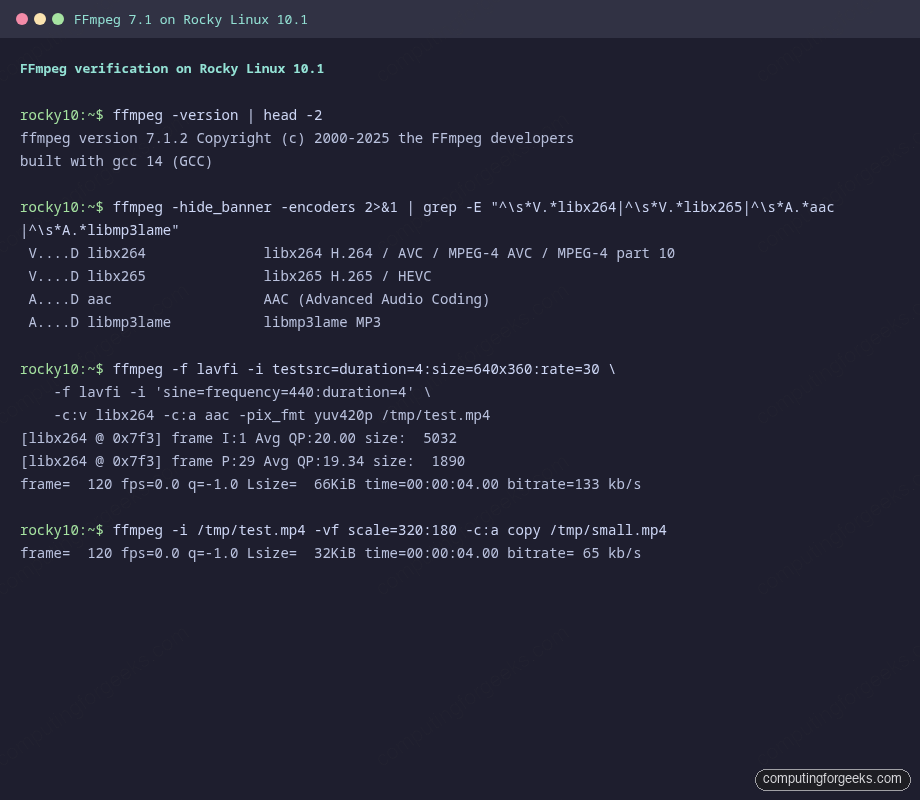
With the binary confirmed and the encoders in place, it’s time to put FFmpeg to work on an actual media file.
Run a first real transcode
A file to work on is handy. Instead of shipping a sample MP4, create one on the fly using FFmpeg’s built-in lavfi synthetic inputs. This produces a 4-second H.264 clip with an audio test tone, encoded into an MP4 container:
ffmpeg -f lavfi -i testsrc=duration=4:size=640x360:rate=30 \
       -f lavfi -i "sine=frequency=440:duration=4" \
       -c:v libx264 -c:a aac -pix_fmt yuv420p /tmp/test.mp4
Ignore the long x264 stats printed at the tail. What matters is the final size and bitrate summary:
frame=  120 fps=0.0 q=-1.0 Lsize=      66KiB time=00:00:04.00 bitrate= 135.7kbits/s speed=50.1x
[libx264 @ 0x5f740] frame I:1   Avg QP:20.00  size:  5032
[libx264 @ 0x5f740] frame P:29  Avg QP:19.34  size:  1890
[aac @ 0x5f6c0] Qavg: 488.253
Probe the file with ffmpeg -i (FFmpeg prints input stream info whenever no output is specified, which works as a poor-man’s ffprobe):
ffmpeg -i /tmp/test.mp4 2>&1 | grep -E "Input|Stream|Duration"You should see one video stream (H.264 at 640×360, 30 fps) and one audio stream (AAC at 44.1 kHz, mono):
Input #0, mov,mp4,m4a,3gp,3g2,mj2, from '/tmp/test.mp4':
  Duration: 00:00:04.00, start: 0.000000, bitrate: 133 kb/s
  Stream #0:0[0x1](und): Video: h264 (High) (avc1 / 0x31637661), yuv420p(progressive), 640x360
  Stream #0:1[0x2](und): Audio: aac (LC) (mp4a / 0x6134706D), 44100 Hz, mono, fltp, 69 kb/s
Both streams are encoded with the codecs you expect, which means the rest of this guide (and any real workflow) will behave the same way.
Everyday FFmpeg recipes
A handful of one-liners cover 80% of the tasks people install FFmpeg for. All four below work on the test clip you just made and produce finished outputs in under a second on a modest VM.
Trim a 2-second segment starting from the beginning. -ss sets the start, -t the duration, and -c copy skips re-encoding so the cut is lossless and instant:
ffmpeg -i /tmp/test.mp4 -ss 00:00:00 -t 00:00:02 -c copy /tmp/trim.mp4Resize to 320×180 for a preview version. The video stream is re-encoded because resolution changes force it, but audio can pass through unchanged:
ffmpeg -i /tmp/test.mp4 -vf scale=320:180 -c:a copy /tmp/small.mp4Extract the audio track as a standalone M4A. The -vn flag drops video, -c:a copy keeps the existing AAC bitstream without re-encoding:
ffmpeg -i /tmp/test.mp4 -vn -c:a copy /tmp/audio.m4aConvert an MP3 to WAV. Useful when you need raw PCM for audio processing tools that don’t decode compressed formats:
ffmpeg -i /tmp/test.mp3 /tmp/test.wavExtract MP3 audio straight out of a video file. This is exactly the pattern covered in our FFmpeg video-to-MP3 extraction guide, which includes bitrate and quality flag variants.
Static build fallback
Sometimes you can’t touch system repos. Maybe the box is a locked-down RHEL 10 with strict subscription rules, or you want a reproducible FFmpeg binary pinned to a specific upstream release independent of what RPM Fusion ships. The static build from John Van Sickle is the usual fallback. It’s a single-binary distribution compiled against static libraries, so it runs on any x86-64 Linux without package dependencies.
Download and extract it:
mkdir -p ~/ffmpeg-static
cd ~/ffmpeg-static
wget https://johnvansickle.com/ffmpeg/releases/ffmpeg-release-amd64-static.tar.xz
tar -xf ffmpeg-release-amd64-static.tar.xz
The tarball extracts into a versioned directory. Drop the binaries into /usr/local/bin so they land on your PATH without conflicting with the RPM-installed ffmpeg (if both are installed, /usr/local/bin comes first on a default Rocky 10 PATH, so this effectively overrides the RPM build):
sudo install -m755 ffmpeg-*-amd64-static/ffmpeg /usr/local/bin/
sudo install -m755 ffmpeg-*-amd64-static/ffprobe /usr/local/bin/
Confirm the static binary is picked up:
/usr/local/bin/ffmpeg -version | head -3The version string will indicate the static origin:
ffmpeg version 7.0.2-static https://johnvansickle.com/ffmpeg/  Copyright (c) 2000-2024 the FFmpeg developers
built with gcc 8 (Debian 8.3.0-6)
configuration: --enable-gpl --enable-version3 --enable-static --disable-debug ...
Two caveats. The static build lags the RPM Fusion package by a few months because it’s maintained by one person and rebuilt on a schedule. If you need the very latest point release, RPM Fusion is usually closer to upstream. Also, the static build has no hardware-acceleration support (no nvenc, no vaapi) because those require matching kernel drivers that a static binary can’t assume.
Troubleshooting
Error: “Unable to find a match: ffmpeg”
DNF can’t find the package because one of the three repos (EPEL, CRB, RPM Fusion) is missing or disabled. Check with dnf repolist enabled and make sure all four lines (CRB + EPEL + both RPM Fusion repos) show up. If CRB shows as available but not enabled, re-run sudo /usr/bin/crb enable.
Error: “GPG check FAILED” on RPM Fusion
The RPM Fusion release RPMs ship their own GPG key and import it on install. If you see a GPG failure during the ffmpeg install, the release RPM probably didn’t register the key. Re-import it by hand:
sudo rpm --import /etc/pki/rpm-gpg/RPM-GPG-KEY-rpmfusion-free-el-10
sudo rpm --import /etc/pki/rpm-gpg/RPM-GPG-KEY-rpmfusion-nonfree-el-10
Retry the install and DNF will accept the signatures.
“Unknown encoder ‘libx264′” when transcoding
You have the plain ffmpeg binary from EPEL instead of the full build from RPM Fusion. EPEL ships a minimal ffmpeg-free package that excludes patent-encumbered encoders like libx264 and libx265. DNF should prefer the RPM Fusion version if both repos are enabled, but if it doesn’t, remove the EPEL variant and reinstall:
sudo dnf remove -y ffmpeg-free
sudo dnf install -y ffmpeg --allowerasing
Verify again with ffmpeg -version. The configuration line should now show --enable-libx264 --enable-libx265.
SELinux blocking FFmpeg from writing to /var/www/
Rocky 10 ships SELinux in enforcing mode by default. If you’re running FFmpeg as part of a web service (thumbnailing uploads, transcoding user media, anything behind Nginx or Apache), SELinux will deny writes to web directories unless the httpd_sys_rw_content_t context is set. Fix with semanage fcontext, not by disabling SELinux:
sudo semanage fcontext -a -t httpd_sys_rw_content_t "/var/www/media(/.*)?"
sudo restorecon -Rv /var/www/media
Confirm with ausearch -m avc -ts recent that no fresh AVC denials fire after you kick off a transcode.
Running FFmpeg on a shared or busy host
A few patterns are worth internalising if you’re going to run FFmpeg for anything beyond occasional one-offs. On a multi-tenant server, always cap FFmpeg’s CPU usage with -threads (or the shell-level taskset / cpulimit). Left unconstrained, it happily eats every core and starves whatever else is running on the box. A value of 2 or 4 is usually enough for background transcoding and leaves headroom for your web server or database.
For long-running jobs, redirect stderr to a log file because FFmpeg writes progress to stderr and a truncated terminal session will silently kill the job. Use nohup, tmux, or a systemd user service when the job will outlive your SSH session. If you need to coordinate many FFmpeg instances on a fleet, wrap them in the kind of job runner you’d also use for other Rocky Linux 10 post-install workloads.
Hardware acceleration is worth the setup cost if you’re transcoding at any real volume. The RPM Fusion build on Rocky 10 includes nvenc support without extra configuration, but it only lights up on hosts that actually have an NVIDIA GPU with the matching driver. On Intel silicon, VAAPI is the equivalent. Neither ships enabled by default for the static build.
Further reading
Rocky Linux 10 is a solid base for media workloads but takes a few post-install steps to feel usable for serious work. If this host is fresh, the Rocky Linux 10 install and features guide covers the full first-boot walkthrough, and the post-installation tips article has the firewall, swap, and SELinux baselines that FFmpeg workloads depend on.
For the narrow case where you’re bouncing between many Rocky VMs for FFmpeg testing, lock in a password manager so your test-server SSH keys and API tokens stay out of shell history. 1Password handles the SSH agent integration cleanly on both macOS and Linux.