

Running Rancher as a single Docker container works for a lab. It does not work for production. One host goes down, your entire multi-cluster management plane goes with it, and you are left scrambling to restore from a backup while every downstream cluster loses contact with its management server. The correct way to run Rancher in production is on top of a highly available Kubernetes cluster, and RKE2 (SUSE’s security-focused Kubernetes distribution) is purpose-built for exactly that.
This guide walks through deploying Rancher v2.14.0 on an existing RKE2 HA cluster using Helm, cert-manager for TLS, and three replicas spread across all nodes. The entire process takes about 15 minutes once you have a healthy RKE2 cluster. If you followed our RKE2 HA cluster setup on Rocky Linux, you already have the foundation. We pick up right where that guide left off.
Current as of March 2026. Rancher v2.14.0 on RKE2 v1.35.3+rke2r1, Rocky Linux 10.1, cert-manager v1.17, Helm v3.20.1
How the Architecture Works
Rancher runs as a standard Kubernetes deployment inside the RKE2 cluster. Three Rancher pods sit behind the cluster’s built-in Nginx Ingress Controller, which terminates TLS using certificates issued by cert-manager. An external load balancer (Nginx, HAProxy, or a cloud LB) distributes incoming HTTPS traffic across all three nodes on ports 80 and 443.
When you access the Rancher UI or when a downstream cluster phones home, the request hits the load balancer, gets routed to any healthy node’s Ingress Controller, and reaches one of the three Rancher pods. If a node fails, the load balancer health check removes it from rotation, the Kubernetes scheduler moves the Rancher pod to a surviving node, and traffic continues flowing. Etcd on the remaining two nodes maintains quorum, so the cluster state is never lost.
This is a significant improvement over the Docker-based single container deployment, where one host failure means total loss of management access until you restore from backup. With three replicas across three nodes, you can lose one node entirely and keep operating.
What You Need
Before starting, confirm these prerequisites are in place:
- A working RKE2 HA cluster with at least 3 server nodes (all in Ready state)
- A load balancer fronting the cluster (Nginx, HAProxy, or similar) on
10.0.1.10 - DNS record pointing your Rancher hostname (e.g.,
rancher.example.com) to the load balancer IP - SSH access to one of the server nodes with sudo privileges
- Tested on: Rocky Linux 10.1 (kernel 6.12), RKE2 v1.35.3+rke2r1, 3 server nodes at 10.0.1.11, 10.0.1.12, 10.0.1.13
All commands in this guide run on the first server node (10.0.1.11) unless stated otherwise. The Helm charts handle distributing workloads across the cluster automatically.
Regarding resource requirements: SUSE recommends a minimum of 4 GB RAM and 2 CPUs per node for the management cluster when running Rancher. If your nodes also run other workloads, plan accordingly. In our 3-node test cluster, each Rocky Linux 10.1 node had 4 GB RAM and 2 vCPUs, which handled Rancher with cert-manager comfortably.
1. Install Helm
Helm is the package manager for Kubernetes. Both cert-manager and Rancher are deployed as Helm charts, so Helm is a hard dependency for this setup. The official install script detects your OS and architecture automatically and drops the binary into /usr/local/bin:
curl -fsSL https://raw.githubusercontent.com/helm/helm/main/scripts/get-helm-3 | bashConfirm the installation:
helm versionYou should see the version string returned:
version.BuildInfo{Version:"v3.20.1", GitCommit:"xxx", GitTreeState:"clean", GoVersion:"go1.24.x"}2. Configure kubectl Access
RKE2 stores its kubeconfig at /etc/rancher/rke2/rke2.yaml, owned by root. Copy it to your user’s home directory and set the correct permissions so both kubectl and helm can authenticate to the cluster:
mkdir -p ~/.kube
sudo cp /etc/rancher/rke2/rke2.yaml ~/.kube/config
sudo chown $(id -u):$(id -g) ~/.kube/config
RKE2 also ships its own kubectl binary under /var/lib/rancher/rke2/bin. Export both the kubeconfig path and the binary path:
export KUBECONFIG=~/.kube/config
export PATH=$PATH:/var/lib/rancher/rke2/bin
To make these persistent across sessions, add them to your shell profile:
echo 'export KUBECONFIG=~/.kube/config' >> ~/.bashrc
echo 'export PATH=$PATH:/var/lib/rancher/rke2/bin' >> ~/.bashrc
Verify cluster access by listing the nodes:
kubectl get nodesAll three nodes should show Ready:
NAME     STATUS   ROLES                       AGE   VERSION
node01   Ready    control-plane,etcd,master   45m   v1.35.3+rke2r1
node02   Ready    control-plane,etcd,master   42m   v1.35.3+rke2r1
node03   Ready    control-plane,etcd,master   40m   v1.35.3+rke2r1
If any node shows NotReady, troubleshoot the RKE2 cluster first before proceeding. Rancher needs a healthy cluster underneath it.
3. Deploy cert-manager
Rancher uses cert-manager to issue and manage TLS certificates. By default, Rancher generates self-signed certificates through cert-manager, which is perfectly fine for production clusters behind a load balancer that terminates public TLS.
Add the Jetstack Helm repository:
helm repo add jetstack https://charts.jetstack.io
helm repo update
Install cert-manager into its own namespace with CRDs enabled:
helm install cert-manager jetstack/cert-manager \
  --namespace cert-manager \
  --create-namespace \
  --set crds.enabled=true
Wait a minute for the pods to start, then check their status:
kubectl get pods -n cert-managerAll three components should be running:
NAME                                       READY   STATUS    RESTARTS   AGE
cert-manager-6b4d84674f-xxxxx              1/1     Running   0          90s
cert-manager-cainjector-5f8d9bc7b-xxxxx    1/1     Running   0          90s
cert-manager-webhook-7f68d96c5-xxxxx       1/1     Running   0          90s
The cainjector handles injecting CA certificates into webhook configurations. The webhook validates and mutates cert-manager resources. Both are essential for Rancher’s certificate lifecycle. If either pod is stuck in CrashLoopBackOff, check the logs with kubectl logs -n cert-manager <pod-name> before moving on.
You can also verify that the cert-manager API is responding correctly:
kubectl get clusterissuersThis command should return without errors. If it throws a webhook connection error, the cert-manager webhook pod is not ready yet. Give it another 30 seconds and retry. On RKE2 clusters with network policies enabled, you may need to allow traffic from the API server to the webhook pod on port 10250.
4. Install Rancher
With cert-manager ready, add the Rancher Helm repository. SUSE publishes three chart channels: latest, stable, and alpha. For production, latest tracks the newest GA releases:
helm repo add rancher-latest https://releases.rancher.com/server-charts/latest
helm repo update
Now install Rancher into the cattle-system namespace. Three key values matter here: the hostname that Rancher will serve on, the number of replicas for HA, and the bootstrap password for initial login:
helm install rancher rancher-latest/rancher \
  --namespace cattle-system \
  --create-namespace \
  --set hostname=rancher.example.com \
  --set bootstrapPassword=admin \
  --set replicas=3
Setting replicas=3 ensures one Rancher pod runs on each server node. This gives you true HA because if any single node goes down, the remaining two pods continue serving requests through the load balancer. The default antiAffinity=preferred setting encourages Kubernetes to spread pods across nodes, but does not hard-enforce it. If you want to guarantee one pod per node (no two pods on the same host), set antiAffinity=required. With exactly 3 nodes and 3 replicas, the default works fine.
The deployment takes a couple of minutes. Rancher pulls the rancher/rancher:v2.14.0 image on each node, creates an Ingress resource, and provisions TLS certificates through cert-manager. Watch the rollout:
kubectl -n cattle-system rollout status deploy/rancherWait until you see successfully rolled out before proceeding.
If a pod gets stuck in Pending, the most common cause is insufficient resources. Each Rancher pod requests 250m CPU and 256Mi memory by default. On a 3-node cluster with other workloads running, check available capacity with kubectl describe nodes | grep -A 5 "Allocated resources". You can lower the resource requests via Helm values if needed, but for production keep the defaults as a minimum.
5. Verify the Rancher Deployment
Check that all three Rancher pods are running:
kubectl get pods -n cattle-systemYou should see three healthy pods, one scheduled on each node:
NAME                       READY   STATUS    RESTARTS   AGE
rancher-5c4f9b7d6-abc12   1/1     Running   0          3m
rancher-5c4f9b7d6-def34   1/1     Running   0          3m
rancher-5c4f9b7d6-ghi56   1/1     Running   0          3m
You may also see short-lived helm-operation pods in this namespace. Those are temporary jobs that Rancher uses internally for managing its Helm-based features. They complete and disappear on their own.
Verify the Ingress resource:
kubectl get ingress -n cattle-systemThe Ingress should list your hostname and show all three node IPs in the ADDRESS column:
NAME      CLASS    HOSTS                 ADDRESS                              PORTS     AGE
rancher   nginx    rancher.example.com   10.0.1.11,10.0.1.12,10.0.1.13       80, 443   4m
Confirm the TLS certificate is ready:
kubectl get certificate -n cattle-systemThe certificate status should show True under the READY column:
NAME                  READY   SECRET                AGE
tls-rancher-ingress   True    tls-rancher-ingress   4m
If the certificate shows False, describe it for more details: kubectl describe certificate tls-rancher-ingress -n cattle-system. Common causes include cert-manager pods not being ready or RBAC issues.
6. Access the Rancher UI
Point your browser to the bootstrap URL. Since we set bootstrapPassword=admin during installation, the first-login URL is:
https://rancher.example.com/dashboard/?setup=adminYour browser will show a certificate warning because Rancher uses a self-signed certificate by default. Accept the warning to proceed.
On the first login page, Rancher asks you to set a new admin password. Choose something strong. The bootstrap password (admin) is only valid for this initial setup and gets invalidated afterward.

Rancher also asks you to confirm the Server URL. This is the URL that downstream clusters use to communicate back to Rancher. It should match your DNS name: https://rancher.example.com. Verify it is correct and click Continue.
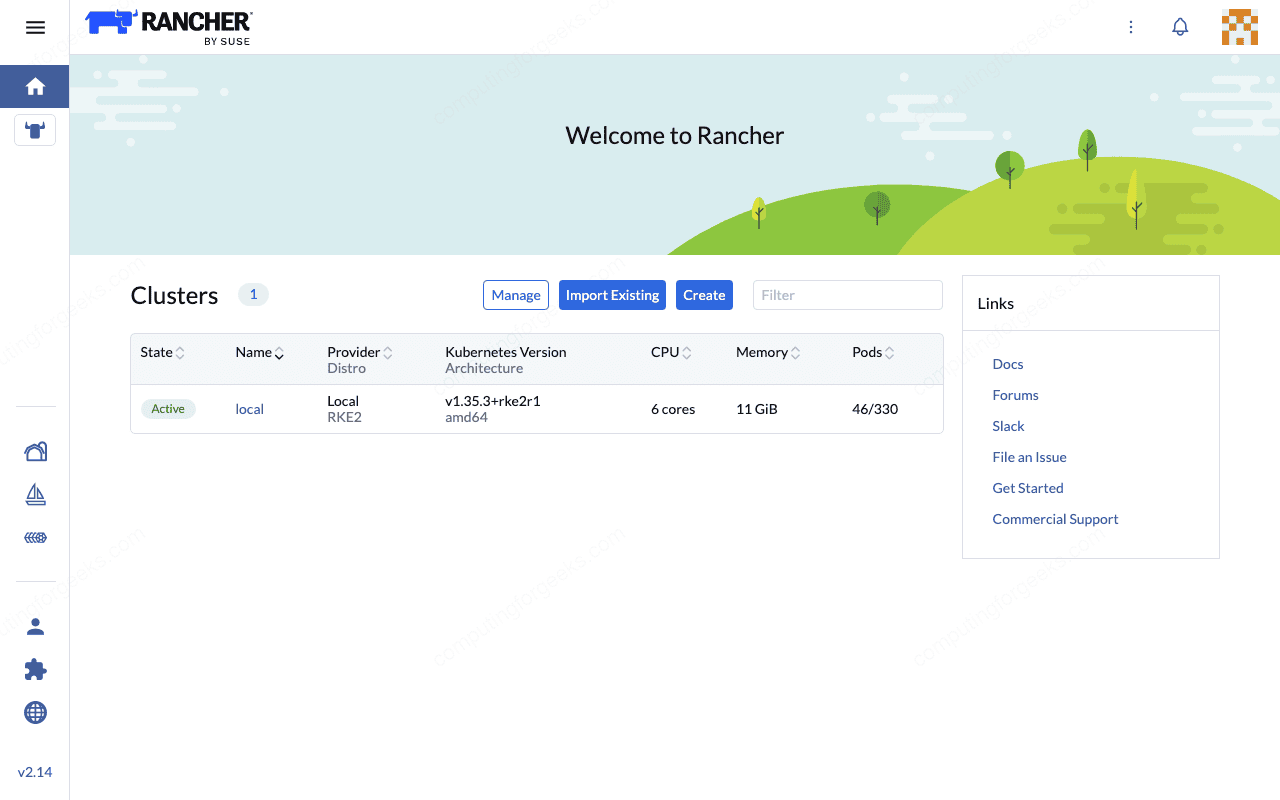
Once logged in, the Rancher dashboard shows your local cluster (the RKE2 cluster Rancher is running on) in an Active state. From here, you can import existing clusters, provision new ones, manage RBAC, configure monitoring, and handle the full lifecycle of your Kubernetes infrastructure through a single pane of glass.
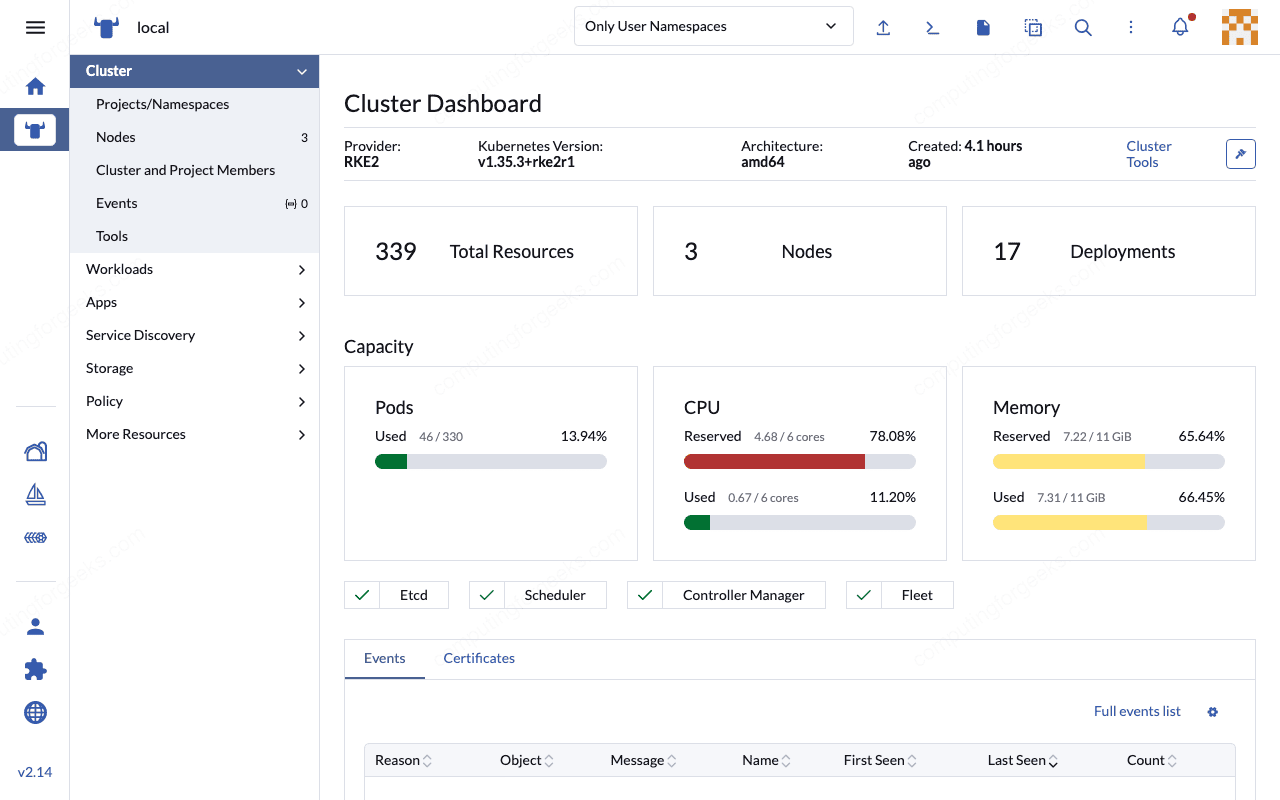
The Cluster Explorer view provides detailed resource metrics including pod counts, CPU and memory utilization across all three nodes, and the health status of core Kubernetes components.
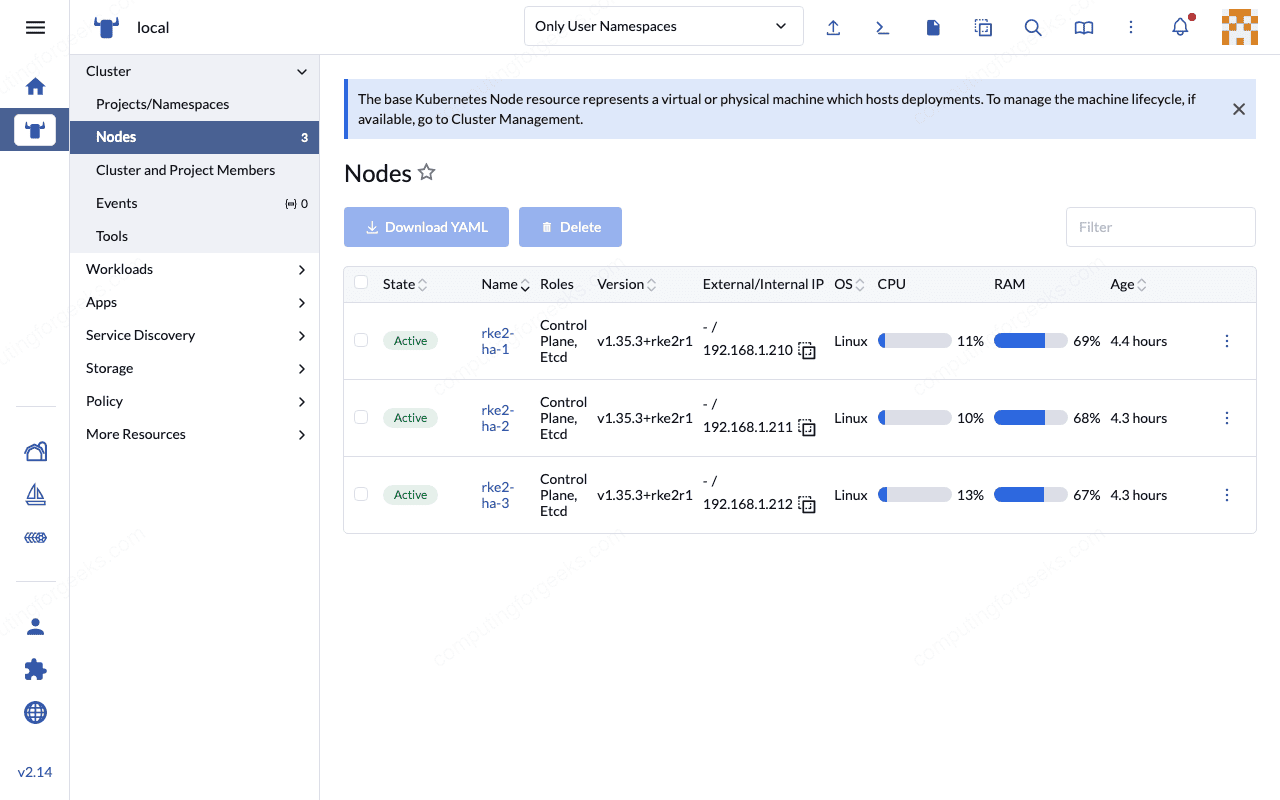
Under the Nodes tab, all three RKE2 HA nodes appear with their roles, IP addresses, CPU and memory allocations.
If the UI does not load, verify that your DNS record for rancher.example.com resolves to the load balancer IP (10.0.1.10) and that the load balancer is forwarding ports 80 and 443 to your RKE2 nodes. A quick test from your workstation:
curl -kI https://rancher.example.comA healthy response returns HTTP 200 or a 302 redirect to the login page.
If you did not set bootstrapPassword during installation, Rancher generates a random one. Retrieve it from the pod logs:
kubectl get secret --namespace cattle-system bootstrap-secret -o go-template='{{.data.bootstrapPassword|base64decode}}{{"\n"}}'After the initial login, Rancher creates an admin user in its internal database. The bootstrap secret is no longer needed and can be safely deleted. All subsequent authentication goes through Rancher’s built-in local auth or whatever external provider you configure (LDAP, Active Directory, SAML, GitHub, etc.). For production, configuring an external auth provider is strongly recommended so that you are not relying solely on a single local admin account.
Rancher Helm Configuration Options
The helm install command we used covers the essentials, but Rancher exposes many more configuration values. Here are the ones worth knowing for production deployments:
| Helm Value | Default | Description |
|---|---|---|
hostname | (required) | FQDN that Rancher will serve on |
replicas | 3 | Number of Rancher pod replicas |
bootstrapPassword | random | Password for first login. Random if not set (retrieve from logs) |
ingress.tls.source | rancher | Certificate source: rancher (self-signed via cert-manager), letsEncrypt, or secret (BYO cert) |
letsEncrypt.email | none | Required if using Let’s Encrypt TLS |
letsEncrypt.ingress.class | none | Ingress class for Let’s Encrypt HTTP-01 solver |
privateCA | false | Set to true if using a private/corporate CA |
auditLog.level | 0 | Kubernetes audit log level (0=disabled, 1=metadata, 2=request, 3=full) |
auditLog.destination | sidecar | Where audit logs go: sidecar (container logs) or hostPath |
resources.requests.cpu | 250m | CPU request per Rancher pod |
resources.requests.memory | 256Mi | Memory request per Rancher pod |
antiAffinity | preferred | Pod anti-affinity: preferred or required (forces one pod per node) |
To use Let’s Encrypt instead of self-signed certificates, the install command looks like this:
helm install rancher rancher-latest/rancher \
  --namespace cattle-system \
  --create-namespace \
  --set hostname=rancher.example.com \
  --set replicas=3 \
  --set ingress.tls.source=letsEncrypt \
  --set [email protected] \
  --set letsEncrypt.ingress.class=nginx
This requires your Rancher hostname to be publicly resolvable and the load balancer to allow HTTP-01 challenge traffic on port 80. Let’s Encrypt certificates auto-renew through cert-manager, so there is no manual renewal step. Just make sure the HTTP-01 solver can reach port 80 on the Ingress Controller at all times.
For environments where you bring your own certificate (purchased or from an internal CA), use ingress.tls.source=secret and create the TLS secret manually before installing Rancher:
kubectl -n cattle-system create secret tls tls-rancher-ingress \
  --cert=tls.crt \
  --key=tls.key
Upgrading Rancher
When a new Rancher version ships, the upgrade process is straightforward because Helm tracks the release state. Update the repo first, then run a helm upgrade with the same values you used during installation:
helm repo updateThen upgrade the release:
helm upgrade rancher rancher-latest/rancher \
  --namespace cattle-system \
  --set hostname=rancher.example.com \
  --set replicas=3
Helm performs a rolling update, replacing one pod at a time. The other two replicas continue serving traffic throughout the process, so there is zero downtime. Monitor the rollout:
kubectl -n cattle-system rollout status deploy/rancherAfter the upgrade completes, verify the new version in the Rancher UI under About or by checking the pod image:
kubectl get pods -n cattle-system -o jsonpath='{.items[0].spec.containers[0].image}'Always back up your Rancher data before upgrading. Take an etcd snapshot on all three server nodes before any upgrade. RKE2 makes this straightforward:
sudo rke2 etcd-snapshot save --name pre-upgrade-$(date +%Y%m%d)Snapshots are saved to /var/lib/rancher/rke2/server/db/snapshots/ by default. Run this on all three server nodes. If the upgrade goes sideways, you can restore from the snapshot without losing any cluster state or Rancher configuration. The kubectl cheat sheet has more details on etcd operations.
One more thing to check before upgrading: review the Rancher release notes for the target version. Breaking changes do happen, especially around authentication providers and downstream cluster agent compatibility. SUSE documents these clearly in each release’s changelog.
Migrating from Docker-Based Rancher
If you have been running Rancher as a single Docker container (the docker run rancher/rancher method), migrating to this HA setup is worth the effort. The Docker install was never intended for production, and SUSE has been steering users toward Kubernetes-based deployments for several major versions now.
There is no automated one-click migration path from Docker Rancher to Helm-based Rancher on RKE2. The general approach involves these steps:
- Back up the Docker Rancher instance. Create a backup using
docker execand the built-in backup command, or snapshot the Docker volume. - Deploy the new HA Rancher on your RKE2 cluster following this guide. Use the same hostname (or a new one if you plan to cut over via DNS).
- Restore the backup into the new installation using the Rancher Backup Operator (
rancher-backupHelm chart). Install the operator on the new cluster, then create a Restore custom resource pointing to your backup file. - Re-register downstream clusters. After restoring, downstream clusters that were managed by the old Docker instance need to reconnect. Most will reconnect automatically once the hostname resolves to the new HA setup. For clusters that do not reconnect, remove the old cluster agent and re-import.
- Update DNS. Point your Rancher hostname to the new load balancer IP. Once downstream clusters reconnect and the dashboard shows everything healthy, decommission the old Docker container.
The Rancher Backup Operator is the key piece here. Install it on the new HA cluster before attempting the restore:
helm repo add rancher-charts https://charts.rancher.io
helm install rancher-backup-crd rancher-charts/rancher-backup-crd -n cattle-resources-system --create-namespace
helm install rancher-backup rancher-charts/rancher-backup -n cattle-resources-system
A few things to watch out for during migration. The new Rancher version must be equal to or newer than the Docker version you are migrating from. Downgrading is not supported. Also, if your Docker Rancher used Let’s Encrypt certificates, you need to match the TLS configuration on the new install (set ingress.tls.source=letsEncrypt) or the restored settings will conflict.
Plan for a maintenance window. While the restore itself takes minutes, re-registration of downstream clusters can take longer depending on how many you manage. In our experience, clusters running the latest agent version reconnect within 2 to 5 minutes after the DNS change propagates. Clusters running significantly older agent versions may require a manual re-import. Test the entire process in a staging environment first if you run more than a handful of downstream clusters.
The official Rancher documentation covers the backup/restore workflow in detail, including S3-compatible storage as a backup target for larger deployments. For smaller setups, a local tarball backup works fine. The Backup Operator also supports scheduled backups on the new HA cluster, so once you migrate, set up a recurring backup schedule through the Rancher UI under Cluster Tools to avoid manual snapshot management going forward.
With Rancher running on a proper HA foundation, you get automatic failover, rolling upgrades with zero downtime, and a management plane that matches the resilience of the clusters it manages. The Docker-based single container served its purpose for getting started, but this is how Rancher belongs in production.
RKE2 vs K3s for Rancher HA
You can also run Rancher HA on top of K3s instead of RKE2. Both are SUSE products, both support multi-node HA with embedded etcd, and Rancher works identically on either one. The choice comes down to your environment.
RKE2 is the better fit for regulated environments. It ships with FIPS 140-2 compliant binaries, CIS hardening out of the box, and SELinux support on RHEL-family systems. K3s is lighter weight and faster to deploy, making it a good choice for edge locations or resource-constrained environments where you still want HA. In our testing on Rocky Linux 10.1, RKE2 consumed roughly 1.2 GB of memory per node at idle with Rancher running, while K3s typically sits around 800 MB for the same workload.
For most production deployments managing other production clusters, RKE2 is the safer default. For lab environments or smaller teams, K3s gets you to the same result with less overhead.
Common Issues and Fixes
Rancher pods stuck in CrashLoopBackOff
Check the pod logs first:
kubectl logs -n cattle-system -l app=rancher --tail=50The most frequent cause is cert-manager not being fully ready when Rancher starts. Rancher tries to create a Certificate resource, fails, and crashes. Delete the Rancher pods and let them restart once cert-manager is healthy:
kubectl delete pods -n cattle-system -l app=rancherKubernetes recreates them automatically through the deployment controller.
Error: “x509: certificate signed by unknown authority”
This appears when downstream clusters try to register with Rancher but do not trust the self-signed CA. If you use the default ingress.tls.source=rancher setting, Rancher’s agent pods on downstream clusters need the CA bundle. Rancher handles this automatically for clusters it provisions, but imported clusters may need the --ca-checksum flag during import. The import command in the Rancher UI includes this flag when self-signed certificates are detected.
Ingress shows no ADDRESS
If kubectl get ingress -n cattle-system shows an empty ADDRESS column, the Nginx Ingress Controller is not running or not picking up the Ingress resource. On RKE2, the Ingress Controller runs as a DaemonSet in kube-system. Verify it is healthy:
kubectl get pods -n kube-system -l app.kubernetes.io/name=rke2-ingress-nginxIf the Ingress Controller pods are running but the ADDRESS is still empty, check whether the IngressClass is set correctly. RKE2 creates a default IngressClass called nginx. Rancher’s Ingress should use this class, which it does by default. Verify the IngressClass exists:
kubectl get ingressclassYou should see nginx listed with CONTROLLER set to k8s.io/ingress-nginx. If it is missing, the RKE2 Ingress Controller addon may not have been enabled during cluster setup.
