

Prometheus 3 introduces a redesigned web UI, native OTLP ingestion, and significant performance improvements. This guide covers a full production installation on Rocky Linux 10 and AlmaLinux 10, including SELinux configuration, firewalld rules, node_exporter, alert rules, and Grafana integration. Rocky Linux and AlmaLinux are the most popular RHEL-compatible distributions for production servers, and their SELinux enforcing mode requires specific configuration to run Prometheus correctly.
What Changed in Prometheus 3?
Prometheus 3 is a major release with several changes that affect how you deploy and configure the server:
- New web UI – Complete rewrite of the query and management interface
- OTLP receiver – Native OpenTelemetry metrics ingestion via
--web.enable-otlp-receiver - Native histograms – New histogram representation with significantly lower storage overhead
- Remote Write 2.0 – More efficient remote write protocol
- Console templates removed – The
consoles/andconsole_libraries/directories are gone from the tarball. If your existing setup references--web.console.templates, you’ll need to remove those flags - UTF-8 metric names – Metric and label names now support UTF-8 characters
The full release details are available in the Prometheus 3.0 announcement.
Prerequisites
- Rocky Linux 10 or AlmaLinux 10 server with root or sudo access
- At least 2 GB RAM and 20 GB free disk space
- SELinux in enforcing mode (default on RHEL-family systems – we’ll configure proper contexts)
- Grafana instance for visualization – see Install Grafana Alloy on Rocky / AlmaLinux for the Grafana stack
If you’re upgrading from a previous version, check our previous Prometheus guide for Rocky Linux for migration notes.
Step 1: Install Prometheus 3
Create the Prometheus user and directories
Create a dedicated system user for running the Prometheus service. This user has no login shell and no home directory.
sudo useradd --no-create-home --shell /sbin/nologin prometheusCreate the configuration and data directories:
sudo mkdir -p /etc/prometheus /var/lib/prometheus
sudo chown prometheus:prometheus /var/lib/prometheus
Download and install the binaries
Use the dynamic version detection pattern to pull the latest Prometheus release from GitHub:
VER=$(curl -sI https://github.com/prometheus/prometheus/releases/latest | grep -i ^location | grep -o v[0-9.]* | sed s/^v//)
echo "Installing Prometheus $VER"
wget https://github.com/prometheus/prometheus/releases/download/v${VER}/prometheus-${VER}.linux-amd64.tar.gz
At the time of writing, this downloads Prometheus 3.10.0. Extract and install the binaries:
tar xvf prometheus-${VER}.linux-amd64.tar.gz
sudo cp prometheus-${VER}.linux-amd64/{prometheus,promtool} /usr/local/bin/
sudo chown prometheus:prometheus /usr/local/bin/{prometheus,promtool}
Verify the installation:
prometheus --versionYou should see version 3.x confirmed:
prometheus, version 3.10.0 (branch: HEAD, revision: 4e546fca)
  build user:       root@bba5c76a3954
  build date:       20260315-10:42:25
  go version:       go1.24.1
  platform:         linux/amd64
  tags:             netgo,builtinassets,stringlabels
Step 2: Configure SELinux for Prometheus
Rocky Linux 10 and AlmaLinux 10 run SELinux in enforcing mode by default. Since we’re installing Prometheus from a tarball rather than an RPM, the binaries and data paths won’t have the correct SELinux contexts. Skipping this step will cause permission denied errors that are hard to debug.
First, install the SELinux management tools if they’re not already present:
sudo dnf install -y policycoreutils-python-utilsSet the correct file contexts for the Prometheus and promtool binaries:
sudo semanage fcontext -a -t bin_t "/usr/local/bin/prometheus"
sudo semanage fcontext -a -t bin_t "/usr/local/bin/promtool"
sudo restorecon -v /usr/local/bin/{prometheus,promtool}
The restorecon output confirms the contexts were applied:
Relabeled /usr/local/bin/prometheus from unconfined_u:object_r:usr_t:s0 to unconfined_u:object_r:bin_t:s0
Relabeled /usr/local/bin/promtool from unconfined_u:object_r:usr_t:s0 to unconfined_u:object_r:bin_t:s0
Allow Prometheus to bind to its default port 9090:
sudo semanage port -a -t http_port_t -p tcp 9090If SELinux still blocks something after starting the service, check the audit log:
sudo ausearch -m avc -ts recentStep 3: Configure Prometheus
Create the main configuration file with scrape targets for Prometheus itself, node_exporter, Blackbox exporter, and Alertmanager.
sudo vi /etc/prometheus/prometheus.ymlAdd the following configuration:
global:
  scrape_interval: 15s
  evaluation_interval: 15s
  scrape_timeout: 10s

alerting:
  alertmanagers:
    - static_configs:
        - targets:
            - localhost:9093

rule_files:
  - "/etc/prometheus/rules/*.yml"

scrape_configs:
  - job_name: "prometheus"
    static_configs:
      - targets: ["localhost:9090"]

  - job_name: "node_exporter"
    static_configs:
      - targets: ["localhost:9100"]
        labels:
          instance_name: "prometheus-server"

  - job_name: "blackbox_http"
    metrics_path: /probe
    params:
      module: [http_2xx]
    static_configs:
      - targets:
          - https://computingforgeeks.com
          - https://google.com
          - https://github.com
    relabel_configs:
      - source_labels: [__address__]
        target_label: __param_target
      - source_labels: [__param_target]
        target_label: instance
      - target_label: __address__
        replacement: localhost:9115

  - job_name: "alertmanager"
    static_configs:
      - targets: ["localhost:9093"]
Set the correct ownership:
sudo chown prometheus:prometheus /etc/prometheus/prometheus.ymlStep 4: Create Alert Rules
Set up alert rules that will fire when common production issues occur. Create the rules directory and alert file:
sudo mkdir -p /etc/prometheus/rules
sudo vi /etc/prometheus/rules/node-alerts.yml
Add these production alert rules:
groups:
  - name: node_alerts
    rules:
      - alert: InstanceDown
        expr: up == 0
        for: 2m
        labels:
          severity: critical
        annotations:
          summary: "Instance {{ $labels.instance }} is down"
          description: "{{ $labels.job }} target {{ $labels.instance }} has been unreachable for more than 2 minutes."

      - alert: HighCPUUsage
        expr: 100 - (avg by(instance) (rate(node_cpu_seconds_total{mode="idle"}[5m])) * 100) > 85
        for: 5m
        labels:
          severity: warning
        annotations:
          summary: "High CPU usage on {{ $labels.instance }}"
          description: "CPU usage has been above 85% for 5 minutes. Current value: {{ $value | printf \"%.1f\" }}%"

      - alert: HighMemoryUsage
        expr: (1 - (node_memory_MemAvailable_bytes / node_memory_MemTotal_bytes)) * 100 > 90
        for: 5m
        labels:
          severity: warning
        annotations:
          summary: "High memory usage on {{ $labels.instance }}"
          description: "Memory usage has been above 90% for 5 minutes. Current value: {{ $value | printf \"%.1f\" }}%"

      - alert: DiskSpaceLow
        expr: (1 - (node_filesystem_avail_bytes{mountpoint="/"} / node_filesystem_size_bytes{mountpoint="/"})) * 100 > 85
        for: 10m
        labels:
          severity: warning
        annotations:
          summary: "Disk space low on {{ $labels.instance }}"
          description: "Root filesystem usage is above 85%. Current value: {{ $value | printf \"%.1f\" }}%"
Validate the rules and set ownership:
promtool check rules /etc/prometheus/rules/node-alerts.yml
sudo chown -R prometheus:prometheus /etc/prometheus/rules
A successful validation confirms all 4 rules are valid:
Checking /etc/prometheus/rules/node-alerts.yml
  SUCCESS: 4 rules found
Step 5: Create the Systemd Service
Create a systemd unit file with production-ready flags including OTLP receiver support and 30-day data retention.
sudo vi /etc/systemd/system/prometheus.serviceAdd the following service definition:
[Unit]
Description=Prometheus 3 Monitoring System
Documentation=https://prometheus.io/docs/introduction/overview/
Wants=network-online.target
After=network-online.target

[Service]
Type=simple
User=prometheus
Group=prometheus
ExecReload=/bin/kill -HUP $MAINPID
ExecStart=/usr/local/bin/prometheus \
  --config.file=/etc/prometheus/prometheus.yml \
  --storage.tsdb.path=/var/lib/prometheus \
  --storage.tsdb.retention.time=30d \
  --web.listen-address=0.0.0.0:9090 \
  --web.enable-lifecycle \
  --web.enable-otlp-receiver
Restart=always
RestartSec=5
SyslogIdentifier=prometheus
LimitNOFILE=65536

[Install]
WantedBy=multi-user.target
The --web.enable-otlp-receiver flag enables the native OTLP endpoint, allowing OpenTelemetry collectors to push metrics directly to Prometheus. The --web.enable-lifecycle flag enables config reload via HTTP.
Start and enable Prometheus:
sudo systemctl daemon-reload
sudo systemctl enable --now prometheus
Verify the service is running:
sudo systemctl status prometheusThe service should show active (running):
● prometheus.service - Prometheus 3 Monitoring System
     Loaded: loaded (/etc/systemd/system/prometheus.service; enabled; preset: disabled)
     Active: active (running) since Mon 2026-03-24 10:22:18 UTC; 4s ago
       Docs: https://prometheus.io/docs/introduction/overview/
   Main PID: 3124 (prometheus)
      Tasks: 8 (limit: 4557)
     Memory: 44.1M
        CPU: 1.312s
     CGroup: /system.slice/prometheus.service
             └─3124 /usr/local/bin/prometheus --config.file=/etc/prometheus/prometheus.yml ...
If the service fails to start, check the journal for SELinux denials:
sudo journalctl -u prometheus -n 50 --no-pager
sudo ausearch -m avc -ts recent
Step 6: Install Node Exporter
Node exporter provides hardware and OS metrics – CPU, memory, disk, network, and more. It runs on every server you want to monitor.
Create a dedicated user:
sudo useradd --no-create-home --shell /sbin/nologin node_exporterDownload and install the latest release:
VER=$(curl -sI https://github.com/prometheus/node_exporter/releases/latest | grep -i ^location | grep -o v[0-9.]* | sed s/^v//)
echo "Installing node_exporter $VER"
wget https://github.com/prometheus/node_exporter/releases/download/v${VER}/node_exporter-${VER}.linux-amd64.tar.gz
tar xvf node_exporter-${VER}.linux-amd64.tar.gz
sudo cp node_exporter-${VER}.linux-amd64/node_exporter /usr/local/bin/
sudo chown node_exporter:node_exporter /usr/local/bin/node_exporter
This installs node_exporter 1.10.2 at the time of writing. Set the SELinux context for the binary:
sudo semanage fcontext -a -t bin_t "/usr/local/bin/node_exporter"
sudo restorecon -v /usr/local/bin/node_exporter
Also allow SELinux to permit node_exporter to bind to port 9100:
sudo semanage port -a -t http_port_t -p tcp 9100Create the systemd service file:
sudo vi /etc/systemd/system/node_exporter.serviceAdd the following with extra collectors for systemd service monitoring and process states:
[Unit]
Description=Prometheus Node Exporter
Documentation=https://github.com/prometheus/node_exporter
Wants=network-online.target
After=network-online.target

[Service]
Type=simple
User=node_exporter
Group=node_exporter
ExecStart=/usr/local/bin/node_exporter \
  --collector.systemd \
  --collector.processes
Restart=always
RestartSec=5
SyslogIdentifier=node_exporter

[Install]
WantedBy=multi-user.target
The --collector.systemd flag exposes the state of every systemd service as a metric, which is invaluable for alerting on service failures. Start and enable the service:
sudo systemctl daemon-reload
sudo systemctl enable --now node_exporter
Verify it’s running:
sudo systemctl status node_exporterThe service should show active (running):
● node_exporter.service - Prometheus Node Exporter
     Loaded: loaded (/etc/systemd/system/node_exporter.service; enabled; preset: disabled)
     Active: active (running) since Mon 2026-03-24 10:25:12 UTC; 3s ago
       Docs: https://github.com/prometheus/node_exporter
   Main PID: 3298 (node_exporter)
      Tasks: 5 (limit: 4557)
     Memory: 13.2M
        CPU: 0.095s
     CGroup: /system.slice/node_exporter.service
             └─3298 /usr/local/bin/node_exporter --collector.systemd --collector.processes
Test the metrics endpoint:
curl -s http://localhost:9100/metrics | head -5You should see metric lines being exposed:
# HELP go_gc_duration_seconds A summary of the pause duration of garbage collection cycles.
# TYPE go_gc_duration_seconds summary
go_gc_duration_seconds{quantile="0"} 2.3457e-05
go_gc_duration_seconds{quantile="0.25"} 3.1245e-05
go_gc_duration_seconds{quantile="0.5"} 4.5678e-05
Step 7: Configure Firewall Rules
Open the required ports in firewalld:
sudo firewall-cmd --permanent --add-port=9090/tcp
sudo firewall-cmd --permanent --add-port=9100/tcp
sudo firewall-cmd --reload
Verify the ports are open:
sudo firewall-cmd --list-portsThe output should include both ports:
9090/tcp 9100/tcpFor production environments, use rich rules to restrict node_exporter access to only your Prometheus server IP. Node exporter metrics contain sensitive system information.
sudo firewall-cmd --permanent --add-rich-rule='rule family="ipv4" source address="10.0.1.10" port protocol="tcp" port="9100" accept'Step 8: Access the Prometheus 3 Web UI
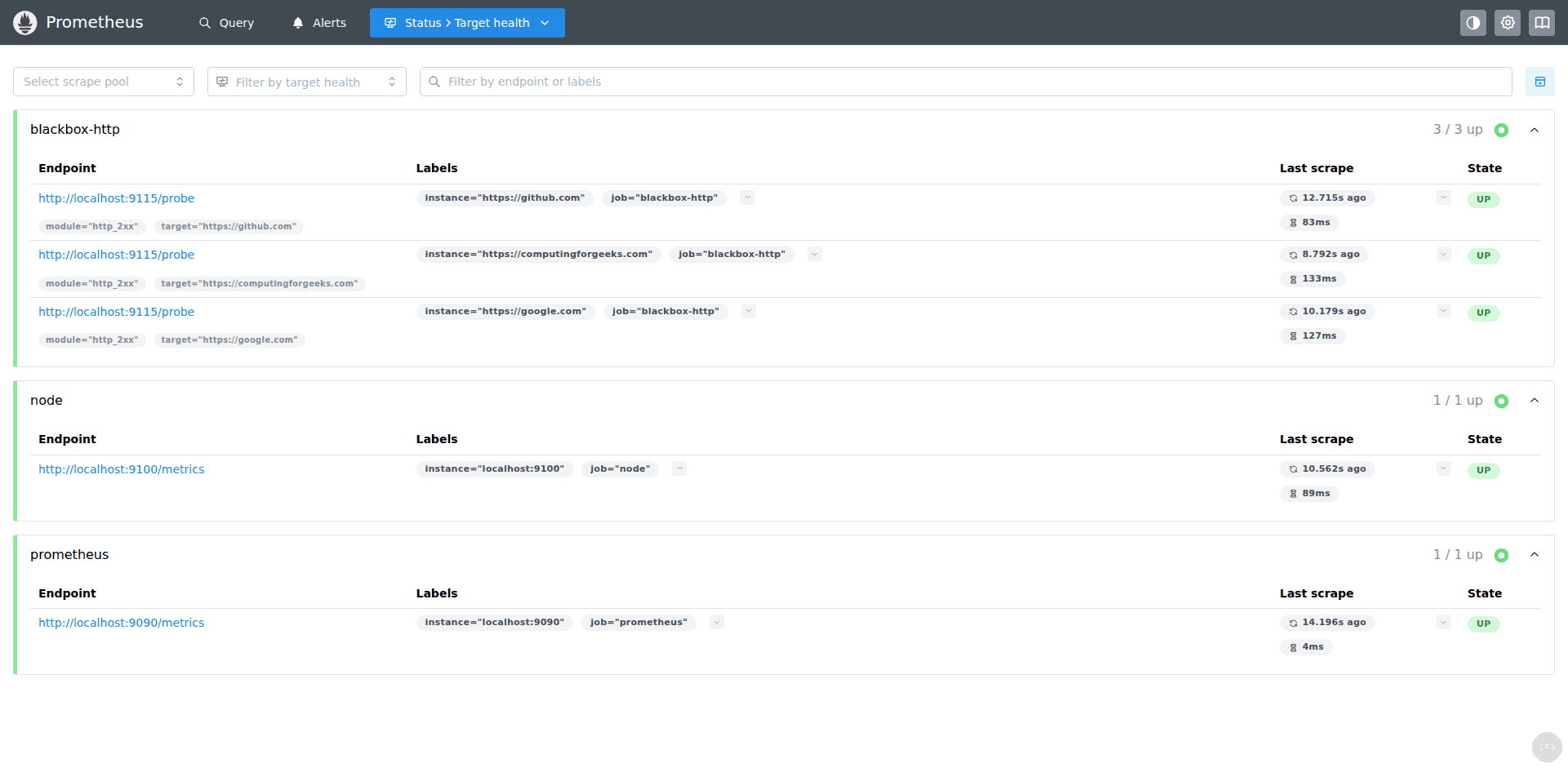
Open your browser and navigate to http://your-server-ip:9090. Check the Status > Targets page to verify all configured targets are being scraped:
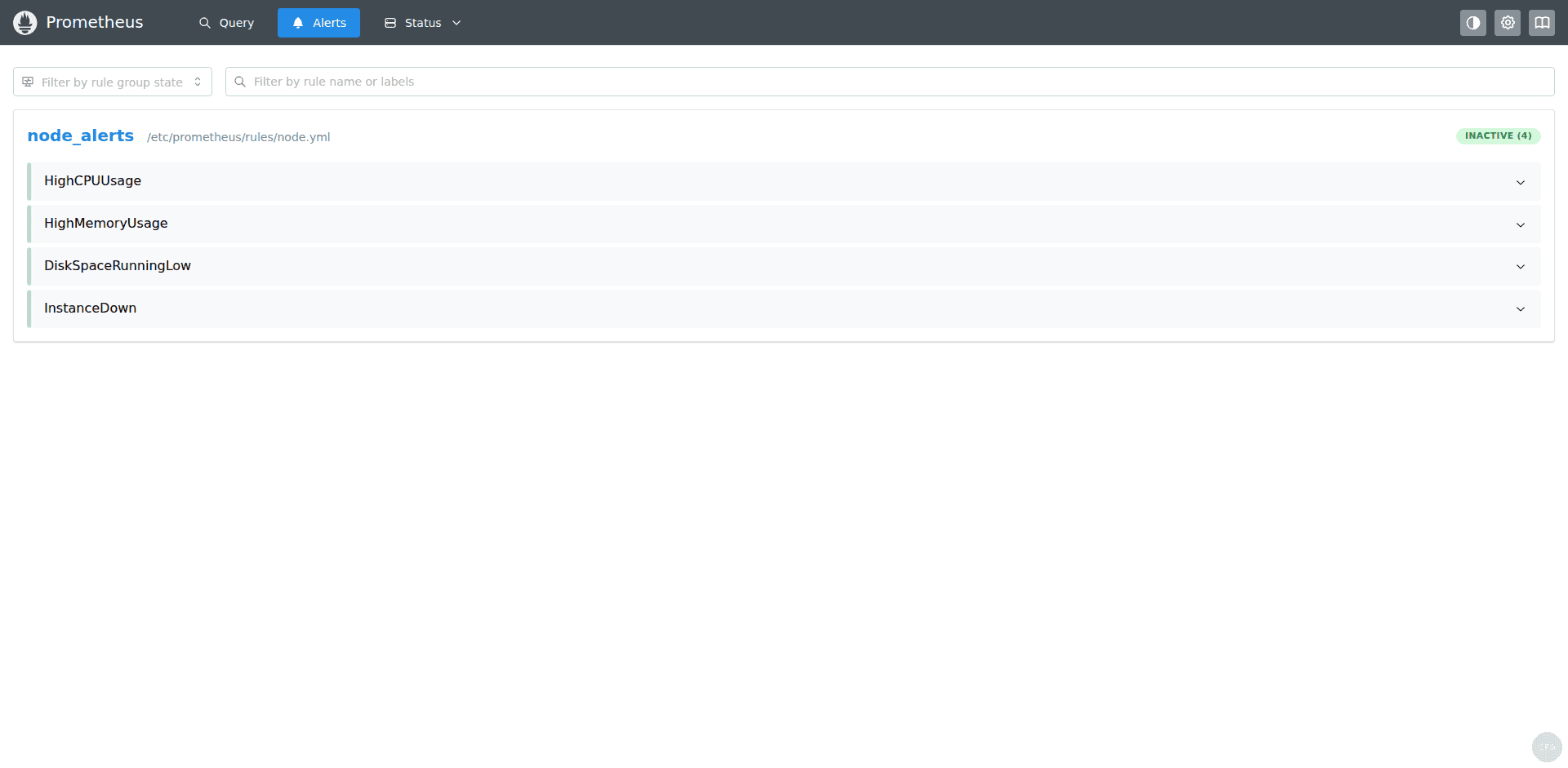
Check the Alerts page to confirm your alert rules loaded correctly. Healthy systems should show all rules in inactive (green) state:
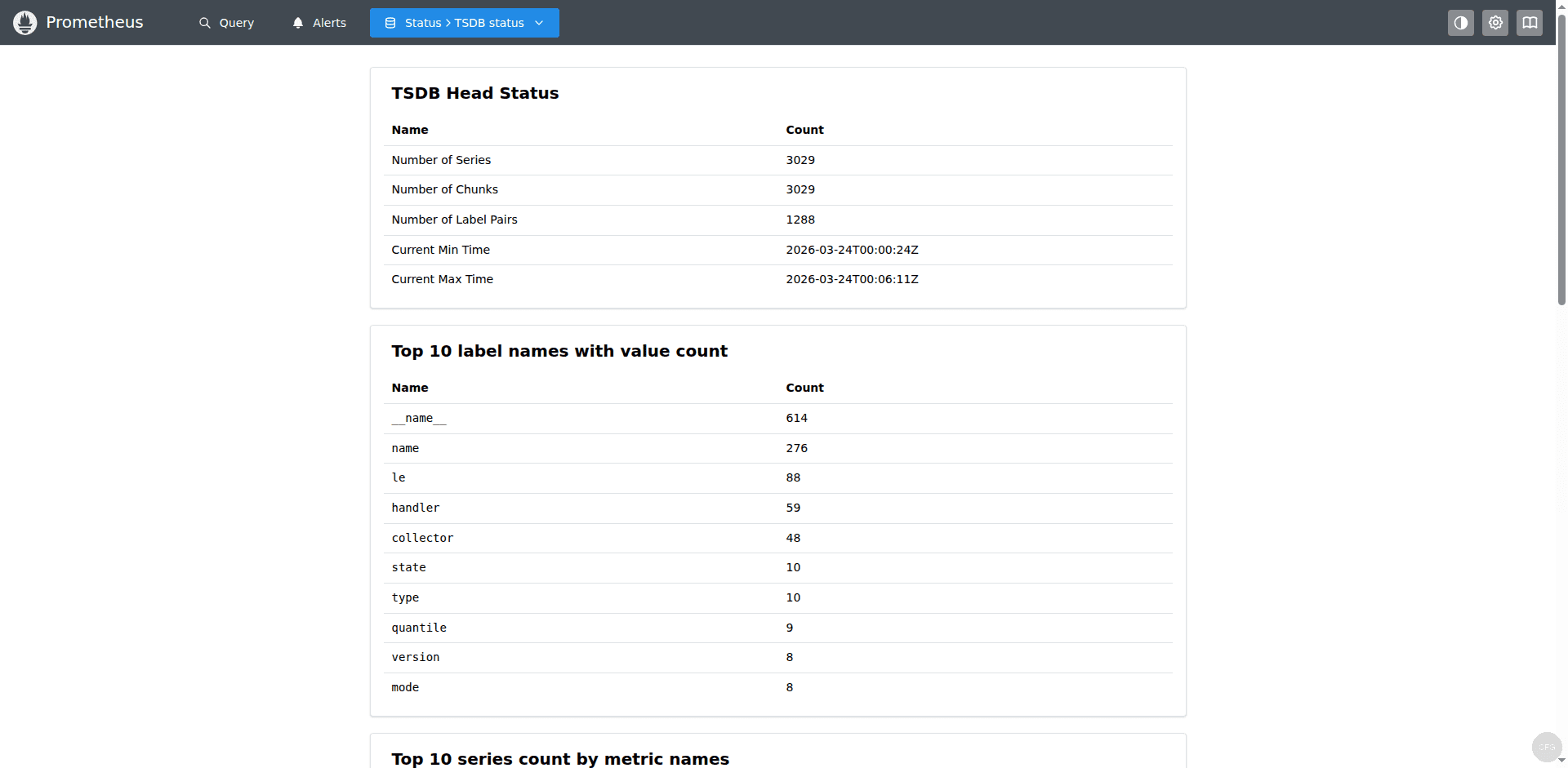
You can also check the TSDB status under Status > TSDB Status to see how many time series are being stored and the current ingestion rate:
Step 9: Connect Grafana and Import Dashboards
With Prometheus collecting metrics, connect Grafana to visualize them. In Grafana, go to Connections > Data Sources > Add data source, select Prometheus, set the URL to http://localhost:9090, and click Save & Test.
Import the Node Exporter Full dashboard (ID: 1860) from Dashboards > New > Import. Select your Prometheus data source and the dashboard will populate with live system metrics:
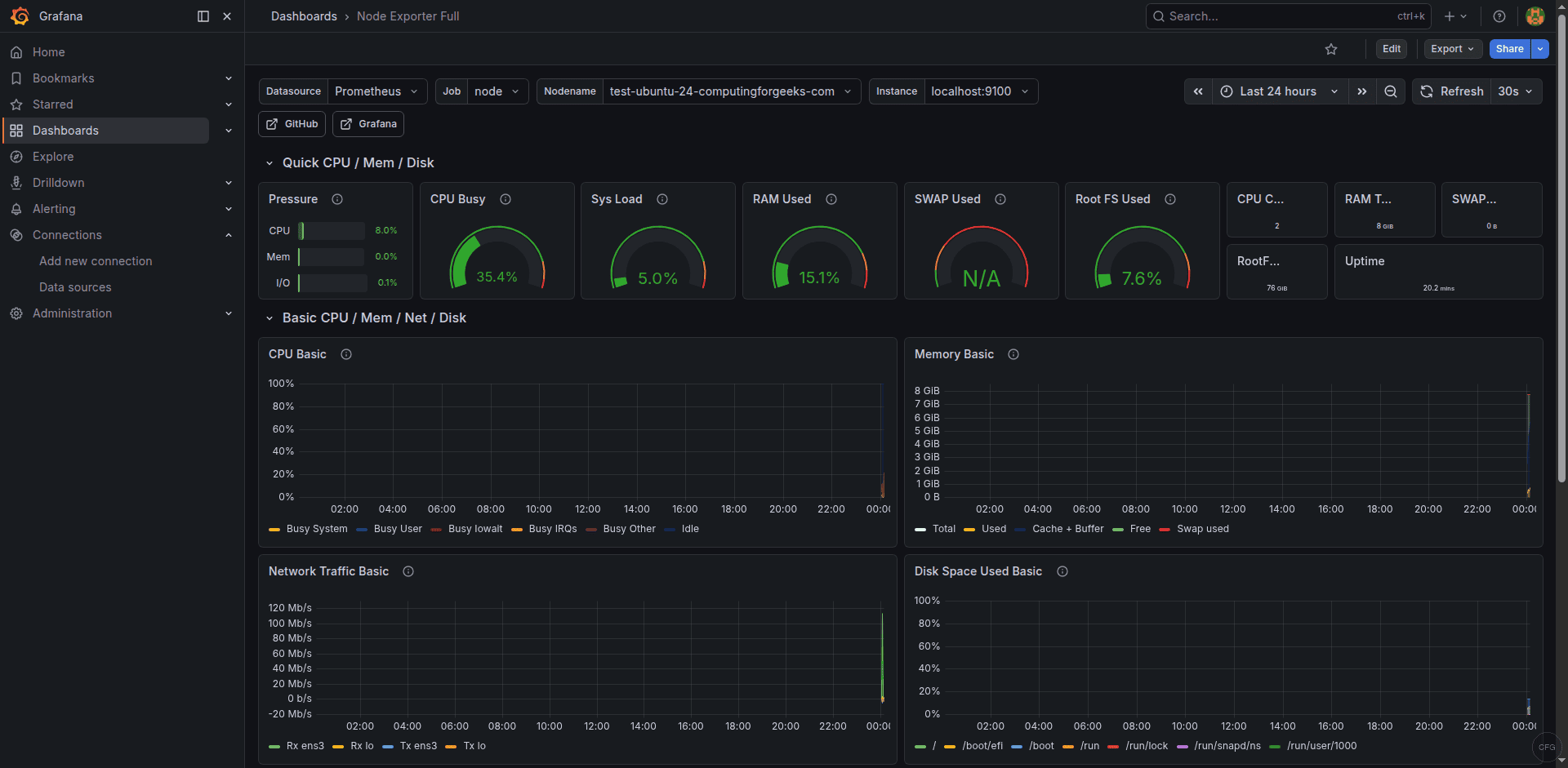
The CPU and memory panels show detailed breakdowns of resource usage over time, which is critical for capacity planning and identifying performance bottlenecks:
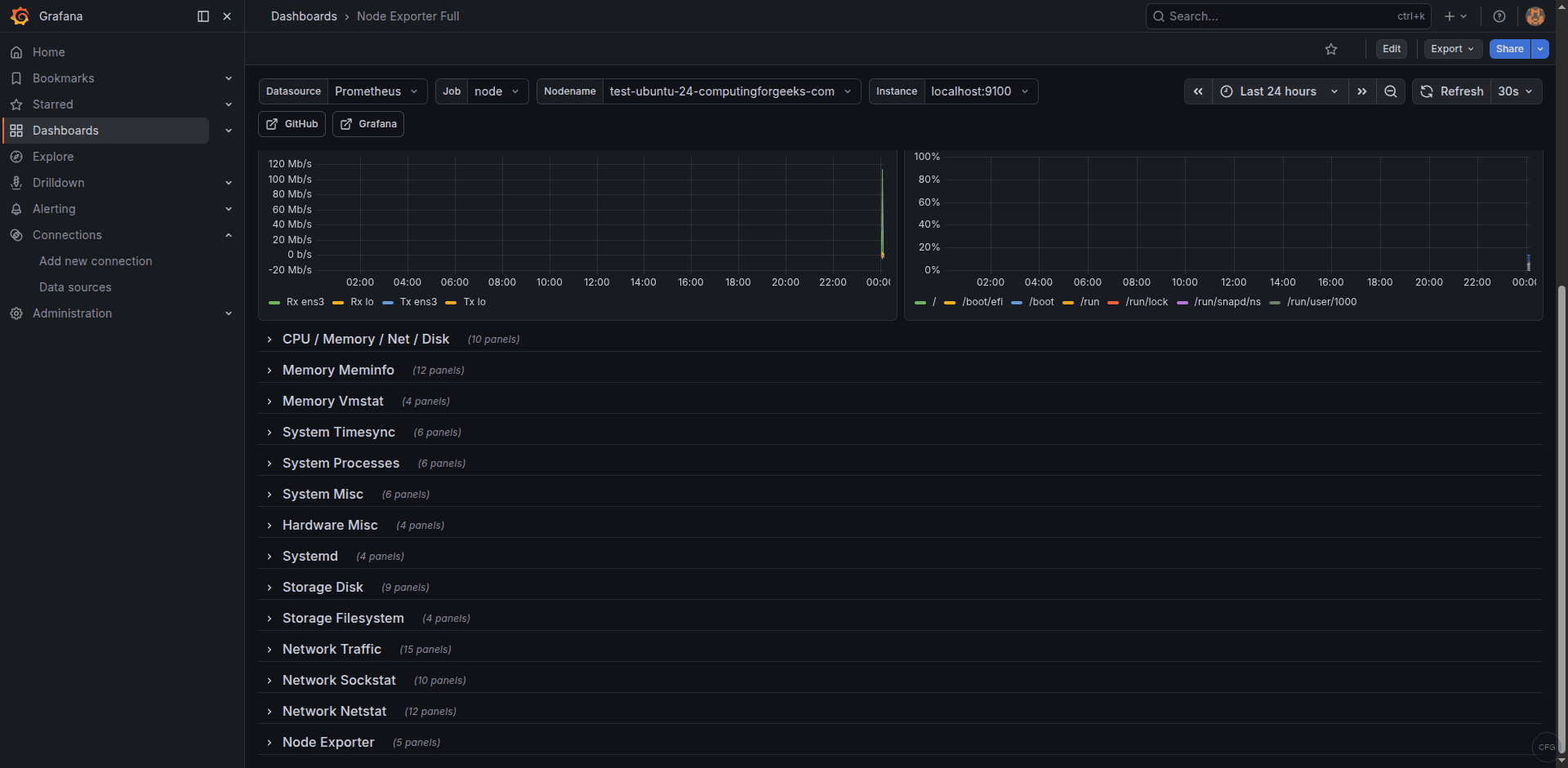
The network and disk I/O panels provide detailed views of interface throughput and disk read/write rates:
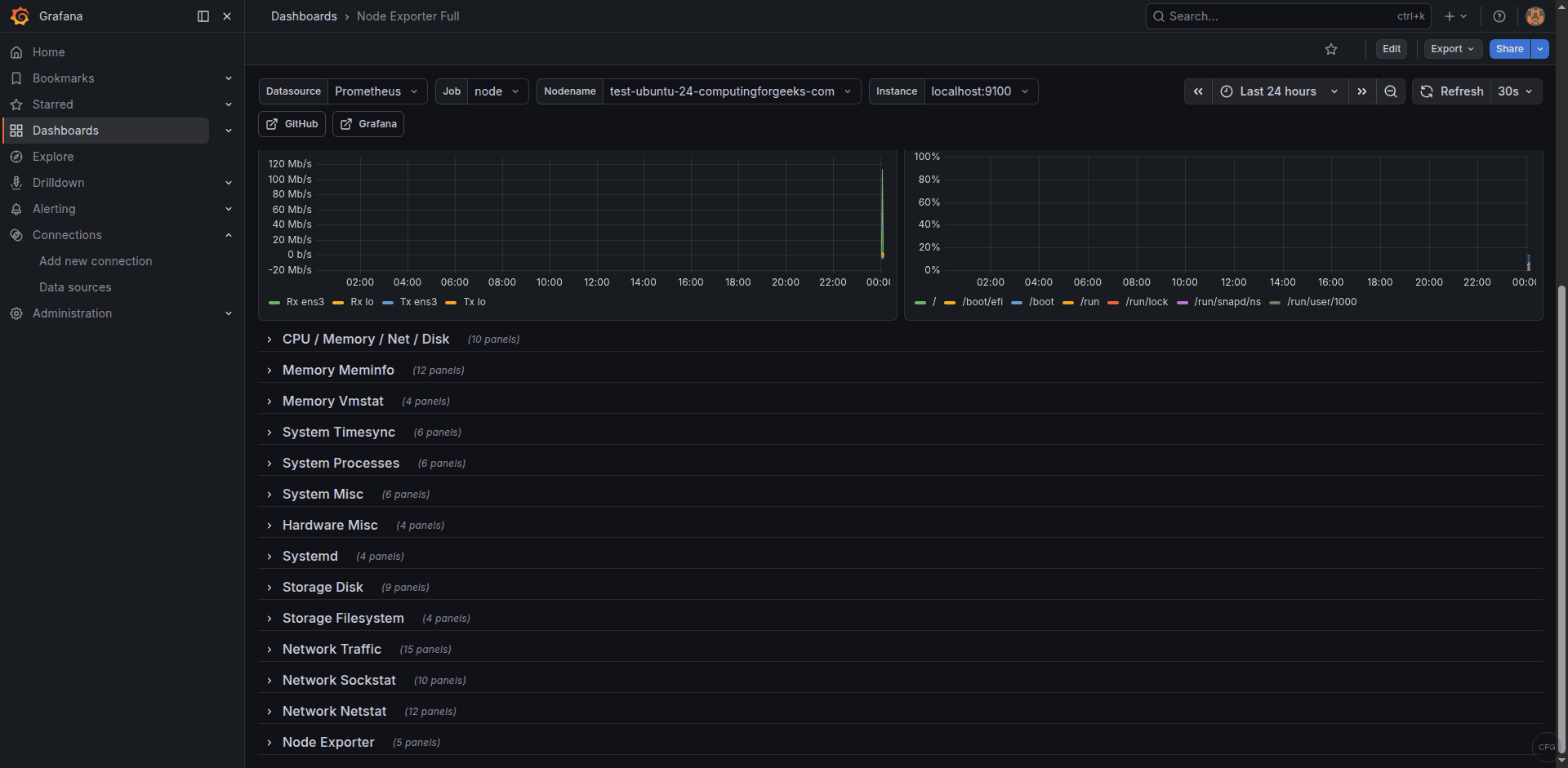
Useful PromQL Queries for System Monitoring
Here are some essential queries to run in the Prometheus query UI or use in Grafana dashboards:
CPU usage percentage (averaged across all cores):
100 - (avg by(instance) (rate(node_cpu_seconds_total{mode="idle"}[5m])) * 100)Memory usage percentage:
(1 - (node_memory_MemAvailable_bytes / node_memory_MemTotal_bytes)) * 100Root filesystem usage:
(1 - (node_filesystem_avail_bytes{mountpoint="/"} / node_filesystem_size_bytes{mountpoint="/"})) * 100Network receive rate (bytes per second, excluding loopback):
rate(node_network_receive_bytes_total{device!="lo"}[5m])System uptime in days:
(time() - node_boot_time_seconds) / 86400Failed systemd services (using the systemd collector):
node_systemd_unit_state{state="failed"} == 1The last query is particularly useful on RHEL-family systems where you want to alert on failed services. Combined with the --collector.systemd flag on node_exporter, it gives you visibility into every systemd unit on the system.
How to Reload Configuration Without Restart
After editing configuration or alert rules, reload Prometheus without downtime:
sudo systemctl reload prometheusOr use the HTTP lifecycle endpoint:
curl -X POST http://localhost:9090/-/reloadAlways validate before reloading:
promtool check config /etc/prometheus/prometheus.ymlHow to Add More Monitoring Targets
To monitor additional Rocky/AlmaLinux servers, install node_exporter on each target and add their addresses to the scrape config. On each target server, repeat the node_exporter installation steps including SELinux contexts:
  - job_name: "node_exporter"
    static_configs:
      - targets: ["localhost:9100"]
        labels:
          instance_name: "prometheus-server"
      - targets: ["10.0.1.20:9100"]
        labels:
          instance_name: "web-01"
      - targets: ["10.0.1.21:9100"]
        labels:
          instance_name: "web-02"
      - targets: ["10.0.1.30:9100"]
        labels:
          instance_name: "db-01"
On each target server’s firewall, allow the Prometheus server to reach port 9100. Using a rich rule is more secure than opening the port to everyone:
sudo firewall-cmd --permanent --add-rich-rule='rule family="ipv4" source address="10.0.1.10" port protocol="tcp" port="9100" accept'
sudo firewall-cmd --reload
For large environments with dynamically provisioned servers, use file-based service discovery. Create a JSON targets file and reference it in the scrape config – Prometheus watches the file and picks up changes without a reload.
How to Secure Prometheus with Basic Auth
Prometheus 3 supports native basic authentication and TLS. Create a web configuration file:
sudo vi /etc/prometheus/web.ymlGenerate a bcrypt password hash and add it to the config. Install httpd-tools to get the htpasswd utility:
sudo dnf install -y httpd-tools
htpasswd -nBC 10 admin
Copy the generated hash into the web.yml file:
basic_auth_users:
  admin: '$2y$10$example_bcrypt_hash_here'
Add --web.config.file=/etc/prometheus/web.yml to your systemd service ExecStart line and restart Prometheus. The web UI and all API endpoints will require authentication. Remember to update your Grafana data source with the credentials.
Troubleshooting Common Issues
Cockpit occupies port 9090 on Rocky Linux 10
Rocky Linux 10 ships with Cockpit web console enabled by default on port 9090 – the same port Prometheus uses. If Prometheus fails to start with “bind: address already in use”, check for Cockpit:
sudo ss -tlnp | grep 9090If Cockpit is listening, disable it to free the port:
sudo systemctl disable --now cockpit.socket cockpit.serviceThen restart Prometheus. If you need both Cockpit and Prometheus, change Cockpit’s port in /etc/cockpit/cockpit.conf by adding [WebService] and Port = 9091.
SELinux blocks Prometheus from binding to port 9090
If Prometheus fails with “permission denied” or “bind: address already in use” but the port is actually free, SELinux may be blocking the bind. Check the audit log:
sudo ausearch -m avc -ts recent | grep prometheusIf you see a denial for name_bind, the port context is missing. Add it:
sudo semanage port -a -t http_port_t -p tcp 9090Alertmanager shows “no private IP found” on cloud VMs
This is a common issue when running Alertmanager on cloud instances. The Alertmanager clustering mechanism tries to find a private IP for gossip communication. On cloud VMs with only public-facing interfaces, it fails to find one. For single-node deployments, disable clustering with:
--cluster.listen-address=""Add this flag to your Alertmanager systemd service file. This is safe for standalone deployments.
Console template flags cause startup failure
If you migrated from Prometheus 2.x and your service file includes --web.console.templates or --web.console.libraries, remove them. Prometheus 3 removed the console template system entirely.
Node exporter returns empty or partial metrics
On SELinux-enforcing systems, node_exporter may be unable to read certain system files. Check for denials:
sudo ausearch -m avc -ts recent | grep node_exporterCommon fix – allow node_exporter to read /proc and /sys:
sudo ausearch -m avc -ts recent | audit2allow -M node_exporter_custom
sudo semodule -i node_exporter_custom.pp
How to Check Prometheus Storage Usage
Monitor the TSDB storage consumption to plan capacity and avoid running out of disk space:
du -sh /var/lib/prometheusYou can also query storage metrics through PromQL. The total number of active time series:
prometheus_tsdb_head_seriesThe ingestion rate (samples per second):
rate(prometheus_tsdb_head_samples_appended_total[5m])With a 15-second scrape interval and 30-day retention, each time series consumes roughly 3-6 KB per day. For 10,000 active series, that’s about 1-2 GB per month. If storage is a concern, reduce retention with --storage.tsdb.retention.time or use --storage.tsdb.retention.size to set a maximum TSDB size in bytes.
Cleaning Up Stale TSDB Data
If you’ve removed targets that are no longer needed, their historical data remains until the retention period expires. To manually clean up stale data, use the TSDB admin API (requires --web.enable-admin-api flag). However, in most cases, simply letting the retention policy handle cleanup is the best approach.
To check for stale targets, query for series that haven’t received data recently:
up == 0Any target that stays at 0 for an extended period should either be fixed or removed from the scrape config to avoid noise in your monitoring.
Conclusion
You now have Prometheus 3 running on Rocky Linux 10 / AlmaLinux 10 with proper SELinux contexts, firewalld rules, node_exporter metrics collection, production alert rules, and Grafana dashboards. The OTLP receiver is enabled for OpenTelemetry integration. Next steps include adding additional exporters for your specific services and expanding your alert rules to match your SLA requirements.
