

Portmaster is a free, open-source application firewall for Linux and Windows that monitors all network connections, blocks trackers and malware domains, and secures DNS queries using DNS-over-TLS. It works at the per-application level – you can set different network rules for each program on your system.
This guide covers installing Portmaster v2 on Ubuntu, Debian, Fedora, Rocky Linux, and Arch Linux, then configuring it to control application network access and block unwanted traffic. The source code is available on GitHub under the GPLv3 license.
What Portmaster Does
- Per-application firewall rules – block or allow network access for each program individually
- Tracker and malware blocking – blocks ads, trackers, and malicious domains using trusted filter lists (enabled by default)
- Secure DNS – automatically encrypts DNS queries using DNS-over-TLS to prevent snooping
- Connection monitoring – real-time dashboard showing every connection each application makes
- Global and per-app settings – set default rules globally and override them for specific applications
Prerequisites
- Linux system with kernel 5.7 or newer (Ubuntu 24.04/22.04, Debian 13/12, Fedora 42/41, Rocky Linux 10/9)
- systemd-based init system
- A desktop environment (Portmaster uses a GUI for configuration)
- Root or sudo access
Step 1: Install Portmaster on Linux
Download the latest Portmaster v2 package from the official Safing servers. The package is available in .deb and .rpm formats.
On Ubuntu and Debian, download and install the .deb package:
wget https://updates.safing.io/latest/linux_amd64/packages/portmaster-installer.deb
sudo apt install ./portmaster-installer.deb
On Fedora, Rocky Linux, and AlmaLinux, download and install the .rpm package:
wget https://updates.safing.io/latest/linux_amd64/packages/portmaster-installer.rpm
sudo dnf install ./portmaster-installer.rpm
On Arch Linux, install from AUR:
yay -S portmaster-stub-binPortmaster registers a systemd service during installation. Enable and start it:
sudo systemctl enable --now portmasterVerify the service is running:
systemctl status portmasterThe service should show active (running). Portmaster updates itself automatically after the initial install, so you always get the latest version.
Reboot your system after the first installation to ensure all kernel-level hooks are loaded:
sudo rebootStep 2: Launch and Configure Portmaster
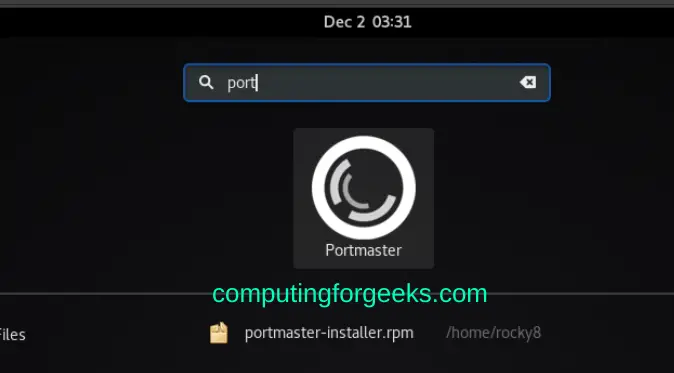
After reboot, launch Portmaster from your application menu or search for “Portmaster” in your desktop environment.
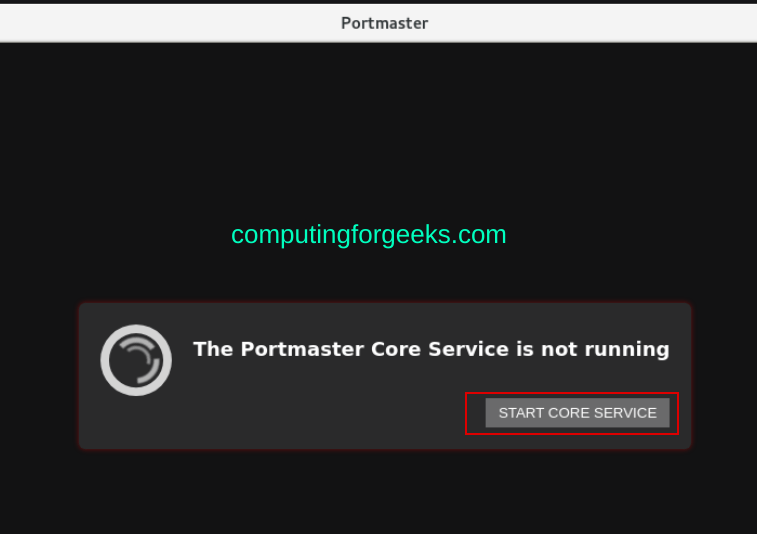
On first launch, Portmaster opens a setup wizard. Click the start button to begin the initial configuration.
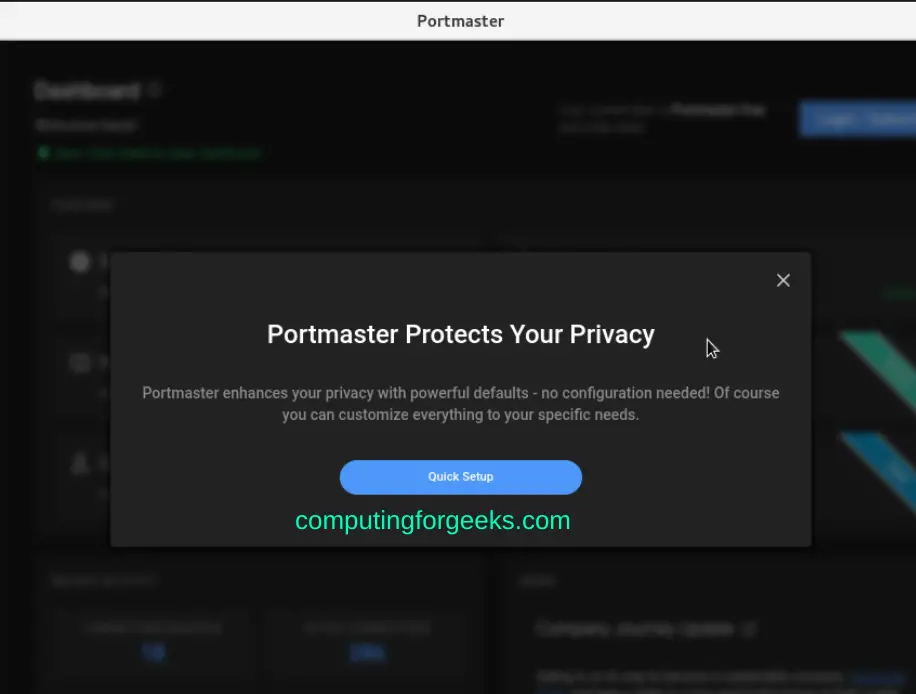
Set Your Privacy Profile
The wizard asks you to choose a privacy profile that controls default blocking behavior. You can adjust these settings later.
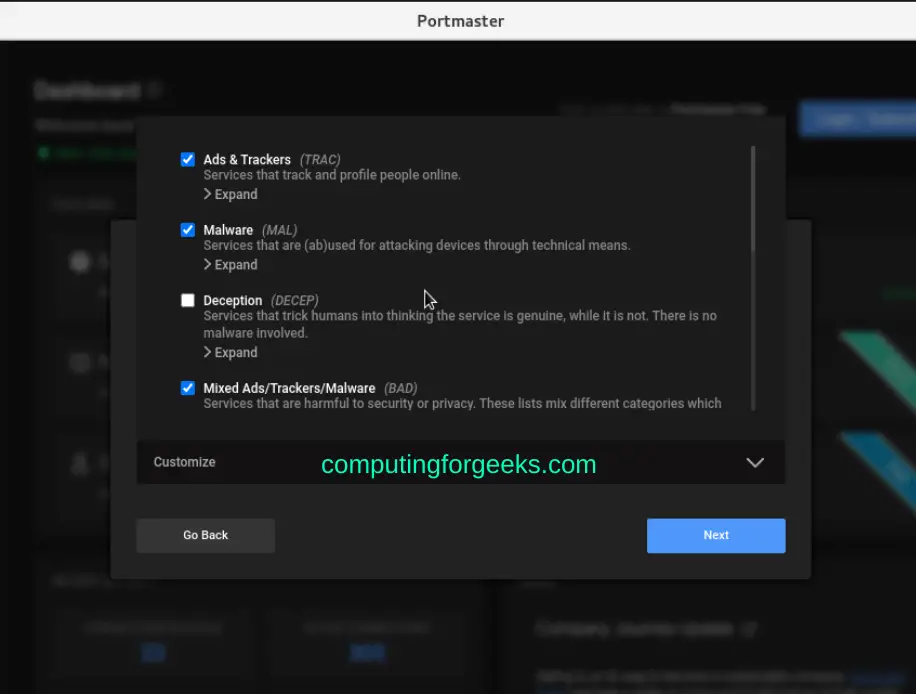
Configure the filter lists for tracker and malware blocking. The defaults use well-known filter lists that are also used by browser-based ad blockers.
Enable DNS Security
Enable DNS-over-TLS to encrypt your DNS queries. Portmaster supports multiple DNS providers including Cloudflare, Quad9, and custom servers.
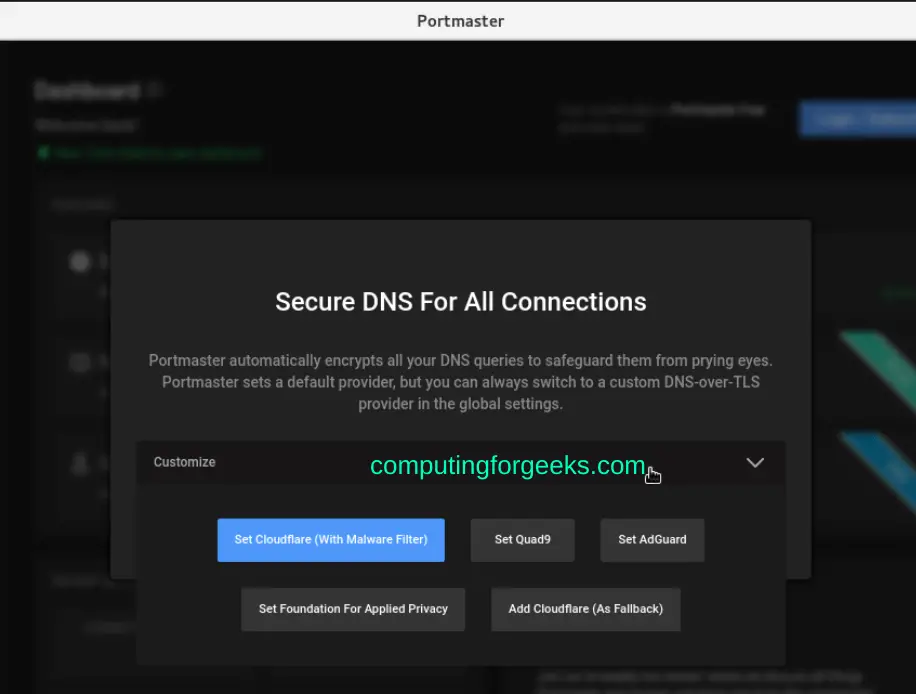
Complete the wizard to apply your settings.
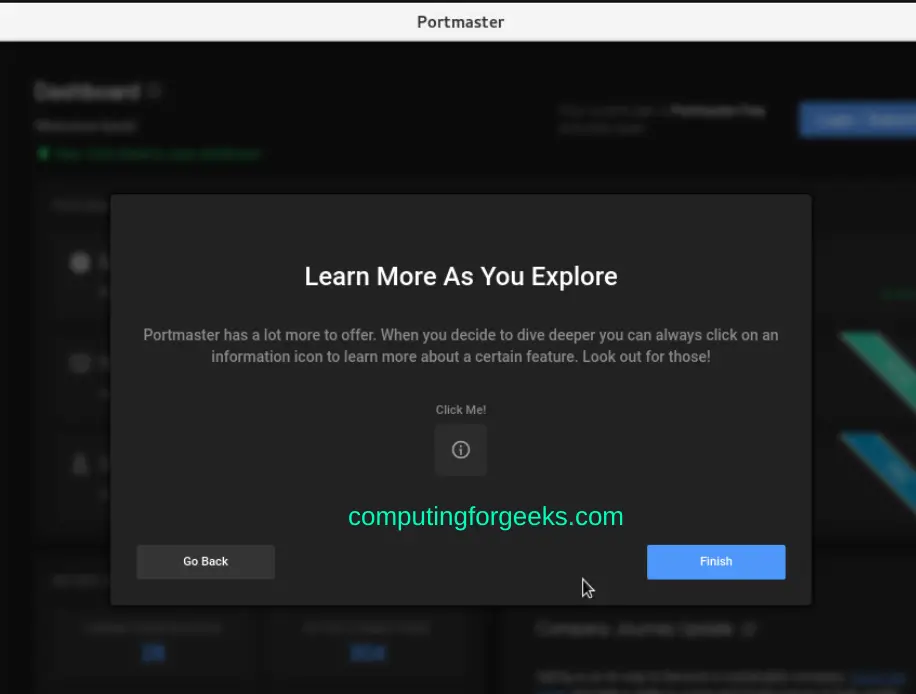
Step 3: Monitor Network Connections
After setup, the Portmaster dashboard shows all active network connections grouped by application. Each connection displays the destination, protocol, and whether it was allowed or blocked.
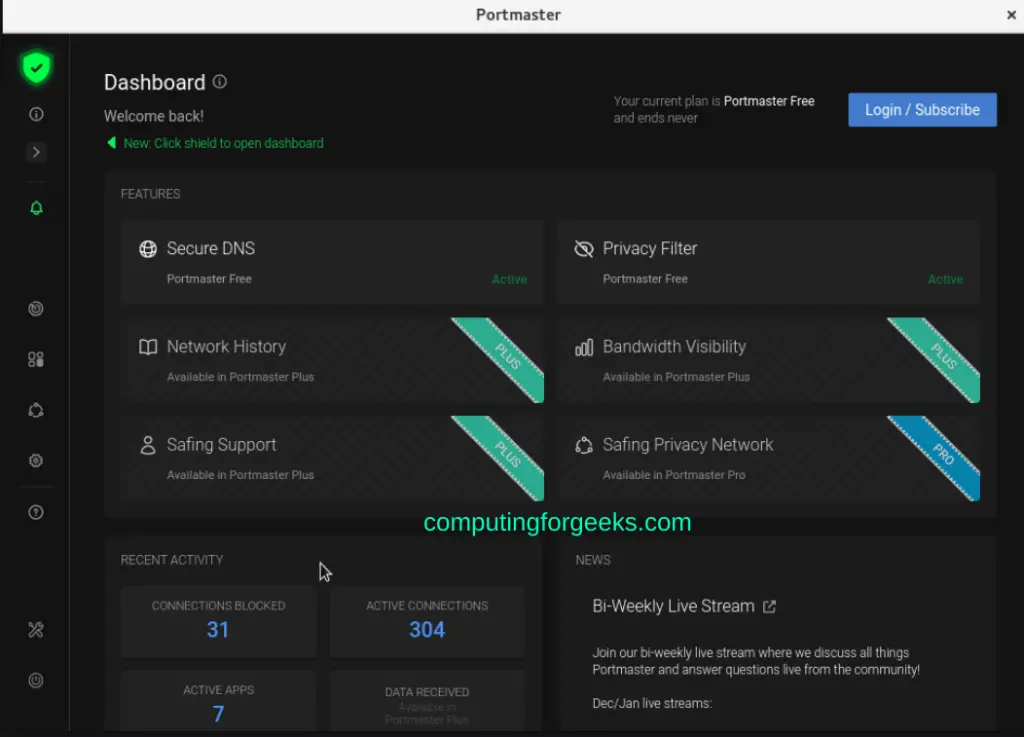
The dashboard gives you full visibility into which applications are connecting to which servers. Connections blocked by filter lists show up in red, while allowed connections appear in green.
Step 4: Control Per-Application Network Access
Navigate to the Apps tab to see all applications that have made network connections. Click any application to view its connections and configure rules.
For example, clicking on SSHD shows all SSH connections and their status:
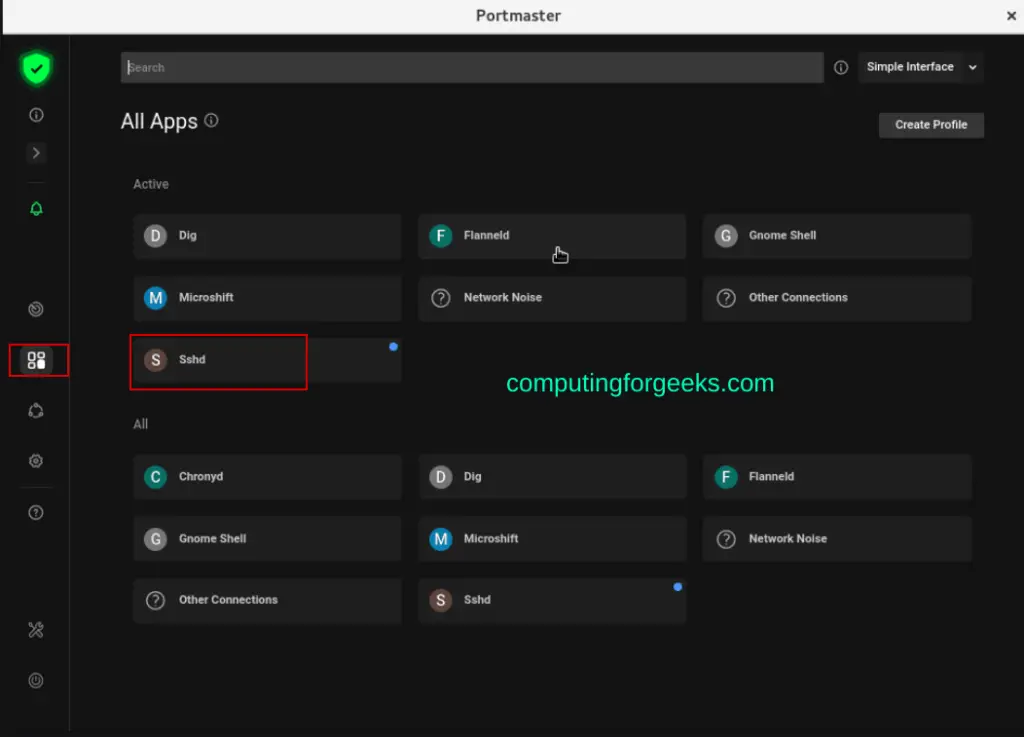
The connections view shows which IPs are connecting, the port, and whether the connection is active or blocked:
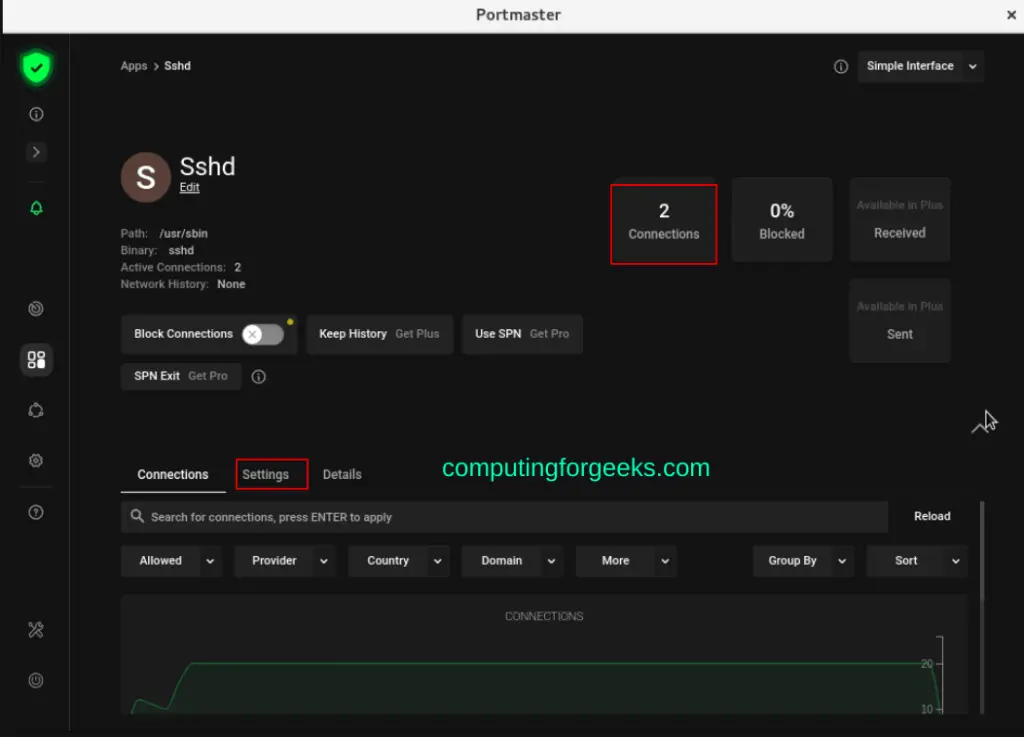
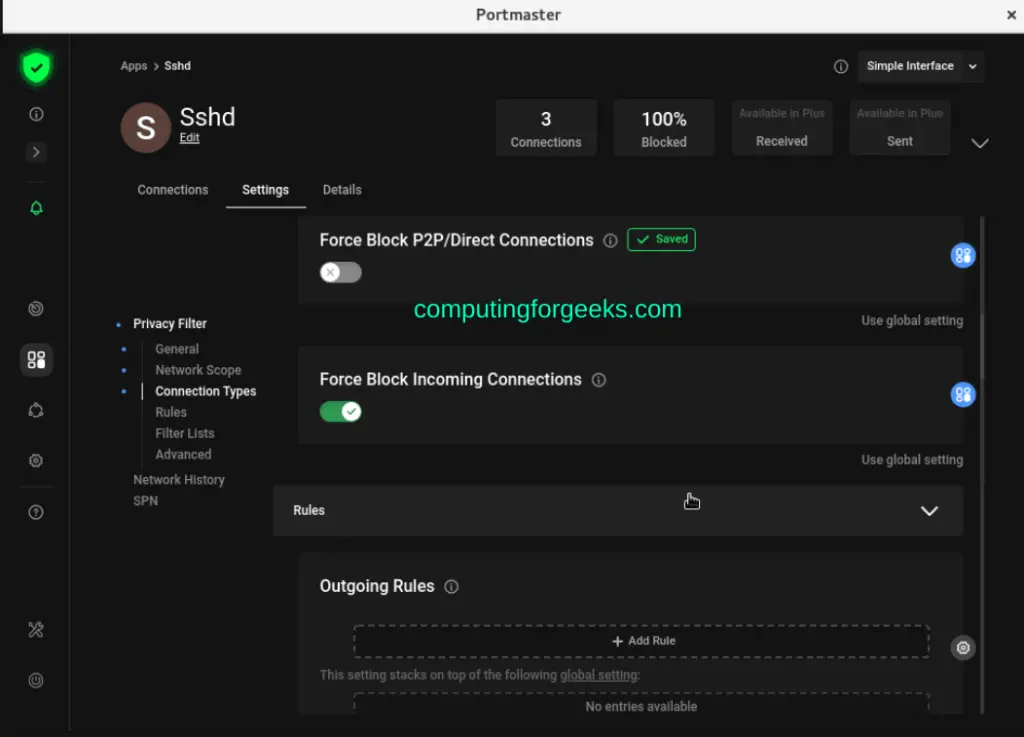
Switch to the Settings tab for any application to block or allow its network access entirely, or create specific rules for ports, IPs, and protocols:
Step 5: Manage Portmaster from the Command Line
Portmaster runs as a systemd service, so you can manage it with standard systemctl commands.
Check the service status:
systemctl status portmasterStop or restart the service:
sudo systemctl stop portmaster
sudo systemctl restart portmaster
View Portmaster logs for troubleshooting:
journalctl -u portmaster -fDisable Portmaster temporarily without uninstalling:
sudo systemctl disable --now portmasterRe-enable it later:
sudo systemctl enable --now portmasterUninstall Portmaster
If you need to remove Portmaster, stop the service first, then uninstall the package.
On Ubuntu and Debian:
sudo systemctl stop portmaster
sudo apt remove --purge portmaster
On Fedora and Rocky Linux:
sudo systemctl stop portmaster
sudo dnf remove portmaster
Remove leftover data if you do not plan to reinstall:
sudo rm -rf /opt/safing/portmasterConclusion
Portmaster gives you application-level firewall control on Linux with tracker blocking, DNS encryption, and real-time connection monitoring out of the box. The GUI makes it practical for desktop users while the systemd integration keeps it manageable for sysadmins.
For server-side firewalling, see our guides on UFW firewall commands and OPNsense firewall setup. Refer to the official Portmaster documentation for advanced configurations.
