Linux Mint 22 ships PHP 8.3 in its default repositories. That is fine for plenty of work, but if you want PHP 8.5, the current stable release with the pipe operator, a built-in URI parser, and faster execution, you add one repository. The only Linux Mint specific detail worth knowing is the release codename, and this guide handles it so the install does not stall halfway.
Installing PHP 8.5 on Linux Mint comes down to the Ondřej Surý PPA, the same archive Ubuntu admins rely on. Mint 22 is built on Ubuntu 24.04, so the packages are byte-for-byte identical. The thing to get right is that the PPA publishes against Ubuntu codenames, and Mint uses its own. Modern Mint tooling resolves that for you, but it is the first thing to check when something breaks.
Tested on a fresh Linux Mint 22.3 (Zena) install in June 2026, with PHP 8.5 pulled from the Ondřej Surý PPA. The same steps apply to Linux Mint 22, 22.1, and 22.2, and the package names match the PHP 8.5 setup on Ubuntu 24.04 since both share the noble base.
What follows is the PPA setup with the codename check, the PHP 8.5 install with the extensions real applications need, PHP-FPM for Nginx and mod_php for Apache, a production php.ini, and running PHP 8.5 next to an older version on the same machine.
What PHP version Linux Mint ships
Before adding anything, check what the base system offers. The Mint repositories inherit Ubuntu 24.04’s package set, which tops out at PHP 8.3:
apt-cache policy phpThe candidate version comes straight from the Ubuntu archive that Mint is built on:
php:
  Installed: (none)
  Candidate: 2:8.3+93ubuntu2
  Version table:
     2:8.3+93ubuntu2 500
PHP 8.3 is in security support until the end of 2027, so it is a reasonable choice for a stable box. But 8.5 is where active development sits, and new framework releases increasingly require it. Pulling 8.5 means stepping outside the Mint repos, and the cleanest way to do that is the Ondřej Surý PPA.
Update Linux Mint
Refresh the package index and apply pending updates so the new repository resolves against a current system:
sudo apt update
sudo apt full-upgrade -y
If the kernel or core libraries change here, reboot before continuing. A half-upgraded system is the most common cause of dependency errors later in the install.
Add the Ondřej Surý PHP PPA
Install the tooling that manages PPAs, then add the repository:
sudo apt install -y software-properties-common
sudo add-apt-repository -y ppa:ondrej/php
Here is the Mint detail. The PPA only publishes for Ubuntu codenames, and Mint 22.3 calls itself zena while its Ubuntu base is noble. Current versions of add-apt-repository read the Ubuntu base from /etc/os-release and write the correct entry automatically. Confirm that it did:
cat /etc/apt/sources.list.d/ondrej-php-noble.listThe line should reference noble, not your Mint codename:
deb [signed-by=/etc/apt/keyrings/ondrej-php-noble.gpg] https://ppa.launchpadcontent.net/ondrej/php/ubuntu noble mainIf instead you see your Mint codename in that file, or you added the repository by hand on an older release, the suite will be wrong and the next step fails with a 404. The fix is one sed; the Troubleshooting section at the end covers it. With the suite correct, refresh the index:
sudo apt updateThe PPA registers cleanly against the noble pocket:
Hit:8 https://ppa.launchpadcontent.net/ondrej/php/ubuntu noble InReleasePHP 8.5 is now a candidate alongside the Mint packages. The same archive carries Debian builds too, so the approach mirrors the PHP 8.5 install on Debian; only RHEL rebuilds diverge, where you would follow the Rocky and AlmaLinux route through Remi instead.
Install PHP 8.5 on Linux Mint
Install the core interpreter and the command-line binary:
sudo apt install -y php8.5 php8.5-cli php8.5-commonThe php8.5 metapackage also pulls in the Apache module and, on a system that already has Apache, sets it up. If you only need the CLI or plan to run PHP-FPM, php8.5-cli and php8.5-common are enough on their own. Confirm the binary:
php -vNote that OPcache is compiled in and already loaded, no separate package required:
PHP 8.5.6 (cli) (built: May 14 2026 16:01:51) (NTS)
Copyright (c) The PHP Group
Built by Ubuntu
Zend Engine v4.5.6, Copyright (c) Zend Technologies
    with Zend OPcache v8.5.6, Copyright (c), by Zend Technologies
That is the interpreter and CLI working. Applications need database drivers and string handling on top, which the PPA ships as separate packages.
Install the PHP 8.5 extensions you need
A bare interpreter runs code but not much else. Database drivers, string handling, and image support all live in separate packages. This set covers what most web applications, WordPress, Laravel, Symfony and the like, actually depend on:
sudo apt install -y \
  php8.5-mysql php8.5-pgsql php8.5-curl php8.5-gd \
  php8.5-mbstring php8.5-xml php8.5-zip php8.5-intl \
  php8.5-bcmath php8.5-soap php8.5-readline
One trap here. There is no php8.5-opcache package; OPcache ships inside php8.5-common. Asking apt for it aborts the whole transaction with “Unable to locate package”, which makes it look like none of the extensions installed. Leave it out. A few genuine extras are worth adding depending on the workload:
sudo apt install -y php8.5-apcu php8.5-redis php8.5-imagickphp8.5-apcu gives a fast in-memory user cache, php8.5-redis covers session storage and queues, and php8.5-imagick handles image processing beyond what GD offers. Every package in the PPA is named php8.5-*, so when an application’s docs list an extension you do not have, the package name is predictable. List the full set with apt-cache search php8.5- | sort.
Verify PHP 8.5 on Linux Mint
Two commands confirm the install. The version string proves which interpreter the CLI resolves to, and php -m lists every compiled and loaded module:
php -v
php -m
The module list should include curl, gd, intl, mbstring, mysqli, redis, and Zend OPcache. Here is the verification on the test machine, with PHP-FPM already running:
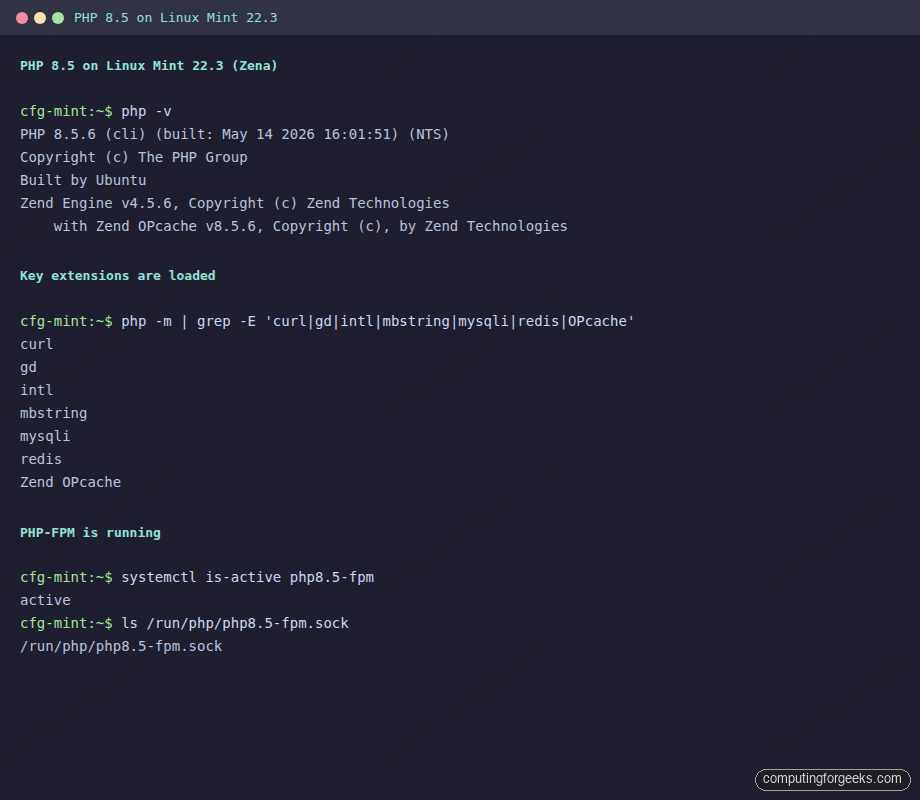
That is a working PHP 8.5 command line. To serve pages, a web server has to hand requests to the interpreter, and Apache is the quickest way to prove it works.
Run PHP 8.5 with Apache
Linux Mint does not install a web server by default. For a quick local setup, Apache with the PHP module is the least fuss, since the php8.5 metapackage already pulled in libapache2-mod-php8.5. Install Apache and make sure the module is the active handler:
sudo apt install -y apache2 libapache2-mod-php8.5
sudo a2enmod php8.5
sudo systemctl restart apache2
Drop a small probe file into the web root to confirm Apache hands .php requests to the interpreter rather than serving them as plain text:
echo "<?php phpinfo();" | sudo tee /var/www/html/info.phpOpen http://localhost/info.php in the Mint browser. The PHP 8.5 information page renders, with the Server API line reading Apache 2.0 Handler and the System line showing your Mint kernel:
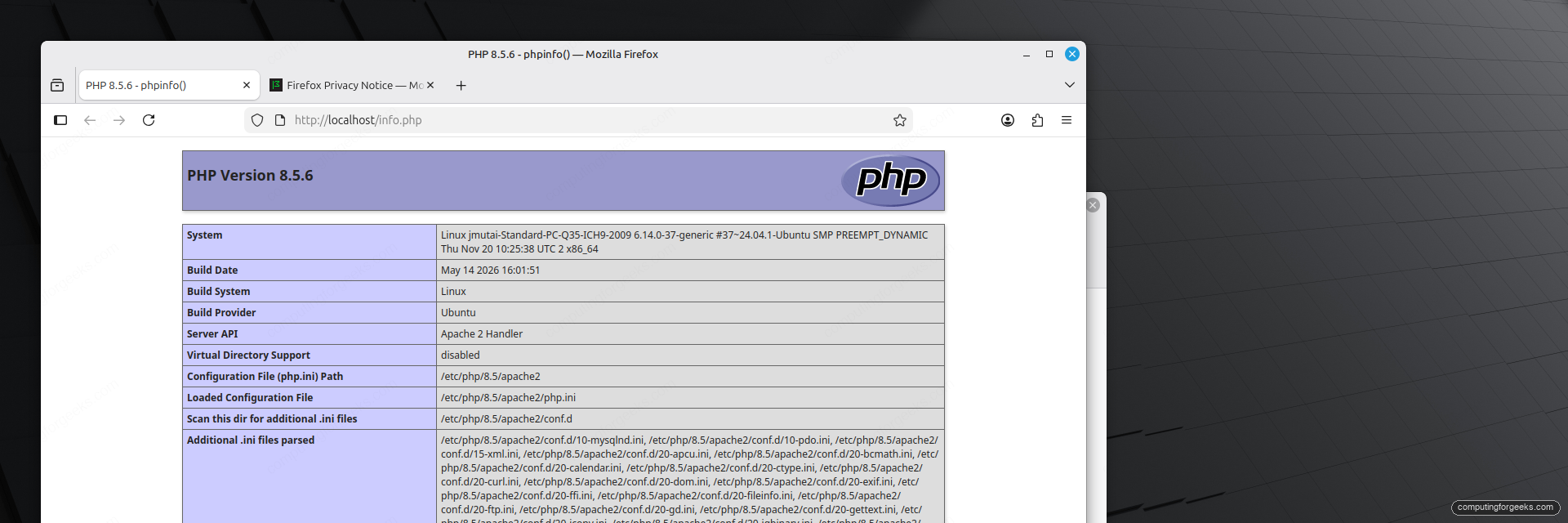
Delete the probe once it works. A public phpinfo() page leaks your exact configuration to anyone who finds it:
sudo rm /var/www/html/info.phpThe Apache module is convenient, but it ties PHP to the web server process and does not scale as well as a separate pool. For anything beyond a local dev box, run PHP-FPM instead.
Set up PHP-FPM
PHP-FPM runs the interpreter as its own service and talks to the web server over a socket. It is the standard for production and the only sensible choice with Nginx. Install it and start the service:
sudo apt install -y php8.5-fpm
sudo systemctl enable --now php8.5-fpm
systemctl status php8.5-fpm --no-pager
The service should report active and ready to handle connections:
● php8.5-fpm.service - The PHP 8.5 FastCGI Process Manager
     Loaded: loaded (/usr/lib/systemd/system/php8.5-fpm.service; enabled; preset: enabled)
     Active: active (running) since Tue 2026-06-02 17:24:11 EDT; 1s ago
   Main PID: 18777 (php-fpm8.5)
     Status: "Ready to handle connections"
The socket path is the one value you reference everywhere else. Confirm it exists before wiring up a web server:
ls -l /run/php/php8.5-fpm.sockIt is owned by www-data and lives at /run/php/php8.5-fpm.sock. If you installed both the Apache module and PHP-FPM, disable the in-process module so the two do not both try to handle PHP, with sudo a2dismod php8.5 followed by enabling proxy_fcgi.
Wire PHP-FPM into Nginx
If you prefer Nginx, point a server block at the FPM socket. Install Nginx, then edit the default site:
sudo apt install -y nginx
sudo nano /etc/nginx/sites-available/default
Inside the server block, list index.php first so PHP front controllers load ahead of static index files, then add a location that forwards PHP to the socket:
index index.php index.html index.htm;

location ~ \.php$ {
    include snippets/fastcgi-php.conf;
    fastcgi_pass unix:/run/php/php8.5-fpm.sock;
}
Test the configuration and reload. A clean syntax check is the difference between a reload and an outage:
sudo nginx -t
sudo systemctl reload nginx
Apache and Nginx both bind port 80, so run only one of them. For a full virtual host with logging, gzip, and a real document root, the dedicated Nginx with PHP-FPM walkthrough picks up where this leaves off, and it is the same socket a WordPress install on Mint talks to.
Tune php.ini for production
The defaults are conservative. PHP-FPM, the CLI, and Apache each read a separate php.ini, and editing the wrong one is a classic time sink. Ask PHP which file the CLI loads, then look at the directory layout:
php --ini | grep "Loaded Configuration"
ls /etc/php/8.5/
The CLI loads /etc/php/8.5/cli/php.ini, and the directory holds separate cli, fpm, and apache2 trees:
Loaded Configuration File: /etc/php/8.5/cli/php.ini
apache2  cli  fpm  mods-available
For a web application, edit the FPM copy at /etc/php/8.5/fpm/php.ini. The settings worth changing on most servers:
memory_limit = 256M
upload_max_filesize = 64M
post_max_size = 64M
max_execution_time = 120
cgi.fix_pathinfo = 0
date.timezone = Africa/Nairobi

opcache.enable = 1
opcache.memory_consumption = 192
opcache.max_accelerated_files = 20000
opcache.validate_timestamps = 1
Match memory_limit and the upload sizes to the application; WordPress media or a Laravel queue worker wants more headroom than a static site. Setting cgi.fix_pathinfo to 0 closes a path-traversal footgun. Leave opcache.validate_timestamps on while developing so code changes take effect, and turn it off on a release-only server for a measurable speed gain. Apply the changes by reloading FPM:
sudo systemctl reload php8.5-fpmFPM re-reads its configuration on reload, so the new limits apply without dropping active connections. When something does misbehave, the errors below cover what usually goes wrong on Mint.
Troubleshooting
404 Not Found on a zena or wilma Release file
The PPA was added with Mint’s codename instead of the Ubuntu base. Launchpad publishes for noble, not zena or wilma. Rewrite the suite and update again:
grep -rl ondrej /etc/apt/sources.list.d/
sudo sed -i 's/zena/noble/g' /etc/apt/sources.list.d/ondrej-php*.list
sudo apt update
Substitute your own codename if it is not zena; check it with lsb_release -cs, and confirm the Ubuntu base with grep UBUNTU_CODENAME /etc/os-release.
E: Unable to locate package php8.5
apt cannot see the PPA. Either the repository was not added, or the apt update after adding it failed. Re-run the update and read the output for errors, then confirm the package is visible with apt-cache policy php8.5.
E: Unable to locate package php8.5-opcache
There is no such package. OPcache is built into php8.5-common and is already active, as the php -v output shows. Drop it from the install line. Because apt aborts the whole command on one missing package, this single mistake can make it look like every extension failed to install.
PHP code shows as plain text in the browser
The web server is serving .php files instead of executing them. On Apache, enable the module with sudo a2enmod php8.5 and restart. On Nginx, the location ~ \.php$ block is missing or the fastcgi_pass socket path is wrong.
502 Bad Gateway from Nginx
Nginx cannot reach the FPM socket. The path in fastcgi_pass must match the running service exactly. Check it with ls /run/php/; a PHP 8.5 pool listens on php8.5-fpm.sock, not the unversioned php-fpm.sock that some older guides reference.
Run multiple PHP versions side by side
The real payoff of the PPA is keeping more than one PHP version installed at once. Install an older line next to 8.5:
sudo apt install -y php8.4 php8.4-cli php8.4-fpmBoth FPM pools run at the same time, each on its own socket, so different sites on the same box can target different versions in their Nginx blocks:
ls /run/php/*.sockBoth pools are listening, each on its own versioned socket:
/run/php/php8.4-fpm.sock
/run/php/php8.5-fpm.sock
For the command line, update-alternatives picks which php binary is the global default:
sudo update-alternatives --config phpThe higher-numbered version wins automatically, so 8.5 is already the default; the menu lets you pin an older one if a project needs it:
There are 2 choices for the alternative php (providing /usr/bin/php).

  Selection    Path             Priority   Status
------------------------------------------------------------
* 0            /usr/bin/php8.5   85        auto mode
  1            /usr/bin/php8.4   84        manual mode
  2            /usr/bin/php8.5   85        manual mode

Press <enter> to keep the current choice[*], or type selection number:
To run a one-off script against a specific version regardless of the default, call the binary directly with php8.4 script.php or php8.5 script.php. Start new projects on 8.5, keep 8.4 only for the applications that have not certified against it yet, and once everything you run supports 8.5, purge the older packages with sudo apt purge 'php8.4*' to get back to a single clean version.