

If you’ve been looking for a self-hosted alternative to Jira or Asana that doesn’t require a SaaS subscription, OpenProject is worth a serious look. It covers Gantt charts, Kanban boards, time tracking, budgets, and wiki documentation in a single platform. The Community edition is free and open source, and it handles small teams just as well as large ones.
This guide deploys OpenProject 17 on Debian 13 and Debian 12 using Docker. Why Docker? The official DEB package doesn’t support Debian 13 yet (its repository uses SHA1 signing, which Debian 13’s package verifier rejects as insecure since February 2026). Docker sidesteps that entirely and works identically on both releases. We’ll set up Nginx as a reverse proxy with Let’s Encrypt SSL for production-ready HTTPS access.
Verified working: March 2026 on Debian 13.4 with OpenProject 17.2.2, Docker 29.3.1, Nginx 1.26.3
Prerequisites
You’ll need the following before starting:
- Debian 13 (Trixie) or Debian 12 (Bookworm) server with at least 4 GB RAM and 20 GB disk
- Root or sudo access
- A domain name (or subdomain) with a DNS A record pointing to your server’s public IP
- Ports 80 and 443 open in your firewall
- Tested on: Debian 13.4, OpenProject 17.2.2, Docker 29.3.1, Nginx 1.26.3
OpenProject bundles its own PostgreSQL instance inside the Docker container, so there’s no need to install a separate database server.
Install Docker
Install Docker from the official repository. The commands are identical on Debian 13 and Debian 12.
Start by installing the prerequisites and adding Docker’s GPG key:
sudo apt update
sudo apt install -y ca-certificates curl gnupg
Add Docker’s official GPG key and repository:
sudo install -m 0755 -d /etc/apt/keyrings
curl -fsSL https://download.docker.com/linux/debian/gpg | sudo gpg --dearmor -o /etc/apt/keyrings/docker.gpg
sudo chmod a+r /etc/apt/keyrings/docker.gpg
echo "deb [arch=$(dpkg --print-architecture) signed-by=/etc/apt/keyrings/docker.gpg] https://download.docker.com/linux/debian $(. /etc/os-release && echo "$VERSION_CODENAME") stable" | sudo tee /etc/apt/sources.list.d/docker.list > /dev/null
Now install Docker Engine:
sudo apt update
sudo apt install -y docker-ce docker-ce-cli containerd.io docker-buildx-plugin docker-compose-plugin
Confirm Docker is running:
sudo systemctl status docker --no-pagerThe output should show active (running). Check the installed version:
docker --versionYou should see something like:
Docker version 29.3.1, build 7a472c2Deploy the OpenProject Container
OpenProject provides an official Docker image that bundles the Rails application, PostgreSQL, Memcached, and a web server in a single container. This is the simplest deployment method and what the official documentation recommends for small to medium teams.
Create the directories for persistent data. These store the PostgreSQL database and uploaded files so they survive container restarts and upgrades:
sudo mkdir -p /opt/openproject/pgdata /opt/openproject/assetsGenerate a random secret key for session encryption:
SECRET=$(openssl rand -hex 32)
echo $SECRET
Save this value somewhere safe. You’ll need it if you ever recreate the container.
Launch the container. Replace openproject.yourdomain.com with your actual domain:
sudo docker run -d \
  --name openproject \
  -p 8080:80 \
  -e OPENPROJECT_SECRET_KEY_BASE=$SECRET \
  -e OPENPROJECT_HOST__NAME=openproject.yourdomain.com \
  -e OPENPROJECT_HTTPS=true \
  -v /opt/openproject/pgdata:/var/openproject/pgdata \
  -v /opt/openproject/assets:/var/openproject/assets \
  --restart unless-stopped \
  openproject/openproject:17
Here’s what each parameter does:
-p 8080:80maps the container’s internal web server (port 80) to port 8080 on the hostOPENPROJECT_SECRET_KEY_BASEencrypts session cookies and tokensOPENPROJECT_HOST__NAMEsets the hostname OpenProject uses to generate URLs (the double underscore is intentional, it maps to a nested config key)OPENPROJECT_HTTPS=truetells OpenProject to generate HTTPS links since Nginx will handle SSL termination-v /opt/openproject/pgdatapersists the PostgreSQL database-v /opt/openproject/assetspersists uploaded files and attachments--restart unless-stoppedensures the container starts automatically after a reboot
The initial pull downloads about 1.5 GB. After the container starts, OpenProject needs roughly 60 seconds to initialize its database and boot the Rails application. You can watch the progress:
sudo docker logs -f openprojectWait until you see log lines about Puma workers booting. Press Ctrl+C to stop following the logs.
Verify the container is healthy:
sudo docker psYou should see the openproject container with status Up and port 0.0.0.0:8080->80/tcp.
Set Up Nginx Reverse Proxy with SSL
OpenProject is now listening on port 8080 over plain HTTP. For production use, put Nginx in front of it with a Let’s Encrypt certificate.
Install Nginx and Certbot:
sudo apt install -y nginx certbotObtain an SSL certificate. Replace the domain with yours:
sudo certbot certonly --standalone -d openproject.yourdomain.com --non-interactive --agree-tos -m [email protected]Certbot stores the certificate at /etc/letsencrypt/live/openproject.yourdomain.com/. If Nginx is already running on port 80, stop it first with sudo systemctl stop nginx before running certbot, then start it again after.
Create the Nginx virtual host:
sudo vi /etc/nginx/sites-available/openprojectAdd the following configuration:
server {
    listen 443 ssl http2;
    server_name openproject.yourdomain.com;

    ssl_certificate /etc/letsencrypt/live/openproject.yourdomain.com/fullchain.pem;
    ssl_certificate_key /etc/letsencrypt/live/openproject.yourdomain.com/privkey.pem;
    ssl_protocols TLSv1.2 TLSv1.3;

    client_max_body_size 100M;

    location / {
        proxy_pass http://localhost:8080/;
        proxy_http_version 1.1;
        proxy_set_header Host $host;
        proxy_set_header X-Real-IP $remote_addr;
        proxy_set_header X-Forwarded-For $proxy_add_x_forwarded_for;
        proxy_set_header X-Forwarded-Proto $scheme;
        proxy_set_header Upgrade $http_upgrade;
        proxy_set_header Connection "upgrade";
    }
}

server {
    listen 80;
    server_name openproject.yourdomain.com;
    return 301 https://$host$request_uri;
}
The client_max_body_size 100M allows large file uploads. The WebSocket headers (Upgrade and Connection) are needed for OpenProject’s real-time notifications.
Enable the site and remove the default configuration:
sudo ln -s /etc/nginx/sites-available/openproject /etc/nginx/sites-enabled/
sudo rm -f /etc/nginx/sites-enabled/default
Test the Nginx configuration and reload:
sudo nginx -t && sudo systemctl reload nginxThe output should confirm syntax is ok and test is successful.
Verify certificate auto-renewal works:
sudo certbot renew --dry-runIf the dry run succeeds, your certificate will renew automatically before it expires.
Access the Web UI
Open your browser and navigate to https://openproject.yourdomain.com. You’ll see the OpenProject login page.
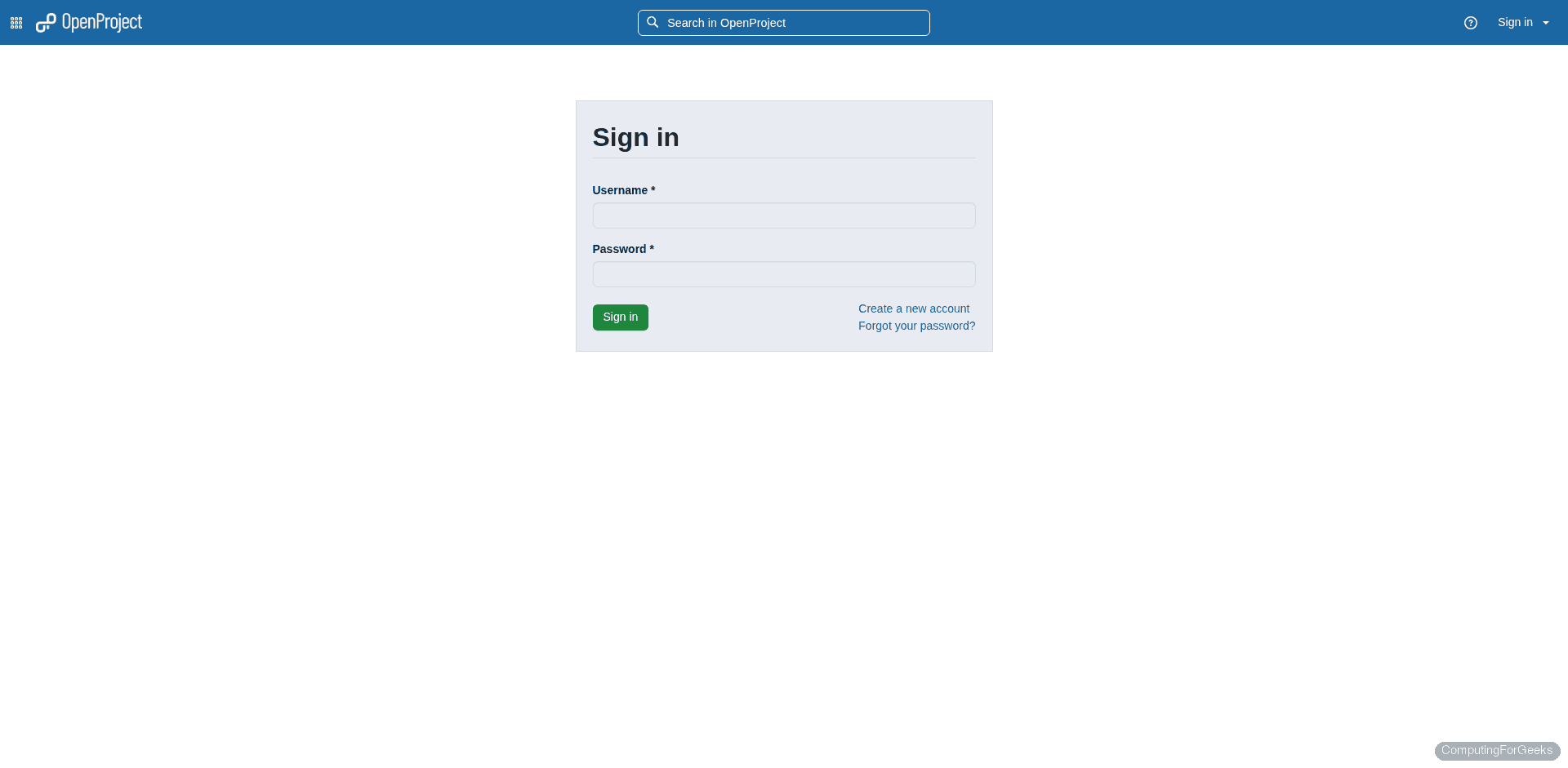
The default credentials are:
- Username:
admin - Password:
admin
On first login, OpenProject forces you to change the admin password. The new password must be at least 10 characters long. Pick something strong since this account has full control over the entire platform.
OpenProject Home Page
After setting your new password, you land on the home page. It shows a welcome message with a quick introduction tour, links to core features, and the left sidebar for navigation.
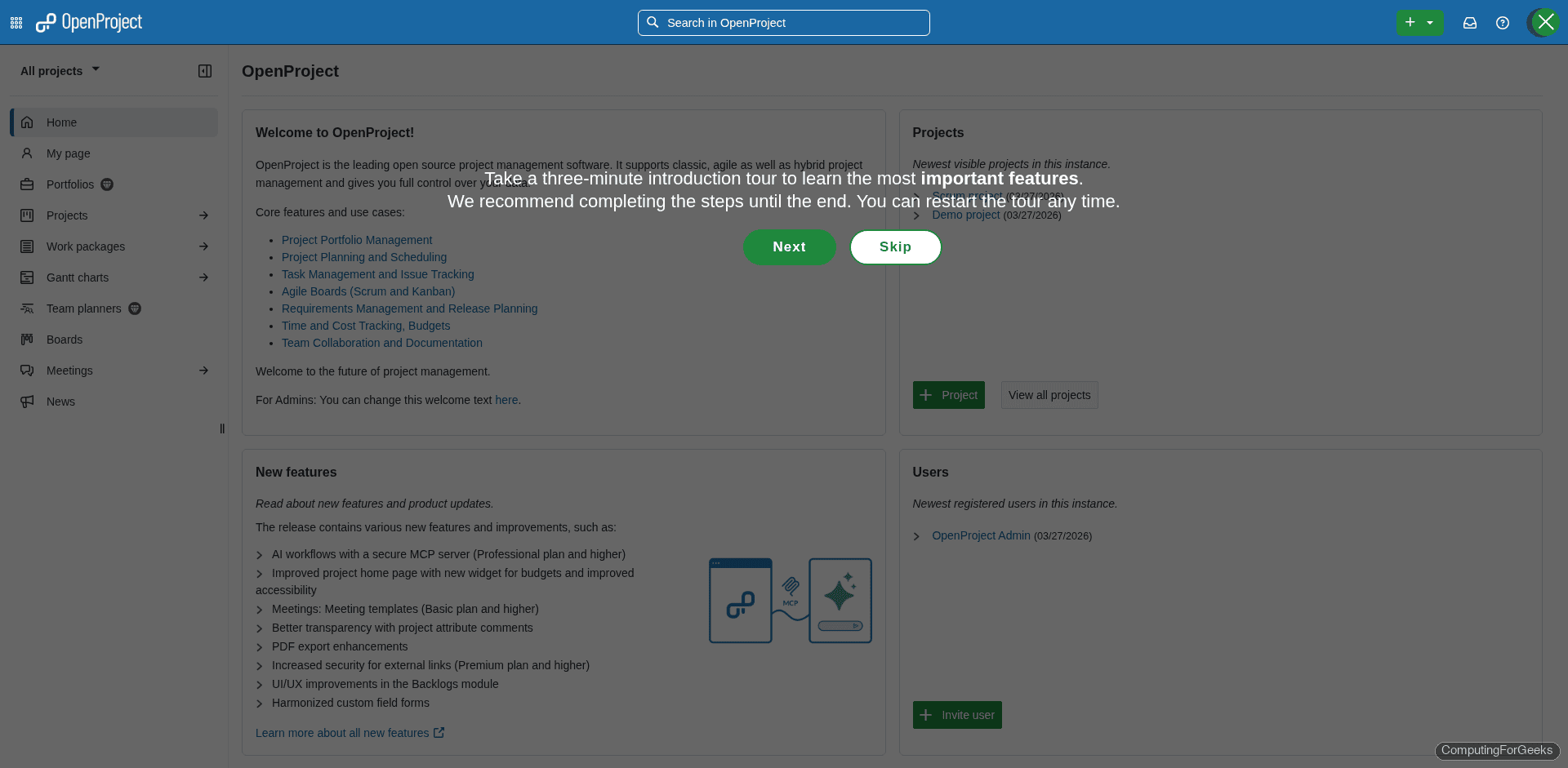
The intro tour walks you through the main concepts: work packages, Gantt charts, boards, and team collaboration. Worth clicking through if this is your first time with OpenProject.
Administration Panel
Click the avatar icon in the top right corner and select Administration. The admin panel gives you access to all system-wide settings organized as tiles.
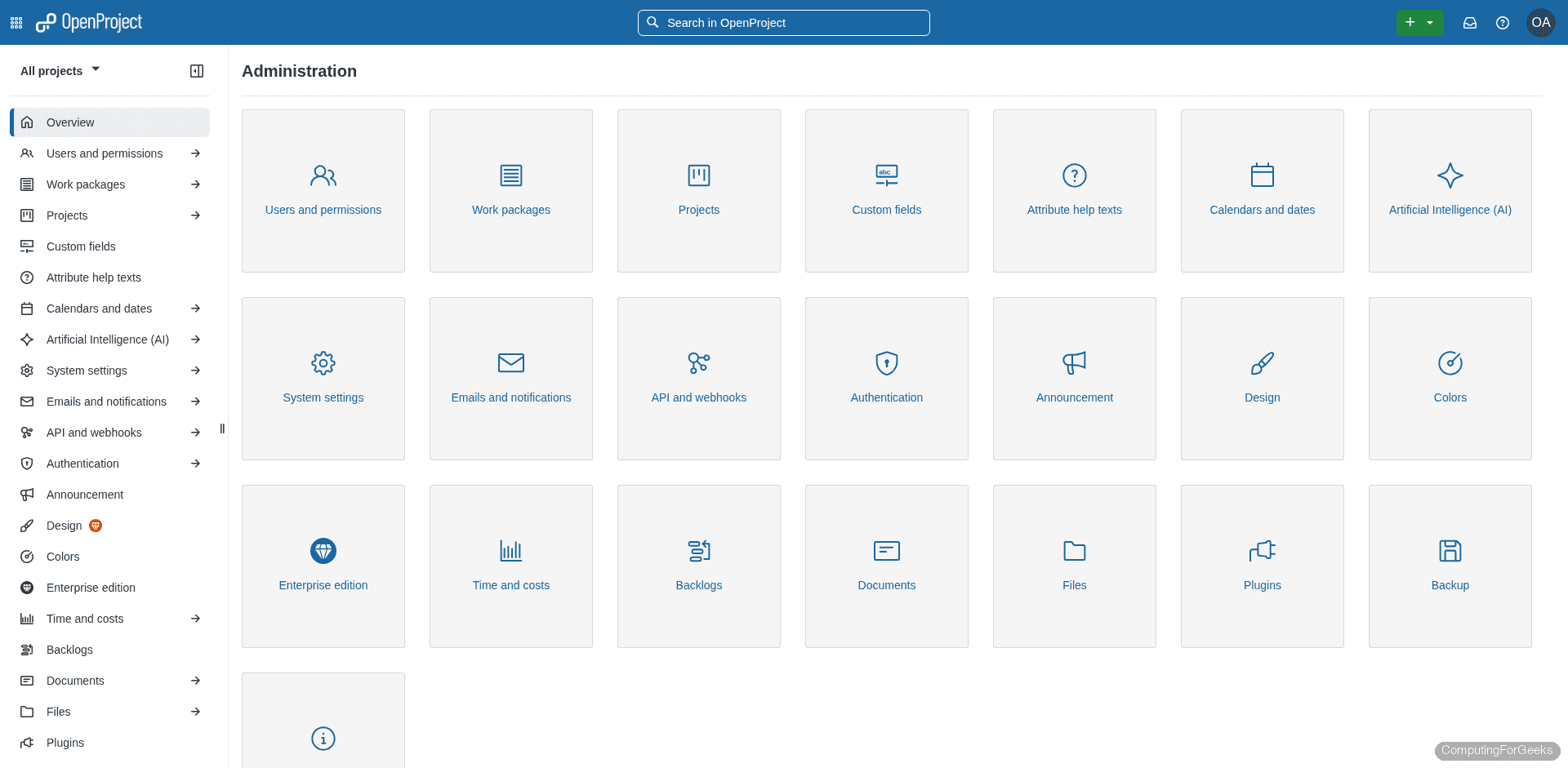
From here you can manage users and groups, configure authentication methods (LDAP, SAML, OpenID Connect), set up email notifications, customize work package types and statuses, and control project templates. The Users tile is where you’ll want to start by creating accounts for your team members.
Create Your First Project
Navigate to Projects in the left sidebar. The projects list starts empty on a fresh install.
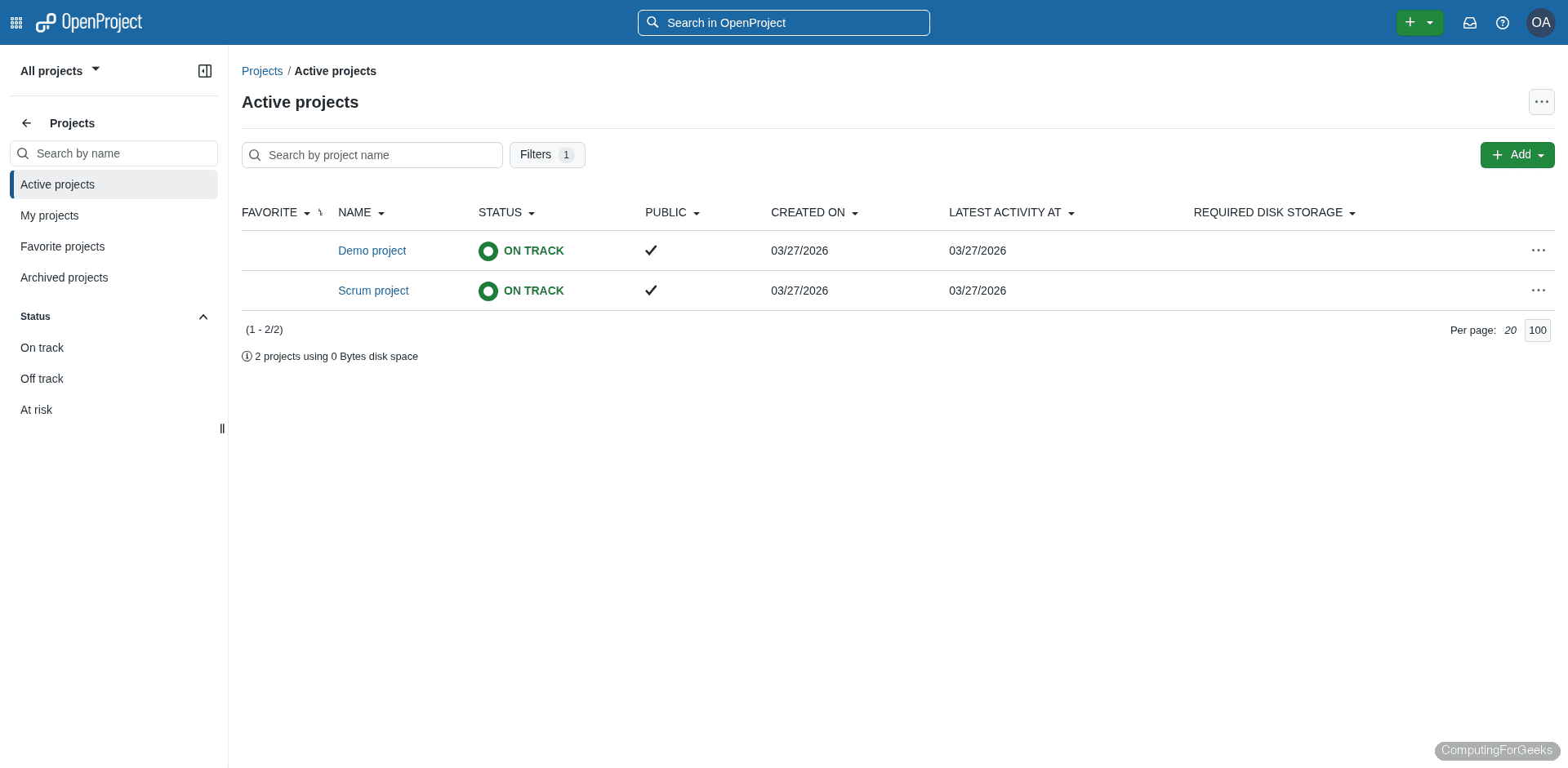
Click the + Project button in the top right. Fill in the project name, pick a template if you want pre-configured modules, and select which features to enable (work packages, wiki, forums, time tracking, etc.).
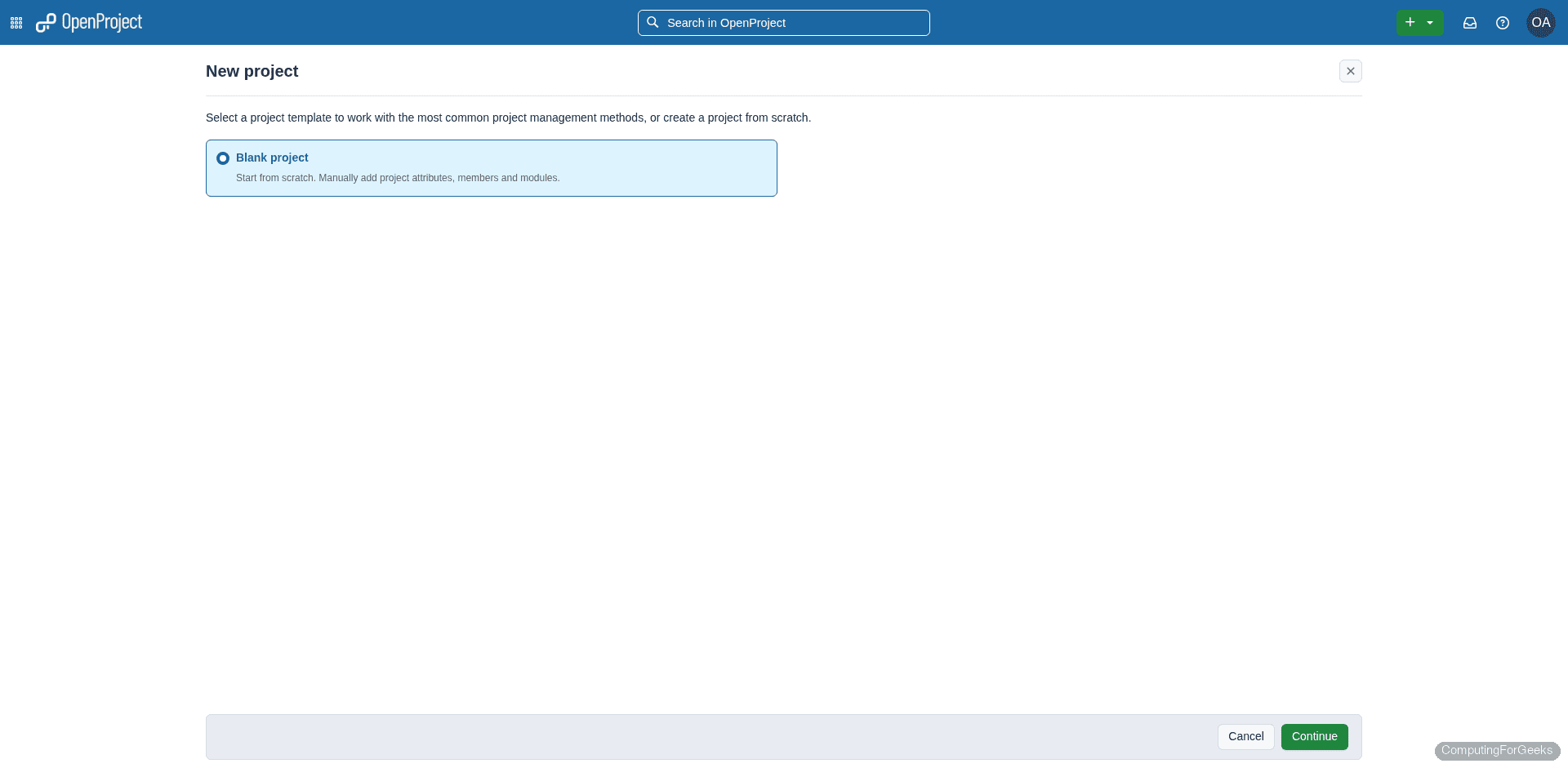
Once created, the project opens with its own dashboard. Each project is self-contained with its own work packages, boards, wiki, and member list.
Key Features Overview
OpenProject packs a lot into the Community edition. Here’s what you get out of the box:
- Work packages cover tasks, bugs, features, milestones, and phases. You can define custom fields, create relationships between items, and track everything through configurable workflows and statuses
- Gantt charts give you a timeline view with dependencies, drag-and-drop scheduling, and critical path visualization. These update in real time as you modify work packages
- Kanban boards provide drag-and-drop cards organized by status, assignee, or any custom field. Multiple board views per project
- Time tracking and cost reports let team members log hours against work packages and generate budget reports. Useful for client billing or internal capacity planning
- Wiki and meetings are built in for documentation and meeting minutes. The wiki supports Markdown and has a table of contents, making it a reasonable lightweight knowledge base
- File storage integrations connect to Nextcloud or OneDrive for attaching files to work packages without storing everything inside OpenProject’s database
The Enterprise edition adds additional features like baseline comparisons, date alerts, custom branding, and advanced authentication. For most self-hosted teams, the Community edition is more than enough.
Manage the Container
Here are the common operations you’ll need for day-to-day management.
View Logs
Check application logs when troubleshooting issues:
sudo docker logs --tail 100 openprojectAdd -f to follow the log stream in real time.
Backup
Both persistent volumes need to be backed up. Stop the container first to ensure a consistent snapshot:
sudo docker stop openproject
sudo tar czf /opt/openproject-backup-$(date +%F).tar.gz -C /opt openproject/
sudo docker start openproject
This creates a timestamped archive of the PostgreSQL data and uploaded assets. Store copies offsite.
Update to a Newer Version
When a new OpenProject release comes out, update the container with:
sudo docker stop openproject
sudo docker rm openproject
sudo docker pull openproject/openproject:17
Then re-run the same docker run command from the deployment section. Your data persists in the mounted volumes, so nothing is lost. For major version upgrades (e.g., 17 to 18), change the image tag and check the official upgrade notes for any migration steps.
Restart the Container
If OpenProject becomes unresponsive:
sudo docker restart openprojectGive it about 60 seconds to fully initialize before testing the web UI again.
Debian 12: DEB Package Alternative
If you’re running Debian 12 (Bookworm) and prefer a native package installation over Docker, OpenProject provides an official DEB repository through packager.io. The installation is straightforward:
sudo apt install -y apt-transport-https
curl -fsSL https://dl.packager.io/srv/opf/openproject/key | sudo gpg --dearmor -o /etc/apt/keyrings/openproject.gpg
echo "deb [signed-by=/etc/apt/keyrings/openproject.gpg] https://dl.packager.io/srv/deb/opf/openproject/stable/15/debian 12 main" | sudo tee /etc/apt/sources.list.d/openproject.list
sudo apt update
sudo apt install -y openproject
After installation, run the interactive configuration wizard:
sudo openproject configureThis method does not work on Debian 13. The packager.io repository signs packages with SHA1, and Debian 13’s sqv verifier (which replaced gpgv) rejects SHA1 signatures as insecure. Until the OpenProject team updates their signing, Docker is the only option for Debian 13.
Troubleshooting
503 Service Unavailable Right After Starting
This is normal. OpenProject takes approximately 60 seconds to initialize the database and boot the Puma application server. Wait a full minute after docker start before accessing the web UI. Watch the logs to see when initialization completes:
sudo docker logs -f openprojectOnce you see lines about Puma workers being booted, the application is ready.
Password Does Not Meet Requirements
The default password policy requires a minimum of 10 characters. If you keep getting rejected, make sure the password includes uppercase, lowercase, and a number. You can adjust the password policy later in Administration > Authentication > Password settings.
Container Exits Immediately
Check the logs for clues:
sudo docker logs openprojectCommon causes include insufficient disk space for the PostgreSQL data directory, or a missing/invalid OPENPROJECT_SECRET_KEY_BASE value. Verify your volume paths exist and have proper write permissions:
ls -la /opt/openproject/Both pgdata and assets directories should exist and be writable by the Docker daemon.
Nginx Returns 502 Bad Gateway
This means Nginx can’t reach the OpenProject container on port 8080. Confirm the container is running and the port mapping is correct:
sudo docker ps | grep openproject
curl -sI http://localhost:8080
If the container is running but curl returns nothing, the application is still initializing. If the container isn’t listed, check docker ps -a to see if it exited.
