

OpenNebula is an open-source cloud computing platform for managing virtualized data centers. It supports KVM virtual machines and LXC system containers, giving you a unified way to deploy and manage workloads from a single interface. LXC containers run directly on the host kernel with minimal overhead – making them ideal for high-density deployments where full virtualization is not needed.
This guide walks through the installation and configuration of an OpenNebula LXC node on Debian 13 or Debian 12. We cover repository setup, package installation, networking with Linux bridges, storage pool configuration, SSH trust setup, and registering the node with your OpenNebula frontend. If your existing deployment used the older LXD driver, note that OpenNebula deprecated LXD in version 6.0 and fully replaced it with native LXC support – all new deployments should use the LXC driver.
Prerequisites
- A server running Debian 13 (Trixie) or Debian 12 (Bookworm) with root or sudo access
- An existing OpenNebula frontend already deployed and running
- Minimum 2 GB RAM and 2 CPU cores (more depending on the number of containers you plan to run)
- Network connectivity between the frontend and this node (ports 22/TCP for SSH, 9869/TCP for monitoring)
- A static IP address assigned to the node
- Time synchronization configured between frontend and all nodes
Step 1: Update the Debian System
Start by updating all packages on the node to their latest versions.
sudo apt update
sudo apt -y full-upgrade
Reboot if a new kernel was installed during the upgrade:
[ -f /var/run/reboot-required ] && sudo reboot -fStep 2: Set Hostname and Configure NTP
Set a fully qualified hostname on the LXC node server. Replace the hostname with your actual value.
sudo hostnamectl set-hostname onelxc01.example.comAdd the node IP and hostname to /etc/hosts so it can resolve locally.
sudo vim /etc/hostsAdd a line mapping the node IP to its hostname:
192.168.100.12 onelxc01.example.com onelxc01Install and enable Chrony for time synchronization – OpenNebula requires all nodes to be in sync.
sudo apt install chrony -y
sudo systemctl enable --now chrony
Set the correct timezone for your location:
sudo timedatectl set-timezone Africa/Nairobi
sudo timedatectl set-ntp yes
Verify that time sources are reachable and synchronization is active:
sudo chronyc sourcesYou should see active NTP sources with a ^* marking the selected server:
MS Name/IP address         Stratum Poll Reach LastRx Last sample
===============================================================================
^- time.cloudflare.com           3   6    35    13    -49ms[  -49ms] +/-  167ms
^* ntp0.icolo.io                 2   6    17    16   +251us[ +116ms] +/-  109ms
^+ time.cloudflare.com           3   6    33    13    -49ms[  -49ms] +/-  167ms
Step 3: Add OpenNebula Repositories
Import the OpenNebula GPG signing key first.
sudo apt install wget gnupg2 -y
wget -q -O- https://downloads.opennebula.io/repo/repo2.key | sudo gpg --dearmor --yes --output /etc/apt/keyrings/opennebula.gpg
Add the OpenNebula 7.0 community edition repository. The command automatically detects your Debian version:
source /etc/os-release
echo "deb [signed-by=/etc/apt/keyrings/opennebula.gpg] https://downloads.opennebula.io/repo/7.0/Debian/$VERSION_ID stable opennebula" | sudo tee /etc/apt/sources.list.d/opennebula.list
If you are running Debian 13 (Trixie) and the 7.0 repository does not yet have packages for version 13, use the Debian 12 repository instead – the packages are compatible:
echo "deb [signed-by=/etc/apt/keyrings/opennebula.gpg] https://downloads.opennebula.io/repo/7.0/Debian/12 stable opennebula" | sudo tee /etc/apt/sources.list.d/opennebula.listUpdate the APT package index to pull metadata from the new repository:
sudo apt updateConfirm the OpenNebula packages are available by checking the candidate version:
apt-cache policy opennebula-node-lxcThe output should show a candidate version from the OpenNebula repository:
opennebula-node-lxc:
  Installed: (none)
  Candidate: 7.0.1-1
  Version table:
     7.0.1-1 500
        500 https://downloads.opennebula.io/repo/7.0/Debian/12 stable/opennebula amd64 Packages
Step 4: Install OpenNebula LXC Node on Debian
Install the opennebula-node-lxc package which pulls in LXC and all required dependencies:
sudo apt install -y opennebula-node-lxcVerify that the package installed correctly:
dpkg -l | grep opennebula-node-lxcYou should see the package listed with status ii confirming a successful installation:
ii opennebula-node-lxc 7.0.1-1 amd64 OpenNebula LXC nodeThe installation creates the oneadmin system user and group, which OpenNebula uses to manage the node.
Step 5: Configure Network Bridge
LXC containers need a network bridge to communicate with the external network. Create a Linux bridge that maps to your physical interface. This is the same bridge configuration used for bridged networks in OpenNebula.
First, identify your primary network interface name:
ip -br link showThe output lists all network interfaces – note the name of your active physical interface (commonly eth0, ens18, or enp1s0):
lo               UNKNOWN        00:00:00:00:00:00
eth0             UP             52:54:00:ab:cd:ef
Install the bridge utilities package:
sudo apt install -y bridge-utilsEdit the network configuration file to create the bridge. On Debian, this is managed through /etc/network/interfaces.
sudo vim /etc/network/interfacesReplace the existing interface configuration with a bridge setup. Adjust the interface name, IP address, gateway, and DNS to match your environment:
auto lo
iface lo inet loopback

auto br0
iface br0 inet static
    address 192.168.100.12/24
    gateway 192.168.100.1
    dns-nameservers 8.8.8.8 8.8.4.4
    bridge_ports eth0
    bridge_stp off
    bridge_fd 0
Apply the configuration by restarting the networking service. If you are connected over SSH, this will briefly drop your connection:
sudo systemctl restart networkingVerify the bridge is up and has the correct IP assigned:
ip addr show br0You should see the bridge interface with your static IP and the physical interface attached:
3: br0: <BROADCAST,MULTICAST,UP,LOWER_UP> mtu 1500 state UP
    inet 192.168.100.12/24 brd 192.168.100.255 scope global br0
Step 6: Configure LXC Storage
OpenNebula manages container storage through its datastore system. By default, it uses the local filesystem datastore at /var/lib/one/datastores. For production workloads, you may want to configure NFS as an OpenNebula datastore for shared storage across multiple nodes.
Ensure the datastore directory exists and has the correct ownership:
sudo ls -la /var/lib/one/datastores/The directory should be owned by oneadmin:oneadmin:
drwxr-xr-x 2 oneadmin oneadmin 4096 Mar 21 10:00 .If you plan to run many containers, consider mounting a dedicated disk or LVM volume at /var/lib/one/datastores to keep container images separate from the OS partition.
Step 7: Configure Passwordless SSH
OpenNebula uses SSH to manage hypervisor and container nodes. The oneadmin user on the frontend must be able to connect to all nodes without a password prompt.
On the OpenNebula Frontend
Switch to the oneadmin user on the frontend server:
sudo su - oneadminAn SSH key pair was generated automatically when the frontend was installed. Verify the keys exist:
ls -la /var/lib/one/.ssh/id_rsa*You should see both the private and public key files:
-rw------- 1 oneadmin oneadmin 2602 Mar 21 10:00 /var/lib/one/.ssh/id_rsa
-rw-r--r-- 1 oneadmin oneadmin  570 Mar 21 10:00 /var/lib/one/.ssh/id_rsa.pub
Copy the public key to the LXC node. Replace onelxc01 with your node hostname or IP:
ssh-copy-id oneadmin@onelxc01Test Passwordless SSH from the Frontend
Add the LXC node IP and hostname mapping in the frontend’s /etc/hosts file if not using DNS:
sudo vim /etc/hostsAdd the node entry:
192.168.100.12 onelxc01.example.com onelxc01As the oneadmin user on the frontend, test the SSH connection:
ssh oneadmin@onelxc01 hostnameThe command should return the node hostname without asking for a password:
onelxc01.example.comStep 8: Configure Firewall Rules
If you are running a firewall on the LXC node, open the required ports for OpenNebula communication.
For nftables (default on Debian 12 and 13):
sudo nft add rule inet filter input tcp dport 22 accept
sudo nft add rule inet filter input tcp dport 9869 accept
For iptables:
sudo iptables -A INPUT -p tcp --dport 22 -j ACCEPT
sudo iptables -A INPUT -p tcp --dport 9869 -j ACCEPT
The required ports are:
| Port | Protocol | Purpose |
|---|---|---|
| 22 | TCP | SSH – node management by frontend |
| 9869 | TCP | OpenNebula monitoring daemon |
Save your firewall rules so they persist across reboots. For iptables, install iptables-persistent:
sudo apt install -y iptables-persistent
sudo netfilter-persistent save
Step 9: Add LXC Node to OpenNebula Frontend
With the node prepared, register it in the OpenNebula frontend. You can do this from the CLI or the Sunstone web interface.
Option A: Add Node via CLI
On the frontend server, run the following command as oneadmin:
onehost create onelxc01 -i lxc -v lxcThe -i lxc sets the information driver and -v lxc sets the virtualization driver, both to LXC. Verify the host was added:
onehost listThe node should appear with state on after a few seconds:
  ID NAME            CLUSTER   TVM   ZMEM   TCPU   FCPU   ACPU   STAT
   0 onelxc01        default     0    2G/2G   200    200    200     on
Option B: Add Node via Sunstone UI
Log in to the Sunstone web interface and navigate to Infrastructure then Hosts. Click the + button to add a new host.
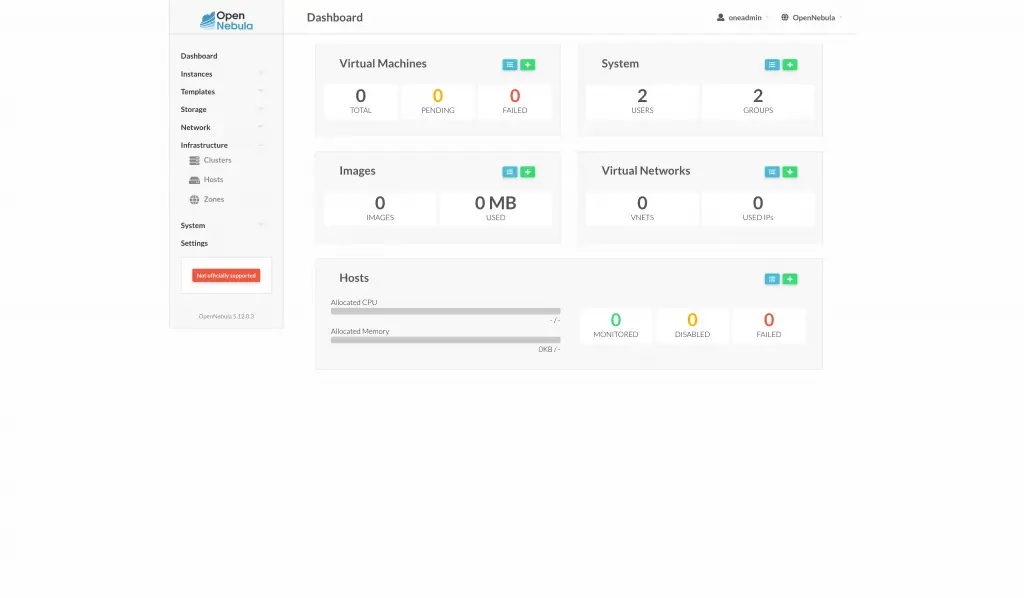
Select LXC as the host type (not LXD – that option was removed in OpenNebula 6.0+). Enter the node hostname or IP address and click Create.

After a few seconds, the node should appear in the host list with a green status indicator confirming it is online and monitored. If the node shows an error state, check the SSH connectivity and firewall rules.
Step 10: Verify the LXC Node
Run a detailed check on the node to confirm OpenNebula can communicate with it and read its resources:
onehost show onelxc01The output shows the node details including available memory, CPU, and the LXC driver status:
HOST 0 INFORMATION
NAME   : onelxc01
CLUSTER: default
STATE  : MONITORED

HOST SHARES
MAX MEM : 2097152
USED MEM: 0
MAX CPU : 200
USED CPU: 0

MONITORING INFORMATION
HYPERVISOR=lxc
The STATE: MONITORED line confirms the frontend is actively monitoring this node. The HYPERVISOR=lxc confirms the LXC driver is loaded and operational.
You can also check the node status from the LXC node itself by verifying that the required services are running:
systemctl status lxcThe LXC service should show as active. If you already have an OpenNebula KVM node running, LXC containers can coexist on the same physical host since containers do not require hardware virtualization extensions.
Conclusion
The OpenNebula LXC node is now installed and registered with the frontend on Debian 13 or Debian 12. You can start creating LXC container templates and deploying containers through the Sunstone UI or the CLI. For production environments, configure shared storage with NFS or Ceph, set up high availability for the frontend, and enable monitoring to track node resource usage. Refer to the official OpenNebula LXC node documentation for advanced configuration options.
