

Mattermost is an open-source, self-hosted messaging platform built for team collaboration. It works as a direct alternative to Slack, giving you full control over your data, integrations, and deployment. Mattermost supports channels, direct messaging, file sharing, webhooks, bots, and plugin extensions through a clean web interface and native desktop/mobile apps.
This guide walks through installing Mattermost 11.5.1 on RHEL 10 or Rocky Linux 10 with PostgreSQL as the database backend, Nginx as a reverse proxy, and Let’s Encrypt for SSL. Every command has been written for a fresh minimal server installation.
Tested March 2026 | Mattermost 11.5.1, PostgreSQL 16.13, Nginx 1.26.3, Rocky Linux 10.1
Prerequisites
Before starting, make sure you have the following in place:
- A server running RHEL 10 or Rocky Linux 10 with at least 2GB RAM and 2 CPU cores
- Root or sudo access to the server
- A registered domain name pointed to your server’s public IP (for SSL)
- Ports 80, 443, and 8065 (TCP) available
- A working internet connection for package downloads
Switch to the root user to avoid typing sudo on every command:
sudo -iStep 1: Install PostgreSQL Database Server
Mattermost requires PostgreSQL 14 or later as its database backend. RHEL 10 and Rocky Linux 10 ship with PostgreSQL 16 in the AppStream repository. If you need a detailed PostgreSQL deployment, check our guide on installing PostgreSQL on RHEL 10 / Rocky Linux 10.
Install the PostgreSQL server and client packages:
dnf install -y postgresql-server postgresqlInitialize the database cluster:
postgresql-setup --initdbEnable and start the PostgreSQL service:
systemctl enable --now postgresqlVerify that PostgreSQL is running:
systemctl status postgresqlThe output should show the service as active (running):
● postgresql.service - PostgreSQL database server
     Loaded: loaded (/usr/lib/systemd/system/postgresql.service; enabled; preset: disabled)
     Active: active (running) since Wed 2026-03-25 14:22:08 UTC; 5s ago
   Main PID: 4821 (postmaster)
      Tasks: 7 (limit: 23081)
     Memory: 17.2M
        CPU: 125ms
     CGroup: /system.slice/postgresql.service
             ├─4821 /usr/bin/postmaster -D /var/lib/pgsql/data
             ├─4822 "postgres: logger "
             ├─4823 "postgres: checkpointer "
             ├─4824 "postgres: background writer "
             └─4825 "postgres: walwriter "
Confirm the installed version:
psql --versionOn Rocky Linux 10.1, this returns:
psql (PostgreSQL) 16.13Step 2: Create Mattermost Database and User
Mattermost needs a dedicated database and user. Switch to the postgres system user and create them:
sudo -u postgres psqlRun the following SQL commands inside the PostgreSQL prompt. Replace StrongPassword123 with a secure password of your choice:
CREATE USER mmuser WITH PASSWORD 'StrongPassword123';
CREATE DATABASE mattermost OWNER mmuser;
GRANT ALL PRIVILEGES ON DATABASE mattermost TO mmuser;
\q
Next, configure PostgreSQL to allow password authentication for the Mattermost user. Open the pg_hba.conf file:
vi /var/lib/pgsql/data/pg_hba.confFind the line for local IPv4 connections and change the authentication method from ident to md5:
# IPv4 local connections:
host    all             all             127.0.0.1/32            md5
Restart PostgreSQL to apply the authentication change:
systemctl restart postgresqlTest the connection with the new user to make sure authentication works:
psql -h 127.0.0.1 -U mmuser -d mattermost -c "SELECT 1;"You should see a result with one column returning the value 1, confirming the database connection is working:
 ?column?
----------
        1
(1 row)
Step 3: Download and Install Mattermost Server
Download the Mattermost 11.5.1 release tarball from the official release server:
wget https://releases.mattermost.com/11.5.1/mattermost-11.5.1-linux-amd64.tar.gzExtract the archive to /opt:
tar -xzf mattermost-11.5.1-linux-amd64.tar.gz -C /optCreate the data directory where Mattermost stores uploaded files and attachments:
mkdir -p /opt/mattermost/dataCreate a dedicated system user and group for running the Mattermost service:
useradd --system --user-group mattermostSet proper ownership on the Mattermost directory:
chown -R mattermost:mattermost /opt/mattermost
chmod -R g+w /opt/mattermost
Since the tarball was extracted from /tmp, the binaries inherit the user_tmp_t SELinux context. Systemd will refuse to execute a binary with that label. Fix the SELinux file contexts so the Mattermost binaries are labeled as bin_t:
semanage fcontext -a -t bin_t "/opt/mattermost/bin(/.*)?"
restorecon -Rv /opt/mattermost/bin/
Verify the context was applied correctly:
ls -Z /opt/mattermost/bin/mattermostThe output should show bin_t as the type:
system_u:object_r:bin_t:s0 /opt/mattermost/bin/mattermostStep 4: Configure Mattermost Database Connection
The main configuration file is at /opt/mattermost/config/config.json. You need to update the database driver and connection string so Mattermost connects to your PostgreSQL instance.
Open the configuration file:
vi /opt/mattermost/config/config.jsonFind the SqlSettings section and update DriverName and DataSource with your PostgreSQL credentials. Replace StrongPassword123 with the password you set in Step 2:
"SqlSettings": {
    "DriverName": "postgres",
    "DataSource": "postgres://mmuser:[email protected]:5432/mattermost?sslmode=disable&connect_timeout=10",
    "DataSourceReplicas": [],
    "DataSourceSearchReplicas": [],
    "MaxIdleConns": 20,
    "ConnMaxLifetimeMilliseconds": 3600000,
    "ConnMaxIdleTimeMilliseconds": 300000,
    "MaxOpenConns": 300,
    "Trace": false,
    "AtRestEncryptKey": "",
    "QueryTimeout": 30,
    "DisableDatabaseSearch": false,
    "MigrationsStatementTimeoutSeconds": 100000,
    "ReplicaLagSettings": []
}
Also update the SiteURL in the ServiceSettings section to match your domain:
"ServiceSettings": {
    "SiteURL": "https://mattermost.example.com",
    ...
Step 5: Create Systemd Service for Mattermost
Create a systemd unit file so Mattermost starts automatically on boot and can be managed with systemctl.
Create the service file:
vi /etc/systemd/system/mattermost.serviceAdd the following service configuration:
[Unit]
Description=Mattermost
After=network.target postgresql.service
Requires=postgresql.service

[Service]
Type=notify
ExecStart=/opt/mattermost/bin/mattermost
TimeoutStartSec=3600
KillMode=mixed
Restart=always
RestartSec=10
WorkingDirectory=/opt/mattermost
User=mattermost
Group=mattermost
LimitNOFILE=49152

[Install]
WantedBy=multi-user.target
Reload systemd, then enable and start the Mattermost service:
systemctl daemon-reload
systemctl enable --now mattermost
Check the service status to confirm Mattermost is running:
systemctl status mattermostMattermost listens on port 8065 by default. The output should confirm the service is active:
● mattermost.service - Mattermost
     Loaded: loaded (/etc/systemd/system/mattermost.service; enabled; preset: disabled)
     Active: active (running) since Wed 2026-03-25 14:35:41 UTC; 6s ago
   Main PID: 5293 (mattermost)
      Tasks: 45 (limit: 23081)
     Memory: 198.4M
        CPU: 4.812s
     CGroup: /system.slice/mattermost.service
             └─5293 /opt/mattermost/bin/mattermost
Verify port 8065 is open and listening:
ss -tlnp | grep 8065You should see Mattermost bound to port 8065:
LISTEN 0 4096 *:8065 *:* users:(("mattermost",pid=5293,fd=21))Step 6: Configure Nginx as Reverse Proxy
Nginx sits in front of Mattermost to handle SSL termination, serve static assets, and proxy WebSocket connections. Install Nginx from the default repository:
dnf install -y nginxOn Rocky Linux 10 with SELinux enforcing, Nginx cannot connect to upstream backend services by default. Enable the boolean that allows HTTP network connections:
setsebool -P httpd_can_network_connect 1Without this, Nginx will return 502 Bad Gateway when it tries to proxy to Mattermost on port 8065.
Create a new Nginx server block configuration for Mattermost:
sudo vi /etc/nginx/conf.d/mattermost.confAdd the following configuration. Replace mattermost.example.com with your actual domain name:
upstream mattermost_backend {
    server 127.0.0.1:8065;
    keepalive 32;
}

server {
    listen 80;
    server_name mattermost.example.com;

    location / {
        proxy_pass http://mattermost_backend;
        proxy_set_header Host $host;
        proxy_set_header X-Real-IP $remote_addr;
        proxy_set_header X-Forwarded-For $proxy_add_x_forwarded_for;
        proxy_set_header X-Forwarded-Proto $scheme;
        proxy_set_header X-Frame-Options SAMEORIGIN;

        # WebSocket support
        proxy_http_version 1.1;
        proxy_set_header Upgrade $http_upgrade;
        proxy_set_header Connection "upgrade";

        proxy_read_timeout 600s;
        proxy_send_timeout 600s;
        client_max_body_size 50M;
    }
}
Test the Nginx configuration for syntax errors:
nginx -tIf the syntax check passes, enable and start Nginx:
systemctl enable --now nginxStep 7: Secure Mattermost with Let’s Encrypt SSL
Install Certbot and the Nginx plugin to obtain a free SSL certificate from Let’s Encrypt:
dnf install -y certbot python3-certbot-nginxRequest the certificate. Replace mattermost.example.com with your domain and provide a valid email address:
certbot --nginx -d mattermost.example.com --non-interactive --agree-tos -m [email protected]Certbot automatically modifies your Nginx server block to enable HTTPS and redirect HTTP traffic to HTTPS. It adds the ssl directives and the http2 on; directive (Nginx 1.25+ uses a separate directive instead of appending http2 to the listen line). Verify the certificate is installed correctly:
certbot certificatesYou should see your domain listed with the certificate path and expiry date. Certificates renew automatically through a systemd timer. Verify the renewal timer is active:
systemctl list-timers | grep certbotStep 8: Configure Firewall Rules
RHEL 10 and Rocky Linux 10 use firewalld by default. Open HTTP (80) and HTTPS (443) ports for web traffic:
firewall-cmd --permanent --add-service=http
firewall-cmd --permanent --add-service=https
firewall-cmd --reload
Verify the firewall rules are active:
firewall-cmd --list-servicesThe output should include both http and https in the allowed services list:
cockpit dhcpv6-client http https sshPort 8065 does not need to be open in the firewall since Nginx proxies all traffic to Mattermost internally on localhost.
Step 9: Access Mattermost Web Interface
Open your browser and navigate to your Mattermost domain:
https://mattermost.example.comOn the first visit, Mattermost presents the signup page where you create the first admin account. Fill in your email, username, and password to complete the initial setup.

After creating the admin account and logging in, Mattermost drops you into the Town Square channel with a welcome wizard that walks through initial team configuration.
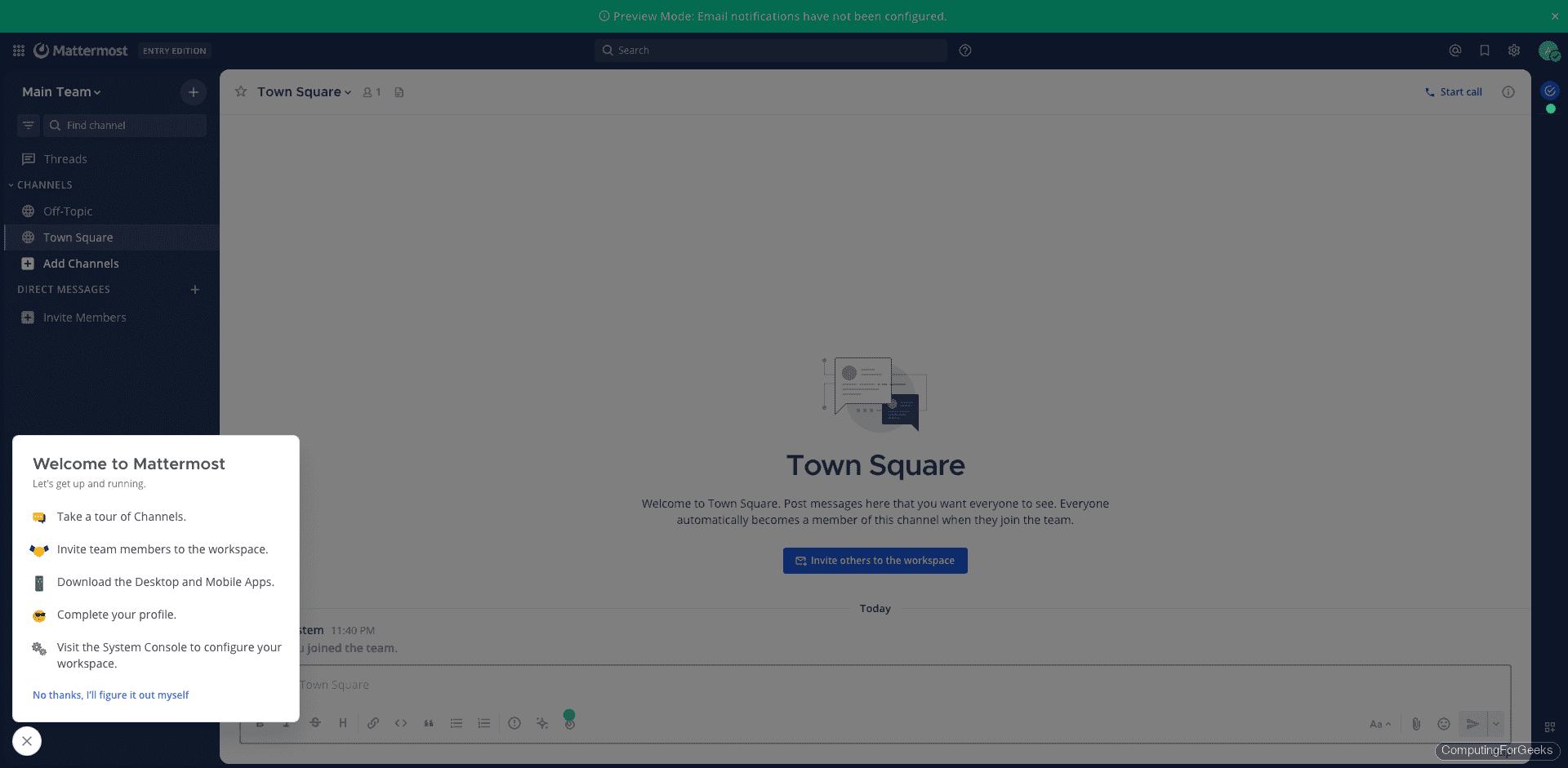
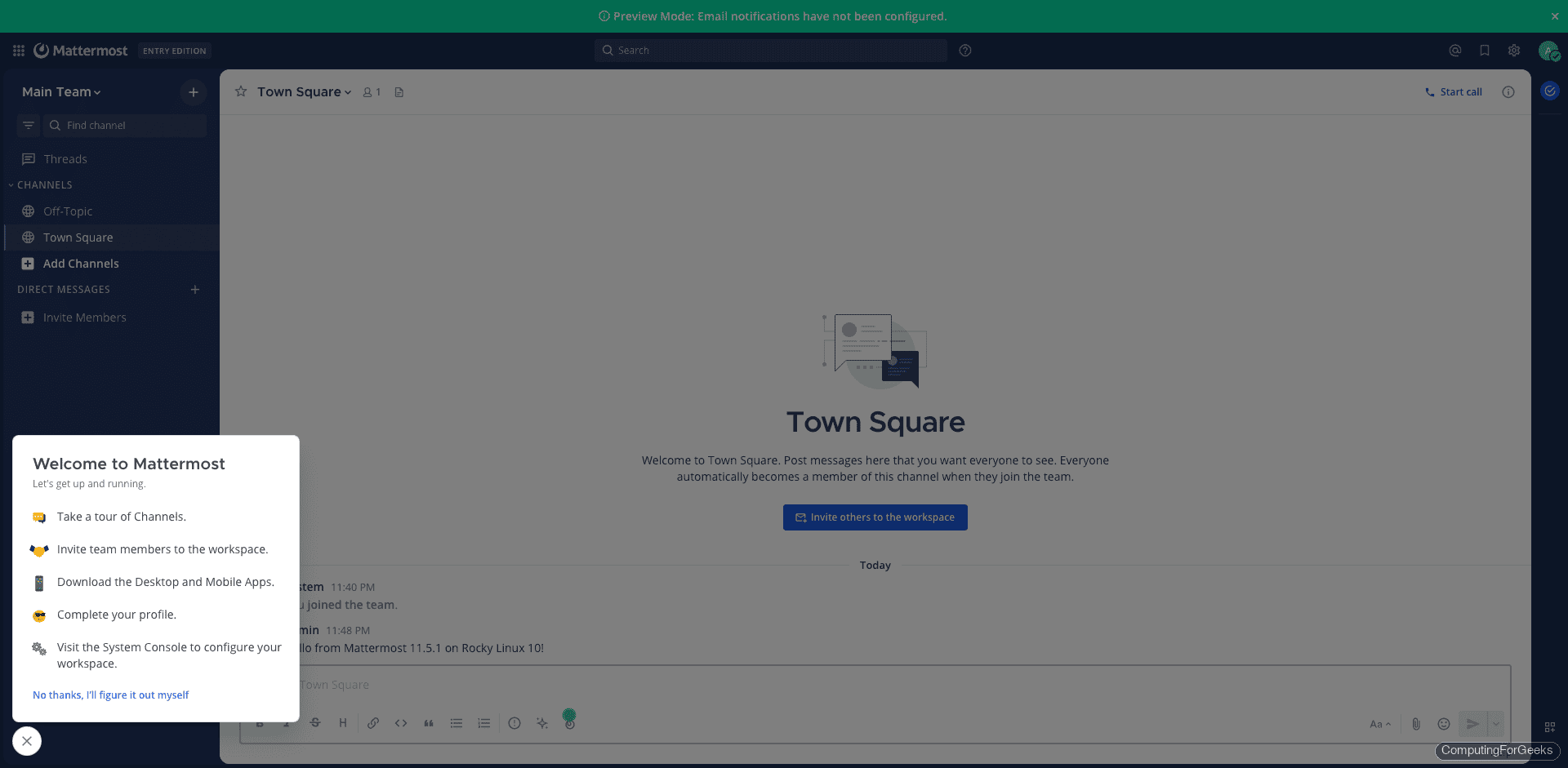
Post a test message in the channel to confirm that messaging works end to end, including the WebSocket connection through Nginx.
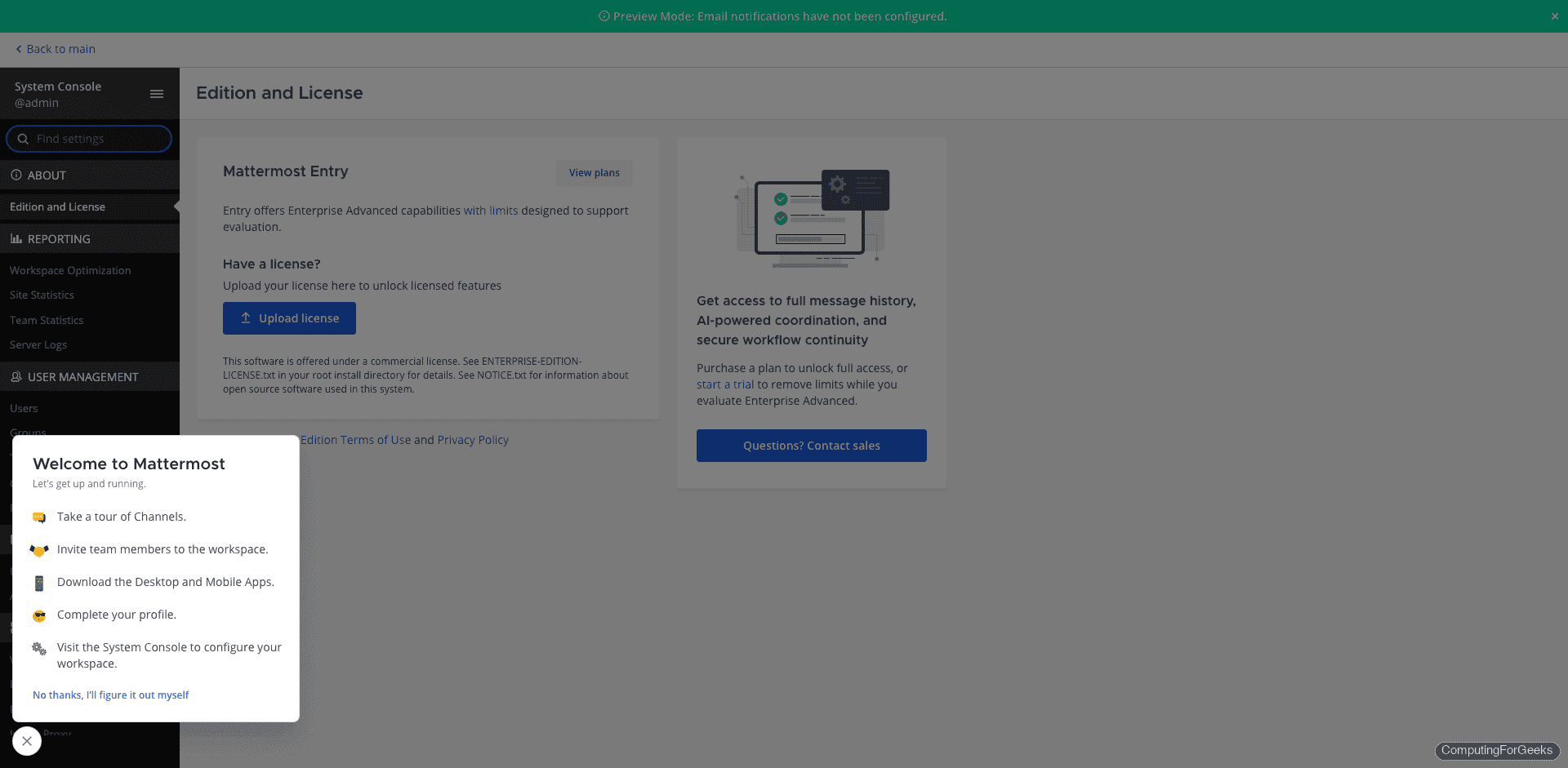
The admin console is available at https://mattermost.example.com/admin_console where you can configure email notifications, authentication providers, file storage, and plugin settings.
If you are looking for similar team messaging platforms, you can also try Rocket.Chat or run Mattermost in Docker containers for a containerized deployment.
Step 10: Enable Push Notifications
Push notifications let your team receive alerts on mobile devices when they are away from the desktop. Mattermost provides a hosted push notification service (HPNS) for this purpose.
Open the Mattermost configuration file:
vi /opt/mattermost/config/config.jsonFind the EmailSettings section and set SendPushNotifications to true. Then set the push notification server URL:
"EmailSettings": {
    "SendPushNotifications": true,
    "PushNotificationServer": "https://push-test.mattermost.com",
    ...
The https://push-test.mattermost.com endpoint is the free test push notification server provided by Mattermost. For production deployments with more than 10 users, consider using https://push.mattermost.com which requires a Mattermost Enterprise or Professional license.
Restart Mattermost to apply the changes:
systemctl restart mattermostYou can also configure push notifications through the admin console at System Console > Environment > Push Notification Server without editing the config file directly.
For production hardening, configure SMTP for email notifications, set up automated database backups with pg_dump, enable rate limiting in the Mattermost config, and monitor the service with a tool like Prometheus or Grafana. The full Mattermost deployment guide covers additional configuration options including LDAP/SAML authentication and high availability clustering. You can also deploy Mattermost on Ubuntu if your infrastructure uses Debian-based servers.
