

MariaDB 12.0 is the latest rolling release of the MariaDB database server, bringing a new default UCA 14.0 collation, SYS_REFCURSOR support, passphrase-protected SSL keys, and performance improvements for reverse-ordered scans. This guide covers installing MariaDB 12.0 on Ubuntu 24.04 LTS and Ubuntu 22.04 LTS from the official MariaDB repository.
MariaDB 12.0 follows a rolling release model – it is not an LTS branch. When MariaDB 12.1 is released, you should upgrade to it. For production workloads that need long-term stability, consider the MariaDB 11.x LTS release instead. Full details on what changed in 12.0 are available in the official MariaDB 12.0 release notes.
What’s New in MariaDB 12.0
Key changes in MariaDB 12.0 compared to previous releases:
- New default collation – utf8mb4_uca1400_ai_ci based on UCA 14.0 replaces the older uca1400 collation as the default for all new databases and tables
- SYS_REFCURSOR type – new cursor management type for stored procedures, making it easier to pass result sets between routines
- SET SESSION AUTHORIZATION – allows changing the effective user within a session without reconnecting
- Passphrase-protected SSL keys – SSL/TLS private keys can now be encrypted with a passphrase
- New GIS functions – ST_Validate, ST_Simplify, and ST_GeoHash extend spatial data support
- Multi-event triggers – a single trigger can now fire on multiple events (INSERT, UPDATE, DELETE)
- Performance – rowid filtering combined with Index Condition Pushdown (ICP) for reverse-ordered scans
- Galera 26.4.23 – updated Galera replication library
Prerequisites
- A server running Ubuntu 24.04 LTS or Ubuntu 22.04 LTS
- Root or sudo access
- At least 1GB RAM (2GB+ recommended for production)
- Port 3306/TCP open if remote clients need access
Step 1: Add the Official MariaDB 12.0 Repository
Ubuntu ships with an older MariaDB version in its default repositories. To get MariaDB 12.0, add the official MariaDB repository using their setup script.
First, update existing packages:
sudo apt-get update && sudo apt-get upgrade -yRun the MariaDB repository setup script to add the 12.0 repo:
curl -LsS https://r.mariadb.com/downloads/mariadb_repo_setup | sudo bash -s -- --mariadb-server-version=mariadb-12.0The script adds the MariaDB APT repository and signing keys. However, it also adds a MaxScale repository entry that does not have packages for Ubuntu Noble (24.04). Remove the MaxScale lines to prevent APT errors:
sudo sed -i '/maxscale/,$d' /etc/apt/sources.list.d/mariadb.listNow update the package index to pull metadata from the new repository:
sudo apt-get updateStep 2: Install MariaDB 12.0 on Ubuntu
Install the MariaDB server, client, and backup packages:
sudo apt-get install -y mariadb-server mariadb-client mariadb-backupThis installs MariaDB 12.0 along with all required dependencies. The service starts automatically after installation on Ubuntu.
Step 3: Start and Enable MariaDB Service
Verify the MariaDB service is running and set it to start on boot:
sudo systemctl enable --now mariadbCheck the service status to confirm it is active:
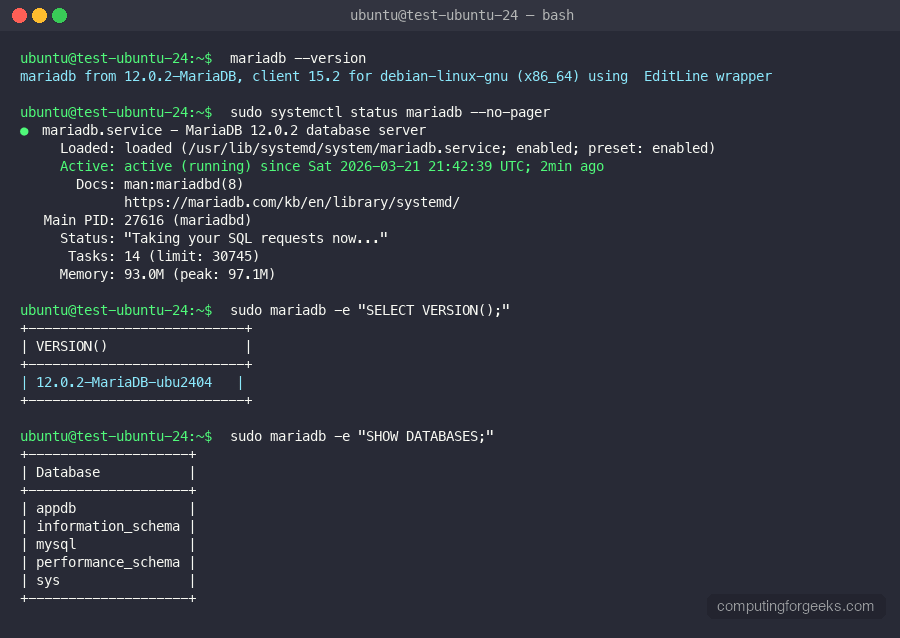
sudo systemctl status mariadbThe output should show active (running) with the status message “Taking your SQL requests now…”:
● mariadb.service - MariaDB 12.0.2 database server
     Loaded: loaded (/usr/lib/systemd/system/mariadb.service; enabled; preset: enabled)
     Active: active (running)
     Status: "Taking your SQL requests now..."
Step 4: Verify MariaDB 12.0 Installation
Connect to MariaDB and confirm the installed version:
mariadb --versionYou should see version 12.0.2 confirmed in the output:
mariadb from 12.0.2-MariaDB, client 15.2 for debian-linux-gnu (x86_64) using EditLine wrapperLog in to the MariaDB shell and check the server version:
sudo mariadb -e "SELECT VERSION();"The server reports the full version string:
+-------------------------+
| VERSION()               |
+-------------------------+
| 12.0.2-MariaDB-ubu2404  |
+-------------------------+
Verify the new default collation that ships with MariaDB 12.0:
sudo mariadb -e "SHOW VARIABLES LIKE 'collation_server';"MariaDB 12.0 defaults to the UCA 14.0 collation:
+------------------+--------------------+
| Variable_name    | Value              |
+------------------+--------------------+
| collation_server | utf8mb4_uca1400_ai_ci |
+------------------+--------------------+
Step 5: Secure MariaDB Installation
Run the security hardening script to set a root password, remove anonymous users, disable remote root login, and drop the test database:
sudo mariadb-secure-installationFollow the interactive prompts. Recommended answers for production systems:
- Switch to unix_socket authentication – n (already enabled by default)
- Set root password – Y (set a strong password)
- Remove anonymous users – Y
- Disallow root login remotely – Y
- Remove test database – Y
- Reload privilege tables – Y
Step 6: Create a Database and User
Log in to the MariaDB shell as root:
sudo mariadbCreate a new database, a dedicated user, and grant full privileges. Replace the database name, username, and password with your own values:
CREATE DATABASE appdb;
CREATE USER 'appuser'@'localhost' IDENTIFIED BY 'StrongPassword123!';
GRANT ALL PRIVILEGES ON appdb.* TO 'appuser'@'localhost';
FLUSH PRIVILEGES;
EXIT;
Verify the new user can connect and access the database:
mariadb -u appuser -p'StrongPassword123!' -e "SHOW DATABASES;"The output should list appdb along with information_schema:
+--------------------+
| Database           |
+--------------------+
| appdb              |
| information_schema |
+--------------------+
For users connecting from remote hosts, create the user with the remote IP or % wildcard instead of localhost. If you need MariaDB replication, you will need a dedicated replication user with REPLICATION SLAVE privileges.
Step 7: Configure Remote Access
By default, MariaDB 12.0 listens only on 127.0.0.1 (localhost). To allow connections from remote clients, update the bind-address in the server configuration.
Open the MariaDB server configuration file:
sudo vi /etc/mysql/mariadb.conf.d/50-server.cnfFind the [mysqld] section and change the bind-address directive. Set it to 0.0.0.0 to listen on all interfaces, or specify a particular IP:
[mysqld]
bind-address = 0.0.0.0
Restart MariaDB to apply the change:
sudo systemctl restart mariadbConfirm MariaDB is now listening on all interfaces:
ss -tlnp | grep 3306The output should show 0.0.0.0:3306 instead of 127.0.0.1:3306:
LISTEN 0 80 0.0.0.0:3306 0.0.0.0:* users:(("mariadbd",pid=1234,fd=20))Step 8: Configure UFW Firewall for MariaDB
If UFW firewall is active on your Ubuntu server, open port 3306/TCP to allow database connections:
sudo ufw allow 3306/tcp
sudo ufw reload
For tighter security, restrict access to specific IP addresses or subnets instead of allowing all traffic:
sudo ufw allow from 10.0.1.0/24 to any port 3306 proto tcpVerify the rule was added:
sudo ufw status numberedStep 9: MariaDB 12.0 Performance Tuning
The default MariaDB configuration works for development, but production workloads benefit from tuning key parameters. Edit the server configuration file:
sudo vi /etc/mysql/mariadb.conf.d/50-server.cnfAdd or update these settings under the [mysqld] section. Adjust values based on your server’s available RAM:
[mysqld]
# InnoDB buffer pool - set to 70-80% of available RAM for dedicated DB servers
# Default is 128MB (134217728 bytes) which is too low for production
innodb_buffer_pool_size = 1G

# Log file size - larger values improve write performance
innodb_log_file_size = 256M

# Slow query log - find queries that need optimization
slow_query_log = 1
slow_query_log_file = /var/log/mysql/slow-query.log
long_query_time = 2

# Max connections - increase from default 151 if needed
max_connections = 200

# Temp table sizes
tmp_table_size = 64M
max_heap_table_size = 64M
Restart MariaDB to apply the tuning changes:
sudo systemctl restart mariadbVerify the buffer pool size was applied:
sudo mariadb -e "SHOW VARIABLES LIKE 'innodb_buffer_pool_size';"The value should reflect your configured setting (1073741824 bytes = 1GB):
+-------------------------+------------+
| Variable_name           | Value      |
+-------------------------+------------+
| innodb_buffer_pool_size | 1073741824 |
+-------------------------+------------+
If you are running MariaDB alongside other services, use Prometheus with the MySQL exporter to track query performance and resource usage over time.
Step 10: Backup MariaDB with mariadb-backup
The mariadb-backup tool (installed earlier) provides hot physical backups without locking tables. This is the recommended backup method for InnoDB-based MariaDB deployments.
Create a full backup to a target directory:
sudo mariadb-backup --backup --target-dir=/var/backups/mariadb/full-$(date +%Y%m%d)Before restoring from a backup, prepare it first to apply any pending InnoDB log entries:
sudo mariadb-backup --prepare --target-dir=/var/backups/mariadb/full-20260322To restore, stop MariaDB, clear the data directory, and copy the backup files:
sudo systemctl stop mariadb
sudo rm -rf /var/lib/mysql/*
sudo mariadb-backup --copy-back --target-dir=/var/backups/mariadb/full-20260322
sudo chown -R mysql:mysql /var/lib/mysql/
sudo systemctl start mariadb
For automated backups, add the backup command to a cron job. You can also store backups offsite using S3-compatible storage for disaster recovery.
Conclusion
MariaDB 12.0 is now installed and running on your Ubuntu system with the new UCA 14.0 default collation, security hardening, remote access, firewall rules, performance tuning, and physical backups configured. Remember that 12.0 is a rolling release – plan to upgrade to 12.1 when it becomes available. If you need a stable, long-term-support release for production databases, the MariaDB 11.x LTS branch is the better choice.
For high-availability setups, look into Galera Cluster with HAProxy for automatic failover and load balancing across multiple MariaDB nodes.
