

KVM (Kernel-based Virtual Machine) turns your Arch Linux machine into a type-1 hypervisor. Combined with QEMU for hardware emulation, libvirt for VM lifecycle management, and virt-manager for a graphical interface, you get a full virtualization stack that rivals VMware and VirtualBox, but built directly into the Linux kernel. This guide walks through installing and configuring KVM, QEMU, and virt-manager on Arch Linux, including networking, UEFI VM support, and performance tuning.
Prerequisites
Before you start, make sure you have:
- A running Arch Linux system (bare metal or VM with nested virtualization enabled)
- A CPU with hardware virtualization support (Intel VT-x or AMD-V)
- sudo or root access
- At least 4GB RAM (more if you plan to run multiple VMs)
Check Hardware Virtualization Support
First, confirm that your CPU supports hardware virtualization. Run this command to check for the vmx (Intel) or svm (AMD) flags:
grep -cE 'vmx|svm' /proc/cpuinfoAny number greater than 0 means your CPU supports hardware virtualization. If the output is 0, you need to enable VT-x (Intel) or AMD-V in your BIOS/UEFI firmware settings.
Next, verify that the KVM kernel modules are loaded:
lsmod | grep kvmYou should see kvm_intel (or kvm_amd on AMD processors) along with the base kvm module:
kvm_intel             503808  0
kvm                  1421312  1 kvm_intel
irqbypass              12288  1 kvm
If these modules aren’t loaded, load them manually with sudo modprobe kvm_intel (or kvm_amd). On most Arch systems with a standard kernel, they load automatically at boot.
Install KVM, QEMU, and Virt-Manager on Arch Linux
Install all the packages needed for a complete KVM virtualization setup. Arch makes this straightforward since everything is available in the official repositories:
sudo pacman -S qemu-full virt-manager virt-viewer libvirt dnsmasq edk2-ovmf swtpm iptables-nftHere is what each package provides:
| Package | Purpose |
|---|---|
qemu-full | Complete QEMU installation with all architecture support and features (x86, ARM, etc.) |
virt-manager | GTK-based graphical interface for creating and managing virtual machines |
virt-viewer | Console viewer for connecting to VM displays (SPICE/VNC) |
libvirt | Virtualization management daemon and API – the glue that ties KVM and QEMU together |
dnsmasq | Lightweight DHCP and DNS server for NAT-based VM networking |
edk2-ovmf | UEFI firmware for virtual machines – required for UEFI-boot VMs and Secure Boot |
swtpm | Software TPM 2.0 emulator – needed for Windows 11 VMs and TPM-dependent operating systems |
iptables-nft | Firewall backend that libvirt uses to set up NAT networking rules |
One thing worth mentioning: the old bridge-utils package is no longer needed on current Arch installations. Bridge creation is handled by iproute2, which is already part of the base system.
Enable and Start the libvirt Daemon
With everything installed, enable and start the libvirtd service. This is the daemon that manages VMs, networks, and storage pools:
sudo systemctl enable --now libvirtdVerify the service is running:
sudo systemctl status libvirtdThe output should show active (running):
● libvirtd.service - Virtualization daemon
     Loaded: loaded (/usr/lib/systemd/system/libvirtd.service; enabled; preset: disabled)
     Active: active (running) since Mon 2026-03-24 10:15:32 UTC; 5s ago
   Main PID: 1234 (libvirtd)
      Tasks: 19 (limit: 32768)
     Memory: 14.2M
     CGroup: /system.slice/libvirtd.service
             └─1234 /usr/bin/libvirtd
Add Your User to the libvirt Group
By default, managing VMs through libvirt requires root privileges. To use virt-manager and virsh as a regular user, add your account to the libvirt group:
sudo usermod -aG libvirt $(whoami)You must log out and log back in for the group change to take effect. Verify your group membership after logging back in:
groupsThe output should include libvirt in the list. If you are running into permission issues when managing VMs, this is almost always the cause – check out our guide on using virt-manager as a non-root user for more details.
Configure the Default NAT Network
Libvirt ships with a default NAT network that gives VMs internet access through the host. This network needs to be started and set to auto-start on boot:
sudo virsh net-start default
sudo virsh net-autostart default
Confirm the network is active:
sudo virsh net-list --allYou should see the default network listed as active with autostart enabled:
 Name      State    Autostart   Persistent
--------------------------------------------
 default   active   yes         yes
The default network creates a virtual bridge interface called virbr0 with the subnet 192.168.122.0/24. VMs connected to this network get IP addresses via DHCP from dnsmasq and can reach the internet through NAT on the host. If the network fails to start, it is usually because dnsmasq is not installed or iptables-nft is missing – both are required for libvirt’s NAT networking to work. You can also check our guide on fixing the libvirt firewall backend error on Arch Linux if you run into firewall-related issues.
Launch Virt-Manager
Open virt-manager from your application menu or run it from the terminal:
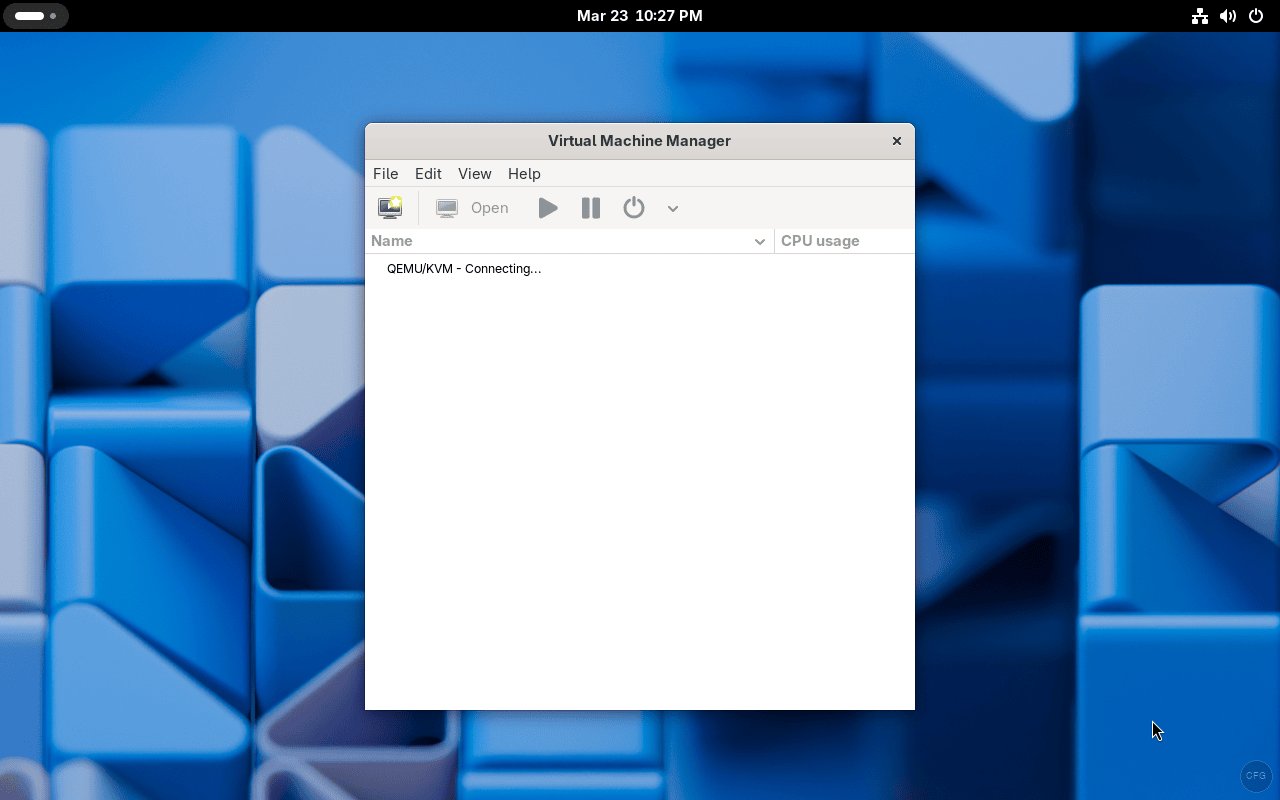
virt-managerOn first launch, virt-manager will attempt to connect to the local QEMU/KVM hypervisor. You should see it connecting:
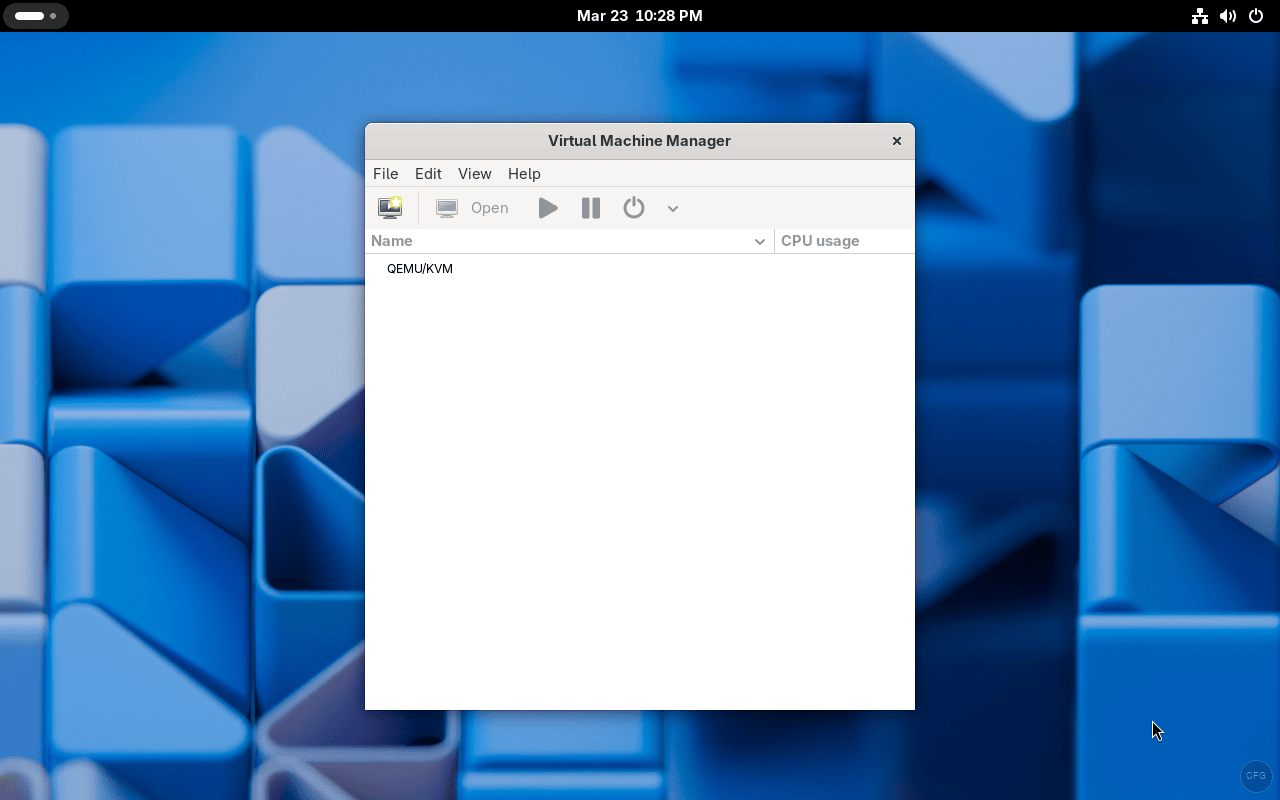
Once connected, you will see QEMU/KVM listed as your hypervisor connection, ready to create and manage virtual machines:
If virt-manager shows “Not Connected” or fails to connect, make sure libvirtd is running and your user is in the libvirt group.
Creating Your First Virtual Machine
With virt-manager connected to QEMU/KVM, creating a VM is straightforward. Here is the process using the graphical wizard:
- Click File > New Virtual Machine (or the “Create a new virtual machine” button in the toolbar)
- Choose your installation source – Local install media (ISO) is the most common option. Browse to your ISO file
- Set memory and CPU allocation. A good starting point for most Linux VMs is 2048 MB RAM and 2 vCPUs
- Create a virtual disk. 20-40 GB is typical for Linux, 50+ GB for Windows. The default qcow2 format supports thin provisioning so it won’t use the full size immediately
- On the final screen, review your settings. Check “Customize configuration before install” if you need to change the firmware from BIOS to UEFI, switch network settings, or add hardware like a TPM device
For UEFI-based VMs, select the OVMF firmware in the customization screen under Overview > Firmware. This is required for modern operating systems that expect UEFI boot, including Windows 11. For Windows 11 specifically, you also need to add a TPM device (emulated by swtpm) from the “Add Hardware” dialog.
Bridge Networking for Direct LAN Access
The default NAT network works well for most cases, but if you need VMs to appear as regular hosts on your physical LAN (with their own IP addresses from your router’s DHCP), you need bridge networking. This is common for servers, lab environments, and cases where other machines need to reach the VM directly.
If you are using NetworkManager (the default on most Arch desktop setups), create a bridge with nmcli. Replace enp1s0 with your actual network interface name:
nmcli connection add type bridge con-name br0 ifname br0
nmcli connection add type bridge-slave con-name br0-port1 ifname enp1s0 master br0
nmcli connection up br0
Alternatively, if you prefer manual bridge setup without NetworkManager, use ip commands:
sudo ip link add br0 type bridge
sudo ip link set br0 up
sudo ip link set enp1s0 master br0
After creating the bridge, you can select it in virt-manager when creating or editing a VM’s network settings. Choose “Bridge device” as the network source and enter br0 as the device name. For a deeper look at bridge networking options, see our guide on configuring bridge networking for KVM in Linux.
Managing VMs with virsh (Command Line)
While virt-manager provides a nice GUI, the virsh command line tool is essential for scripting, remote management, and headless servers. Here are the commands you will use most often:
| Command | Description |
|---|---|
virsh list --all | List all VMs (running and stopped) |
virsh start vm-name | Start a VM |
virsh shutdown vm-name | Gracefully shut down a VM (sends ACPI signal) |
virsh destroy vm-name | Force stop a VM (like pulling the power cable) |
virsh reboot vm-name | Reboot a VM |
virsh dominfo vm-name | Show VM details (RAM, vCPUs, state) |
virsh snapshot-create-as vm-name snap1 | Create a named snapshot |
virsh snapshot-list vm-name | List all snapshots for a VM |
virsh snapshot-revert vm-name snap1 | Revert VM to a snapshot |
virsh net-list --all | List all virtual networks |
For example, to list all VMs on your system:
virsh list --allThe output shows each VM’s ID, name, and current state:
 Id   Name          State
------------------------------
 1    ubuntu24      running
 -    windows11     shut off
You can learn more about VM operations in our guide on cloning KVM virtual machines.
Enabling Nested Virtualization
Nested virtualization lets you run VMs inside VMs. This is useful for testing hypervisors, running Kubernetes clusters with KVM nodes, or developing virtualization-related software. To enable it permanently, create a modprobe configuration file.
For Intel CPUs:
echo "options kvm_intel nested=1" | sudo tee /etc/modprobe.d/kvm-intel.confFor AMD CPUs:
echo "options kvm_amd nested=1" | sudo tee /etc/modprobe.d/kvm-amd.confReboot for the change to take effect, then verify nested virtualization is enabled:
cat /sys/module/kvm_intel/parameters/nestedThe output should be Y or 1, confirming nested virtualization is active.
Performance Tuning Tips
Out of the box, KVM VMs perform well, but there are a few settings that make a real difference in production workloads:
- Use virtio drivers – For both disk and network, always select virtio instead of the emulated IDE/e1000 defaults. Virtio is a paravirtualized interface that skips hardware emulation overhead. Linux guests support virtio out of the box. Windows guests need the virtio-win drivers ISO loaded during installation
- CPU mode: host-passthrough – In virt-manager, set CPU configuration to “host-passthrough”. This exposes your exact CPU model to the guest, enabling all CPU features and improving performance significantly over the default emulated CPU
- Enable hugepages – For memory-intensive VMs, hugepages reduce TLB misses and improve memory access speed. Enable them with
echo 1024 | sudo tee /proc/sys/vm/nr_hugepagesand set the VM’s memory backing to use hugepages in the XML configuration - IO threads for disk – Adding IO threads to virtio-blk disks offloads disk I/O processing from the main QEMU thread, which improves both throughput and latency under heavy disk workloads
Troubleshooting Common Issues
Error: “Cannot access storage file – Permission denied”
This happens when libvirt cannot read your ISO or disk image file. The most common cause is that the file is in a directory that the qemu user cannot access (like your home directory). Move the ISO to /var/lib/libvirt/images/ or fix permissions on the parent directories. Also confirm your user is in the libvirt group.
Error: “Network ‘default’ is not active”
The default NAT network is not started. Start it and set it to autostart so it persists across reboots:
sudo virsh net-start default
sudo virsh net-autostart default
Virt-manager shows “Not Connected” to QEMU/KVM
Check that libvirtd is running with sudo systemctl status libvirtd. If it is running but you still cannot connect, verify your user is in the libvirt group and that you have logged out and back in after adding the group.
VM performance is very slow
In nearly every case, this is because virtio drivers are not installed or not selected. Check that your VM’s disk controller is set to VirtIO (not IDE) and the network adapter is VirtIO (not e1000). For Windows guests, you need to install the virtio-win drivers. Also ensure KVM acceleration is active – if QEMU falls back to software emulation (TCG), performance drops dramatically.
Wrapping Up
You now have a fully working KVM virtualization environment on Arch Linux with QEMU for hardware emulation, libvirt for management, and virt-manager for a graphical interface. The setup supports both BIOS and UEFI VMs, NAT and bridged networking, snapshots, and TPM emulation for Windows 11. For more details on KVM and libvirt configuration options, check the Arch Wiki KVM page and the Arch Wiki Libvirt page.
If you are setting up Arch Linux from scratch, our Arch Linux installation guide with LVM on UEFI covers the full process, and the Arch Linux post-install setup guide walks through essential configuration after the base install.

thanks for the guide — very helpful
— i just wanted to note that it refers to using yaourt — which is no longer available
I chose to use yay after a google search — but thought you might want to update the instructions to your current preference.
Thanks we updated the article.
http://repo.archlinux.fr/$arch does not appear to exist any more
libguestfs seems to have been moved from aur to the community repository, there is no need to access aur for this install as far as I can tell
also, viewing libvitd status does not require root, the sudo should be removed.
True. Thank you.
How do we install KVM and not use QEMU? i want the full kernel level performance and manage my VM’s via something other than QEMU due to the potential performance hit of the layer 2 HyperVisor that is QEMU
Hey,
The entire article is on installation and using KVM with Virt Manager. Just follow through and should be good.
Thanks so much for this!!!
Thanks for the positive comment.
I’m going gool till the step 4, I think I did something wrong editing in vim, or something, but after that i cant restar virtualization daemon.
This article is only for intel processors… if you use AMD then replace all instances of kvm_intel with kvm_amd… Please change the article to reflect both or use a known $variable to make this an easy work around for copy/paste users
Thanks for the hint Chris. We’ve updated the article.
change
sudo vim /etc/libvirt/libvirtd.conf
to
sudo “your favorite editor” /etc/libvirt/libvirtd.conf e.g. sudo nano /etc/libvirt/libvirtd.conf
not everyone knows how to use vim/vi
Finally a complete guide for Manjaro system.
Thanks to this I’ve succesully installed it on my system.
The only think that I’ve not installed is
sudo pacman -S ebtables iptables
I’ve leaved the ones installed by default from Manjaro.
All works good.. bye bye virtualbox
Thanks a lot. New on arch, Manjaro.
Welcome Milan.
Hi, Josphat, thanks for the tutorial!
BTW, is it possible to install a Windows OS (win 10 or win 11) in KVM on Linux? If yes, how to do that? THX!
Thanks. For Windows 11 see our guide: https://computingforgeeks.com/enable-tpm-on-kvm-and-install-windows/
Great tutorial, but it wasn’t working as expected for me. After rebooting, virt-manager wouldn’t connect unless I restarted libvirtd.service. Then I noticed an error in journalctl about dmidecode being missing. After running pacman -S dmidecode, it’s working as expected. If you can, might want to update your guide to mention needing to install this package.
This has been updated. Thanks for the intel.
I have a problem when installing ebtables and iptables, they are conflict. As far as i know iptables replaces it in testing, and that is not a bug
These lines should not be passed as super user:
sudo systemctl enable libvirtd.service
sudo systemctl start libvirtd.service
Also on Manjaro kvm is automatically configured for your processor, thus making these lines redundant:
### Intel Processor ###
sudo modprobe -r kvm_intel
sudo modprobe kvm_intel nested=1
### AMD Processor ###
sudo modprobe -r kvm_amd
sudo modprobe kvm_amd nested=1
Other than that it all worked like a charm so thanks!
With this article I got KVM working. Thank you!