

Kali Linux 2025.4 is the latest rolling release of the most popular penetration testing Linux distribution. Built on Debian, Kali ships with hundreds of pre-installed security tools for ethical hacking, vulnerability assessment, digital forensics, and network security auditing. Whether you run it on bare metal, in a VM, or through WSL, this guide walks you through a full installation from ISO with screenshots.
This step-by-step guide covers downloading the Kali Linux 2025.4 installer ISO, creating bootable media, running the graphical installer, and post-installation configuration. The same process works for physical hardware, VirtualBox, and VMware virtual machines.
What is New in Kali Linux 2025.4
The Kali Linux 2025.4 release includes these changes:
- Linux Kernel 6.16 – bumped to 6.16.8-1kali1 with updated hardware support and wireless drivers
- GNOME 49 – Wayland is now the default and only window server (X11 session removed), application grid organizes Kali tools into folders, Totem replaced with Showtime
- KDE Plasma 6.5 – flexible window tiling, new screenshot tool with editing, fuzzy matching in KRunner
- Xfce – new color theme support for icon themes, GTK 3/4, Qt 5/6, and window manager decorations
- VM Guest Utils – now support Wayland on VirtualBox, VMware, and QEMU without issues
- New Tools – bpf-linker (BPF static linker), evil-winrm-py (Python WinRM for remote Windows), hexstrike-ai (MCP server for AI-driven tool execution)
- Kali NetHunter – Android 16 support (Samsung Galaxy S10, OnePlus Nord), Xiaomi Mi 9 on Android 15, updated Wifipumpkin3 with new phishing templates
- Live Image – now available only via BitTorrent (exceeds 5 GB CDN limit), 4 new mirrors added in Asia and North America
Install Kali Linux 2025.4 – Step by Step with Screenshots
Now that we have covered the new features in Kali Linux 2025.4, let’s proceed to the installation steps.
Step 1: Download Kali Linux Installer ISO Image
Visit the official downloads page and grab the latest Kali Linux 2025.4 installer ISO. You can also download it directly with wget.
### With wget ###
wget https://cdimage.kali.org/kali-2025.4/kali-linux-2025.4-installer-amd64.iso
If you have a torrent client, use the torrent link instead for faster downloads. Pre-built VM images for VirtualBox and VMware are also available on the downloads page. For the Live image (no installation required), grab it under the Kali Linux (Live) section.
Step 2: Create Bootable USB Drive
If installing on a laptop, desktop, or server, you need to create a bootable USB drive from the ISO.
On Linux, use the dd command.
sudo dd if=kali-linux-2025.4-installer-amd64.iso of=/dev/sdX bs=512kWhere:
- /dev/sdX is your USB device – check with
lsblkbefore writing to avoid overwriting the wrong disk
If on Windows or macOS, use Etcher (balenaEtcher) to flash the ISO to USB.

Select the ISO image, choose your USB device, and hit the Flash button to write the installer.
Step 3: Boot Kali Linux Installer Image
Insert the bootable USB drive into your computer and boot from it. You may need to press F2, F12, or Del during POST to access the boot menu, depending on your hardware.
Select the graphical installation method. This is recommended for new users as it provides a familiar point-and-click interface.

Choose the language to use during the installation process.

Select your country so the correct timezone gets set during installation.

Configure the keyboard keymap to match your physical keyboard layout.

Wait for the installation components to load. This takes a minute or two depending on your media speed.

Set your machine hostname. This identifies your system on the network.

Set the domain name. This becomes part of your FQDN in the format <hostname>.<domain_name>. You can leave this blank for standalone machines.

Create a standard user account for non-administrative activities. Enter the full name and username.


Set a strong password for the user account. Use at least 12 characters with a mix of letters, numbers, and symbols.

Select your timezone from the list.

Choose the disk partitioning method. If you are not sure, go with “Guided – use entire disk“. This wipes the entire selected disk and creates a standard partition layout.

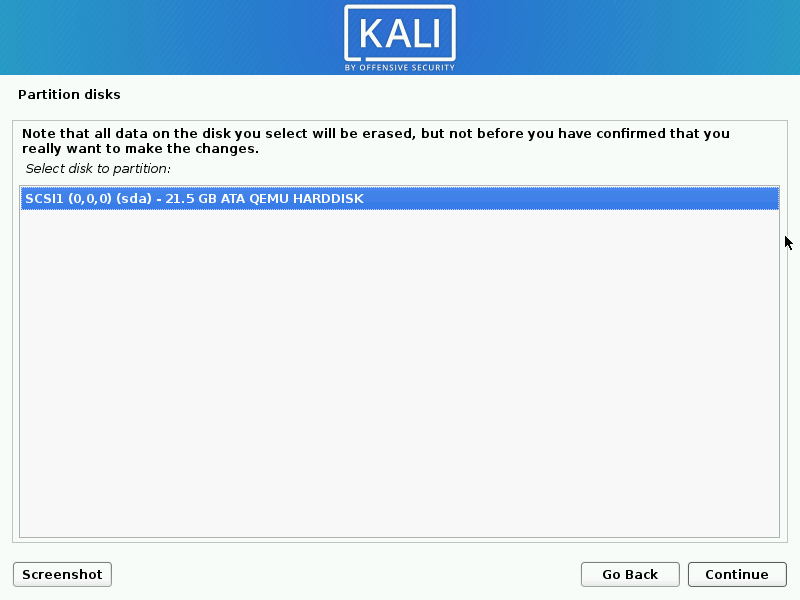
Select the disk where Kali Linux will be installed.
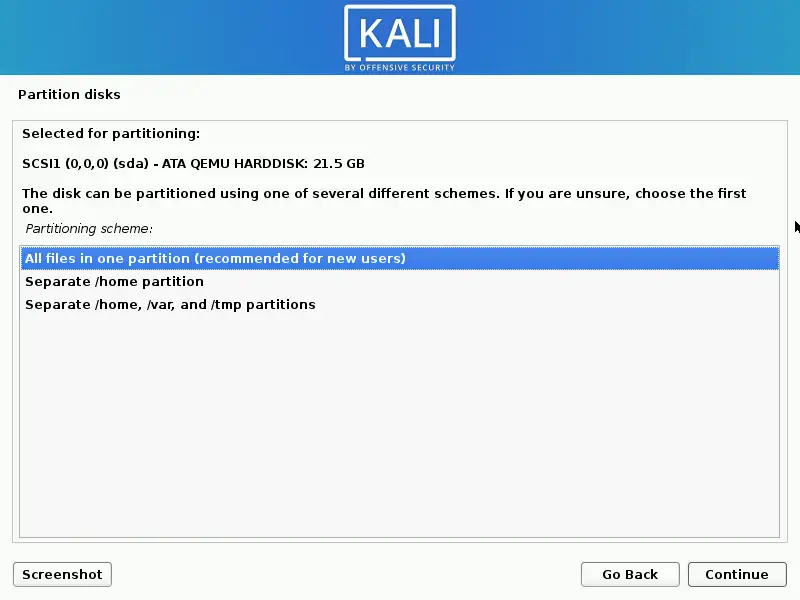
Choose the partitioning scheme. For most users, “All files in one partition” works fine. If you have a larger disk (50GB+), consider separate /home, /var, and /tmp partitions for better isolation and security.
Review the partition layout and write changes to disk.

If you chose LVM, set the size of the volume group to be created.

Confirm and commit the changes to disk. This is the point of no return – all data on the selected disk will be erased.

The base system installation begins. This takes several minutes depending on your hardware speed.

If you have a network proxy for external access, configure it in the next screen. Leave blank for direct internet connections.

The package manager (apt) configuration starts automatically, setting up the Kali repositories.

Choose the desktop environment and software tools to install. Xfce is the default and lightest option. You can also select GNOME, KDE Plasma, or others. Pick the tool collections that match your use case.

Select the specific tool categories based on your intended use – web application testing, wireless, exploitation, forensics, and so on. You can always install more tools later.

Install the GRUB boot loader to the master boot record. This is required to boot Kali Linux after installation.

Select the target disk for GRUB installation – typically the first disk (/dev/sda or /dev/vda).

The installation is complete. If you see no error messages, everything went through successfully.

Click Continue to reboot your system. Remove the USB drive when prompted so the system boots from the installed disk.
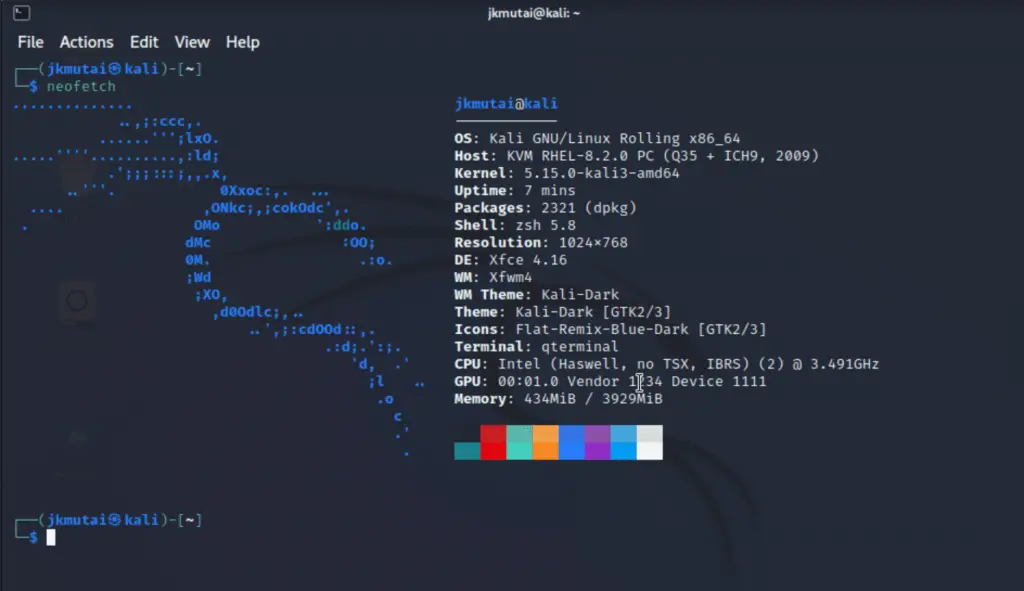
After reboot, log in with the username and password you created during installation. Here is the system information output showing the installed Kali Linux system.
Post-Installation Tips
After a fresh Kali Linux install, run through these essential post-installation tasks to get your environment ready for work.
Update the system – Always update before doing anything else. Kali is a rolling release so packages may have changed since the ISO was built.
sudo apt update && sudo apt full-upgrade -yInstall additional tools by category – Rather than installing everything, pick the tool sets you actually need.
sudo apt install kali-tools-web          # Web application testing
sudo apt install kali-tools-wireless     # WiFi pen testing
sudo apt install kali-tools-forensics    # Digital forensics
sudo apt install kali-tools-exploitation # Exploitation frameworks
Change your password – If you used a simple password during installation, change it now.
passwdEnable SSH for remote access – Useful when running Kali as a VM or on a remote machine.
sudo systemctl enable --now sshVerify SSH is running.
sudo systemctl status sshInstall tmux – A terminal multiplexer is essential for long-running scans and keeping sessions alive.
sudo apt install tmux -yConfigure network for testing – Set up a VPN for anonymous testing and configure Tor if needed. For wireless pen testing, confirm your adapter supports monitor mode with airmon-ng check.
Set up Burp Suite – Burp Suite comes pre-installed on Kali. Launch it from the applications menu and configure your browser to use 127.0.0.1:8080 as the HTTP proxy for web application testing.
Snapshot your VM – If running Kali in VirtualBox or VMware, take a clean snapshot right after setup. This gives you a known-good state to revert to after testing.
Installing Kali on VirtualBox / VMware
Instead of installing from ISO, you can import pre-built VM images for a faster setup. Download the OVA (VirtualBox) or VMX (VMware) image from kali.org/get-kali.
VirtualBox setup:
- Open VirtualBox and go to File > Import Appliance
- Select the downloaded OVA file
- Increase RAM to at least 4GB (4096 MB) in the settings
- Enable 3D acceleration under Display > Screen for smoother desktop performance
- Allocate 2+ CPU cores under System > Processor
- Default credentials: kali / kali – change these immediately after first boot
If you need VirtualBox installed on Kali itself for nested virtualization, check our dedicated guide.
VMware setup:
- Open VMware Workstation/Player and select Open a Virtual Machine
- Browse to the extracted VMX file
- Install open-vm-tools for clipboard sharing and display scaling
sudo apt install open-vm-tools open-vm-tools-desktop -yInstalling Kali with WSL (Windows Subsystem for Linux)
Kali Linux is available as a WSL distribution on Windows 10/11. This gives you access to Kali tools directly from Windows without a full VM.
Open PowerShell as Administrator and run the following command.
wsl --install kali-linuxAfter installation completes and you set up your user, update Kali and install your tools.
sudo apt update && sudo apt full-upgrade -y
sudo apt install kali-linux-large -y
For GUI applications, install Win-KeX which provides a full Kali desktop experience inside Windows.
sudo apt install kali-win-kex -y
kex --win -s
WSL limitations for pen testing: WSL does not support raw sockets by default, which limits tools like Nmap SYN scans. Wireless adapter passthrough is not available, so WiFi testing requires a full VM or bare metal install. USB device access is limited. For serious penetration testing, use a full Kali installation or VM instead.
Kali Linux on Cloud Platforms
Kali Linux is available as marketplace images on AWS, Azure, and Google Cloud Platform. Cloud-based Kali is useful for:
- External penetration testing – test from an outside IP without exposing your own network
- Bug bounty hunting – run scans from cloud infrastructure with stable bandwidth
- Team collaboration – shared testing environment accessible from anywhere
- Temporary environments – spin up for an engagement, destroy when done
Search for “Kali Linux” in the AWS Marketplace, Azure Marketplace, or GCP Marketplace to find the official images maintained by Offensive Security. These images come pre-configured and ready to use – just launch an instance and connect via SSH.
Keeping Kali Linux Updated
Kali Linux follows a rolling release model, meaning you get continuous updates without needing to reinstall for major versions. Run this regularly to stay current.
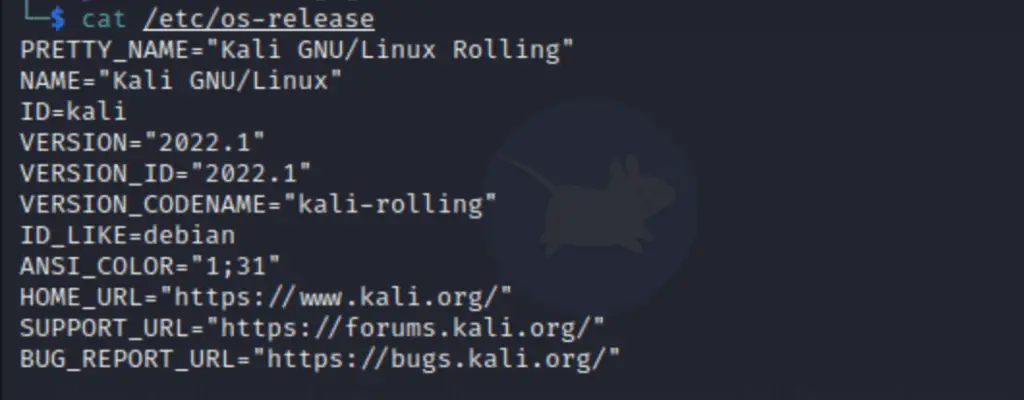
sudo apt update && sudo apt full-upgrade -yCheck your current Kali version and kernel.
cat /etc/os-release
uname -r
Kali has two main branches you can track:
- kali-rolling – the default branch with continuous updates. Best for daily use
- kali-last-snapshot – a point-in-time snapshot for stability. Good for production or exam environments where you need predictable behavior
To check which branch you are on, view your sources list.
cat /etc/apt/sources.listThe repository line will show either kali-rolling or kali-last-snapshot. To switch branches, edit /etc/apt/sources.list and replace the branch name, then run sudo apt update && sudo apt full-upgrade. See the Kali Linux repositories configuration guide for details.
Conclusion
You have installed Kali Linux 2025.4 from ISO with a full graphical desktop, configured disk partitioning, and set up a user account. The same steps apply whether you are installing on physical hardware, VirtualBox, or VMware. For quick setups, the pre-built VM images and WSL option save time when you do not need full hardware access.
For production pen testing environments, always keep Kali updated, use encrypted disk partitions for sensitive data, and configure VPN access before running any external tests. Take VM snapshots before each engagement so you can revert to a clean state.

this article is so helpful thanks you are so kind
Everything you explained is so good