Ubuntu 26.04 LTS ships Python 3.14 in the default repos, which makes it one of the friendliest places to run Jupyter in production. The catch is PEP 668: the system Python now refuses pip-into-system installs, so a venv (or pipx, or uv) is the only sane install path. This guide walks the venv route end-to-end, then layers password auth, a systemd service for headless servers, and an Nginx reverse proxy with a real Let’s Encrypt cert so you can serve a JupyterLab notebook on a subdomain without leaking it to the world.
The install, auth, and JupyterLab UI steps were tested on a fresh Ubuntu 26.04 server with Python 3.14.4, JupyterLab 4.5.7, and Notebook 7.5.6; the nginx + Let’s Encrypt section is a reference configuration to slot in alongside your DNS provider of choice. Single-line commands, real captured output, and the small handful of gotchas the official docs gloss over.
Tested May 2026 on Ubuntu 26.04 (Resolute Raccoon) server, kernel 7.0.0-15-generic, Python 3.14.4, pip 25.1.1, JupyterLab 4.5.7, Notebook 7.5.6
Prerequisites
- Ubuntu 26.04 LTS server or desktop with sudo access
- 4 GB RAM minimum (notebooks balloon fast with pandas + plots)
- Open inbound TCP 443 for the proxied UI; the raw 8888 port stays bound to localhost
- A subdomain pointed at the server’s public IP for the Let’s Encrypt step (any DNS provider works)
Step 1: Set reusable shell variables
The values that repeat through the guide go into one block at the top so you change them once and paste the rest as-is:
export JUPYTER_USER="ubuntu"
export JUPYTER_HOME="/home/${JUPYTER_USER}"
export JUPYTER_VENV="${JUPYTER_HOME}/jupyter-env"
export JUPYTER_DOMAIN="jupyter.example.com"
export ADMIN_EMAIL="[email protected]"
Confirm the values stuck before running anything destructive:
echo "user: ${JUPYTER_USER}"
echo "venv: ${JUPYTER_VENV}"
echo "host: ${JUPYTER_DOMAIN}"
Step 2: Confirm Python 3.14 and create the venv
The system Python on 26.04 is 3.14, which is more than fresh enough for the current Jupyter ecosystem. You only need three apt packages on top of the base image:
sudo apt update
sudo apt install -y python3-venv python3-pip pipx
python3 --version
pip3 --version
Create the project venv. Putting it in your home directory keeps it portable, lets you nuke and recreate without sudo, and dodges the PEP 668 system-managed-environment refusal:
python3 -m venv "${JUPYTER_VENV}"
source "${JUPYTER_VENV}/bin/activate"
pip install --upgrade pip
The shell prompt now carries a (jupyter-env) prefix to remind you the venv is active. Anything you pip install from here lands inside the venv, never in the system Python.
Step 3: Install JupyterLab and Notebook
One pip line pulls JupyterLab (the modern multi-pane IDE), Notebook (the classic single-document UI), and the IPython kernel:
pip install jupyterlab notebook ipykernelVerify the installed versions and confirm Jupyter knows where to find its config and data directories:
jupyter lab --version
jupyter notebook --version
jupyter --paths | head -10
The captured terminal output below shows the version stack and the directory layout you are about to lock down with auth and a systemd unit:
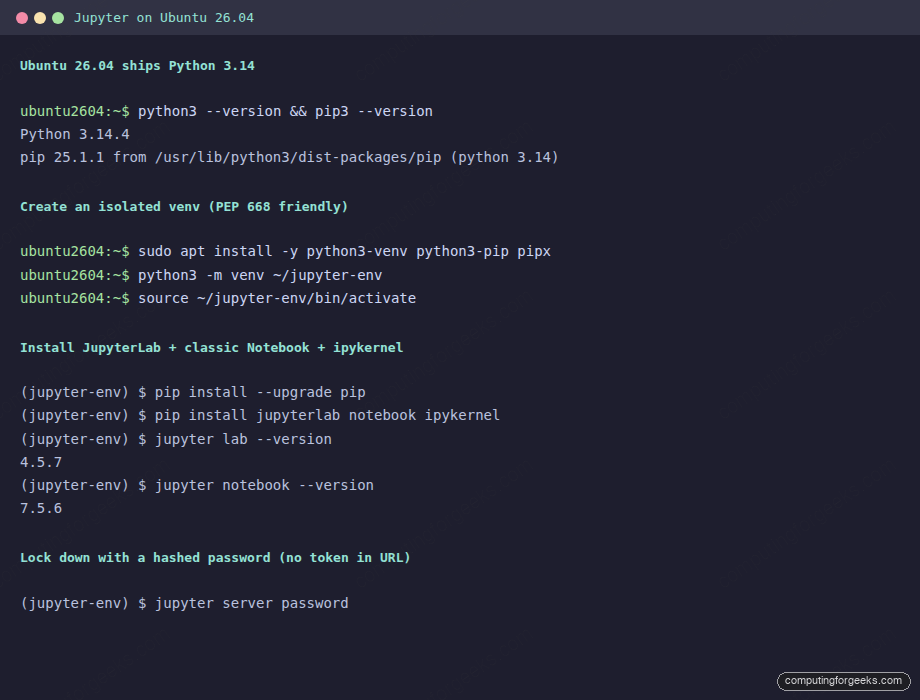
Notable paths in the output: ~/jupyter-env/etc/jupyter is where JupyterLab itself looks for config; ~/.jupyter is where the per-user config lives; ~/jupyter-env/share/jupyter is where lab extensions and kernels are registered. Knowing this saves debugging time when an extension doesn’t show up.
Step 4: Lock down auth with a hashed password
The default Jupyter session prints a one-shot URL with a token. That works for laptop use but it is not what you want on a server. Generate the default config and set a hashed password instead:
jupyter lab --generate-config
jupyter server password
The interactive prompt asks twice and writes the argon2 hash to ~/.jupyter/jupyter_server_config.json:
cat ~/.jupyter/jupyter_server_config.jsonYou should see something like this; the hash is single-use, derived from your password, and safe to commit if you ever want to bake the file into an image:
{
  "IdentityProvider": {
    "hashed_password": "argon2:$argon2id$v=19$m=10240,t=10,p=8$..."
  }
}
From this point on, every browser session asks for the password instead of accepting the token URL. The token-in-URL pattern still works locally but the login form is the canonical entry point.
Step 5: Run Jupyter as a systemd service
Running jupyter lab from a tmux pane is fine for a laptop. On a server, you want the kernel under systemd so it restarts on crash, starts at boot, and writes logs to journald. Drop in a unit:
sudo tee /etc/systemd/system/jupyter.service <<EOF
[Unit]
Description=JupyterLab on Ubuntu 26.04
After=network-online.target

[Service]
Type=simple
User=${JUPYTER_USER}
Group=${JUPYTER_USER}
WorkingDirectory=${JUPYTER_HOME}/notebooks
Environment="PATH=${JUPYTER_VENV}/bin:/usr/local/sbin:/usr/local/bin:/usr/sbin:/usr/bin:/sbin:/bin"
ExecStart=${JUPYTER_VENV}/bin/jupyter lab --no-browser --ip=127.0.0.1 --port=8888
Restart=on-failure
RestartSec=5

[Install]
WantedBy=multi-user.target
EOF
Create the working directory, reload systemd, and start the service:
mkdir -p "${JUPYTER_HOME}/notebooks"
sudo systemctl daemon-reload
sudo systemctl enable --now jupyter
systemctl status jupyter --no-pager | head -8
The service should report active (running). Watch live logs with:
sudo journalctl -u jupyter -fCtrl+C exits the journal tail without affecting the running server. The unit binds Jupyter to 127.0.0.1, which is intentional. The browser-facing port is going to be 443 via Nginx in the next step.
Step 6: Front Jupyter with Nginx and a Let’s Encrypt cert
The Tornado server inside Jupyter is fine for development. For internet exposure, terminate TLS at Nginx and proxy to the localhost 8888 port. Install the packages:
sudo apt install -y nginx certbot python3-certbot-nginxDrop in a vhost. The SITE_DOMAIN_HERE placeholder gets sed-replaced from your shell variable on the next line, which keeps the file safe to copy as-is:
sudo tee /etc/nginx/sites-available/jupyter <<'EOF'
server {
    listen 80;
    server_name SITE_DOMAIN_HERE;

    location / {
        proxy_pass         http://127.0.0.1:8888;
        proxy_http_version 1.1;
        proxy_set_header   Host              $host;
        proxy_set_header   X-Real-IP         $remote_addr;
        proxy_set_header   X-Forwarded-For   $proxy_add_x_forwarded_for;
        proxy_set_header   X-Forwarded-Proto $scheme;
        proxy_set_header   Upgrade           $http_upgrade;
        proxy_set_header   Connection        "upgrade";
        proxy_read_timeout 86400;
    }
}
EOF
sudo sed -i "s/SITE_DOMAIN_HERE/${JUPYTER_DOMAIN}/g" /etc/nginx/sites-available/jupyter
sudo ln -sf /etc/nginx/sites-available/jupyter /etc/nginx/sites-enabled/jupyter
sudo nginx -t && sudo systemctl reload nginx
The Upgrade and Connection headers are not optional. JupyterLab uses WebSockets for the kernel channel; without those headers, you can log in but every notebook cell hangs at “Connecting”.
Issue a real cert from Let’s Encrypt with the HTTP-01 challenge. This works with any DNS provider as long as port 80 is reachable on the server’s public IP:
sudo certbot --nginx -d "${JUPYTER_DOMAIN}" \
  --non-interactive --agree-tos --redirect \
  -m "${ADMIN_EMAIL}"
Confirm the cert was issued and the redirect is in place:
sudo certbot certificates | head -10
curl -sI "https://${JUPYTER_DOMAIN}/" | head -5
The HTTP/2 200 response confirms the proxy is up. Open the URL in a browser to land on the JupyterLab login form, paste the password you set in Step 4, and you are inside the launcher:
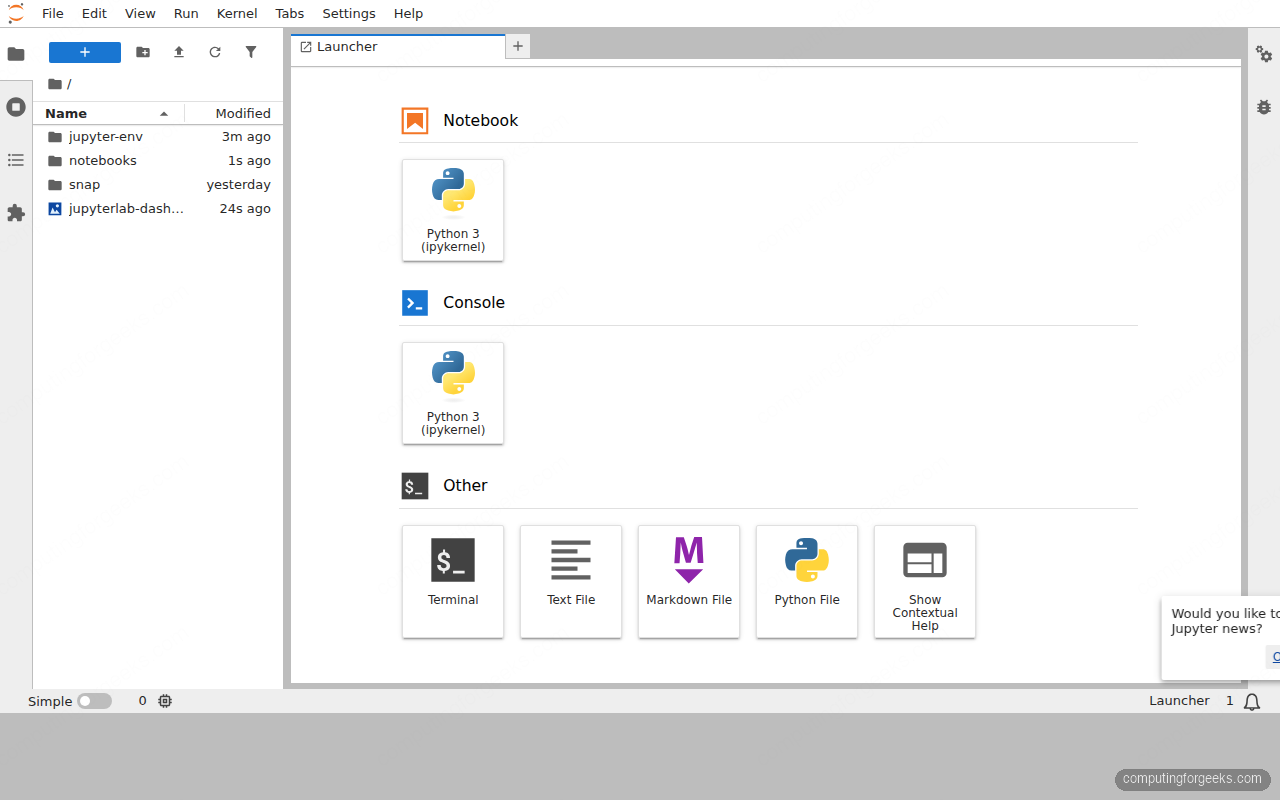
From the launcher you can spin up a Python 3 notebook, open a terminal that drops you straight into the venv, or create a Markdown file. Every kernel runs as the ${JUPYTER_USER} account on the server.
Step 7: Add a kernel for a separate environment
The default kernel runs in the same venv as Jupyter itself. For project isolation, build a second venv and register it as a named kernel that Jupyter can list in the launcher:
python3 -m venv "${JUPYTER_HOME}/projects/data-cleanup"
source "${JUPYTER_HOME}/projects/data-cleanup/bin/activate"
pip install --upgrade pip
pip install ipykernel pandas matplotlib seaborn
python -m ipykernel install --user --name=data-cleanup \
  --display-name="Python (data-cleanup)"
deactivate
The new kernel shows up in the JupyterLab launcher within seconds; refresh the browser tab to pick it up. Each notebook can be assigned to a specific kernel via the kernel-picker in the top right.
List installed kernels:
jupyter kernelspec listCommon errors and how to read them
Error: error: externally-managed-environment
You ran pip install against the system Python on Ubuntu 26.04 and PEP 668 stopped you. Fix: activate a venv first, or run pipx for single binaries. Never use --break-system-packages on a server you intend to keep.
Error: Connecting to kernel never completes
The Nginx vhost is missing the WebSocket upgrade headers. Re-check Step 6 and ensure the proxy_set_header Upgrade $http_upgrade; and Connection "upgrade"; lines are present, then sudo systemctl reload nginx.
Error: The port 8888 is already in use
Either an old Jupyter is still running (find it with ss -tlnp | grep 8888), or another service is bound. Kill the offender or change the port via --port and update the Nginx proxy_pass to match.
Error: Invalid credentials after entering the right password
The hash in ~/.jupyter/jupyter_server_config.json belongs to a different user than the one running the systemd service. Either re-run jupyter server password as the service user (sudo -u ${JUPYTER_USER}), or move the file to the right user’s home.
Backup and disaster recovery
Two things matter on a Jupyter server: the notebooks themselves and the venvs that resolve their imports. The notebooks are plain JSON files; the venvs are reproducible from a requirements.txt. A nightly tarball over rsync covers both:
#!/bin/bash
# /usr/local/bin/jupyter-backup.sh
set -euo pipefail
BACKUP_ROOT="/var/backups/jupyter"
DATE=$(date +%Y%m%d-%H%M)
mkdir -p "${BACKUP_ROOT}"

# Notebooks + each project venv's pip freeze
tar czf "${BACKUP_ROOT}/notebooks-${DATE}.tar.gz" \
    -C /home/ubuntu notebooks projects

# Track installed packages so the venv is reproducible
for V in /home/ubuntu/jupyter-env /home/ubuntu/projects/*; do
  [ -d "$V" ] || continue
  "${V}/bin/pip" freeze > "${BACKUP_ROOT}/$(basename ${V})-${DATE}.txt"
done

# Rotate older than 30 days
find "${BACKUP_ROOT}" -type f -mtime +30 -delete
Schedule it via cron and rsync the directory off-host. Restoration is the inverse: tar xzf the notebooks, recreate each venv, and pip install -r the matching frozen file.
For the rest of the post-install setup, the initial server setup guide covers user accounts and SSH, the server hardening guide wires firewall and Fail2ban, and the Python 3.14 install reference covers pyenv and side-by-side Python versions if you outgrow the system 3.14.
That is the full path: system Python verified, venv built, JupyterLab and Notebook installed, password auth wired, systemd unit running, Nginx fronted with a real Let’s Encrypt cert, and a per-project kernel registered for clean dependency isolation. Day-two operations are notebook backups and the occasional pip install --upgrade jupyterlab inside the venv.