

Managing network authentication with plain config files works fine until you have 50 users, three NAS devices, and an auditor asking for access logs. FreeRADIUS handles the authentication backend, and daloRADIUS puts a web interface on top of it so you can manage users, NAS clients, and accounting data without touching SQL directly.
This guide walks through a full FreeRADIUS + daloRADIUS stack on Debian, with MariaDB as the database backend. We cover FreeRADIUS SQL configuration from scratch (not patching the default config, which tends to break), both required schema imports, and the PHP dependencies that the daloRADIUS project needs but doesn’t always document clearly. The setup works on both Debian 13 and Debian 12, with version differences noted throughout.
Tested March 2026 on Debian 13.4 (Trixie) with FreeRADIUS 3.2.7, daloRADIUS 2.2 beta, MariaDB 11.8.6, PHP 8.4.16, Apache 2.4.66
Prerequisites
You need a Debian 13 or Debian 12 server with root or sudo access. The setup is lightweight and runs comfortably on 1 CPU / 1 GB RAM for small deployments.
- Debian 13 (Trixie) or Debian 12 (Bookworm) with a minimal install
- Root or sudo privileges
- Tested versions: FreeRADIUS 3.2.7 (Debian 13) / 3.2.1 (Debian 12), MariaDB 11.8.6 (Debian 13) / 10.11.6 (Debian 12), PHP 8.4 (Debian 13) / 8.2 (Debian 12)
- A working internet connection to pull packages and clone the daloRADIUS repository
Update your package index before starting:
sudo apt update && sudo apt upgrade -yInstall MariaDB and Create the Database
FreeRADIUS stores user credentials, accounting records, and NAS client definitions in MariaDB. Install the server and client packages:
sudo apt install -y mariadb-server mariadb-clientStart and enable MariaDB so it survives reboots:
sudo systemctl enable --now mariadbVerify the service is active:
sudo systemctl status mariadb --no-pagerSecure the installation by setting a root password and removing test databases:
sudo mariadb-secure-installationAccept the defaults: set a root password, remove anonymous users, disallow remote root login, remove the test database, and reload privileges.
Now create the radius database and a dedicated user. Log into MariaDB:
sudo mariadb -u root -pRun these SQL statements to create the database and grant privileges:
CREATE DATABASE radius;
GRANT ALL ON radius.* TO 'radius'@'localhost' IDENTIFIED BY 'YourStr0ngP@ss!';
FLUSH PRIVILEGES;
EXIT;
Replace YourStr0ngP@ss! with a strong password of your own. Keep it handy because you will need it for both the FreeRADIUS and daloRADIUS configuration files.
Install FreeRADIUS with MySQL Module
Debian ships FreeRADIUS in the default repositories. Install the server along with the MySQL/MariaDB module:
sudo apt install -y freeradius freeradius-mysql freeradius-utilsThis pulls in FreeRADIUS 3.2.7 on Debian 13 (3.2.1 on Debian 12). The freeradius-mysql package provides the rlm_sql_mysql driver, and freeradius-utils includes radtest for authentication testing.
Confirm the installed version:
freeradius -v | head -2Now import the FreeRADIUS schema into MariaDB. This creates the core tables (radcheck, radreply, radacct, nas, and others):
sudo mariadb -u root -p radius < /etc/freeradius/3.0/mods-config/sql/main/mysql/schema.sqlThe schema file path is the same on both Debian 13 and Debian 12.
Configure FreeRADIUS SQL Backend
The default SQL module config ships with comments and placeholders that cause problems when you try to patch them with sed. A cleaner approach: write the config from scratch with only what you need.
Back up the original, then create the new config:
sudo cp /etc/freeradius/3.0/mods-available/sql /etc/freeradius/3.0/mods-available/sql.bakOpen the SQL module configuration file:
sudo vi /etc/freeradius/3.0/mods-available/sqlReplace the entire contents with the following tested configuration:
sql {
    driver = "rlm_sql_mysql"
    dialect = "mysql"
    server = "localhost"
    port = 3306
    login = "radius"
    password = "YourStr0ngP@ss!"
    radius_db = "radius"
    acct_table1 = "radacct"
    acct_table2 = "radacct"
    postauth_table = "radpostauth"
    authcheck_table = "radcheck"
    groupcheck_table = "radgroupcheck"
    authreply_table = "radreply"
    groupreply_table = "radgroupreply"
    usergroup_table = "radusergroup"
    read_clients = yes
    client_table = "nas"
    group_attribute = "SQL-Group"
    $INCLUDE ${modconfdir}/${.:name}/main/${dialect}/queries.conf
    pool {
        start = 5
        min = 4
        max = 10
        spare = 3
        uses = 0
        lifetime = 0
        idle_timeout = 60
    }
}
Set the password field to match the MariaDB password you created earlier.
Enable the SQL module by creating a symlink in mods-enabled:
sudo ln -sf /etc/freeradius/3.0/mods-available/sql /etc/freeradius/3.0/mods-enabled/sqlThe symlink and the SQL config file must be owned by the freerad user, otherwise FreeRADIUS refuses to load the module:
sudo chown -h freerad:freerad /etc/freeradius/3.0/mods-enabled/sql
sudo chown freerad:freerad /etc/freeradius/3.0/mods-available/sql
Restart FreeRADIUS and check for errors:
sudo systemctl restart freeradius
sudo systemctl status freeradius --no-pager
The service should show active (running). If it fails, run sudo freeradius -X in debug mode to see the exact error.
Test FreeRADIUS Authentication
Before adding the web interface, confirm that FreeRADIUS can authenticate users from the database. Insert a test user into the radcheck table:
sudo mariadb -u root -p -e "INSERT INTO radcheck (username, attribute, op, value) VALUES ('testuser', 'Cleartext-Password', ':=', 'testing123');" radiusNow test with radtest. The shared secret for localhost is testing123 by default (defined in /etc/freeradius/3.0/clients.conf):
radtest testuser testing123 127.0.0.1 0 testing123You should see Access-Accept in the response, confirming the SQL backend is working:
Sent Access-Request Id 146 from 0.0.0.0:41999 to 127.0.0.1:1812 length 78
	User-Name = "testuser"
	User-Password = "testing123"
Received Access-Accept Id 146 from 127.0.0.1:1812 to 127.0.0.1:41999 length 38
If you get Access-Reject instead, check the SQL module configuration and verify the database credentials are correct. Running sudo freeradius -X in a second terminal while sending the test request shows exactly where the failure occurs.
Install Apache, PHP, and daloRADIUS
daloRADIUS is a PHP application that needs Apache, several PHP extensions, and one PEAR package that Debian does not install by default.
Install Apache and the required PHP modules:
sudo apt install -y apache2 libapache2-mod-php php php-mysql php-gd php-curl php-mail php-mail-mime php-xml php-mbstring php-pearThe php-db PEAR package provides the DB.php abstraction class that daloRADIUS relies on. Without it, you get a fatal error on every page load. Install it via PEAR:
sudo pear install DBClone the daloRADIUS repository from GitHub into the web root:
sudo apt install -y git
sudo git clone https://github.com/lirantal/daloradius.git /var/www/daloradius
This pulls daloRADIUS 2.2 beta from the master branch.
daloRADIUS requires its own database tables (operators, config, billing, and others) on top of the standard FreeRADIUS schema. Two separate imports are needed. First, the FreeRADIUS tables (if you haven’t imported them already during the FreeRADIUS setup, do it now):
sudo mariadb -u root -p radius < /var/www/daloradius/contrib/db/fr3-mariadb-freeradius.sqlThen import the daloRADIUS-specific tables:
sudo mariadb -u root -p radius < /var/www/daloradius/contrib/db/mariadb-daloradius.sqlBoth imports are mandatory. Skipping the second one causes “table not found” errors when daloRADIUS tries to load its operator settings or billing configuration.
Set the correct ownership so Apache can read the files:
sudo chown -R www-data:www-data /var/www/daloradiusConfigure daloRADIUS
daloRADIUS ships a sample configuration file that you copy and edit with your database credentials.
Create the configuration file from the sample:
sudo cp /var/www/daloradius/app/common/includes/daloradius.conf.php.sample /var/www/daloradius/app/common/includes/daloradius.conf.phpOpen it for editing:
sudo vi /var/www/daloradius/app/common/includes/daloradius.conf.phpFind and set these three values to match your MariaDB radius database credentials:
$configValues['CONFIG_DB_USER'] = 'radius';
$configValues['CONFIG_DB_PASS'] = 'YourStr0ngP@ss!';
$configValues['CONFIG_DB_NAME'] = 'radius';
The database host (CONFIG_DB_HOST) defaults to localhost, which is correct for this setup. Save and close the file.
Configure Apache Virtual Host
daloRADIUS has two portals: operators (admin) and users. The operators portal is the primary interface for managing RADIUS. Point Apache’s DocumentRoot at it.
Create a new virtual host configuration:
sudo vi /etc/apache2/sites-available/daloradius.confAdd the following configuration:
<VirtualHost *:80>
    ServerAdmin [email protected]
    ServerName your-server-ip
    DocumentRoot /var/www/daloradius/app/operators

    <Directory /var/www/daloradius/app/operators>
        Options -Indexes +FollowSymLinks
        AllowOverride All
        Require all granted
    </Directory>

    ErrorLog ${APACHE_LOG_DIR}/daloradius-error.log
    CustomLog ${APACHE_LOG_DIR}/daloradius-access.log combined
</VirtualHost>
Replace your-server-ip with your server’s actual IP address or domain name.
Disable the default site and enable the daloRADIUS virtual host:
sudo a2dissite 000-default.conf
sudo a2ensite daloradius.conf
sudo a2enmod rewrite
Test the Apache configuration for syntax errors, then restart:
sudo apachectl configtest
sudo systemctl restart apache2
Apache should report Syntax OK. If you have a firewall running, open port 80:
sudo ufw allow 80/tcpAccess the daloRADIUS Web UI
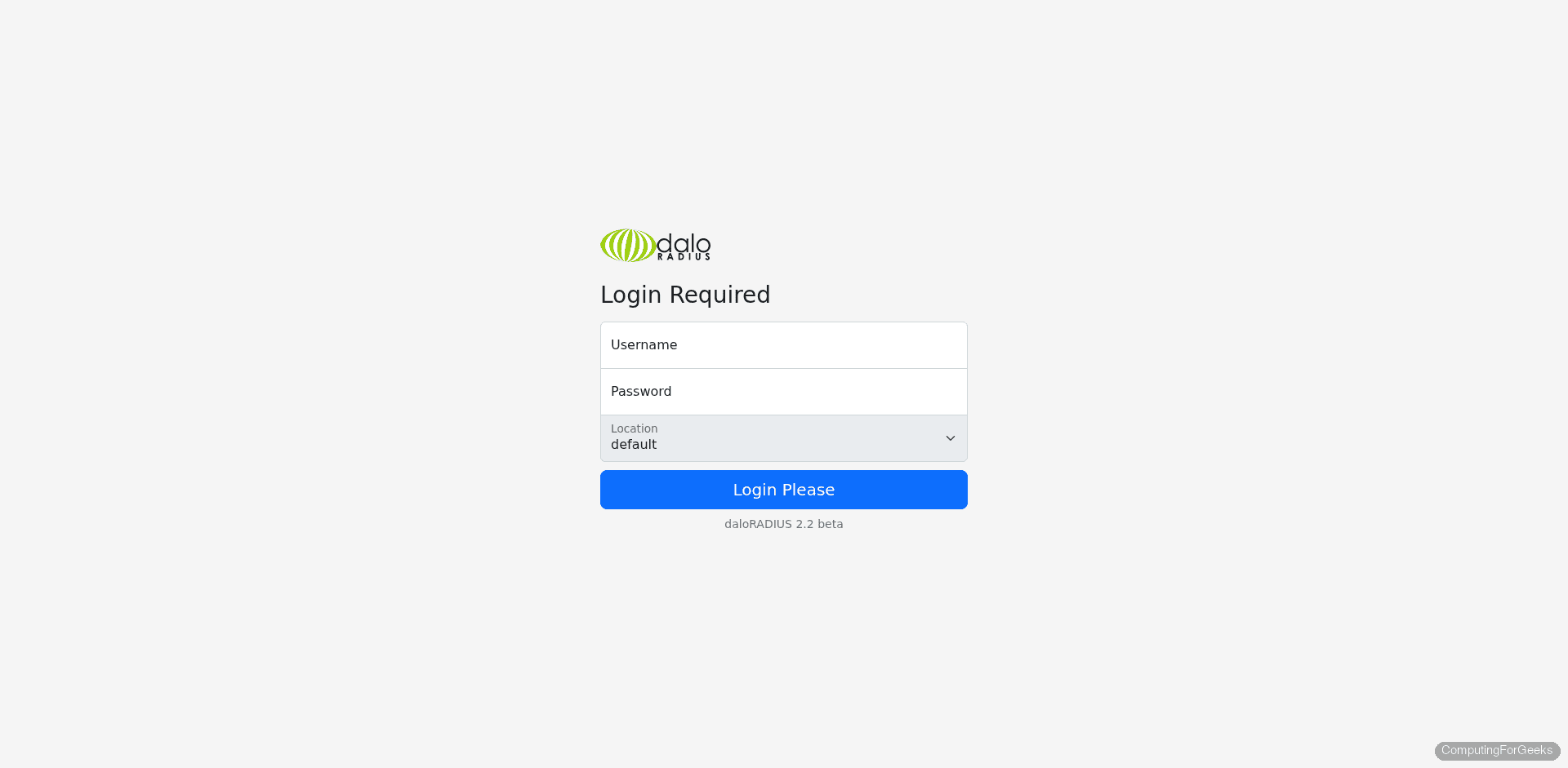
Open a browser and navigate to http://your-server-ip/. The daloRADIUS login page should appear.
The default credentials are:
- Username: administrator
- Password: radius
Change the default password immediately after your first login.
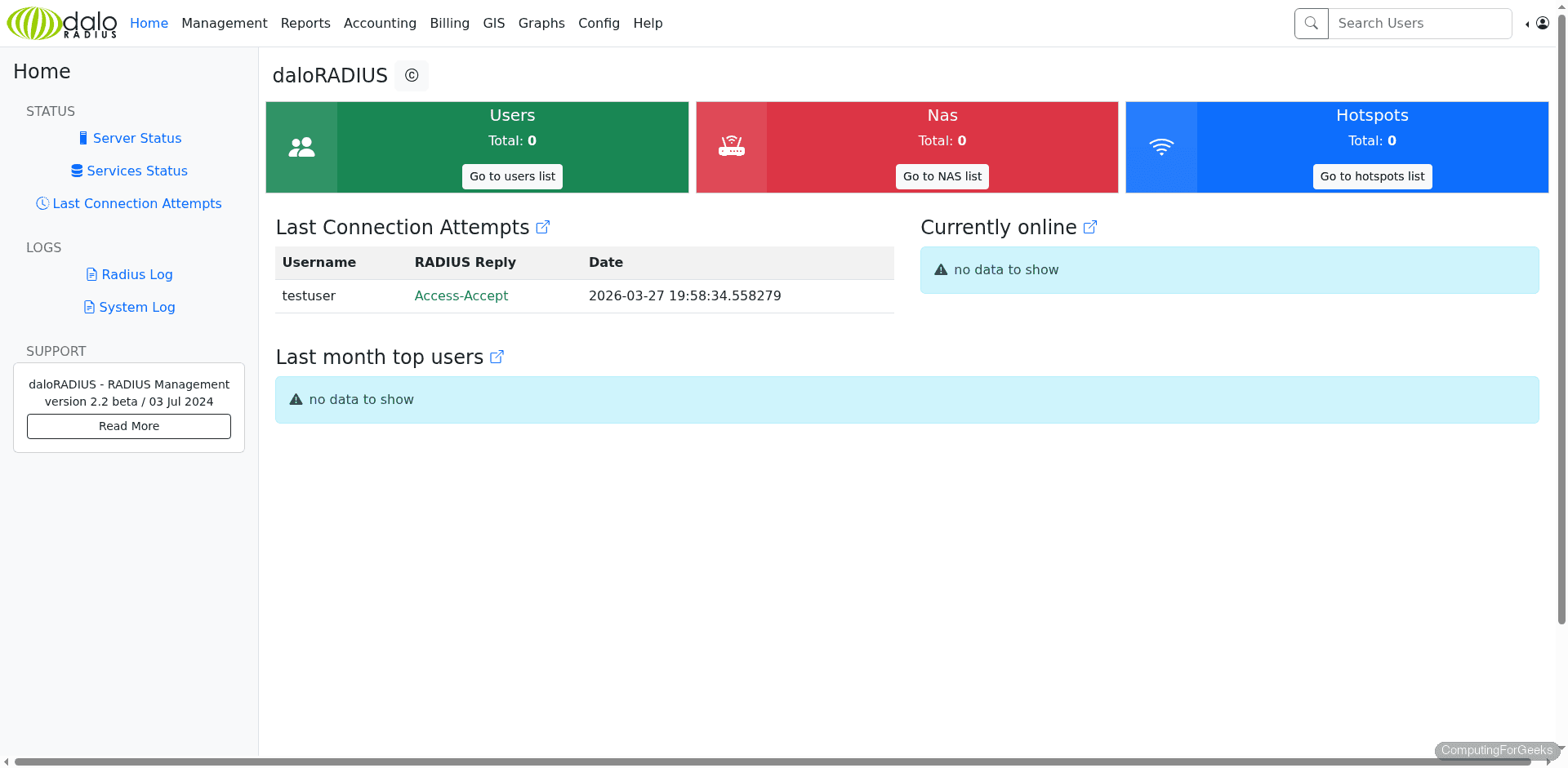
After logging in, the dashboard shows a summary of online users, RADIUS server status, and quick links to common tasks. The navigation menu on the left gives you access to user management, NAS configuration, accounting reports, and server settings.
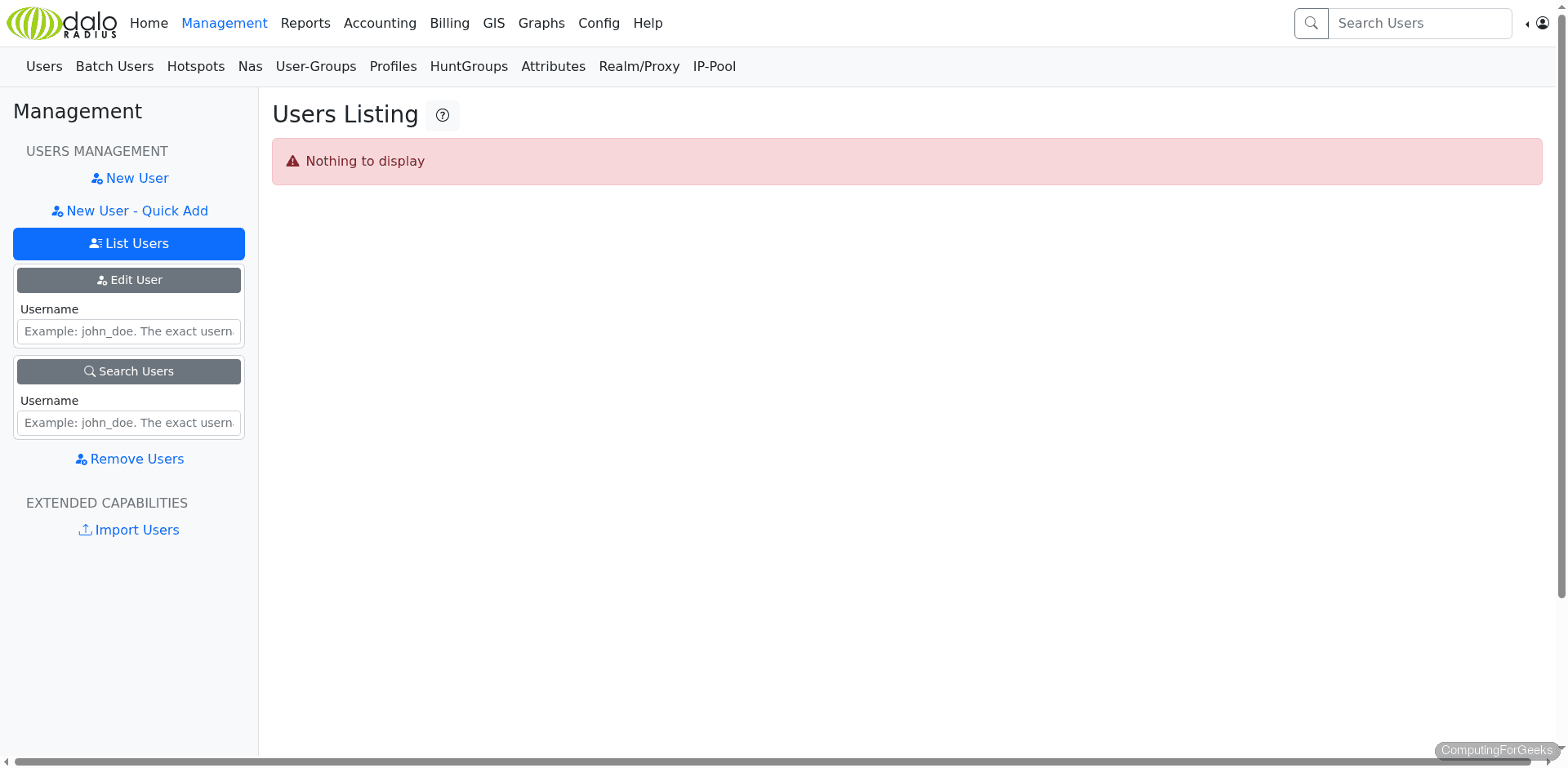
The user management section lists all RADIUS users stored in the database. From here you can add new users, edit authentication attributes, assign groups, and view accounting data per user.
Debian 13 vs Debian 12 Differences
The installation steps are identical on both releases. The package names, paths, and configuration files are the same. The only differences are the software versions pulled from the default repositories:
| Component | Debian 13 (Trixie) | Debian 12 (Bookworm) |
|---|---|---|
| FreeRADIUS | 3.2.7 | 3.2.1 |
| MariaDB | 11.8.6 | 10.11.6 |
| PHP | 8.4.16 | 8.2 |
| Apache | 2.4.66 | 2.4.62 |
| daloRADIUS (git) | 2.2 beta (same, cloned from GitHub) | |
FreeRADIUS 3.2.7 on Debian 13 includes security patches and minor bug fixes over 3.2.1, but the configuration format and file paths are unchanged. The MariaDB jump from 10.11 to 11.8 is a major version difference, though the RADIUS schema works identically on both. PHP 8.4 on Debian 13 is fully compatible with daloRADIUS 2.2.
Troubleshooting
Fatal error: Class ‘DB’ not found in daloRADIUS
This means the php-db PEAR package is missing. daloRADIUS uses the PEAR DB abstraction layer, which is not installed by default on Debian 13 even when you install php-pear. Fix it with:
sudo pear install DBRestart Apache after installing:
sudo systemctl restart apache2Table ‘radius.operators’ doesn’t exist
This happens when you only import the FreeRADIUS schema but skip the daloRADIUS schema. Two separate SQL files must be imported. The daloRADIUS tables (operators, billing, config) live in a different file:
sudo mariadb -u root -p radius < /var/www/daloradius/contrib/db/mariadb-daloradius.sqlFreeRADIUS fails to start with “rlm_sql_mysql: Cannot load library”
The freeradius-mysql package is not installed. This package provides the rlm_sql_mysql.so shared library. Install it and restart:
sudo apt install -y freeradius-mysql
sudo systemctl restart freeradius
Also check file ownership. The SQL module config and symlink must be owned by freerad:freerad, not root. FreeRADIUS drops privileges to the freerad user on startup and cannot read files owned by root:
sudo chown -h freerad:freerad /etc/freeradius/3.0/mods-enabled/sql
sudo chown freerad:freerad /etc/freeradius/3.0/mods-available/sql
Run FreeRADIUS in debug mode to see exactly where the failure occurs:
sudo freeradius -XDebug mode prints every module load, config parse, and SQL connection attempt. The error message will point to the specific problem.

No such file or directory: /var/www/html/daloradius/library/
This has been updated.
Hi,
I got a problem:
sudo ln -s /etc/freeradius/*/mods-available/sql /etc/freeradius/*/mods-enabled/
ln: failed to create symbolic link ‘/etc/freeradius/*/mods-enabled/’: No such file or directory
I mike
Try only
ln -s /etc/freeradius/3.0/mods-available/sql /etc/freeradius/3.0/mods-enabled/
or
ln -s /etc/freeradius/mods-available/sql /etc/freeradius/mods-enabled/
I mike
Try only
ln -s /etc/freeradius/3.0/mods-available/sql /etc/freeradius/3.0/mods-enabled/
or
ln -s /etc/freeradius/mods-available/sql /etc/freeradius/mods-enabled/