

Cockpit gives you a web-based dashboard for managing an Ubuntu server without memorizing CLI commands. You log in with your system credentials, and get a UI for monitoring CPU and memory, managing services, viewing logs, configuring networking and storage, running containers with Podman, managing user accounts, and even opening a terminal. It runs on port 9090 with zero configuration after install and uses no resources when you are not actively using it.
This guide covers the full Cockpit setup on Ubuntu 24.04 LTS: installation, plugins for Podman containers and virtual machines, firewall configuration, and a walkthrough of every major feature with real screenshots from a test VM. For the same setup on RHEL-family systems, see our Cockpit on Rocky Linux 9 / AlmaLinux 9 guide, or Cockpit on Debian.
Tested March 2026 on Ubuntu 24.04 LTS with Cockpit 314, including cockpit-machines, cockpit-podman, cockpit-storaged, cockpit-pcp
Install Cockpit and Plugins
Cockpit is in the default Ubuntu repository. Install the base package along with the most useful plugins:
sudo apt update
sudo apt install -y cockpit cockpit-machines cockpit-podman cockpit-storaged cockpit-networkmanager cockpit-packagekit cockpit-sosreport cockpit-pcp
Here is what each package adds:
| Package | What it adds to Cockpit |
|---|---|
cockpit | Core dashboard, overview, logs, terminal, services, accounts |
cockpit-machines | Create and manage KVM/QEMU virtual machines |
cockpit-podman | Pull images, run and manage Podman containers |
cockpit-storaged | Disk management, LVM, RAID, NFS mounts, filesystem operations |
cockpit-networkmanager | Network interfaces, bonds, VLANs, bridges, firewall zones |
cockpit-packagekit | Software updates through the web UI |
cockpit-sosreport | Generate diagnostic reports for support tickets |
cockpit-pcp | Performance Co-Pilot metrics (persistent historical data) |
Enable and start the Cockpit socket:
sudo systemctl enable --now cockpit.socketVerify it is listening:
sudo systemctl status cockpit.socket
ss -tlnp | grep 9090
Cockpit activates on demand. The cockpit.socket listens on port 9090 and starts the cockpit.service only when someone connects. When idle, there is zero CPU and memory overhead.
Open the Firewall
If UFW is active, allow port 9090:
sudo ufw allow 9090/tcp
sudo ufw reload
Log In to the Web Console
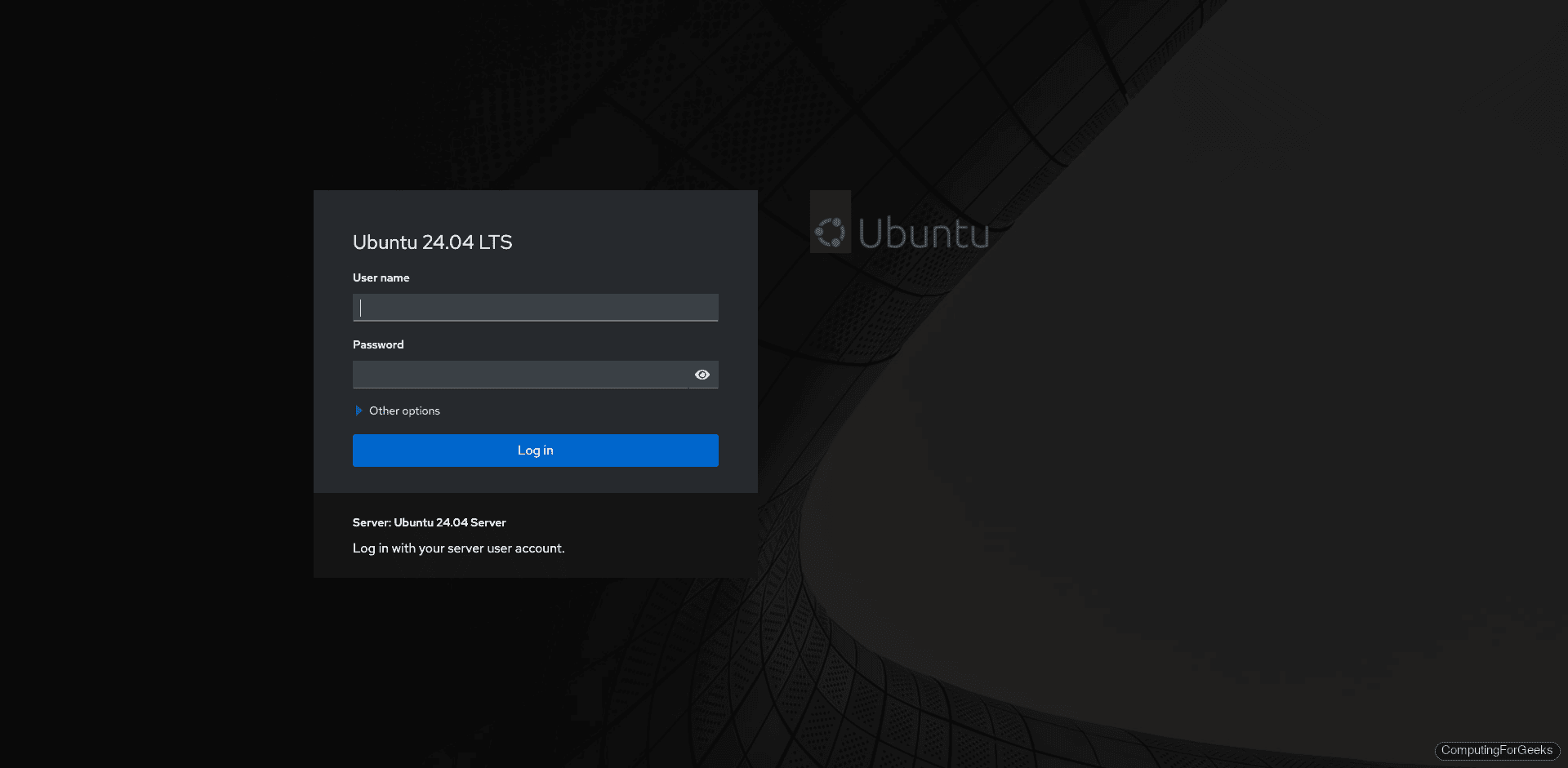
Open https://your-server-ip:9090 in a browser. You will see a self-signed certificate warning (expected). Accept it and the Cockpit login page appears:
Log in with any system user that has sudo privileges. After login, Cockpit shows the system overview with health status, CPU and memory usage, system information, and configuration details:
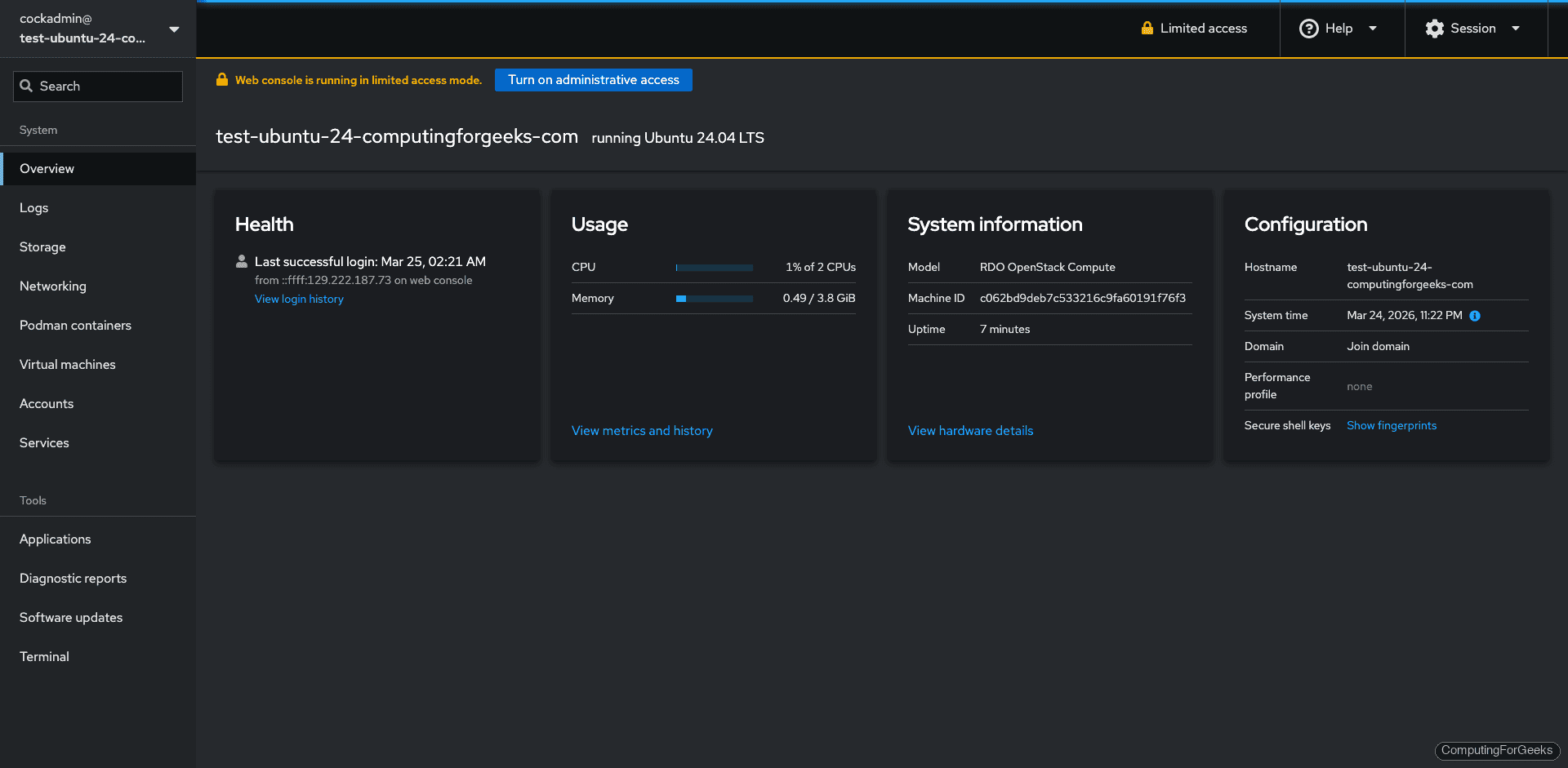
The yellow “Limited access” banner at the top means Cockpit is running without root privileges. Click Turn on administrative access and enter your password to unlock features like storage management, package installation, and service control. This is equivalent to running sudo on the command line.
What You Can Do with Cockpit
With all plugins installed, the sidebar gives you access to everything a sysadmin touches daily. Here is what each section does, with screenshots from our test server.
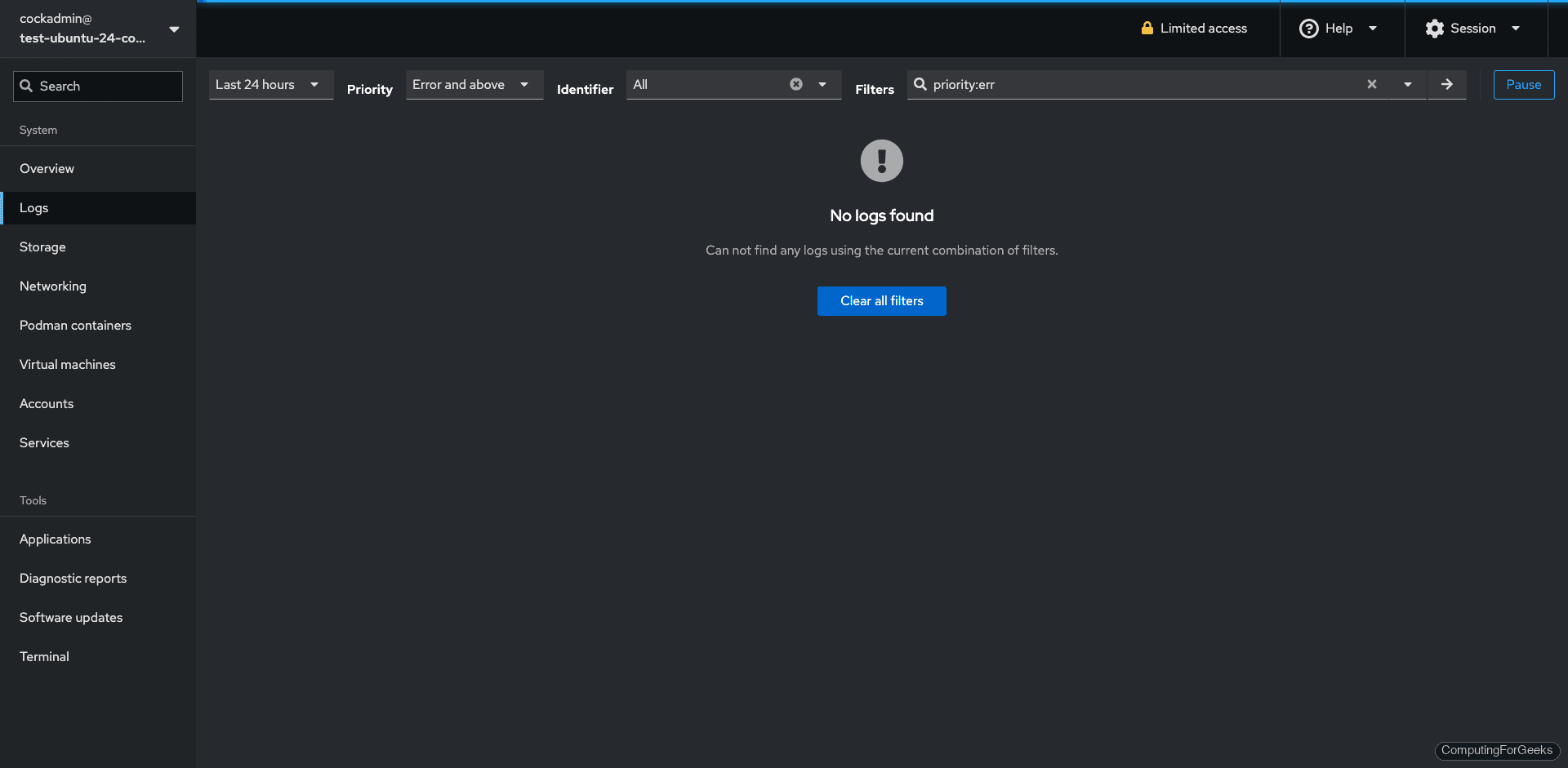
System Logs
Filter journald logs by priority, time range, or service. This beats running journalctl when you need to scan for errors quickly:
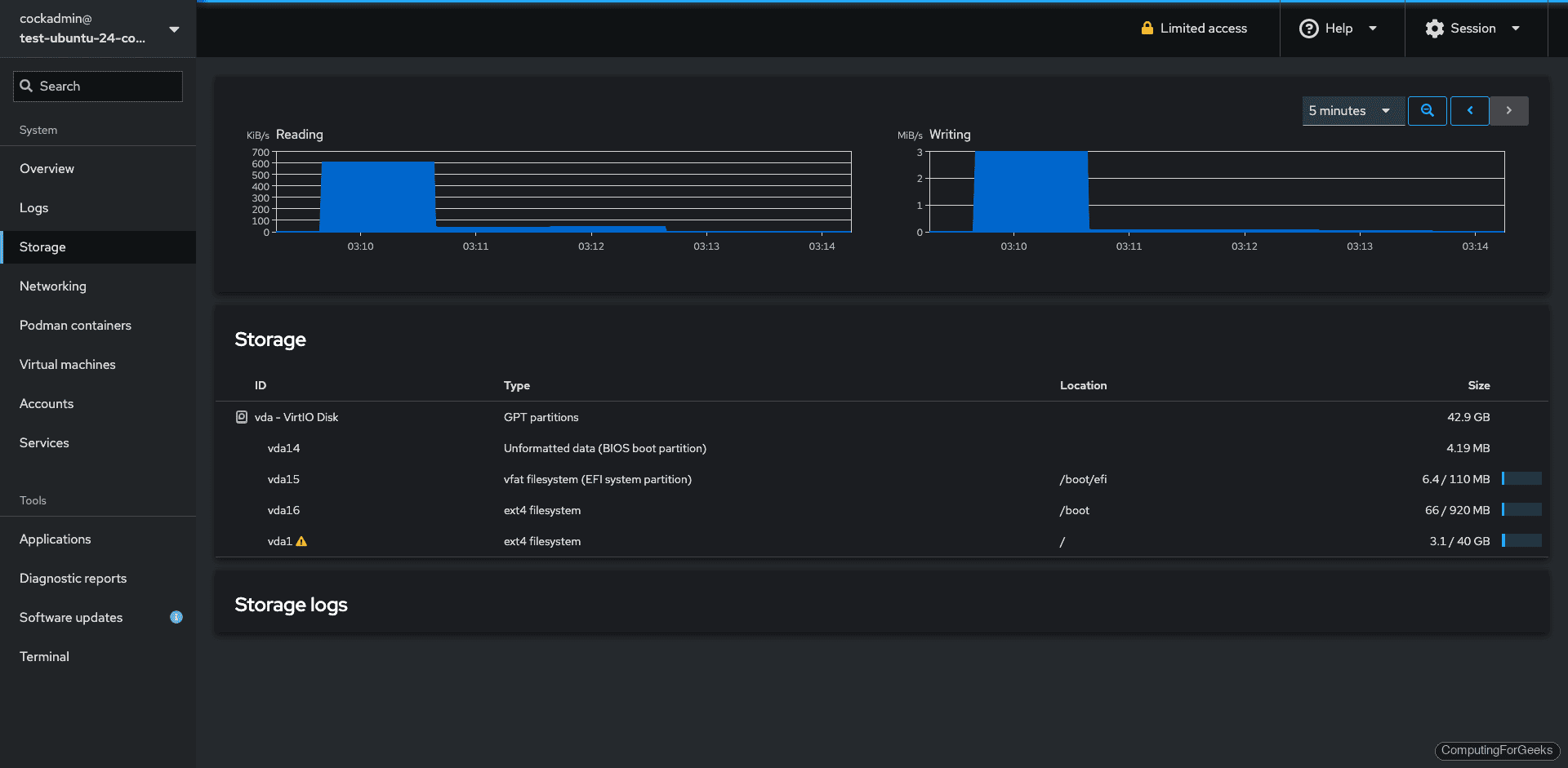
Storage
View disk I/O graphs, manage partitions, configure LVM, create RAID arrays, and mount NFS shares. The storage page requires administrative access to modify anything, but read-only view works without it:
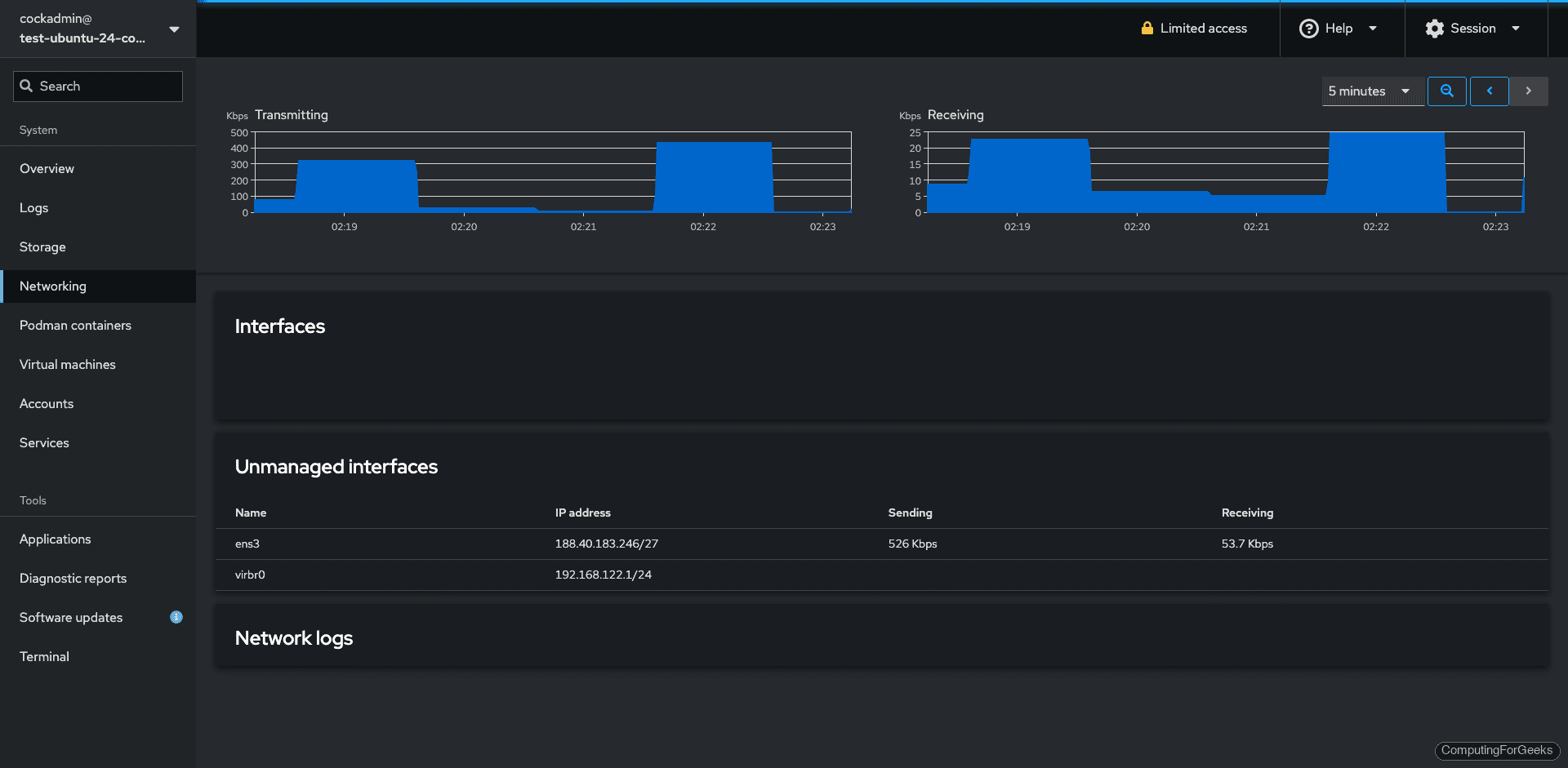
Networking
View interfaces, traffic graphs, configure bonds, VLANs, bridges, and manage firewall zones. The networking page requires administrative access:
Podman Containers
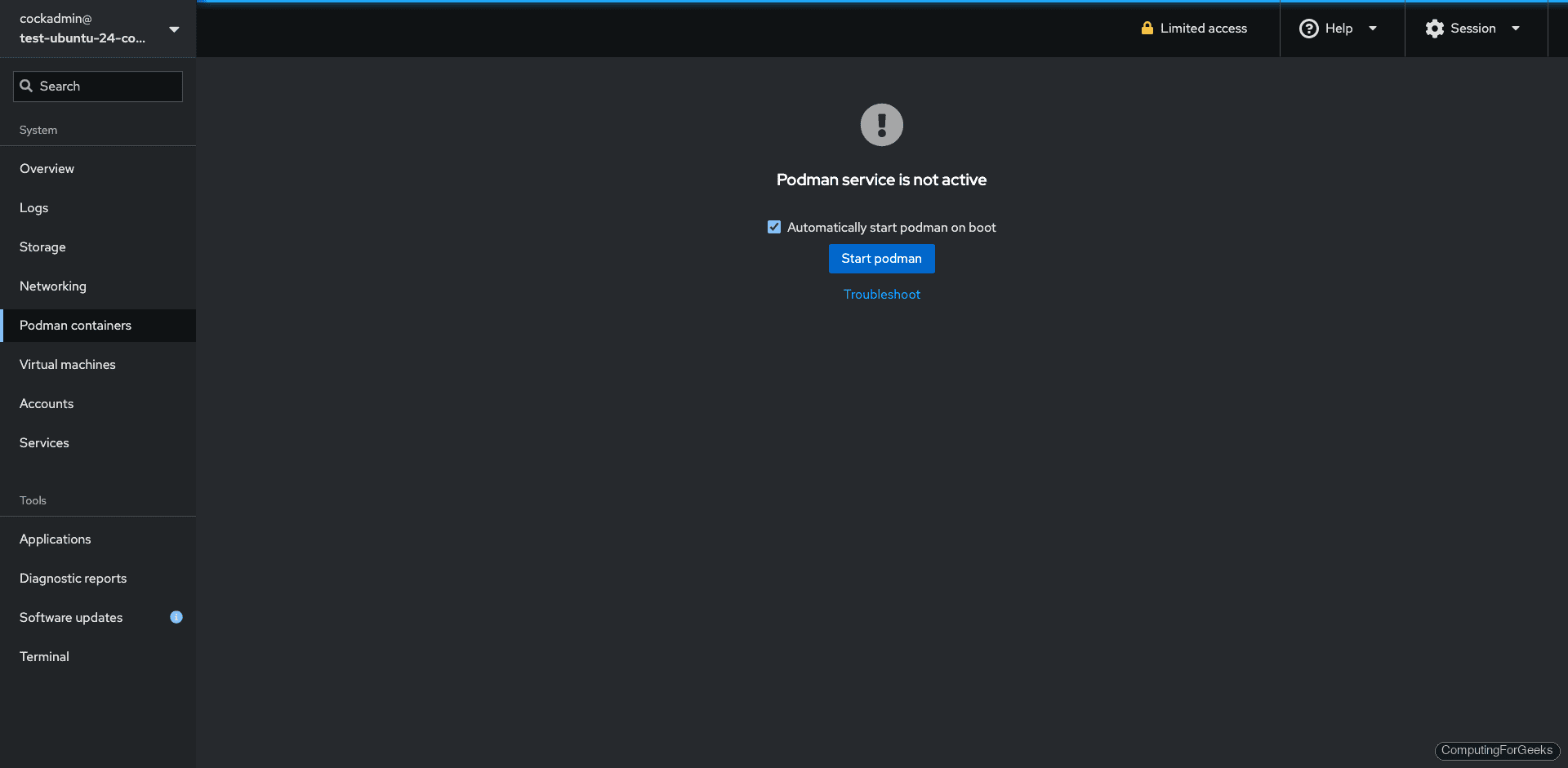
Cockpit integrates with Podman (not Docker) for container management. The first time you visit this page, it shows “Podman service is not active” with a Start podman button. Click it to activate the user’s Podman socket. After that, you can pull images, create containers, and manage the lifecycle from the UI. You can also start the socket from the terminal with systemctl --user start podman.socket.
Virtual Machines
The cockpit-machines plugin provides a full KVM/QEMU management interface. Install the hypervisor packages separately: sudo apt install qemu-kvm libvirt-daemon-system virtinst. Then you can create VMs, manage storage pools, configure virtual networks, and access VM consoles directly in the browser:
User Accounts
Create users, change passwords, manage SSH keys, and lock/unlock accounts. The accounts page shows each user with their full name, UID, last login time, and group memberships:
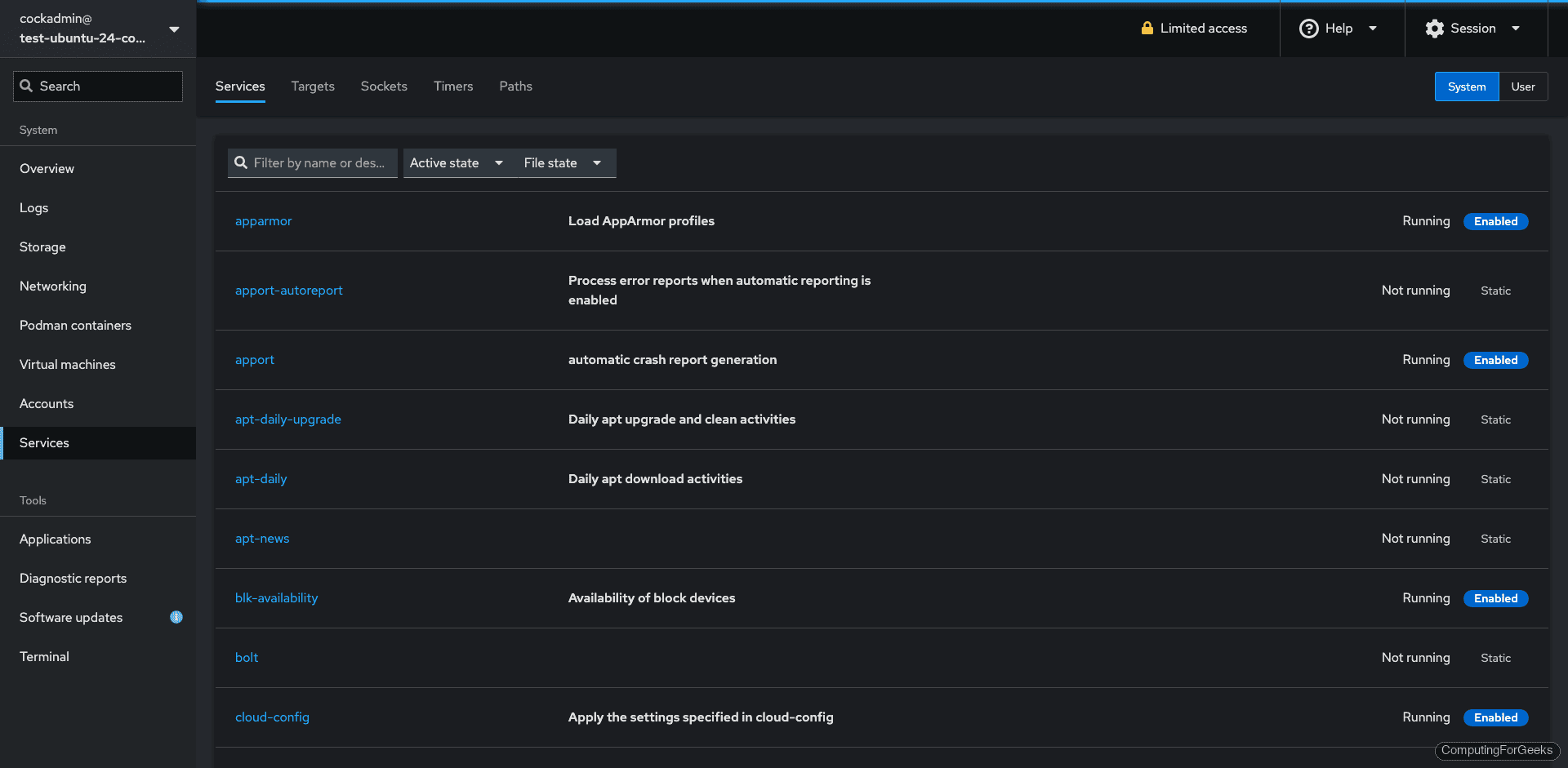
Services
Start, stop, enable, and disable systemd services. The services page groups them by targets (similar to runlevels) and shows the current state of each:
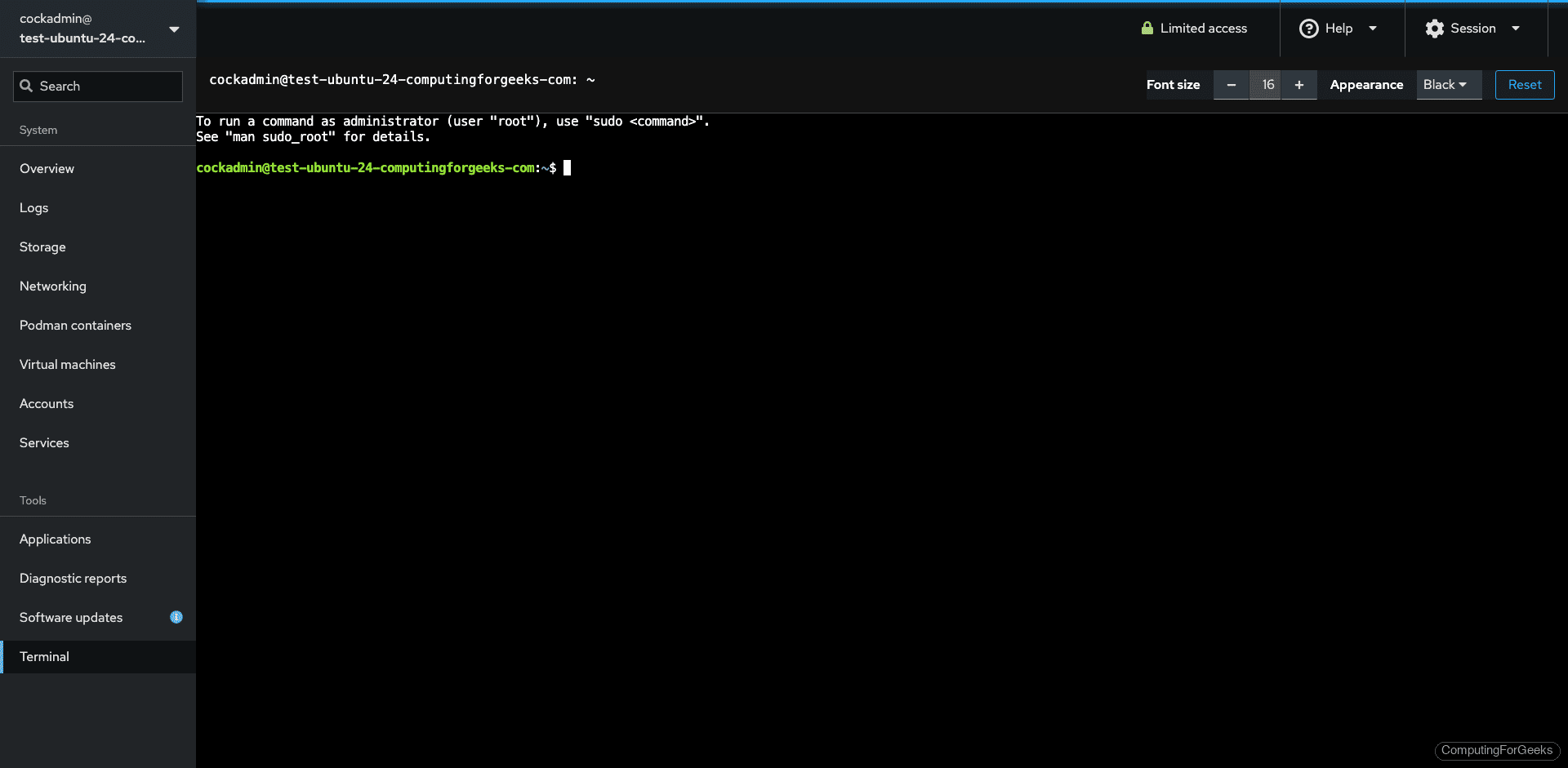
Terminal
A full terminal emulator runs directly in the browser. Useful when you need to run a quick command without opening a separate SSH session:
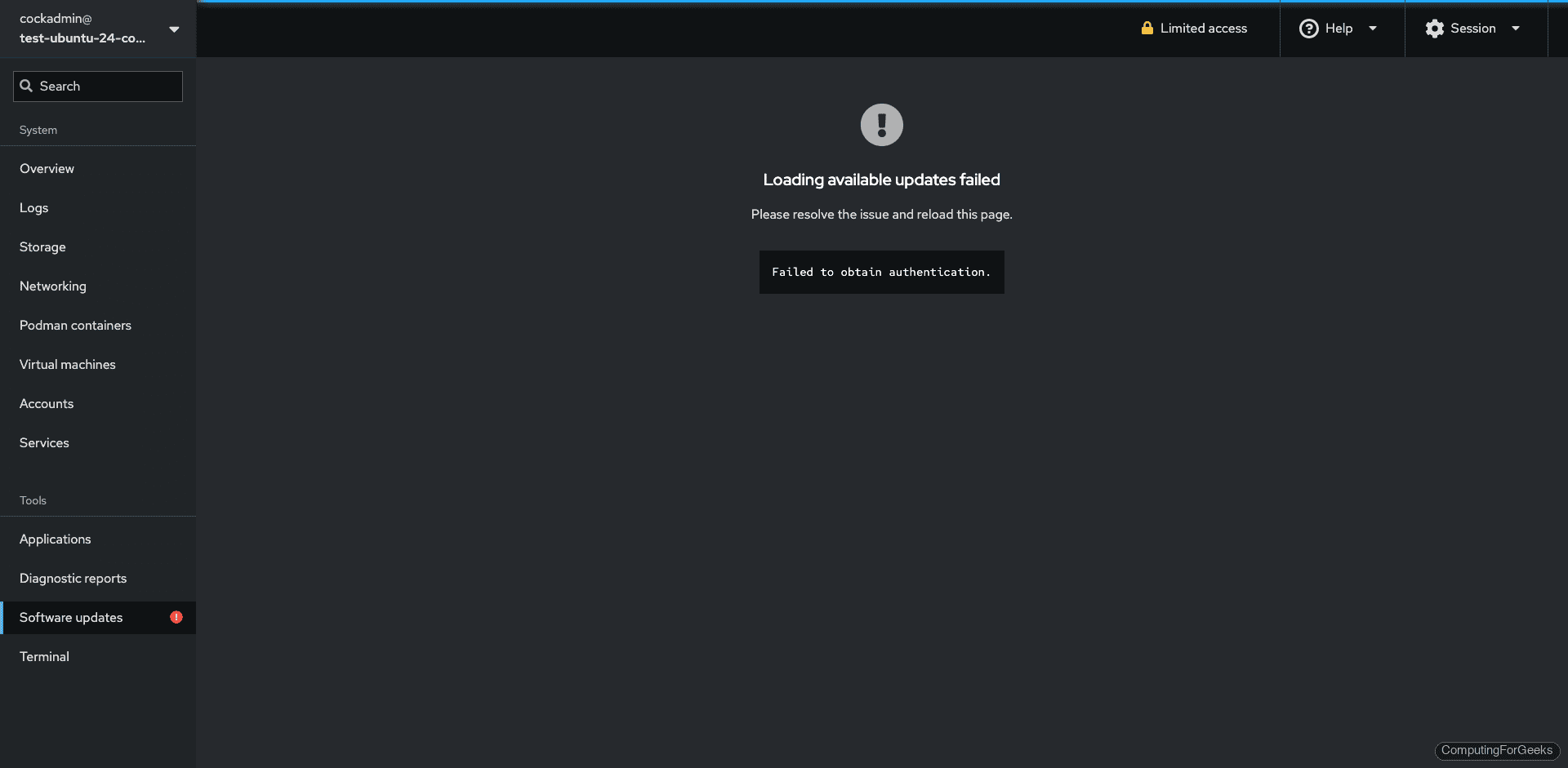
Software Updates
Apply system updates, view available patches, and configure automatic updates from the web UI instead of running apt upgrade manually:
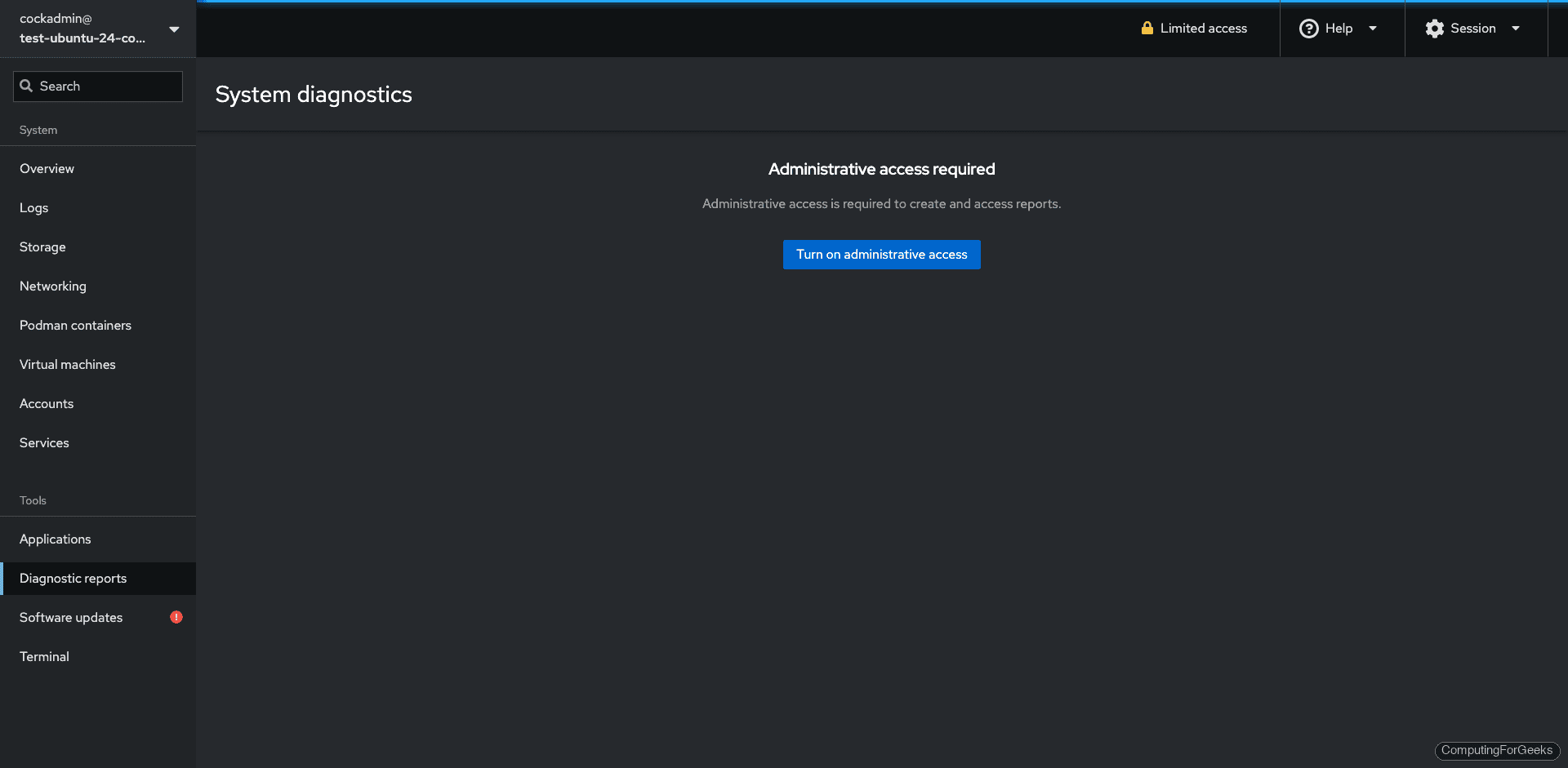
Diagnostic Reports
Generate an SOS report for debugging or support tickets. The report collects system configuration, logs, and hardware info into a single archive:
Available Cockpit Plugins
Beyond what we installed, Ubuntu’s repositories include additional Cockpit plugins for specific use cases:
apt-cache search cockpit| Plugin | Purpose |
|---|---|
cockpit-389-ds | Manage 389 Directory Server (LDAP) |
cockpit-doc | Cockpit developer documentation |
cockpit-ws | Web server component (installed with cockpit) |
Install any of these with sudo apt install package-name. They appear in the sidebar automatically after installation.
Connect to Additional Servers
Cockpit can manage multiple servers from a single dashboard. On the target server, install Cockpit and ensure port 9090 is open. Then from the primary Cockpit UI, click your username in the top-left corner, select Add new host, and enter the remote server’s hostname or IP. Cockpit connects over SSH and adds the remote server to the sidebar.
This is particularly useful when managing a small fleet of Ubuntu servers from a single browser tab instead of juggling multiple SSH sessions.
Custom TLS Certificate
Cockpit uses a self-signed certificate by default. To use a proper certificate (from Let’s Encrypt or your internal CA), place the certificate and key in /etc/cockpit/ws-certs.d/:
sudo cp fullchain.pem /etc/cockpit/ws-certs.d/cockpit.cert
sudo cp privkey.pem /etc/cockpit/ws-certs.d/cockpit.key
sudo systemctl restart cockpit
Cockpit picks up the certificate automatically. The file must have the .cert extension and the key must have .key. Alphabetically, the last .cert file wins if multiple exist.
For the full Cockpit documentation, see the official Cockpit guide. If you are managing KVM virtual machines through Cockpit on Debian, we have a dedicated guide for that workflow.
