The current RHEL 10 release is 10.2 (codename Coughlan), running kernel 6.12, GNOME 49 on Wayland, and the image mode (bootc) deployment model that ships the OS as a container image. RHEL 10 also brought post-quantum cryptography, encrypted DNS, an AI command-line assistant, and an x86-64-v3 baseline that rules out CPUs without AVX2 (roughly pre-2013). This guide walks a clean install from the DVD ISO on bare metal or a virtual machine, covering every screen of the Anaconda installer, and the screens and version output below were captured on RHEL 10.2 in June 2026.
After the install, you will register the system with Red Hat, apply updates, set up the AI assistant, and configure the essentials. The same steps apply whether you are setting up a physical server, a Proxmox or KVM virtual machine, or a VMware/VirtualBox guest. If you want the bigger picture first, the what is new in RHEL 10.2 and 9.8 rundown covers the feature changes this release brings.
Prerequisites
Before starting, make sure you have the following ready:
- Red Hat account for downloading the ISO and registering the system. A free Red Hat Developer subscription works for personal use and allows up to 16 systems.
- RHEL 10.2 ISO image from the Red Hat Customer Portal (Binary DVD around 10 GB, or Boot ISO around 1 GB for network installs).
- Bootable USB drive (16 GB+) for physical installs, or a hypervisor with the ISO mounted for virtual machines.
- Hardware: an x86-64-v3 CPU (Intel Haswell / AMD Excavator or newer), 2 GB RAM minimum (4 GB recommended with a GUI), 20 GB disk (40 GB+ recommended), and network access for registration and updates.
- Tested on RHEL 10.2, x86_64, Proxmox VE (KVM), 4 GB RAM, 40 GB disk.
RHEL 10 dropped support for x86-64-v2 processors. If your server predates 2013, check CPU compatibility first with grep -o 'avx2' /proc/cpuinfo on an existing Linux install. No output means the CPU lacks AVX2 and will not boot RHEL 10.
Download the RHEL 10 ISO
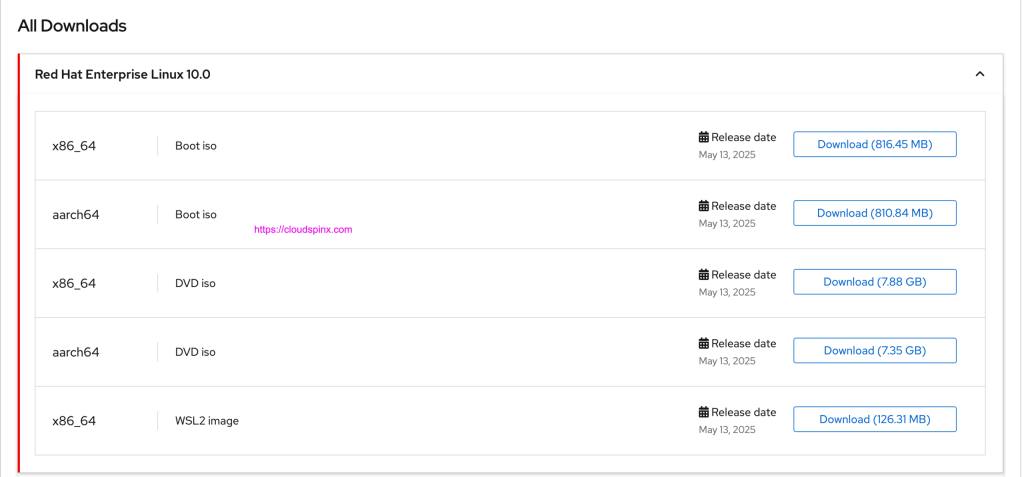
Log in to the Red Hat Customer Portal and open the RHEL 10 downloads section. Two ISO options are available:
- Binary DVD (around 10 GB): contains every package for an offline install. Best for air-gapped servers or when you want a full local package set.
- Boot ISO (around 1 GB): a minimal image that pulls packages from the Red Hat CDN during install. Faster to download, but the target machine needs internet.
For most server installs, the Binary DVD is the safer choice since it does not depend on network availability during installation.
Create Bootable Installation Media
How you prepare the media depends on whether you are installing on physical hardware or a virtual machine.
USB Drive (Physical Servers)
On a Linux workstation, write the ISO directly to the USB device:
sudo dd if=~/Downloads/rhel-10.2-x86_64-dvd.iso of=/dev/sdX bs=4M status=progress oflag=syncReplace /dev/sdX with your actual USB device. Double-check with lsblk first, because dd overwrites whatever device you point it at.
On Windows, use Rufus with the GPT partition scheme and DD image mode. On macOS, balenaEtcher handles the write with a drag-and-drop interface.
Virtual Machine Setup
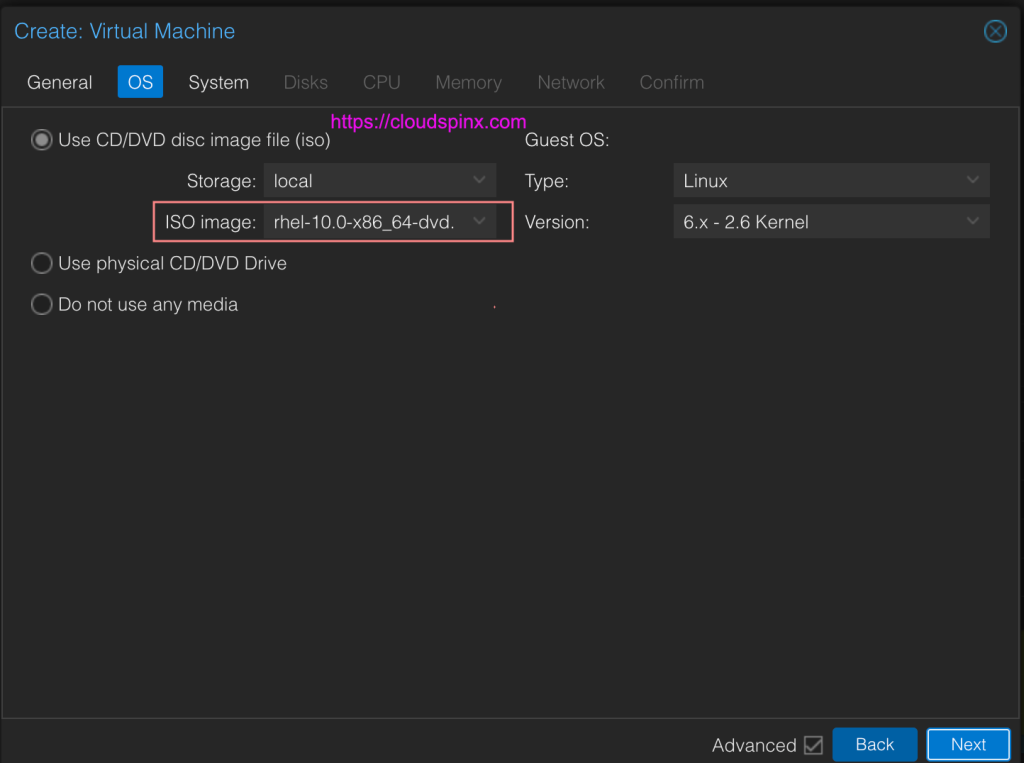
For VMware, VirtualBox, Proxmox, or KVM, upload the ISO to your datastore or storage pool and attach it to a new VM as a CD/DVD drive. Set the VM to boot from the optical drive first, and give it UEFI firmware to match a modern bare-metal install.
Boot from the RHEL 10.2 Installer
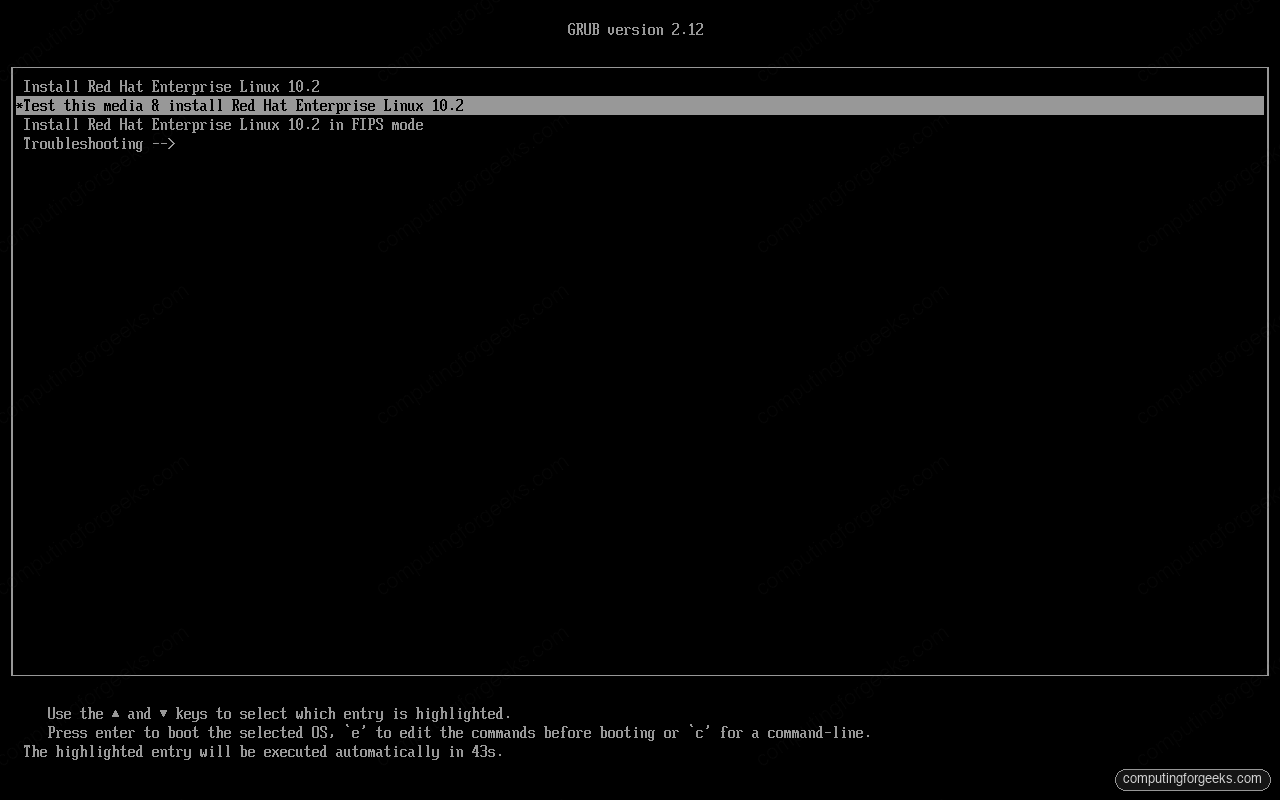
When the system boots from the ISO, the GRUB boot menu appears. Select Install Red Hat Enterprise Linux 10.2 and press Enter. The “Test this media & install” option runs an integrity check on the ISO first, which adds a few minutes but catches a corrupt download before it causes a cryptic install failure.
Select Installation Language
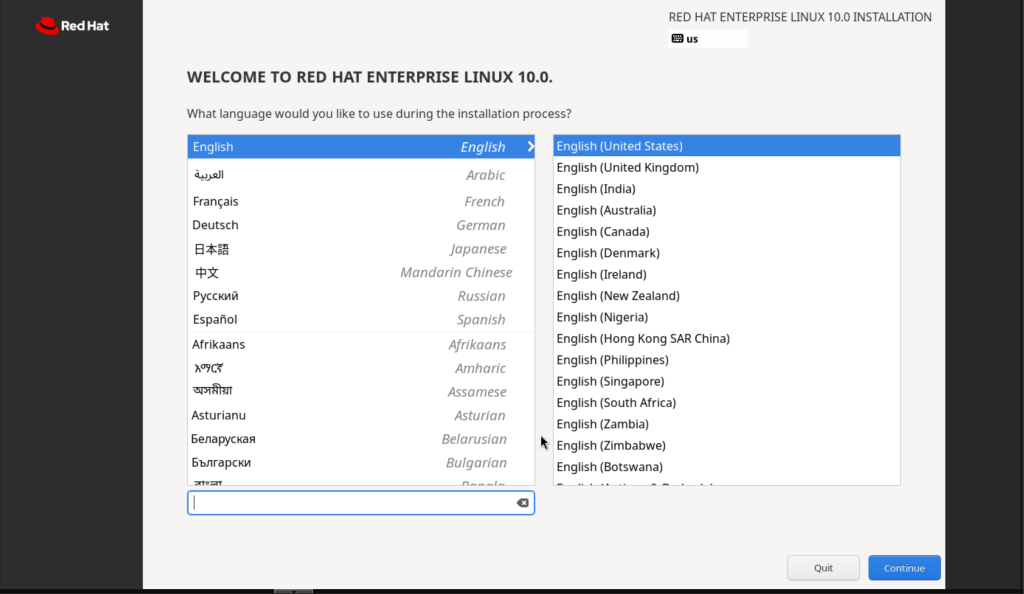
The Anaconda installer opens with a language selection screen. Pick your language and keyboard layout. This controls the installer’s interface language and sets the default locale for the installed system, which you can change later.
Configure the Installation Summary
After language selection, Anaconda presents the Installation Summary hub. This is where all configuration happens before anything is written to disk. Items marked with a warning icon need attention before you can proceed.
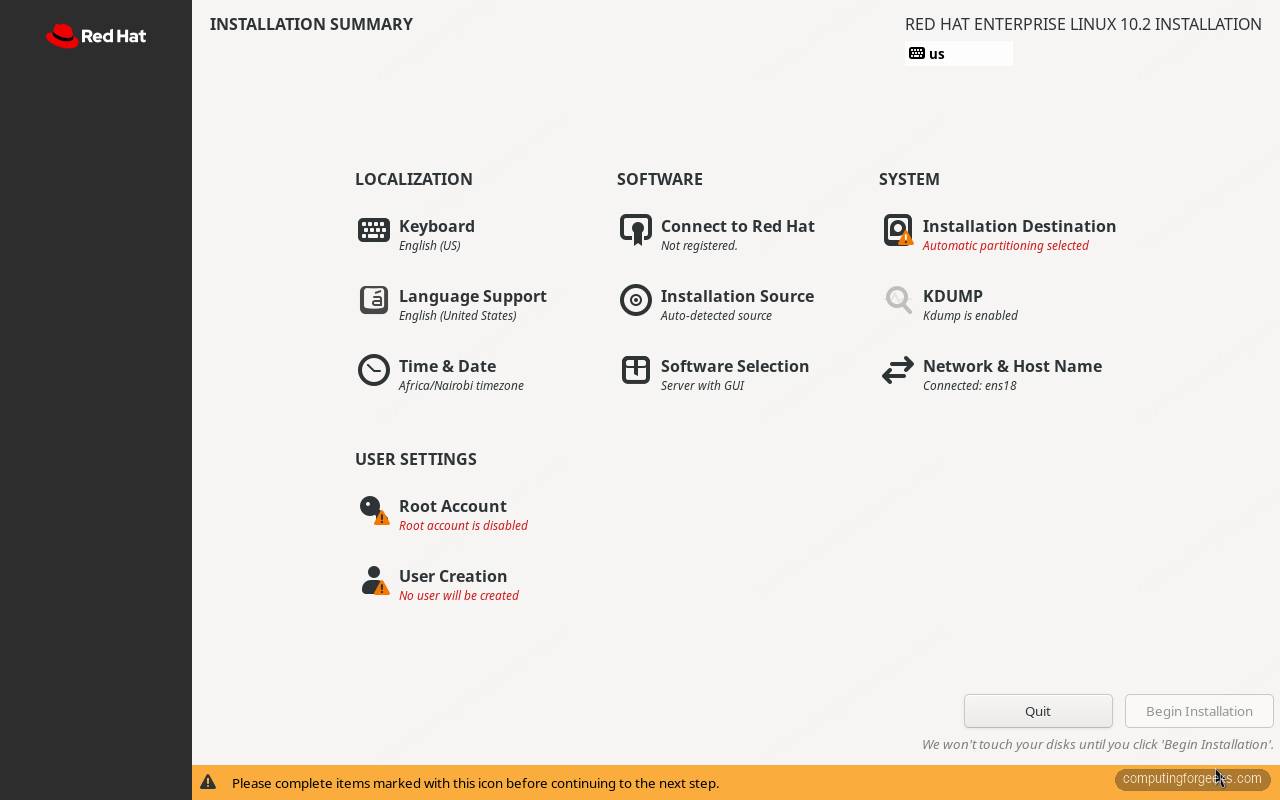
Work through each section that needs configuration.
Root Password
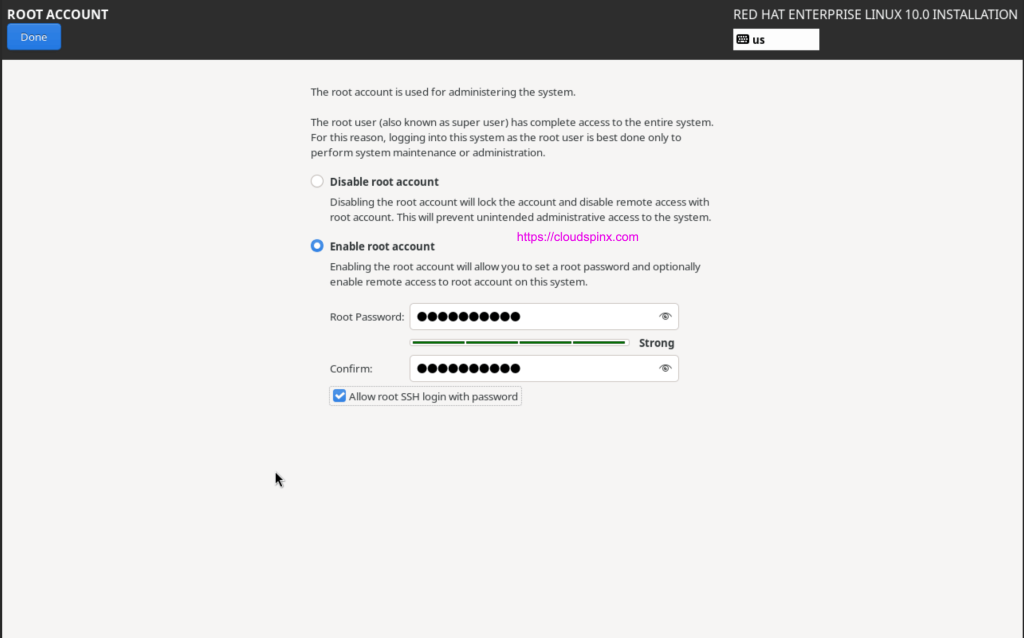
Click Root Password to set the root account credentials. RHEL 10 locks the root account by default unless you explicitly set a password here. On servers you can allow root SSH access during initial setup, though production systems should rely on a sudo-capable user instead.
Create a User Account
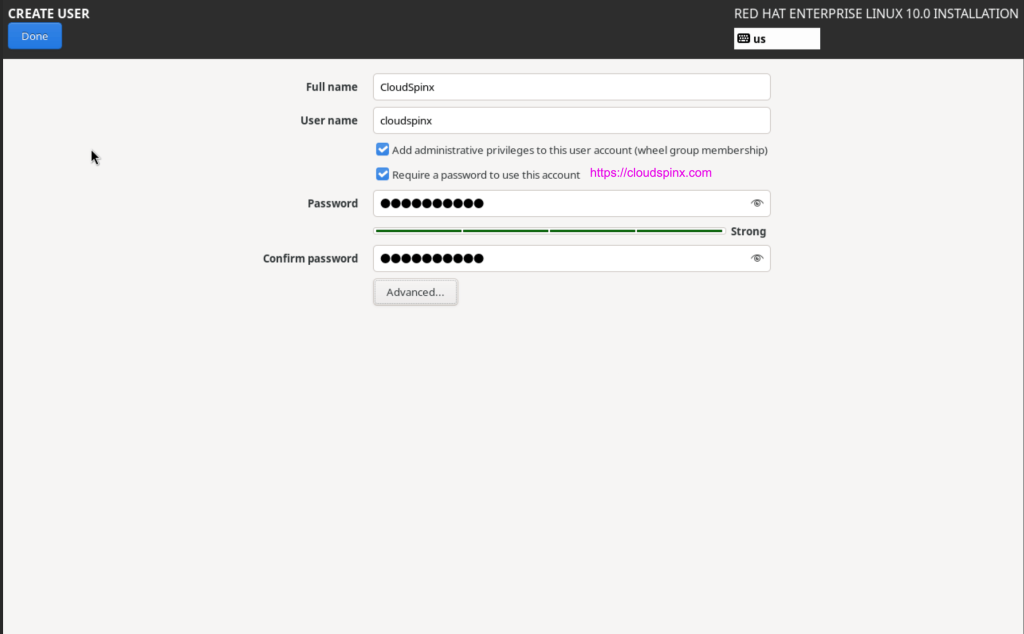
Click User Creation to add a non-root account, and check “Make this user administrator” to grant sudo privileges. This is the account you should use for day-to-day access.
Installation Destination (Disk Partitioning)
Click Installation Destination to choose the target disk and partitioning scheme. For most setups, the “Automatic” option creates a sensible LVM layout with /boot, /boot/efi on UEFI systems, and a root volume group. RHEL 10 defaults to XFS for the root filesystem and LUKS2 if you enable encryption.
For production servers, consider custom partitioning with separate /var and /home volumes so log files or user data cannot fill the root filesystem.
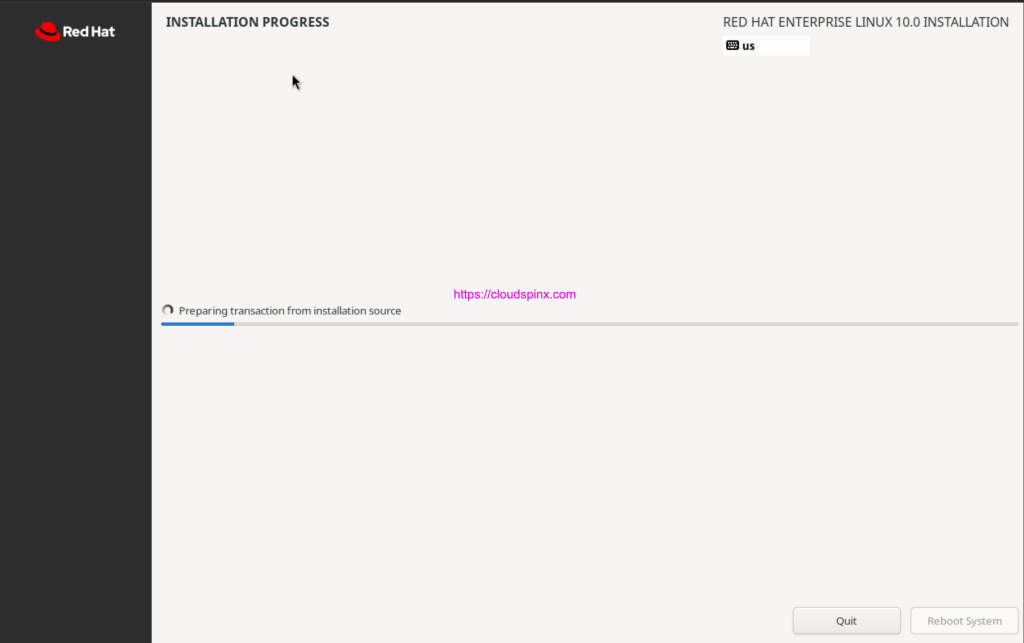
Once every section is configured, click Begin Installation. Anaconda writes the partition table, formats the filesystems, and installs packages. On a local disk with the Binary DVD this usually takes 5 to 15 minutes depending on disk speed.
Reboot into the Installed System
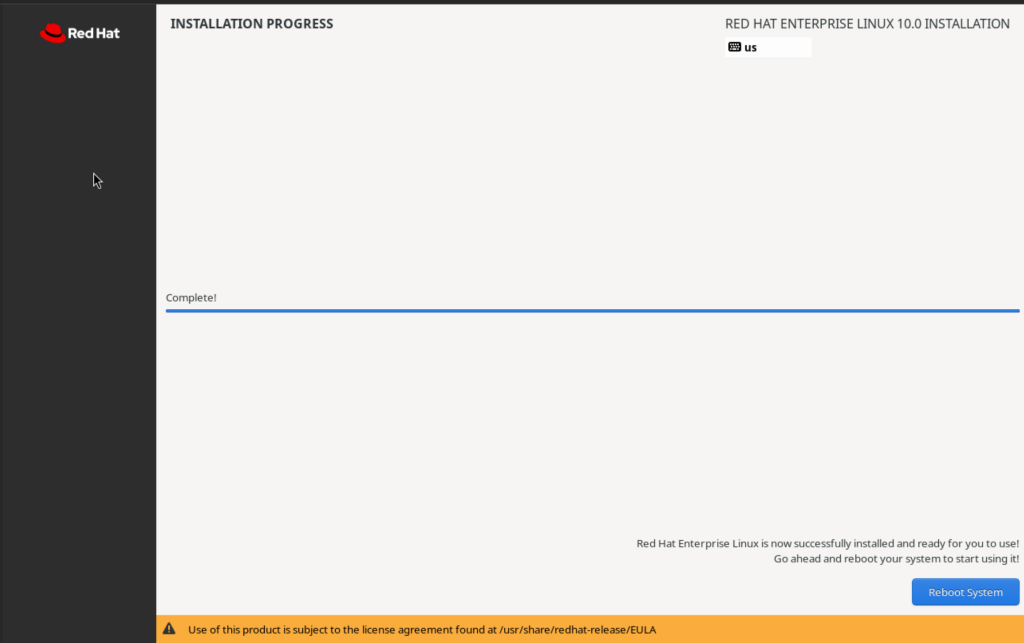
When the installation finishes, Anaconda prompts you to reboot. Remove the USB drive or unmount the ISO from the VM before the system restarts, otherwise it boots straight back into the installer.
After reboot, log in with the user account you created during installation. If you installed the Server with GUI option, GNOME 49 loads on Wayland by default. For a headless server with no desktop, log in at the text console or connect over SSH.
Post-Installation Setup
With RHEL 10.2 installed, configure the essentials before putting the system into service.
Set the System Hostname
A proper FQDN hostname matters for logging, certificate generation, and subscription management. Set it with hostnamectl:
sudo hostnamectl set-hostname rhel10.example.com --staticVerify the change. The output shows the static hostname, OS version, kernel, and architecture:
hostnamectl Static hostname: rhel10.example.com
Icon name: computer-vm
Chassis: vm
Virtualization: kvm
Operating System: Red Hat Enterprise Linux 10.2 (Coughlan)
CPE OS Name: cpe:/o:redhat:enterprise_linux:10::baseos
Kernel: Linux 6.12.0-211.7.3.el10_2.x86_64
Architecture: x86-64Add the hostname to /etc/hosts so it resolves locally without DNS, replacing the example IP with your server’s address:
echo "10.0.1.50 rhel10.example.com rhel10" | sudo tee -a /etc/hostsRegister and Subscribe the System
Registration connects the system to Red Hat’s content delivery network, unlocking the official repos and security updates. Enter your Red Hat login when prompted:
sudo subscription-manager registerOn RHEL 10 this enables content through Simple Content Access, so no manual subscription attach is needed. Confirm the status:
sudo subscription-manager statusThe output should read “Overall Status: Current”, meaning the system has valid entitlements and can pull updates.
Apply System Updates
Confirm the repositories registered, then pull updates:
sudo dnf repolistYou should see the BaseOS and AppStream repositories:
repo id                           repo name
rhel-10-for-x86_64-appstream-rpms Red Hat Enterprise Linux 10 for x86_64 - AppStream (RPMs)
rhel-10-for-x86_64-baseos-rpms    Red Hat Enterprise Linux 10 for x86_64 - BaseOS (RPMs)
Pull all available updates, then reboot if a new kernel was installed:
sudo dnf -y update
sudo systemctl reboot
Verify the Installed System
After reboot, confirm the release and kernel:
cat /etc/redhat-release
uname -r
This returns the 10.2 release string and the matching kernel:

Set Up the AI Command-Line Assistant
RHEL 10 ships an AI command-line assistant powered by Lightspeed, and a registered system can install it from AppStream right away:
sudo dnf install -y command-line-assistant
sudo systemctl enable --now clad
Ask it a question with the c command and you get a RHEL-specific answer in the terminal:
c chat "how do I open a port in firewalld?"The full workflow, including piping logs into a question, the goose agent, and an offline local model, is covered in the hands-on guide to the RHEL command-line AI assistant.
Enable the CRB Repository
Many third-party packages and development tools depend on the CodeReady Builder (CRB) repository, which is not enabled by default. Turn it on with:
sudo subscription-manager repos --enable codeready-builder-for-rhel-10-x86_64-rpmsThis is a prerequisite for EPEL and many development libraries. The dedicated guide on enabling the CRB repository covers it in more detail.
Configure the Firewall
RHEL 10 installs and enables firewalld by default. Confirm it is running, then open ports for the services you plan to run:
sudo firewall-cmd --state
sudo firewall-cmd --permanent --add-service=ssh
sudo firewall-cmd --permanent --add-service=http
sudo firewall-cmd --permanent --add-service=https
sudo firewall-cmd --reload
List the active rules with sudo firewall-cmd --list-all to confirm the services are allowed in the default zone.
Confirm SELinux is Enforcing
SELinux runs in enforcing mode by default. Verify it:
getenforceThe output should be Enforcing. Never set SELinux to permissive or disabled on a production system. If a service is blocked, use ausearch -m avc -ts recent to find the denial and fix it with the right setsebool or semanage command rather than disabling the framework.
Set the Timezone
Confirm or change the system timezone, since accurate time is critical for log correlation, certificate validation, and Kerberos:
sudo timedatectl set-timezone America/New_YorkList the options with timedatectl list-timezones and pick the one matching your server’s location.
RHEL 10.2 Key Specifications
For reference, these are the core components confirmed on a RHEL 10.2 install:
| Component | Version |
|---|---|
| Kernel | 6.12.0-211.7.3.el10_2 |
| systemd | 257 |
| GCC (base) | 14.2 |
| glibc | 2.39 |
| Python | 3.12 (3.14 stream available) |
| Podman | 5.8.2 |
| OpenSSH | 9.9p1 |
| GNOME | 49.4 (Wayland only) |
| Default filesystem | XFS |
| CPU baseline | x86-64-v3 (AVX2 required) |
| Support lifecycle | Maintenance support to ~2035 |
| Codename | Coughlan |
Production Hardening Checklist
Before putting the server into production, work through these additional steps:
- Disable root SSH login: set
PermitRootLogin noin/etc/ssh/sshd_configand use key-based authentication with your sudo user instead. - Configure automatic updates: install
dnf-automaticfor unattended security patches. - Set a static IP address if the server runs services that need a consistent network identity.
- Install monitoring: deploy Nagios, Zabbix, or Prometheus to track resource usage and service health.
- Enable Cockpit for web-based management at
https://server-ip:9090(installed by default on Server with GUI). - Confirm time sync: RHEL 10 uses chrony by default, verify with
chronyc tracking.
If you would rather run a free rebuild, the Rocky Linux, AlmaLinux and RHEL comparison lays out where they differ, and the install flow is nearly identical. Either way, registering the system and setting up the AI assistant on day one gives you the official repos and a faster path through the rest of your setup.